> For the complete documentation index, see [llms.txt](https://docs.dataloy.com/llms.txt). Markdown versions of documentation pages are available by appending `.md` to page URLs; this page is available as [Markdown](https://docs.dataloy.com/release-6.37/voyage-management-system/step-by-step-guides/master-data/companies/manage-companies.md).

# Manage Companies

## Creating a new Company

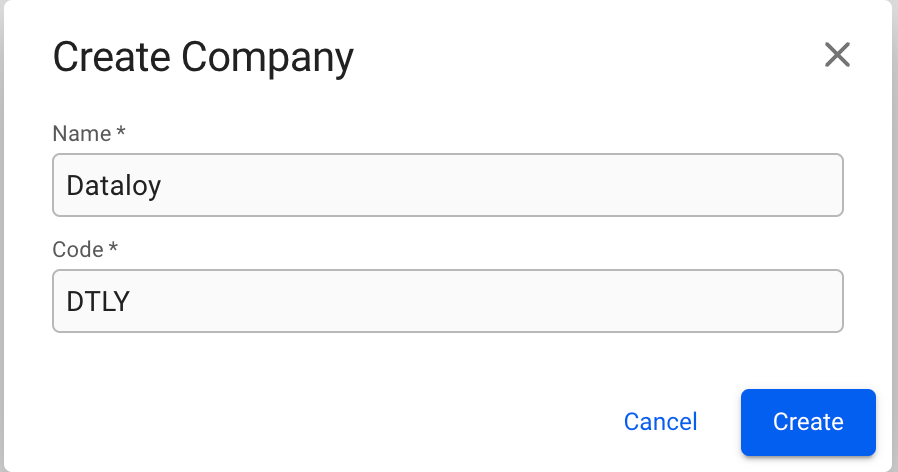
To create a new Company, click the ![](https://content.gitbook.com/content/9WnM8rZV2FJkRruPtTKc/blobs/SFWNdFDlkNmTLVMzPJuJ/image.png) icon in the top right on the Companies list. This will bring up the Create Company modal. Fill in company name and code, and click create.

<figure><img src="https://content.gitbook.com/content/9WnM8rZV2FJkRruPtTKc/blobs/XAicxp2kraIaVTCz1QiK/CreateCompanyModal.png" alt="" width="375"><figcaption></figcaption></figure>

## Edit Company details

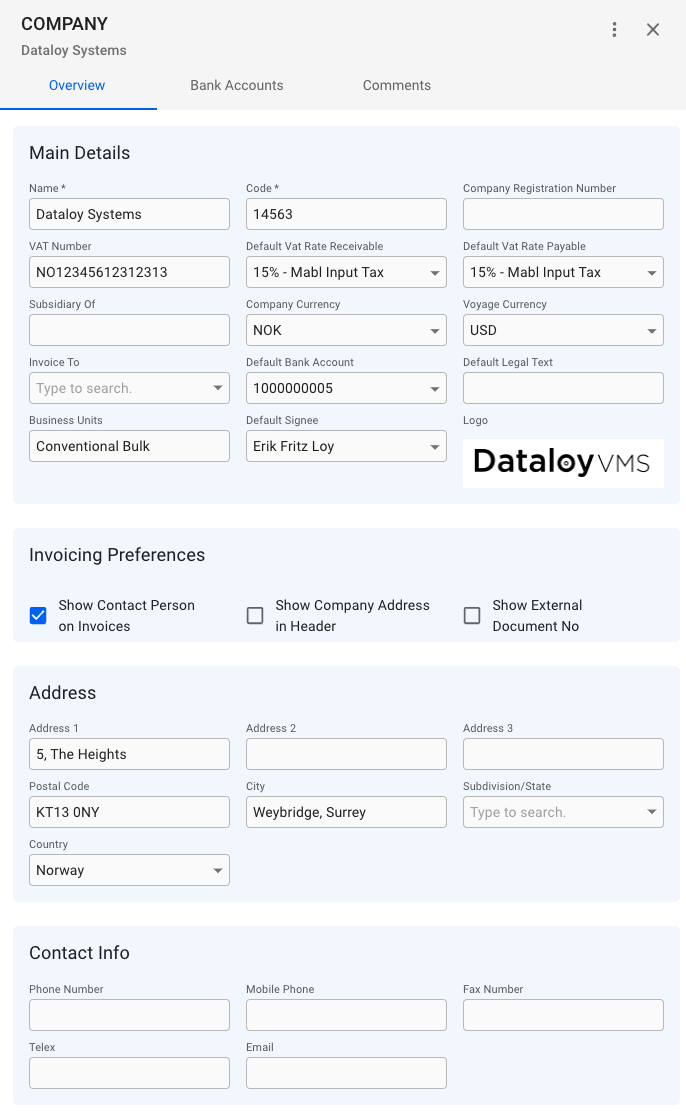
To add or change details about a company, click on it in the Companies list. This will bring up the Company drawer.

### Overview tab

From the overview tab, you can see all the important details of a company such as name, company registration number, VAT number, currencies, business units and more. If the company has a logo, it will also be displayed here.

<figure><img src="https://content.gitbook.com/content/9WnM8rZV2FJkRruPtTKc/blobs/0IbPZPZUDgIZsfGaB1jU/CompanyDrawerOverview.png" alt="" width="343"><figcaption></figcaption></figure>

{% hint style="info" %}
The Default Signee field in the Main Details section will sign invoices by the company with the users signature, should it have one.
{% endhint %}

#### Invoicing Preferences

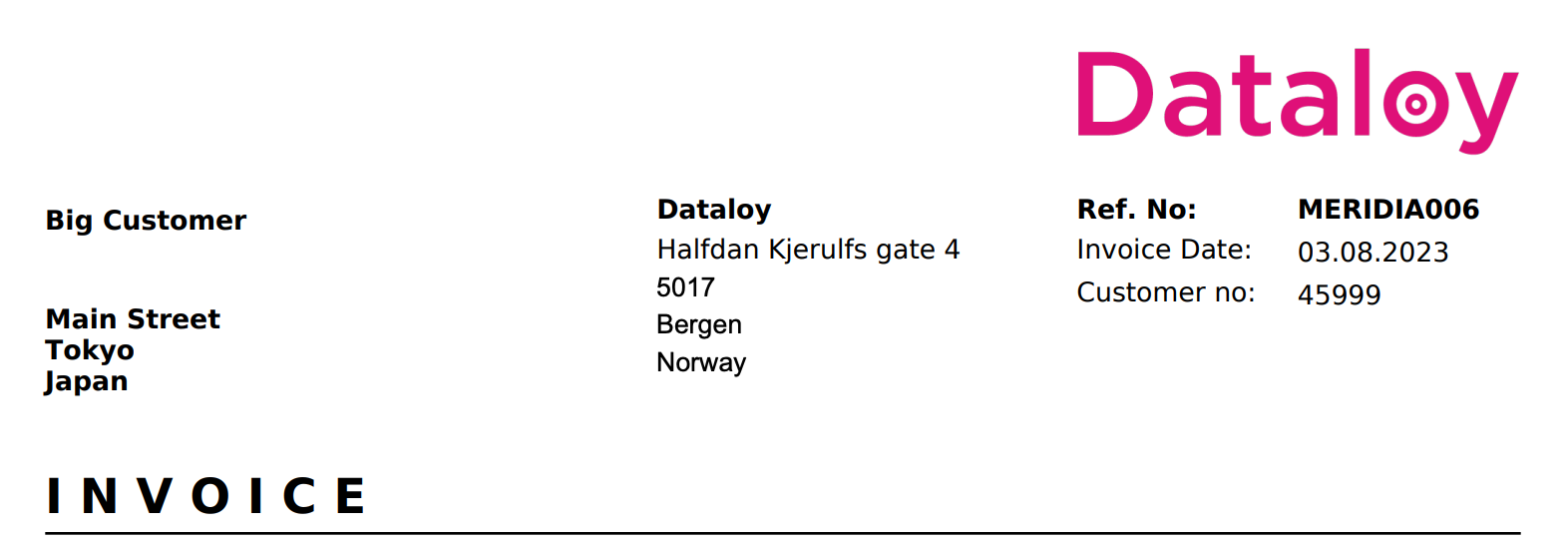
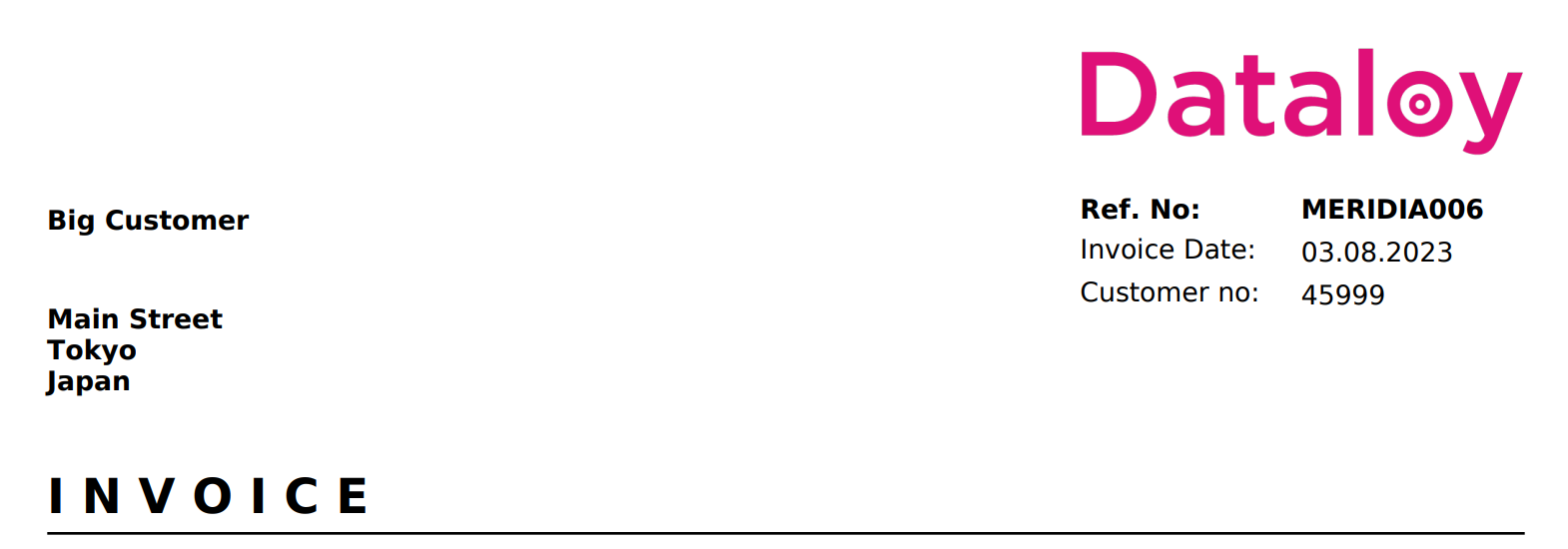
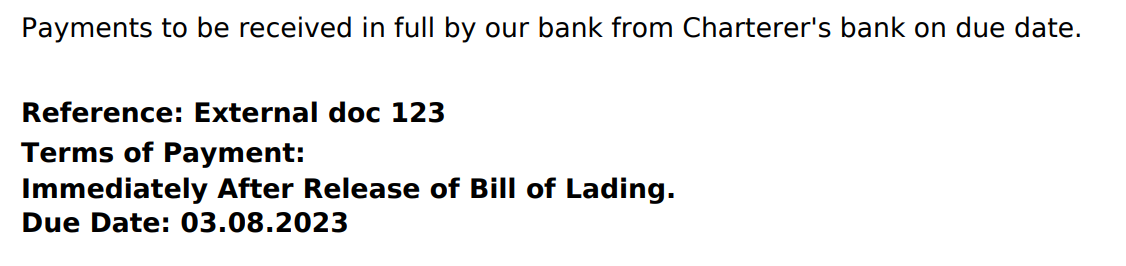
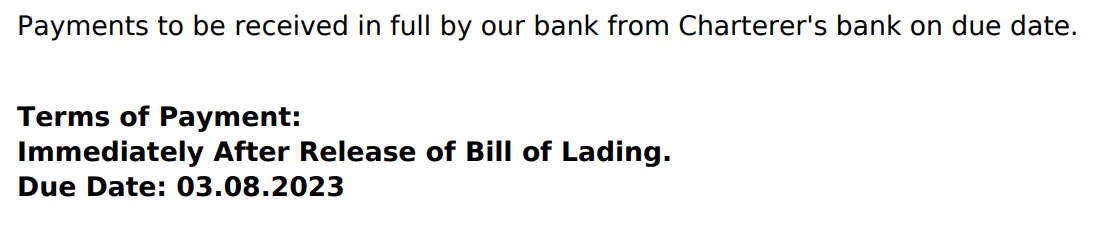
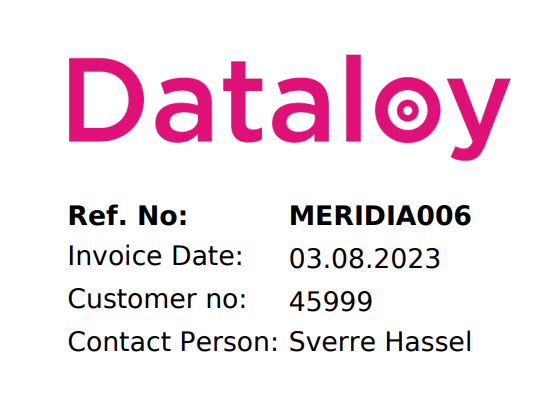
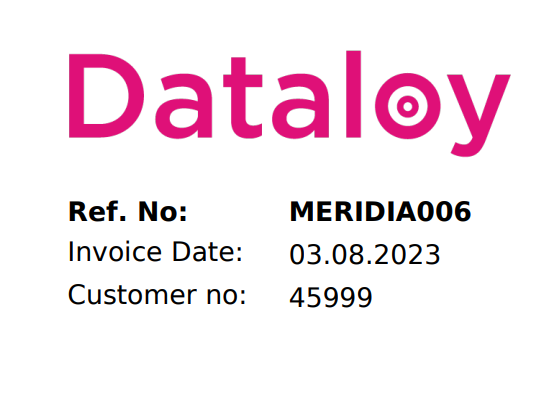
The invoice preferences section in the Overview tab has three toggleable options which impacts which details shows up on invoices from the company. Below is a comparison with each option toggled on and off.

{% tabs %}
{% tab title="Show Contact Person on Invoice" %}

<figure><img src="https://content.gitbook.com/content/9WnM8rZV2FJkRruPtTKc/blobs/zi6NabbXxiIM83G7BiDq/CompanyDrawerShowContactPersonEnabledInvoice.png" alt="" width="280"><figcaption><p>Top right</p></figcaption></figure>
{% endtab %}

{% tab title="Disabled" %}

<figure><img src="https://content.gitbook.com/content/9WnM8rZV2FJkRruPtTKc/blobs/XLecBBJCT68CjPVG579E/CompanyDrawerShowContactPersonDisabledInvoice.png" alt="" width="280"><figcaption><p>Top right</p></figcaption></figure>
{% endtab %}
{% endtabs %}

{% tabs %}
{% tab title="Show Company Address in Header" %}

<figure><img src="https://content.gitbook.com/content/9WnM8rZV2FJkRruPtTKc/blobs/CxhWqVp0iDWKiNww571K/CompanyDrawerShowCompanyAddressEnabledInvoice.png" alt=""><figcaption><p>Top</p></figcaption></figure>
{% endtab %}

{% tab title="Disabled" %}

<figure><img src="https://content.gitbook.com/content/9WnM8rZV2FJkRruPtTKc/blobs/LKMIaXqNBoBsslkoV7Za/CompanyDrawerShowCompanyAdrDisabledInvoice.png" alt=""><figcaption><p>Top</p></figcaption></figure>
{% endtab %}
{% endtabs %}

{% tabs %}
{% tab title="Show External Document No" %}

<figure><img src="https://content.gitbook.com/content/9WnM8rZV2FJkRruPtTKc/blobs/T37vN8mkMSYfBGF6aoFY/CompanyDrawerShowExtNoEnabledInvoice.png" alt="" width="375"><figcaption><p>Payment details</p></figcaption></figure>
{% endtab %}

{% tab title="Disabled" %}

<figure><img src="https://content.gitbook.com/content/9WnM8rZV2FJkRruPtTKc/blobs/NKFL1RrZ4WVSCotxvra1/CompanyDrawerShowExtNoDisabledInvoice.png" alt="" width="375"><figcaption><p>Payment details</p></figcaption></figure>
{% endtab %}
{% endtabs %}

#### Company logo

If the company has a company logo uploaded to the system, it will show up in the Main Details section in the Overview tab.

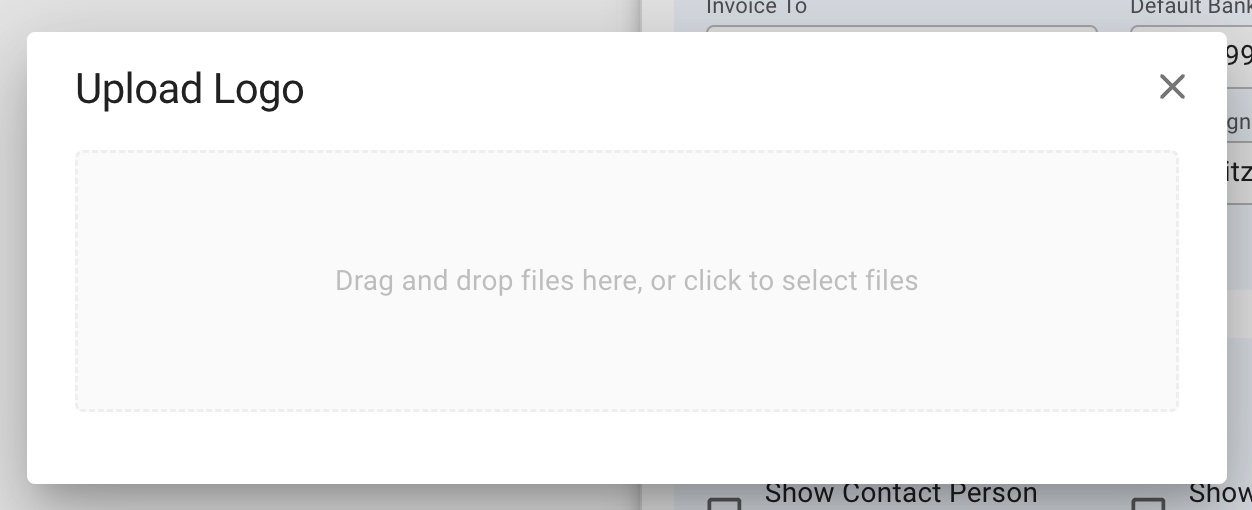
To upload or replace a company logo, click the ![](https://content.gitbook.com/content/9WnM8rZV2FJkRruPtTKc/blobs/iPLQO7BjxIseMFEoMDzD/more_vert-24px.svg)button in the top right of the Company drawer to bring up the menu. Then click on the "Change Logo" option. This will bring up the modal for uploading a logo.

<figure><img src="https://content.gitbook.com/content/9WnM8rZV2FJkRruPtTKc/blobs/GxBeZtasAOeyhbt85GRD/CompanyDrawerUploadLogoModal.png" alt="" width="375"><figcaption></figcaption></figure>

{% hint style="info" %}
A Company only has 1 logo. Uploading a new logo to a Company with an already existing logo, will replace the old logo.
{% endhint %}

### Bank Accounts tab

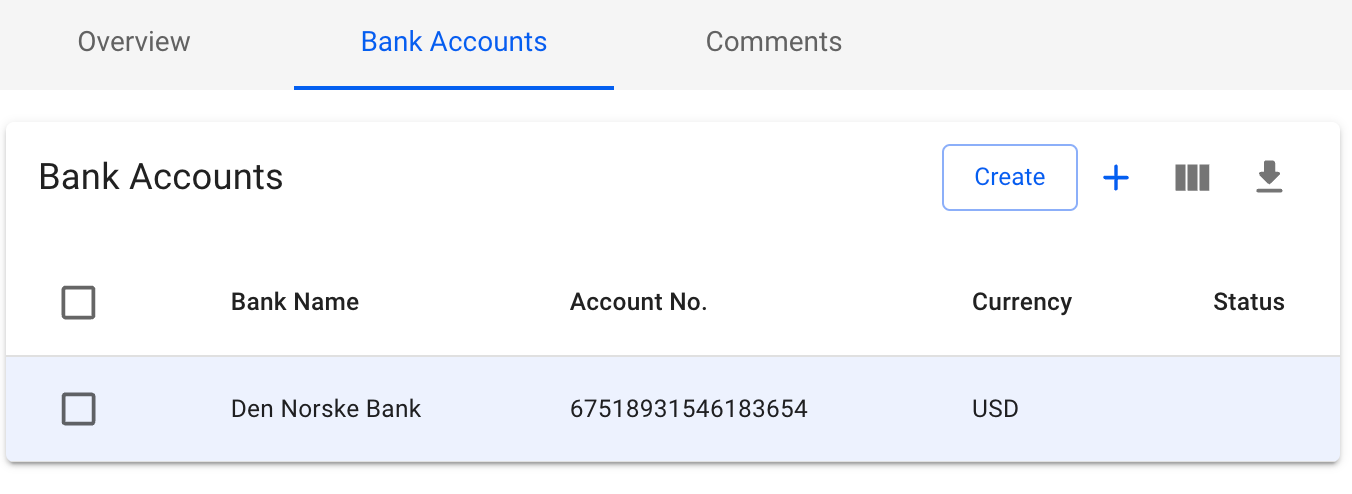
The tab contains a list of all the bank accounts belonging to the company. The usual list operations are available, with two minor changes.

<figure><img src="https://content.gitbook.com/content/9WnM8rZV2FJkRruPtTKc/blobs/i17fyf6tWm2BWYl21LaN/CompanyDrawerBankAccountsTab.png" alt=""><figcaption></figcaption></figure>

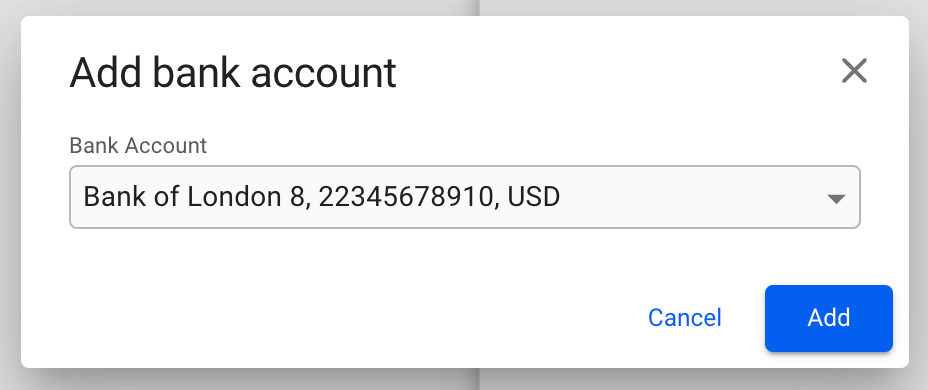
To *add an already existing* bank account, click on the ![](https://content.gitbook.com/content/9WnM8rZV2FJkRruPtTKc/blobs/SFWNdFDlkNmTLVMzPJuJ/image.png)  icon in the top right of the list. This will bring up a window to select the account from a list, showing the bank, account number and currency. Click Add to add the account to the Company.

<figure><img src="https://content.gitbook.com/content/9WnM8rZV2FJkRruPtTKc/blobs/4uOrHSbR6LVUg4fLdVw7/CompanyDrawerAddBankAccountModal.png" alt="" width="375"><figcaption></figcaption></figure>

To *create a new* bank account, click on the <img src="https://content.gitbook.com/content/9WnM8rZV2FJkRruPtTKc/blobs/idddbucYF16ZrflLVe1X/CreateButton.png" alt="" data-size="line"> button in the top right of the list. This will bring up a modal to create a brand new bank account. Fill in the required details, and click Create to add it to the Company.
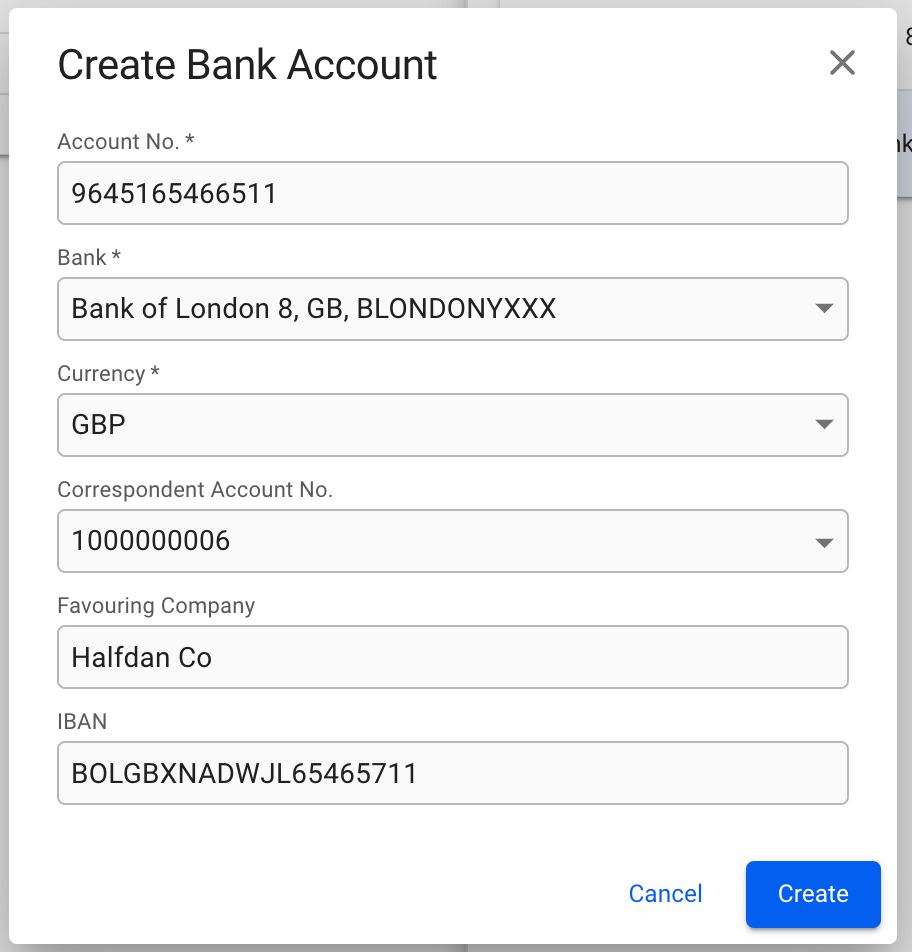
<figure><img src="https://content.gitbook.com/content/9WnM8rZV2FJkRruPtTKc/blobs/GTdsGdVCtq3rEcEW6LUG/CompanyDrawerCreateBankAccountModal.png" alt="" width="375"><figcaption></figcaption></figure>

## Deleting a Company

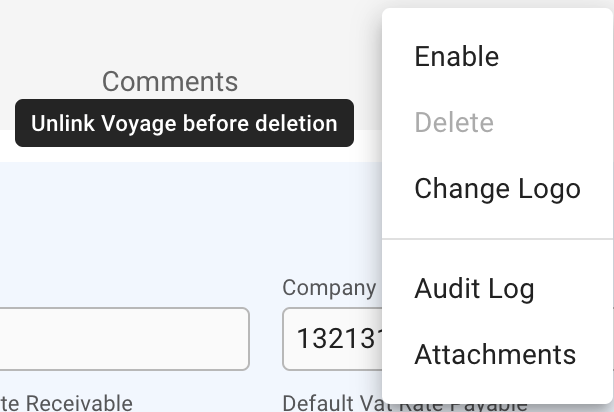
Deleting a Company requires that the Company is both disabled, and has no link to any Voyage.

Click the ![](https://content.gitbook.com/content/9WnM8rZV2FJkRruPtTKc/blobs/iPLQO7BjxIseMFEoMDzD/more_vert-24px.svg) button in the top right corner of the Company drawer to bring up the menu. Then click the "Disable" option to first disable the Company. Next, open the menu again, and click "Delete".

<figure><img src="https://content.gitbook.com/content/9WnM8rZV2FJkRruPtTKc/blobs/wYYXKGi6tM6grIVCKJ9K/CompanyDrawerSecondaryActionMenuDeleteHover.png" alt="" width="307"><figcaption><p>Attempting to delete a company linked to a voyage, will disable the Delete option</p></figcaption></figure>


---

# Agent Instructions
This documentation is published with GitBook. GitBook is the documentation platform designed so that both humans and AI agents can read, navigate, and reason over technical content effectively. Learn more at gitbook.com.

## Querying This Documentation
If you need additional information that is not directly available in this page, you can query the documentation dynamically by asking a question.

Perform an HTTP GET request on the current page URL with the `ask` query parameter, and the optional `goal` query parameter:

```
GET https://docs.dataloy.com/release-6.37/voyage-management-system/step-by-step-guides/master-data/companies/manage-companies.md?ask=<question>&goal=<endgoal>
```

`ask` is the immediate question: it should be specific, self-contained, and written in natural language.
`goal` is optional and describes the broader end goal you are ultimately trying to accomplish on behalf of the user. GitBook uses it to tailor the answer towards what is most useful for that goal.

The response will contain a direct answer to the question and relevant excerpts and sources from the documentation.

Use this mechanism when the answer is not explicitly present in the current page, you need clarification or additional context, or you want to retrieve related documentation sections.