Loading...
Loading...
Loading...
Loading...
Loading...
Loading...
Loading...
Loading...
Loading...
Loading...
Loading...
Loading...
Loading...
Open the Vessels module in the Core menu in the top left corner.
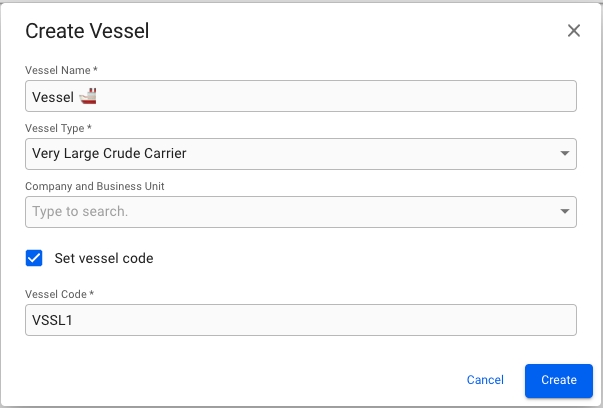
Click Create Vessel in the top right corner.
Fill in all required fields listed below in the Create Vessel window.
Required fields:
Vessel Name
Vessel Type
Vessel Code*
*The Vessel Code field is only visible and required if you have ticked off the "Set vessel code" checkbox. If the checkbox is not ticked off, a Vessel Code will automatically be generated for you.
Open the Vessels module in the core menu in the top left corner.
Find your selected vessel.
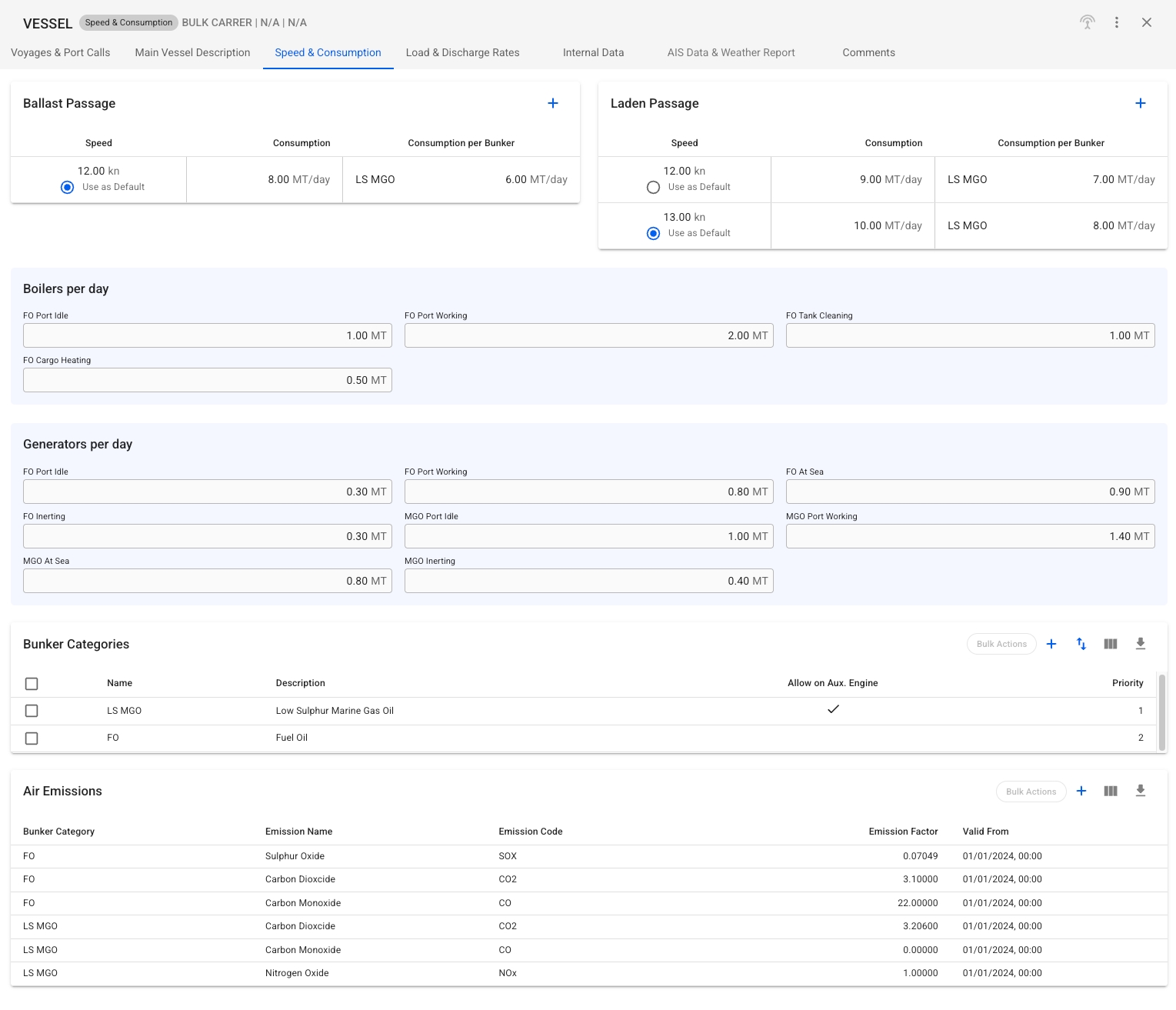
Access "Speed and Consumption" data in the top tab menu. This page provides tools for precise vessel consumption configuration:
Indicate the consumption of Boilers and Generator for Main and Auxiliary engines.
Overwrite the default consumption for a bunker category during Ballast or Laden passages.
Identify default Ballast and Laden speed and consumption.
Specify bunker categories used by the vessel.
Example of vessel configuration:
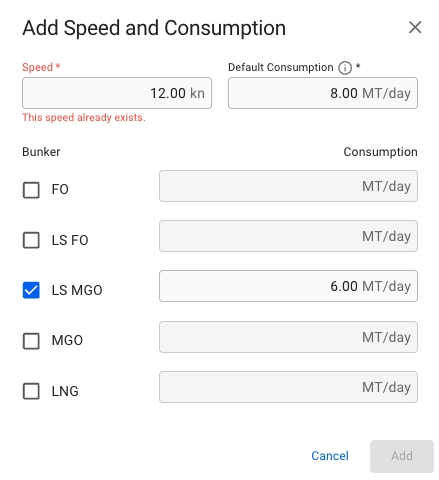
The top two cards identify Ballast and Laden speeds along with their corresponding fuel consumption for the selected vessel. These cards also allow specifying different consumption for any bunker category. This configuration will be used as default for all vessel's voyages, but may be adjusted for each voyage in the voyage module. A new passage configuration can be added by clicking the + icon. The added options will also be available in the voyage module for all vessel voyages. For example, the vessel in the screenshot from figure 1 has the following configuration:
Ballast
8 MT/day @ 12 knots for any bunker category during, but the consumption for the bunker category LS MGO is 6 MT/day @ the same speed (selected). The figure 2 illustrates how the Ballast Passage speed and consumption is configured in the create modal.
Laden
These sections specify the default parameters for extra consumption in port or at sea passages by FO and MGO. The defined consumption will be used for voyages created with this vessel but can be overridden for each voyage in the .
You can customize the default categories used by the vessel and determine the order in which the categories are utilized. Important Notice: Changes to vessel bunker categories will affect all vessel voyages. This means that unless the selected vessel categories align with the current voyage consumption data, consumption categories and emission calculations will change. Modify vessel bunker categories carefully, and keep in mind the linked voyages that will be subject to update.
For example, for an Open Loop Vessel it is allowed to use FO, FO LS, and LS MGO in North America. If the vessel has no specific configuration, Dataloy will prioritize FO as the first pick. However, this can be changed by specifying Vessel Bunker Categories, assigning LS MGO priority 1 and FO priority 2*. In this case, Dataloy VMS will compare the allowed categories in an area and select the highest priority matching vessel bunker category – in this scenario, LS MGO. In the event that the vessel is configured without a bunker category allowed in a specific area, the first priority bunker for that area will be used
The bunker category priorities can be changed via the 're-sequence' function, which is located in the top-right of the Bunker Categories section.
Allows specifying Carbon Dioxide, Nitrogen Oxide, Particulate Matter, Sulfur Oxide, and Carbon Monoxide emission factors for bunker categories. The determined factors will be used during emission calculations for all vessel's voyages.
1) 12 kn @ 9 MT/day of any bunker category and 7 MT/day of LS MGO @ 12 kn.;
2) 13 kn @ 10 MT/day and 8 MT/day of LS MGO @ 13 kn. (selected)
This tab contains the main vessel information, such a Vessel Description, Dimensions, Miscellaneous Capacities, Machinery, Contact Details, Cargo Capacity & Loadline Information
All of the mentioned fields are optional to add into.
For each Draft, DWT and Immersion, you can add/edit for Summer, Winter, Design, Fresh, Tropical, Tropical Fresh and Unit.
Int'l NRT
Panama Net
Suez Net
Vessel Type
DWT (Summer)
Deadweight in the summer
Built
Yard
Flag
IMO No.
Owner
Owner of the vessel (type Business Partner), available from v7.7
Scrubber Fitted
Open-loop
Beam
LOA
LPP
Depth
Air Draft
Int'l GRT
Capacity Fo
Fresh Water
Ballast Water
Constant Reduction
Main Engine
Aux Engine
Bow Thruster
Stern Thruster
Shaft Generator
Call Signal
Phone Number
Deadweight in the summer
Fax Number
Mobile Phone
Telex
Cubic Capacity
Deck Capacity
Bale Capacity
Gear
Holds/Hatches
Grabs Onboard
In the vessel drawer on the top right side there is a small map displaying the vessels last known position. This position is retrieved from AIS-positions for vessels which are subscribing to this feature, for vessels which are not subscribing the latest position is retrieved from the latest position report entered in the system. In addition to this you can now view the route from Dataloy Distance Table from previous port to next port displayed in the same map. The route is the green line in the map.
Open the Vessels module in the Master Data section.
Open the Vessel drawer
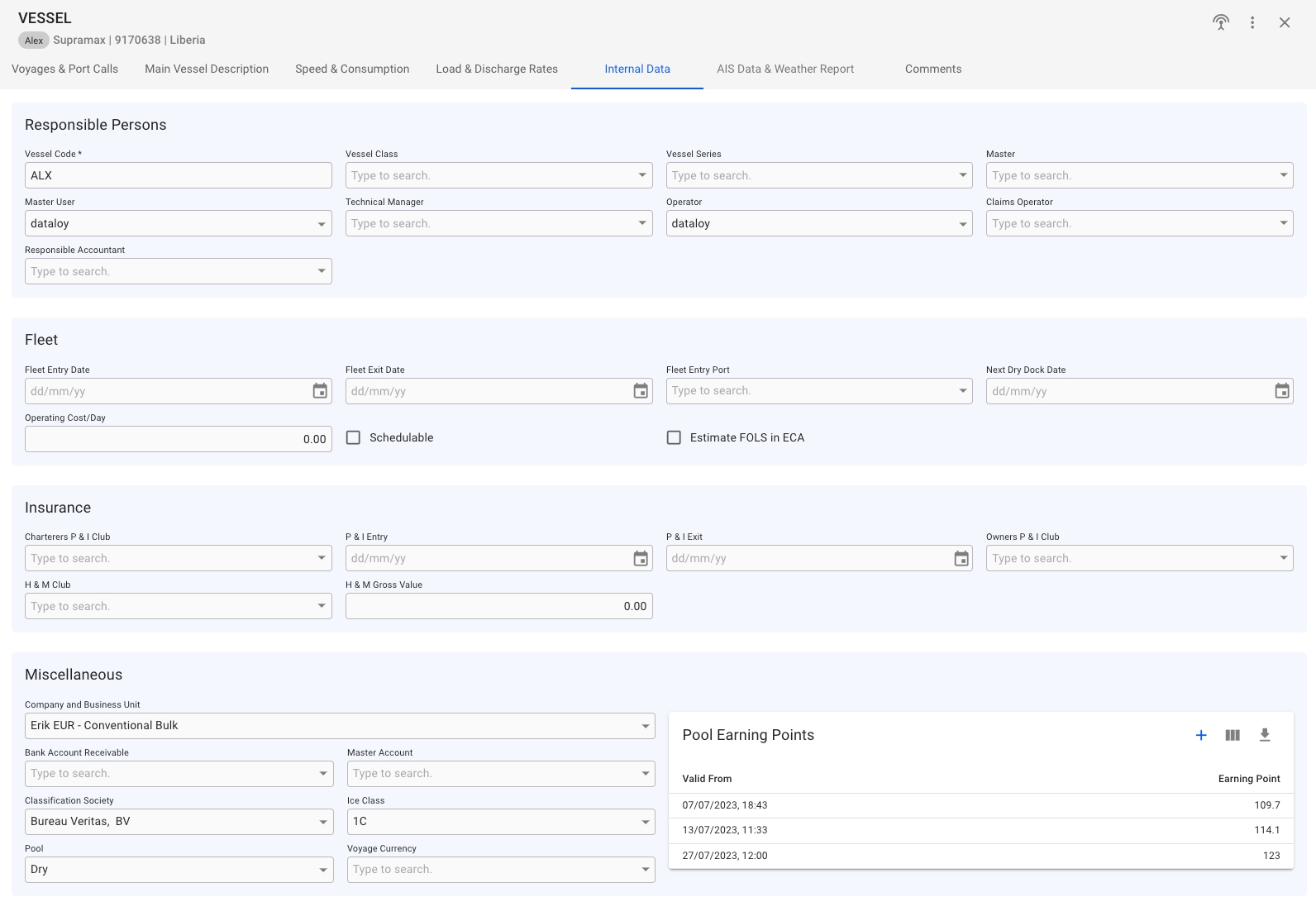
Miscellaneous:
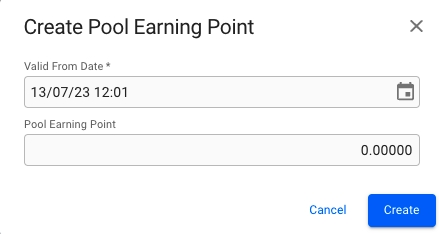
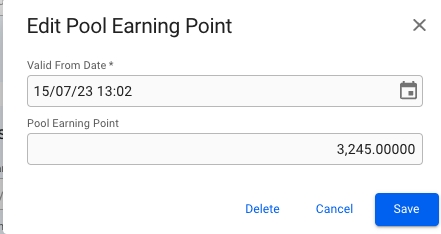
Here, you can set fields like Company and Business Unit, Bank Account Receivable, Master Account, Classification Society, specify the Ice Class (if classification society is selected), and Pool, as well as the Pool Earning Points. In this table, you can create, edit, and delete a Pool Earning Point:
Create/edit modal for Pool Earning Point.
Depending on your access permissions the list of Vessels might not be visible.
Open the Vessels module in the Core Menu list on the top left corner.
There are several options available for you to narrow down what you include in the list view, including a "My Vessels" filter that shows all the vessels of which the logged-in user is set as one of the following:
Master User
Responsible Accountant
Operator
Claims Operator
You can also Customise the columns of the Vessels list to add, reorder or hide columns. The columns Operator, Built, and Schedulable are hidden by default.
On top of the list, you may find three tabs: Operative, Archived, and Map. The two first tabs illustrate pre-sorted data based on the fleet exit date parameter. The Map includes an interactive map with the current vessels' location.
Moreover, filters found on the same line as the tabs, apply to both tables. If you switch between tabs, the filters will remain the same, facilitating navigation.
A click on the Operative tab will load a table, that contains only operable vessels. In other words, the vessels whose fleet exit date is either not set, or set in the future.
On the other hand, the Archived tab presents vessels whose fleet exit date is older than the current date (fleet exit date was in the past).
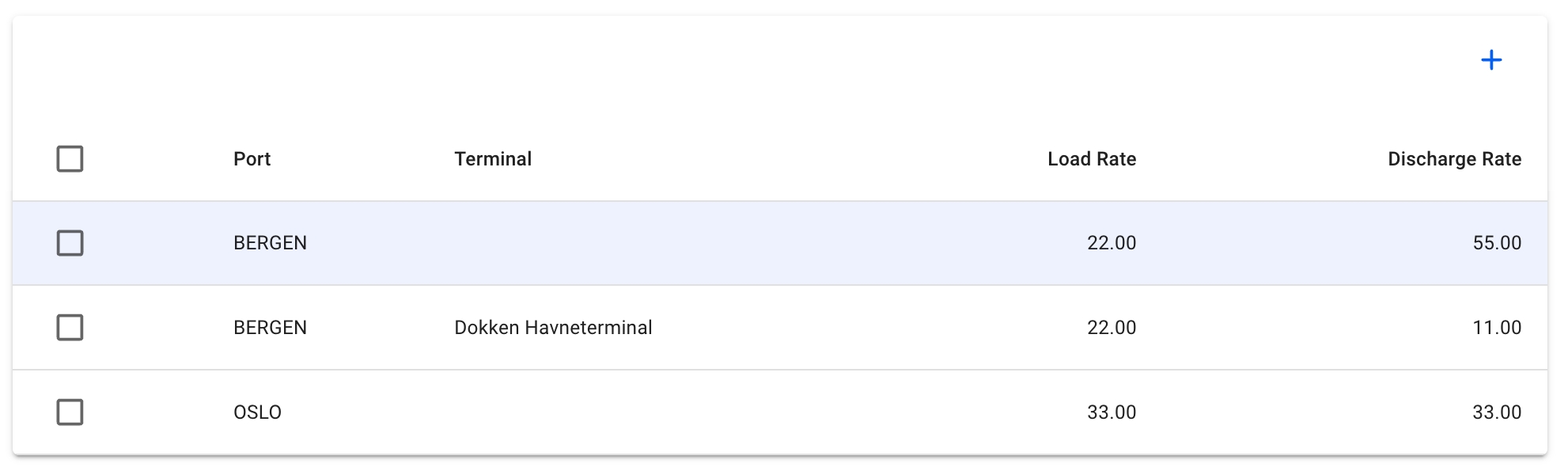
The Load and Discharge rates section is an an overview of the load and discharge rates applicable for ports and terminals. It must not be mixed with the vessels' max load and discharge rates.
Open the Vessels module.
Open the vessel drawer
Vessel "Load & Discharge Rates" data can be accessed in the top tab menu. Details can be maintained directly from the table actions.
Open the Vessels module in the Master Data section.
Open the vessel drawer
Vessel "AIS Data and Weather Report" data can be accessed in the top tab menu.
For the tab to be enabled an AIS position has to be available.
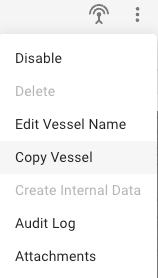
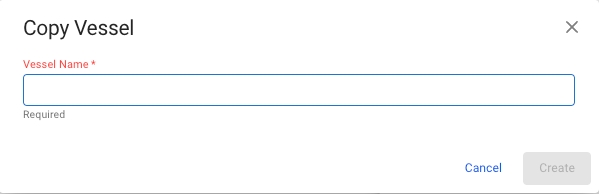
To copy any vessel, open the Vessel drawer and click the More button in the top right to bring up the menu.
Clicking Copy Vessel will open a Copy Vessel modal where you are prompted to enter a new name for the new copy.
When you click Create, the data from the original Vessel will be copied over to the new Vessel, with a few exceptions.
Voyages and Port Calls will not be copied to the new Vessel.
IMO Number will not be copied to the new Vessel.
The internal data of the copied vessel will be given default values for some fields like company, business unit, vessel code and vessel class.
The vessel code will be set to the unique key value for the Vessel, used by the API.
Pool and Pool Earning Points will not be copied to the new Vessel.

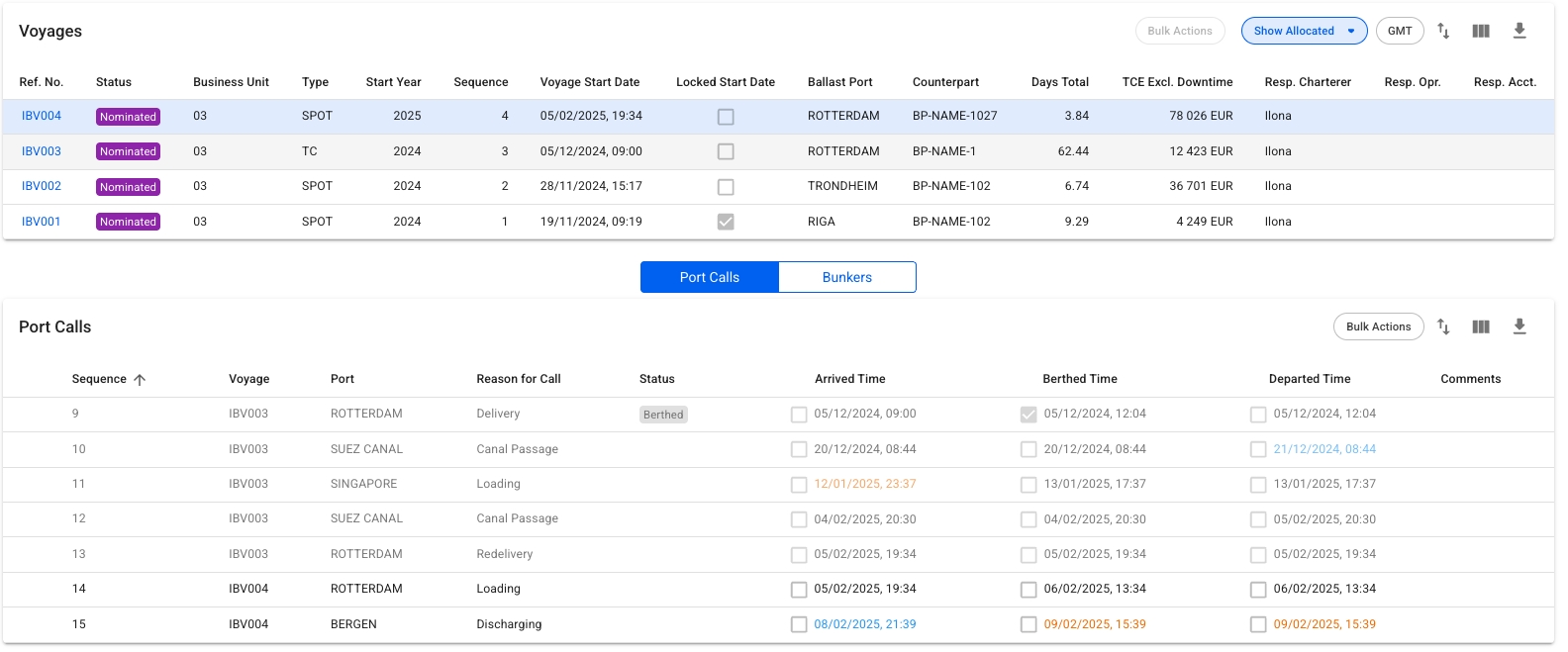
In the "Voyages & Port Calls" section of the vessel drawer, you will find the most important information about a vessel and its voyages.
Vessel Details
The "Vessel Details" section shows some key data points about the vessel such as DWT, Cubic Capacity, Draft and more. Click Expandto show more details and contact information for the vessel.
This is a list of voyages on the opened vessel sorted by newest first. Clicking the icon will bring up a modal to customize which columns are visible. If there is an ongoing voyage in the list, it is indicated with a blue marker on the left side.
Below, you will find a list of either Port Calls or Bunkers, and a button to toggle between the two different views.
While in Port Call view, clicking on a voyage row will list all port calls of the selected voyage, as well as the port calls from the previous and next voyage, if they exist. The port calls from the previous and next voyage will be in a slightly lighter colour, such that it is possible to tell them apart. Clicking directly on the reference number of the voyage will open up the Voyage drawer.
Clicking on port calls in the list opens the corresponding port call's drawer where you can make can changes:
The Port Calls list will display up to 30 items, and includes a separate scrolling functionality. By hovering over each of the "headers" (such as Voyage, Port, Reason for Call, etc.), you can also see an sorting array which will make you able to sort that specific column in either an ascending (ASC) or descending (DESC) order.
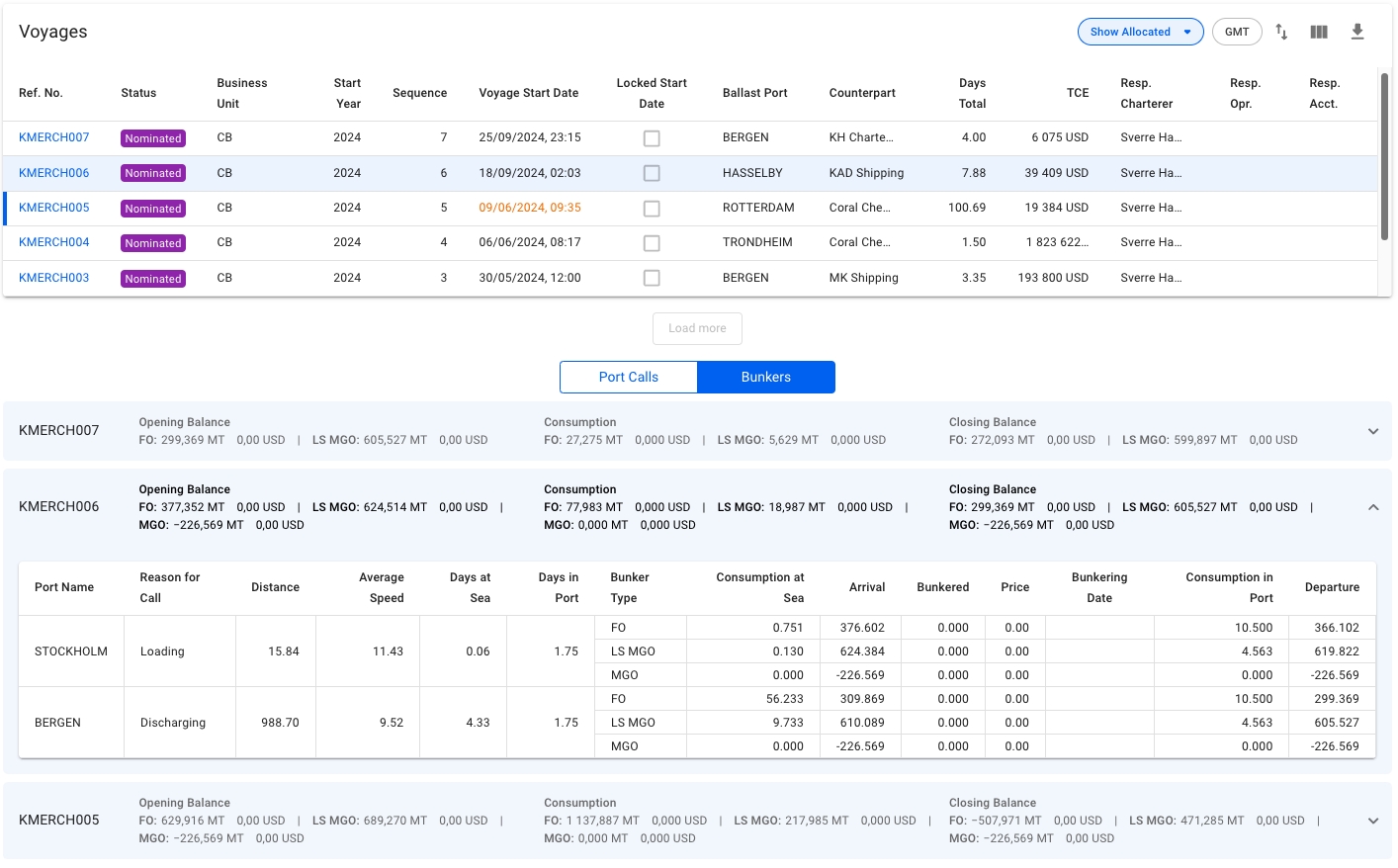
The Bunkers view removes the list in favour of up to three collapsible sections for the voyages. Similarly to the Port Calls view, clicking on a voyage row in the voyages list will select/open up the corresponding collapsible section, and fetch the data for the previous and next voyage:
The top band of the section displays 4 columns; the reference number of the voyage, Opening Balance, Consumption and Closing Balance. Each of the latter three will show amount and price for up to 4 different bunker types, depending on which bunkers are actually being used by the vessel.
Expanding the collapsible section will give you a table overview of each port, with reason for call, distance, speed etc., as well as a detailed breakdown of the bunkers consumed. Only the bunkers actually used will be displayed here.
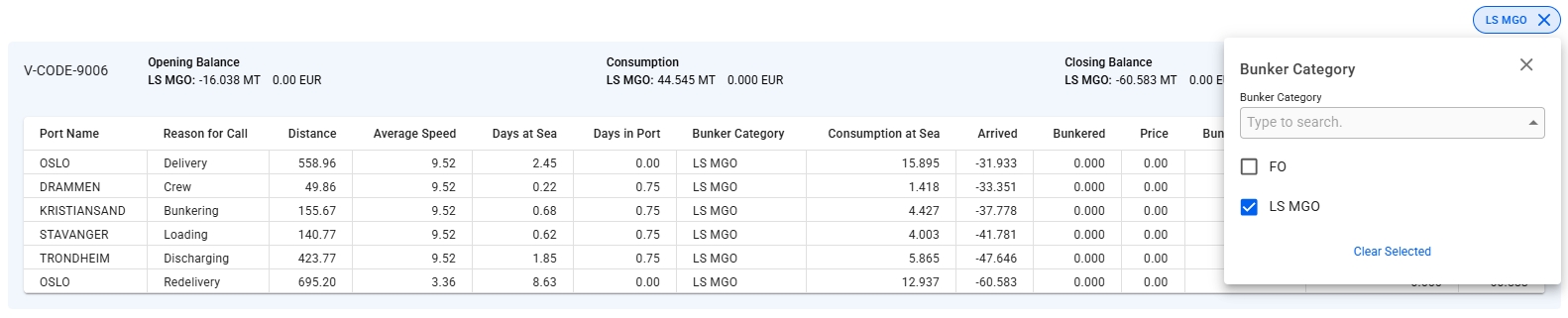
Filtering
The bunker section can be filtered by bunker category to get a better overview for each category.
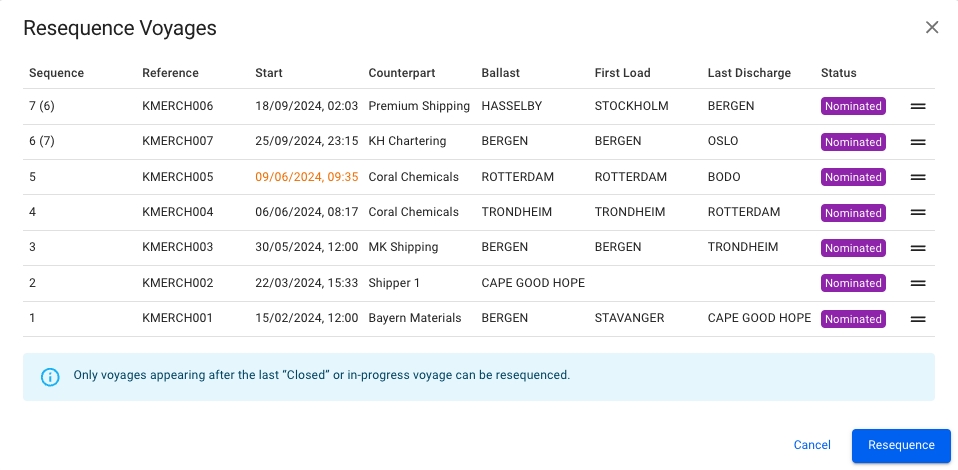
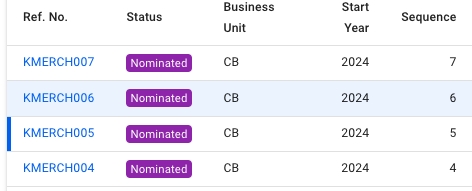
The resequence feature enables re-ordering the list of voyages assigned to a vessel. To utilize the feature, click the icon in the top right of the voyages list. This will bring up the Resequence Voyages modal.
The user can now drag and drop the voyages to re-order them into the desired order. For example, the screenshot below illustrates voyage 7, which is being dragged down. It is expected that the item will have replaced voyage 6 after release:
Any voyages that will have their sequence number changed, will have their previous old sequence number parenthesized.
Clicking the Resequence button will update the fleetplan.
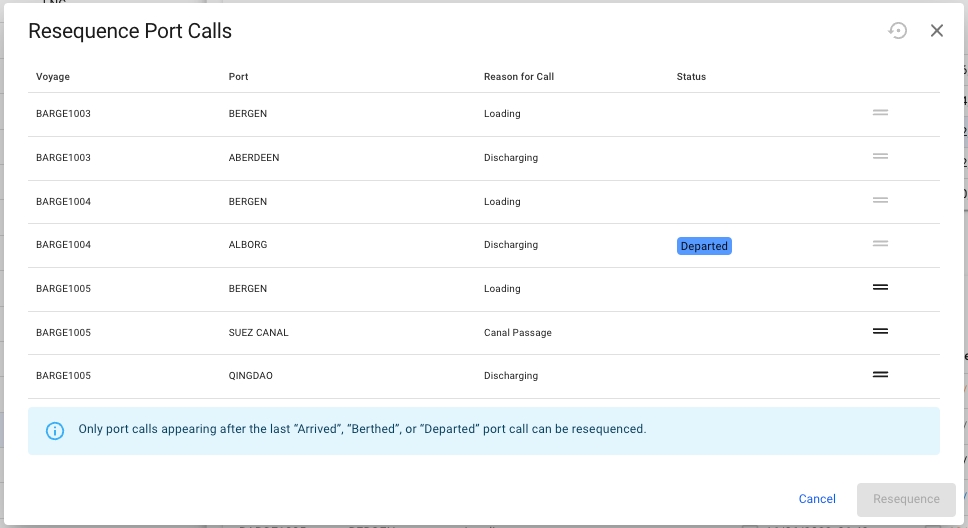
Port calls can also be resequenced to a different position within the previous, current, or next voyage. To resequence a port call, click the resequence symbol in the top right corner of the port calls list. A popup modal will then show and the port call can be dragged and dropped in the desired position (see screenshot below). Note that only one port call can be moved at a time. Also, only port calls after the last Arrived, Berthed or Departed port call can be moved in the list:



How to enable or disable AIS-subscription
You can enable or disable the subscription to AIS-positions for a vessel.
Open the Vessels module in the Master Data section.
Open the vessel drawer
If the vessel has an IMO-number, click on the icon in the top right.




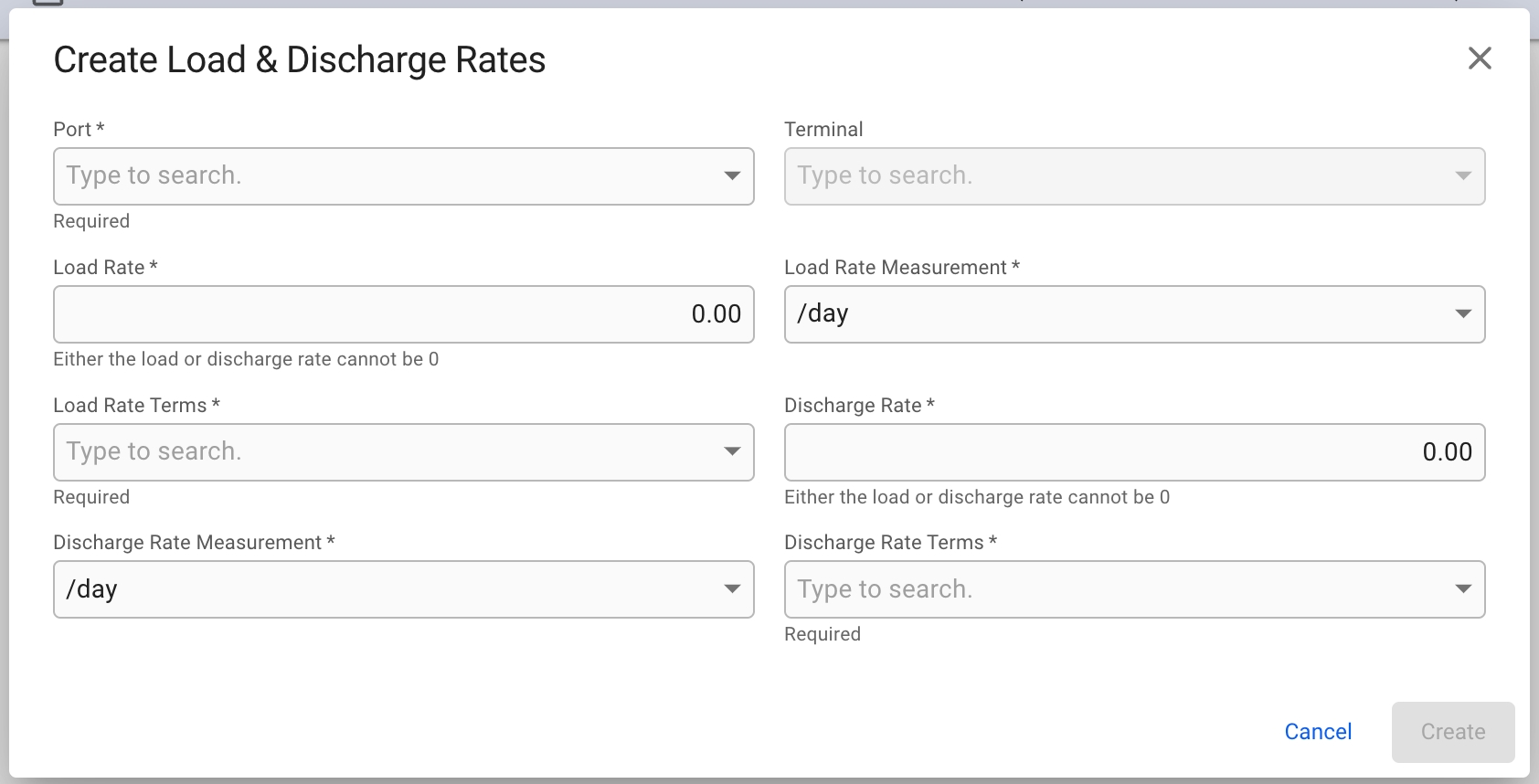
To manage load and discharge rates on a vessel for selected ports and terminals, navigate to the Load and Discharge Rate section of the Vessel drawer. Use the table in the tab to edit, delete or add a new rate.
In the table, click Add icon and fill in the fields
Click on a row to edit and use the modal to make changes.
Use the checkboxes to select the rows to delete. Click Delete iconand confirm.