> For the complete documentation index, see [llms.txt](https://docs.dataloy.com/llms.txt). Markdown versions of documentation pages are available by appending `.md` to page URLs; this page is available as [Markdown](https://docs.dataloy.com/voyage-management-system/step-by-step-guides/port-calls/pilot-station-handling.md).
# Pilot Station handling
This page provides information on how pilot stations can be added to port calls, how they affect calculations, and how to automate or manage them.
{% hint style="info" %}
Pilot Station is a part of the [master data](/voyage-management-system/step-by-step-guides/master-data.md) maintained by Dataloy. The stations are available for selected ports.
{% endhint %}
A pilot station modifies the sea passage to or from a port by diverting the voyage through an additional point, affecting the distance, date estimations and fuel consumption.
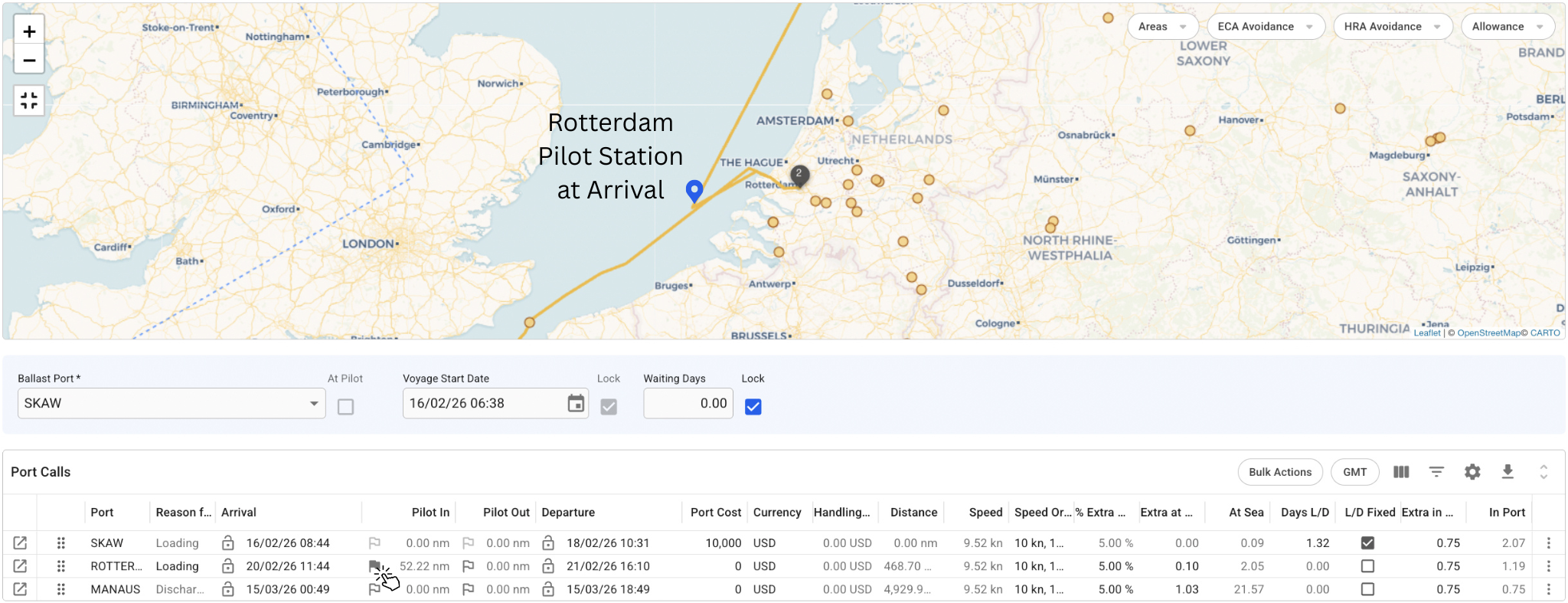
Figure 1. Example of a pilot station at arrival to Rotterdam
### How Pilot Stations affect calculations
Pilot stations can be managed with an enabled flag icon (see Figure 1) in the [Voyage fullscreen](/voyage-management-system/step-by-step-guides/voyages/maintain-voyages/voyage-full-screen.md) view or in [Port Call overview](/voyage-management-system/step-by-step-guides/port-calls/port-call-drawer/overview-and-bunkers.md). The system then adds the corresponding “at arrival (in)” or “at departure (out)” pilot station and recalculates the following parameters:
* Dates: the [pilot leg performance factor system setting](/voyage-management-system/step-by-step-guides/setup/system-settings.md) is applied to speed. If the setting is 80%, the pilot leg (between arrival and berth) is estimated at 80% of the sea speed. For example, if the sea speed is 10 knots, the leg from the previous port departure to the current pilot in (arrival) will be estimated at 10 knots, while the pilot-in leg will be estimated at 8 knots.
* Consumption: the pilot leg performance factor is applied in the same way, adjusting the consumption accordingly.
* Route: the route diversion will be displayed on the voyage map.
* Distance: the total distance will be adjusted accordingly. Each pilot leg will have its own distance. For example, if the previous port call has a pilot station out and the current port call has a pilot station in, the distance from port to pilot station out, from station out to station in, and from station in to the current port will be shown separately. The pilot distances are displayed in the same field, marked with a flag icon (see Figure 1). The port call distance will represent the distance between checkpoints, which can be either ports or pilot stations if they are selected.
{% hint style="warning" icon="exclamation" %}
The [pilot leg performance factor system setting](/voyage-management-system/step-by-step-guides/setup/system-settings.md) is applied to the speed and consumption calculations of pilot legs, if present. If the preference is set to 100%, no reduction is applied to speed or consumption.
{% endhint %}
#### Ballast Pilot Stations
Consecutive voyages will also account for pilot stations. If the previous voyage ends at a pilot station, the current voyage will use that pilot station out as its ballast coordinate for subsequent calculations. If the voyage starts at a pilot station, the “At Pilot” checkbox, located in the same section as the ballast port and voyage start date, will be selected.
*Note that the checkbox is available only in the fullscreen voyage view and is interactive. This means that any voyage with a fixed start date can start from a pilot station, provided that the ballast port has one.*
### Pilot Stations at the Port Call level
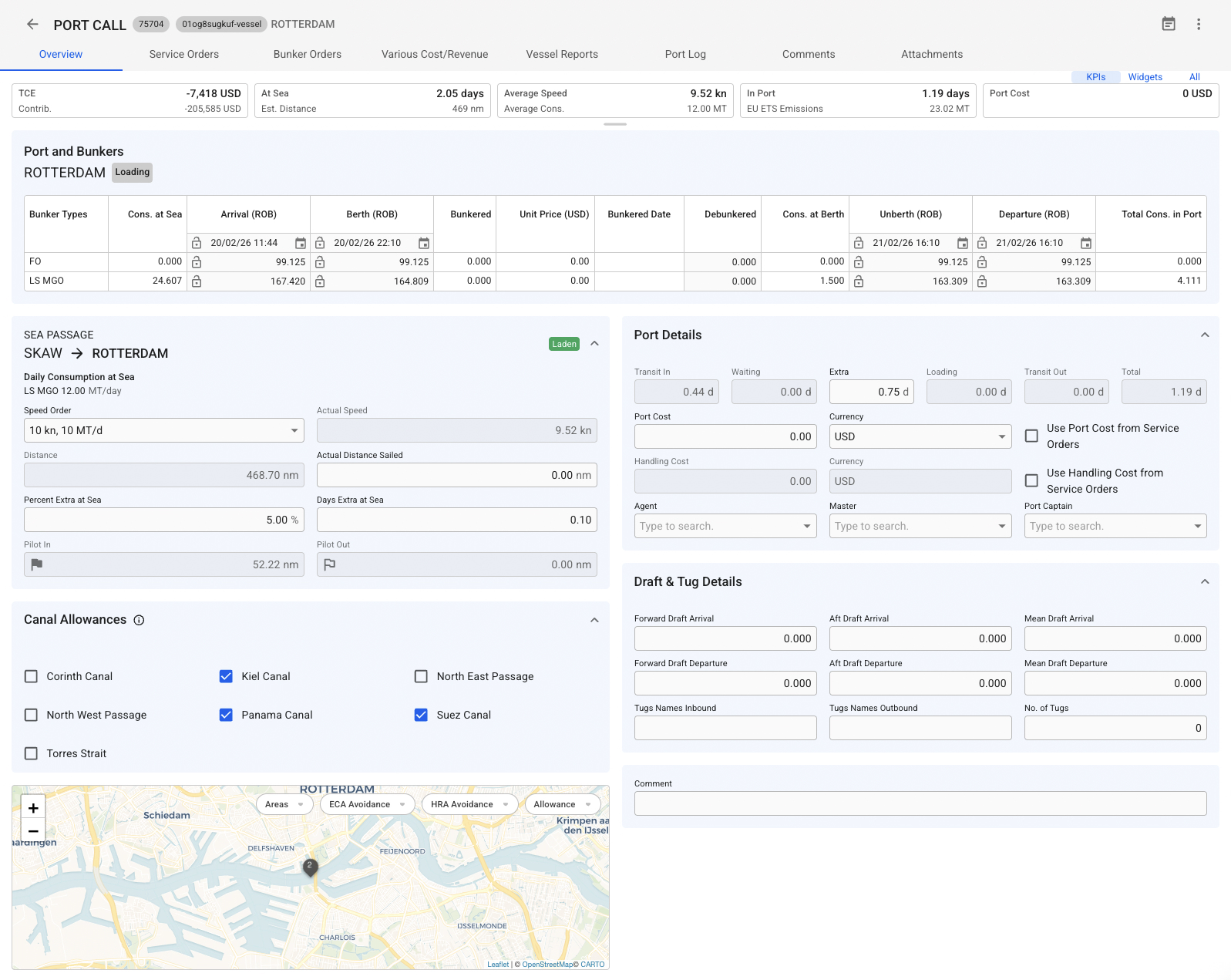
Figure 2. Port Call with a Pilot Station In
Pilot stations can also be managed from the Port Call drawer (see Figure 2) using the same flag-marked fields as in the Voyage fullscreen view (see Figure 1).
If the pilot stations are selected:
* The Arrival event corresponds to reaching the pilot station on the way to the port.
* The Berth event represents reaching the port from the pilot station
* Additionally, the "Transit In" field in the Port Details section of the Port Call drawer (see Figure 2) shows the decimal days used by the pilot-in leg.
* The Unberth event represents leaving the port.
* The Departure event corresponds to reaching the pilot station out.
### Pilot Station automation
The system allows manual handling of pilot stations by selecting the flag icons. It is also possible to enable automatic pilot station insertion by activating the corresponding [system setting](/voyage-management-system/step-by-step-guides/setup/system-settings/general.md), “Automatic Pilot Stations.” This shifts the workflow from manually *adding* stations to relevant ports to *removing* them from irrelevant ports, which can save time if most ports are expected to include pilot stations.
If the system setting is enabled, every new port with a corresponding pilot station will automatically include both a pilot station in and a pilot station out. This does not affect historical voyages.
The "Pilot In" and "Pilot Out" columns in Figure 1 are visible only for new voyages created with the automation setting enabled. If the setting is disabled, the columns can be added using the Customize Columns grid functionality.
---
# Agent Instructions
This documentation is published with GitBook. GitBook is the documentation platform designed so that both humans and AI agents can read, navigate, and reason over technical content effectively. Learn more at gitbook.com.
## Querying This Documentation
If you need additional information that is not directly available in this page, you can query the documentation by asking a question.
Perform an HTTP GET request on the following URL with the `ask` and `goal` query parameters:
```
GET https://docs.dataloy.com/voyage-management-system/step-by-step-guides/port-calls/pilot-station-handling.md?ask=&goal=
```
`ask` is the immediate question: it should be specific, self-contained, and written in natural language.
`goal` is what the user is ultimately trying to achieve, the reason they need the answer. Sharing it helps GitBook give you a better, more relevant answer. A goal is most helpful when it describes the outcome the user wants rather than restating the question. For example, with `ask=how do I create an API token`, a goal like `automate deployments from our CI pipeline` lets GitBook tailor the answer to that use case.
The response will contain a direct answer to the question and relevant excerpts and sources from the documentation.
Use this mechanism when the answer is not explicitly present in the current page, you need clarification or additional context, or you want to retrieve related documentation sections.