> For the complete documentation index, see [llms.txt](https://docs.dataloy.com/llms.txt). Markdown versions of documentation pages are available by appending `.md` to page URLs; this page is available as [Markdown](https://docs.dataloy.com/voyage-management-system/step-by-step-guides/operations/bunker-orders/maintain-bunker-orders.md).
# Maintain Bunker Orders
Manage and update bunker order details using the Bunker Order module.
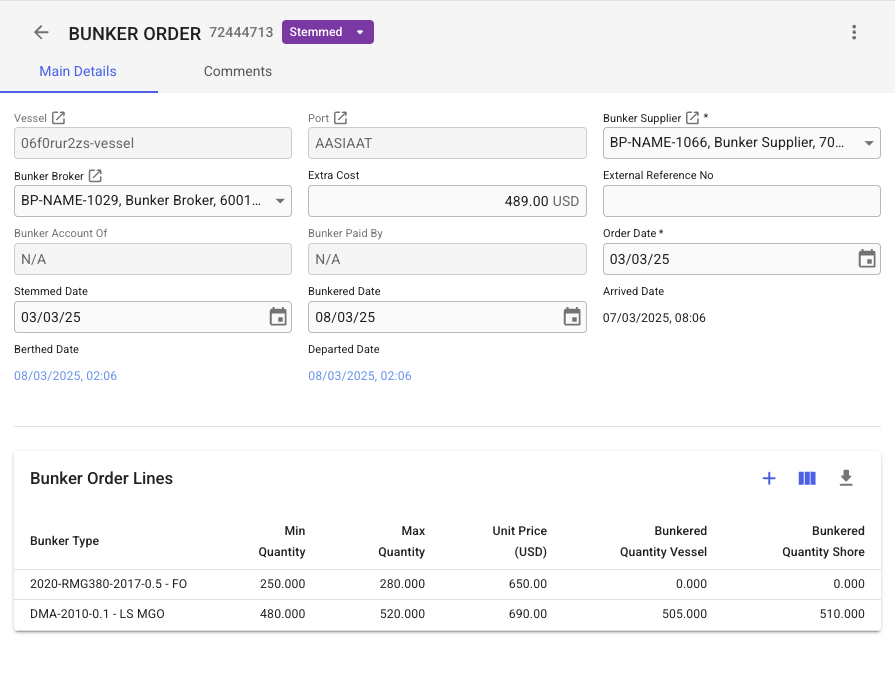
Bunker Order module
### Bunker Order Status Transitions
* **Draft**\
Can move to any status.
* **Requirement**\
Can move to any status.
* **Stemmed**
To move to this status, Bunker Supplier should be chosen first, more details [here](/voyage-management-system/step-by-step-guides/operations/bunker-orders/stem-bunker-orders.md).\
Can move only to Delivered.
* **Delivered**\
To move to this status, ensure that Bunkered Date is filled and Bunkered Quantity Shore is entered on all the bunker order lines, more details [here](/voyage-management-system/step-by-step-guides/operations/bunker-orders/register-delivery-against-a-bunker-order.md).\
Can move only to Cancelled.
* **Cancelled**\
No further transitions are allowed. The Delete button becomes enabled.
## Bunker Order Lines Table
The table provides a brief overview of all bunker products included in the bunker order. Each row is interactive, enabling users to click and edit product details as needed.
### Adding a product (bunker order line)
If you want to add a product for a given order click the "+" button above the list of products. Then a dialog will show and allow you to enter the details.
### Maintaining bunker order lines details
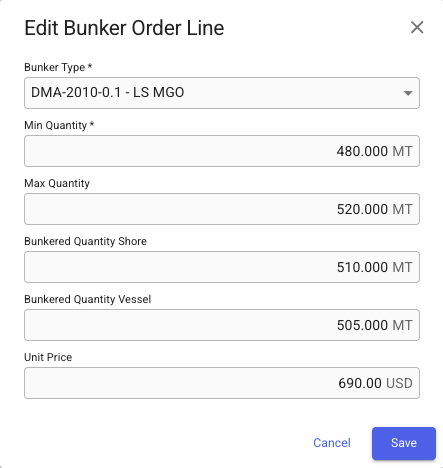
To edit the details of a bunker order line, such as bunker type, quantity, or unit price, click the order line to open a dialog where changes can be made. Refer to Figure 1 for more details.
Figure 1. Edit Bunker Order Line modal.
**Bunker Type:** When estimating bunker intake, the selected bunker type defaults to the grade assigned to this vessel in the vessel administration screen. You can change this on the screen below or when placing/creating the order.
#### ROB Calculation Methodology
In the ROB calculations, the quantity used is determined as follows:
* If only the *Minimum Quantity* is specified, it represents the bunkered quantity.
* If both *Minimum* and *Maximum* quantities are specified, the bunkered quantity is the average of the two.
* If the *Bunkered Quantity Shore* is specified, it will be the actual bunkered value.
* The Bunkered Quantity Vessel is an information field used to specify and track the vessel figures
---
# Agent Instructions
This documentation is published with GitBook. GitBook is the documentation platform designed so that both humans and AI agents can read, navigate, and reason over technical content effectively. Learn more at gitbook.com.
## Querying This Documentation
If you need additional information that is not directly available in this page, you can query the documentation by asking a question.
Perform an HTTP GET request on the following URL with the `ask` and `goal` query parameters:
```
GET https://docs.dataloy.com/voyage-management-system/step-by-step-guides/operations/bunker-orders/maintain-bunker-orders.md?ask=&goal=
```
`ask` is the immediate question: it should be specific, self-contained, and written in natural language.
`goal` is what the user is ultimately trying to achieve, the reason they need the answer. Sharing it helps GitBook give you a better, more relevant answer. A goal is most helpful when it describes the outcome the user wants rather than restating the question. For example, with `ask=how do I create an API token`, a goal like `automate deployments from our CI pipeline` lets GitBook tailor the answer to that use case.
The response will contain a direct answer to the question and relevant excerpts and sources from the documentation.
Use this mechanism when the answer is not explicitly present in the current page, you need clarification or additional context, or you want to retrieve related documentation sections.