Secondary Action Deleting Offhire
Go to the OperationsDowntime module and open a downtime in the drawer.
Click the more iconat top right.
Click Delete.
Click Confirm in the dialog to delete the downtime.

Downtime Panel
When you have located a downtime, click on it and the details will show in a panel (so called "drawer") on the right hand side. The panel will also open after creating a new downtime.
The panel contains an Overview tab for maintaining a downtime and managing bunker consumption, and a Various Cost/Revenue tab for maintaining cost and revenues for a downtime.
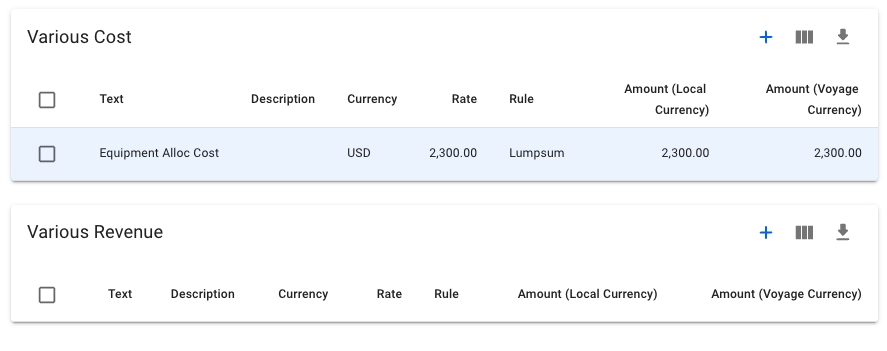
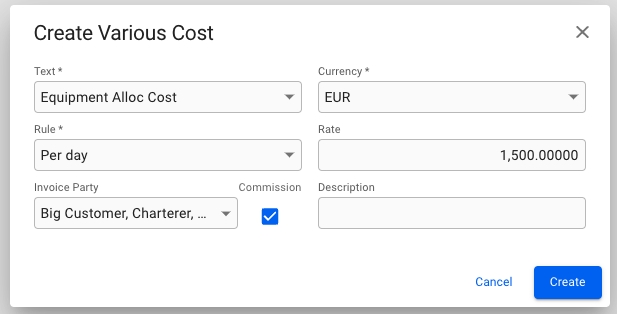
StatusOverviewVarious Cost/RevenueDelete DowntimeThe Various Cost/Revenue tab allows you to create and manage Variouses connected to the Downtime.
Click the button on any of the lists to create a new Various. Click on any of the existing Variouses in the list to edit or delete it.

Downtime Drawer Overview tab
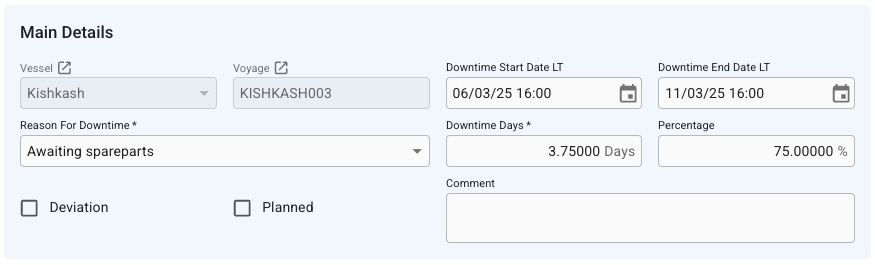
This section contains the most important information about the Downtime at a quick glance, such as the vessel, voyage and dates.
For any non-deviation downtime, the Downtime Days and Percentage fields are editable, allowing you to specify and invoice a partial downtime. For deviation downtimes, these fields are automatically calculated as a function of the additional sailing days of the deviation compared to a direct route.
Any downtime created using a port call from the voyage schedule that is not a canal passage, can be converted to a deviation. In order to do so, tick the Deviation checkbox in the Main Details section. A new window will pop up, allowing you to set the end port call of the deviation.
Any deviation can be converted to a downtime by unticking the Deviation checkbox in the Main Details section.
In this section, there are two checkboxes that indicate whether the downtime cost should be deducted from the charterer and/or owner. The Deduct from hire receivable (charterer) checkbox is only active if the voyage is a Time Charter. These fields will also enable editing in the corresponding bunker consumption tables.
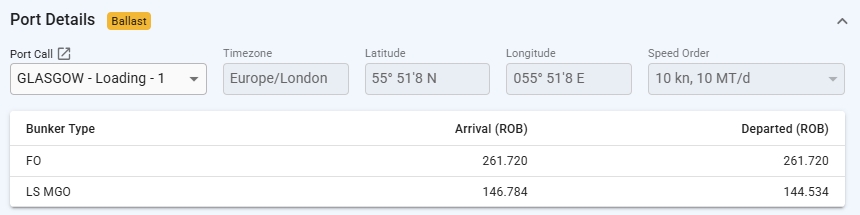
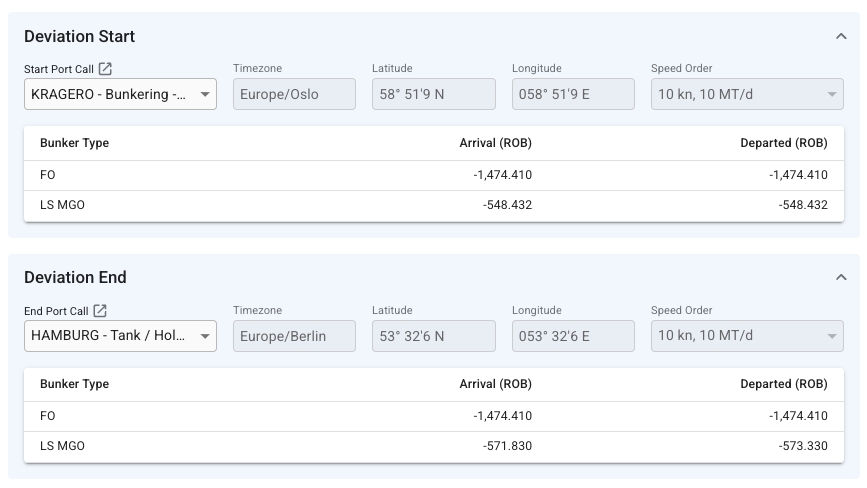
Non-deviation downtimes created by selecting a Port Call from the voyage schedule, will display some information about the port call, such as reason for call, speed order, and bunker ROBs in the Port Details section.
For simpler downtimes created using Port. The section will display the port name and the timezone for that port, and both fields are uneditable. When the port is an At Sea port the timezone offset will be editable.
For Deviation downtimes, the Port Details section is split in two; Deviation Start and Deviation End. With the sole exception that you are not allowed to choose a canal passage as a port call, they are identical to the Port Details section.
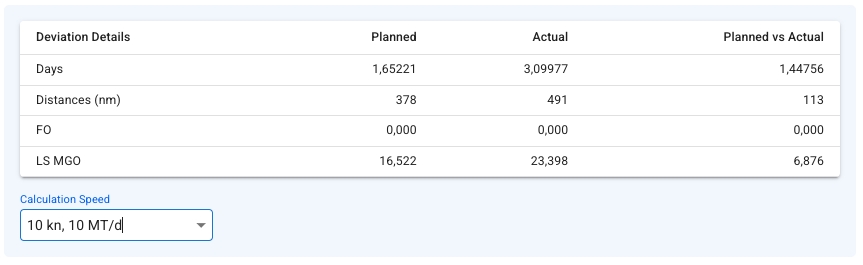
Below these, a table for Deviation Details is displayed. This table shows you the difference between a direct route between the start and end port call, and the actual voyage schedule. You can also specify a specific speed for the vessel.
Two tables show information about bunker consumption for the charterer and the owner/opex. Each table contains the bunker categories used in the voyage.
For non-deviation downtimes, the quantity and price can be edited when Deduct from hire receivable/payable is checked off in the Results Impact section by clicking on the row.
On deviations, the quantities is automatically calculated, and cannot be changed.



Editing Downtime Status
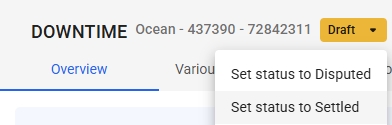
In the header of a selected downtime panel, the current status can be viewed. Clicking on it will activate a dropdown menu and a new status can be selected. A downtime can have one of the following statuses:
Draft
Downtime is being edited
Disputed
Downtime is being disputed
Settled
Downtime is resolved