Loading...
Loading...
Loading...
Loading...
Loading...
Loading...
Loading...
Loading...
Loading...
Loading...
Loading...
Loading...
Loading...
Loading...
Loading...
Loading...
Loading...
Loading...
Loading...
Loading...
Loading...
Loading...
Loading...
Loading...
Loading...
Loading...
Loading...
Loading...
Loading...
Loading...
Loading...
Loading...
Loading...
Loading...
Loading...
Loading...
Loading...
Loading...
Loading...
Loading...
Loading...
Loading...
Loading...
Loading...
Loading...
Loading...
Loading...
Loading...
Loading...
Loading...
Loading...
Loading...
Loading...
Loading...
Loading...
Loading...
Loading...
Loading...
Loading...
Loading...
Loading...
Loading...
Loading...
Loading...
Loading...
Loading...
Loading...
Loading...
Loading...
Loading...
Loading...
Loading...
Loading...
Loading...
Loading...
Loading...
Loading...
Loading...
Loading...
Loading...
Loading...
Loading...
Loading...
Loading...
Loading...
Loading...
Loading...
Loading...
Loading...
Loading...
Loading...
Loading...
Loading...
Loading...
Loading...
Loading...
Loading...
Loading...
Loading...
Find answers to your questions...
Welcome to the main source of information on the Dataloy product suite.
Open the Vessels module in the Core menu in the top left corner.
Click Create Vessel in the top right corner.
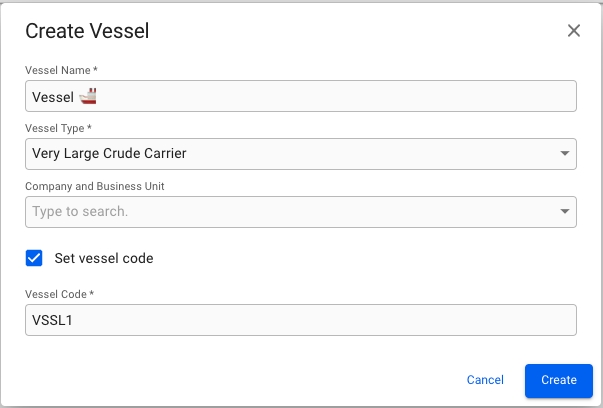
Fill in all required fields listed below in the Create Vessel window.
Required fields:
Vessel Name
Vessel Type
Vessel Code*
*The Vessel Code field is only visible and required if you have ticked off the "Set vessel code" checkbox. If the checkbox is not ticked off, a Vessel Code will automatically be generated for you.
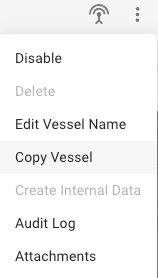
To copy any vessel, open the Vessel drawer and click the More button in the top right to bring up the menu.
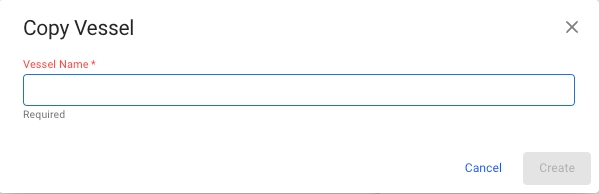
Clicking Copy Vessel will open a Copy Vessel modal where you are prompted to enter a new name for the new copy.
When you click Create, the data from the original Vessel will be copied over to the new Vessel, with a few exceptions.
Voyages and Port Calls will not be copied to the new Vessel.
IMO Number will not be copied to the new Vessel.
The internal data of the copied vessel will be given default values for some fields like company, business unit, vessel code and vessel class.
The vessel code will be set to the unique key value for the Vessel, used by the API.
Pool and Pool Earning Points will not be copied to the new Vessel.
The Load and Discharge rates section is an an overview of the load and discharge rates applicable for ports and terminals. It must not be mixed with the vessels' max load and discharge rates.
Open the Vessels module.
Open the vessel drawer
Vessel "Load & Discharge Rates" data can be accessed in the top tab menu. Details can be maintained directly from the table actions.
How to enable or disable AIS-subscription
You can enable or disable the subscription to AIS-positions for a vessel.
Open the Vessels module in the Master Data section.
Open the vessel drawer
If the vessel has an IMO-number, click on the icon in the top right.
The Various Cost/Revenue feature allows you to manage cost and revenue entries associated with a voyage, including those linked to and These entries can be accessed and modified from the Various Cost/Revenue tab in the voyage drawer.
You can also use the Various Grid in the full-screen view of the voyage drawer to get an overview over all connected variouses. Here, you can:
View all Various Cost/Revenue entries related to the voyage.
Create
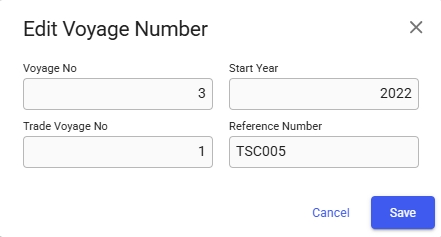
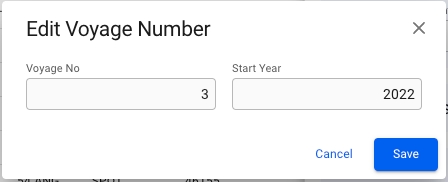
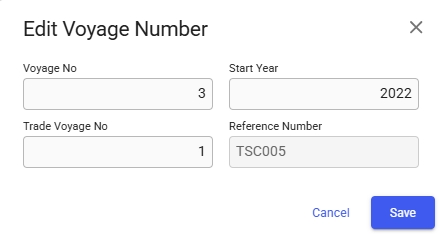
From the voyage drawer actions it is possible to change the Voyage Reference Number or Voyage Number, depending on the voyage status.
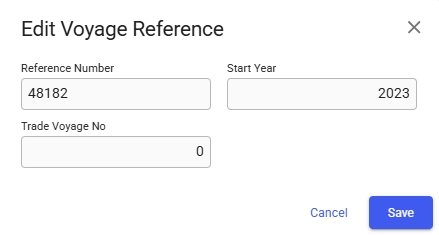
When voyage status is Estimate, Unallocated or Allocated, it is possible to change the Voyage Reference Number. It is also possible to change the Trade Voyage Number if the voyage is connected to a trade, however this number will be automatically set when the voyage is nominated, erasing any previously set value.
When voyage status is Nominated, Operational, Operationally Closed, Invoiced or Closed, it is possible to change the Voyage Number. If the voyage is connected to a trade it is also possible to change the Trade Voyage Number and view the Voyage Reference Number. The Voyage Reference Number can be changed if the Voyage Variant Number for the system is set to 9, else it will only be for information. Setting the voyage status to Estimate or Allocated from Nominated will remove the Trade Voyage Number.
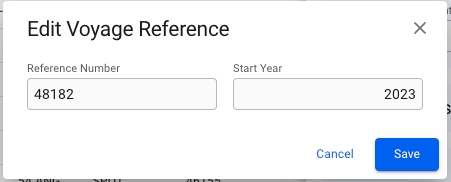
Clicking Edit Voyage Reference... or Edit Voyage Number... in the options meny opens a dialog box where the current values can be modified. In addition, the dialog box contains a field for changing the Voyage Start Year.
The VMS provides powerful voyage tools for risk assessment and estimations on cargo capacity on port calls.
These tools are available from Voyages or Planning -> Fleet Plans
Click on a voyage in the voyages list or board to open it in the drawer.
At the top right, click on Functions .
Long TC Voyages, Schedule, and the functionality.
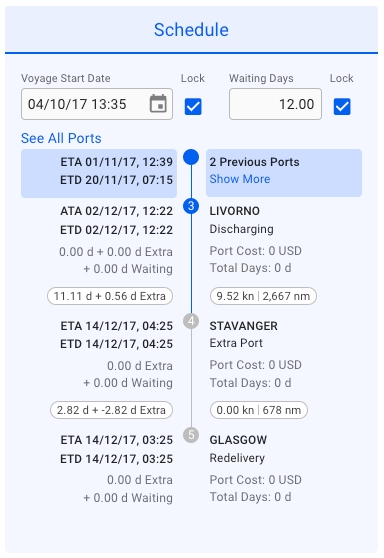
To recognize Long TC Voyages in the system, look for two key indicators: the Voyage Type labeled as (TC) and information in the . An example of a Long TC Voyage is shown in the screenshot below:
The blue rectangle represents Port Calls that occurred before the current Voyage.
"See All Port" is a link that, when clicked, opens a new browser tab displaying all Port Calls associated with the selected Voyage.
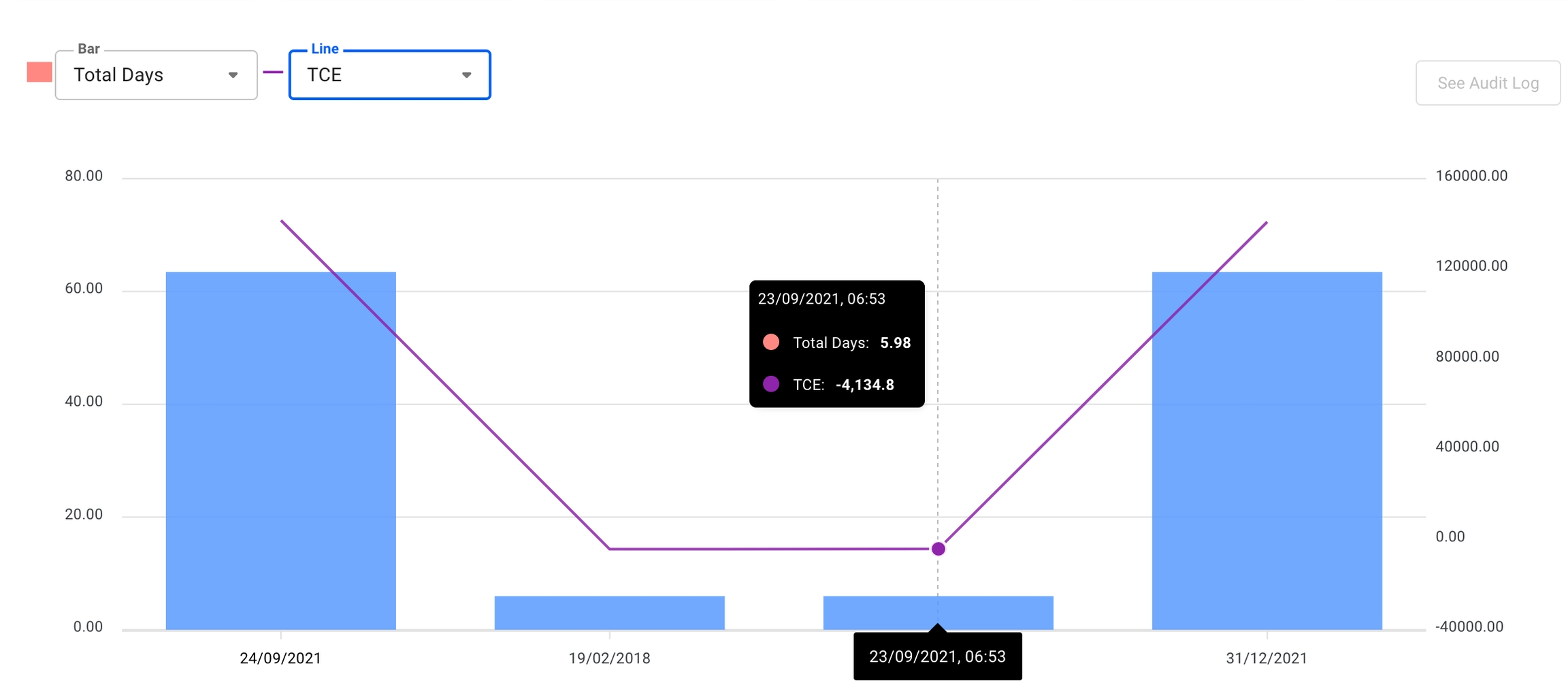
When in a voyage drawer the analysis tab is available in the tab section. In this tab you will be presented with a graph to give you a visual view of the development of key values in the selected voyage.
The graph that is displayed represents the total days for the columns, and the TCE for the line. These values can be changed in the dropdown fields on the top left. The timeline shown will be from the preliminary snapshot is taken to the current date. If the voyage is closed, the last value will be the last time the voyage was changed instead of todays date.
This page provides a detailed explanation of a Voyage Function - Deviation calculation.
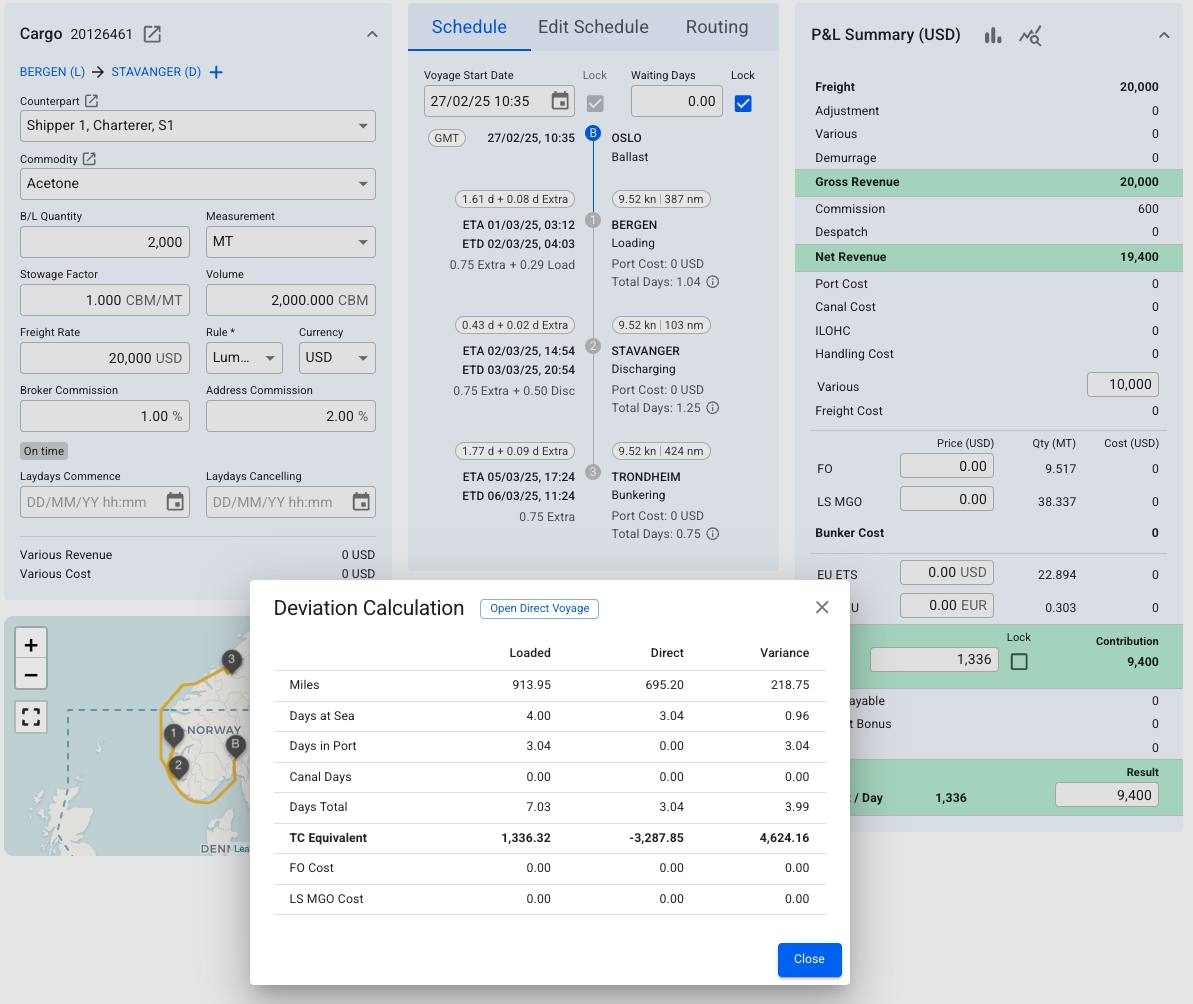
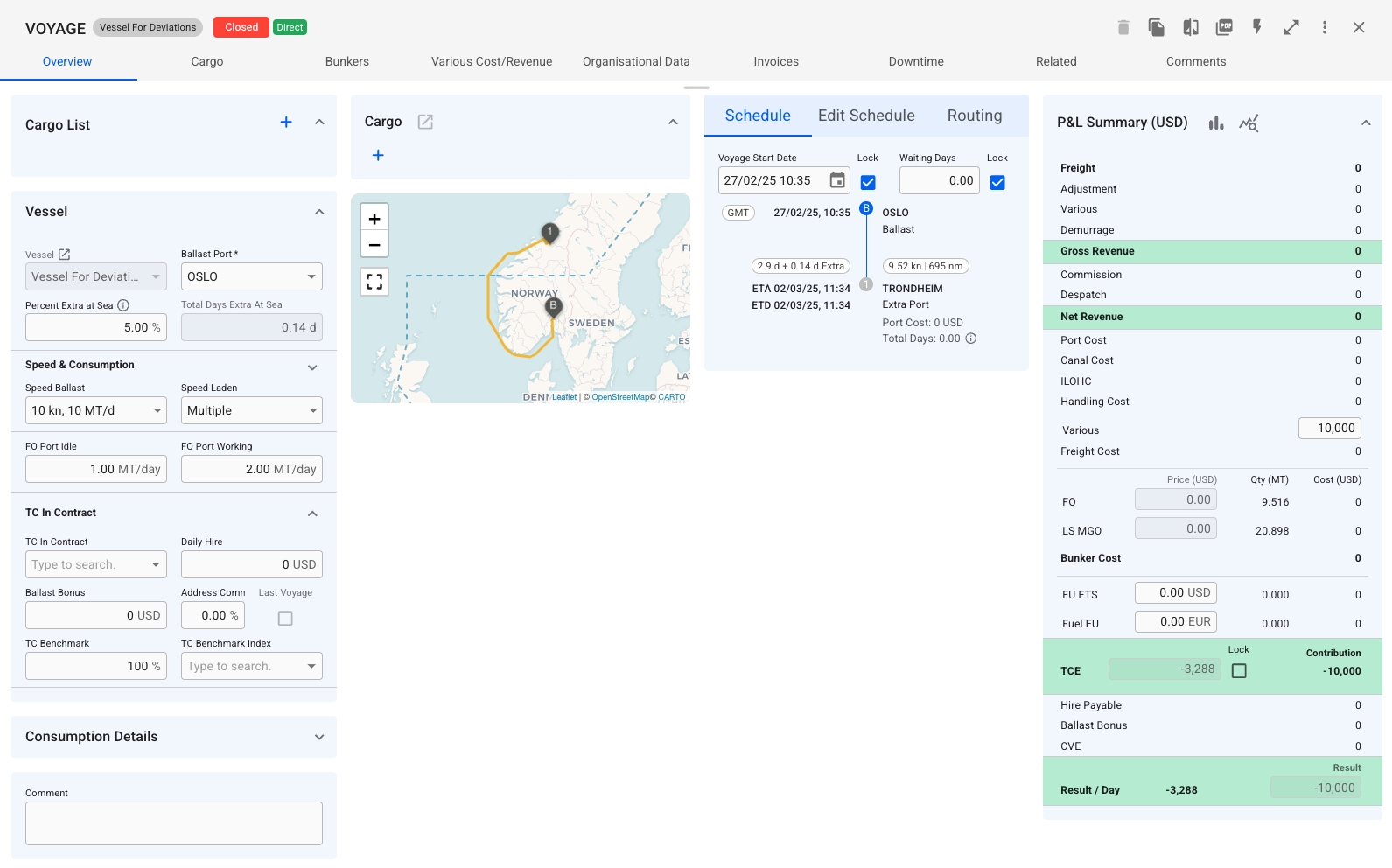
The deviation calculation function offers a comprehensive analysis of the difference between the current voyage and the same voyage as if it were direct — from the ballast port to the last port call.
This function is particularly useful when freight rates are low, voyages must adhere to strict schedules, or deviations are required for compliance. It helps determine whether an additional detour can generate enough extra revenue to offset the added distance, time, emissions, and fuel costs.
Figure 1 shows the Deviation Calculation window, comparing the current voyage results (in the Loaded column) with a hypothetical direct voyage (in the Direct column). The Variance column highlights the differences between the two. By clicking Open Direct Voyage, users can review the direct route’s details (Figure 2). In this example, the detour with cargo generates higher revenue, making it a more favourable option.
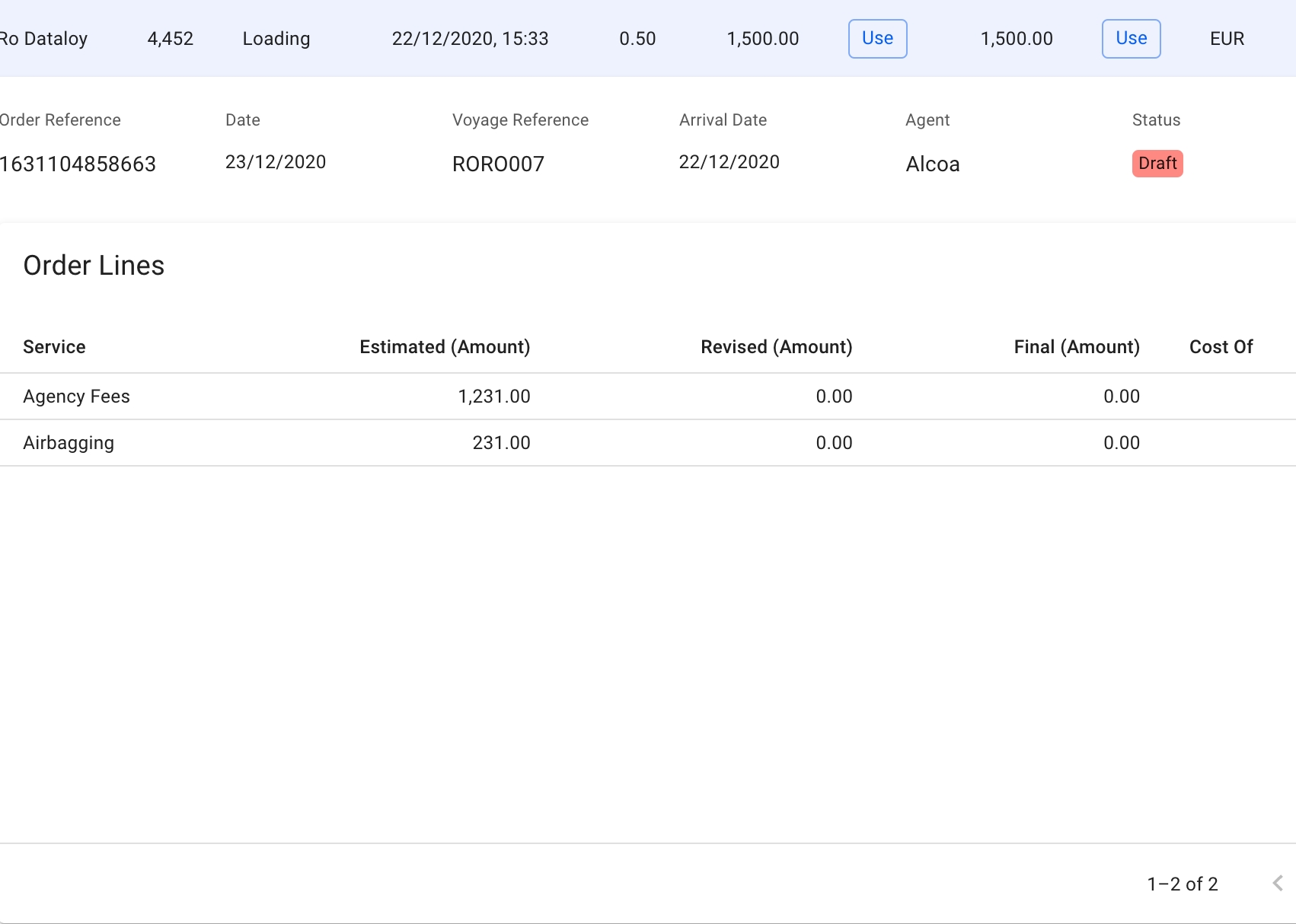
You can choose to use either the Actual Port Cost or Preliminary Port Cost of previous port calls to update the port cost of the selected port call.
To make use of a Preliminary Port Cost of a port call on the system, click the button to the right of the Preliminary column. To make use of an Actual Port Cost of a port call on the system , click the button to the right of the Actual column. Clicking this button will also update the currency of the port cost of the selected port call to the currency shown on the row.
Clicking any of the "Use" button will update the port call's port cost, which will be accumulated on the voyage's overall port costs.
If one or multiple Service Orders are present on a Port Cost the rightmost corner of the row will show an expandable arrow
By clicking the arrow , all the linked Service Orders will be shown.
An expandable arrow on the rightmost side of the Service Order row is also available, and clicking this will show the Service Order Lines for the selected order.
Layout:
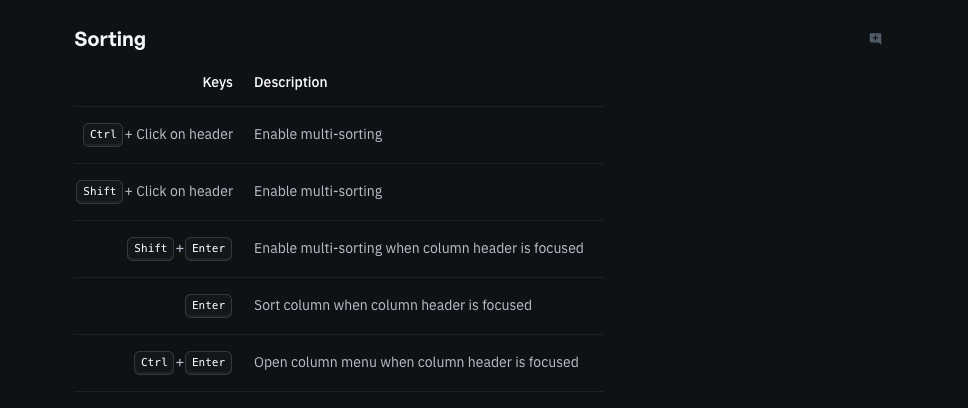
The Cargoes module is divided into the Allocated cargoes and the Unallocated cargoes. In each tab, you can filter the cargoes based on several key endpoints to effectively view the required information on your screen. There is a sort icon to the far right, with different options for sorting the list as well. You can read more here: Sorting and Filtering Lists.
Below you can click to read how to create different types of cargoes:
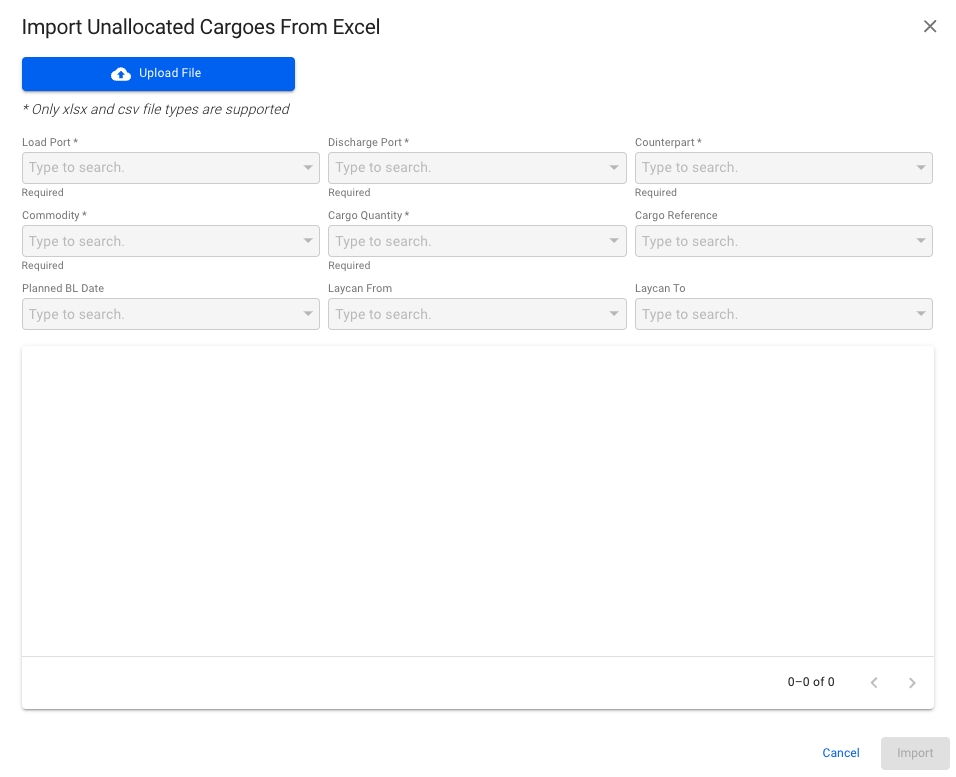
Create CargoCreate Cargo From CoA TemplateCreate Cargo on TC VoyagesCreate Cargo by Importing from ExcelCreate Cargo From Existing CargoSelect Create Time Charter Out.
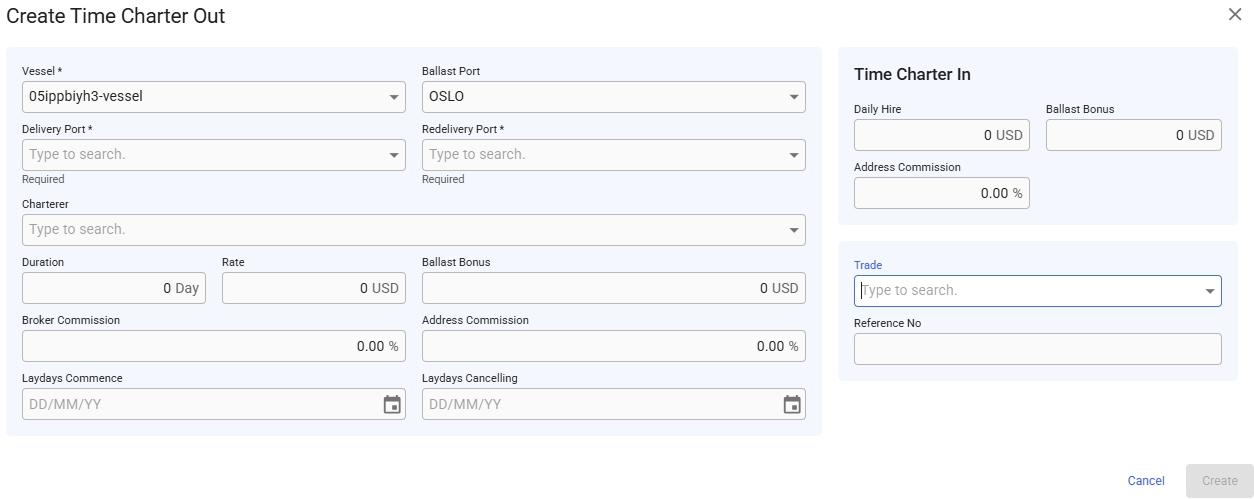
In the modal, you can fill in the required fields and add any additional information about the new TC voyage.
After you have filled in, you can click Create.
When choosing a Vessel, the Ballast Port, Owner and Currency fields will be automatically filled out with the vessels last port call, owner and default voyage currency.
The Currency field in the create modal is used for both Hire currency, as well as Bunkers and CVE currency.
In the trade field a combination of Route, Trade and Pattern can be selected to ensure trade is set properly. When changing to a different option, the cargoes on the voyage will be updated with the same trade.
Modify existing entries by adjusting details as needed.
Delete entries that are no longer relevant.
In the top right corner, click Create .
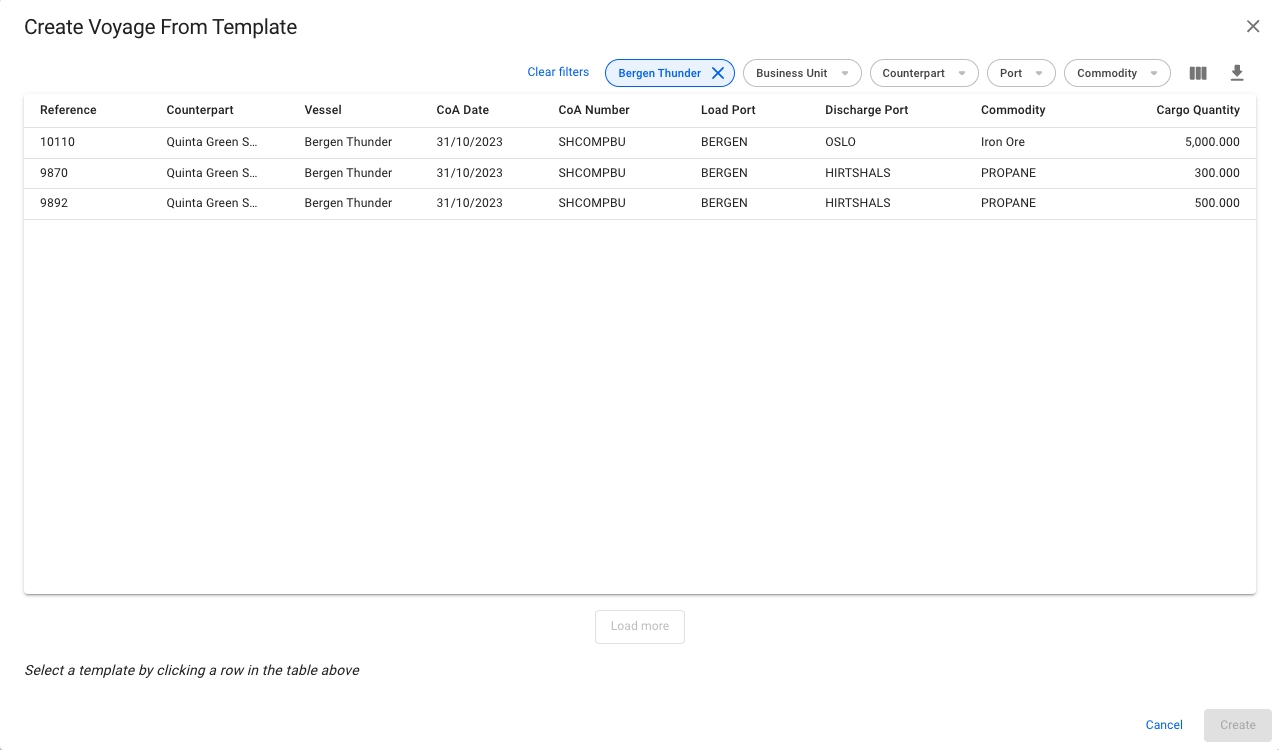
Select Create Voyage From Template.
In the modal, you can apply various filters to narrow down the selection. Clicking a CoA template voyage selects it. The new voyage will inherit the values from the template displayed in the modal, as well as the Company and Business Unit of the template.
Click Create.
"Show More" is a link that allows you to add up to 5 additional Port Calls per click on the current Voyage's schedule. These added Port Calls will remain visible throughout the system unless the voyage is reopened.
The Deviation Calculation function is available only for Estimate Voyages.
Open the Vessels module in the core menu in the top left corner.
Find your selected vessel.
Access "Speed and Consumption" data in the top tab menu. This page provides tools for precise vessel consumption configuration:
Indicate the consumption of Boilers and Generator for Main and Auxiliary engines.
Overwrite the default consumption for a bunker category during Ballast or Laden passages.
Identify default Ballast and Laden speed and consumption.
Specify bunker categories used by the vessel.
Example of vessel configuration:
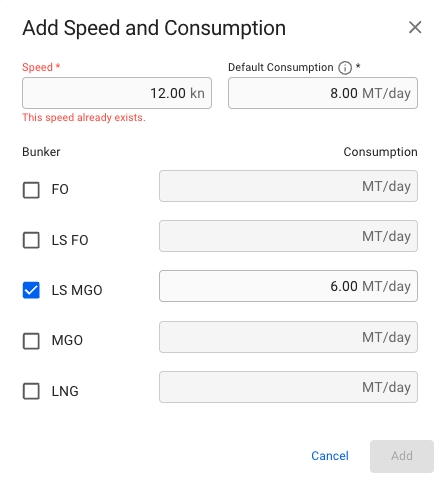
The top two cards identify Ballast and Laden speeds along with their corresponding fuel consumption for the selected vessel. These cards also allow specifying different consumption for any bunker category. This configuration will be used as default for all vessel's voyages, but may be adjusted for each voyage in the voyage module. A new passage configuration can be added by clicking the + icon. The added options will also be available in the voyage module for all vessel voyages. For example, the vessel in the screenshot from figure 1 has the following configuration:
Ballast
8 MT/day @ 12 knots for any bunker category during, but the consumption for the bunker category LS MGO is 6 MT/day @ the same speed (selected). The figure 2 illustrates how the Ballast Passage speed and consumption is configured in the create modal.
Laden
These sections specify the default parameters for extra consumption in port or at sea passages by FO and MGO. The defined consumption will be used for voyages created with this vessel but can be overridden for each voyage in the .
You can customize the default categories used by the vessel and determine the order in which the categories are utilized. Important Notice: Changes to vessel bunker categories will affect all vessel voyages. This means that unless the selected vessel categories align with the current voyage consumption data, consumption categories and emission calculations will change. Modify vessel bunker categories carefully, and keep in mind the linked voyages that will be subject to update.
For example, for an Open Loop Vessel it is allowed to use FO, FO LS, and LS MGO in North America. If the vessel has no specific configuration, Dataloy will prioritize FO as the first pick. However, this can be changed by specifying Vessel Bunker Categories, assigning LS MGO priority 1 and FO priority 2*. In this case, Dataloy VMS will compare the allowed categories in an area and select the highest priority matching vessel bunker category – in this scenario, LS MGO. In the event that the vessel is configured without a bunker category allowed in a specific area, the first priority bunker for that area will be used
The bunker category priorities can be changed via the 're-sequence' function, which is located in the top-right of the Bunker Categories section.
Allows specifying Carbon Dioxide, Nitrogen Oxide, Particulate Matter, Sulfur Oxide, and Carbon Monoxide emission factors for bunker categories. The determined factors will be used during emission calculations for all vessel's voyages.
To open the voyage drawer, go to the Voyages module.
The top of the voyage drawer "Overview" tab has four summary cards for TCE, total days, hire costs, and bunker costs.
Note, If the status of the Voyage is closed, it is not possible to make any updates or changes to that particular Voyage.
Click expandto open detailed charts for the numbers in the summary.
The "result" chart is a waterfall chart for costs and revenue on the voyage. Hover the mouse over the bars to see further details behind the calculation.
The "days" chart has a timeline chart for the port calls on the voyage and a table of the total days on the voyage.
The port calls timeline shows the days at sea and days in port. It also shows the names of the ports above the bars. Hover the mouse over each bar to see more information.
Here you may add organisational data to your voyage.
Note, The Company and Business Unit fields depend on each other. If one of the details is set, you may see linked items that correlate to the former attribute when selecting the second field. Moreover, if you proceed with an element not linked to the former attribute, the first field will be cleared.
* For example, there is Company A, which has a link to Business Unit A. When creating Voyage's organisational data, after selecting Company A and expanding the Business Unit, you will get a list of options. The list will contain all the Business Units, but Business Unit A will be marked as linked to the selected Company. Next, if linked Business Unit A is chosen, you will end up with Company A and Business unit A. Otherwise, if the selected Business Unit is not linked to the preferred Company, the Company field will get cleared, and you may observe a list of Companies related to the selected Business Unit.
A section in a Voyage drawer found in the third tab of the Schedule module
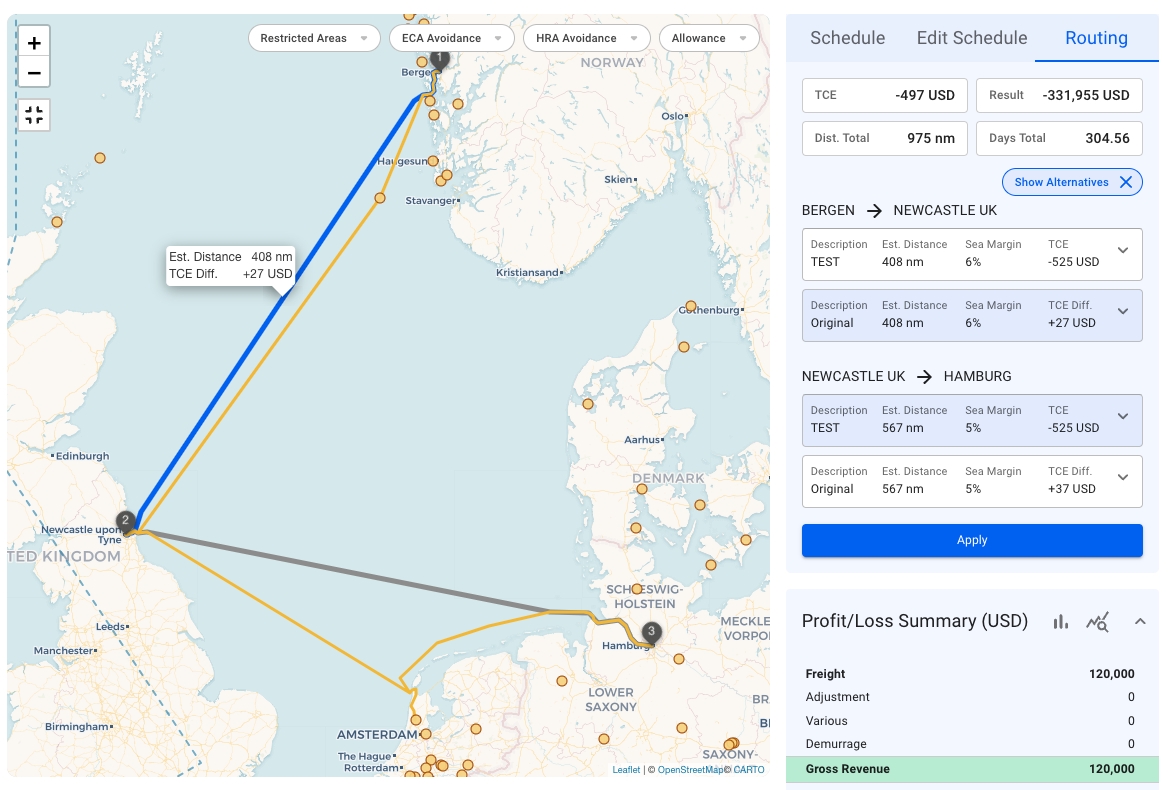
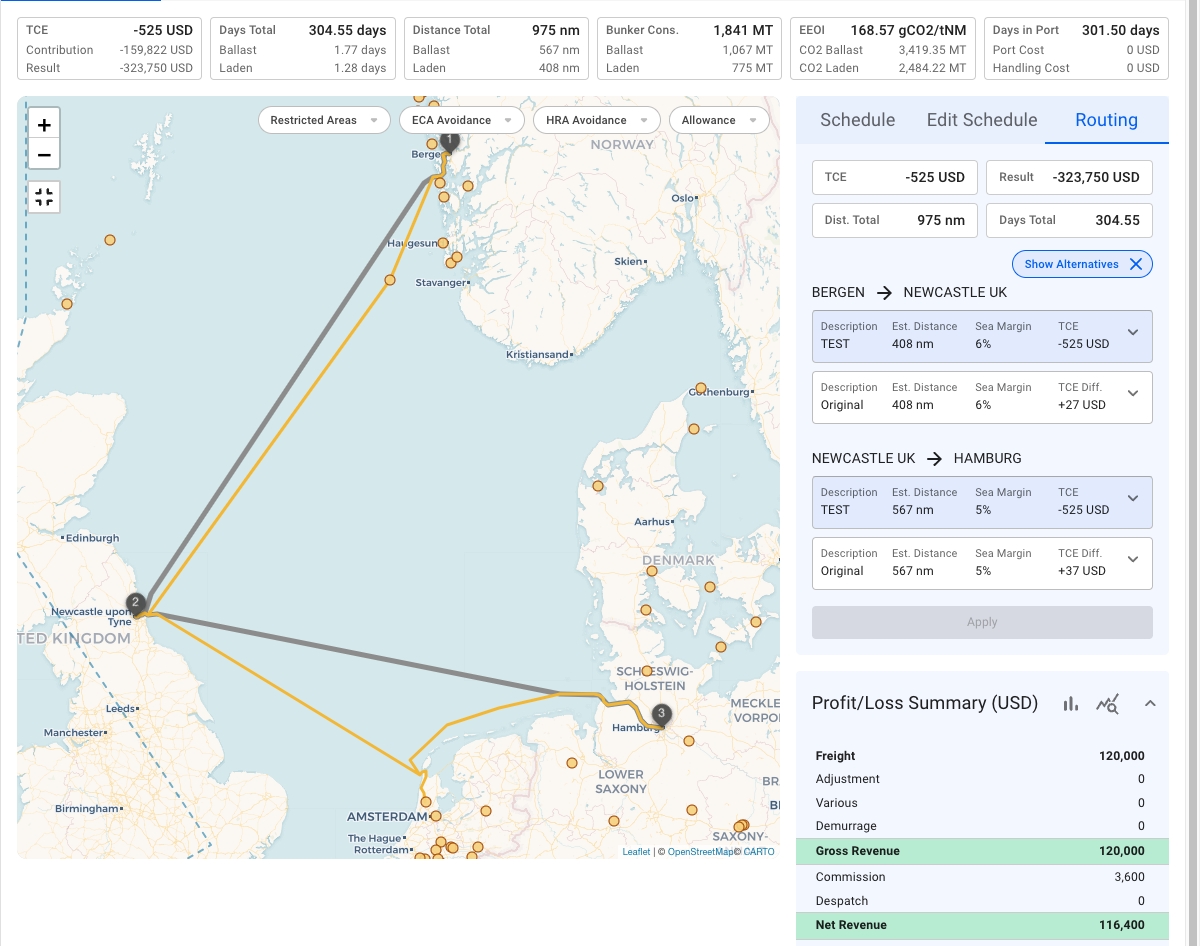
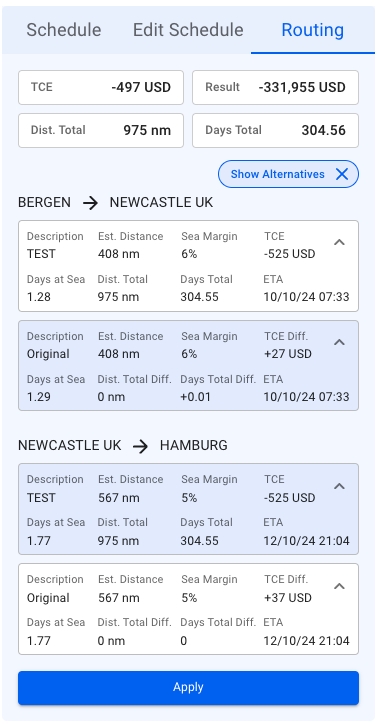
The 'Routing' tab allows comparing different routes regarding essential information such as Voyage TCE, Voyage Result, total distance, total days, etc.
See the screenshot below (Image 1) for an example:
A voyage going from Bergen to Hamburg through Newcastle is displayed. The routing tab illustrates an alternative route for each leg on the mentioned voyage. As presented in the screenshot, there is a key difference between the routes:
TCE Difference: the TCE difference indicator shows the difference between the alternative route TCE and the currently selected route TCE. So, for the leg, Bergen -> Newcastle, the current TCE is -525 USD. On the other hand, selecting the alternative route will result in +27 USD, which is -497 USD of TCE total (See Image 2).
Estimated Distance: illustrates the estimated distance for each leg, original and alternative.
Sea Margin: shows the sea margin.
The map is also interactive and helps to visualize the alternative route, providing crucial data.
It is also possible to compare the routes in more detail! For instance, take a look at the screenshot below:
Clicking the top-right arrow in each container expands the detailed information.
The apply button proceeds with the changes and saves the selected route for the current voyage.
Note: The alternative routes may be created manually or must be coming from a third party, such as weather-based routes, etc.
From the "Related" tab in the voyage drawer, you can view, add and edit laytime calculations. Expand the collapsible section titled Laytime Calculation and click the Create button to add a laytime calculation for the opened voyage.
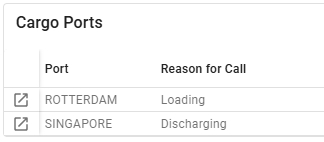
Cargo Ports have been moved from the collapsible "Cargo List" to a dedicated grid, improving accessibility and increasing maintainability and flexibility when editing cargo ports.
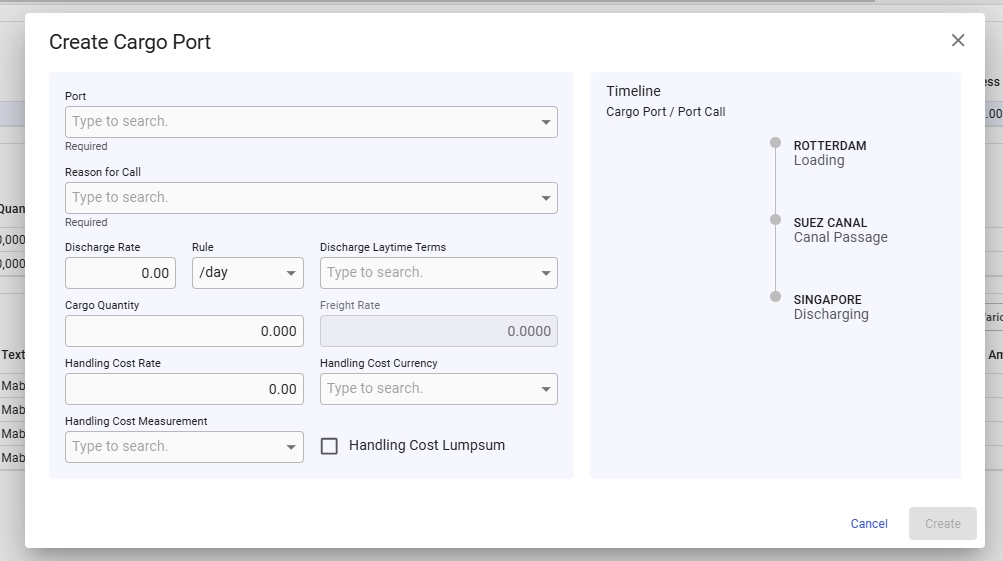
To add a new cargo port to the voyage, click the blue plus sign on the right-hand side of the grid header (see Figure 1). This will open a modal, as shown in Figure 2, where you can create the new cargo port.
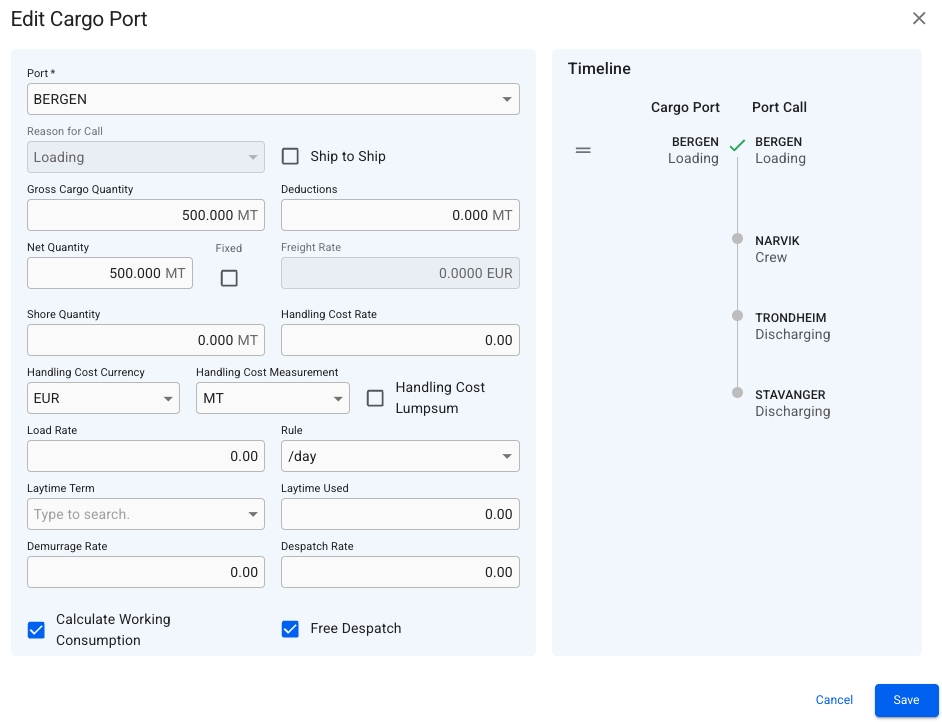
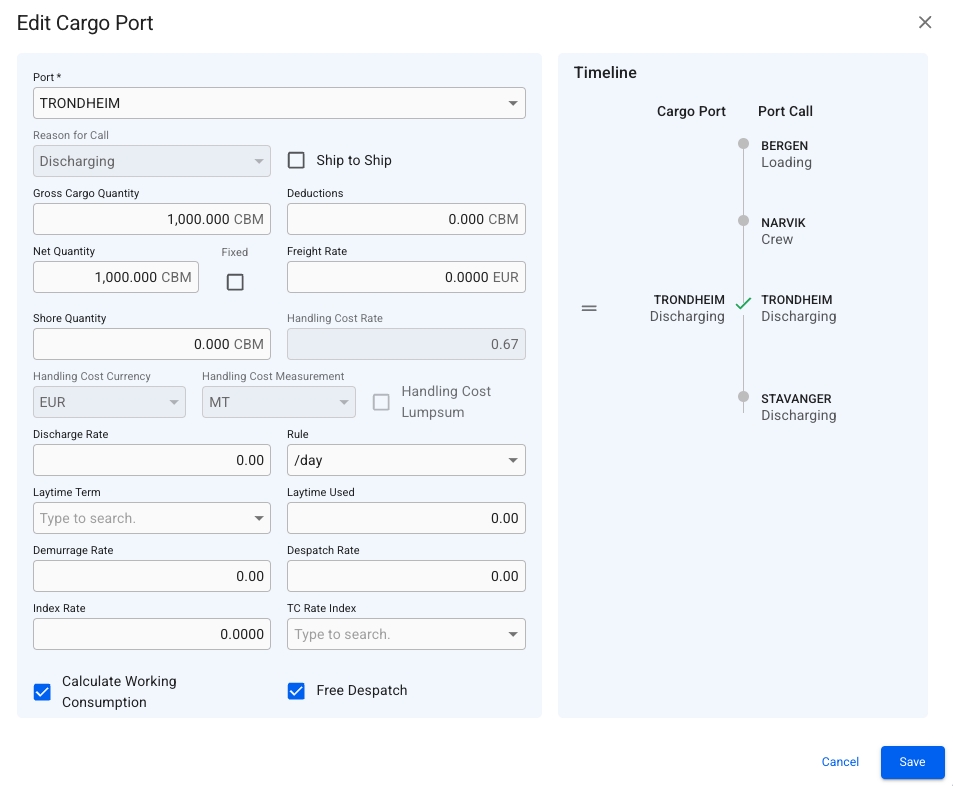
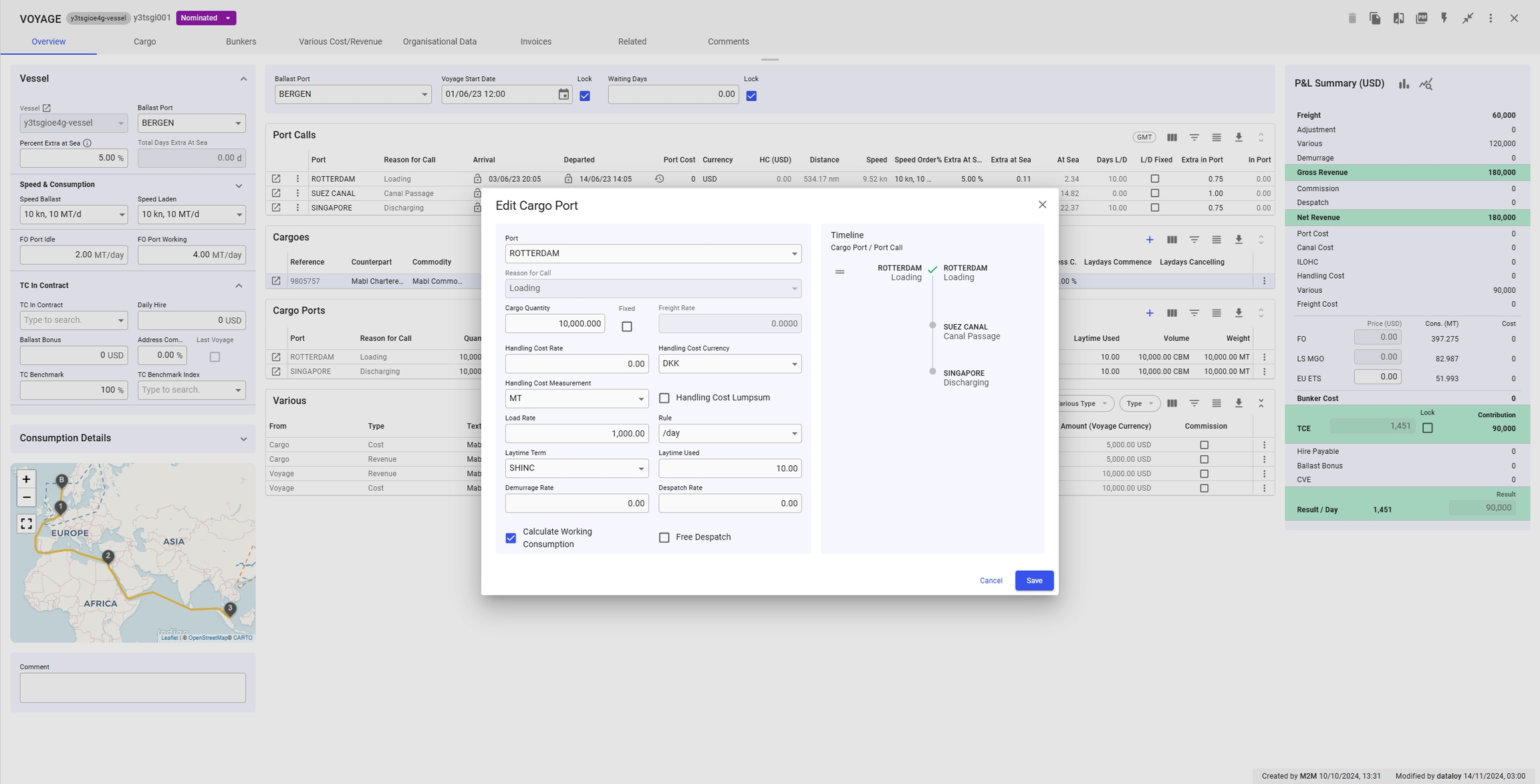
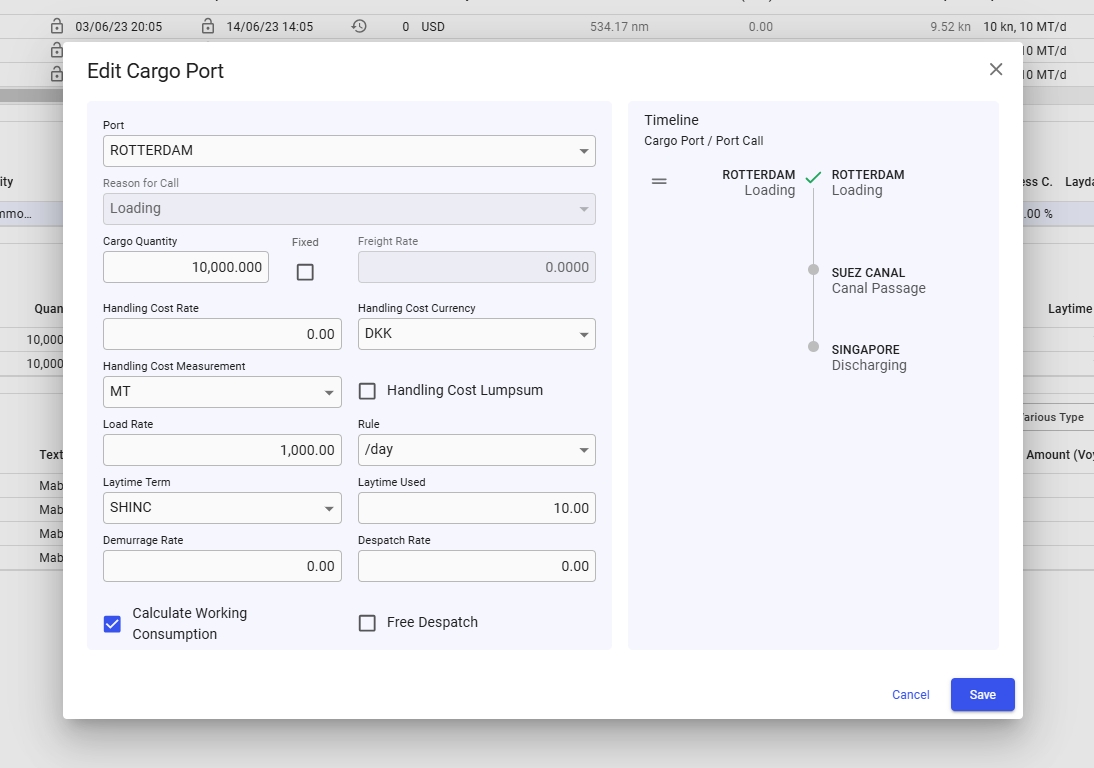
Like all grids, the Cargo Ports fields can be edited directly within the grid. Alternatively, you can click the Edit Cargo Port icon in the left-most column (see Figure 1) to open the "Edit Cargo Port" modal. The modal will appear on top of the voyage drawer as seen in the figure below.
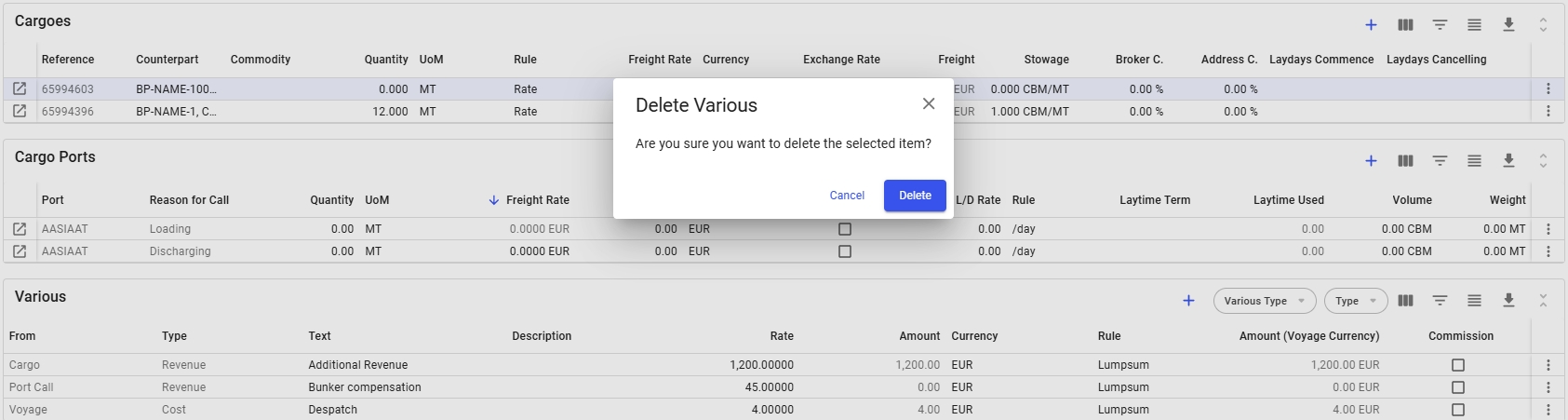
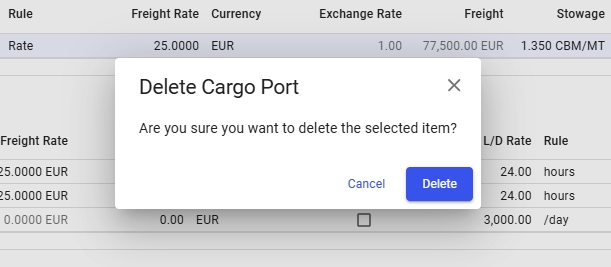
It is possible to delete a Cargo Port by clicking the vertical ellipsis menu in the right-most column (see Figure 4). When clicked, a popup asking for confirmation will appear to prevent unintended actions, as illustrated in Figure 5.
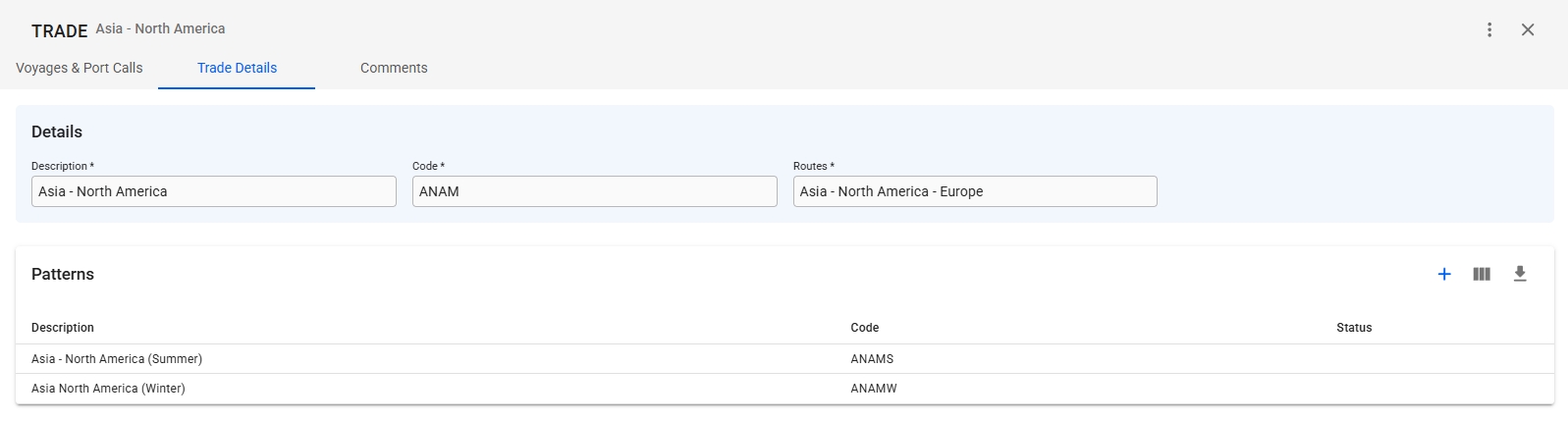
In the Trade Details tab there are two sections. Details and Patterns.
In the details section you can see and edit the Trade's description, code, and which Routes the Trade is in. All of these fields are required, and cannot be empty. The Code field also has to be unique code that is not used by any other Trade.
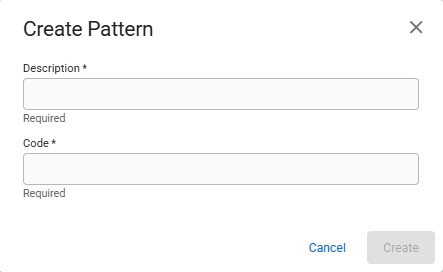
The Patterns list contains all the Patterns for selected Trade. You can create a new pattern by clicking the in the top right corner of the list. Clicking this will open the Create Pattern modal, as seen below. Both fields in the modal are required for being able to create a Pattern. The Code field also needs a unique code, that has not been used by any other pattern in your system.
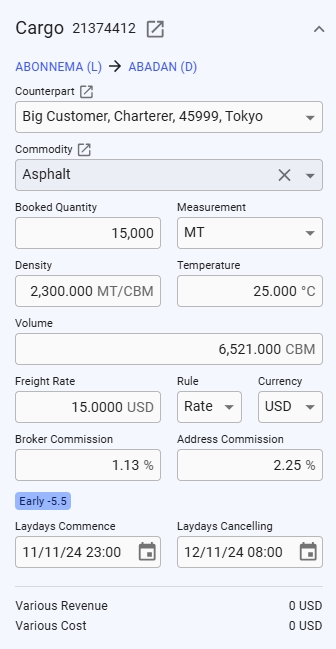
To maintain the cargo click the cargo in the list. The selected cargo will be opened in a cargo drawer where you can edit fields, copy cargo, create a pdf from the booking and so forth. Click the cargo drawer page here to see more details.

A section in a Voyage drawer that visualizes the schedule and port-call-related information.
The Voyage schedule visualization may be found on the right-hand side of a voyage drawer.
This section is highly customizable: e.g., you may change the voyage start date, lock it, edit the Voyage's speed, update the port call sequence, and much more!
The Schedule Timeline is a fully interactive module. Each port represents a draggable block - if you reorder the blocks, you will update the port call sequence on the opened voyage correspondingly:
Next, each Port Call block is clickable, and it brings up a drawer.
The small ovals inside of each Port Call block includes a piece of related information: Days at Sea + Extra Days at Sea
This page gives an entail into the tab 'Bunkers' inside the Voyage module.
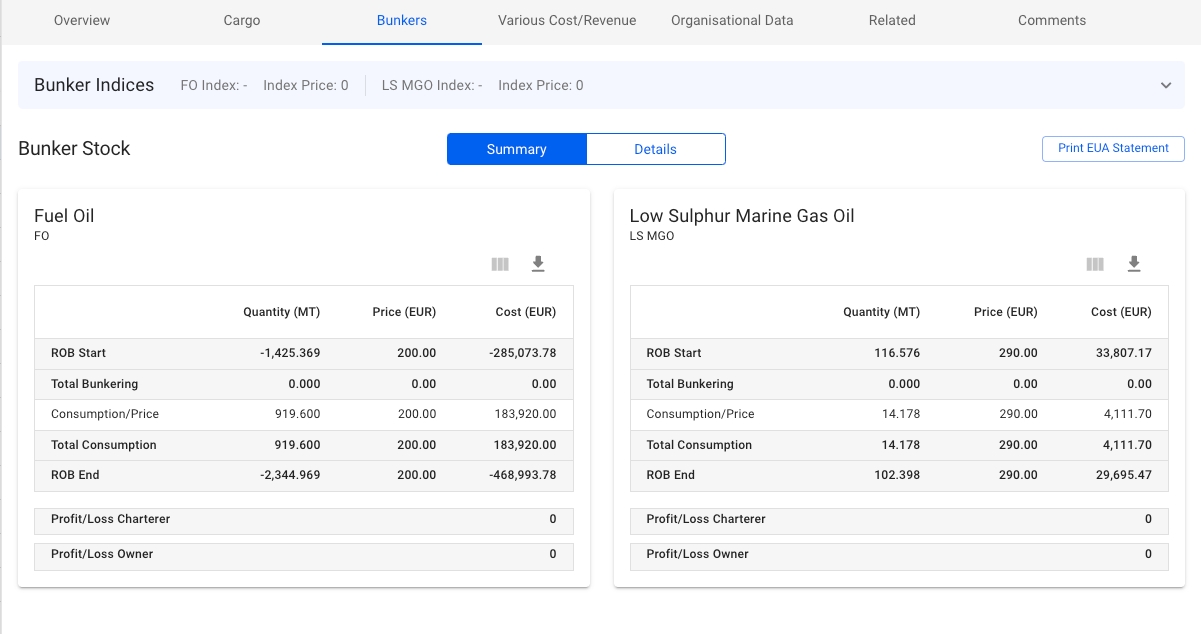
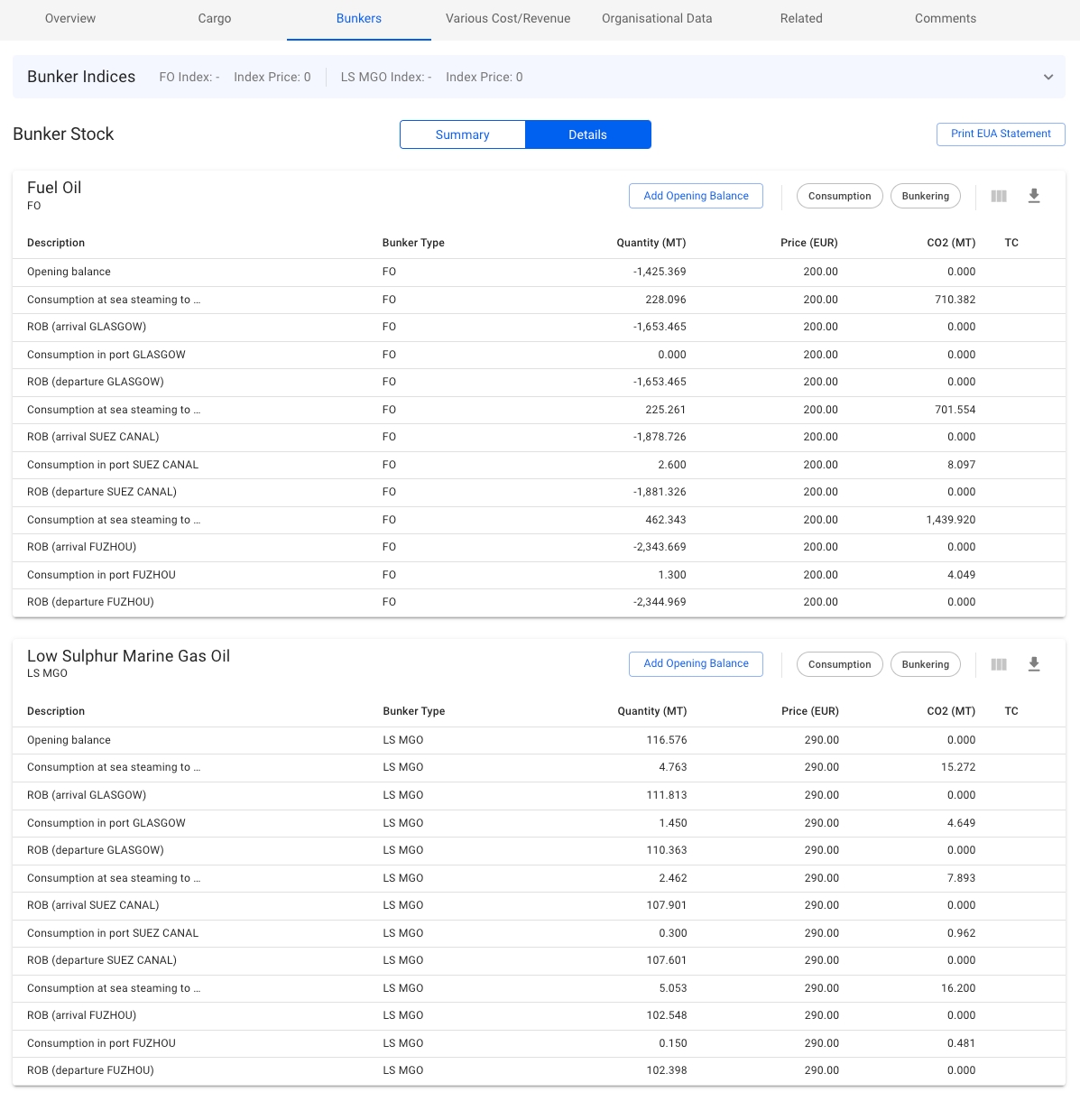
The Bunker module is split into three parts: 1. Bunker Indices; 2. Bunker Stock Summary; 3. Bunker Stock Details.
Yet, the Print EUA Statement button is always visible. This function generated a descriptive report of consumed per port, specifying the percentage used in calculations, and associated consumption per leg.
Bunker Indices: this section helps to have a better overview of bunker indices even when the fuel types FO and LS MGO are not consumed by a vessel. By default, the section is collapsed, providing information regarding the bunker indices. Once expanded, the indices can be altered. Refer to Figure 1 for example:
With the Sensitivity Analysis tool you can run calculations on a chosen parameter to evaluate risk.
Click on a voyage in the list or board to open it in the drawer.
At the top right, click on Functions.
Select Voyage Sensitivity Analysis.
In the Payment Terms tab you can enter the payment details as per above fields.
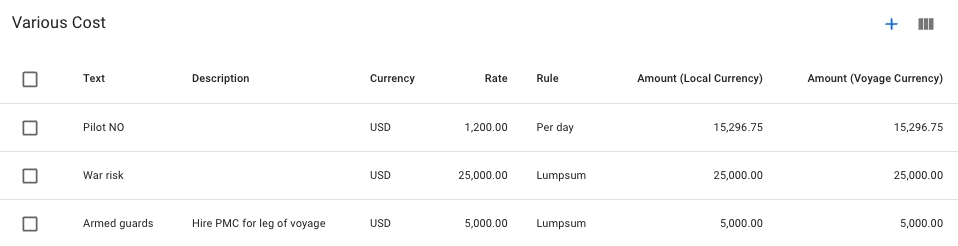
In the various Cost/Revenue Tab there will be two tables. One table for various cost and one for various revenue.
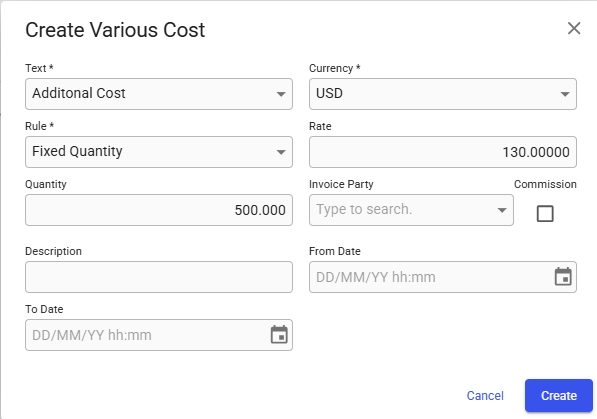
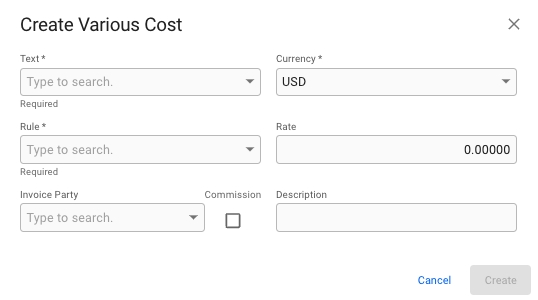
To add a Various Cost click the blue plus icon in the top right corner. Once clicked the below modal will appear.
Once the required fields are filled in the create button will be activated and you can create the Various Cost.
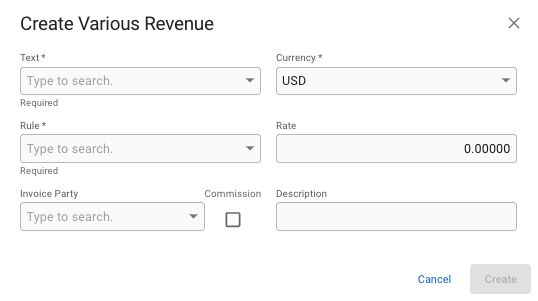
To add a Various Revenue click the blue icon in the top right corner. Once clicked the below modal will appear:
Once the required fields are filled in the create button will be activated and you can create the Various Revenue.
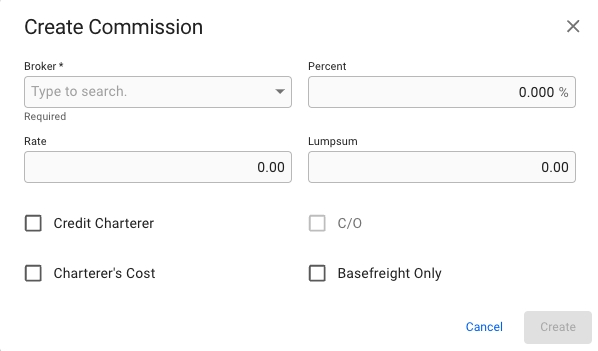
In the Commissions tab you can create new commissions by clicking the -icon to open a dialog to enter values, where "Broker" is mandatory:
Once clicked the below modal will appear:
Once the required field is filled in the create button will be activated and you can create the new Commission, which then will appear in the table in the Commissions tab.
Each list starts with the opening balance of the stock. The opening balances displays the balance of the bunker stocks at the beginning of the voyage and are generated based on the previous fixed voyage. When creating voyage estimates the opening balances are generated based on the last fixed voyage on the vessel.
Opening balances can be updated on voyages with status Estimate or Unallocated to be able to do quick calculations. Once a voyage is fixed, the opening balance will be recalculated based on the previous fixed voyage and will no longer be editable.
Opening balances are also editable on voyages where the voyage start date is fixed.
To edit an opening balance on voyages where this is enabled,
click on the opening balance row and a modal with the editable values will appear
edit the values
click Confirm to save your changes
It is possible to add additional opening balances for each bunker category on voyages that have the status Estimate or Unallocated and for voyages where the start date of the voyage is fixed.
To add an opening balance:
in bunker stocks list click on the Add Opening Balance button located above the bunker stock list for a given bunker category
enter the values
click Confirm to save the opening balance
The new opening balance will be added after the last existing opening balance in the list.


1) 12 kn @ 9 MT/day of any bunker category and 7 MT/day of LS MGO @ 12 kn.;
2) 13 kn @ 10 MT/day and 8 MT/day of LS MGO @ 13 kn. (selected)

On the top right corner, click the icon.
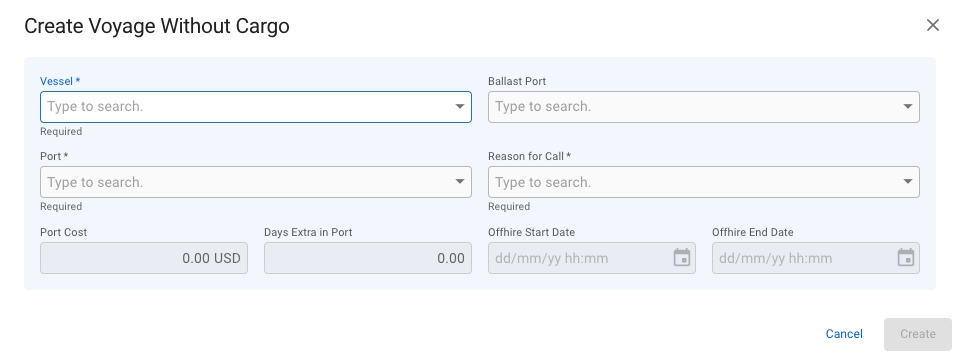
Select Create Voyage Without Cargo.
After you have filled in the required information, you can click Create.
Vessel
Yes
Ballast Port
No
If none is selected the selected Port will be used.
Port
Yes
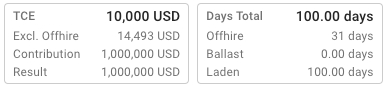
Tiles show the key values like TCE, Days Total, Distance Total, Bunker Consumption, EEOI, Days In Port, of the voyage.
Conditional information:
TCE Excluding Offhire (only shown when there is at least one offhire day)
Offhire days (only shown when there is at least one offhire day)
TCE is calculated as: Contribution divided by Total Days of the Voyage
TCE Excl. Offhire is: Contribution divided by (Total Days of the Voyage - Total Days Offhire)
'TCE Excluding Offhire' will display the TC Equivalent using the remaining total days after excluding/subtracting the days offhire. As a result of dividing by a smaller number, it will always be a higher number than regular TCE.
Sections are used to show the most important information about a sub-item of the voyage. Some sections have an Openbutton to open the section's item in a new drawer.
Voyages on a time charter will have a "TC contract" section, while all other voyages will have a "Performance Cargo" section instead.
In the top right corner, click Create .
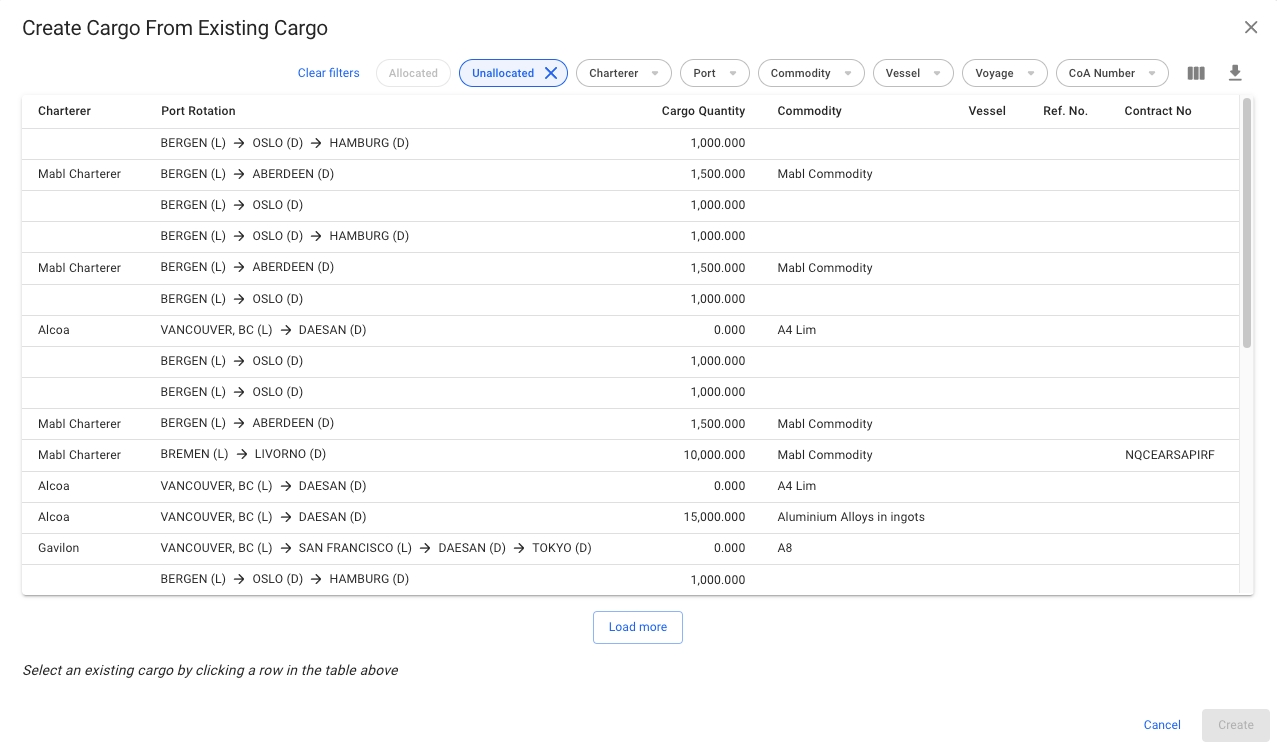
Select Create New Cargo From Existing Cargo.
In the modal, select a cargo to create the new cargo
Click Create.
Moreover, the Port Call blocks include a small functions tooltip that provides the following actions on the voyage schedule sequence: show Port Cost history overview, create new Port Call to the current schedule, edit the selected Port Call, or delete the Port Call.
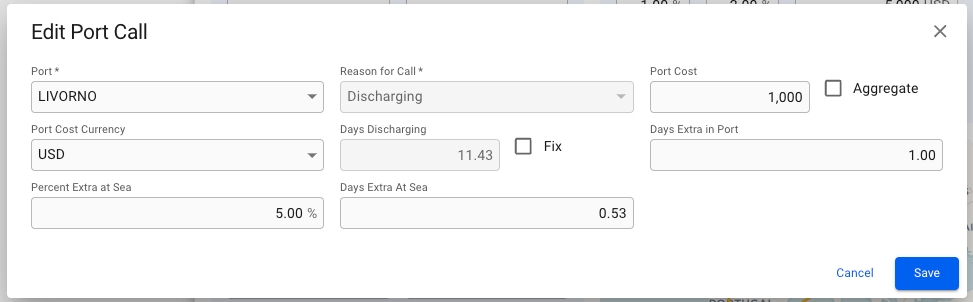
To edit a port call in the schedule, click the pencil icon in the functions tooltip. A popup modal then shows where main details of the port call can be changed.
Note that the port can only be changed if the Arrival-, Berthed-, and Departure Date are unfixed. If any of these dates are fixed, the port selector will only show available terminals on the currently selected port.
The Bunker Stock Summary contains cards associated with the respective consumed fuel type. The core idea is to provide a brief overview of consumed bunkers and derived costs (Ref. Figure 2).
Bunker Details serves the same idea as Bunker Stocks Summary but provides more detailed and specific information. The table items can be filtered to show only the Consumption or Bunkering rows (ⓘ interact with the filter options in the top right of each table card).
In the top right corner, click Create .
Select Create New Cargo From CoA Template.
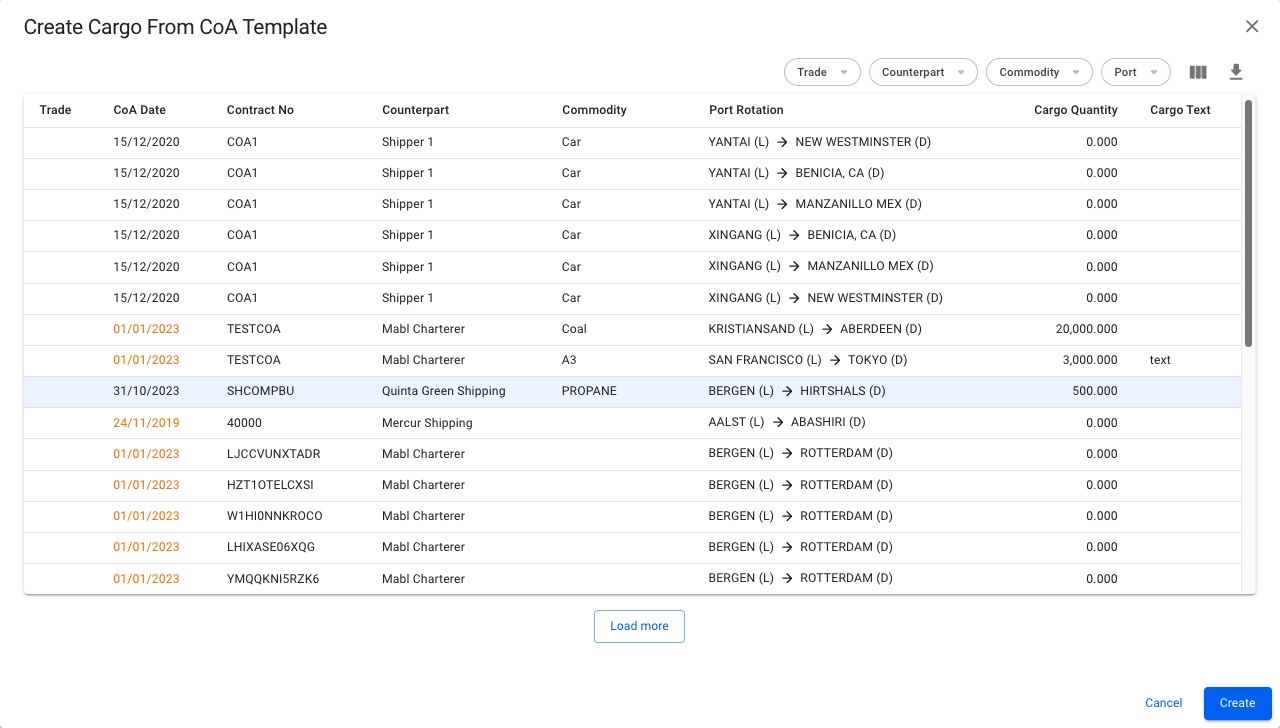
In the modal, select a CoA template to create the new cargo. The fields that are pre-filled are the ones that were filled in when creating the CoA itself, which the new cargo will inherit.
Click Create.
The modal is now draggable, making it easier to see the information "behind" the modal. Hover over the title or the top of the modal to activate it.
Looks and works quite similar to Create Voyage From Template.
Select a voyage parameter which is then adjusted by the numerical variance for each calculation.
Parameter
Calculated value
Freight Rate
TCE
Bunker Price / MT (DO, LS DO, FO, LS FO)
TCE
TCE
Freight Rate
The chart shows all the calculated values for the voyage. There are 15 data points, with the current voyage displayed in the middle, with negative variance on the left side, and positive variance on the right side.
The value of the selected Voyage is specified with a blue vertical line. The figures you find in a small box above each point reflect the X-axis values for each point.
Hover the mouse over the chart to inspect the values of each calculation data point.
Moreover, you may find a table on the right from the Sensitivity Analysis chart. The table consists of the calculated values, placed in ascending order. The table may ease navigation among calculations.
Press the menu iconto download the chart as an image (SVG or PNG), or a text file (CSV) that can be imported into spreadsheet software.
Select Create New Cargo.
In the modal, you can fill in the required fields and add any additional information about the new cargo.
Click Create.
Load Port
Discharge Port
Counterpart
Commodity
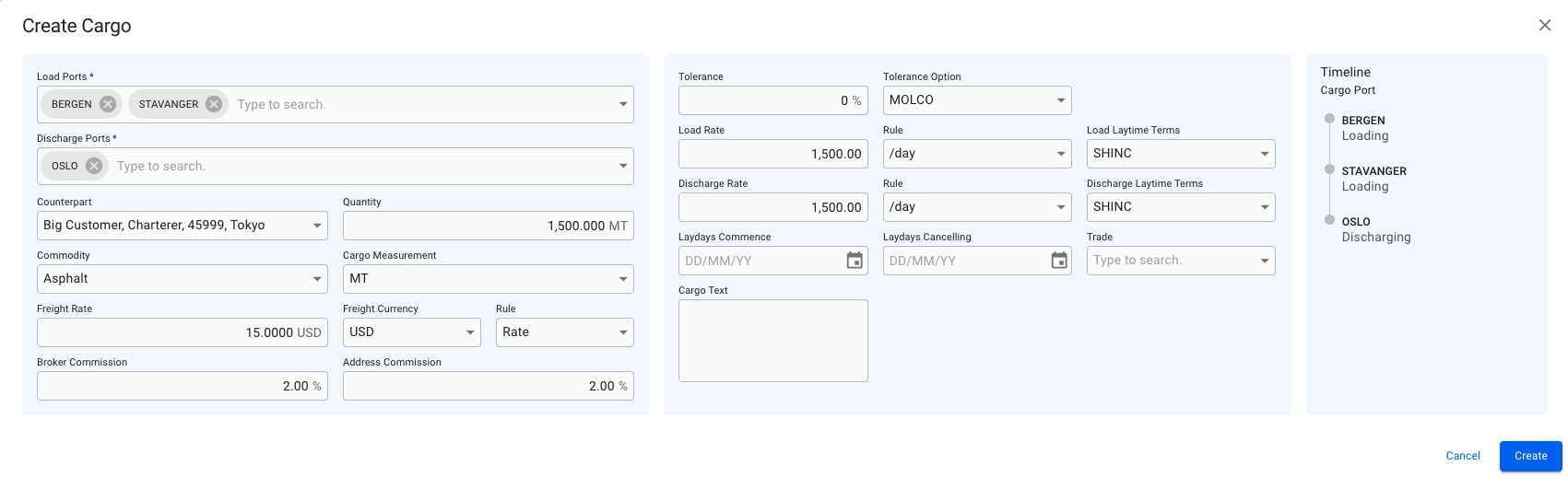
The new Create Cargo modal has a new design to increase the productivity while creating a cargo, is more user-friendly and has more useful features altogether. Click on the picture below to get a better view of the details:
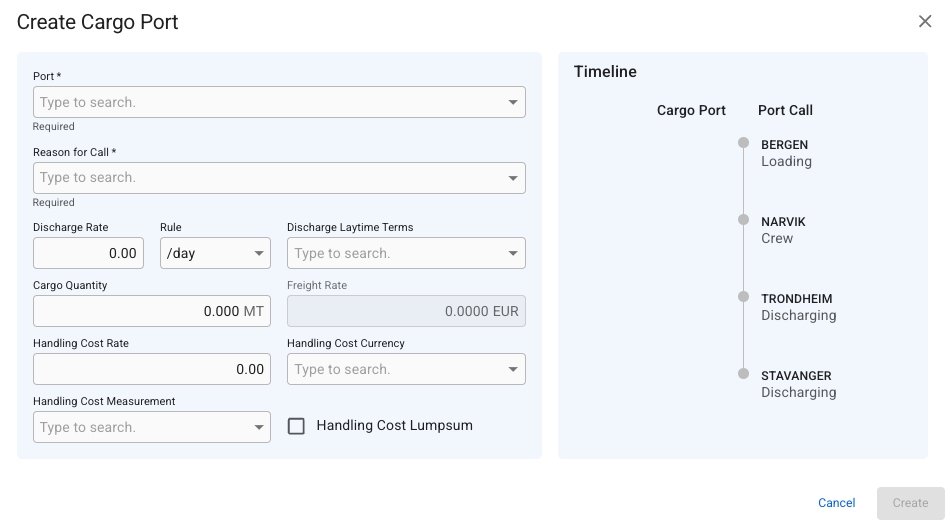
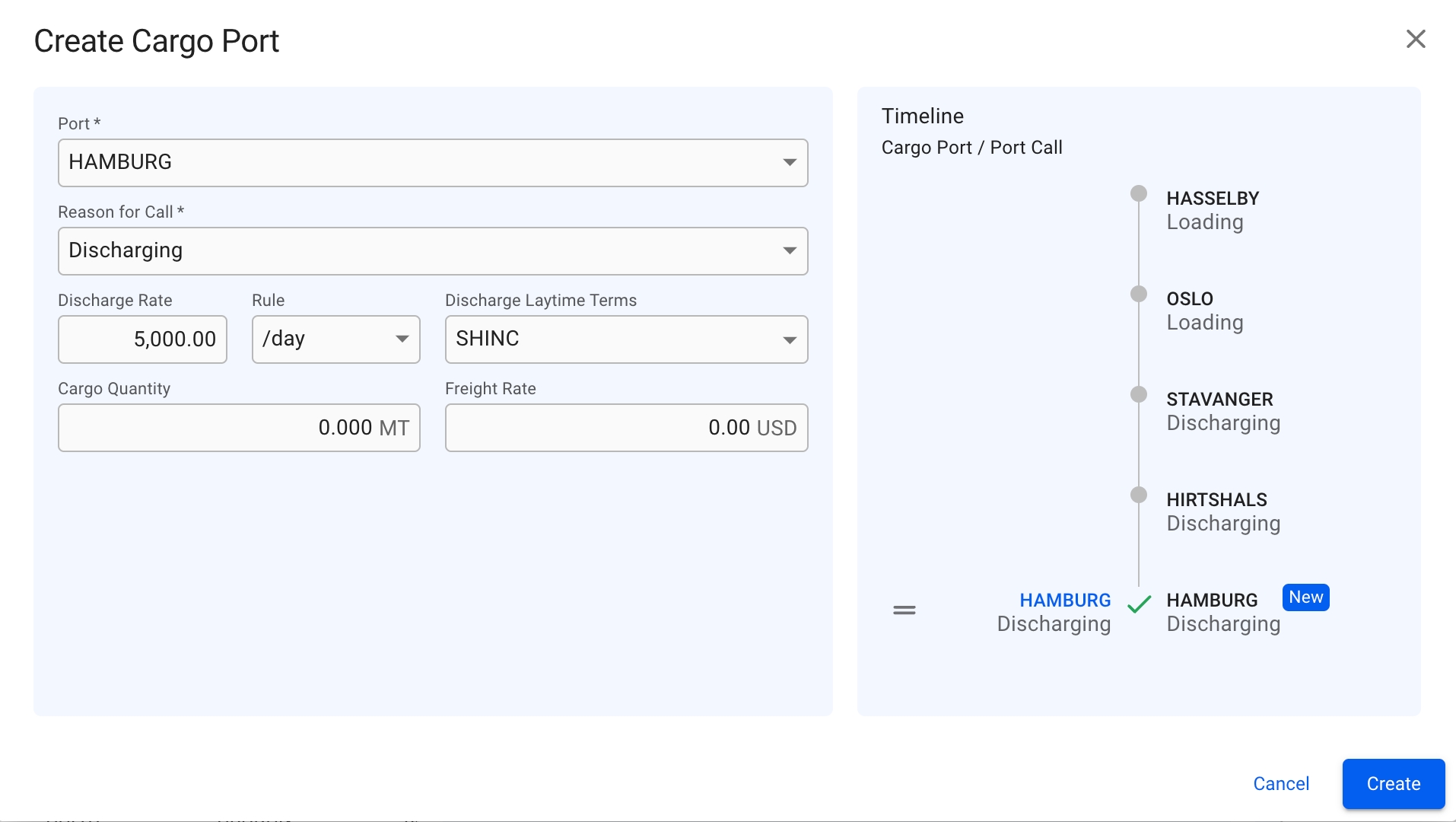
Similar to the design above, we now have a new Create Cargo Port modal:
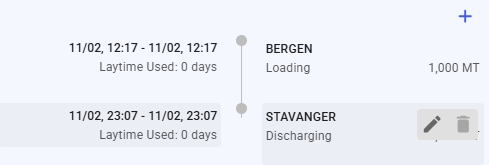
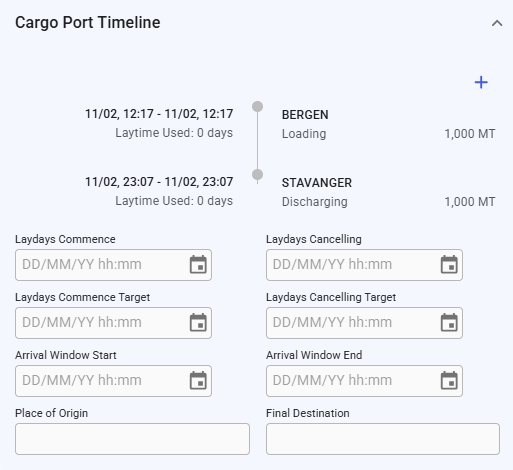
This modal has the same features as the Create Cargo modal, listed below. To create a new cargo port on a cargo, there is now a simple icon at the top of the Cargo Port Timeline section of the cargo drawer. However unlike the Create Cargo modal, Reason for Call is set to 'Loading' by default and is limited to only 'Loading' and 'Discharging' for cargo ports.To change the order of ports, you can use the drag and drop features inside the modal. To edit or delete an existing cargo port you can, in the Cargo Port Timeline section, look for the grey icons on each of the cargo port rows, to specifically focus on a cargo port of choice to make the changes. Read more about the features below.
With the new multiple value component in the Create Cargo modal, you are now able to add multiple Load- and Discharge- cargo ports to the new cargo.
The fields are divided into 2 sections, while the 3rd section displays the Timeline component of the cargo ports that are added. In the Create Cargo Port modal, there are 2 sections, in which the 2nd one contains the Timeline.
It is possible to drag and drop the ports in the Timeline component to change the order of the cargo port rows, in both of the modals.
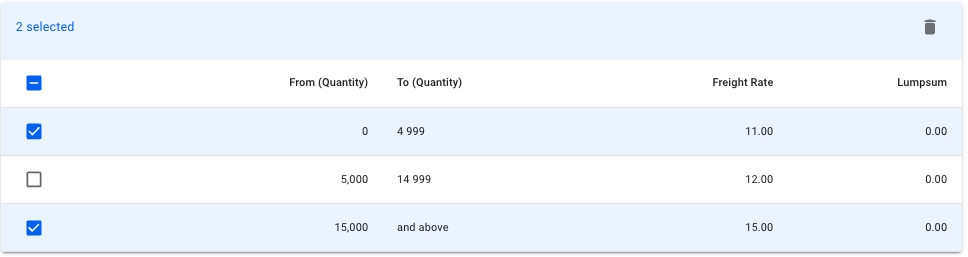
Once one or more items are selected you can click the trashcan to delete the selected item(s).
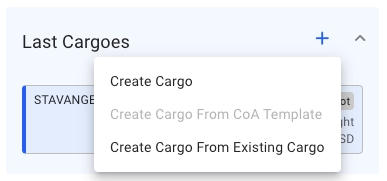
A cargo can be created on a TC voyage either by using the Last Cargoes section in the Voyage drawer Overview tab, or by using the cargo list in the Cargo tab.
You cannot create a cargo from CoA templates
You cannot create a cargo if there are no load- or discharge port calls on the voyage
Even when we have the delivery/redelivery port calls
You need to create at least one loading- and discharging port calls on the voyage schedule (unique values)
You can only create cargoes with cargo ports based on the port calls in the voyage schedule
The port selectors on the upper-left side of the modal are restricted to only display these cargo ports (also with its attached terminals)
The following actions are disabled from the secondary actions:
Unallocate Cargo
Allocoate Cargo
Relet
Transship
In the FAS board, these following actions are disabled:
Dragging an unallocated cargo to a TC voyage
Dragging an allocated cargo on a TC voyage to Commitments
Dragging an allocated cargo from one TC voyage to another voyage (TC or not)
The counterpart field in the Create Cargo modal will be automatically filled with the Charterer from the TC out contract connected to the voyage.
A voyage can be converted to voyage template if certain requirements are met, these are listed below:
Can be converted to template:
Estimate Voyages
Unallocated Voyages
Cannot be converted to template:
Template Voyages
Allocated Voyages
Nominated Voyages
Operational Voyages
Operationally Closed Voyages
Closed Voyages
Invoiced Voyages
The voyage's type (TC, SPOT, COA) does not matter in regards to whether you're allowed to convert or not.
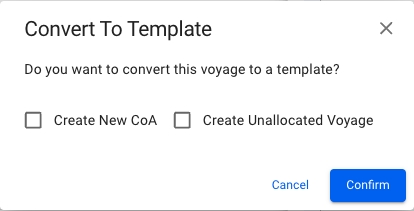
In order to convert a voyage to a template voyage one must open a voyage's drawer and click the secondary action menu in the top-right and select the "Convert to Template...' action.
After selecting the action you will get a confirmation popup modal which allows you to select to 'Create New CoA' and 'Create Unallocated Voyage' when converting to template. When clicking the 'Confirm' button, you will be brought to the template voyage's drawer.
Both optional buttons will be available.
None of the optional buttons will be available.
Both optional buttons will be available and the 'Create New CoA' button will be selected by default. If un-selecting this button, the template voyage will continue to use the old CoA instead of creating a new.
Starting with release 8.2, the voyage drawer's default view has been updated. The previous default view has been removed, and the expanded view is now the new default (see Figure 1).
The expanded view has been replaced with a full-screen drawer, serving as a centralized hub for voyage drawer functions and introducing additional features. This view presents data in an editable grid format (see Figure 2) with customisable columns that enhance and extend the functionality of the previous default view.
For more details on the grid's functions and usage, go to the data grid page.
Changes to the grid, such as editing fields, adding new rows, copying data, or deleting entries, are applied across the system in real time, ensuring data consistency. Updates made in the grid will automatically reflect in all related drawers and pages, and vice versa.
The full-screen drawer is designed to make it easier to make modifications to the voyage. This was done by replacing the different collapsible sections (Figure 1) with corresponding grids (Figure 2).
The as well as the Vessel Section remains the same with the exception of an additional collapsible section for TC Out Contract.
The map has also been moved to the left side of the drawer, and when expanded will appear in the center of the drawer (see Figure 3).
A key addition to the drawer is the ability to display an Alternative Route tab, controlled by a system preference. This setting can be enabled via the. When activated, the routing tab appears next to the map, providing easy access to alternative route options (see Figure 4).
The Analysis and Results Chart retain their functionality from previous versions. However, they are now displayed in the center of the drawer when selected within the Profit & Loss Summary section.
The left- and rightmost sections can be collapsed by clicking the buttons inside column dividers, shown in Figure 6. Alternatively, the sections can be toggled using the keyboard shortcuts ALT/OPT + ← and ALT/OPT + →.
Click a cargo in the Cargoes module list.
When the drawer opens, open the action menuin the top right.
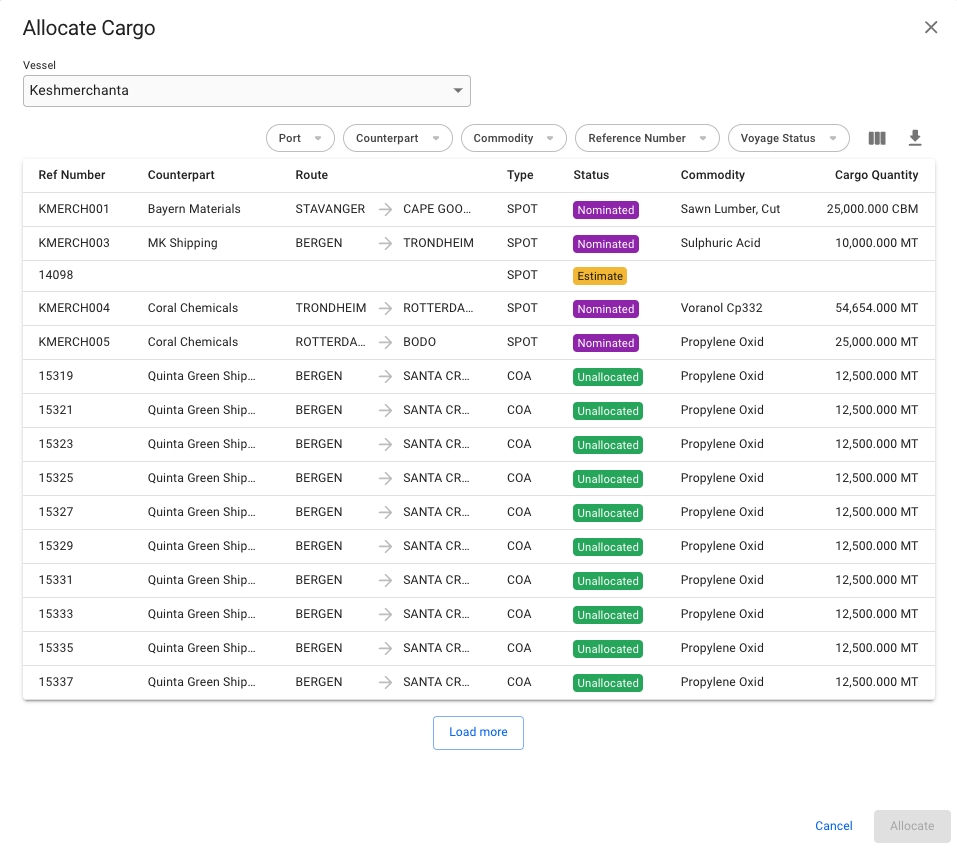
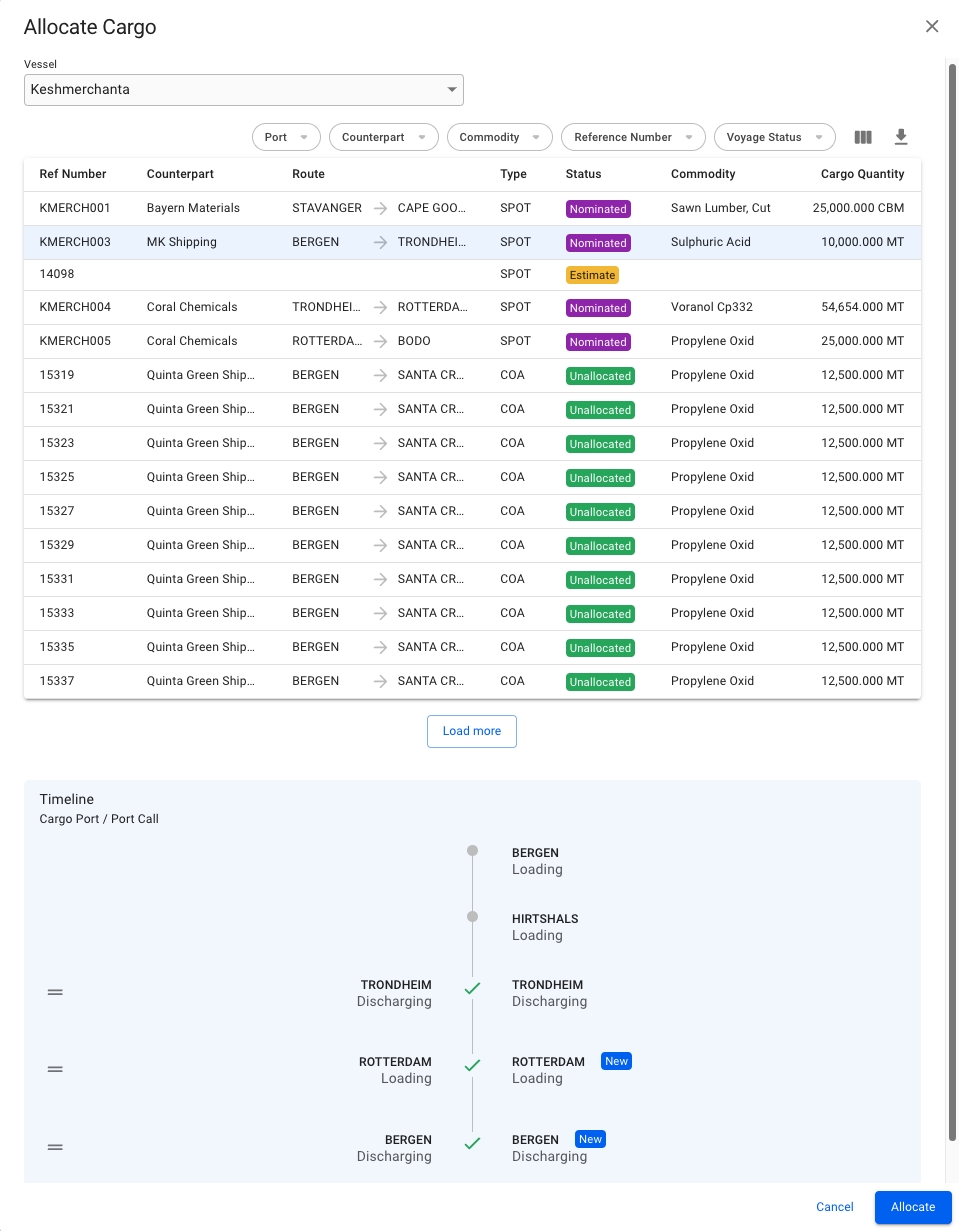
Click the Allocate Cargo button to open a dialogue for allocation.
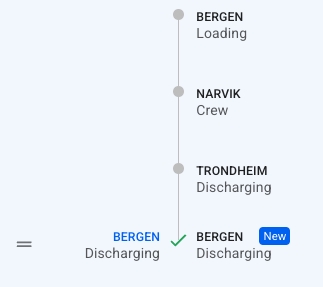
The allocation dialogue is a three-step process. Once you have selected a vessel, a list of all the voyages on the vessel will appear. Sort and filter the list to find the exact voyage you want, select it, and a preview of the voyage schedule will appear, with cargo ports on the left, and port calls on the right. The scheduler will attempt to link the existing port calls on the voyage with the cargo's cargo ports. If no port call exists, a new one will be created at the end of the voyage. These are denoted by a blue "NEW" chip. You can re-arrange the port calls by dragging and dropping.
When allocating, the cargo will also have its company and business unit changed to the voyage's company and business unit. You can edit the cargo's company and/or business unit after the allocating if you want it to be different from the voyage's.
Click Allocate to allocate the cargo. Any new necessary port calls will be created on the voyage.
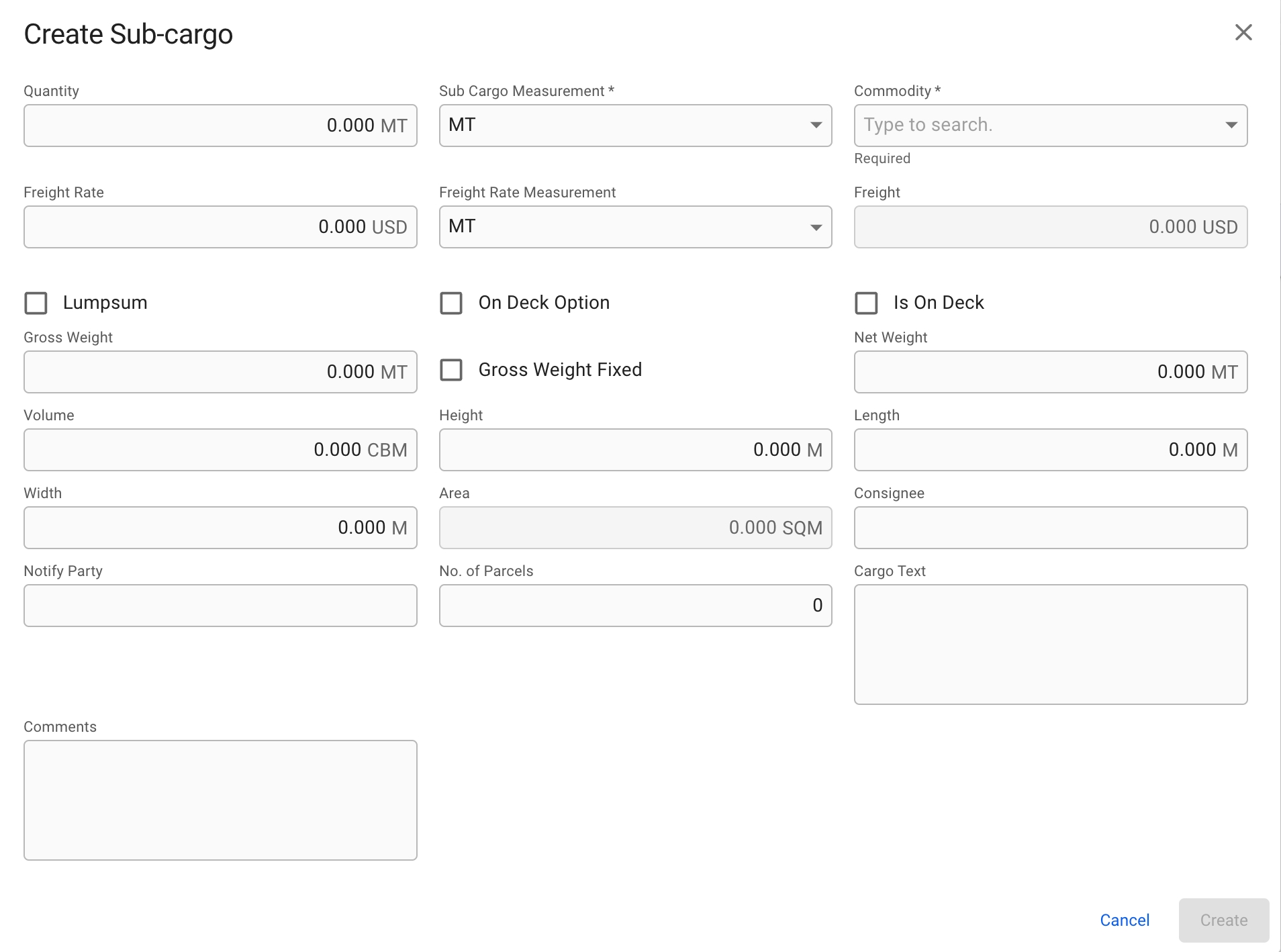
In the Sub-cargoes tab you may enter sub-cargoes
By clicking the blue plus icon in the top right corner you can create sub-cargoes.
Once clicked the below modal will appear:
Once the required fields are filled in the create button will be activated and you may create the sub-cargo. The modal for editing a sub-cargo is identical.
When you open the cargo drawer you see on the top left the vessel and voyage the cargo is allocated to, if it is an allocated cargo. You can click both chips to open the vessel drawer or the voyage drawer.
Next you see the cargo reference, which is a unique identifier of the cargo. You can under the three dots.
Then you see the cargo status and can .
You also see the Cargo Type, which is automatically set by the system.


In the vessel drawer on the top right side there is a small map displaying the vessels last known position. This position is retrieved from AIS-positions for vessels which are subscribing to this feature, for vessels which are not subscribing the latest position is retrieved from the latest position report entered in the system. In addition to this you can now view the route from Dataloy Distance Table from previous port to next port displayed in the same map. The route is the green line in the map.
Preship
Transfer
Spot
Standard cargo, which fulfills none of the conditions below
Contract of Affreightment
Cargo which is connected to a contract of Affreightment
Relet
Cargo with a Freight Cost
Preshipment
Freight Cost Cargo related to a transshipment before loading
Transshipment
Freight Cost Cargo related to a transshipment after discharging
Has Transfer
First part of a cargo that is transported on two voyages
Transfer
If the cargo has type , you will see the Contract Name it is connected to and can click the Name to open the CoA drawer.
By clicking the various tabs you get the relevant information about the cargo. Check out the next pages for information about the different tabs.
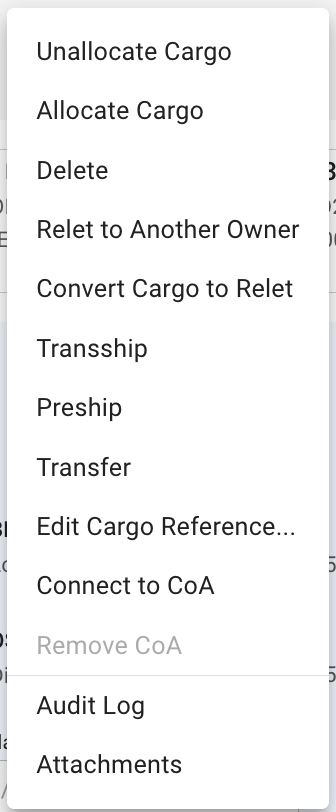
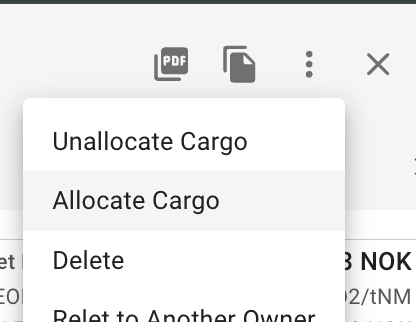
On the right side you have primary actions; PDF and copy. The three dots is a dropdown with secondary actions for the drawer. If you click the three dots you will be presented with the below view as a drop down:
You can allocate/unallocate the cargo to move it to a voyage, change the voyage it is on or remove it from the current voyage.
You can delete a cargo.
You can relet a cargo to another owner.
You can convert the cargo to relet to change the cargo to be a freight cost instead of freight revenue.
You can add a Transhipment, Preshipment or Transfer of the cargo.
You can also connect the cargo to a CoA and remove the CoA connection when connected.
And finally you have the option to view the audit log or append attachments to the cargo.
Reason For Call
Yes
If Dry Dock is selected, an Offhire record will be created.
Port Cost
No
Only available if Reason For Call is set to Bunkering or Extra Port.
Days Extra In Port
No
Only available if Reason For Call is set to Bunkering or Extra Port.
Offhire Start Date
Yes (If enabled)
Only available if Reason For Call is set to Dry Dock.
Voyage Start Date will automatically be locked and set to the selected Offhire Start date.
Offhire End Date
Yes (If enabled)
Only available if Reason For Call is set to Dry Dock.
Must be after Offhire Start Date.

This tab contains the main vessel information, such a Vessel Description, Dimensions, Miscellaneous Capacities, Machinery, Contact Details, Cargo Capacity & Loadline Information
All of the mentioned fields are optional to add into.
For each Draft, DWT and Immersion, you can add/edit for Summer, Winter, Design, Fresh, Tropical, Tropical Fresh and Unit.
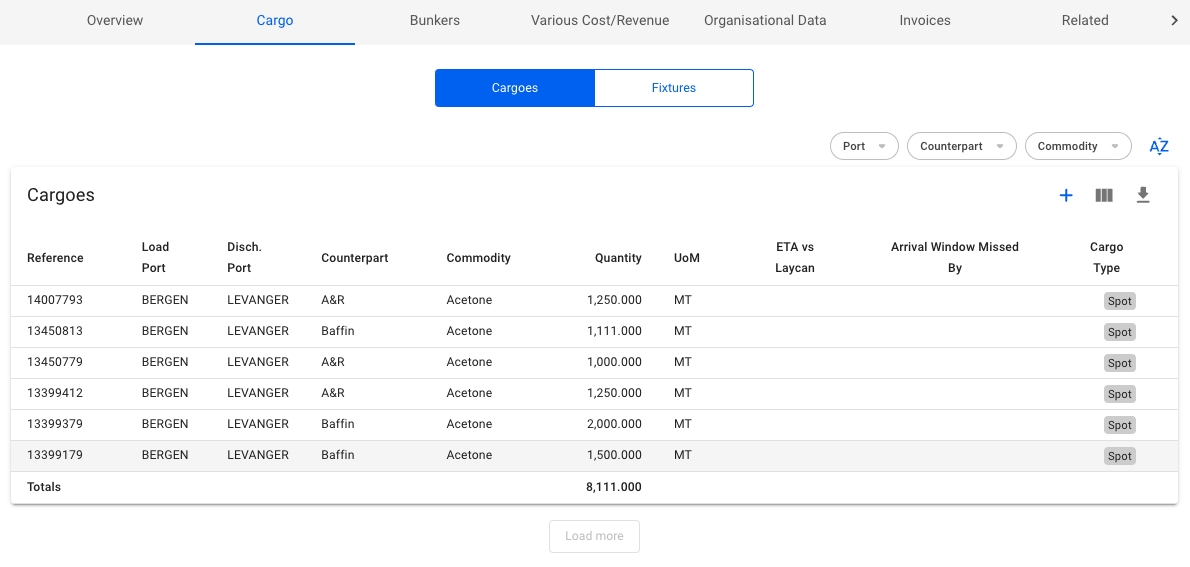
This tab shows a list of the cargoes and fixtures on the voyage.
The Cargoes list shows a list of all cargoes on the voyage. The list can be filtered on Port (the list displays the first Load- and Discharge Cargo Port, but the filter works any Load- and Discharge ports on the Cargo), Charterer and Commodity by using the quick-filters in the top right.
On the row at the bottom of the list, you can see the Total Amount of cargo quantity on this Voyage:
Clicking the -icon will bring up a dropdown menu for choosing between creating a brand new Cargo, or a new Cargo from a CoA template.
By clicking the icon you can edit the columns shown in the list, rearrange the columns and even enable showing of some columns that are unchecked by default.
Clicking the icon will export the table to a spreadsheet-format, which can be opened in e.g. Excel or Numbers.
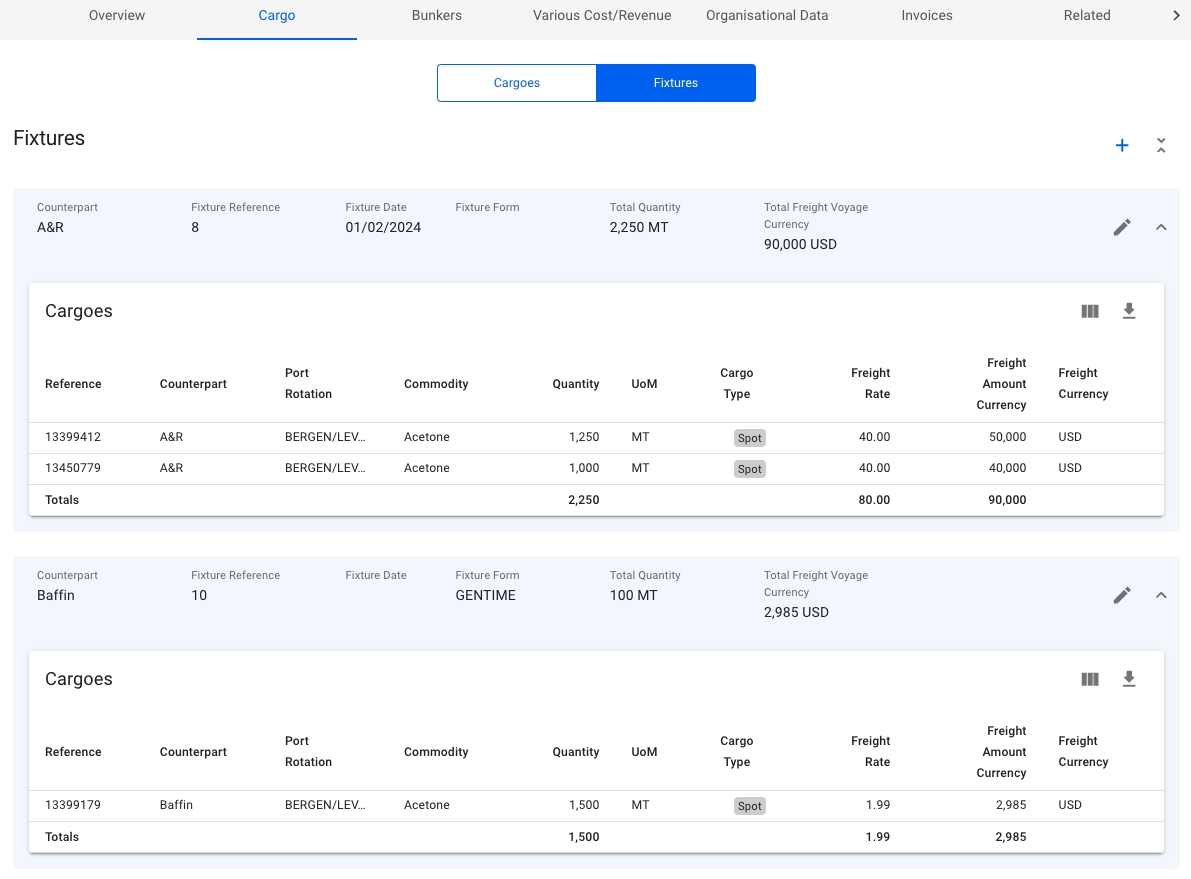
Adding fixtures can be done in the Cargo tab of the Voyage Drawer by selecting the Fixtures button and clicking the create icon above the list.
The tab allows you to create, edit and delete any fixtures on the voyage.
Counterpart (*)
Which cargoes to connect to the fixture (based on which Counterpart is chosen)
Disabled after connected to a fixture
Will override the connected cargoes' Counterpart
(*) - required fields
Click on each tab below to read more about the different features:
You can see the Total Amount of all number fields, such as Cargo Quantity, Freight Rate and Freight Amount Currency, at the bottom of each table.
See the expanded/collapsed features below.
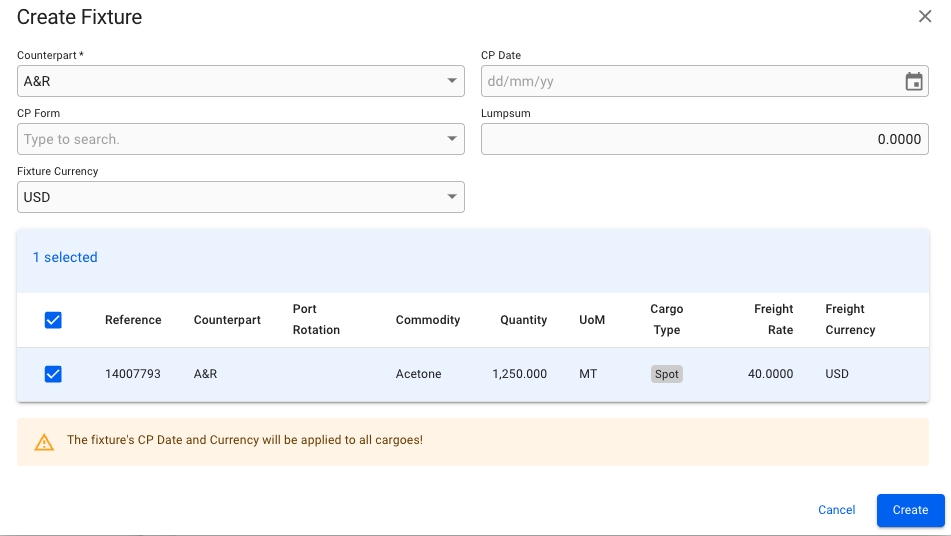
By clicking at the Create icon, you will be able to create a fixture containing cargoes of the same Counterpart.
The Cargoes list at the bottom is empty by default until you have chosen a Counterpart.
Selecting a Counterpart will show all cargoes connected to the Counterpart, allowing you to select the ones you want within the fixture.
The selector is also limited to the existing Counterparts on the voyage cargoes.
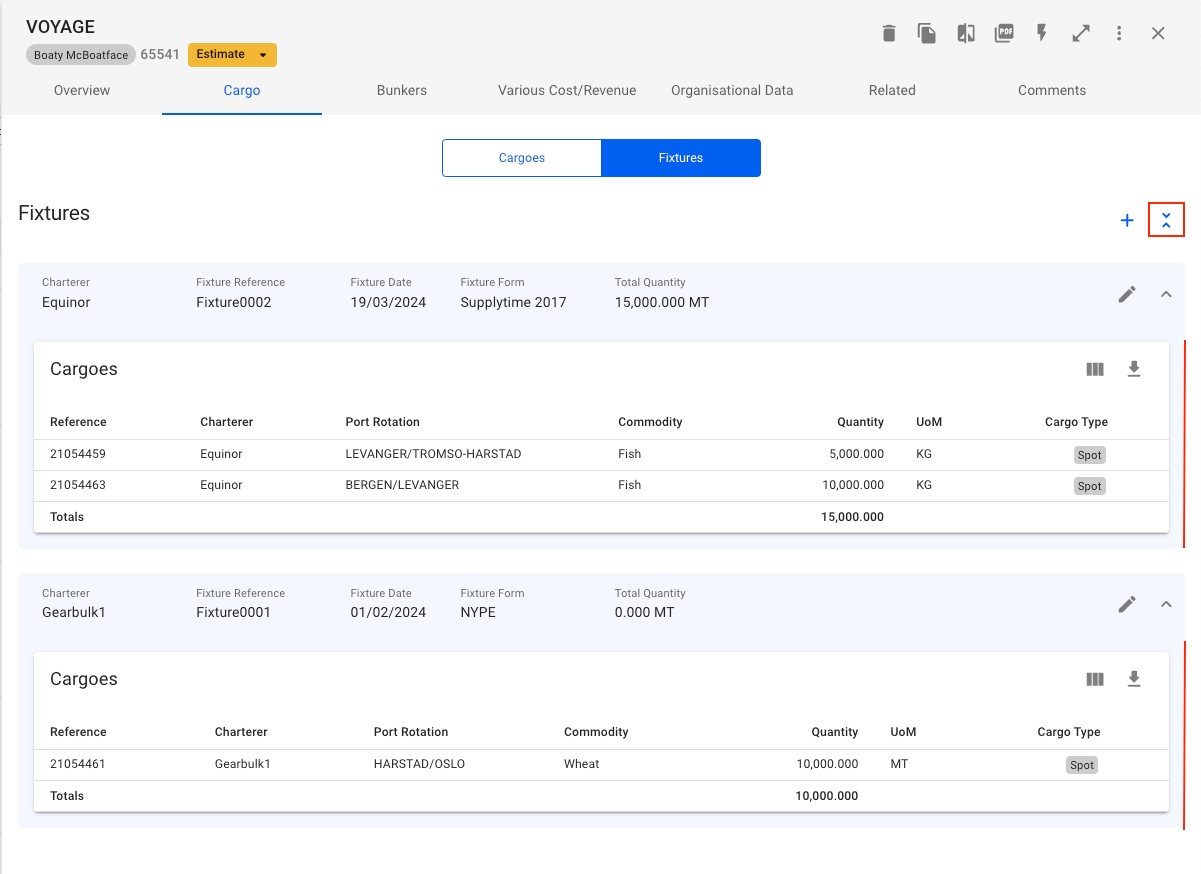
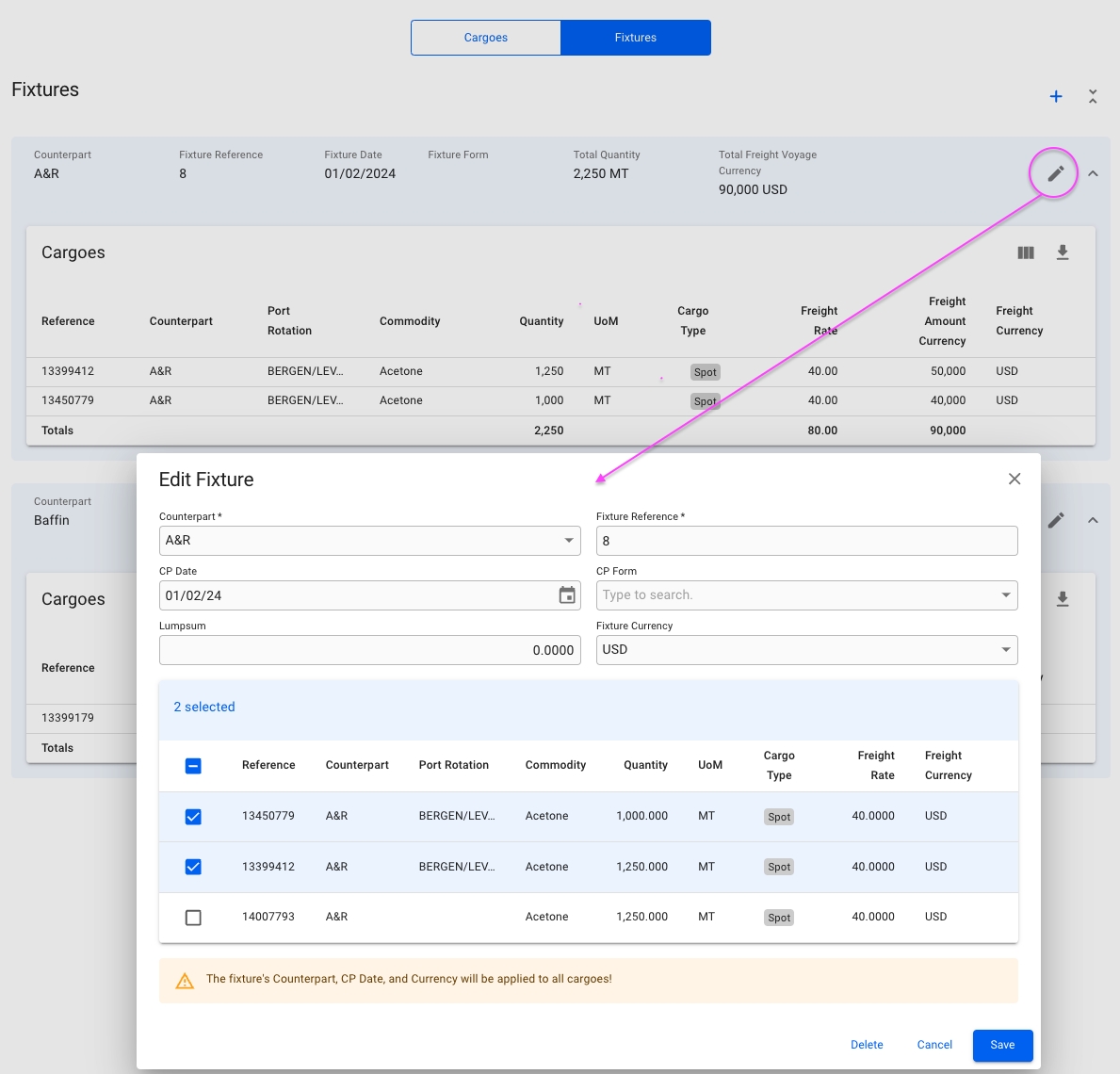
One fixture is equivalent to the blue area that wraps around the cargoes within it, and containing fields in the section header. Here is a list of them:
Counterpart
Fixture Reference
Fixture Date
Fixture Form
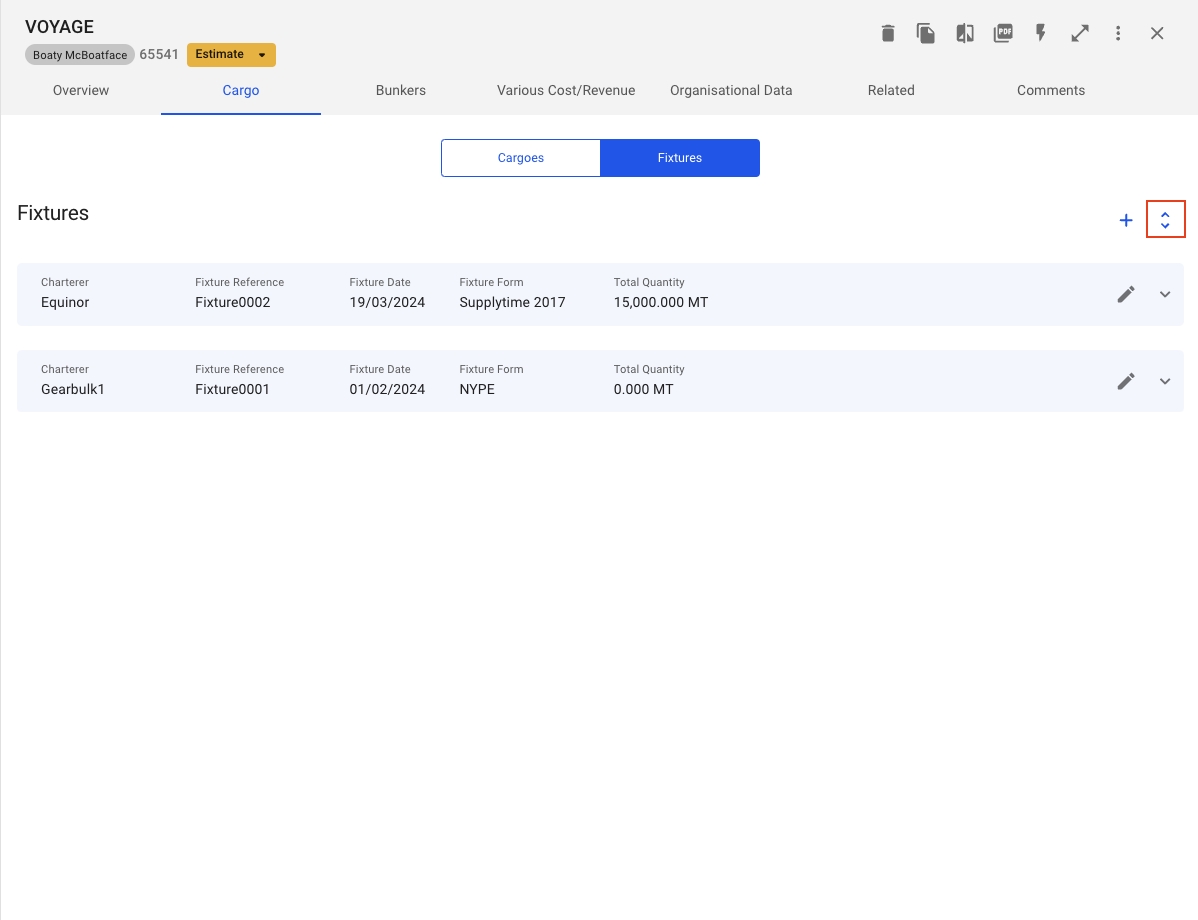
The fixtures list has a separate button to collapse/expand the cargo list of all the fixtures with one click as shown below:
You can also collapse/expand each fixture by clicking on the blue header, or the arrow at the right-most.

Int'l NRT
Panama Net
Suez Net
Vessel Type
DWT (Summer)
Deadweight in the summer
Built
Yard
Flag
IMO No.
Owner
Owner of the vessel (type Business Partner), available from v7.7
Scrubber Fitted
Open-loop
Beam
LOA
LPP
Depth
Air Draft
Int'l GRT
Capacity Fo
Fresh Water
Ballast Water
Constant Reduction
Main Engine
Aux Engine
Bow Thruster
Stern Thruster
Shaft Generator
Call Signal
Phone Number
Deadweight in the summer
Fax Number
Mobile Phone
Telex
Cubic Capacity
Deck Capacity
Bale Capacity
Gear
Holds/Hatches
Grabs Onboard

Fixture Reference (*)
Is a running number (from v7.13)
Only editable, cannot set it
CP Date
Disabled after connected to a fixture
Will override the connected cargoes' CP Date
CP Form
Lumpsum
Fixture Currency
Defaulted at the Voyage Currency
Disabled after connected to a fixture
Will override the connected cargoes' CP Date
Note that these features act a bit different than on the Edit Fixture Modal!
Clicking the Edit icon will open up the Edit Fixture modal, where you can change fields and select more or de-select cargoes.
The cargoes list at the bottom has pre-selected cargoes of the Counterpart you want to edit, by default. All cargoes connected to the Counterpart selected will show up in the list, along with the pre-selected ones. This gives you the opportunity to either add more cargoes to, or remove from, the selected fixture.
Another feature is that you can override the Counterpart. Then this change will reflect on all the selected cargoes. The Counterpart selector is not limited this time around.
You will also be able to edit the Fixture Reference in this modal, which is a running number by default.
sum of the cargoes' weight on a fixture
Total Freight Voyage Currency
sum of the cargoes' freight, plus the fixture lumpsum, on a fixture
the currency is for now always shown in Voyage Currency
Second part of a cargo that is transported on two voyages

With the Intake Calculation function you can change parameters of a voyage to get an overview of quantities available for cargo at the port calls.
Click on a voyage in the list or board to open it in the drawer.
At the top right, click on Functions.
Select Voyage Intake Calculation.
At the top, below the vessel-chip and voyage reference, fields for changing the stowage and bunker properties for the entire voyage are displayed.
A table of all the port calls on this voyage is shown in this section. To change the intake reduction properties per port call, click a row to open a window where you can make adjustments. Some columns are hidden by default, and can be toggled on/off by using the "Customize Columns"-button in the top right corner of the table.
A mixed chart of the calculation results is generated at the bottom. Each port call has multiple graphs to show the reductions, cargo quantity and quantity available for cargo. The charts gets updated automatically when there are changes to the voyage header, port call, or vessel parameters.
Click on the legends at the top of the chart to toggle the display of a graph. Hover the mouse over the chart to inspect the values of each calculation data point.
The loadline information table shows data on the voyage that might affect the intake. To change these values, you need to edit the vessel in the Vessels module in master data.
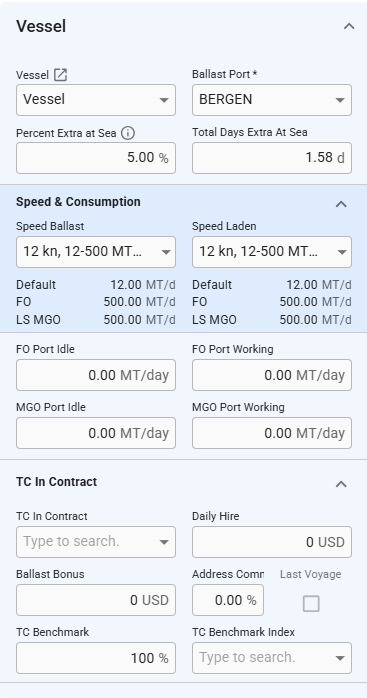
This page reveals the essential information of the Vessel section in the Voyage Overview tab.
Speed Ballast: Displays the speed for ballast port calls when all port calls have the same speed. If port calls have different speeds, this field will be disabled and the text will read "Multiple". Changing this value will update the speed for all ballast port calls.
Speed Laden: Displays the speed for laden port calls when all port calls have the same speed. If port calls have different speeds, this field will be disabled and the text will read "Multiple". Changing this value will update the speed for all laden port calls.
The drop-down menu will contain all vessel options for the selected passage, as well as the option to 'Add New Speed'. This new speed will not impact the vessel setup and will only apply to all Ballast/Laden port calls on the chosen voyage. This also applies to the Main Engine Port Idle and Main Engine Port Working fields. For more details, please consult the documentation.
Changing vessel in this section will change the voyage's and the connected cargoes' company and business unit to the selected vessel's.
Depending on your access permissions the list of Vessels might not be visible.
Open the Vessels module in the Core Menu list on the top left corner.
There are several sorting and filtering options available for you to narrow down what you include in the list view, including a "My Vessels" filter that shows all the vessels of which the logged-in user is set as one of the following:
Master User
Responsible Accountant
Operator
Claims Operator
You can also of the Vessels list to add, reorder or hide columns. The columns Operator, Built, and Schedulable are hidden by default.
On top of the list, you may find three tabs: Operative, Archived, and Map. The two first tabs illustrate pre-sorted data based on the fleet exit date parameter. The Map includes an interactive map with the current vessels' location.
Moreover, filters found on the same line as the tabs, apply to both tables. If you switch between tabs, the filters will remain the same, facilitating navigation.
A click on the Operative tab will load a table, that contains only operable vessels. In other words, the vessels whose fleet exit date is either not set, or set in the future.
On the other hand, the Archived tab presents vessels whose fleet exit date is older than the current date (fleet exit date was in the past).


Only voyages of status "Estimate" and "Unallocated" can be deleted. Otherwise you must change the status before you can delete.
Find a voyage (i.e through the Voyages page).
Click to open the voyage you want to delete.
At the upper right corner of the panel, click Delete.
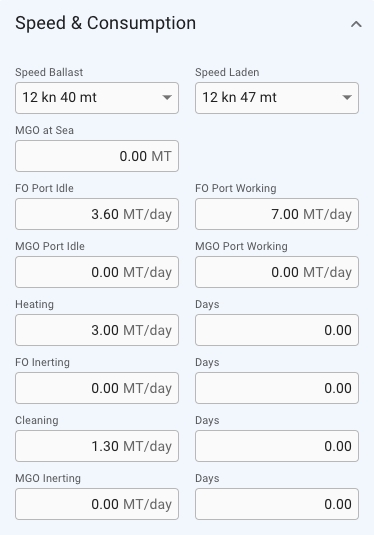
In the Speed and Consumption section in the voyage drawer you can update the various fields for consumption for a voyage. This section can be found in the Overview-tab in the voyage drawer.
In order to expand the section to see and edit the fields, click expandon the far right of the top right summary cards.
Once the expand icon is clicked the fields will be displayed like this example:
Note that if the field for Speed Laden or Speed Ballast is changed in the vessel section it will also affect the corresponding field in this section as well, and vice versa.
You are able to keep in control of all your organisations inserted cargoes using the cargo module in VMS.
This section is visible on TC voyages.
This small section gives you the most important details of the TC Out contract, as well as the option to change them. Click the icon to open the full TC contract drawer.
From the "Downtimes" tab in the voyage drawer, you can view the downtimes for the voyage. Click on an item in the list to go to the the corresponding drawer and view more information about the specific item.
Clicking the -icon on the table will bring up a modal to create a downtime.
More details about creating a downtime:
Navigate to these pages to read more about the various Cargo Drawer actions:





One of Saltwater/Brackish Water/Fresh Water. Affects the water density.
Water Density
Hidden by default. Density of the water at port. Higher value increases intake.
Bunker reduction (Arriving)
Amount of bunker reduction on arrival in metric tonnes.
Bunker reduction (Departing)
Amount of bunker reduction on departure in metric tonnes.
Quantity on board (Arriving)
Amount of cargo on board on arrival in metric tonnes.
Quantity on board (Departing)
Amount of cargo on board on departure in metric tonnes.
Safety Margin
Hidden by default. Safety margin for the draft. Default value is 20%. Lower value increases intake.
Constant Reduction
Hidden by default. Intake constant reduction of the vessel. Lower value increases intake.
Fresh Water Reduction
Hidden by default. Intake fresh water reduction of the vessel. Lower value increases intake.
FO ROB Voyage Start
Fuel oil at voyage start
LS MGO ROB Voyage Start
Low-sulphur marine gas oil at voyage start
MGO ROB Voyage Start
Marine gas oil at voyage start
LS FO ROB Voyage Start
Low-sulphur fuel oil at voyage start
Port
Name of the port
Reason for call
Tells you the reason for the port call.
Arrival
Shows you date and time for arrival at the port.
Departure
Hidden by default. Shows you date and time for departure from the port.
Draft
Intake draft reduction of the vessel. Lower value increases intake.
Zone
Sets the vessel DWT that is used in the calculation.
Water Salinity
Click Confirm to delete the voyage.
Voyages can be connected to Cargoes and/or Offhires, as well as scheduled voyages if the voyage is a template.
When attempting to delete a template voyage that has scheduled voyages either at the Nominated or later stages, an error message will show instead.
The delete-voyage modal will look differently depending on whether it has connected entities:
No connections:
Only Offhire connection:
Only Cargo connection:
Offhires and Cargoes:



To manage load and discharge rates on a vessel for selected ports and terminals, navigate to the Load and Discharge Rate section of the Vessel drawer. Use the table in the tab to edit, delete or add a new rate.
In the table, click Add icon and fill in the fields
Click on a row to edit and use the modal to make changes.
Use the checkboxes to select the rows to delete. Click Delete iconand confirm.
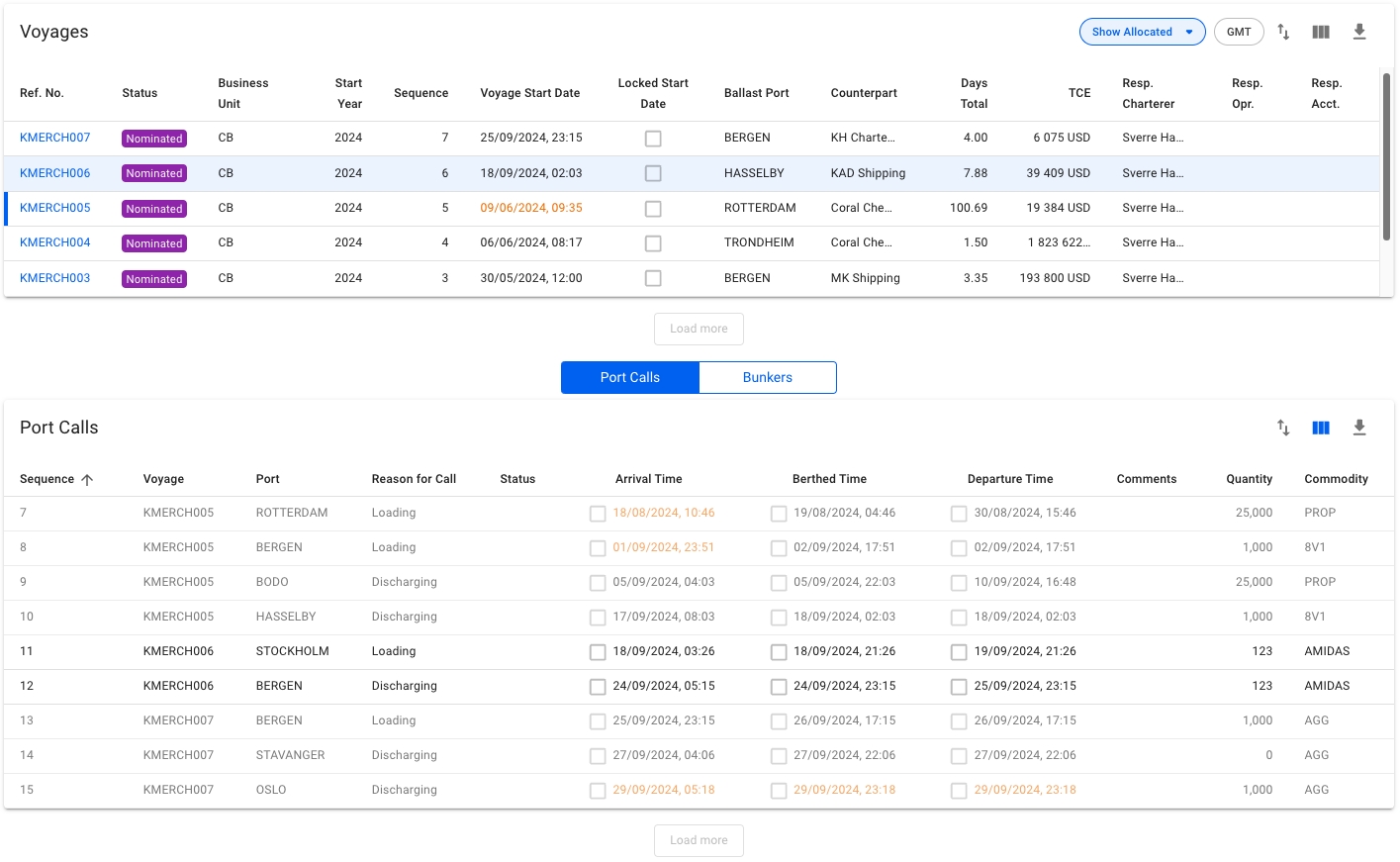
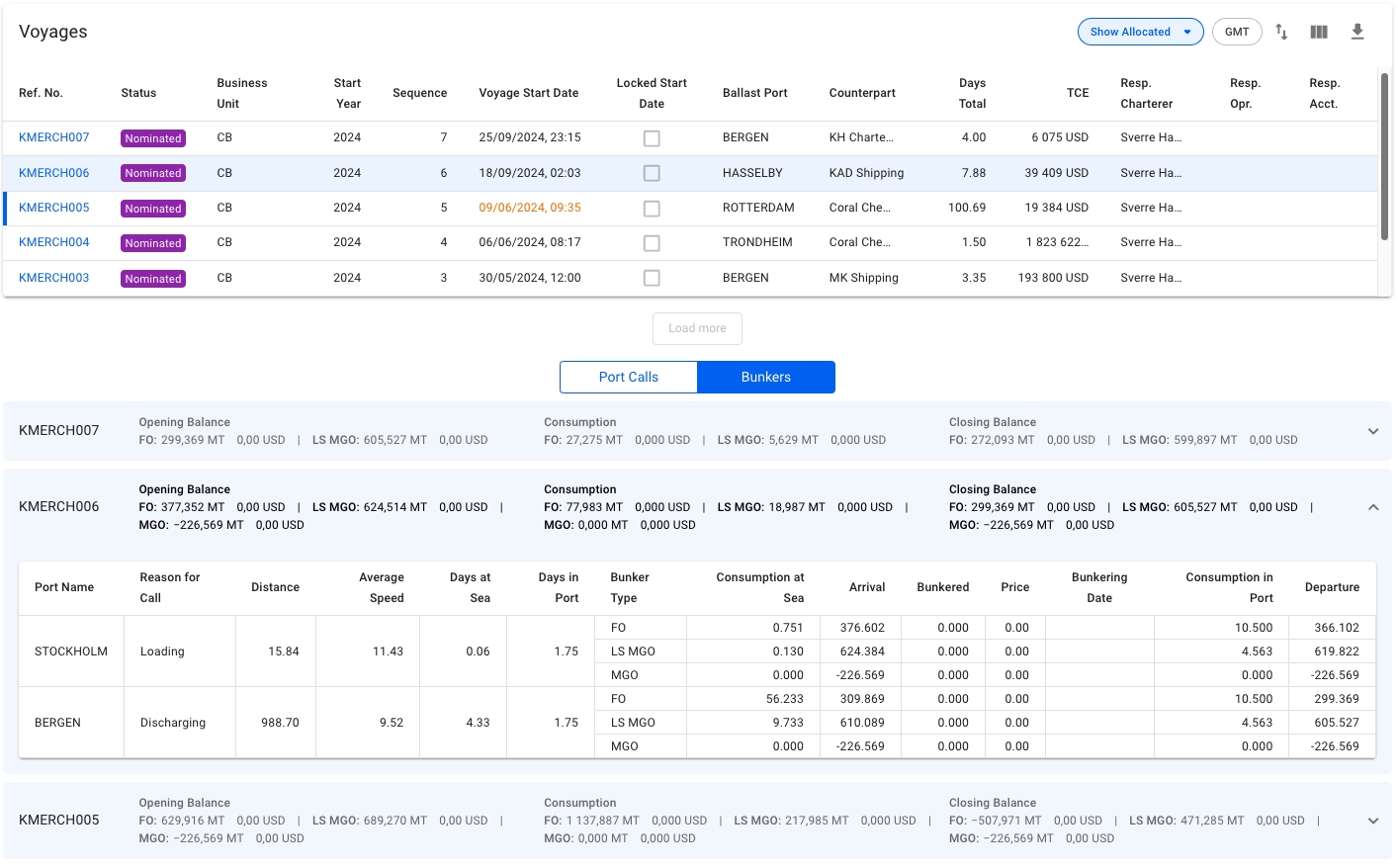
The Voyages & Port Calls tab has two sections. A list of all voyages for the selected trade, and then a choice between the port calls or bunkers for a selected voyage.
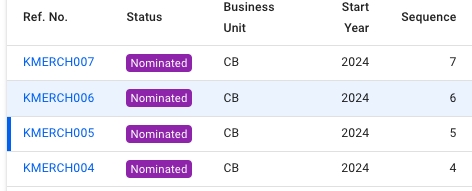
This is a list of voyages on the opened trade sorted by newest first. Clicking the icon will bring up a modal to customize which columns are visible. In the upper right corner of the list there is the option to hide/show allocated voyages for the selected trade, filter voyages based on which pattern they are part of, and show the times in GMT instead of local time. If there is an ongoing voyage in the list, it is indicated with a blue marker on the left side, as seen in the image below.
Below, you will find a list of either Port Calls or Bunkers, and a button to toggle between the two different views.
While in Port Call view, clicking on a voyage row will list all port calls of the selected voyage, as well as the port calls from the previous and next voyage on the same vessel as the selected voyage, if they exist. The port calls from the previous and next voyage on the same vessel will be in a slightly lighter colour, such that it is possible to tell them apart. Clicking directly on the reference number of the voyage will open up the Voyage drawer.
Clicking on port calls in the list opens the corresponding port call's drawer where you can make can changes:
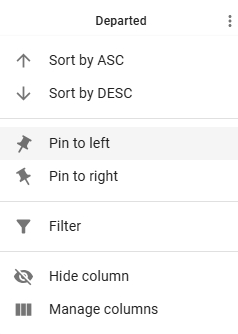
The Port Calls list will display up to 30 items, and includes a separate scrolling functionality. By hovering over each of the "headers" (such as Voyage, Port, Reason for Call, etc.), you can also see an sorting array which will make you able to sort that specific column in either an ascending (ASC) or descending (DESC) order.
The Bunkers view removes the list in favour of up to three collapsible sections for the voyages. Similarly to the Port Calls view, clicking on a voyage row in the voyages list will select/open up the corresponding collapsible section, and fetch the data for the previous and next voyage on the same vessel:
The top band of the section displays 4 columns; the reference number of the voyage, Opening Balance, Consumption and Closing Balance. Each of the latter three will show amount and price for up to 4 different bunker types, depending on which bunkers are actually being used by the selected voyage's vessel.
Expanding the collapsible section will give you a table overview of each port, with reason for call, distance, speed etc., as well as a detailed breakdown of the bunkers consumed. Only the bunkers actually used will be displayed here.
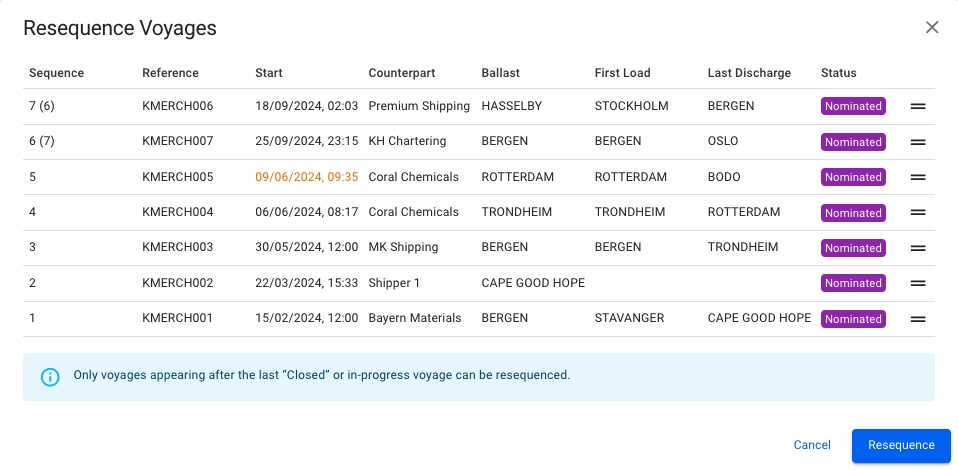
Port calls can also be resequenced to a different position within the previous, current, or next voyage. To resequence a port call, click the resequence symbol in the top right corner of the port calls list. A popup modal will then show and the port call can be dragged and dropped in the desired position (see screenshot below). Note that only one port call can be moved at a time. Also, only port calls after the last Arrived, Berthed or Departed port call can be moved in the list:
To maintain the trade click the trade in the list. The selected trade will be opened in a trade drawer where you can view all the voyages from a trade and the port calls and bunkers from these voyages, and edit the trade details.





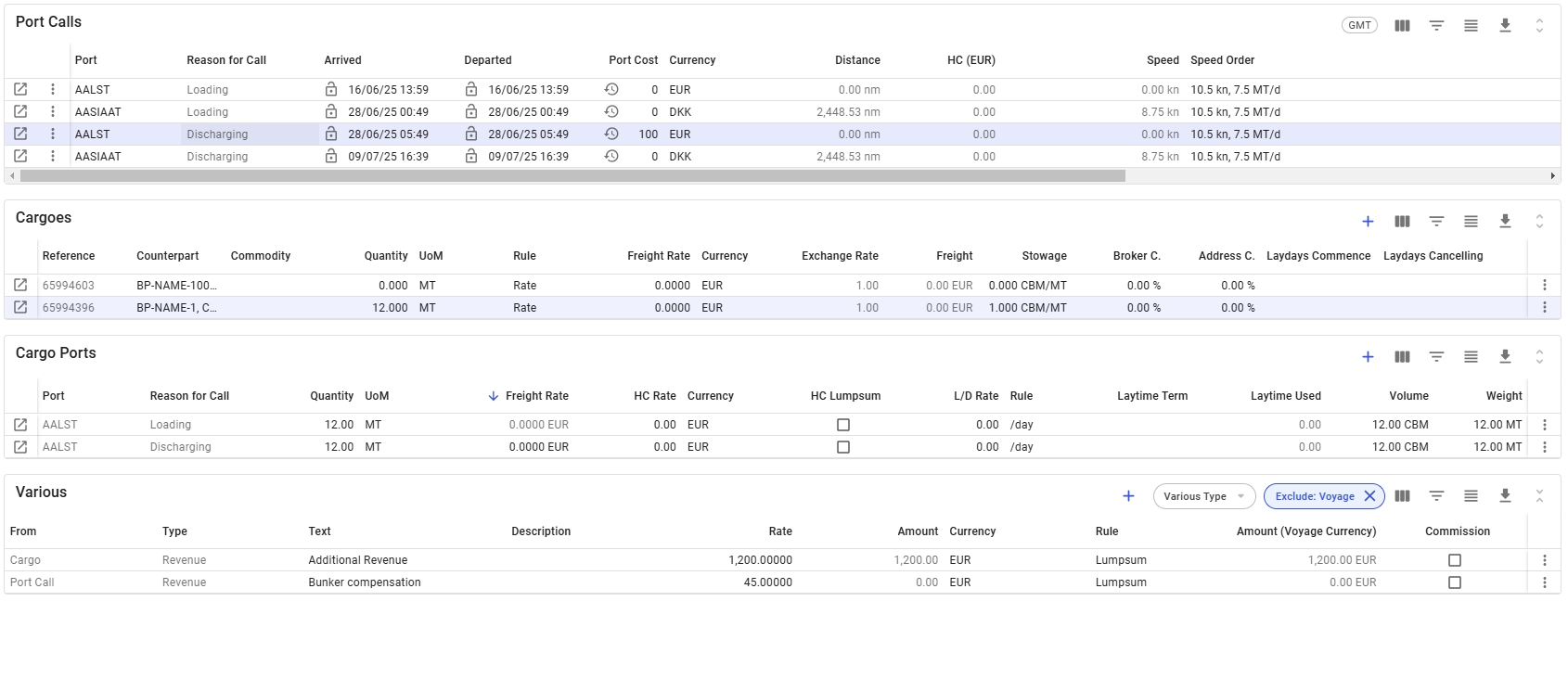
The voyage's cargoes have been relocated from the cargo tab, and the collapsible section for editing cargo has been removed in the full-screen view (see Figure 1).
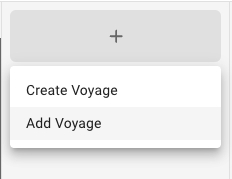
Click the blue cross icon on the right side of the grid header to display a list of options for creating a new cargo (see figures below). After selecting an option, the appropriate "Create Cargo" modal will appear.
It is possible to create, edit, and delete Various Cost/Revenue entries for a voyage directly from the Various Cost/Revenue tab. Additionally, in the full-screen view of the voyage drawer, you can create Various Cost/Revenue entries for Cargo and Port Call using the vertical ellipsis menu (see Figure 1 for reference).
All Various Cost/Revenue entries are also displayed in the Various Grid (accessible in full-screen view), allowing you to easily view, edit, or delete entries as needed.
To improve accessibility, the port calls list has been relocated from the port call drawer to the voyage drawer in full-screen view. Note that it is still possible to access the port calls through the
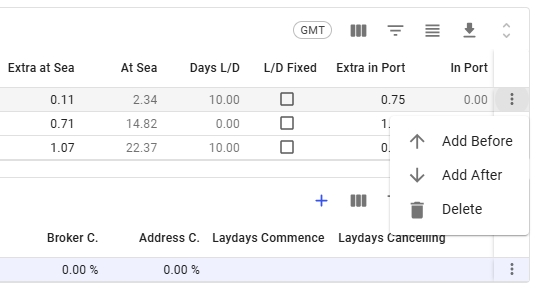
To add a new port call, open the vertical ellipsis menu in the last column. From this you can insert the new port call either before or after the selected one. When selected, this opens the "Create Port Call" modal, as illustrated in the figures below.
Swap Vessel is a functionality that allows you to change the vessel of the voyage, regardless the status of the voyage. There are two ways to change the vessel; through the Vessel field under Voyage Overview, or through the secondary action 'Swap Vessel'.
For voyages with status Estimate or Unallocated, you can only swap the vessel of the voyage through the Vessel field found under Voyage Overview section:
This works as a normal dropdown menu, that views all available vessels for you to click and swap to.
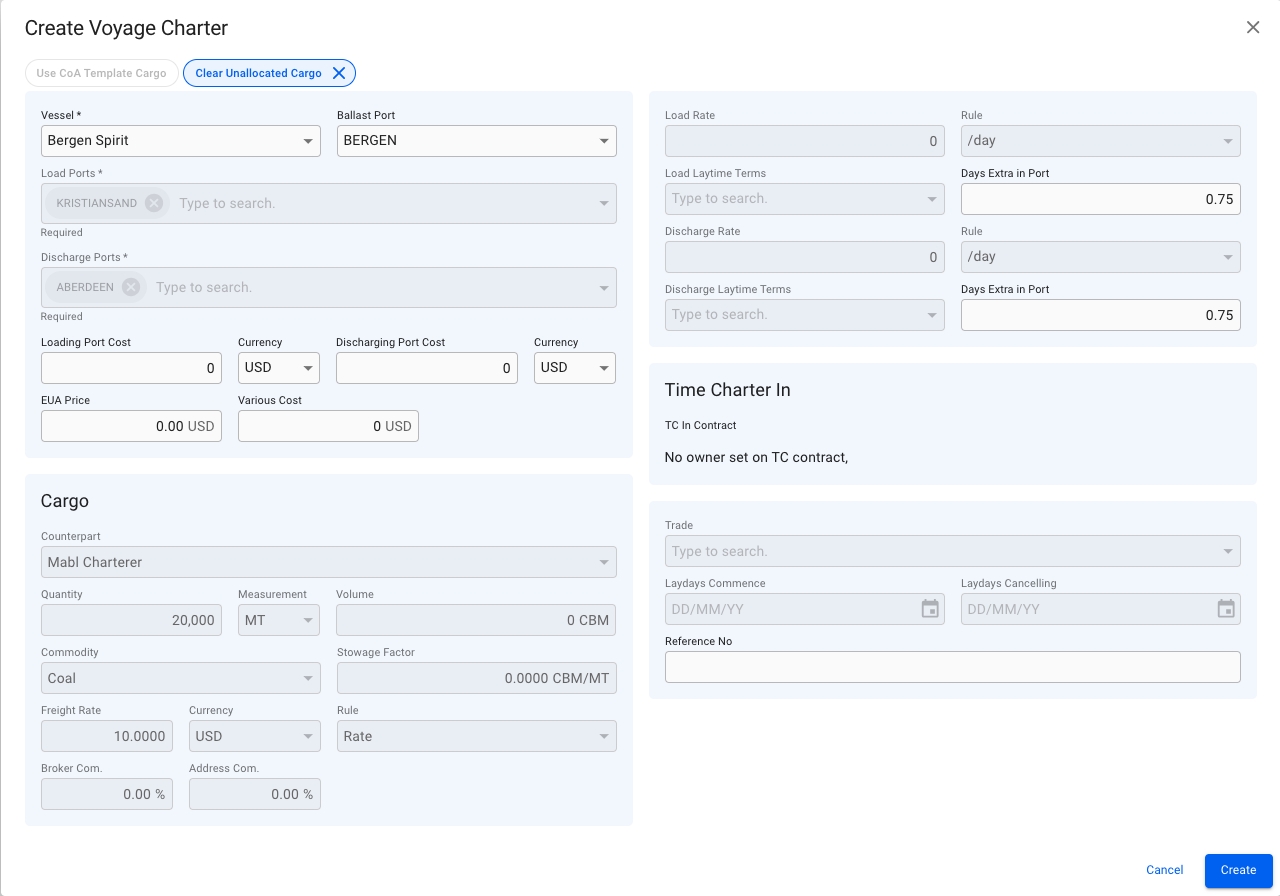
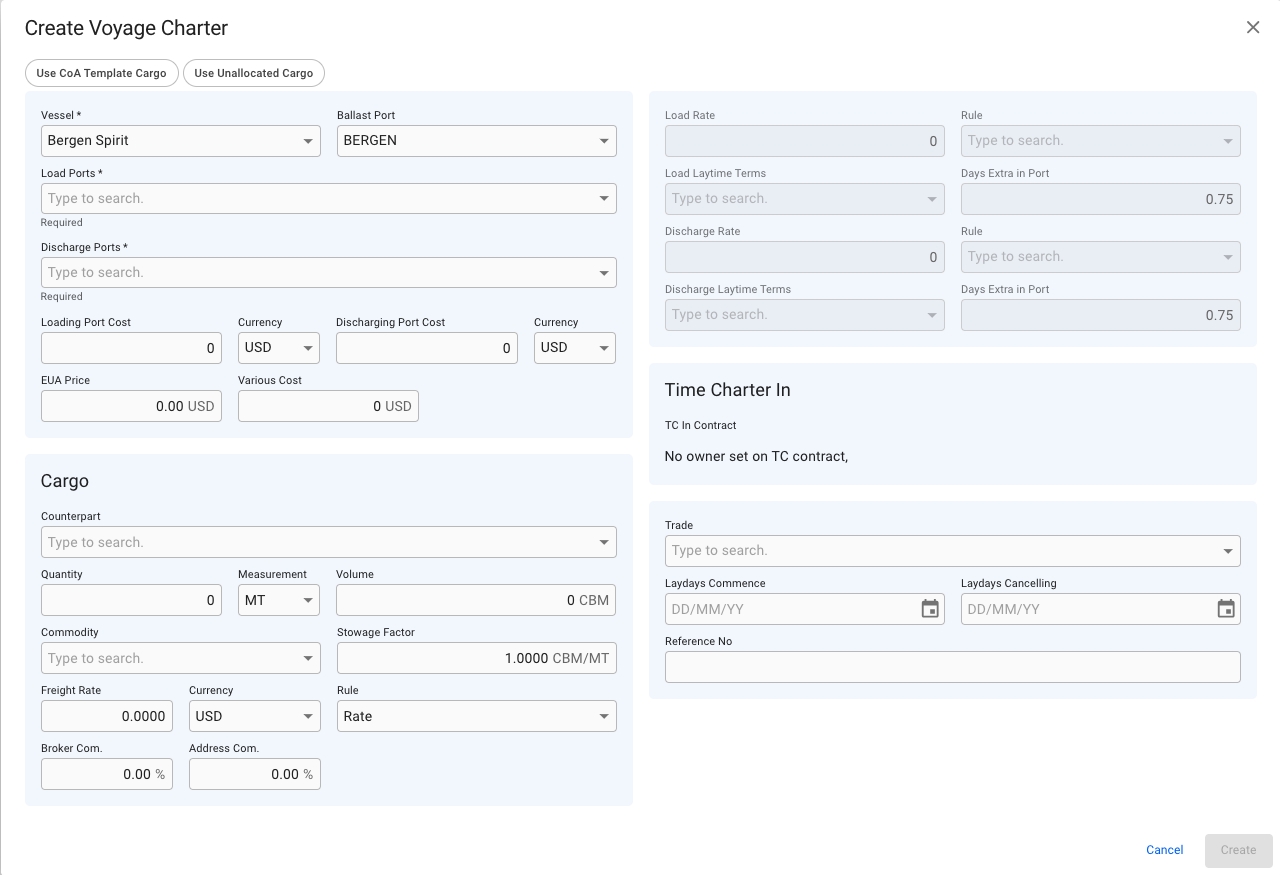
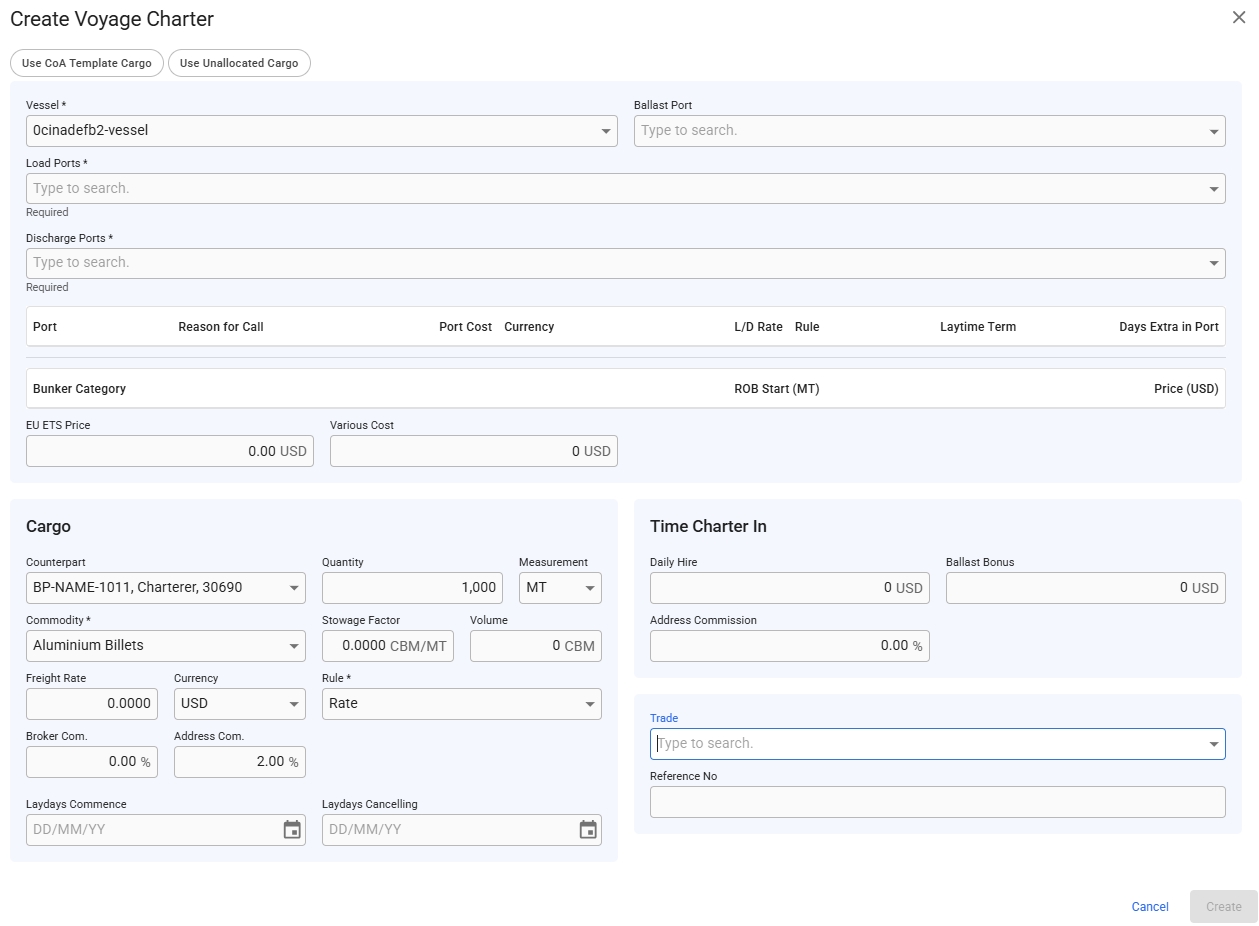
Creating a voyage charter is fast and easy. The minimum amount of details required is a vessel and a port for loading and discharging.
Open the Voyages module from the menu on the left.
On the top right corner, click the icon.
Select Create Voyage Charterer
Layout:
The Voyages module contains of a large list of different types of voyages; unallocated, estimate, allocated, nominated, etc. In this list, you can filter the voyages based on several key endpoints to effectively view the required information on your screen. There is a sort icon to the far right, with different options for sorting the list as well. You can read more here: .
Below you can click to read how to create different types of voyages:
Open the Vessels module in the Master Data section.
Open the vessel drawer
Vessel "AIS Data and Weather Report" data can be accessed in the top tab menu.
For the tab to be enabled an AIS position has to be available.
The VMS contains all cargoes created in your system. To access the Cargo lists, you can navigate in the left-side menu to the "Cargoes" module. This will display 3 different cargo lists: Allocated, Unallocated and Sub-cargoes:
Both the lists Allocated and Unallocated shows cargoes of all statuses and types, while the Sub-cargoes list shows the sub-cargoes linked to different cargoes.
The Trades module contains a list over all Trades in your system. Here you can search for, filter and sort all your trades.
There are several options available for you to narrow down what you see in the list view, as well as the ability to toggle which columns are displayed (with the setup).
For sorting, look for the arrow to the right of the column headers or the blue icon above and to the right of the list. For filtering, you can use the quick filters provided above the Trades list. Which include filtering on the year, which trades and/or routes, and disabled trades.
From the "Related" tab in the voyage drawer, you can view the voyage related information , , and Expand a section by clicking the arrow on the top right of each section to view a list of information. Click on an item in the list to go to the the corresponding drawer and view more information about the specific item.
Expand the section and click the pluss-sign to the top right of the list to create new item for the voyage.
More details about creating Offhires:


You can use the quick filters to find the port cost you are looking for.
The following filters are available in Port Cost History List:
Vessel name
Deadweight (DWT)
Reason for call
Currency
Commodity
Counterpart

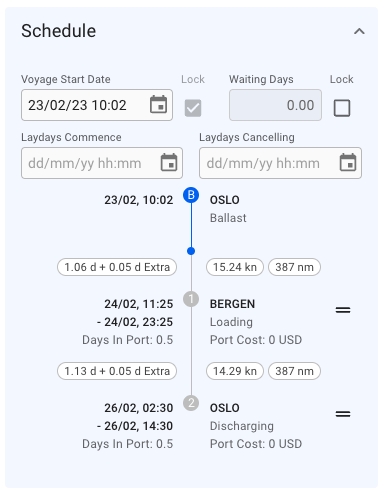
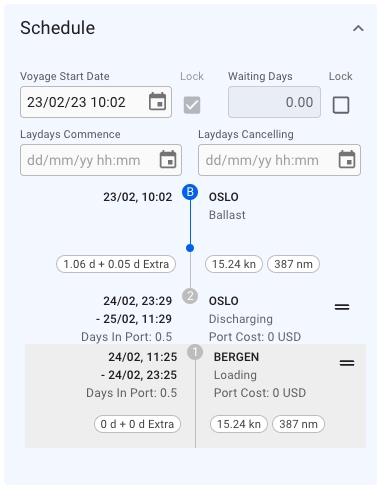
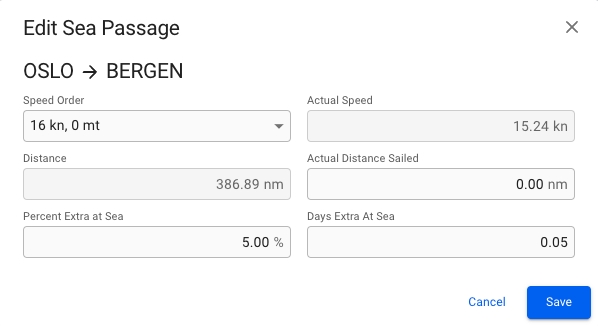
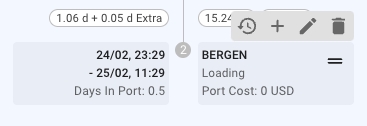

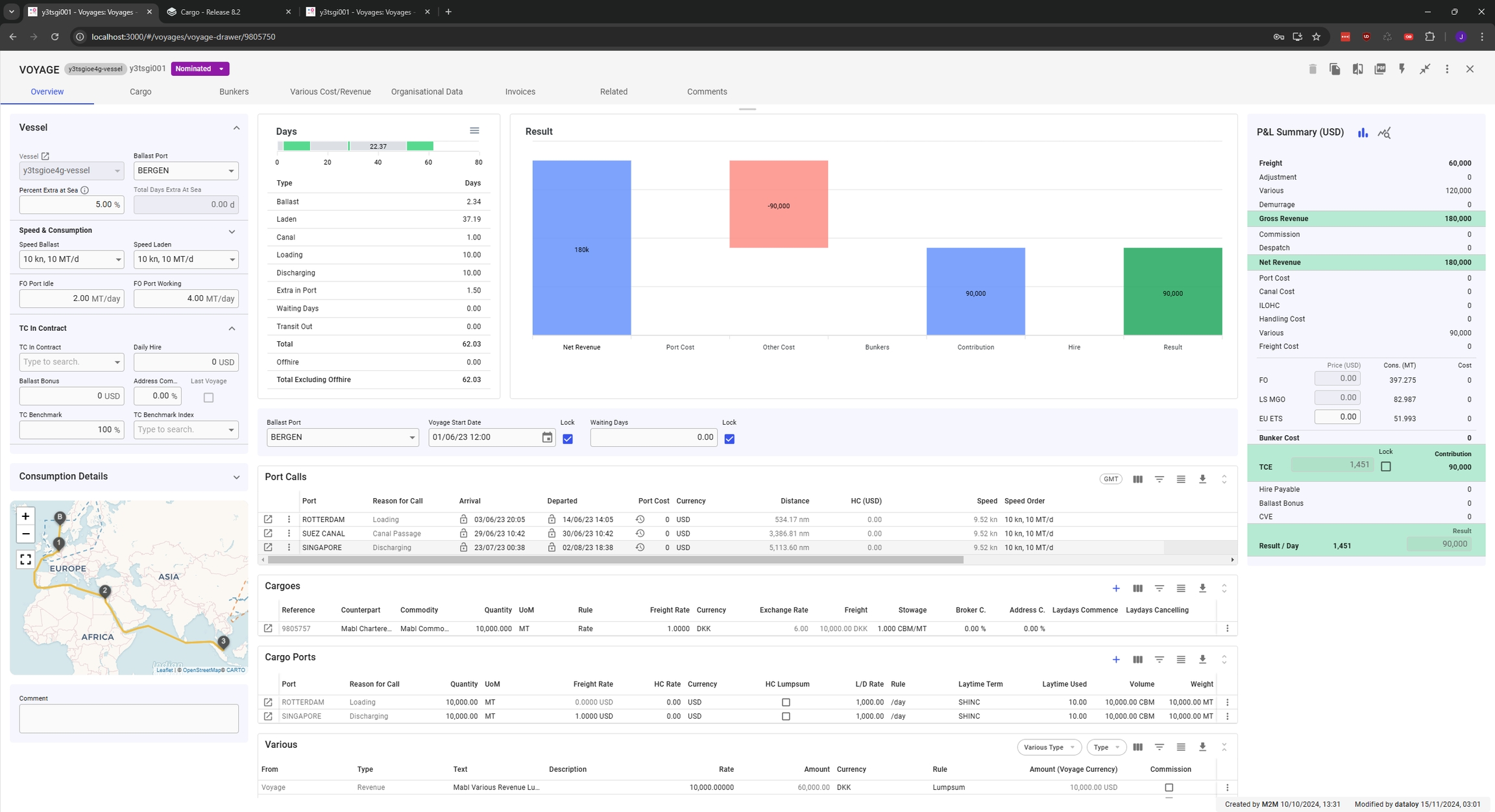
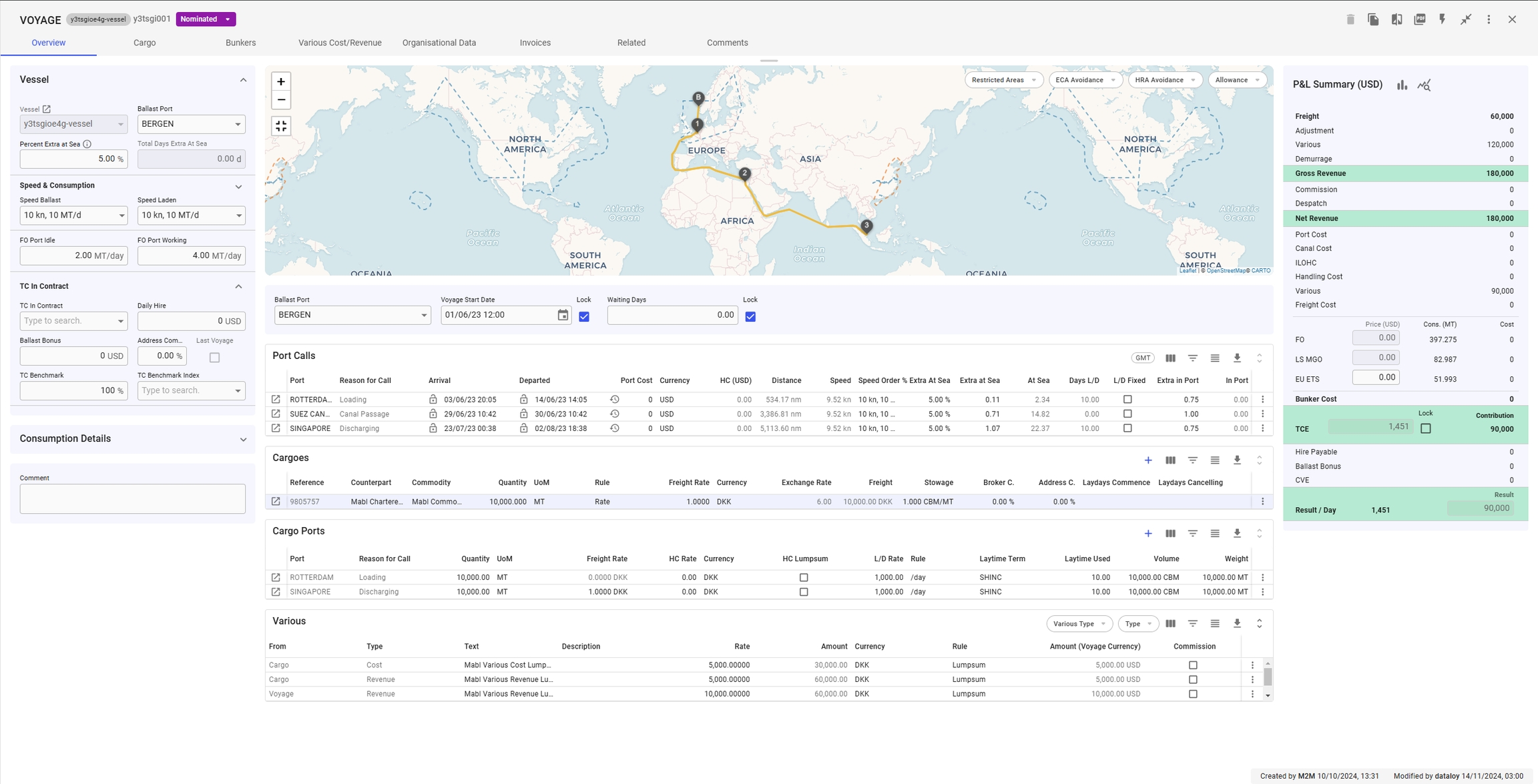
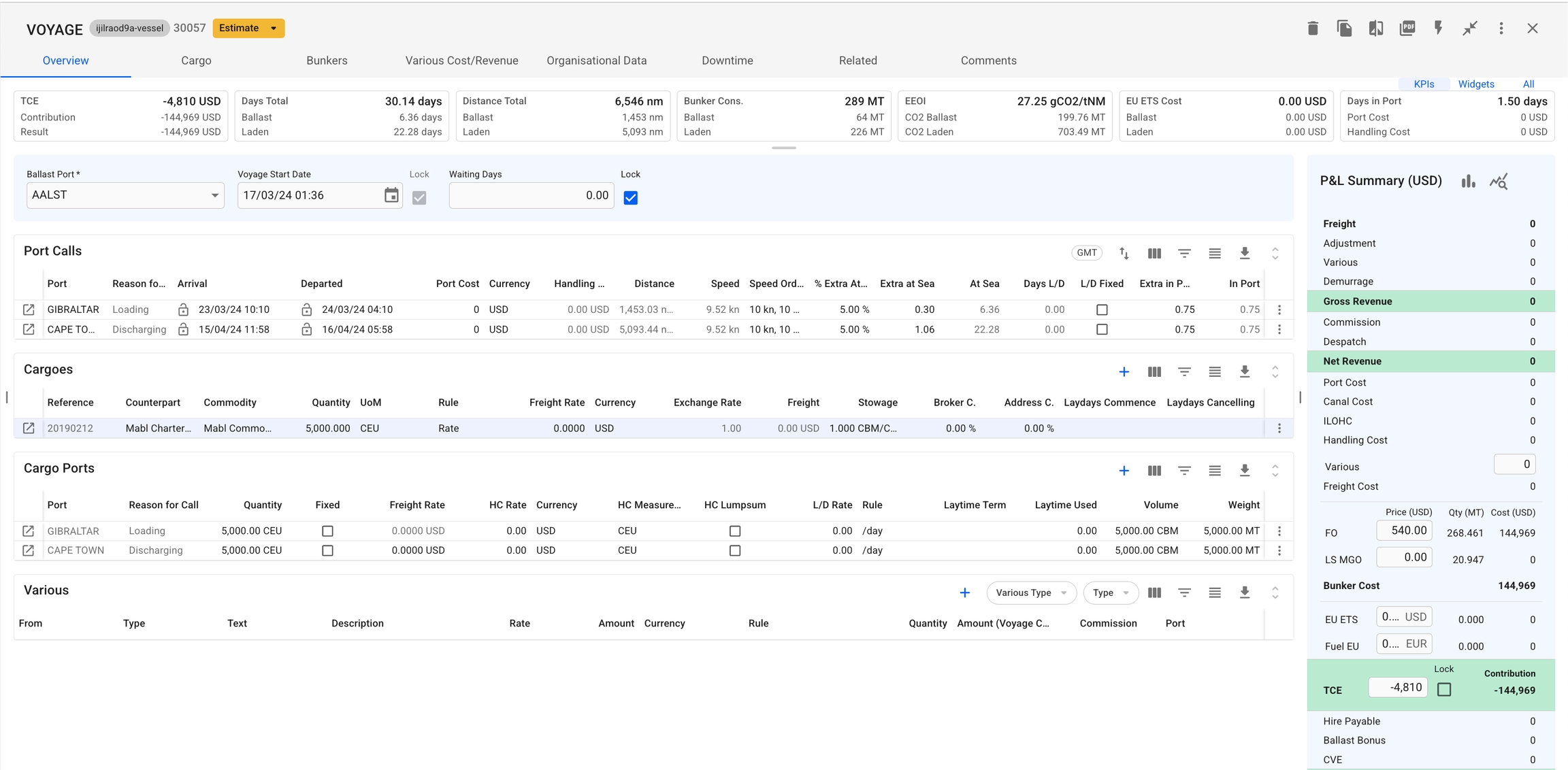
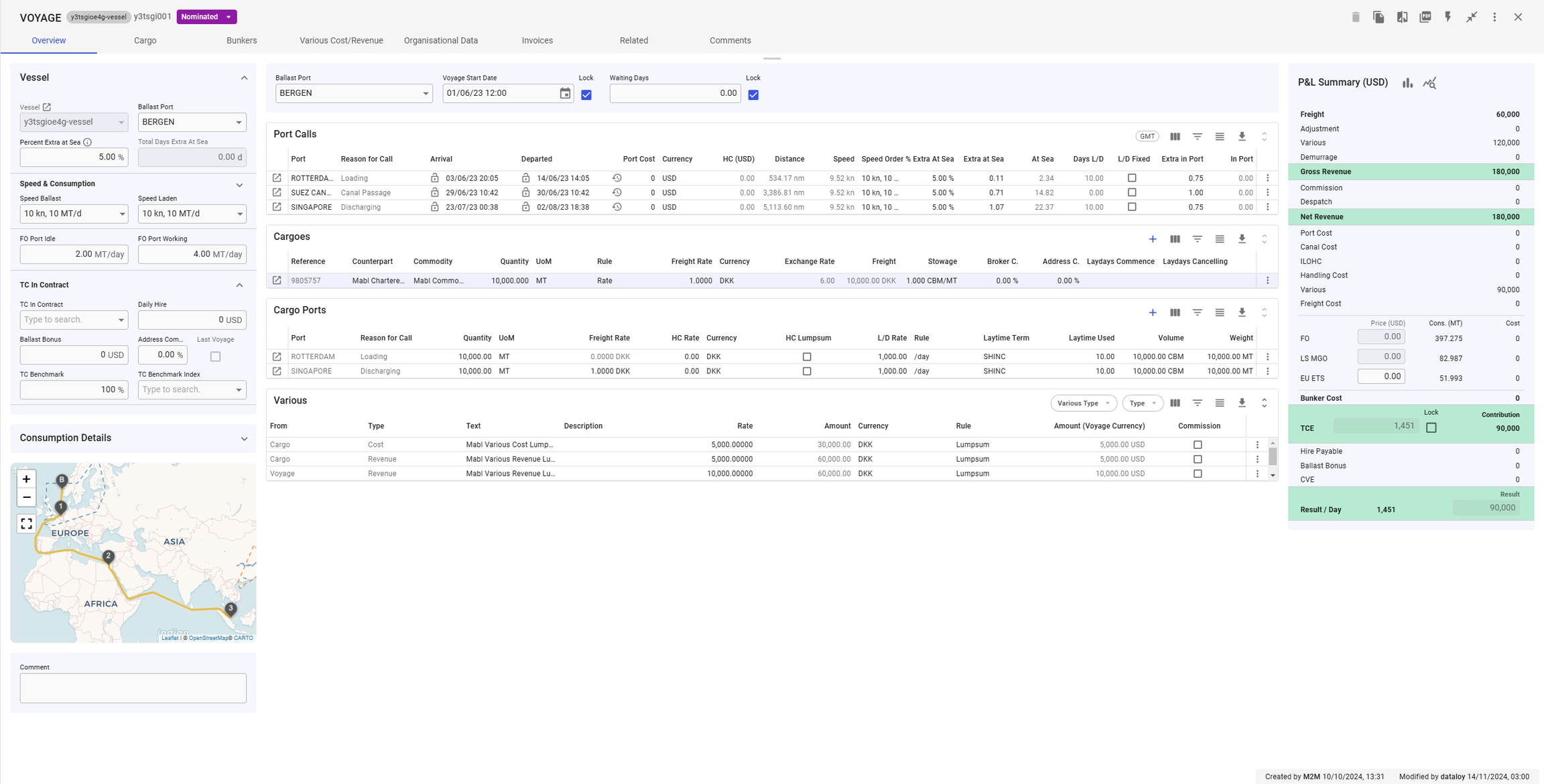
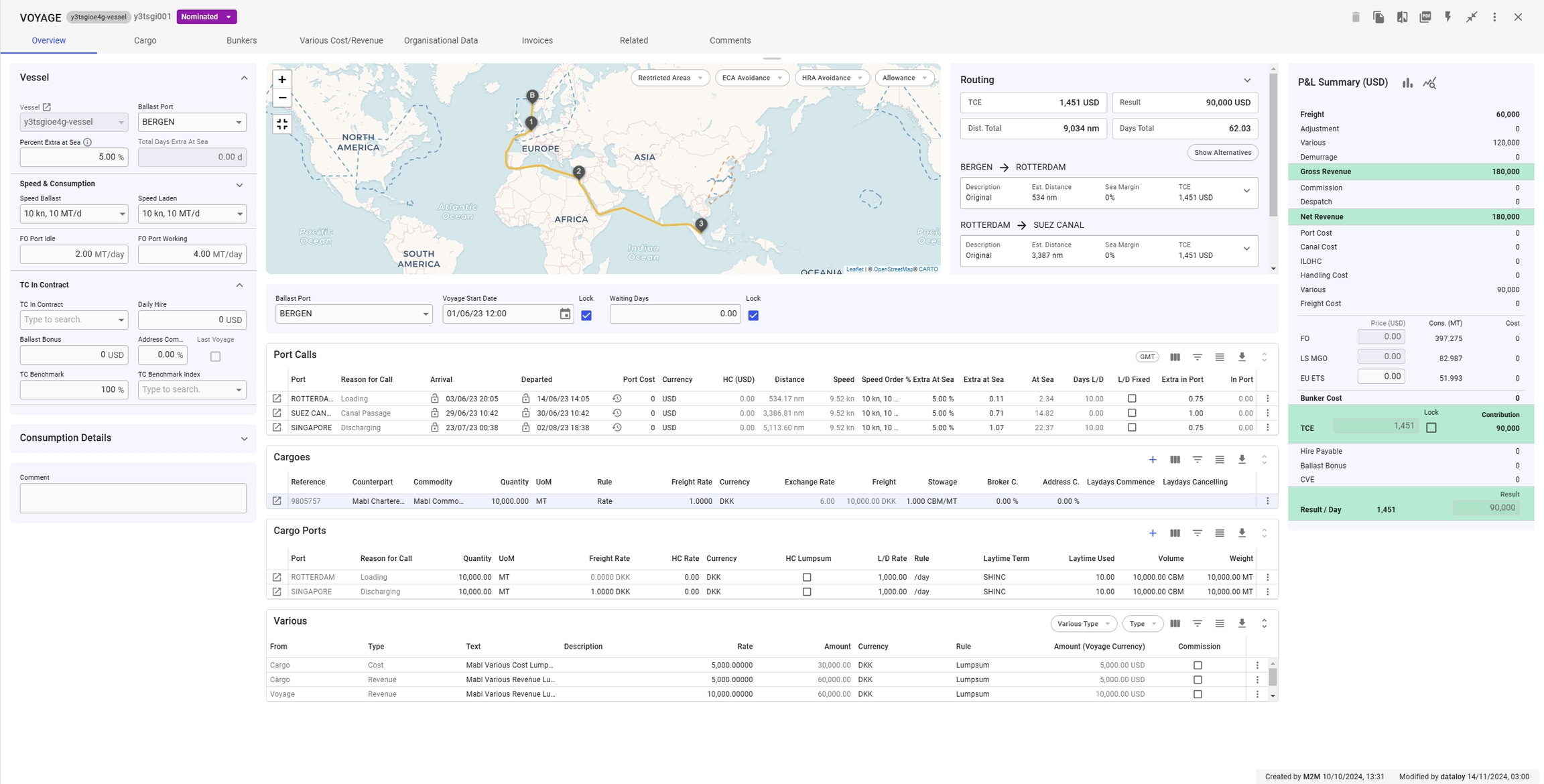
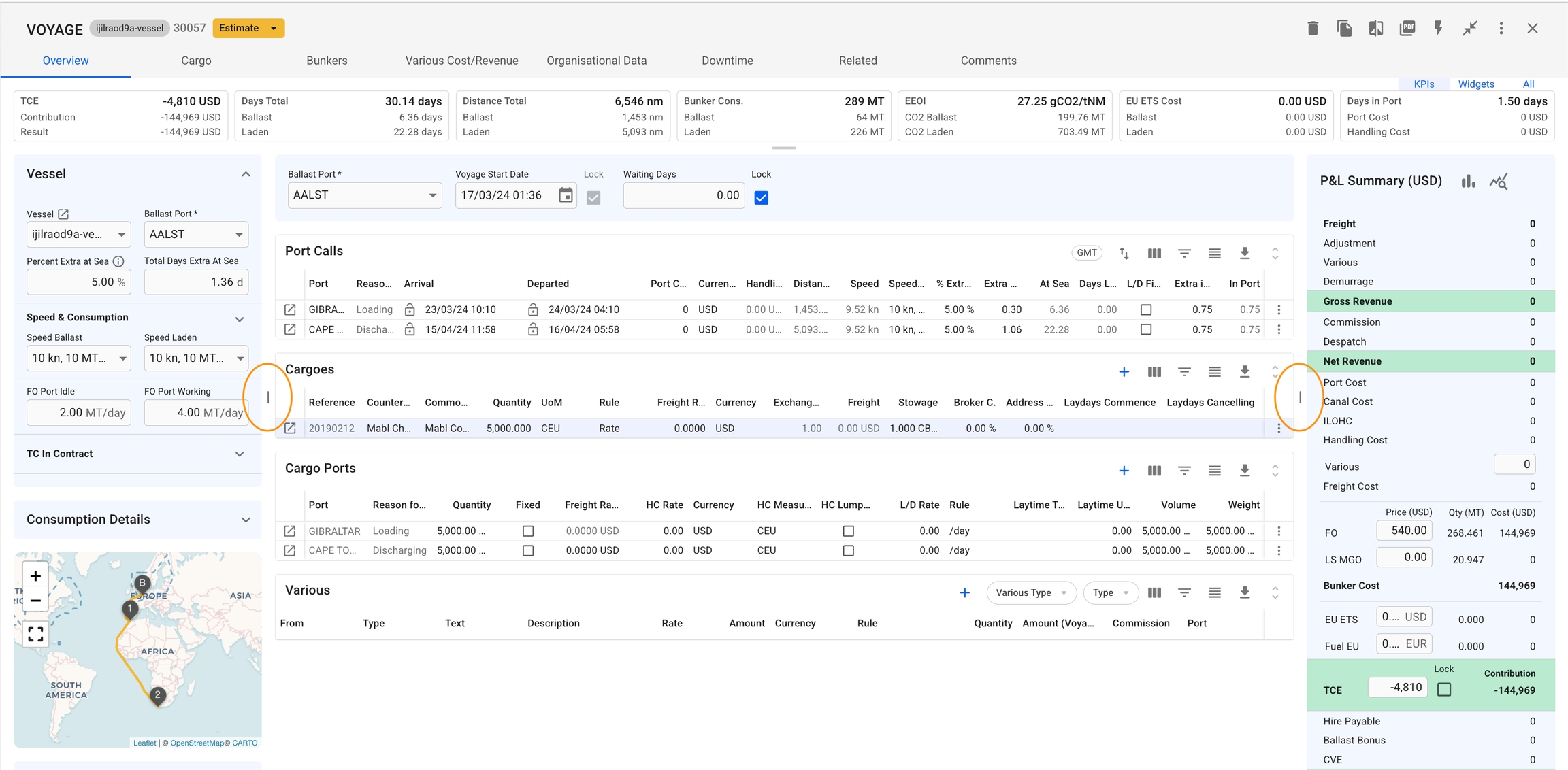
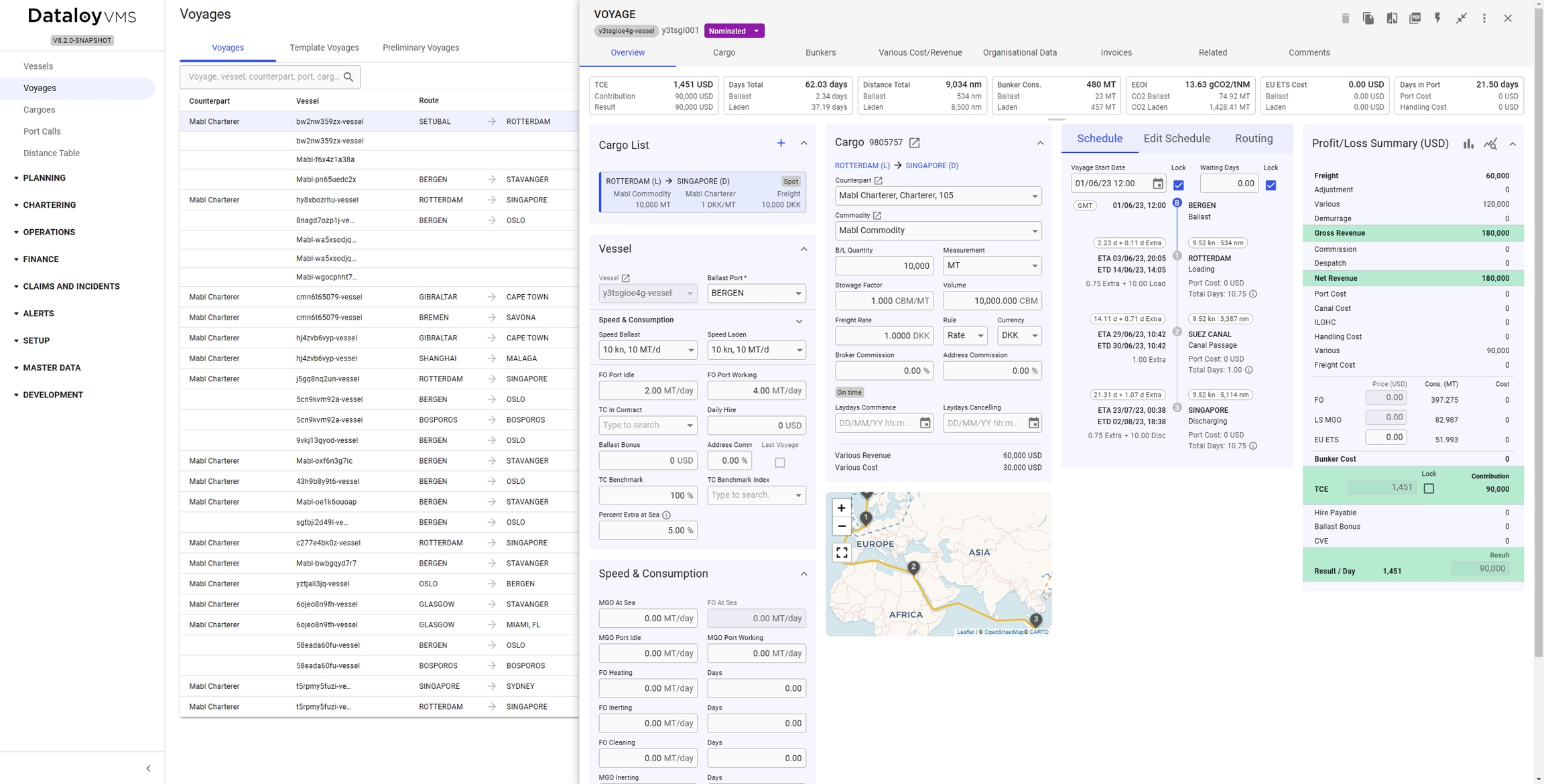

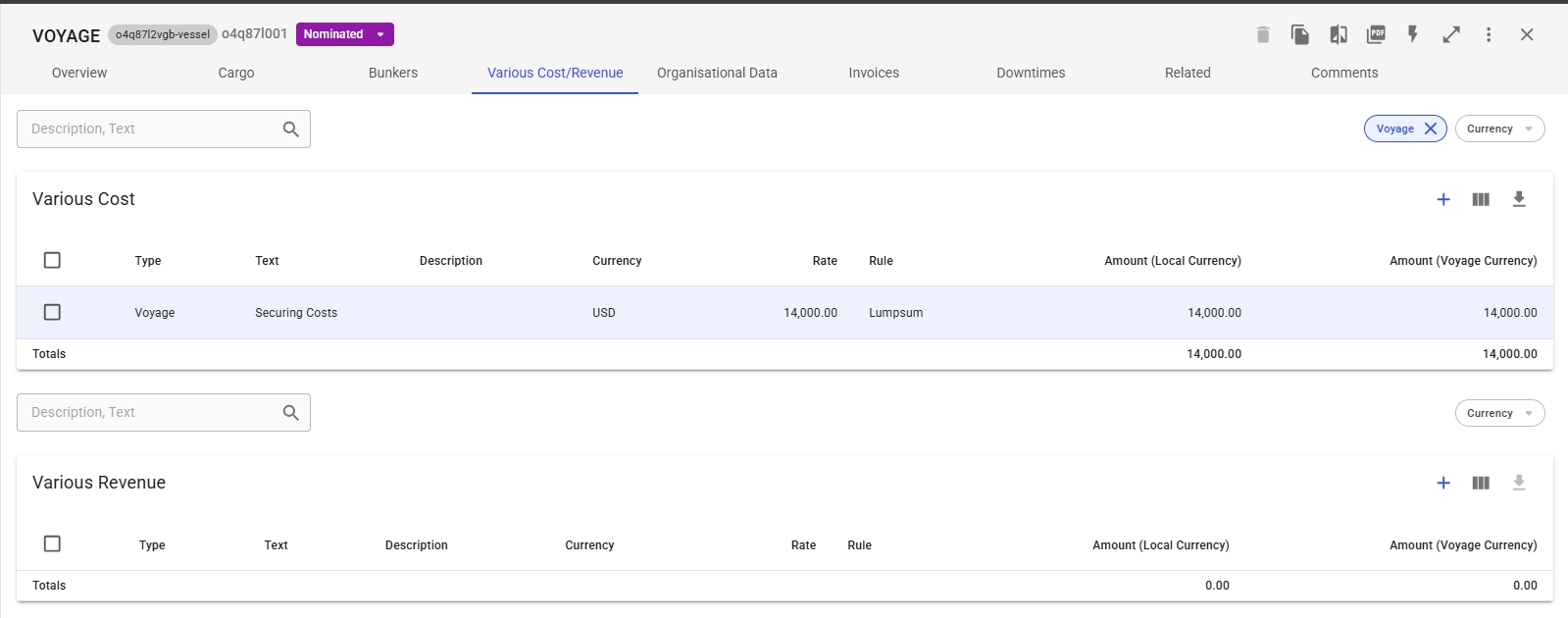
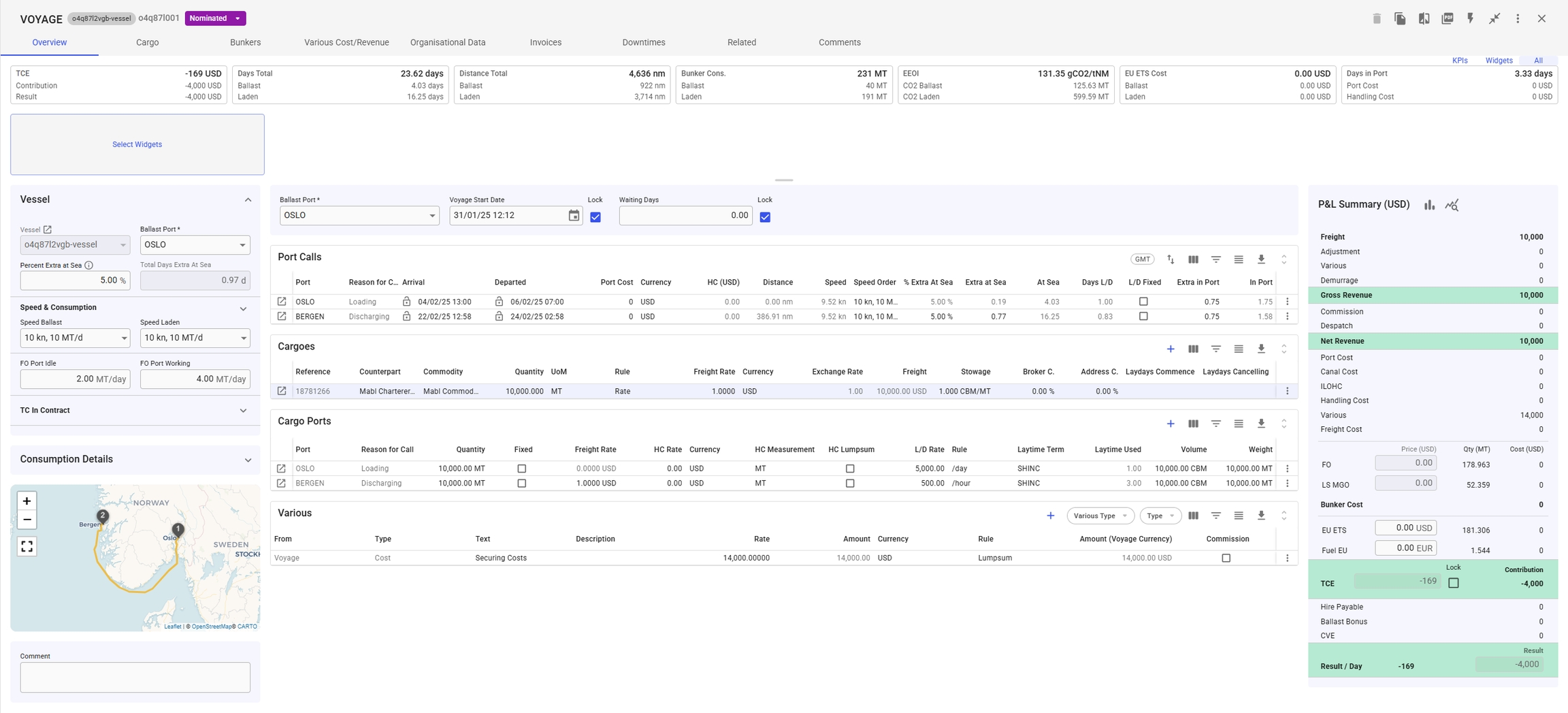
Like all grids, the Cargo fields can be edited directly within the grid. Alternatively, you can click the Open Cargo icon in the left-most column to access the Cargo drawer. This drawer will appear on top of the voyage drawer (see Figure 4).
It is possible to copy or delete a Cargo by clicking the vertical ellipsis menu in the right-most column. This opens a menu where you get the option to copy or delete the Cargo (see figure 5). When either options are selected, a popup asking for confirmation will appear to prevent unintended actions.
It is possible to select a cargo in the Cargoes grid by double-clicking the cargo. When this is done, and the cargo type filter is applied in the various grid, the various grid will display the variouses specific to the selected Cargo.
It is possible to create a new various for the Cargo. This is done by clicking the vertical ellipsis in the right-most column (see Figure 5). From this, you can select the option to create a new various cost or revenue. This will open a modal where you can define the new various, as seen in the figure below.
Click the Create Button – Locate and click the Create button in the top-right corner of the header (see Figure 2).
Enter Required Information – A Create modal will appear, prompting you to fill in the necessary fields.
Create the Various– Once all required details are entered, click Create to finalize and add the new Various.
Select the Various– Click anywhere on the row of the Various you wish to edit in the list.
Modify Details – An Edit modal will appear (figure 4), allowing you to update the entry’s properties.
Save Changes – Click Save to apply the modifications.
Select Entries for Deletion – Use the checkboxes in the leftmost column to select the relevant entries.
Click the Delete Option – Once selected, a Delete button will appear in the top-right corner of the header.
Confirm Deletion – Click Delete, then confirm in the popup that appears to complete the removal.
⚠️ Note: Deleted entries cannot be restored. Be sure to review your selection before confirming deletion.
Like all grids, the Port Call fields can be edited directly within the grid. Alternatively, you can click the Open Port Call icon in the left-most column to access the Port Call drawer. This drawer will appear on top of the voyage drawer (see Figure 4).
To delete a Port Call, you can click the vertical ellipsis menu in the rightmost column and select the delete option. When clicked, a popup asking for confirmation or instructions on how to delete when the port call is connected to cargo port, will appear to prevent unintended actions. See figures below.
The port calls grid has a button in the header to convert the time and date to GMT. It is important to note that when this is done, it is not possible to edit the dates. This also includes the voyage start date (see Figure 6).
You can select a port call in the grid by double-clicking it. When a port call is selected and the port call type filter is applied, the various grid will display the variouses specific to the selected port call.
It is possible to create a new various for the port call. This is done by clicking the vertical ellipsis in the right-most column. From this, you can select the option to create a new various cost or revenue. This will open a modal where you can define the new various.
For voyages with status Allocated or above, you can only swap the vessel of the voyage through the secondary action called 'Swap Vessel':
Followed by clicking the action, this modal will pop up:
In this modal, a vessel must be selected to be able to swap. By default, the vessel you are currently on is selected. Meaning, you are always able to actually click on the Swap button (for now). After the swap, you are able to see the new vessel either as the above mentioned Vessel field under Voyage Overview, or at the top of the Voyage drawer, left-most (clickable) chip:
Fill in the details manually, or choose between using a CoA Template Cargo or an existing unallocated cargo as basis for the voyage.
Click the Create-button.
After choosing a vessel, the previous Port on the Vessel will be set as Ballast Port. This can be overridden by entering another Port, if no Ballast Port is set then the first Load Port will be used.
To create the voyage using a CoA template as a basis, click the Use CoA Template Cargo button in the top of the modal. This will bring up another window, allowing you to select a template from a list of CoA templates. More details can be found here: Create Cargo From CoA Template.
Using a CoA template will give the voyage and cargo the same Company and Business Unit as the CoA.
It is possible to create a new voyage and allocate an unallocated cargo by using the Use Unallocated Cargo button in the top of the modal. Clicking it will bring up another window with a list of unallocated cargos. Filter and search as needed, and select a cargo from the list.
After choosing a cargo, the create voyage modal will be automatically filled in with all the details from the cargo. Only the fields that are not coming from the cargo will remain editable.
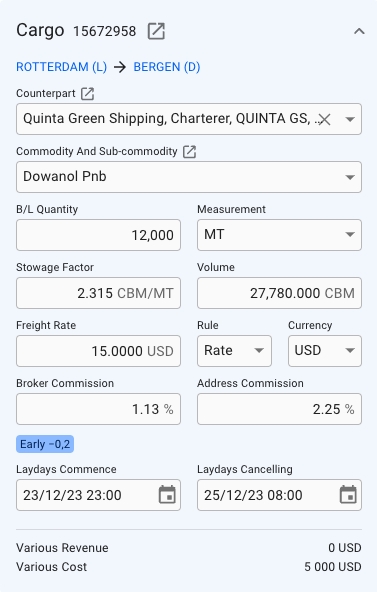
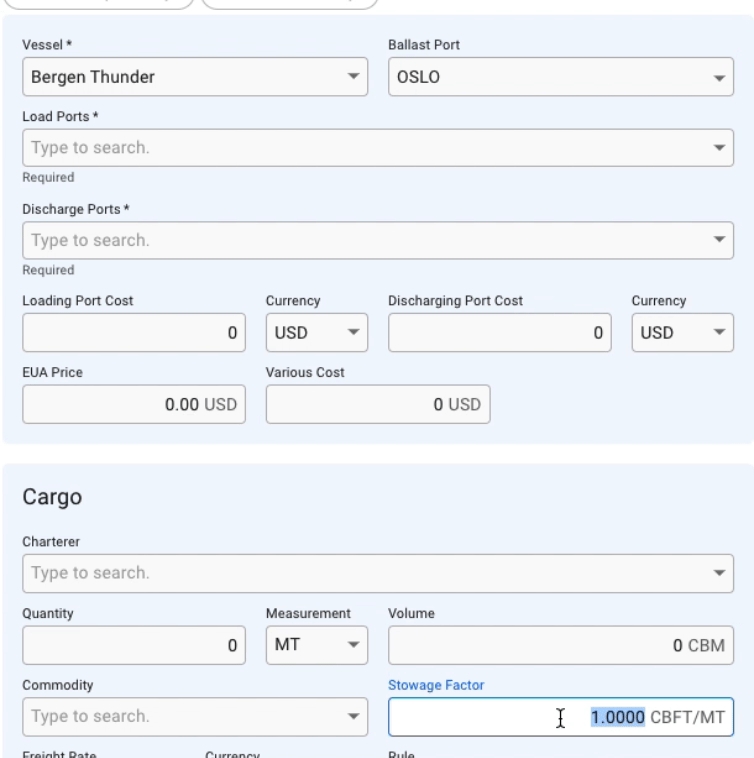
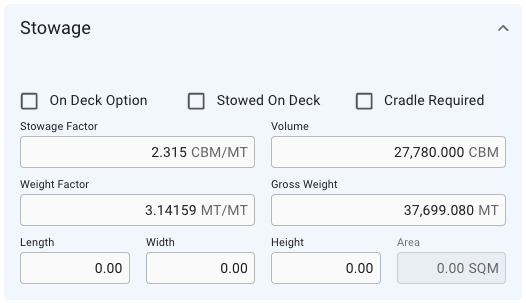
When entering Quantity, Volume or Stowage Factor, the modal will automatically calculate the corresponding value. Updating Quantity or Stowage Factor will update Volume, and updating Volume will update the Stowage Factor. Selecting a Commodity will default the Stowage Factor to that of the commodity.
In the trade field a combination of Route, Trade and Pattern can be selected to ensure trade is set properly. The cargoes on the voyage will be updated with the same trade.
This list contains of all the allocated cargoes. When creating a cargo from scratch, this is where that cargo will be placed, by default. These cargoes don't belong to any voyages yet, but once you click on one of the items on the list, you can perform different Cargo drawer actions, e.g. allocating the cargo.
Click here to see an overview of the different ways to create a cargo.
This list contains of all the sub-cargoes linked to cargoes. These do not have a drawer, but when clicking on one item from the list, you can see a modal (or "dialog box") pop-up on the screen. Multiple sub-cargoes can be linked on the one and same cargo.
You can read more about Sub-cargoes here.
There are several sorting and filtering options available for you to narrow down what you include in the list view.
The Trade quick filter consists of two filters. The top filter filters on specific trades and the bottom one filters trades based on the selected route(s), see the first tab below. The available options in the top filter will change based on the selected route(s). Such that the top filter will only show trades that are part of the selected route, see the second tab below.
More details about creating Laytime Calculations: Create Laytime Calculation.





The "Schedule" section in the Voyage drawer shows three different sub-sections; Schedule, Edit Schedule and Routing.
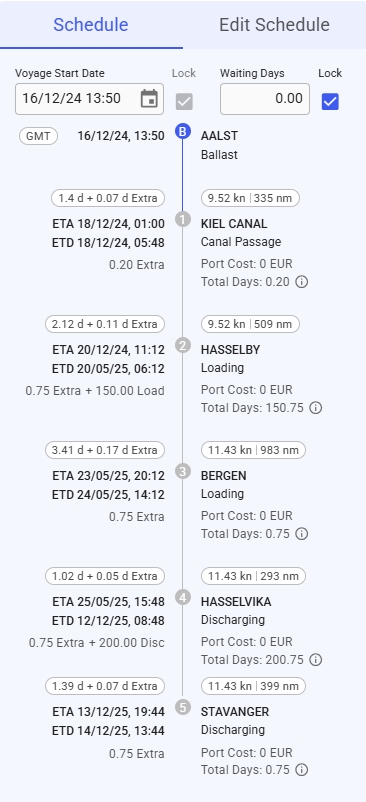
This is a timeline of port calls on a voyage, in which the left side displays the ETA and ETD time- and dates, as well as Days Extra and Waiting Days, with the last two also having a hover/tooltip. On the right side displays the port calls, their reason for calls, Port Costs and Total Days, with also a tooltip on the last two here.
You can create, rearrange, delete and edit port calls directly from this section (click on the picture for better view):
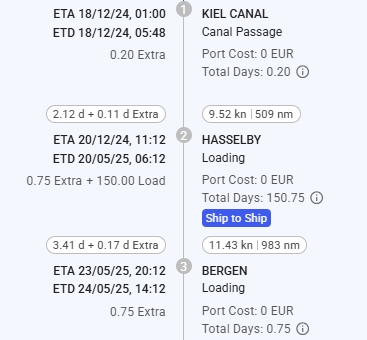
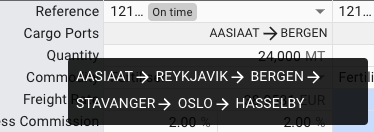
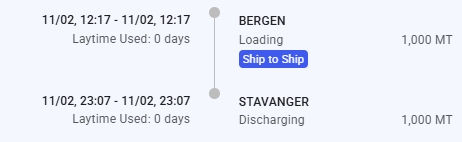
If a Cargo Port is marked as being Ship to Ship a chip will be displayed on the connected Port Call on schedule. The image below shows that the Cargo Port on the Hasselby Port Call is marked as being Ship To Ship by the blue chip.
When hovering the mouse over a port call in the schedule, a toolbar in the upper right will appear.
To insert a port call before or after the port call you are editing, click the Create button and select Before or After. A window to create a new port call then pops up.
To edit a port call, click the Edit button.
To delete a port call, click the Delete button.
Within the Schedule section, you will find a checkbox for locking the update of voyage start date and Waiting Days. This checkbox is not enabled while the voyage has status Estimate or Unallocated:
This list displays a more detailed view of all the port calls in the schedule (click on the picture for better view):
With this icon , you can either expand or collapse all of the port call items in the list (the list is expanded by default). You can also open and close the collapsable items, independent of each other, to view the detailed information.
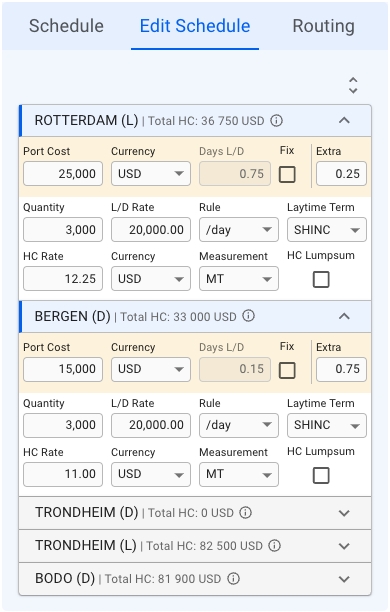
The first row, in yellow highlight, you can find the Port Call's Port Cost, Currency, Days L/D, Fix checkbox and Extra (days in port).
The next two rows, you can find the Cargo Port's Quantity, L/D Rate, Rule, Laytime Term, HC Rate, (HC) Currency, (HC) Measurement and HC Lumpsum checkbox.
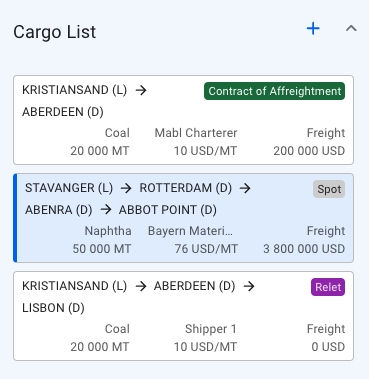
All of these fields are editable. The cargo highlighted in blue in the Cargo List section will also have its port calls highlighted correspondingly in the Edit Schedule section, meaning, you are viewing the selected cargo's information.
Additional Hover Information:
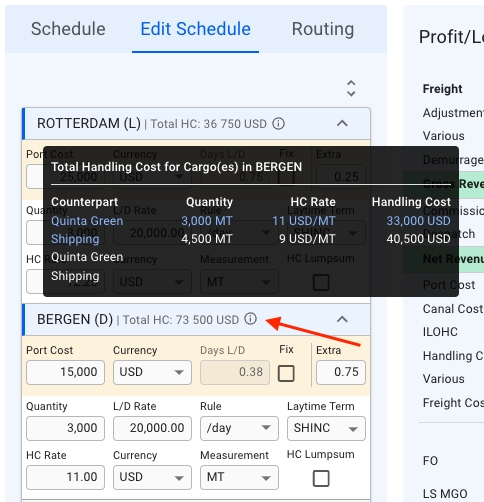
All of the collapsible headers are displaying the Port Call Name, Reason for Call and Total Handling Cost (HC). Next to the last mentioned, there is an icon, which you can hover on to display additional information inside a tooltip:
This tooltip displays, per Port Call, the Counterpart, Quantity, HC Rate and Handling Cost for each of it's Cargo Ports. Again, with the selected cargo from the Cargo List section highlighted in blue.
TBA.
There are different ways to allocate a voyage to a trade.
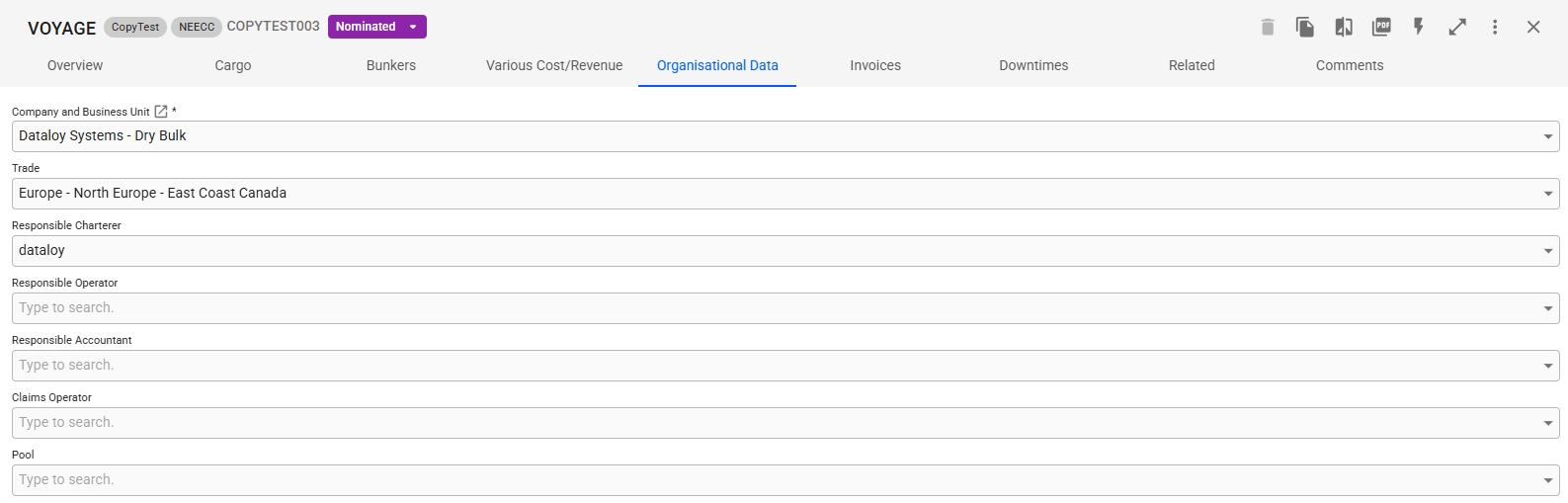
In the voyage drawer you have to navigate to the Organisational Data tab, and then you will find the Trade dropdown as the second field on this page.
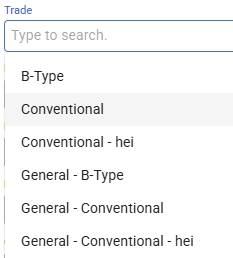
Every trade dropdown in the system will list up the options following this rule:
Single item is Trade (First and second option in the image below)
Two items are either
Trade - Pattern (Third option)
Route - Trade (Fourth and fifth options)
Three Items are Route - Trade - Pattern (Last option)
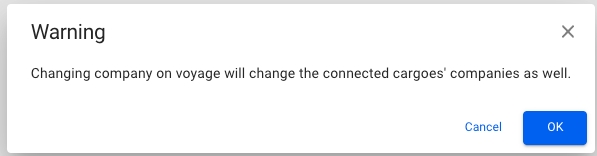
Selecting a Trade here will display the warning below as the system will change the trade for all cargoes on the voyage to the Trade you selected.
In the lower right corner of both the Create Voyage Charter and -Create Template Voyage modals there is the option to selected which Trade the voyage will be part of. The field is highlighted in the image below.
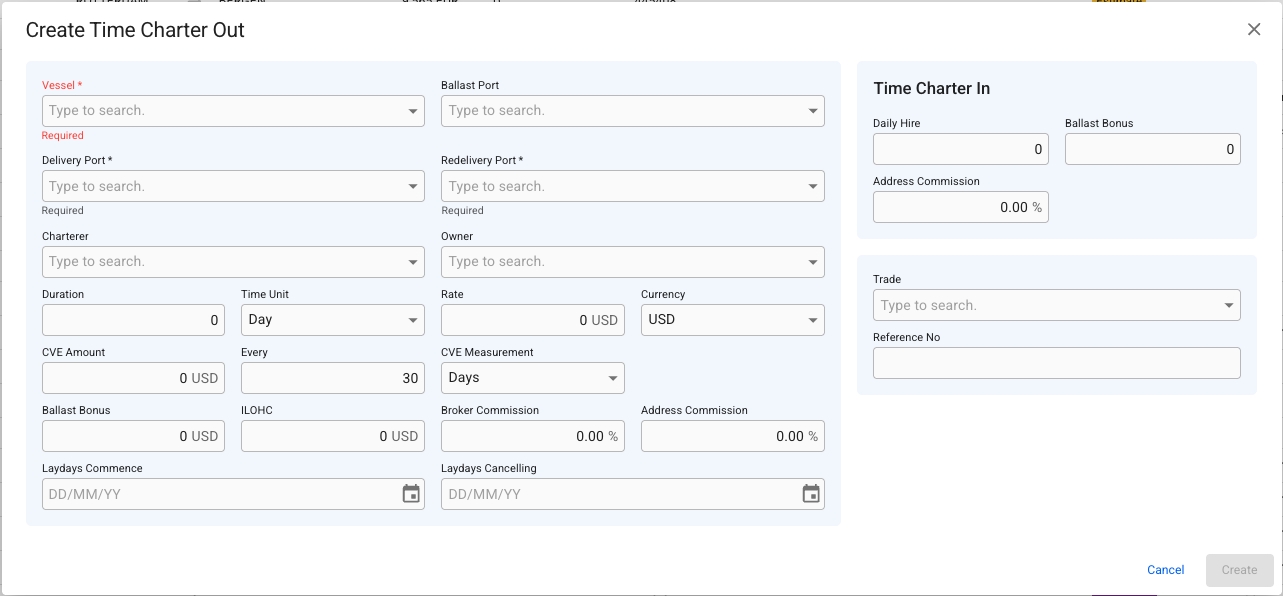
In the bottom right section of the Create Time Charter Out modal the Trade dropdown is located.
This section explains the Ballast Latitude and Ballast Longitude fields and how they function.
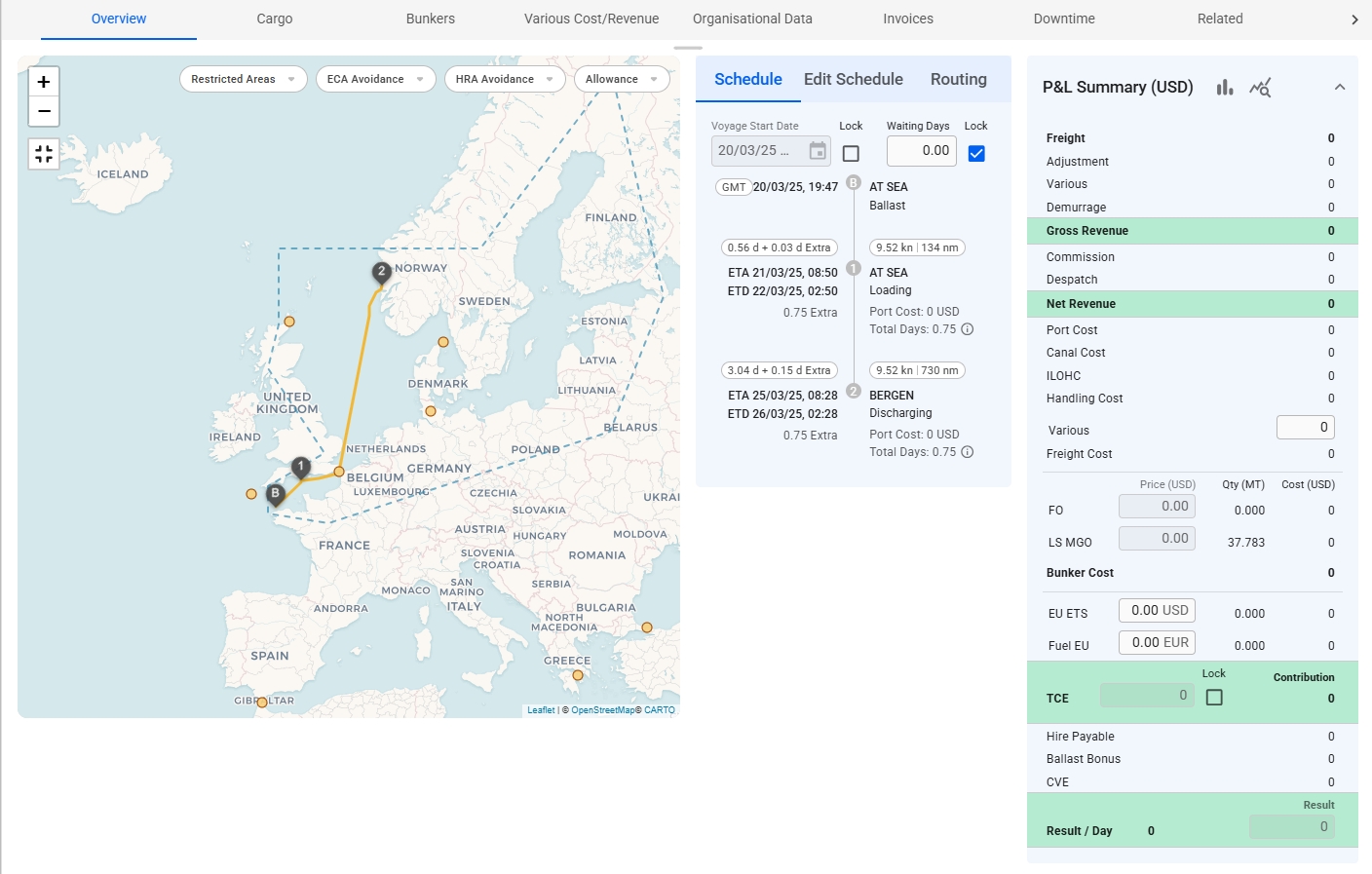
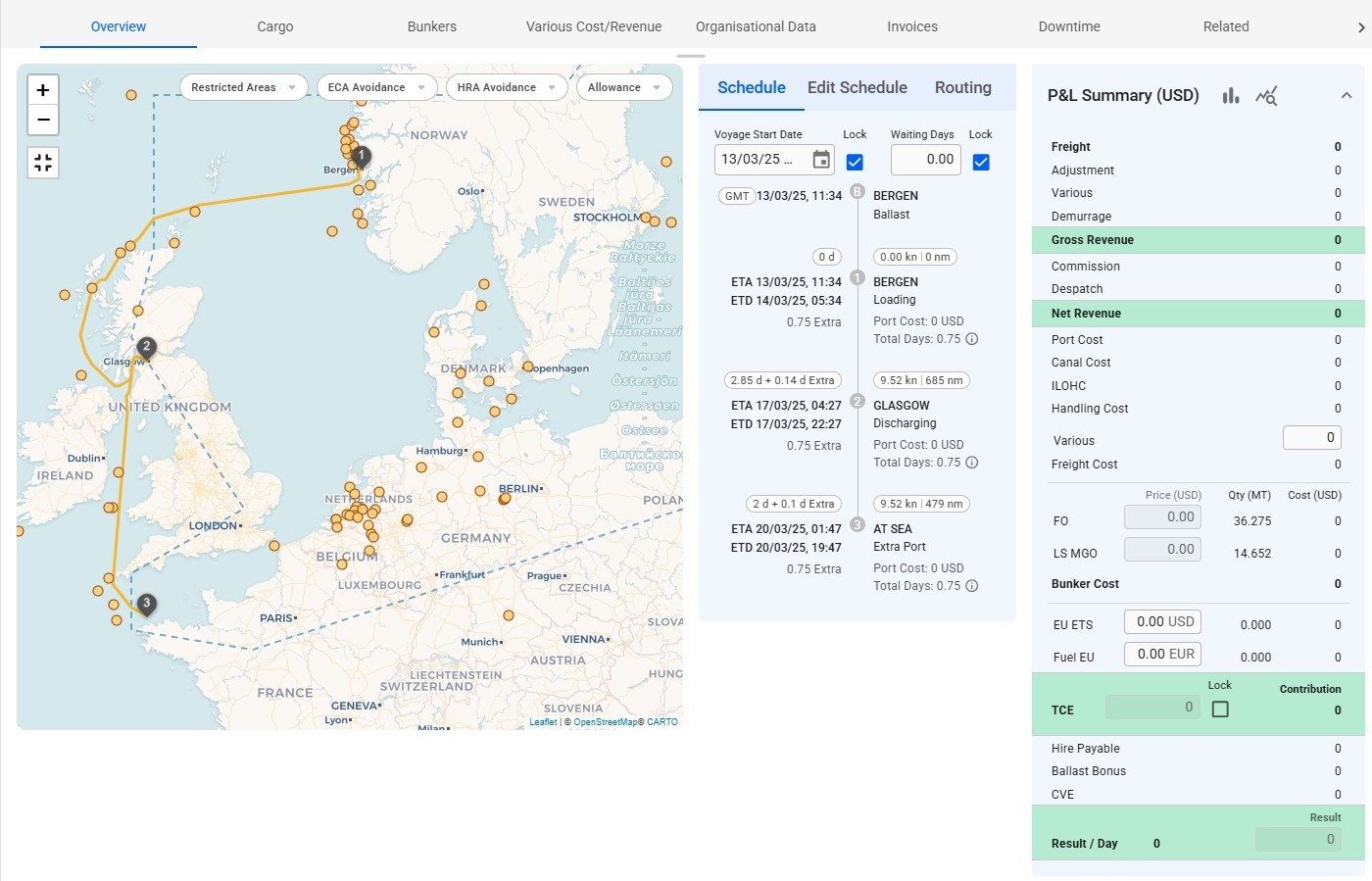
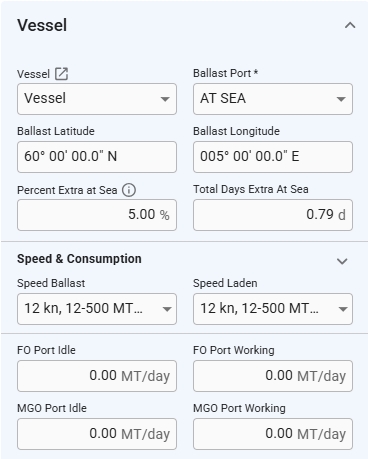
Starting in Release 8.7, ballast port that are 'At Sea' will have latitude and longitude coordinates. These coordinates will be used for routing as well as for the voyage map. If a previous port call is available, the ballast port will automatically use its coordinates. Otherwise, the coordinates will default to (0,0) until updated manually.
Figures 1 and 2 illustrate how this works for consecutive voyages when the previous voyage ends at sea.
When a voyage has an 'At Sea' ballast port, the Ballast Latitude and Ballast Longitude fields appear in the of the voyage drawer (see Figure 3). If there is an open position port call available, its coordinates will be used by default. If no previous port call is available, both values will default to zero.
Users can also manually enter the ballast port’s position in these fields. If the ballast port is later changed to a another port, the fields will be hidden, and the voyage will use the coordinates of the selected port.
After creating a voyage, the ballast latitude and longitude can be modified by opening the voyage drawer and navigating to the (see Figure 3). These fields will only be available when the ballast port is set to 'At Sea'.
Note: Editing is only enabled if the
If the ballast port is changed from 'At Sea' to a another port, the latitude and longitude fields will disappear, and the voyage will automatically update to reflect the new port’s coordinates.
Voyage drawer
The Voyage Edit Schedule segment may be found on the right-hand side of the Overview tab in a Voyage Drawer.
The edit schedule tab includes a complete list of Port Calls for all the Voyage's cargo.
There are three core elements involved: Selected Port Calls, Selected Cargo, and the rest.
Selected Port Calls: these objects are highlighted by the blue background and a small blue line on the left of the Port Call port (see figure 2). The selected port calls display data for the respective selected Cargo.
Selected Cargo: the currently selected cargo can be chosen inside the select cargo modal, which can be invoked by clicking the expand cargo button (triangle facing down inside the left section, see figure 3). The selected cargo will be the subject of the Edit Schedule list. The Port Calls contained in the list correspond to the selected cargo, and the related values change dynamically if another cargo is chosen.
The rest: the rest can be considered all the grey options inside the list. These options are also expandable and can be edited, but they don't belong to the selected cargo and, thus, are not the focused elements (e.g., Kristiansand Port call in Figure 2).
Each list item is interactive and can be collapsed or expanded. When the selected cargo is changed, the corresponding cargo ports expand and get visually highlighted, the corresponding values are updated.
Moreover, the collapse button can expand Port Calls related to the selected Cargo, Expand all Port Calls, or Collapse all. The button may be found on the right over the first PortCall (see figure 3).
Next to the Port Call port name, there is a Reason For Call specified inside of parentheses - L means Loading, D - discharging, and C - canal passage.
If a port call using Handling Cost from Service Orders, then the bottom row will not be editable as shown on figure 5.
In the voyage drawer at the vessel section you will find a checkbox for setting "Last Voyage for Current CP". This checkbox is disabled when there is no TC In Contract registered.
In the comments tab there is a list of previous comments made, and at the bottom you can add new comments.
Open the Vessels module in the Master Data section.
Open the Vessel drawer
Miscellaneous:
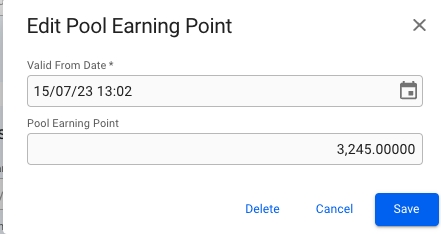
Here, you can set fields like and Business Unit, Bank Account Receivable, Master Account, Classification Society, specify the (if classification society is selected), and Pool, as well as the Pool Earning Points. In this table, you can create, edit, and delete a Pool Earning Point:
Starting with release 8.6, a new rule named "Fixed Quantity" is now available for various cost/revenue items. When selected, a new "Quantity" field appears, allowing you to enter any positive quantity.
The amount is calculated using:
If you need to record a negative amount, simply use a negative rate.
For example:
The voyage map shows the voyage schedule, including alternative routing pointsthat can be added to the schedule between port calls. More routing points will be revealed as you zoom in on the map.
Click on a routing pointto show information about the point in a popup, including name, position, and GMT offset. When a routing point is clicked it will also be possible to add the routing point to the voyage route. When clicking 'Add to route', a pop-up will appear where you have to choose between which port calls the routing point shall be added.
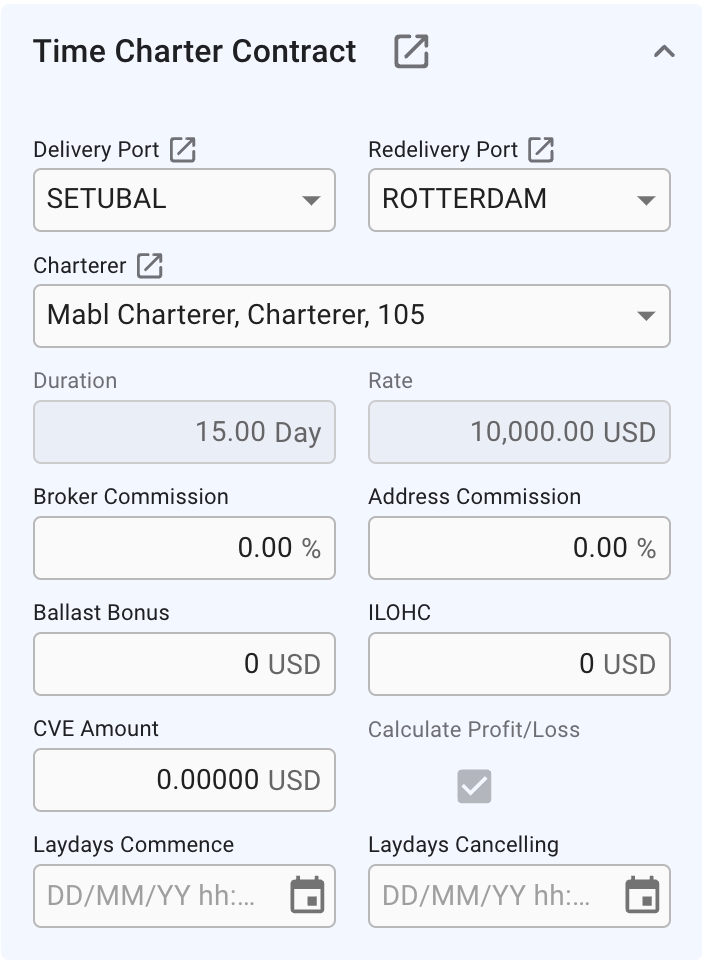
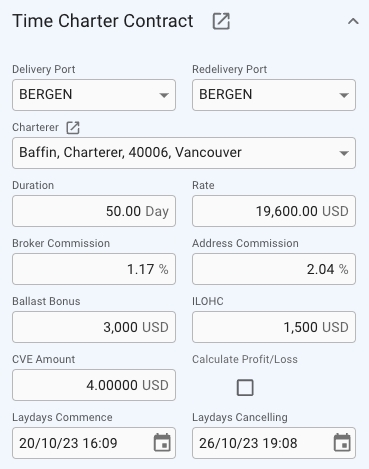
A TC Voyage will not have a Cargo Section on the Overview Tab like normal Voyages, but instead have a Time Charter Contract Section displaying the Time Charter Contract. In this section you can edit the most important fields on a Time Charter directly through the Voyage Drawer or click the -icon to Open the Time Charter Contract Drawer.
The Delivery Port and Redelivery Port fields display the port from the associated Port Call. When you enter a new port, the Port Call and TC Contract will be updated accordingly. Click the -icon to Open Port Call Drawer.
Both Duration and Rate fields will be disabled if there exists more than one Duration on the Tc contract, or a Duration has multiple Rates.
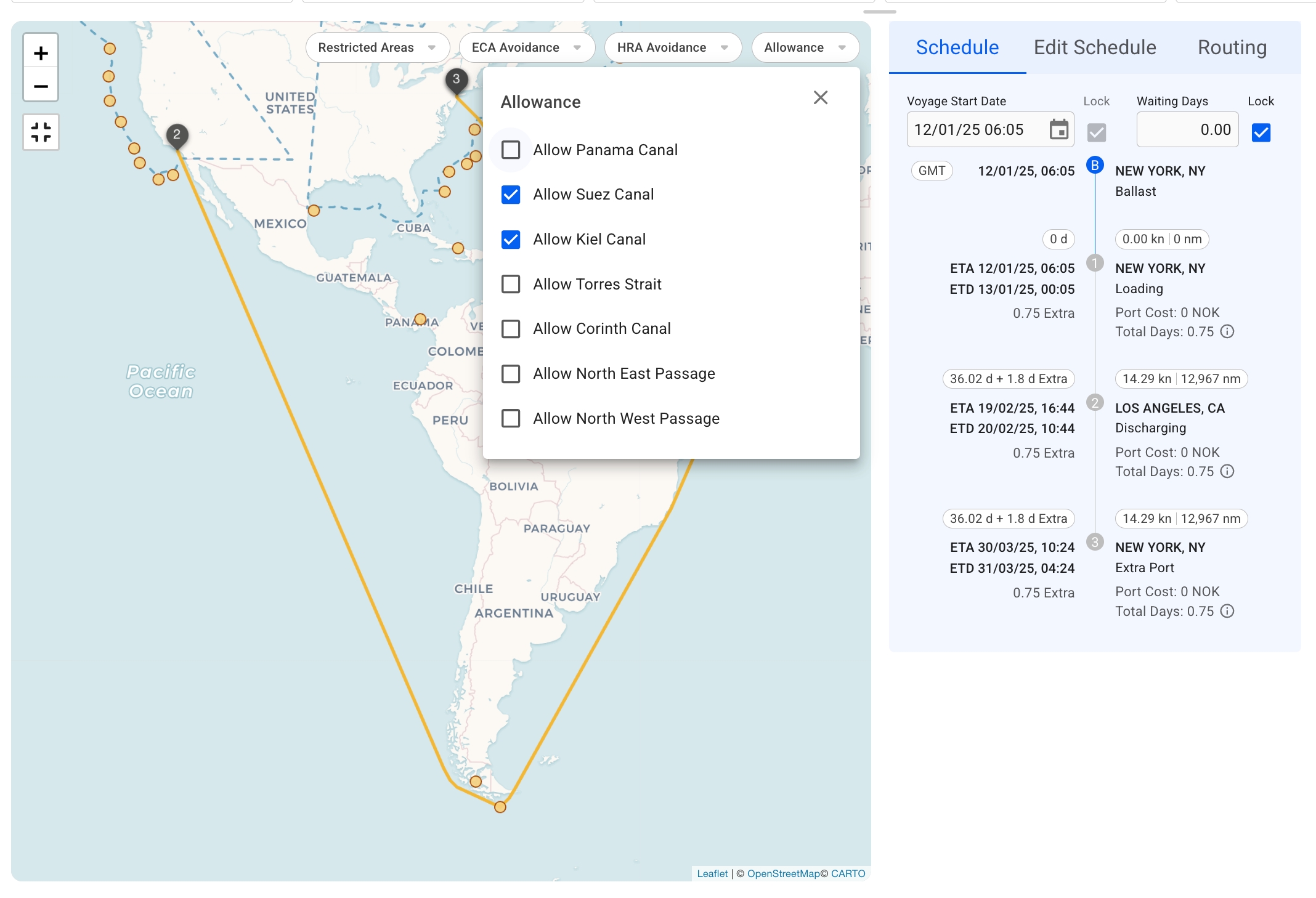
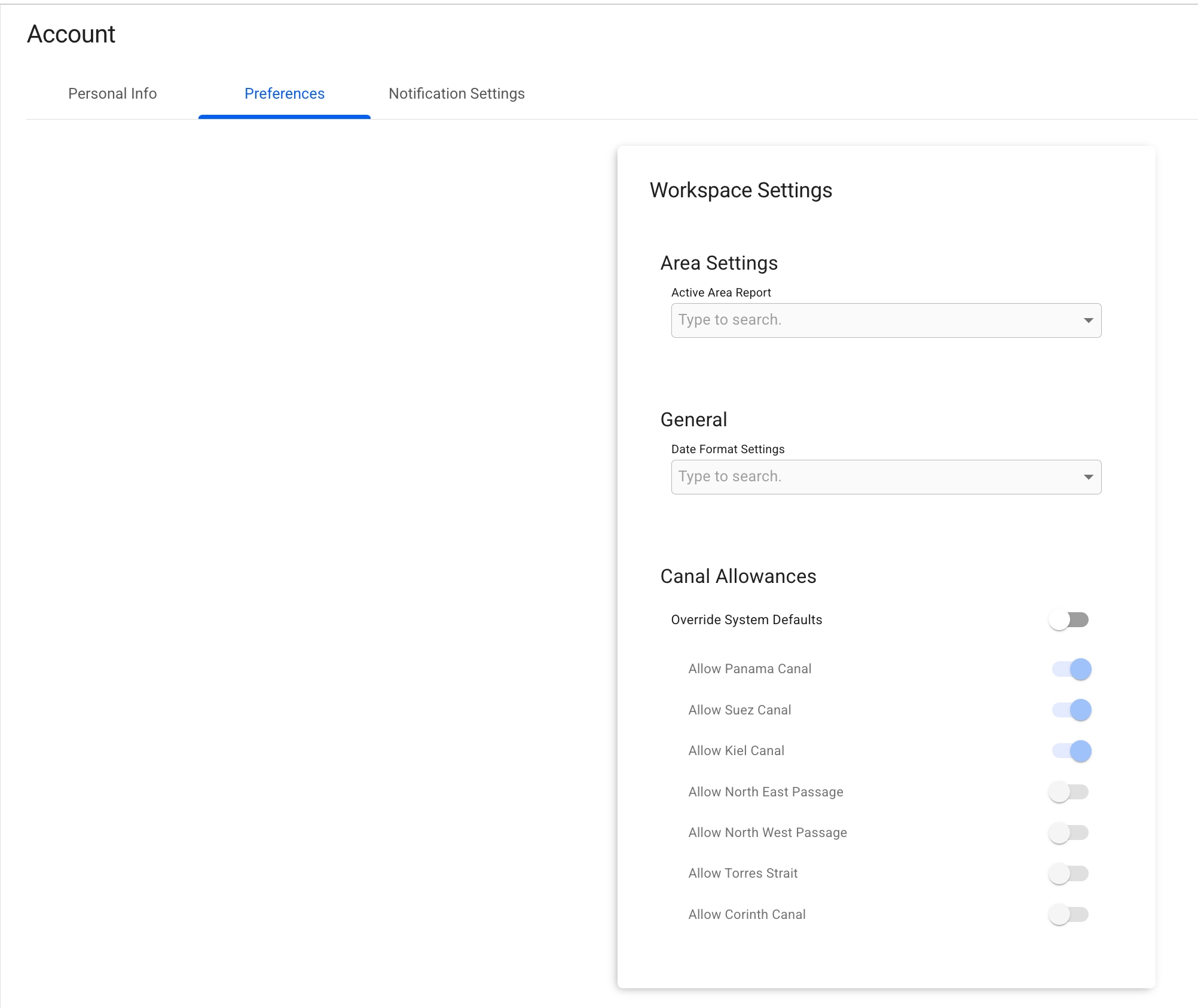
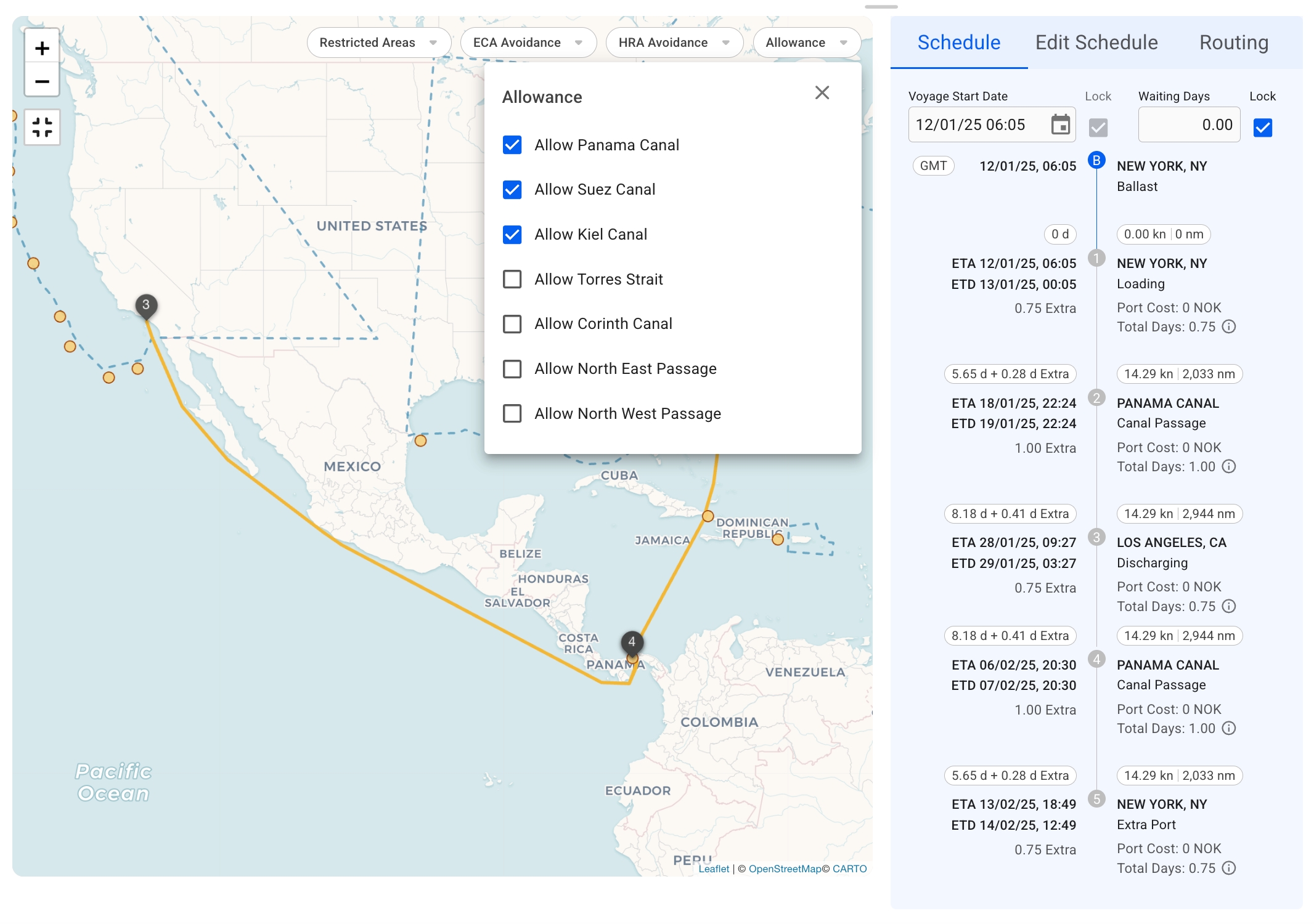
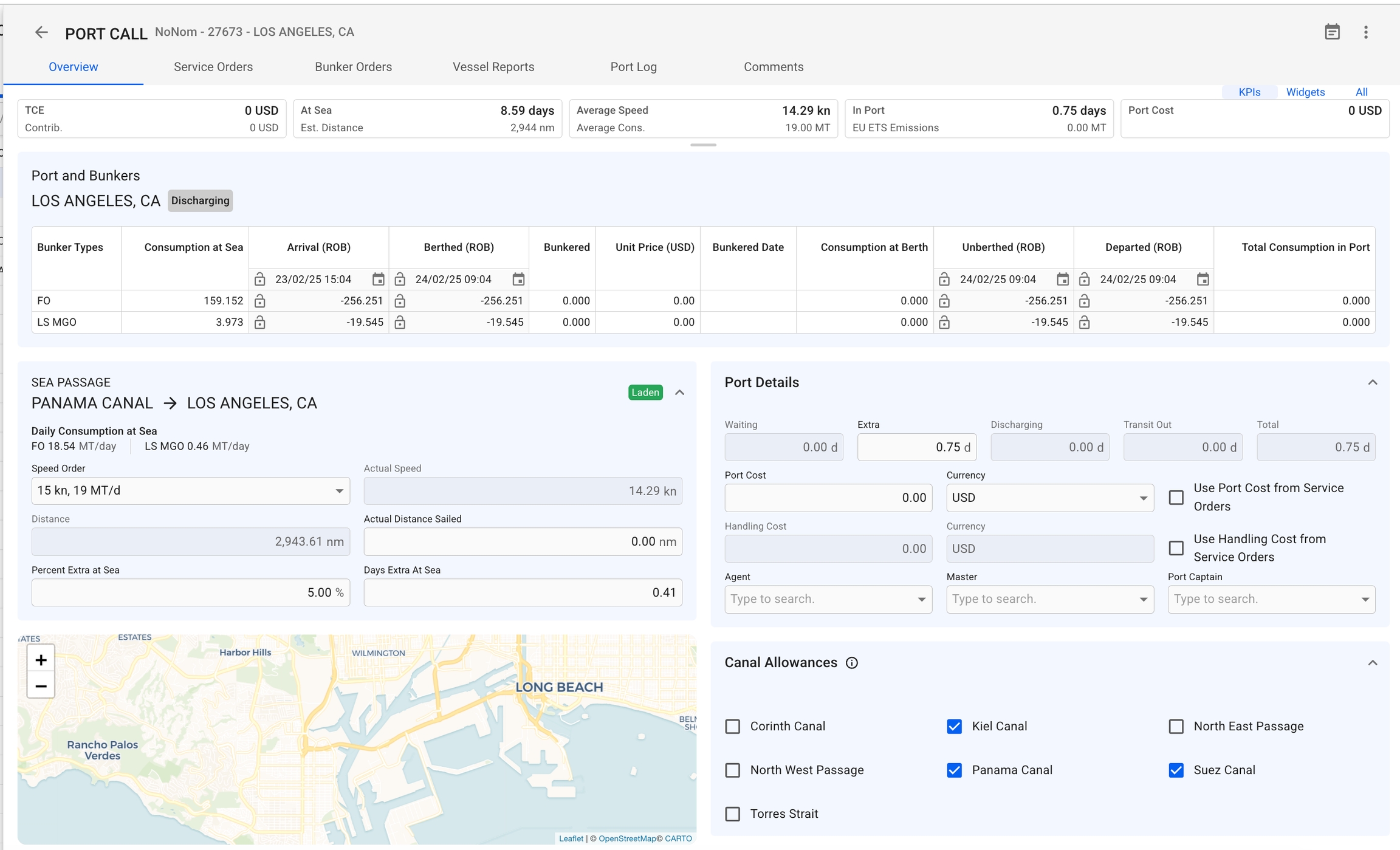
Certain voyage routes require specific canal allowances to be used. These allowances can either be applied to the entire voyage or to individual legs.
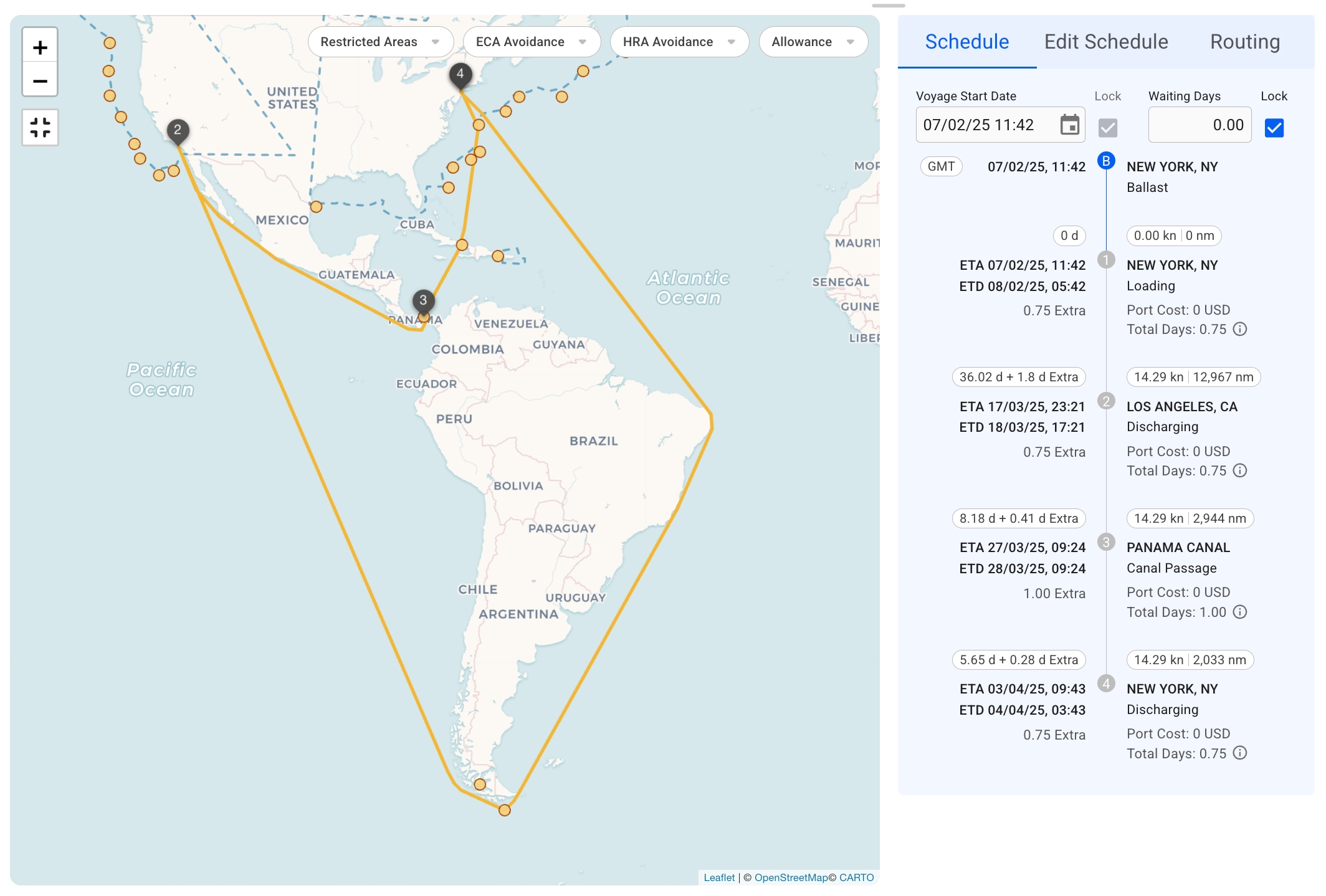
Canal allowance settings for the entire voyage is shown in the top right corner of the map in voyage drawer. Changing these allowances affects all sea passages on the voyage. For example, consider the following voyage going from New York > Los Angeles > New York:
The voyage is currently allowed through the Panama Canal, and the route and schedule reflects this. If Panama Canal is deselected in the allowance settings, all instances of the canal are removed from the voyage:
This section is visible on Spot and CoA voyages.
To the left, a scrollable list of cargoes are presented as small, blue cards, showing you some select details about the cargo. This is meant to be a quick overview, to be able to differentiate between the different cargos. Clicking on a cargo will select it, and the Cargo-section to the right will update. The currently selected cargo is marked by a blue line on the left side of the card. Hovering over a cargo card will bring up the option to copy it, or open the cargo drawer. While a cargo drawer is open, you may click on any part of the card to open the cargo drawer for that cargo:
Clicking the button in the top right to create a new cargo on the voyage, either from an existing CoA template, or as a brand new cargo.




To change the order of port calls, simply hover over a port call to move it into place.
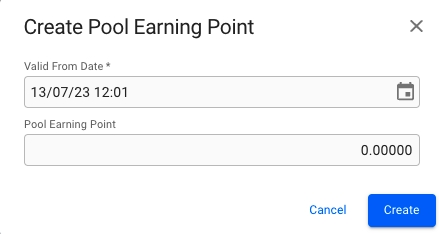
Create/edit modal for Pool Earning Point.
An additional Quantity column has been introduced to both the Various Cost/Revenue tab and the full-screen Voyage Drawer. See the figures below.
When “Fixed Quantity” is selected: The quantity is based on what you enter, and is used to calculate the various amount.
When any other rule is selected: The quantity is determined by the chosen rule, and the value is not used for the calculation of the amount.
"Percentage" is now called "Percentage on Freight".
"Rate Based" is now called "Cargo Quantity Based".
Routing points that are on the voyage can be removed. When clicked, a button will become available 'Remove from voyage route'. When this is clicked, a confirmation box will appear. When confirmed, the routing point will be removed from the voyage.
The interactive Voyage Map features several restricted areas:
Emission Control Areas
Open Loop Restricted Areas
Restricted Areas are visible on the map and depicted by Blue or Red dashed lines (See Figure 1).
The leftmost dropdown filter allows changing the settings to include the particular group of Restricted Areas in the map or not.
The voyage map now includes a "Active Areas" filter, allowing users to display Restricted Areas that are currently active based on their defined Start and End Dates. The filter is enabled by default and is voyage specific.
Time Charter Contracts and its subpages
However, note that changing allowance settings will not affect sea passages that are already completed (where the End of Sea Passage date is fixed).
Canal allowances can also be controlled for a single leg on the voyage, by going to the port call drawer:
Changing these allowances only affects the sea passage leading to this port call. For example, if Panama Canal is deselected on Los Angeles port call, it is only removed from the leg going from New York to Los Angeles. Meanwhile, the canal is still used on the way back to New York:
When creating a new voyage the system applies a set of default canal allowances. These can be controlled by Administrators on the system settings page:
Initially, the system default allowances apply to all users when creating new voyages. However, each user can override the system defaults through their user preferences page:
If the voyage is of type TC, a shortened list of cargo cards will be used, titled "Last Cargoes". Only the last 3 cargoes created will be displayed. To see the full list of all cargoes on the voyage, use the Cargo
The cargo section allows you to directly change some of the fields of the selected cargo (performance cargo by default) from the Voyage drawer without having to open the Cargo drawer. If you are looking for more fields however, you will need to open the up Cargo drawer (clicking the icon will open the drawer):
Currency Filter – You can also filter entries by currency using the Currency filter, located in the top-right corner of the list. This allows you to view only entries in a specific currency.
You can apply multiple filters at the same time to narrow down your results.
To search for a specific Various Cost/Revenue entry:
Use the Search Bar – Located in the top-left corner of the list (figure 1).
Enter a Keyword – You can search by description or various text.
View Results – The list will update automatically to show only entries that match your search.
Filtering and searching can be used together to quickly locate specific entries within the list.

From the Voyage drawer it is possible to change the status of the voyage by using the status chip next to the reference no at the top of the drawer.
When changing status from estimate to Allocate, no modal will show. The same also happens from Estimate to Unallocated. You can check out the different requirements and validations below.
When changing status from Estimate to Nominated, the following modal will show:
If it's a TC voyage with missing Laycan on the TC, you will have to fill in the Laycan as well. Otherwise, you will get information at the bottom of the modal saying which cargoes does not have Laycans added, but you will be able to nominate.
As you can see, Company and Business Unit field is required. By default, what is selected on the voyage will display here, but you are free to change it. You can also add Responsible Charterer, Responsible Operator and Responsible Accountant, but these are not required.
The same also happens when changing from Allocated to Nominated.
You can check out the different requirements and validations below.
There are also other "forward" status transitions, like:
Nominated -> Operational
Operational -> Operationally Closed
Operationally Closed -> Invoiced
Operationally Closed -> Closed
When changing to these statuses, no modal will show.
When changing status from Allocated to Unallocated, the following modal will show:
You will be given the option to select a new Vessel and/or Ballast Port to change to, but not required for unallocating.
The same also happens when changing from Nominated to Estimate.
When changing to these statuses, no modal will show.
There are also other "backward" status transitions, like:
Operational -> Nominated
Operationally Closed -> Operational
Invoiced -> Operationally Closed
Closed -> Invoiced
Required Values Must Be Set:
For each cargo: charterer
For each cargo: commodity
-> This can be seen for most "forward" status transitions.
Vessel code must be changed from its default assigned value. Open Vessel "Internal Data" to set a new code.
-> This can be seen for most "forward" status transitions.
Warning
The ballast port on this voyage does not match the open position of this vessel. Do you want to <status> the voyage with the start date locked?
-> This can be seen for most "forward" status transitions.
Information about the tab "Organisational data"
In the Organisational data tab in the voyage drawer you can edit the following information:
Company and Business Unit
Trade
Responsible Charterer
Responsible Operator
Responsible Accountant
Claims Operator
Pool
To edit any field in the tab, click into the field and start typing. Then select the desired option. Field will automatically save when you click outside or use tab key to exit the field.
Company and Business Unit field is mandatory if the voyage status is NOT Estimate or Unallocated. When editing company and/or business unit, you will get a warning that alerts the user that the connected cargoes will also have their companies and business units changed.
When clicking the OK button, the company and/or business unit will be changed for the voyage and all the connected cargoes.
In the trade field a combination of Route, Trade and Pattern can be selected to ensure trade is set properly. When changing to a different option, the cargoes on the voyage will be updated with the same trade.
Open the Trades module in the Core menu in the upper left corner
Click Create Trade in the top right corner.
Fill in the required fields Trade Description, Trade Code, and select the Route(s) that the Trade is part of. The Trade Code has to be a unique code that no other Trade has.
Click Create when every field is filled
In the Freight Rate Tiers tab, you can create, edit and delete different freight rate tiers for the cargo. It is also possible to choose between a tiered and a volume rate model.
Tiered: In tiered pricing, the per-unit freight rates are assigned to quantity-based ranges (tiers). When calculating the total freight, quantities are purchased from successive tiers, starting from the lowest. Example: In the below example, a cargo of 8000MT would have a freight rate of 11 USD for the first 4999MT and a freight rate of USD 12 for the remaining 3001MT. The freight rate will show as a weighted average on the cargo.
Volume: Here too, the freight rate is quantity-based. However, the per-unit freight rate is dependent on the range within which the total quantity falls. So, under this model, you would define the quantity ranges and the per-unit freight rate for each. Example: In the below example, a cargo of 8000MT would have a freight rate of 12 USD for the entire quantity.
If a cargo has one or more tiers in this section, the Freight Rate and Rule field in the Main Cargo Details section will be uneditable. Rule will also be changed to Rate.
To add another tier, click the icon in the top right of the list. This will bring up the modal to create a new tier. Enter the quantity from which this tier will be valid.
To delete one or more tiers, click on the checkbox mark on the left side of the list. Doing so will bring up the button to delete the tiers. Clicking on the button will bring up a confirmation modal.
The summary section displays all cost/revenue items, including fuel consumption and price, related to either cargo, voyage, or port call. This breakdown displays different figures for Voyage Charter and Time Charter estimates.
When the voyage drawer is open, selecting Open Full Screenexpands the panel and shows an additional section/panel summarising the profit/loss for this voyage.
By selecting the TCE checkbox in estimates, you can override either TCE or Result. The system will then automatically compute the estimated freight or TC rate needed to reach this desired outcome.
To show the , click Analysisat the top of the panel. To show an overview bar chart, click Result Chartat the top of the panel.
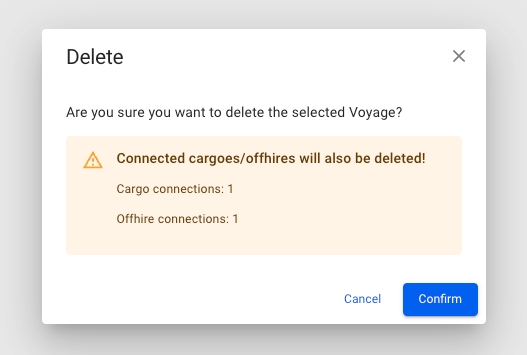
In the "Invoices" tab in the voyage drawer, you can efficiently see and manage the Pending Receivable/Payable document lines, as well as the Invoices connected to the voyage. The tab is only visible to voyages that do not have status "Estimate".
In the top right, you will find two buttons for printing the Owner and Charterer Statement. Below them, in the middle of the drawer, you will find a two or three-way toggle-button that allows you to switch between the receivable, payable and hire payable invoices (only if the vessel is on a TC In). Switching between these options will change both which pending document lines are displayed and the assembled invoices.
This section show you a list of all document lines that have not yet been assembled. Clicking on any of them allows you to edit some of the fields. Selecting one or more document lines will allow you to assemble them into a Document.
A functionality to compare voyages' values to each other to get the best overview.
The comparison button can be found as a primary action in the Voyage drawer:
This will open a new page where you will be able to see a overview of the voyages to compare, copy the voyages you want to compare and/or open the Voyage drawer of the voyages:
For the initial release version of this tool, you'll be able to see and modify details on your vessel, cargo and voyage. Some fields may be greyed out, for the same reasons you might not be able to modify them in the voyage or cargo drawer normally.
In the top left you will find two buttons; Highlight Differences and Show Only Differences, which will enable or disable the respective features. By default, Highlight Differences is turned on.
The top header shows the voyage reference number, and a button to copy and remove the voyage from the comparison. Clicking on the voyage reference will open the voyage drawer. From here, you can make all the changes you are used to, and the comparison will update accordingly.
Various costs and revenues are now accessible directly from the voyage drawer in addition to the existing . This change reduces the steps needed to view and modify the variouses connected to the voyage.
Along with the available in the grid, the Various grid includes quick filtering options. These allow you to filter variouses by type, such as cost or revenue, and by the source type, such as Voyage or Cargo. Details of these options are shown in Figure 2.
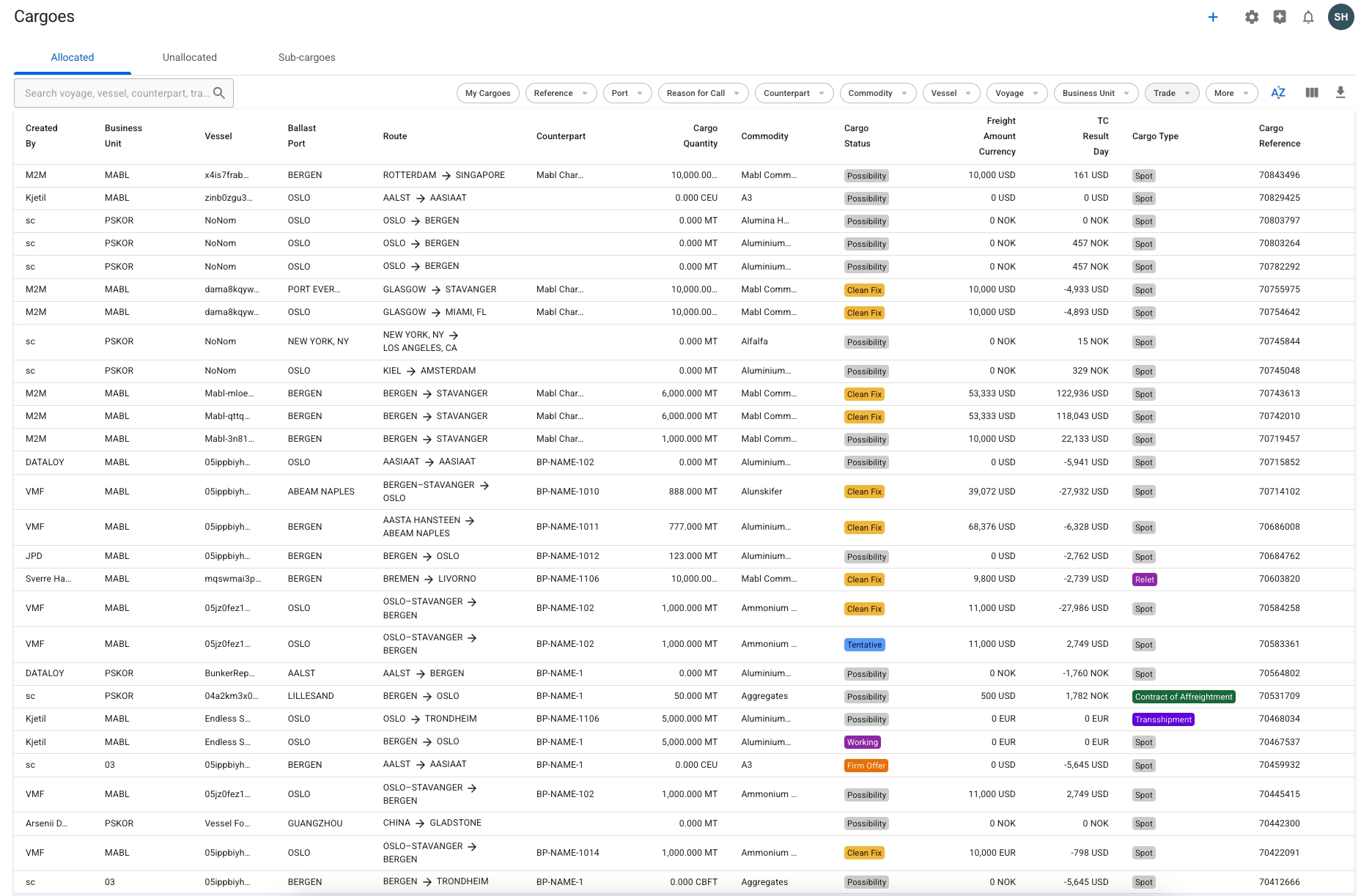
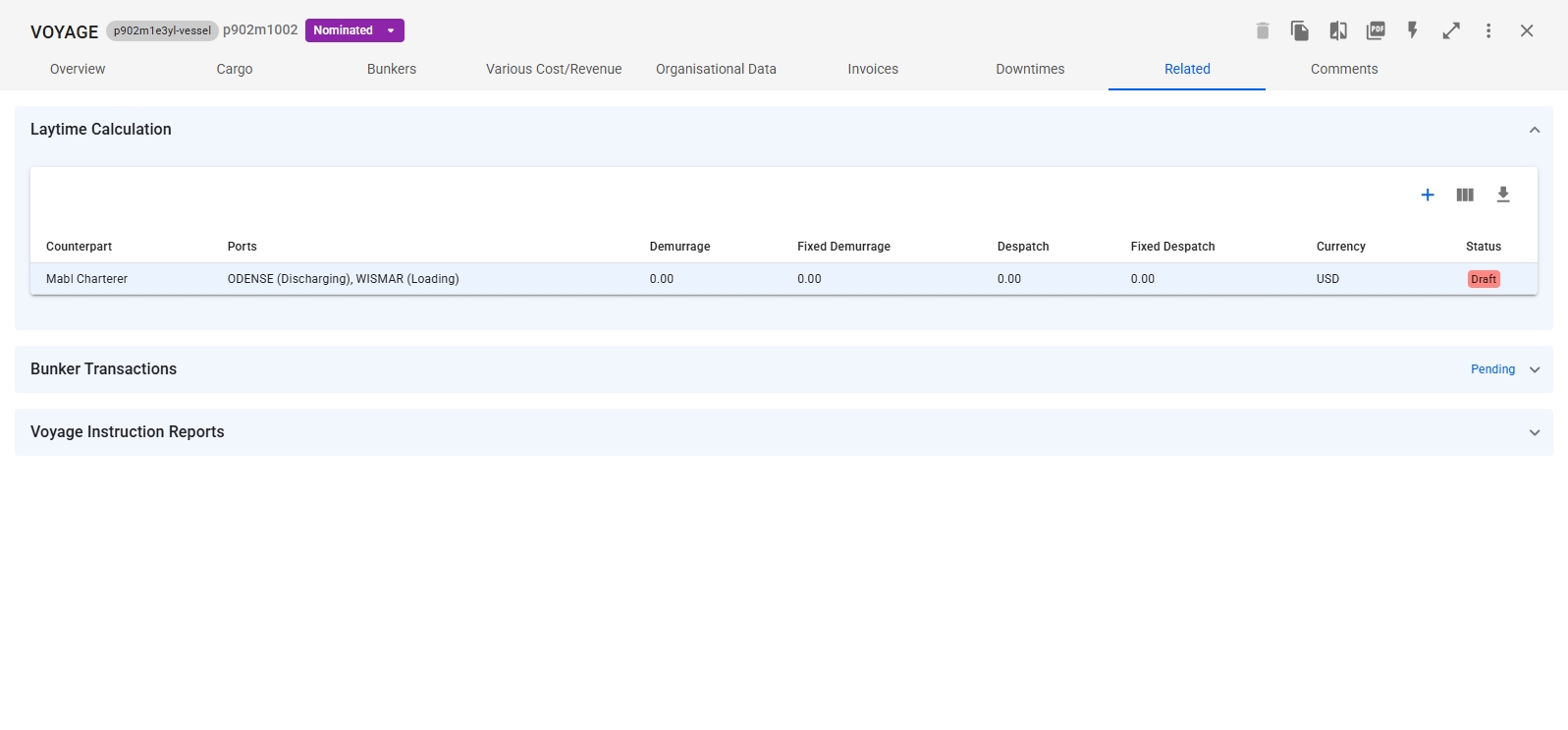
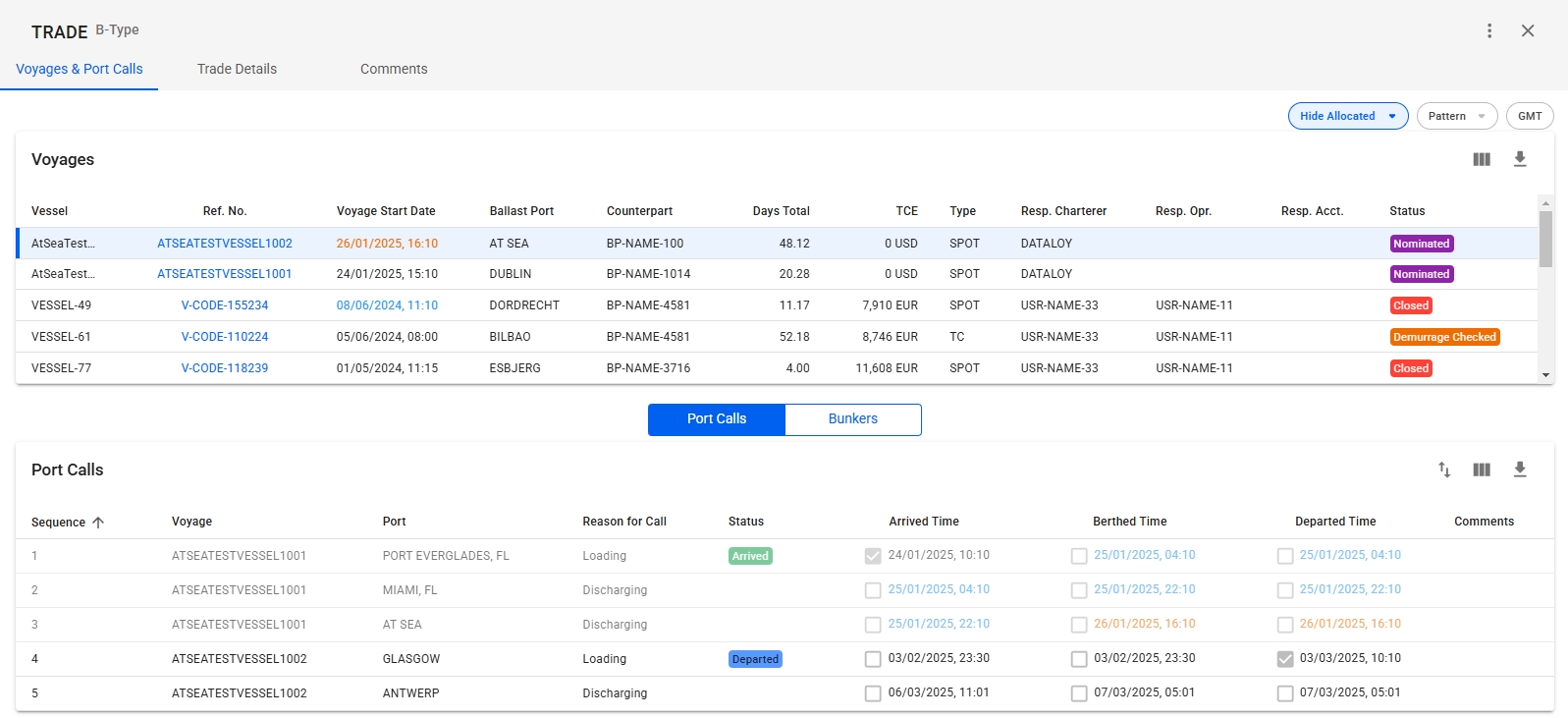

The invoice-section shows a list of all assembled invoices, or their line items. When in the toggle-button is set to Receivable or Payable, only the invoices connected to the voyage are shown. However, when set to Hire Payable, all invoices associated with the TC In contract are displayed, and an additional column for Voyage Reference is added that indicates the voyage(s) billed within each invoice.
Clicking on an invoice will open a Document drawer, showing more details and allowing you to print them.
In the top left corner of the section, you will find a "View Line Items" button. Clicking it will change between displaying the assembled documents and their data, and displaying each individual document line. This may be useful if you are looking for a specific item, but don't know in which document it was assembled. The line items list has filters specific to this mode. Clicking one of the document lines will open the Document it belongs to in a new drawer.
Use the filters to quickly narrow down your selection. Depending on whether you are in Receivable, Payable or Pending Payable mode, as well as Document or Line Items view, the available filters change.
Business Partner
Account
Currency
Currency
Voyage Reference (Hire Payable Only)
Cargo/Voyage Reference
Invoice Status
Port
Business Partner
To the right of the rightmost voyage, you'll find a big grey button that when clicked, opens a dropdown menu. Here you can add an existing voyage to the comparison, or create a brand new one.
The Vessel section of the comparison allows you to choose and edit many values that can change your result. Want to see how another vessel would perform on a given voyage? How much difference will different speed orders or bunker prices make? Make a change, and see how it affects your result and TCE.
The Cargo section displays information about one cargo at a time. In the event your voyage has multiple cargos, click on the Reference dropdown to see and select another cargo.
The Cargo Ports row shows you the first load and discharge port for the cargo. If you have a longer schedule, hover over the row to see the entire schedule as a tooltip.
Changing any of the fields here behaves as if they were changed from the Cargo drawer. For instance, setting a high freight rate will automatically update the rule to Lumpsum, and the calculations are being carried out as such.
In the Voyage section, you are only able to set the start date of the voyage. Like the Cargo Ports row in the Cargo section, the Schedule row only shows two ports. Hovering your mouse over the row will bring up a tooltip showing the entire voyage schedule.
The Various grid and Cargoes grid are linked through the selected cargo. When a specific cargo is selected and "Cargo" is chosen in the type quick filter, the Various grid will show only the entries associated with the selected cargo, rather than all cargo-related variouses in the voyage.
To display all cargo variouses, de-select or clear the "Cargo" option in the quick filter.
This behavior also applies when selecting a port call in the Port Calls, when done, the Various grid will display entries for the selected port call only.
Note: Voyage variouses are not affected by these selections and will continue to display unless excluded through the filter options.
To create a new Voyage Various, click the blue plus sign in the column header. This opens a modal where you can specify the type of various to be created.
You can also create new Port Call variouses directly in the Port Calls grid and new Cargo variouses in the Cargoes grid. These processes are explained in the sections Creating a New Port Call Various and Creating a New Cargo Various respectively.
Like all grids, the Various fields can be edited directly within the grid. Alternatively, for Voyage and Cargo, you can can edit the various field in their respective drawers. That is, in the "Various Cost/Revenue" tab located in the header of the drawers.
TIP: You can open easily open the cargo drawer by clicking the "Open Cargo" option in the left-most column in the Cargoes Grid.
To delete a various, simply click the vertical menu in the right-most column and select the delete option. This will prompt a popup asking to confirm the deletion of the selected various (see Figures below). For Voyage and Cargo variouses, it is still possible to delete them through the various tab in the respective drawers.


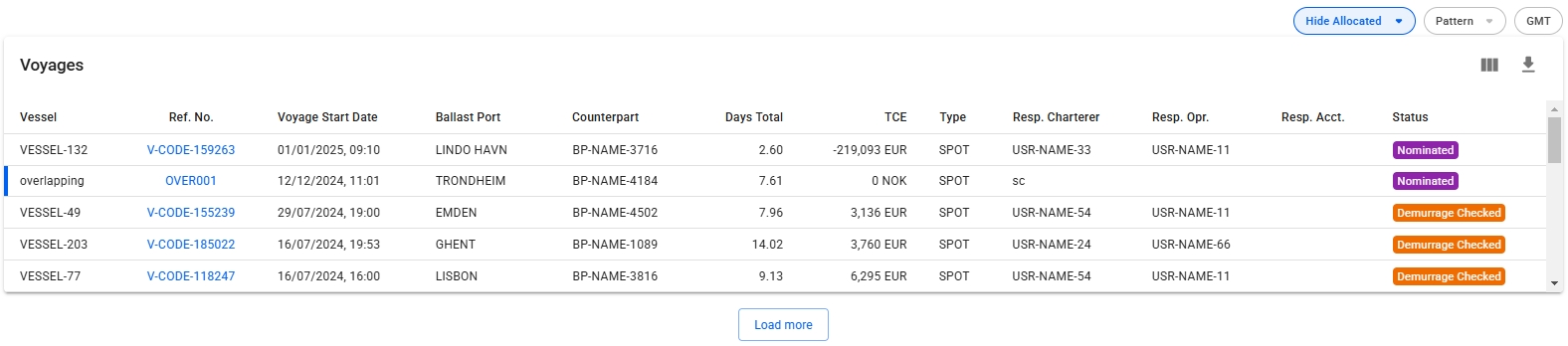
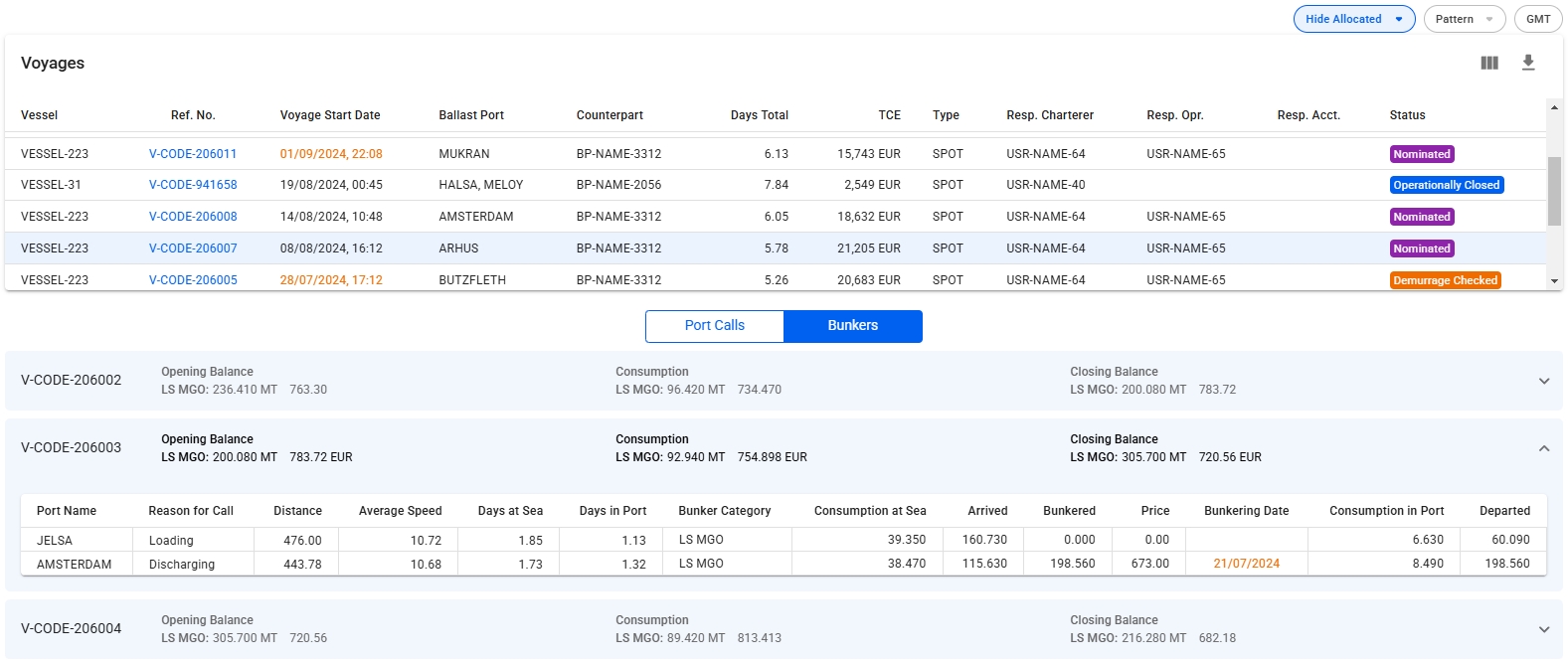
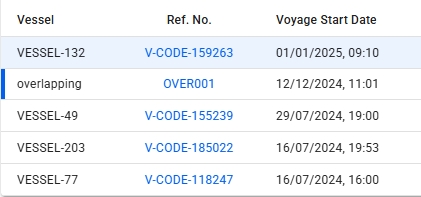

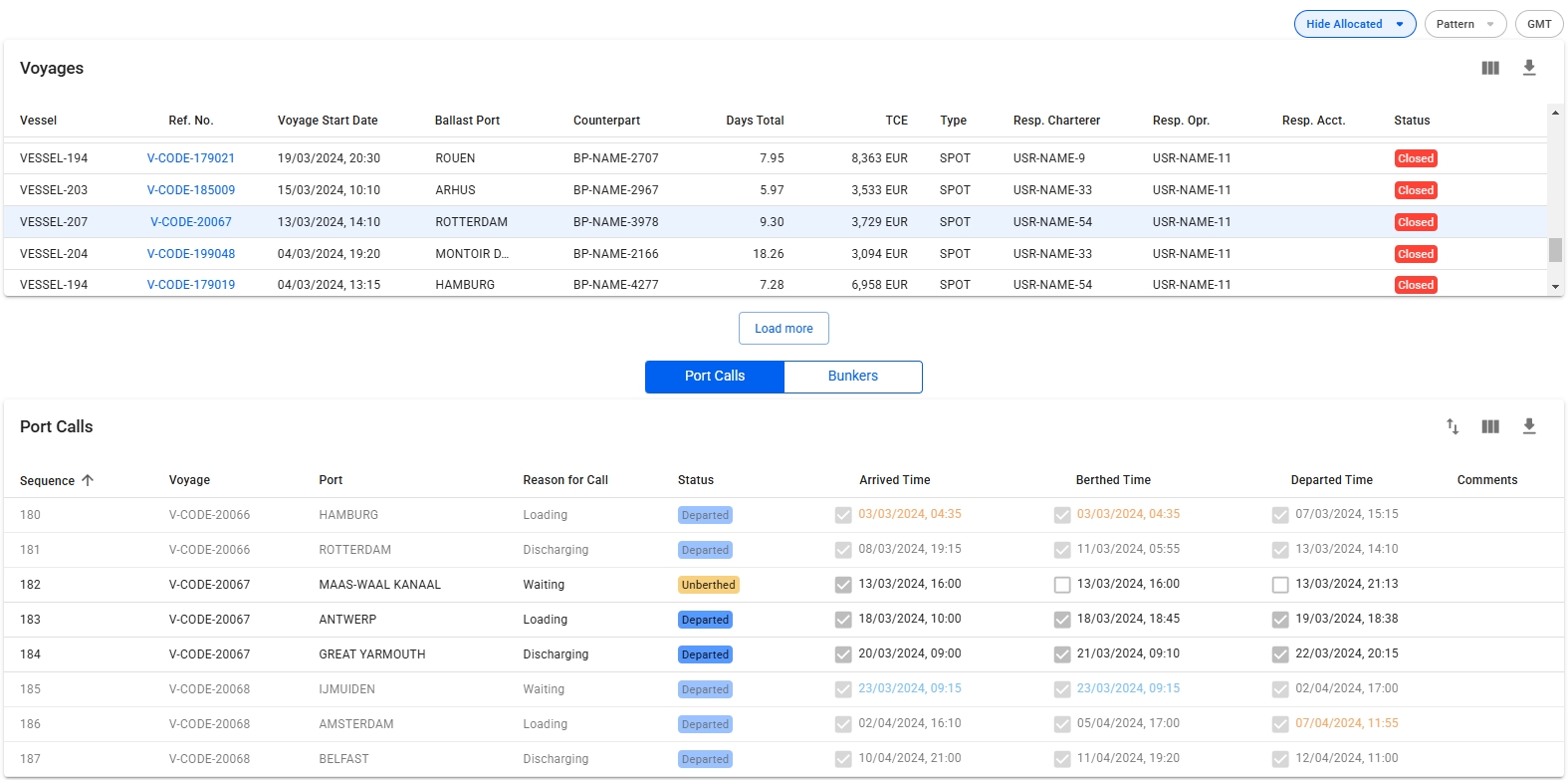
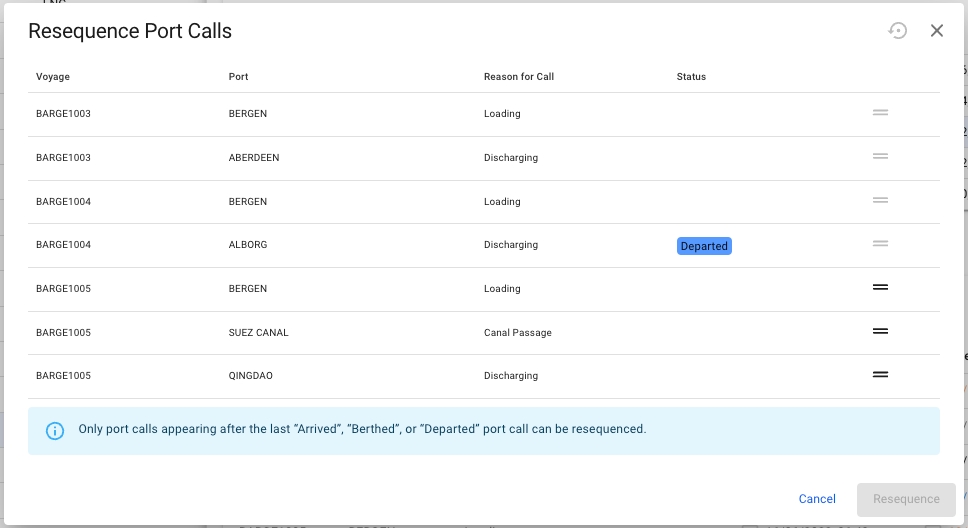
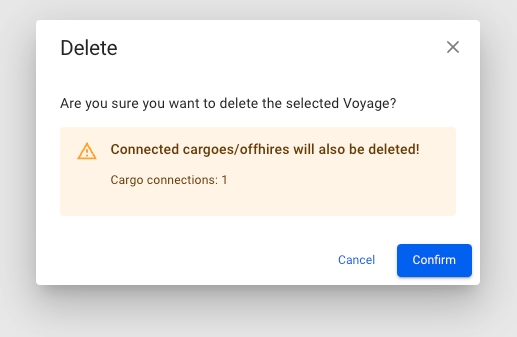
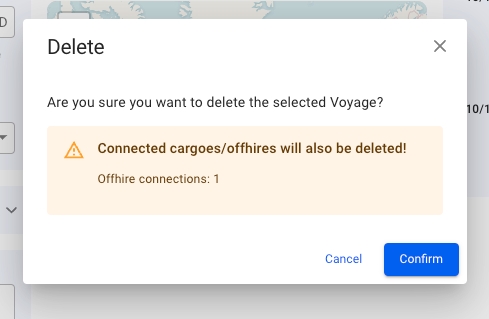
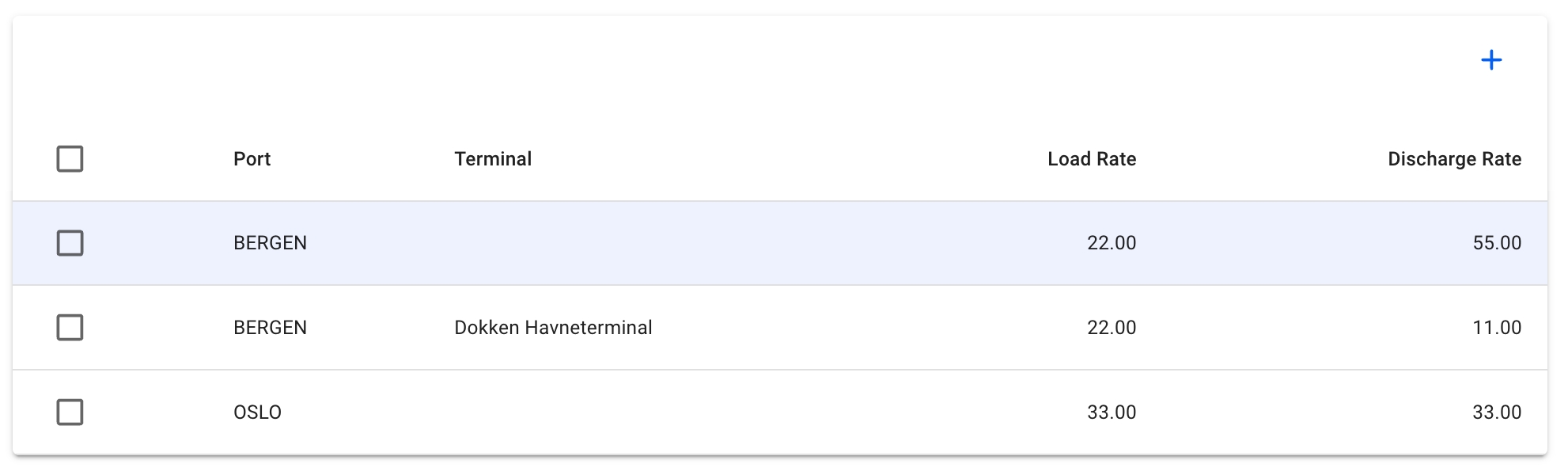

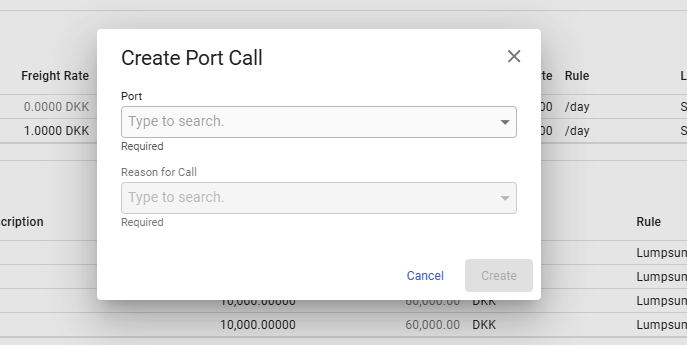
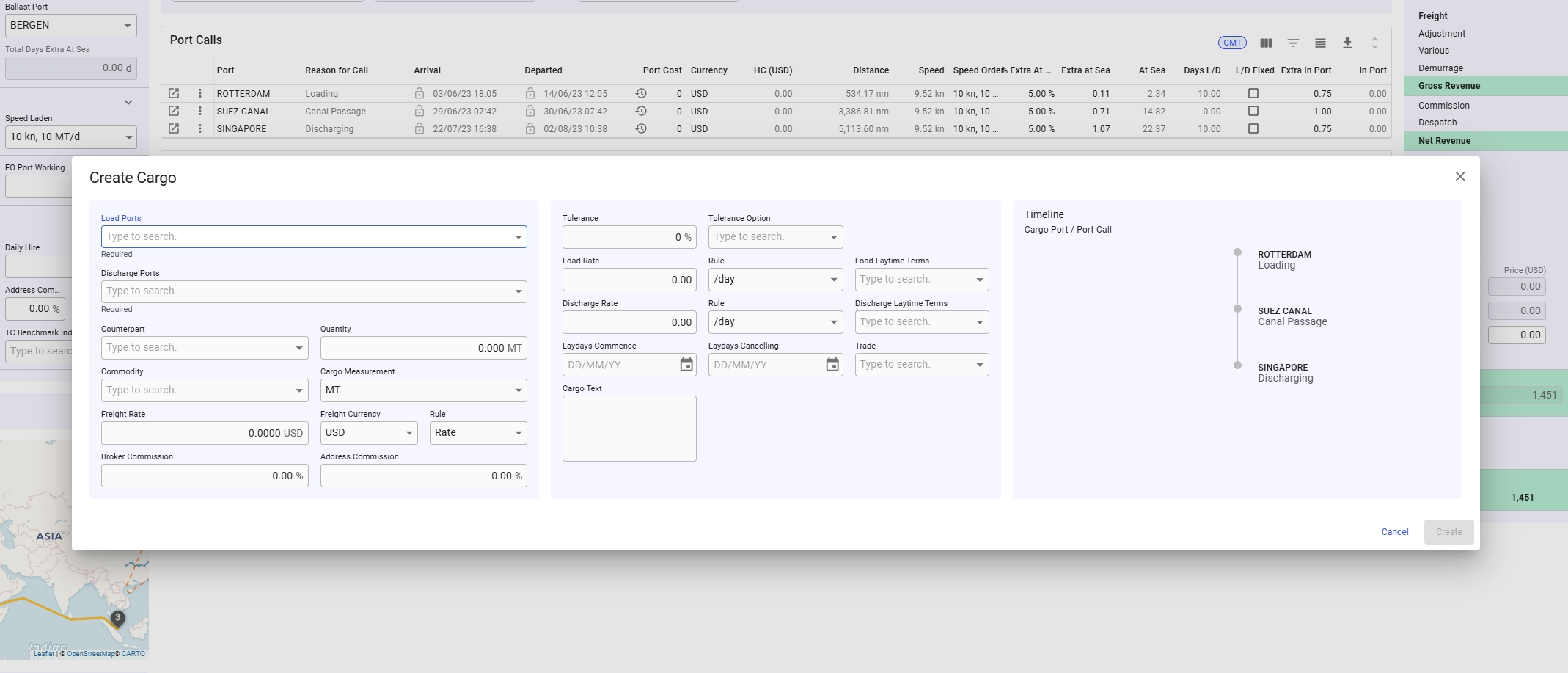

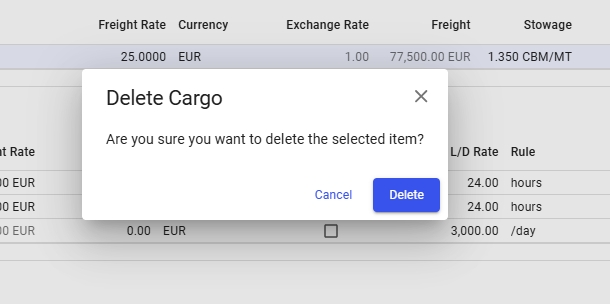
KPIs
At the top in the main details you will find the KPI-cards.
First tile: Cargo quantity is the actual quantity, and booked is the booked quantity.
Second tile: Gross freight is the total freight for the cargo.
Overage is calculated for cargos with Booking status "Clean Fix" or "Loaded" when both the Overlift Quantity and Overage Rate are greater than zero.
Deadfreight is calculated for cargos with Booking status "Clean Fix" or "Loaded" when both the Overlift Quantity is less than zero and Deadfreight Rate is set.
Third tile: Commission and various costs.
Fourth tile: Net Fio is all cargo related revenue aggregated and then deduct all aggregated cargo cost - divided by the quantity of the cargo.
Below the KPI tiles is the Main Cargo Details section on the left side:
All fields that are enabled can be changed from this view. The following fields will be disabled under the following conditions:
Below Main Cargo Details section, there is a section for inputting fields and checkboxes regarding the stowage values of the cargo:
Below the KPI-cards on the right side is the Cargo Port Timeline together with LayCan dates. Laytime used is the estimated laytime allowed. The date fields are validated and if the validation fails the date field that needs to be corrected is highlighted in red and there is a short message under the date field indicating what is wrong.
To add a cargo port, click on the -icon in the top right corner. To edit or delete a cargo port hover one of the cargo ports in the timeline and the below view will appear:
It is required to specify the port and the reason for call (only restricted to Loading and Discharging from this view). Then you can choose to fill in other necessary fields, or edit them later. The right-hand side of the "timeline" illustrates the already scheduled port calls of the voyage, while the left-hand side illustrates the cargo port you want to add (only one at time).
If you in this case would want to add another cargo port "BERGEN" with the same reason for call "Loading", then this will be linked to the port call:
However, changing this reason for call to "Discharging" will make the timeline interpret this as a new cargo port:
The same behaviour would have happened with another cargo port, that weren't already in the schedule. All new cargo ports from this view will also create a new matching port call in the Voyage schedule.
you can use the = symbol on the left-hand side to drag-and-drop the newly added cargo port, e.g. Bergen, to match it to another Bergen, with the same reason for call, within in this timeline view. Available in:
Create Cargo Port modal
Edit Cargo Port modal
you could, also in this view, drag-and-drop a matching cargo port-port call pair either further up or down in this timeline to change the order. You will see a "hand" icon when hovering over these pairs of the timeline. Available in:
You can find this modal from these views:
Cargo Drawer -> Overview tab -> -icon from Cargo Port Timeline section
Voyage Drawer -> Overview tab -> -icon behind the cargo ports, at the top of the Cargo section (non-TC voyage)
XXL Voyage drawer -> Overview tab -> -icon of the Cargo Ports table
Editing a Cargo Port will give you access to a few more fields, for instance Handling Cost, Laytime Terms, etc.:
In this view, you can only edit/update the cargo port you have selected from the "Cargo Port Timeline" view.
Checking the "Ship to Ship" checkbox in the Edit Cargo Port modal will mark that cargo port as being ship to ship. A chip on the cargo port timeline will appear displaying this, to quickly identify which cargo ports on the timeline are Ship to Ship:
This chip is also visible for the connected port call, on the Voyage Schedule.
You can find this modal from these views:
Cargo Drawer -> Overview tab -> pencil icon on hover on each cargo port on the Cargo Port Timeline section
Voyage Drawer -> Overview tab -> by clicking on the cargo port links at the top of the Cargo section (non-TC voyage)
XXL Voyage Drawer -> Overview tab -> the open icon on the left-most column of each cargo port row, within the Cargo Ports table
On the right side, below the Cargo Port Timeline section, you can create/edit and view a list of Bunker Adjustments on the cargo:
You can create a new Bunker Adjustment by clicking the -icon at the top right of the section, which will bring you to the Create-modal. Or you can click on one of the rows to edit the selected Bunker Adjustment, which will open the Edit-modal. If you choose the Adjustment Type to be set to "Freight", you will only see the Adjustment Factor field below. But if you have chosen "Consumption", you will only see the Agreed Consumption field below (the invisible field is not editable and does not affect the calculation). The Freight type is chosen by default.
For both of these options you will be able to choose the bunker types: DL (LS MGO), DO (MGO), FL (LS FO) or FO. You can also input/edit the other fields, such as: Min Price, Max Price, Adjustment Factor/Agreed Consumption and Price. The Price field is still editable even though the input of the Min-/Max Price fields calculates the average price.
The total adjustment is calculated if the price is outside the minimum/maximum range, i.e:
Min range: 500, Max range: 550, Price: 600 => Positive adjustment
Min range: 500, Max range: 550, Price 400 => Negative adjustment
This calculation you can see as the price value in the second KPI tile by the last field called Bunker Adjustment:
On the right side, below the Bunker Adjustment section, you can enter external reference, Trade, Cargo Text, Comment, Company, Business Unit and Cargo Operator:
At the bottom of this tab there is be a list of Relets and Transhipments for the cargo:
From this version, you can now can create cargo(es) by uploading/import straight from an Excel worksheet. In the Unallocated cargoes list, you can click on this import button:
Then, you can follow these steps:
Click on the Import button displayed above
A modal (or "dialog box") will pop-up:
All the fields are disabled until you upload/import a supported file (only .xlsx and .csv files). You can only import one file at a time, but one file can consist of many cargo rows!
You can proceed by clicking the blue Upload File button.
After choosing a supported file from you computer, you can view the filename to the right of the Upload File button, along with a "preview screen" below all the now-enabled fields:
All the required fields (*) must be filled in this step. As you go along with choosing the different fields from the dropdown menus, the "preview screen" will mark with a light-blue highlight on the fields have been selected. Meaning, you could upload your own customized Excel sheet with various header- and cell values, but you can then in the modal pick-and-choose which fields you actually want on the cargo, when creating it.
Remember that only the first row of your Excel sheet are the Header values! The rest are the cell values within their respective columns.
After choosing the different values into the fields, and you are full-filling all the below, then you can go ahead and create the cargo by clicking Import
You should now be able to see your newly created cargo at the top of the Unallocated cargoes list
We have two different types of validations in this modal. Either one, or both, of them will show up at the bottom of the modal, if encountering any inconsistencies while uploading:
(1) One is yellow-colored, and shows inconsistent data types in the cells of your Excel sheet:
This particular validation highlights the "Planned BL Date" column, and detects that two or more cells has inconsistent values within this column. E.g. one cell is read as a number value, while two cells are read as date values. In this case, the number-cell should be changed to a date value, so that the modal can read it properly as a date value. Make the change in your Excel sheet, and then re-upload the file.
This validation can highlight multiple columns with inconsistencies in data types, and not just one at a time.
(2) The other one is red-colored, and shows Reference or Master Data inconsistencies, i.e. data errors in your Excel sheet:
This particular validation highlights the "Commodity" column, and detects that "Row 2" within this column has a commodity named "Bananas" that does not exist in the system. In this case, you have two options:
a) replace "Bananas" with an existing Commodity in your Master Data, in your Excel sheet, and then re-upload the file
b) create a new Commodity "Bananas" in your first, and then re-upload the file.
This validation can highlight multiple columns and rows with inconsistencies in Master Data or references, and not just one column and/or row at a time.
Before actually creating a cargo by importing from an Excel worksheet, these requirements must be full-filled:
A supported Excel file must be uploaded/imported (only .xlsx and .csv files)
All required fields (*) must be filled in with supported values
No data types inconsistencies
No Master Data inconsistencies
Once all of these requirements are full-filled, the Import button will be enabled, i.e. blue-colored, and you can then go ahead and create the cargo!
In the "Voyages & Port Calls" section of the vessel drawer, you will find the most important information about a vessel and its voyages.
Vessel Details
The "Vessel Details" section shows some key data points about the vessel such as DWT, Cubic Capacity, Draft and more. Click Expandto show more details and contact information for the vessel.
This is a list of voyages on the opened vessel sorted by newest first. Clicking the icon will bring up a modal to customize which columns are visible. If there is an ongoing voyage in the list, it is indicated with a blue marker on the left side.
Below, you will find a list of either Port Calls or Bunkers, and a button to toggle between the two different views.
While in Port Call view, clicking on a voyage row will list all port calls of the selected voyage, as well as the port calls from the previous and next voyage, if they exist. The port calls from the previous and next voyage will be in a slightly lighter colour, such that it is possible to tell them apart. Clicking directly on the reference number of the voyage will open up the Voyage drawer.
Clicking on port calls in the list opens the corresponding port call's drawer where you can make can changes:
The Port Calls list will display up to 30 items, and includes a separate scrolling functionality. By hovering over each of the "headers" (such as Voyage, Port, Reason for Call, etc.), you can also see an sorting array which will make you able to sort that specific column in either an ascending (ASC) or descending (DESC) order.
The Bunkers view removes the list in favour of up to three collapsible sections for the voyages. Similarly to the Port Calls view, clicking on a voyage row in the voyages list will select/open up the corresponding collapsible section, and fetch the data for the previous and next voyage:
The top band of the section displays 4 columns; the reference number of the voyage, Opening Balance, Consumption and Closing Balance. Each of the latter three will show amount and price for up to 4 different bunker types, depending on which bunkers are actually being used by the vessel.
Expanding the collapsible section will give you a table overview of each port, with reason for call, distance, speed etc., as well as a detailed breakdown of the bunkers consumed. Only the bunkers actually used will be displayed here.
The resequence feature enables re-ordering the list of voyages assigned to a vessel. To utilize the feature, click the icon in the top right of the voyages list. This will bring up the Resequence Voyages modal.
The user can now drag and drop the voyages to re-order them into the desired order. For example, the screenshot below illustrates voyage 7, which is being dragged down. It is expected that the item will have replaced voyage 6 after release:
Any voyages that will have their sequence number changed, will have their previous old sequence number parenthesized.
Clicking the Resequence button will update the fleetplan.
Port calls can also be resequenced to a different position within the previous, current, or next voyage. To resequence a port call, click the resequence symbol in the top right corner of the port calls list. A popup modal will then show and the port call can be dragged and dropped in the desired position (see screenshot below). Note that only one port call can be moved at a time. Also, only port calls after the last Arrived, Berthed or Departed port call can be moved in the list:
The voyage drawer is also split up in different sections; Vessel, Cargo List, Cargo (the Performance Cargo), Schedule, Profit/Loss Summary and Speed & Consumption.
For a TC voyage, the drawer has the Time Charter Contract section instead of the Cargo section.
On the left hand-side, we have the vessel name chip, which is clickable and will forward you to the linked . The number is the reference number of the voyage, and to the right we have the status. The statuses are within a dropdown menu which you can :
If the voyage has a trade connected to it, a new chip will appear between the vessel chip and voyage number. This chip displays the trade code and will forward you to the linked Trade drawer when clicked.
To the right hand-side, we have the button, copy button (to duplicate the selected voyage), the voyages button, print voyage button, the voyage button, the expand button, the secondary actions button and the close button. These are also called the primary actions:
In this dropdown menu, you are able to do several actions:
Swap Vessel: you are able to swap the voyage onto another vessel. Read more .
Edit Voyage Reference: you are able to change the voyage reference number on the given voyage. Read more: .
Convert To Template: you are able to convert the voyage to a template. Here you have two different options to choose between (unless they are disabled).
Print Statement of Account: you are able to print out the SoA report of the given voyage.
Open Preliminary Voyage: Opens a new tab and brings you to the special preliminary voyage that is created when the voyage is nominated.
Mark as Optional: you are able to mark the voyage as optional, meaning you can set the statuses 'Not declared', 'Declared' or 'Forfeited' on the performance cargo of the voyage. Read more .
Audit Log: you are able to track every action inside, and regarding, this given voyage.
Attachment: you are able to upload/download the voyage attachments.

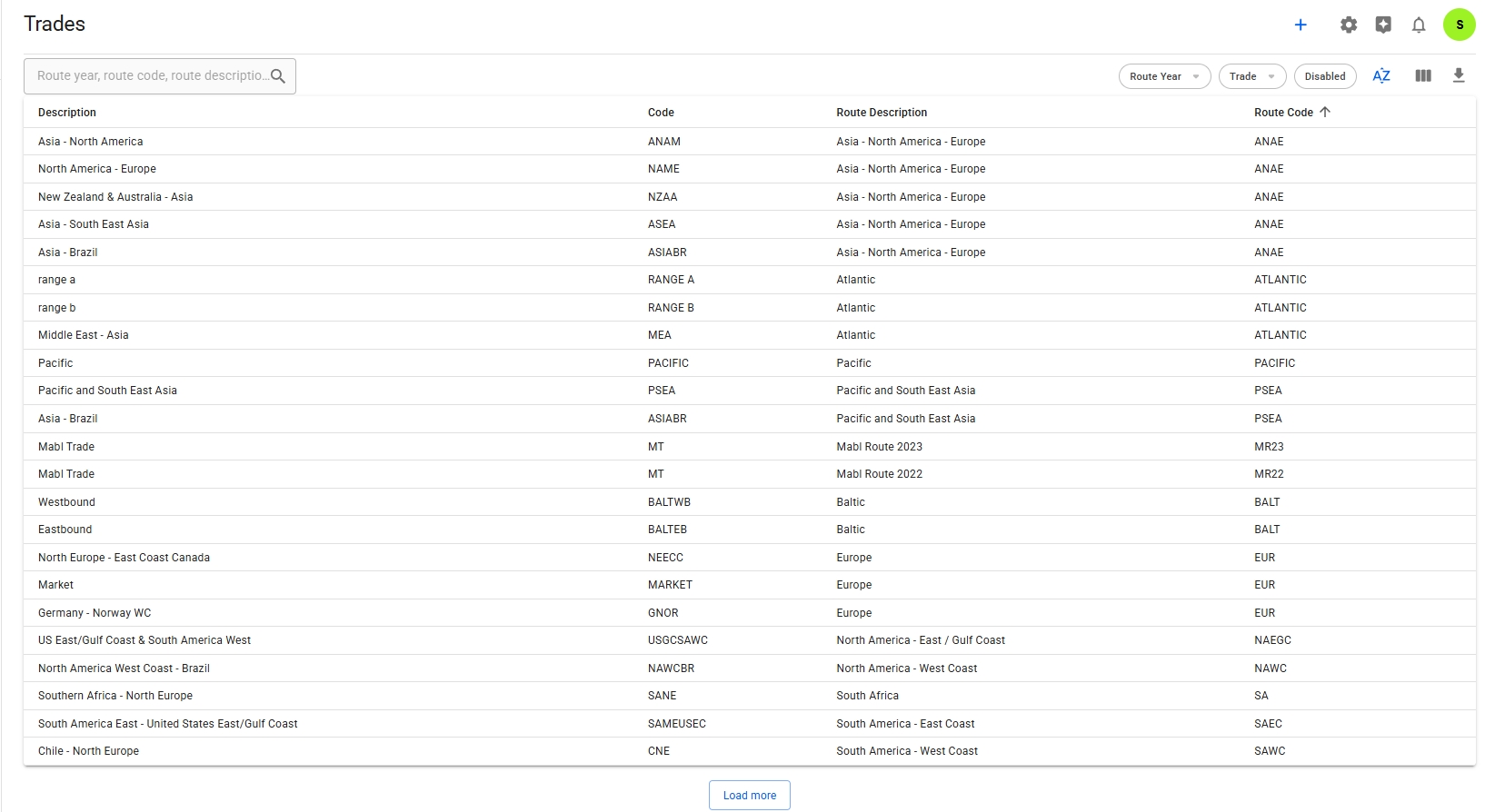

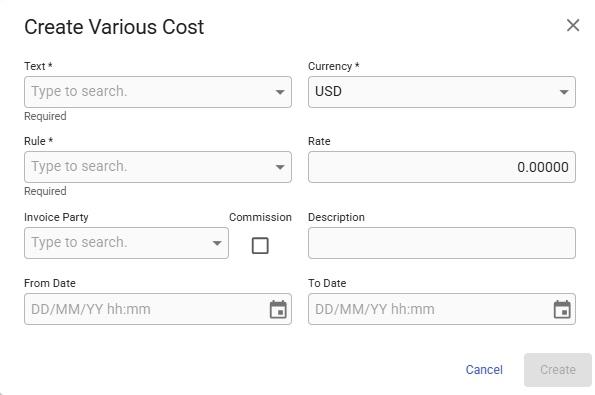
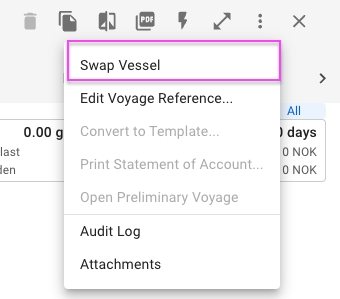


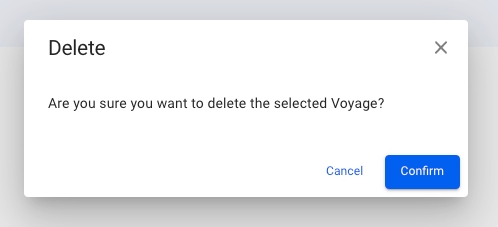
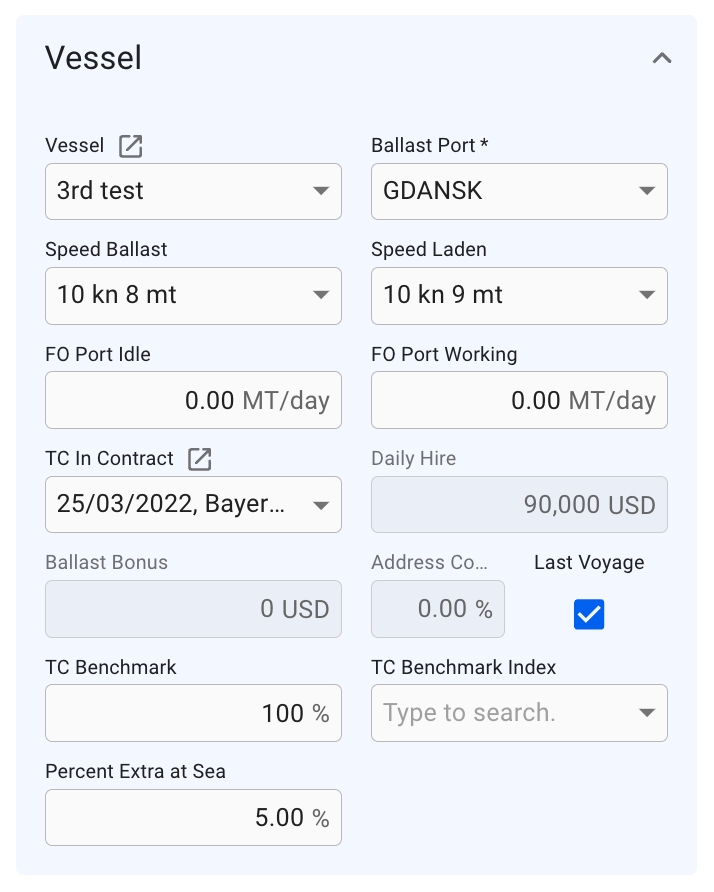



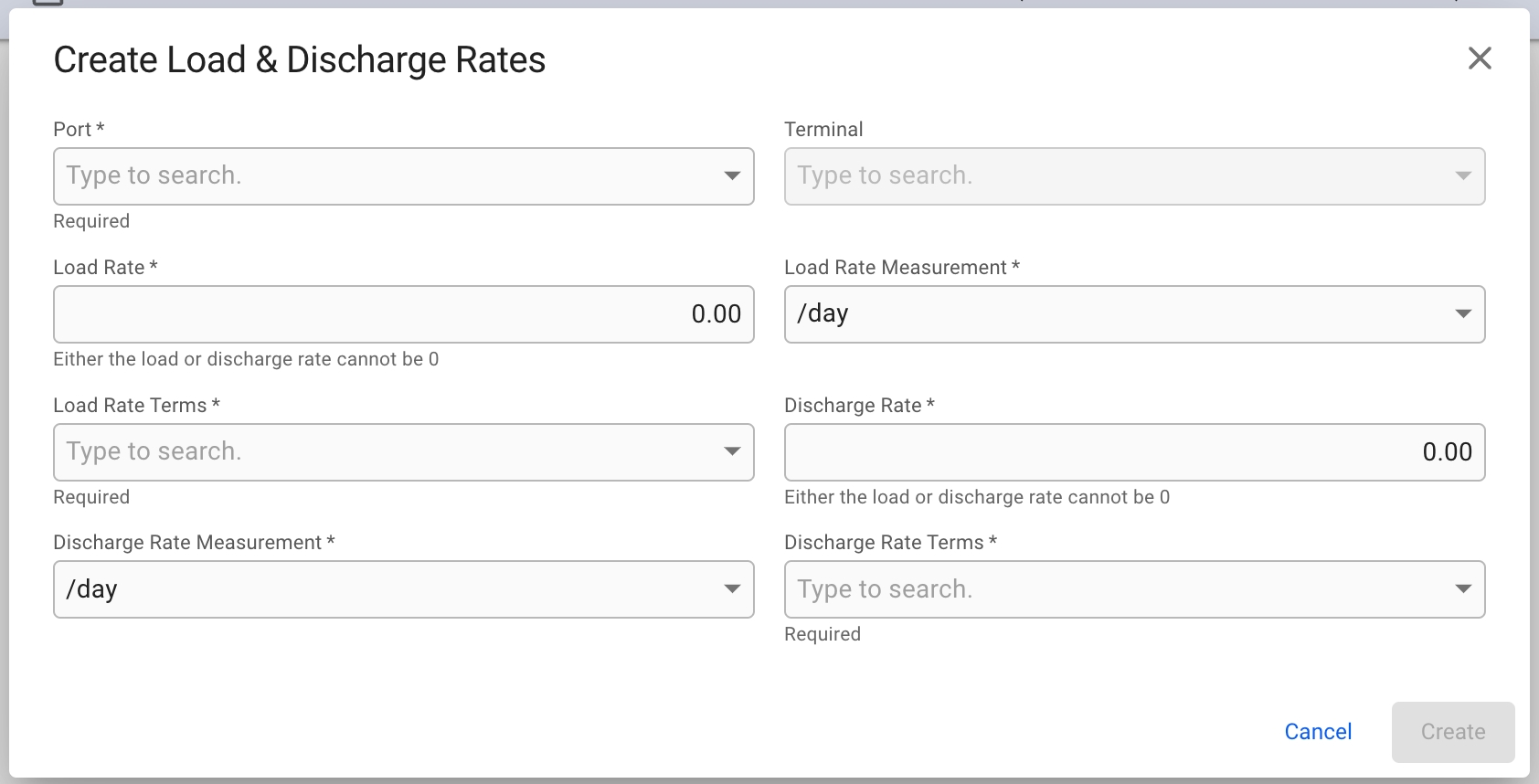
Percentage of Freight Rate. On allocated Cargos, the value is defaulted from the default rate of the VesselType.
Flat Rate
Rule is not set to "World Scale"
Tolerance
Tolerance Option is not set to "MOLCO" or "LCOPT"
Broker Commission
The Cargo has one or more Commissions connected to it
Demurrage Rate
One or more of the Cargo Ports have a demurrage rate
Despatch rate
One or more of the Cargo Ports have a despatch rate
Performance Cargo
The Cargo does not have a Voyage connected to it
Create Cargo Port modal
Agreed Consumption, Mandatory(*), displays if Adjustment Type is set to 'Consumption'
Price
The price, Mandatory(*)
Booked Quantity
Quantity agreed in charter party (available when cargo status is before Clean Fix).
B/L Quantity
Sum of the quantities on all load cargo ports (available for cargo status Clean Fix and Loaded).
Freight Rate
Weighted average of freight rates on the discharge cargo ports.
Deadfreight Rate
Is set to Freight Rate value when creating a new cargo, or copying a cargo, by default. The field can be changed to a desired value after creation.
Overlift Quantity
Difference between Cargo Quantity and Minimum Quantity, negative value indicates DeadFreight and positive value indicates Overage. You can override the value by entering a new one but later changes to Cargo Quantity or Minimum Quantity will trigger recalculation.
Boooked Quantity/BL Quantity
The Cargo has one or more SubCargos, or if there are load/discharge amount on CargoPorts that are not the first in the timeline.
Minimum Quantity
Tolerance Option is not set to "MOLOO" or "LOO"
Cargo Measurement
The Cargo has one or more SubCargos, or if there are load/discharge amount on CargoPorts that are not the first in the timeline.
Freight Rate
The Cargo has one or more SubCargos, or the CargoPorts have different freight rates, or the Cargo has multiple freight rate tiers.
Rule
The cargo has one or more freight rate tiers.
Adjustment Type
Adjustment types, Mandatory(*), defaulted by "Freight"
Bunker Type
The different fuel types, Mandatory(*)
Min Price
Minimum price range, Mandatory(*)
Max Price
Maximum price range, Mandatory(*)
Adjustment Factor
Adjustment Factor, Mandatory(*), displays if Adjustment Type is set to 'Freight'
Overage Rate
Agreed Consumption
No duplicate cargo references, or references to existing cargos


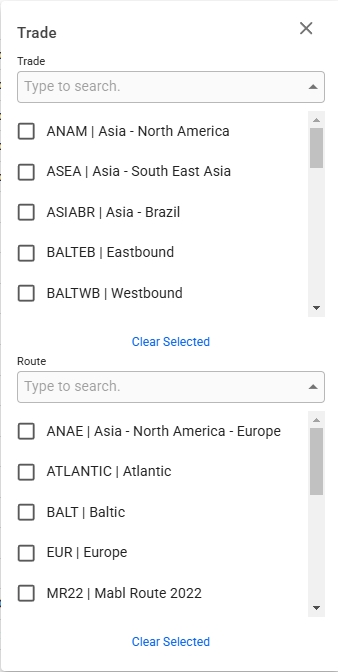
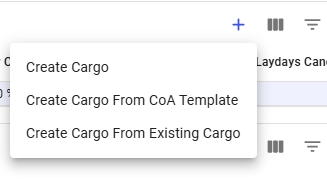
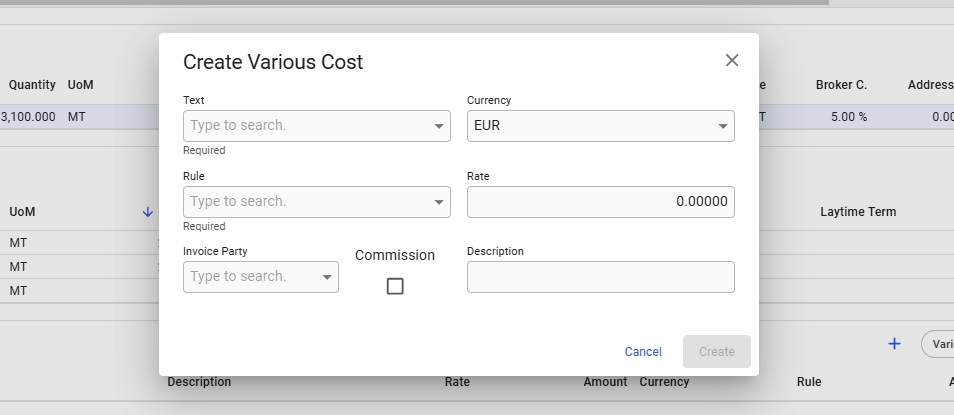


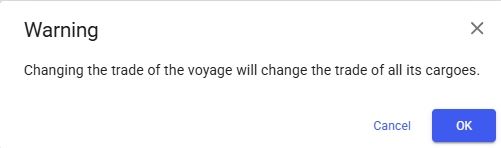
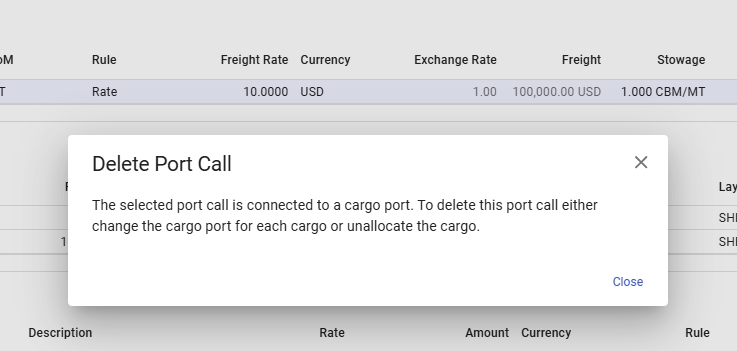
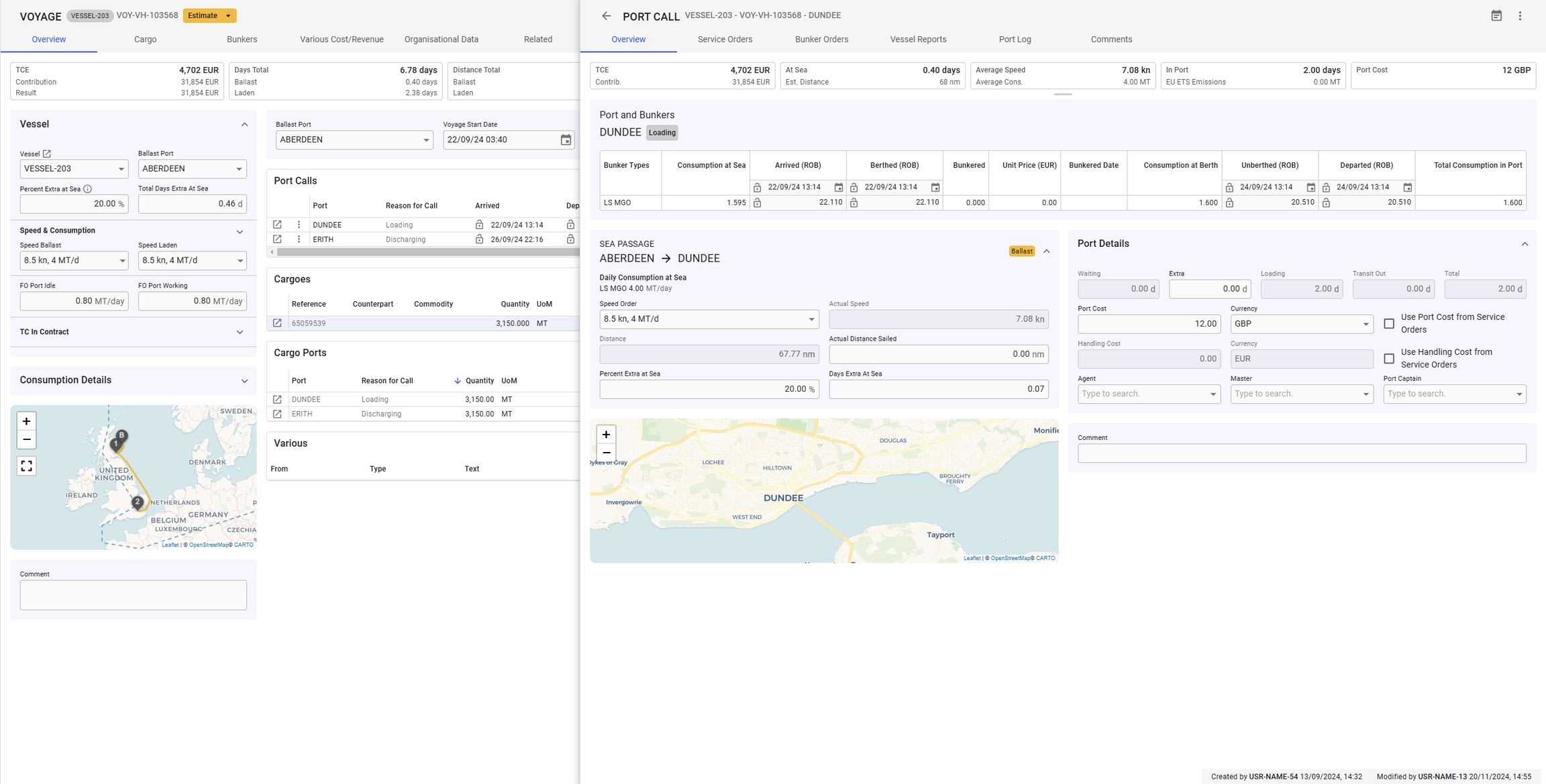
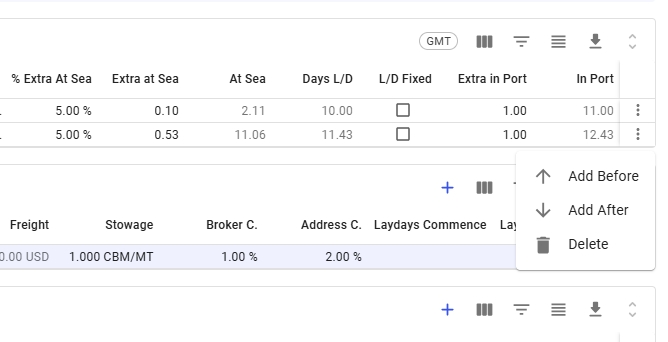
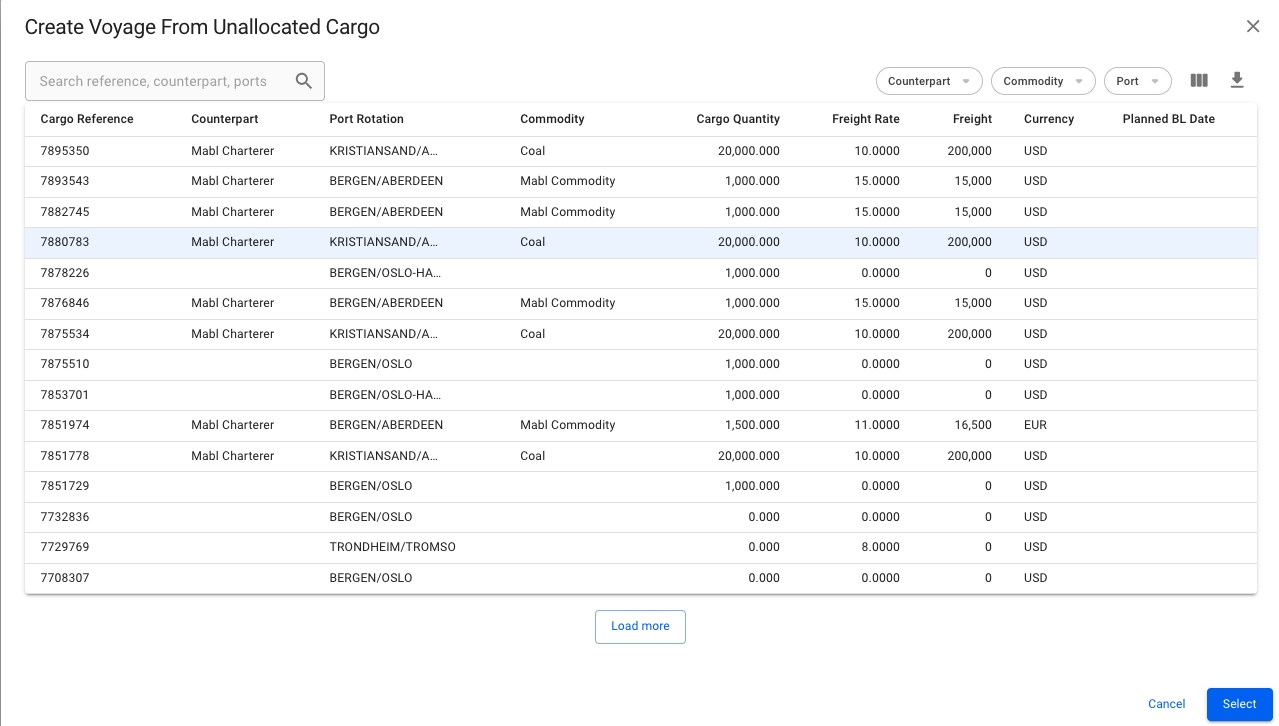
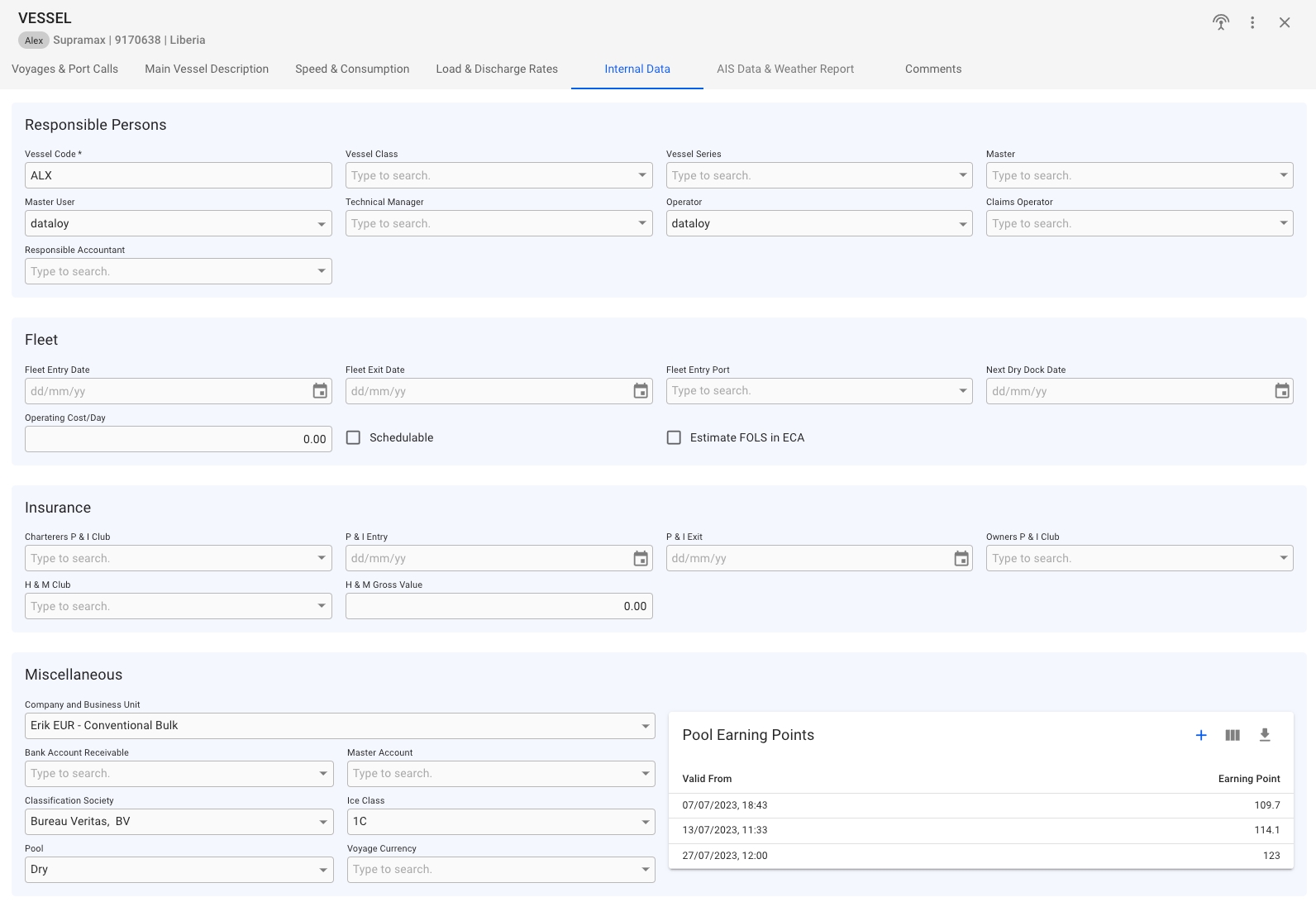
This page outlines the basic functions of the new grids and provides examples to enhance your workflow.
The table below lists the base functions available in the grid header. With a a few exceptions, these functions are consistent across the different grids. The order matches the column headers in Figure 1.
Each column includes a built-in menu, accessible by clicking the vertical ellipsis icon (see Figure 2).
Expanding the menu displays a list of options for the column (see Figure 3), including sorting, pinning the column's position, and column management options. Basic sorting can also be performed by clicking the arrow that appears when hovering over a column or by clicking the column header itself (see Figure 2).
You can adjust the header's width by placing your cursor at the intersection between two columns and dragging to resize. Also, double clicking the column divider autosizes the column such that the entire header text is visible. To change a column's position, click and drag the column to the desired position.
Each row in the grid includes a vertical ellipsis menu for row-specific options, typically located in the right-most column (see Figure 4). The menu's contents and available options depend on the grid type.
or through the menu will directly impact the system data. For instance, selecting the delete option will remove both the row and its associated data.
If the grid supports insertions, you can insert a new row before or after the currently selected row, as seen in Figure 4. However, this option may not be available in all grids. Some grids also support copying a row, along with its associated object.
The grid includes a column for opening the associated drawer or modal, located in the left-most column by default (see Figure 5). When clicking the icon, the results will be displayed on top of the full-screen drawer. As seen in Figure 6.
You can use the grid's filter option to create custom filters. Some grids also offer, which are not customizable, unlike the base filters in the column header.
The new grid allows you to apply aggregations to numerical columns. This option is accessible via the vertical ellipsis menu that appears when hovering over a column. Figure 8 shows the menu and the result of applying the "sum" option to the distance column.
This section offers tips to help you become familiar with the new grid and use it effectively to enhance your workflow.
Using keyboard shortcuts is a powerful way to boost efficiency when working with the grid. Below are general instructions for using the grid, while Figures 9–11 list available shortcuts along with brief descriptions.
To change the value in a cell you can start typing when it is highlighted, or double click/press ENTER to go into edit-mode of that cell
When in edit mode of a cell with select menu, SPACE opens the menu showing all options, and you can select options with ENTER or TAB.
ESC exits edit-mode of a cell and discards the changes made.
When a column header is focused:
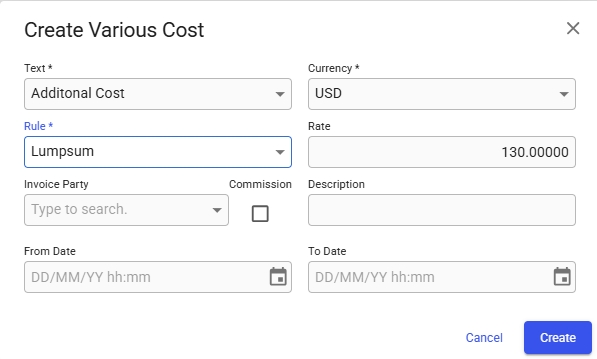
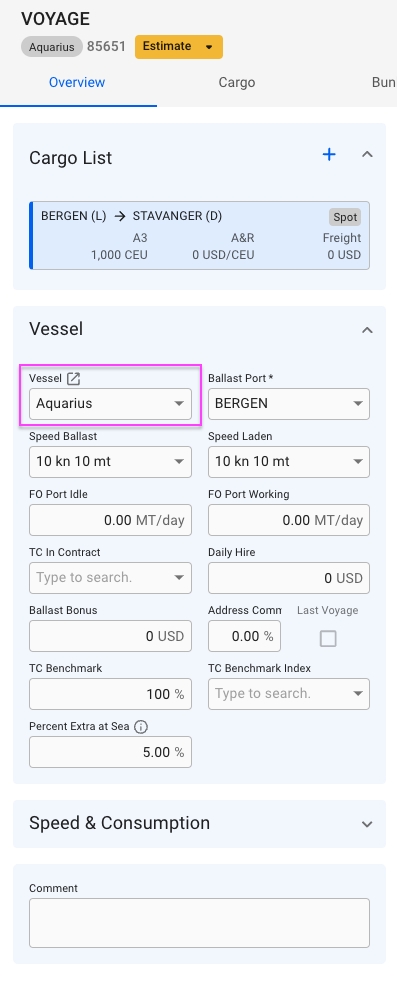
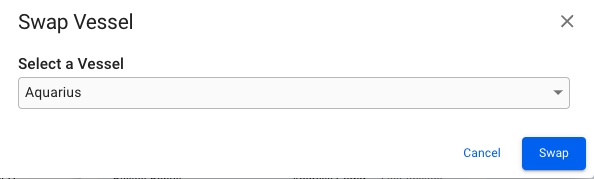
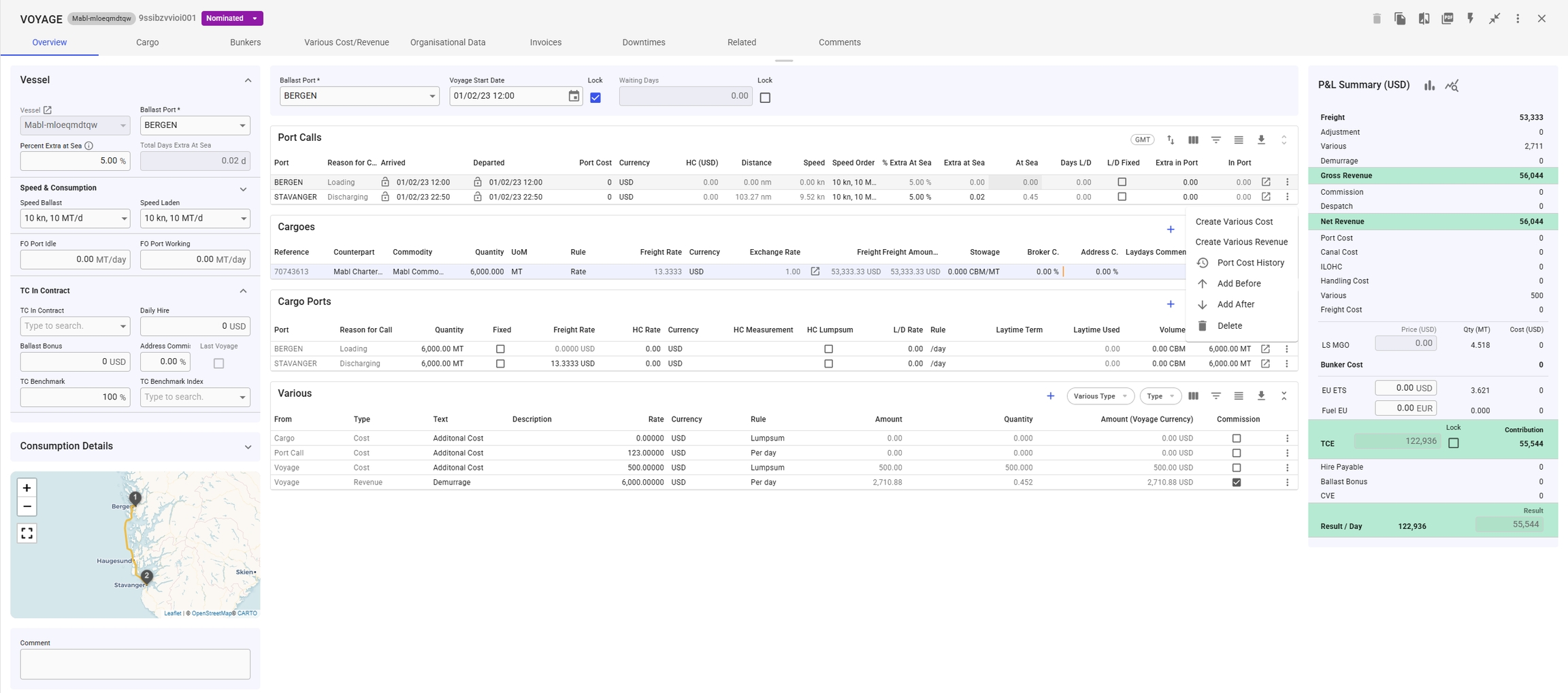
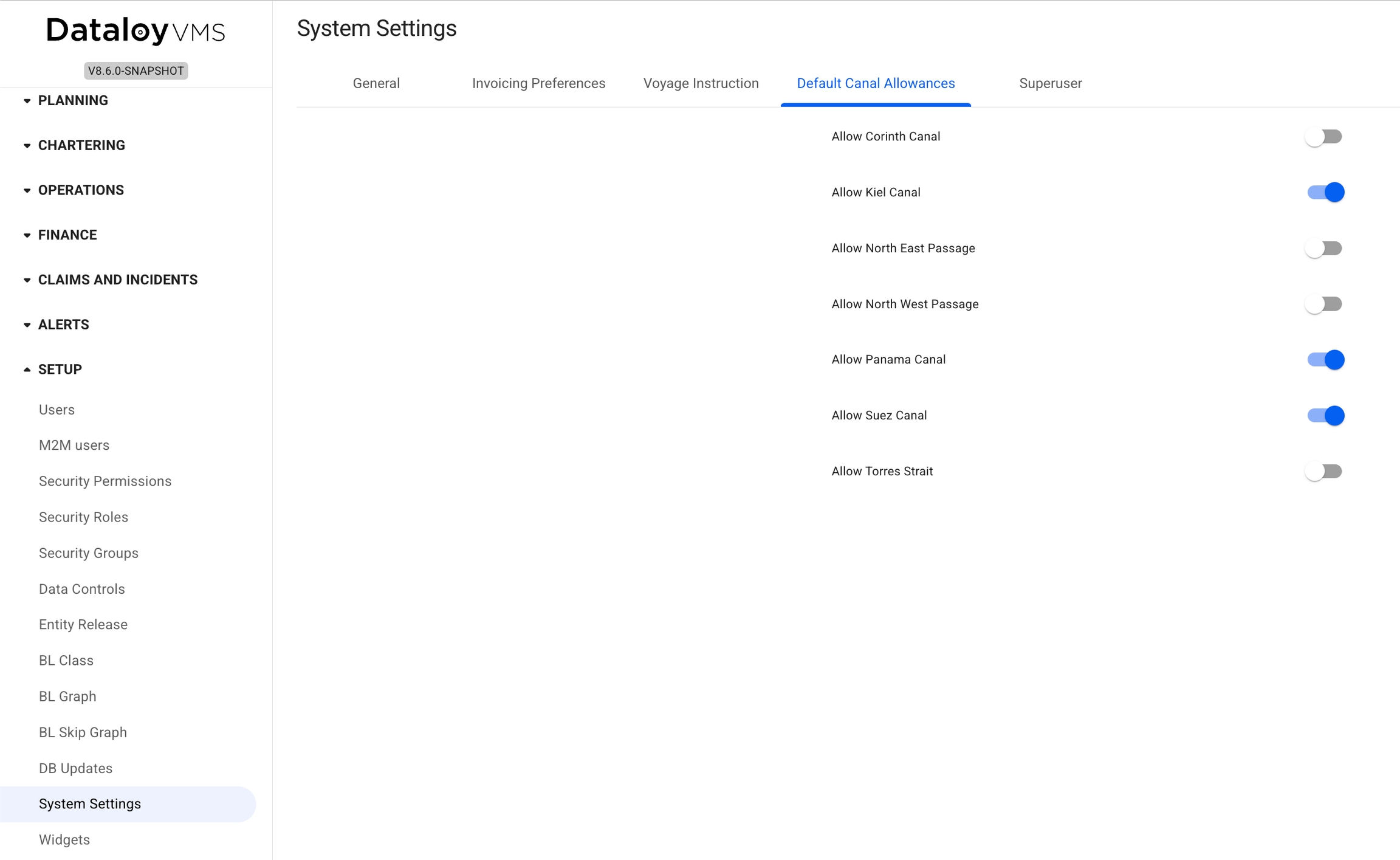
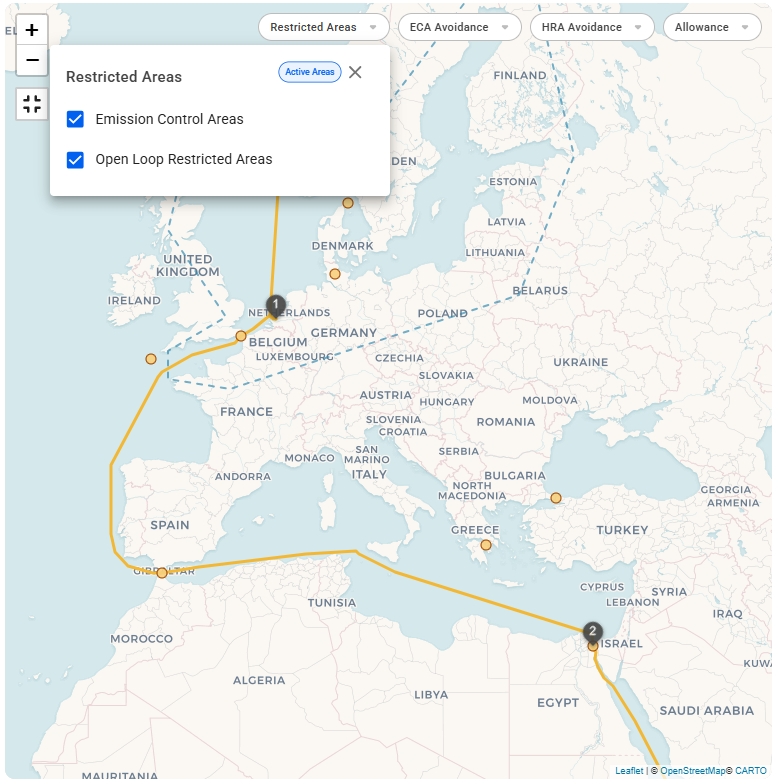

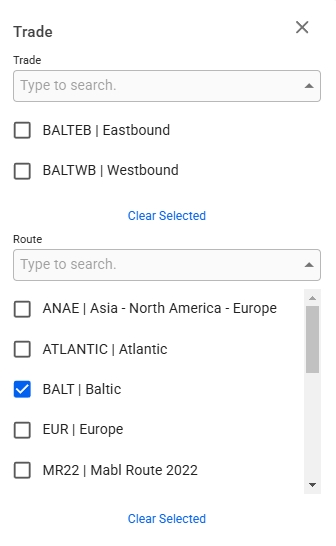
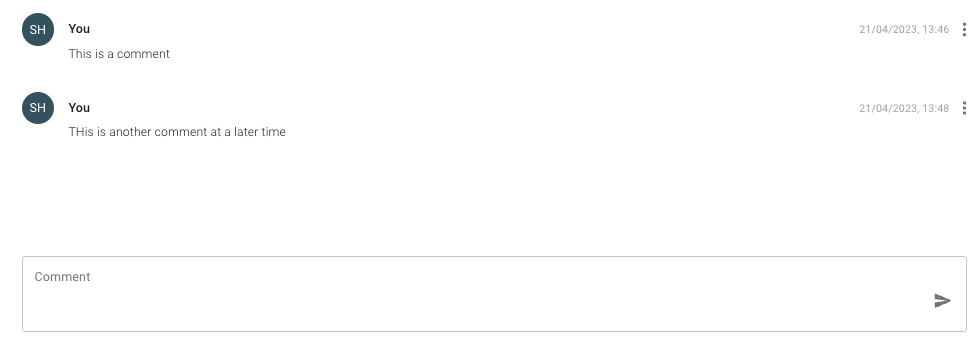
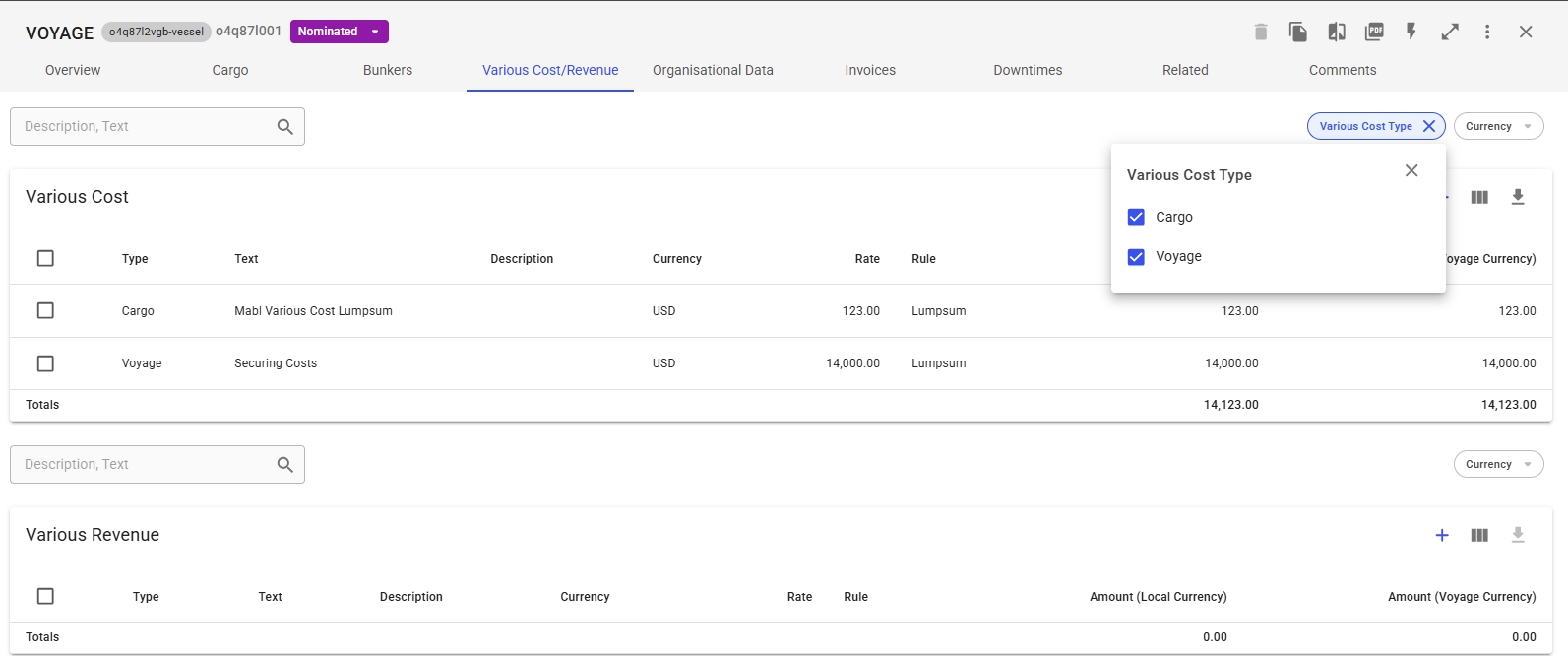
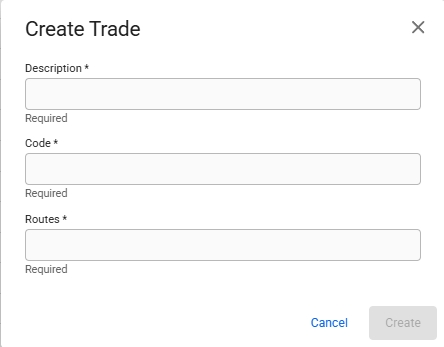
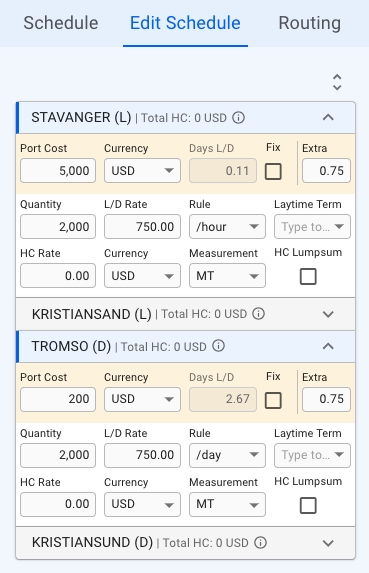
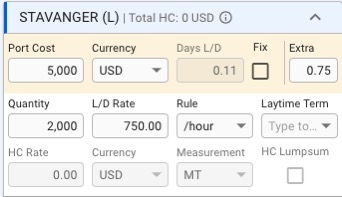
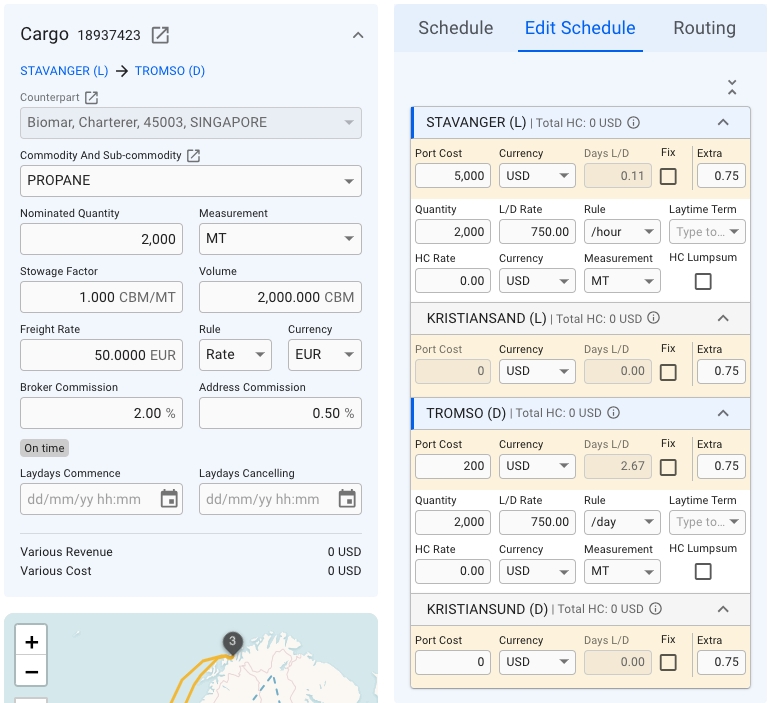
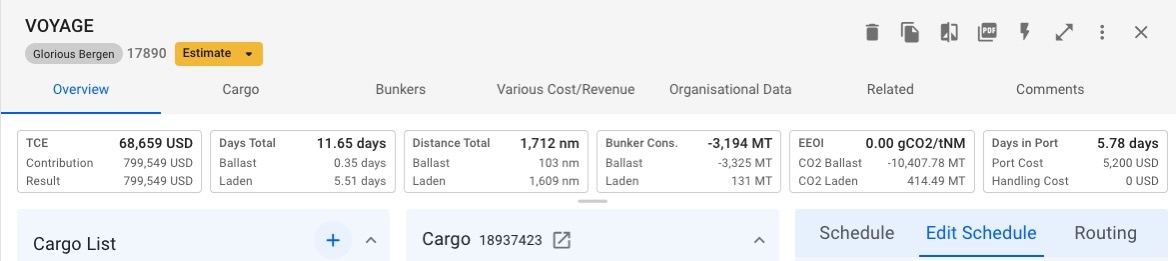

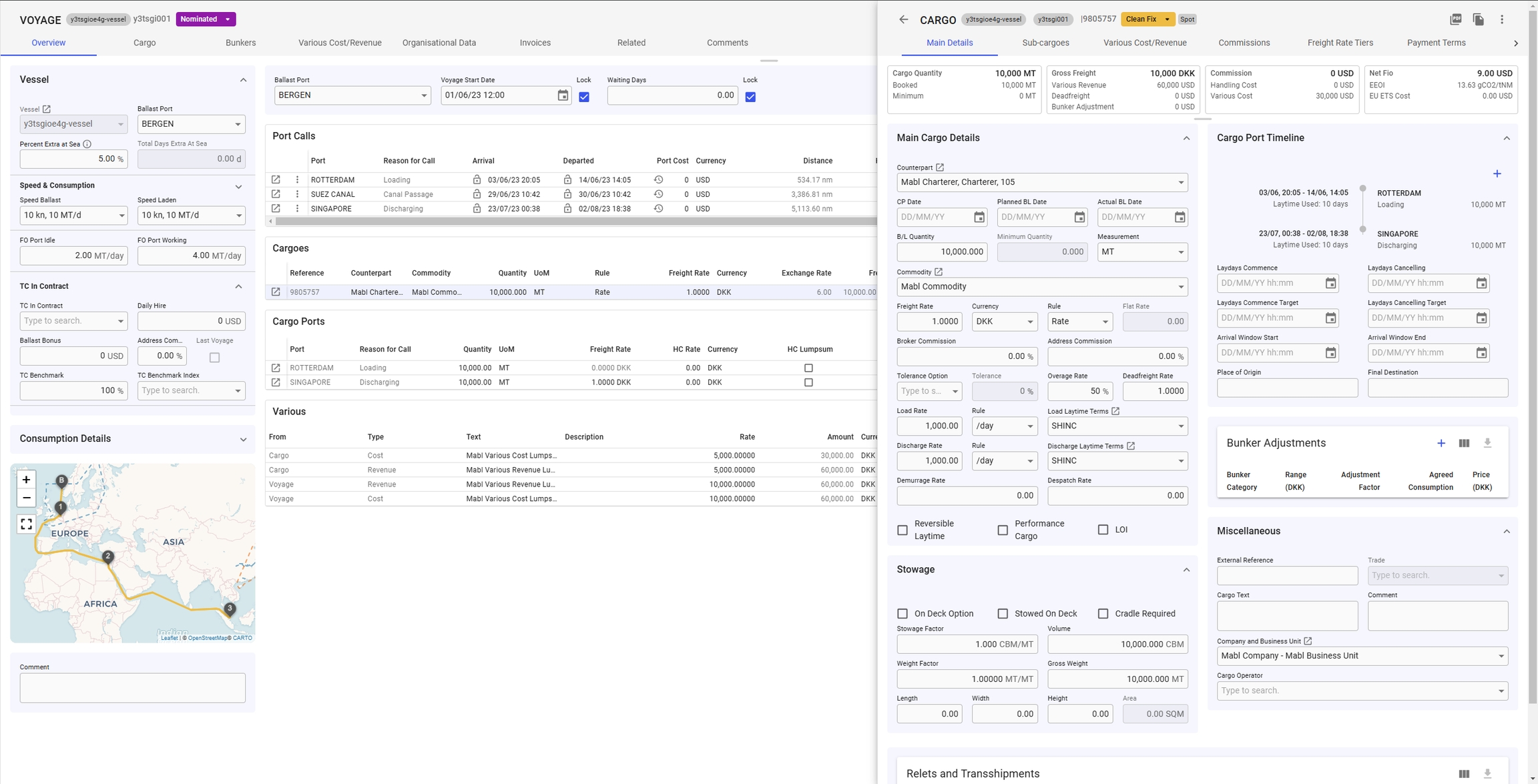

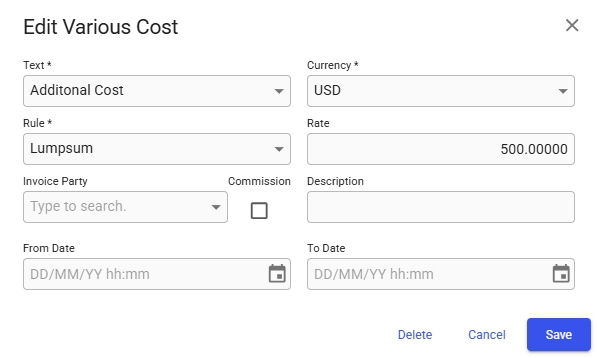
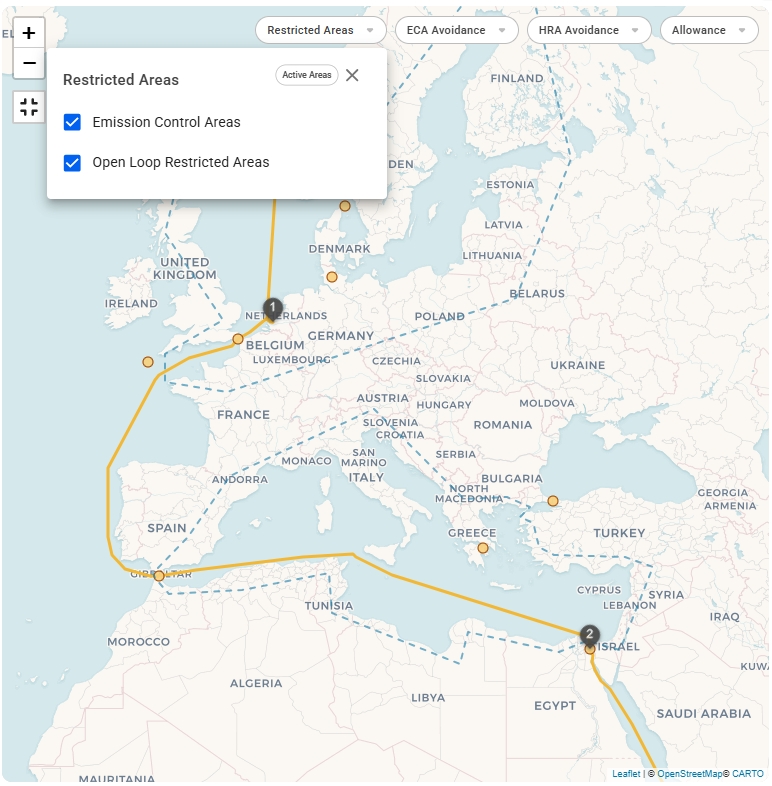
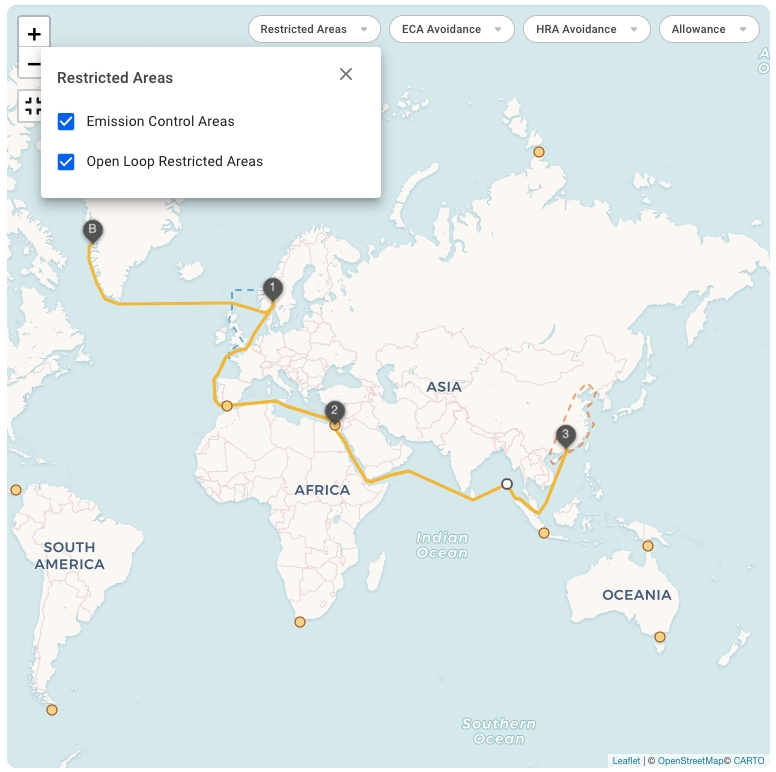
CTRL/CMD + ENTER opens column menu
ENTER toggles column sorting and SHIFT + ENTER toggles multi column sorting
Customise Columns
Makes it possible to select which columns should be displayed in the grid. Aslo includes search functionality.
Show filters
Displays the filter options. It is possible to define your own filters.
Density
Changes the density, that is, the spacing of the grid.
Export
Displays the export options for the data in the grid.
Expand
Expands the given grid to display more rows. Is enabled or disabled based on number of available rows in the data.
Counterpart
Shows the Counterpart of the Performance Cargo, or Charterer of the TC
Vessel
-
Route
Shows first and last Port Call ports
TCE
-
Type
-
Reference Number
The Voyage's Reference No.
Trade
-
CP Date
Shows the CP date of the Performance Cargo or TC
Status
Commodity
Shows the Commodity of the Performance Cargo
Responsible Charterer
-
Comments
-
Cargo Operator
Shows the Cargo Operator of the Performance Cargo.
Hidden by default.
Freight Rate
Shows the Freight Rate of the Performance Cargo.
Hidden by default.
Cargo Quantity
Shows the Cargo Quantity of the Performance Cargo.
Hidden by default.
Creator
Hidden by default.
Created Date
Hidden by default.
Planned BL Date
Shows the Planned BL date of the Performance Cargo. Hidden by default.
Cargo Reference
Shows the Cargo Reference of the Performance Cargo. Hidden by default.
Laycan From
Shows the Laycan From date of the Performance Cargo. Hidden by default.
Laycan To
Shows the Laycan To date of the Performance Cargo. Hidden by default.
There are several sorting and filtering options available for you to narrow down what you see in the list view, as well as the ability to toggle which columns are displayed (with the customised columns setup).
For sorting, look for the arrow to the right of the column headers. For filtering, you can use the quick filters provided above the Voyage List, or look for the -icon, also to the right of the column headers.
You should also be able to search the whole list, by using the Search Bar functionality provided at the top of the list:
In this particular list, you are able to search for a voyage's reference no., a vessel, a counterpart or charterer, a port name, a cargo reference or trade. The list will update accordingly.