# Schedule

## Managing Port Calls

### Schedule

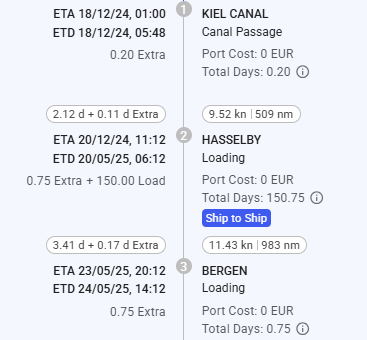
This is a timeline of port calls on a voyage, in which the left side displays the *ETA* and *ETD* time- and dates, as well as *Days Extra* and *Waiting Days*, with the last two also having a hover/tooltip. On the right side displays the *port calls*, their *reason for calls*, *Port Costs* and *Total Days*, with also a tooltip on the last two here.

&#x20;You can *create*, *rearrange*, *delete* and *edit* port calls directly from this section (click on the picture for better view):

<figure><img src="https://content.gitbook.com/content/JhyVcvJBzVdJKycXnSTF/blobs/szYCeQbvh6DpZpeKkA7o/Screenshot%202025-02-12%20084129.png" alt=""><figcaption><p>The Port Call Schedule</p></figcaption></figure>

If a Cargo Port  is marked as being Ship to Ship a chip will be displayed on the connected Port Call on schedule. The image below shows that the Cargo Port on the Hasselby Port Call is marked as being Ship To Ship by the blue chip.

<figure><img src="https://content.gitbook.com/content/JhyVcvJBzVdJKycXnSTF/blobs/3p4lYawcGE73ste10ZIM/Screenshot%202025-02-12%20084937.png" alt=""><figcaption><p>Hasselby has a Ship To Ship chip</p></figcaption></figure>

#### Hover Toolbar

When hovering the mouse over a port call in the schedule, a toolbar in the upper right will appear.

* To *insert* a port call before or after the port call you are editing, click the **Create** <img src="https://content.gitbook.com/content/JhyVcvJBzVdJKycXnSTF/blobs/0hitmdFsNunrwUaYT9u2/create-24px.svg" alt="" data-size="original"> button and select **Before** or **After.** A window to create a new port call then pops up.
* To *edit* a port call, click the **Edit** <img src="https://content.gitbook.com/content/JhyVcvJBzVdJKycXnSTF/blobs/4NCIo5vbi3DF8HJtpUKZ/edit-24px.svg" alt="" data-size="original"> button.
* To *delete* a port call, click the **Delete** <img src="https://content.gitbook.com/content/JhyVcvJBzVdJKycXnSTF/blobs/dTunCkJNkSegIiktlRPx/delete.svg" alt="" data-size="original">button.
* To *change* the order of port calls, simply *hover over* a port call to move it into place.

#### Locking Voyage Start Date and Waiting Days

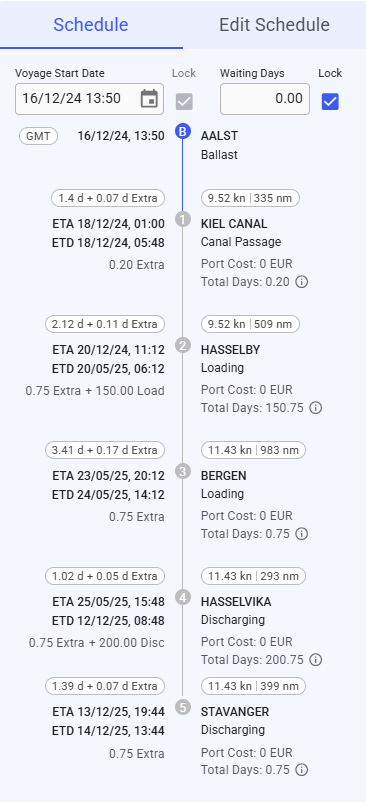
Within the Schedule section, you will find a checkbox for *locking* the update of *voyage start date* and *Waiting Days*. This checkbox is not enabled while the voyage has status **Estimate** or **Unallocated:**

<figure><img src="https://content.gitbook.com/content/JhyVcvJBzVdJKycXnSTF/blobs/VE4U1WydVj1XZLNtlnGd/image.png" alt=""><figcaption><p>Voyage Start Date and Waiting Days</p></figcaption></figure>

### Edit Schedule

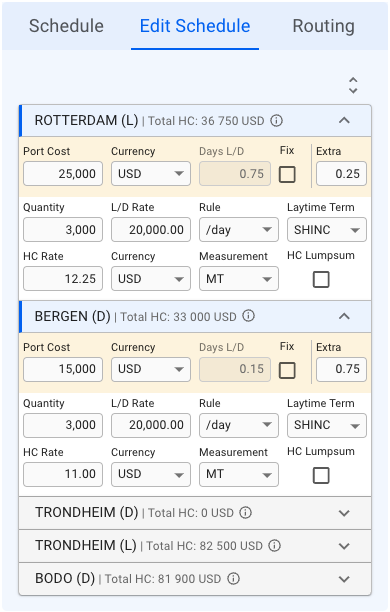
This list displays a more detailed view of all the port calls in the schedule (click on the picture for better view):

<figure><img src="https://content.gitbook.com/content/JhyVcvJBzVdJKycXnSTF/blobs/PJUqG1uwFFzC1ETv9RNS/Skjermbilde%202024-08-06%20kl.%2014.07.33.png" alt=""><figcaption><p>The Port Call Edit Schedule</p></figcaption></figure>

With this icon <picture><source srcset="https://content.gitbook.com/content/JhyVcvJBzVdJKycXnSTF/blobs/AypuBri93klbrqVhuimp/Screenshot%202023-12-29%20at%2016.38.04.png" media="(prefers-color-scheme: dark)"><img src="https://content.gitbook.com/content/JhyVcvJBzVdJKycXnSTF/blobs/3L09AyrsLU7CAhqYm3N5/Screenshot%202023-12-29%20at%2016.38.04.png" alt="" data-size="line"></picture>, you can either *expand* or *collapse* all of the port call items in the list (the list is expanded by default). You can also *open* and *close* the collapsable items, independent of each other, to view the detailed information.

#### Detailed Information

The first row, in yellow highlight, you can find the **Port Call's** *Port Cost*, *Currency*, *Days L/D, Fix* checkbox and *Extra* (days in port).

The next two rows, you can find the **Cargo Port's** *Quantity, L/D Rate, Rule, Laytime Term, HC Rate, (HC) Currency, (HC) Measurement* and *HC Lumpsum* checkbox.

All of these fields are *editable*. The cargo highlighted in **blue** in the Cargo List section will also have its port calls highlighted correspondingly in the Edit Schedule section, meaning, you are viewing the *selected cargo's* information.

**Additional Hover Information:**

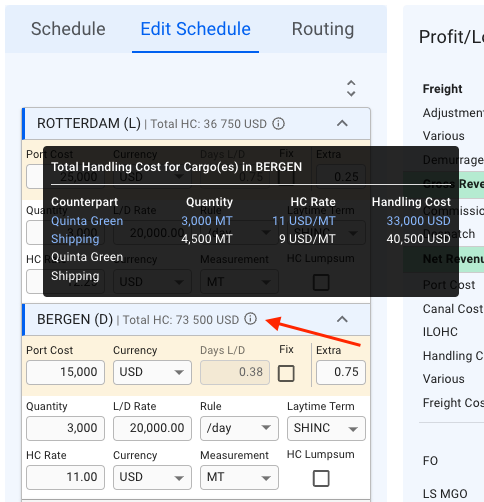
All of the collapsible headers are displaying the *Port Call Name, Reason for Call* and *Total Handling Cost (HC)*. Next to the last mentioned, there is an <img src="https://content.gitbook.com/content/JhyVcvJBzVdJKycXnSTF/blobs/QtAKDCCFe5AmYaER7VqY/Screenshot%202023-12-29%20at%2016.49.45.png" alt="" data-size="line"> icon, which you can hover on to display additional information inside a tooltip:&#x20;

<figure><img src="https://content.gitbook.com/content/JhyVcvJBzVdJKycXnSTF/blobs/NNaLrw59Czye1JMB0UQ5/Skjermbilde%202024-08-06%20kl.%2014.12.23.png" alt=""><figcaption><p>Tooltip for Additional Total Handling Cost Information</p></figcaption></figure>

This tooltip displays, per **Port Call**, the *Counterpart*, *Quantity*, *HC Rate* and *Handling Cost* for each of it's **Cargo Ports**. Again, with the *selected cargo* from the Cargo List section highlighted in **blue**.&#x20;

### **Routing**

TBA.