Laytime Calculation Drawer Fields
The top section of the overview tab contains key information about a laytime.
The next section contains the following fields that can be edited.
Fields
Description
Aggregation
Type of aggregation
Demurrage Rate
Rate of demurrage
A laytime calculation panel also contains a section for managing cargo ports:
Despatch Rate
Rate of despatch
Currency
The currency of the laytime calculation
Fixed Demurrage
Fixed demurrage for the laytime calculation
Fixed Despatch
Fixed despatch for the laytime calculation
Responsible Charterer
The responsible charterer for the laytime calculation
Cargo Port Related Fields
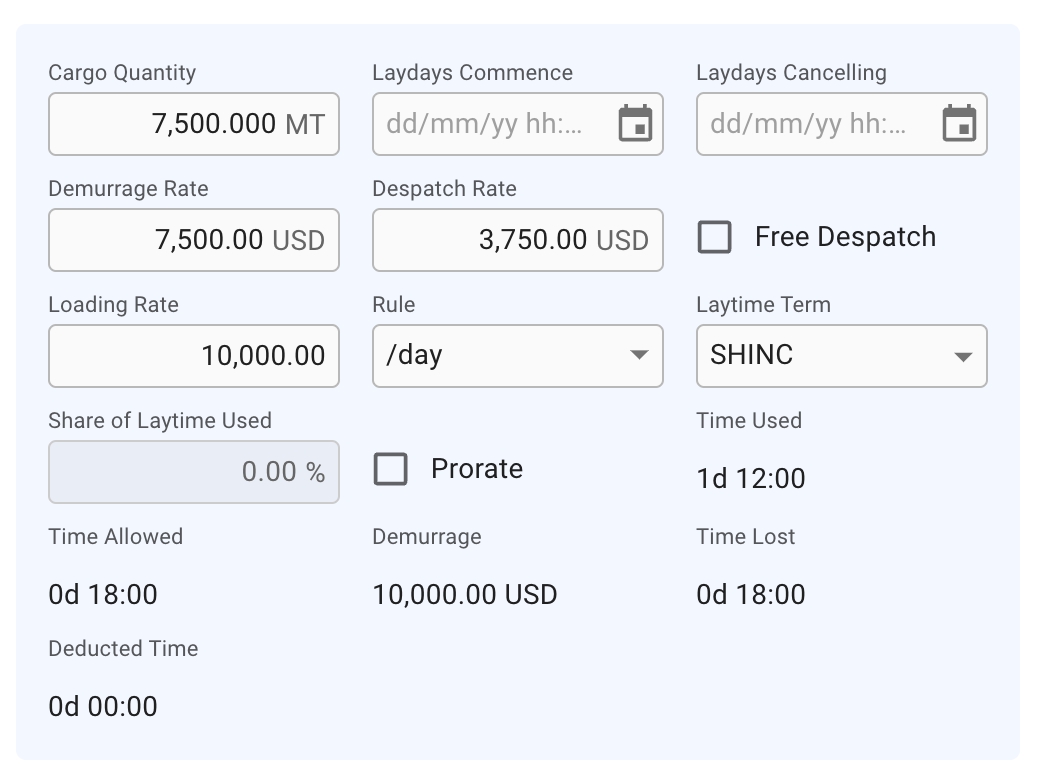
When expanding a cargo port panel, a section for displaying and editing certain fields of the cargo port can be found. The number of fields visible depends on the type of port call, aggregation and more.
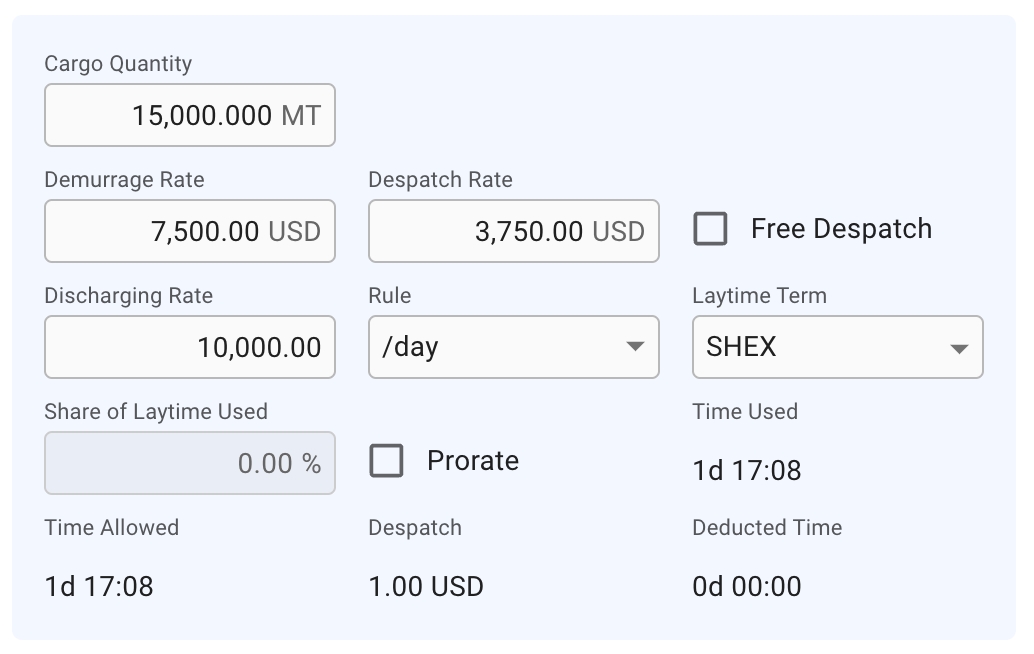
Cargo Quantity
Shows the total cargo quantity on the cargo port
Laydays Commence
Laycan From date of Cargo (Load Port only)
Laydays Cancelling
Laycan To date of Cargo (Load Port only)
Demurrage Rate
The rate for demurrage
Despatch Rate
The rate for despatch
Free Despatch
Checkbox for Free Despatch
Loading/Discharging Rate
Loading/discharging rate on a port, depending on type of port
Rule
The rule for the selected port
Laytime Terms
Laytime terms for the selected port
Share of Laytime Used
Percentage of laytime used
Prorate
Checkbox for Prorate
Time Used
The amount of laytime used on the selected port
Time Allowed
The amount of laytime allowed for the selected port
Demurrage
The amount of demurrage for the selected port (only if Demurrage)
Despatch
The amount of despatch for the selected port (only in non-reversible)
Time Lost
The amount of time lost in the selected port (only if Demurrage)
Deducted Time
Total amount of "Time not to count" on port (only in non-reversible)
List Of Events
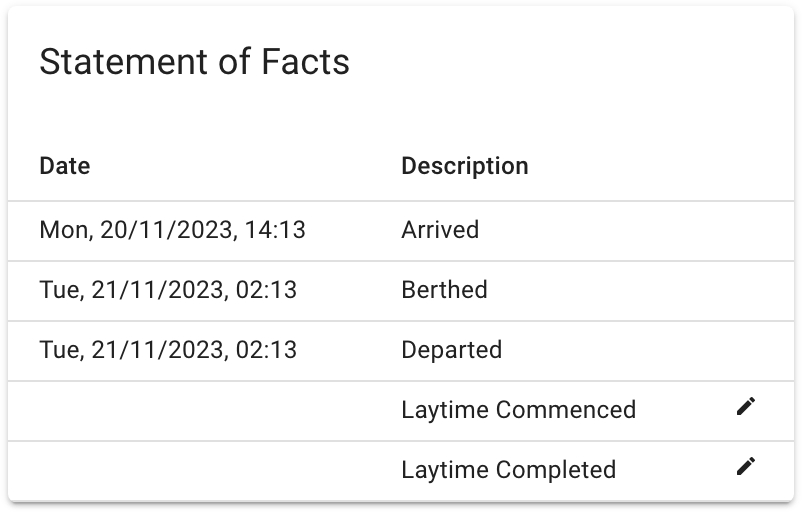
When expanding a cargo port panel, the statement of facts section can be found. This section contains a list of events imported from both the cargo port and the port call port log. You can control which events are shown here by going to Master Data -> Events. Here you have a list of events (More can be added with the blue + icon), here is a small example of some of the events that can be found there:
Event
Description
Arrived
Date of arrival to cargo port
Berthed
Date of berth
Departed
Date of departure from cargo port
You can find more information regarding events here: . Please note that only events fitting the vessel type in question will appear here. More information can be found in the provided link.
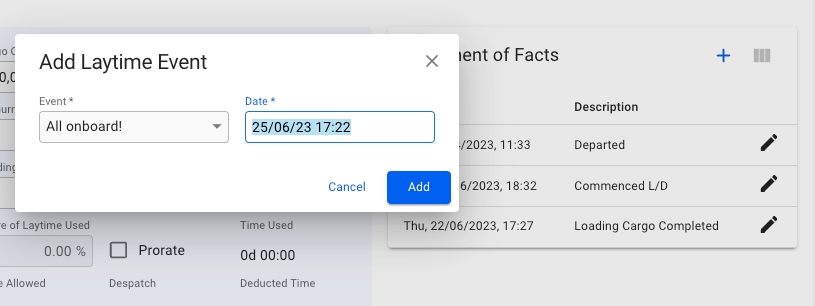
To add an event click on the blue + icon, select the event and date (both required) and click Add.
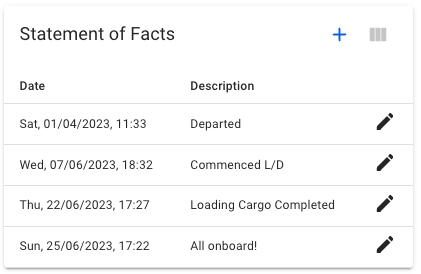
After confirming you will see the new event added to your Statement of Facts list for this port. Your selected new event should appear with the selected date and time:
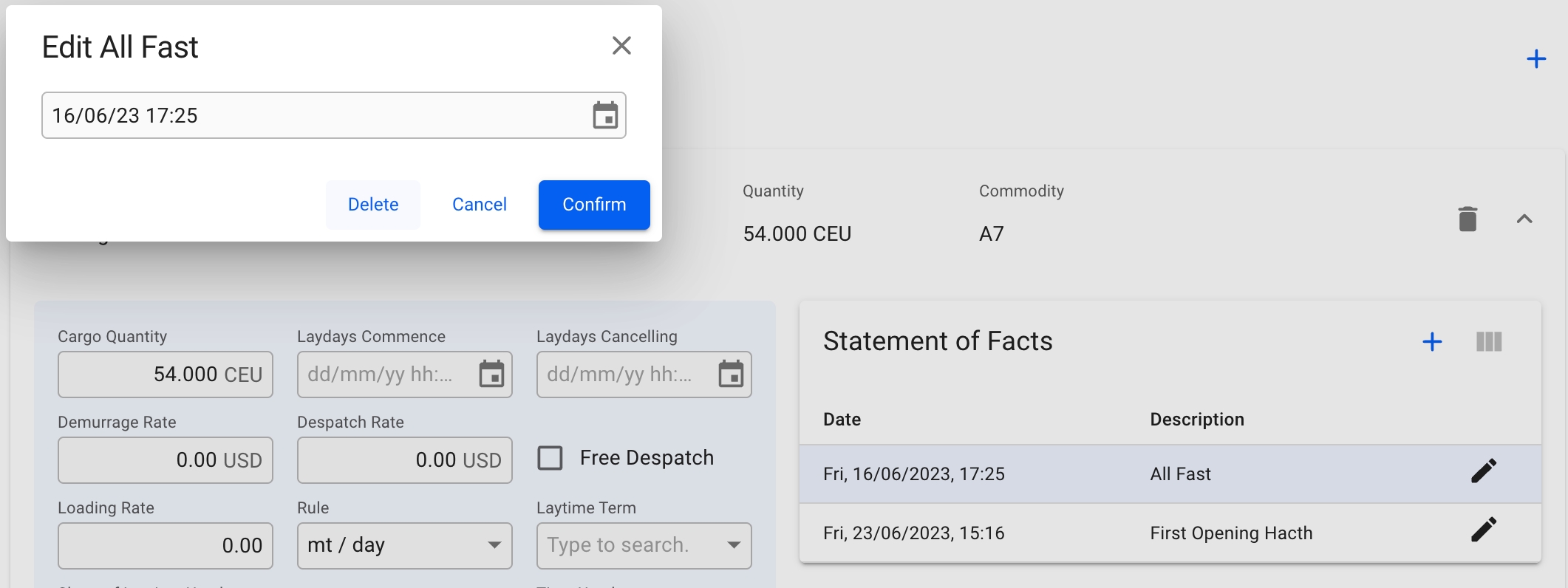
To edit or delete an event simply click on the the row that contains it, Here you can edit the date or select delete in the modal that appears and confirm - Note that this will delete it from the Statement of Facts list but NOT from the port log event list in the port call drawer while editing the date will effect both locations.
Laytime Commenced
Date laytime period starts
Laytime Completed
Date laytime period ends

Cargo Ports Panel List
Cargo ports in the panel list are sorted ascending by the cargo port's port call sequence .
Adding a cargo port:
In the cargo ports section, click the create iconin the right corner.
Selected cargo port(s).
Click Create. The new cargo port will appear as a new panel in the panels list
Panel fields
Each panel contains a summary of the cargo port with the following fields:
Reason for call
Port
Terminal
Quantity
Removing a cargo port:
In the panel of the cargo port to be removed, click the delete icon.
Click Remove in the dialog that appears to confirm removal.
By clicking the expand icon on a panel, the following sections can be viewed and managed:
Commodity



Editing Laytime Calculation Status
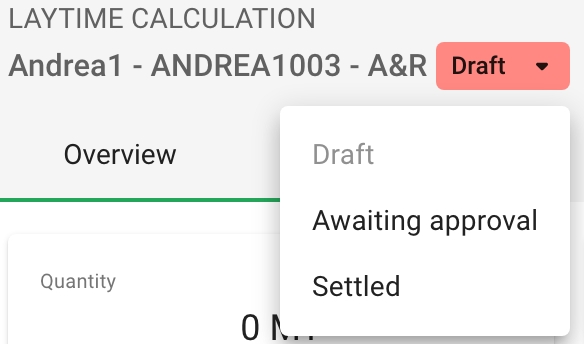
In the header of a selected laytime calculation panel, the current status can be viewed. Clicking on it will activate a dropdown menu and a new status can be selected. A laytime calculation can have one of the following statuses:
Status
Description
Draft
Calculation is being edited
Awaiting approval
Calculation is sent for approval
Settled
Calculation is approved and ready for using
Laytime Calculation Panel
When you have located a laytime calculation, click on it and the details will show in a panel (so called "drawer") on the right hand side. The panel will also open after creating a new laytime calculation.
The panel contains an Overview tab for maintaining a laytime calculation and managing the cargo ports.
Laytime Statement can be printed from the PDF icon top-right in the Laytime Drawer.
StatusDrawer FieldsManage Cargo PortsTime Not To Count List
The cargo port panel contains a list of all periods not to be counted.
Time to count can also be viewed in the table and are calculated after each new not to count period is added. They are not editable.
Click the create icon on top of the list.
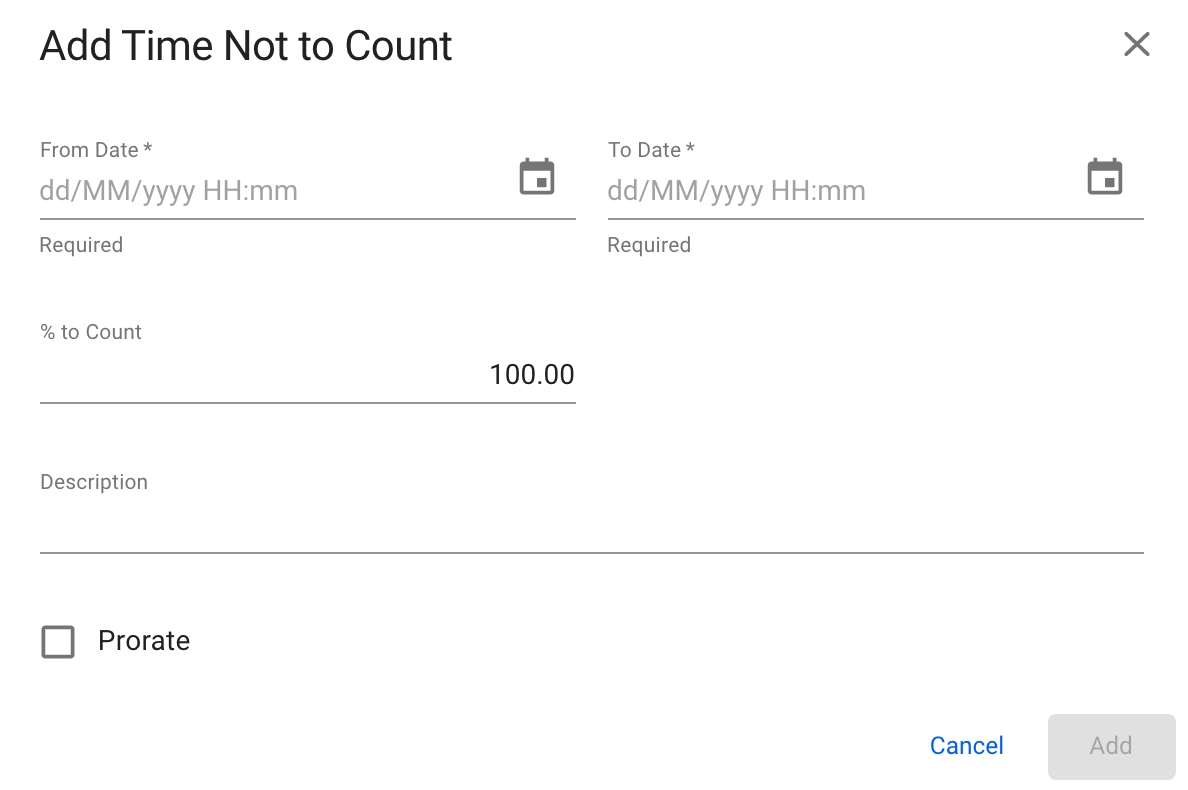
Fill in all required fields listed below in the Add Time Not to Count window.
Click Create.
Click the edit icon on the right side of the not to count row.
Change the fields in the Edit Time Not to Count window.
Click Save.
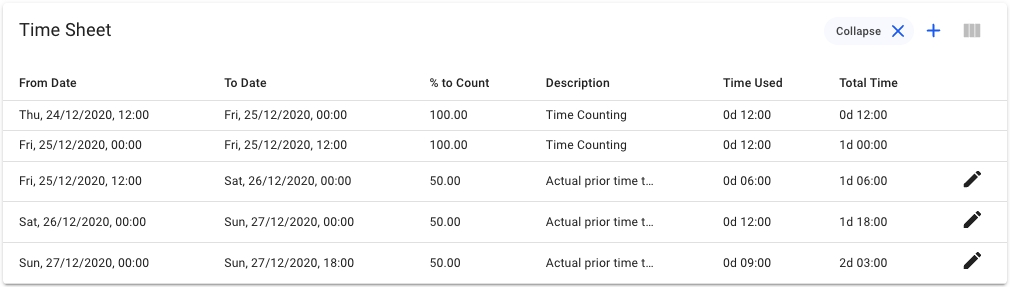
This is the default view of the Timesheet table. This view shows a collapsed view of the Timesheet items, in which each item has a span of laytime commenced to laytime completed. The stoppages added (the time not to counts) will be shown in their own separate rows:
By clicking on the Expand icon on the right side, the list will show all Timesheet items occurrences.
This detailed view shows all the Timesheet occurrences of the Laytime Calculation. Here, each item shows the list items day-by-day:
By clicking on the the Collapse icon on the right side, the list will go back to compress all the Timesheet items into one-line time period:
Fields
Description
From Date
Start of not to count period
To Date
End of not to count period