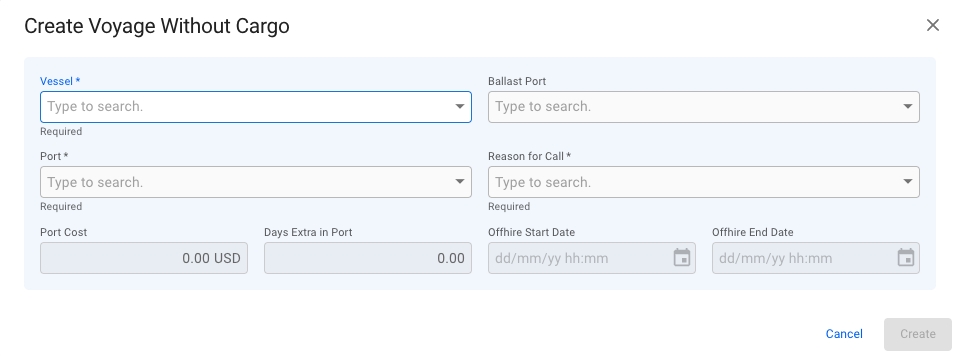
There may be several reason for having a voyage without any cargo onboard the vessel. By using the Create Voyage Without Cargo option, you can for instance plan out repositioning of your vessels, or schedule dry docking.
Open the Voyages module from the menu on the left.
On the top right corner, click the icon.
Select Create Voyage Without Cargo.
After you have filled in the required information, you can click Create.
Yes
If Dry Dock is selected, an Offhire record will be created.
Port Cost
No
Only available if Reason For Call is set to Bunkering or Extra Port.
Days Extra In Port
No
Only available if Reason For Call is set to Bunkering or Extra Port.
Offhire Start Date
Yes (If enabled)
Only available if Reason For Call is set to Dry Dock.
Voyage Start Date will automatically be locked and set to the selected Offhire Start date.
Offhire End Date
Yes (If enabled)
Only available if Reason For Call is set to Dry Dock.
Must be after Offhire Start Date.
Vessel
Yes
Ballast Port
No
If none is selected the selected Port will be used.
Port
Yes
Reason For Call
Layout:
The Voyages module contains of a large list of different types of voyages; unallocated, estimate, allocated, nominated, etc. In this list, you can filter the voyages based on several key endpoints to effectively view the required information on your screen. There is a sort icon to the far right, with different options for sorting the list as well. You can read more here: Sorting and Filtering Lists.
Below you can click to read how to create different types of voyages:
Create Voyage ChartererCreate Time Charter OutCreate Voyage From TemplateIn the top right corner, click Create .
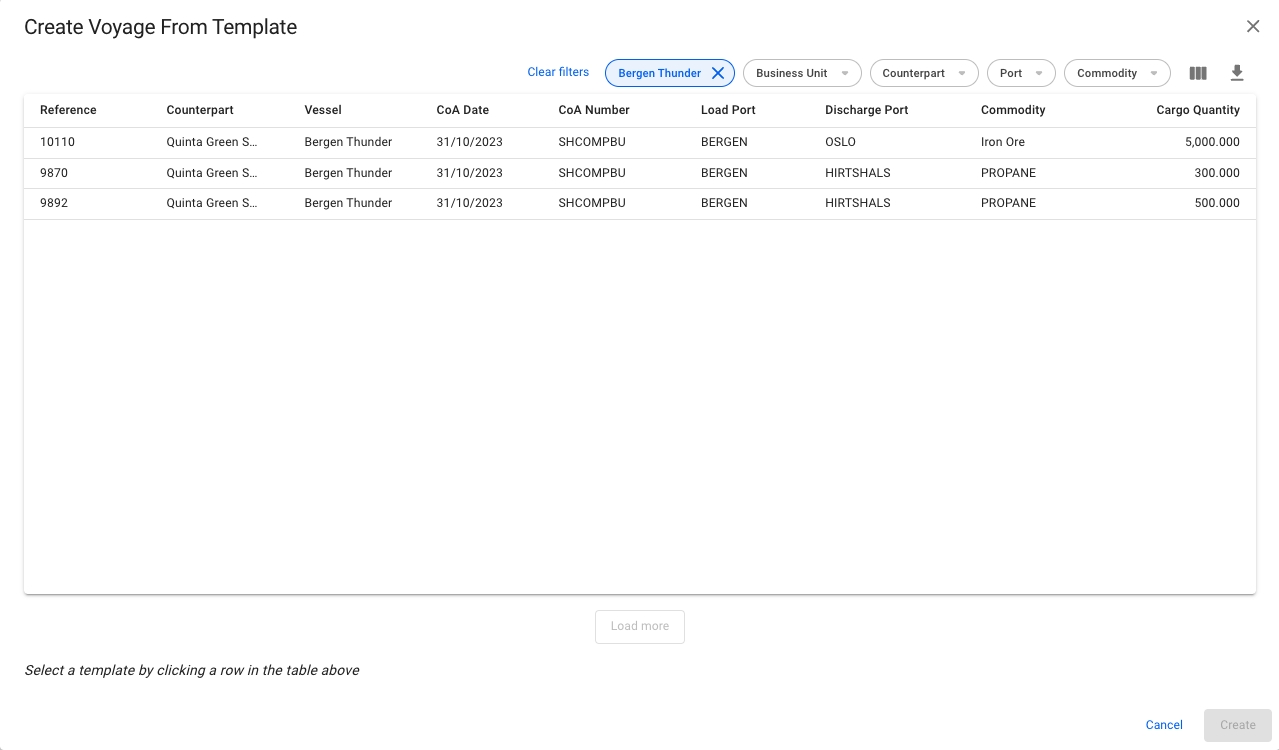
Select Create Voyage From Template.
In the modal, you can apply various filters to narrow down the selection. Clicking a CoA template voyage selects it. The new voyage will inherit the values from the template displayed in the modal, as well as the Company and Business Unit of the template.
Click Create.
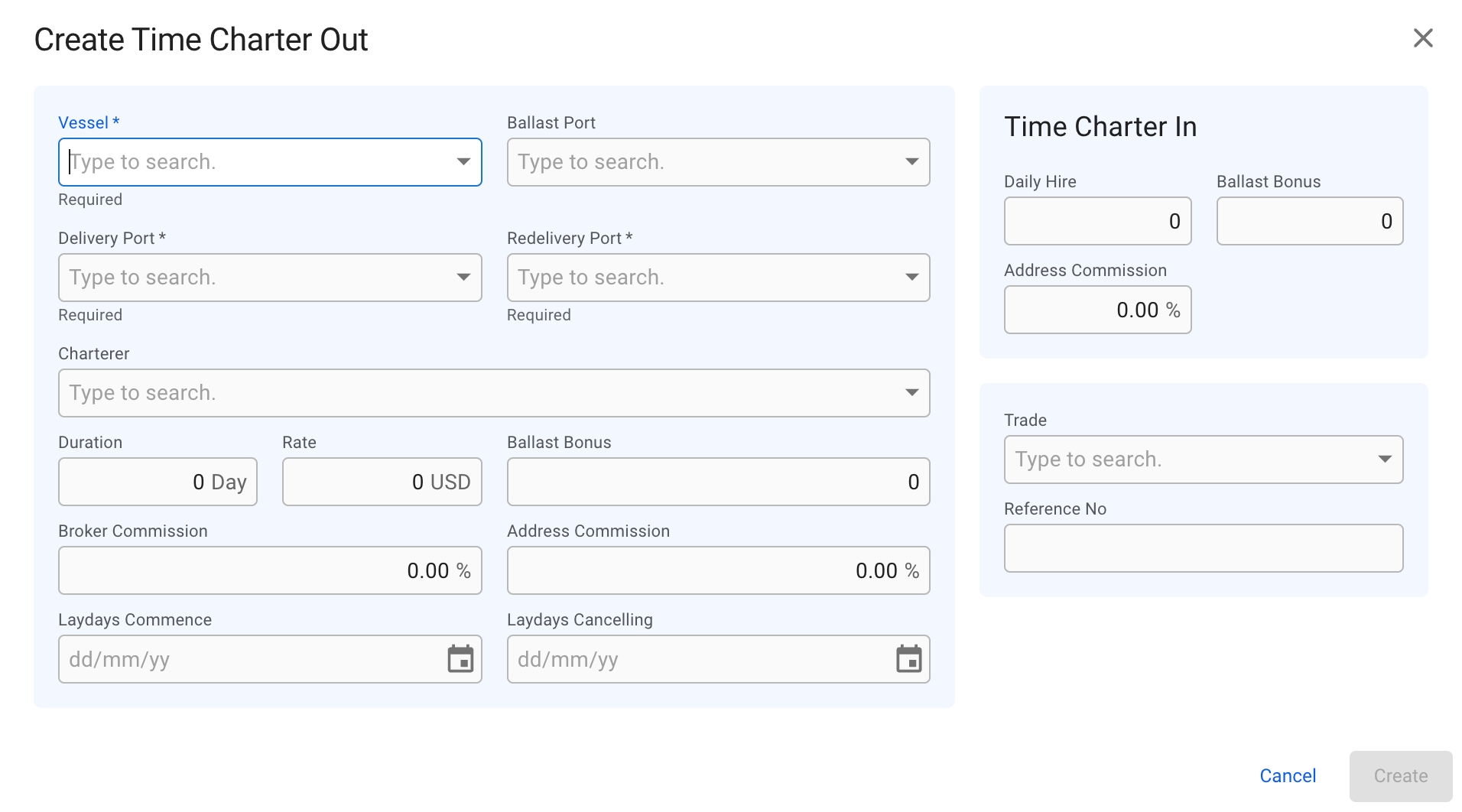
Select Create Time Charter Out.
In the modal, you can fill in the required fields and add any additional information about the new TC voyage.
After you have filled in, you can click Create.
Vessel
Delivery Port
Redelivery Port
After choosing a vessel, you will now be able to choose a Ballast Port.
The modal is now draggable, making it easier to see the information "behind" the modal. Hover over the title or the top of the modal to activate it.
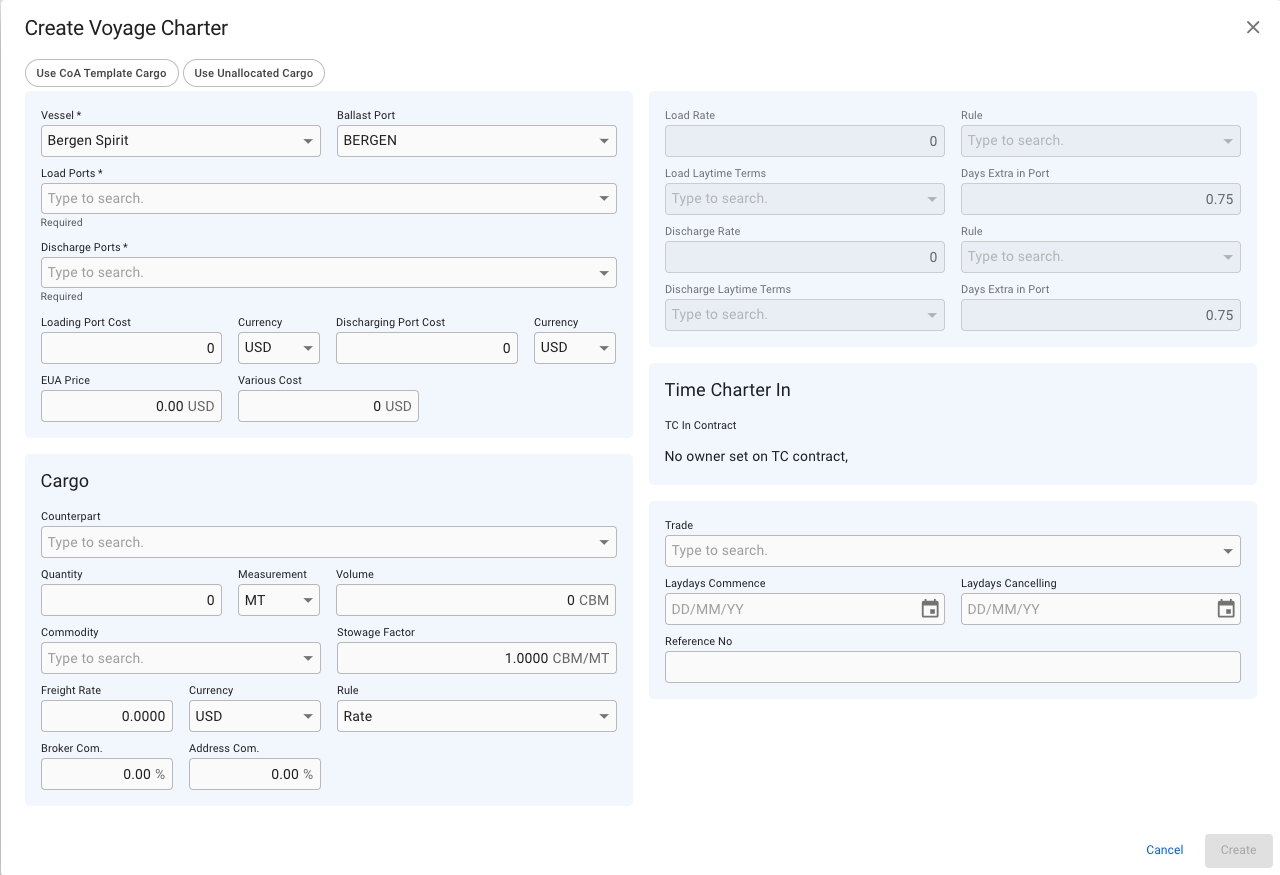
Creating a voyage charter is fast and easy. The minimum amount of details required is a vessel and a port for loading and discharging.
Open the Voyages module from the menu on the left.
On the top right corner, click the icon.
Select Create Voyage Charterer
Fill in the details manually, or choose between using a CoA Template Cargo or an existing unallocated cargo as basis for the voyage.
Click the Create-button.
After choosing a vessel, the previous Port on the Vessel will be set as Ballast Port. This can be overridden by entering another Port, if no Ballast Port is set then the first Load Port will be used.
To create the voyage using a CoA template as a basis, click the Use CoA Template Cargo button in the top of the modal. This will bring up another window, allowing you to select a template from a list of CoA templates. More details can be found here: Create Cargo From CoA Template.
Using a CoA template will give the voyage and cargo the same Company and Business Unit as the CoA.
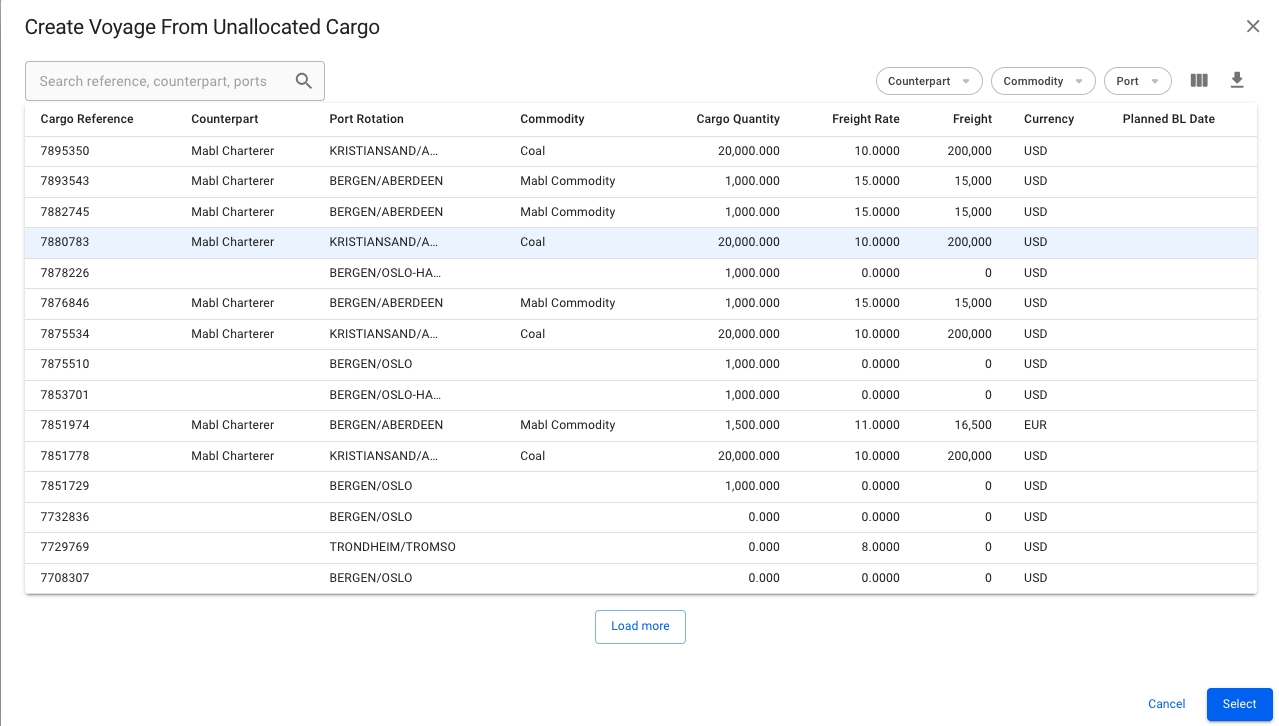
It is possible to create a new voyage and allocate an unallocated cargo by using the Use Unallocated Cargo button in the top of the modal. Clicking it will bring up another window with a list of unallocated cargos. Filter and search as needed, and select a cargo from the list.
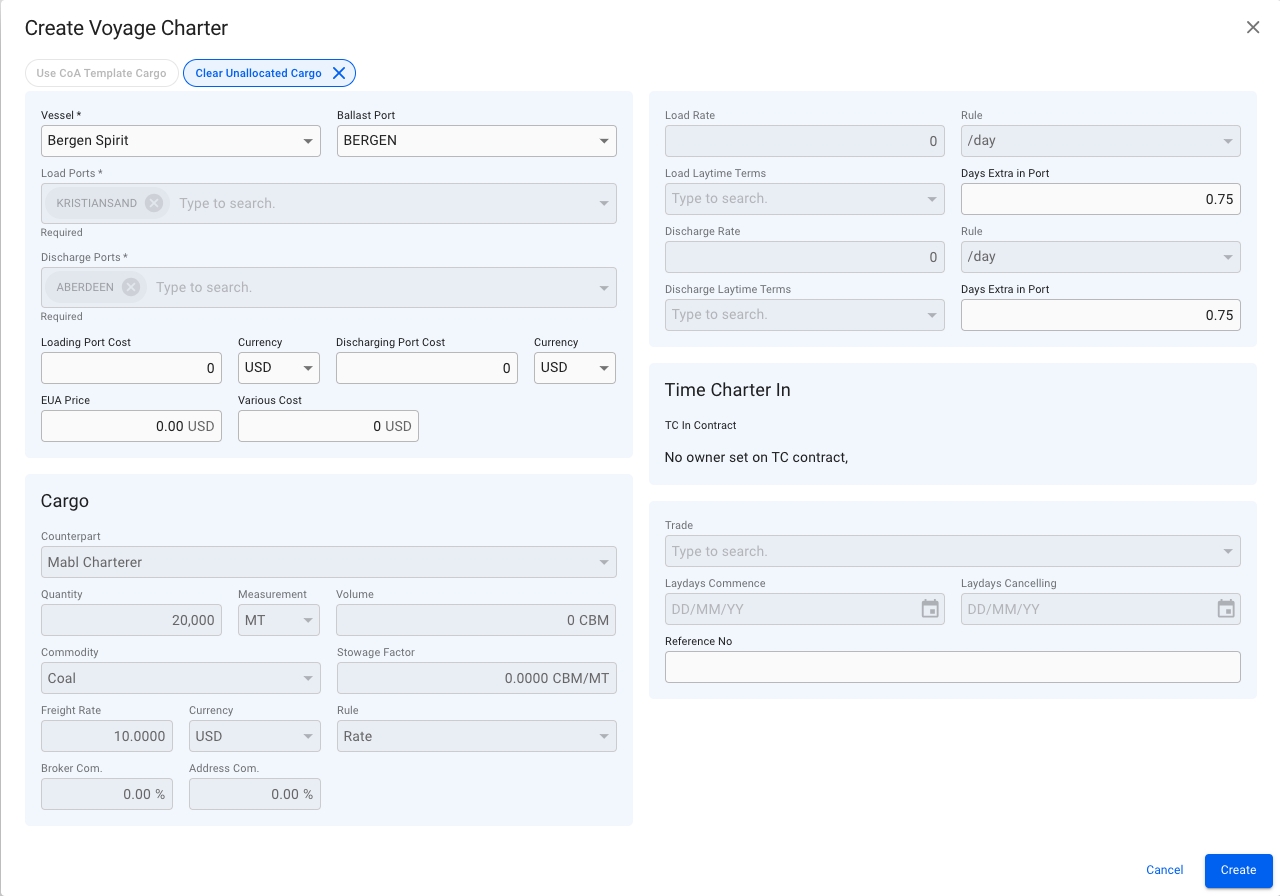
After choosing a cargo, the create voyage modal will be automatically filled in with all the details from the cargo. Only the fields that are not coming from the cargo will remain editable.
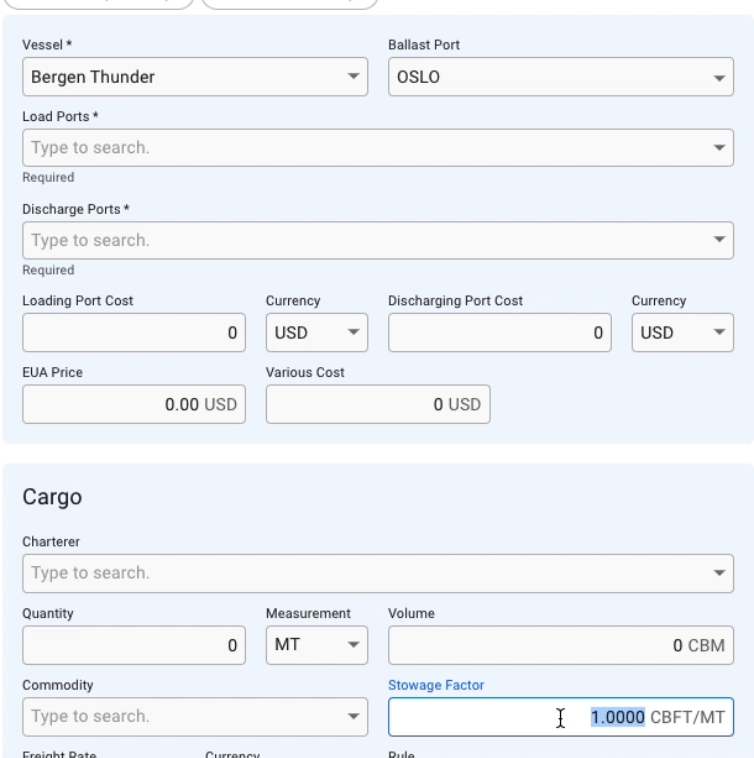
When entering Quantity, Volume or Stowage Factor, the modal will automatically calculate the corresponding value. Updating Quantity or Stowage Factor will update Volume, and updating Volume will update the Stowage Factor. Selecting a Commodity will default the Stowage Factor to that of the commodity.