> For the complete documentation index, see [llms.txt](https://docs.dataloy.com/llms.txt). Markdown versions of documentation pages are available by appending `.md` to page URLs; this page is available as [Markdown](https://docs.dataloy.com/release-8.35/voyage-management-system/step-by-step-guides/alerts/alert-generator.md).
# Alert Generator
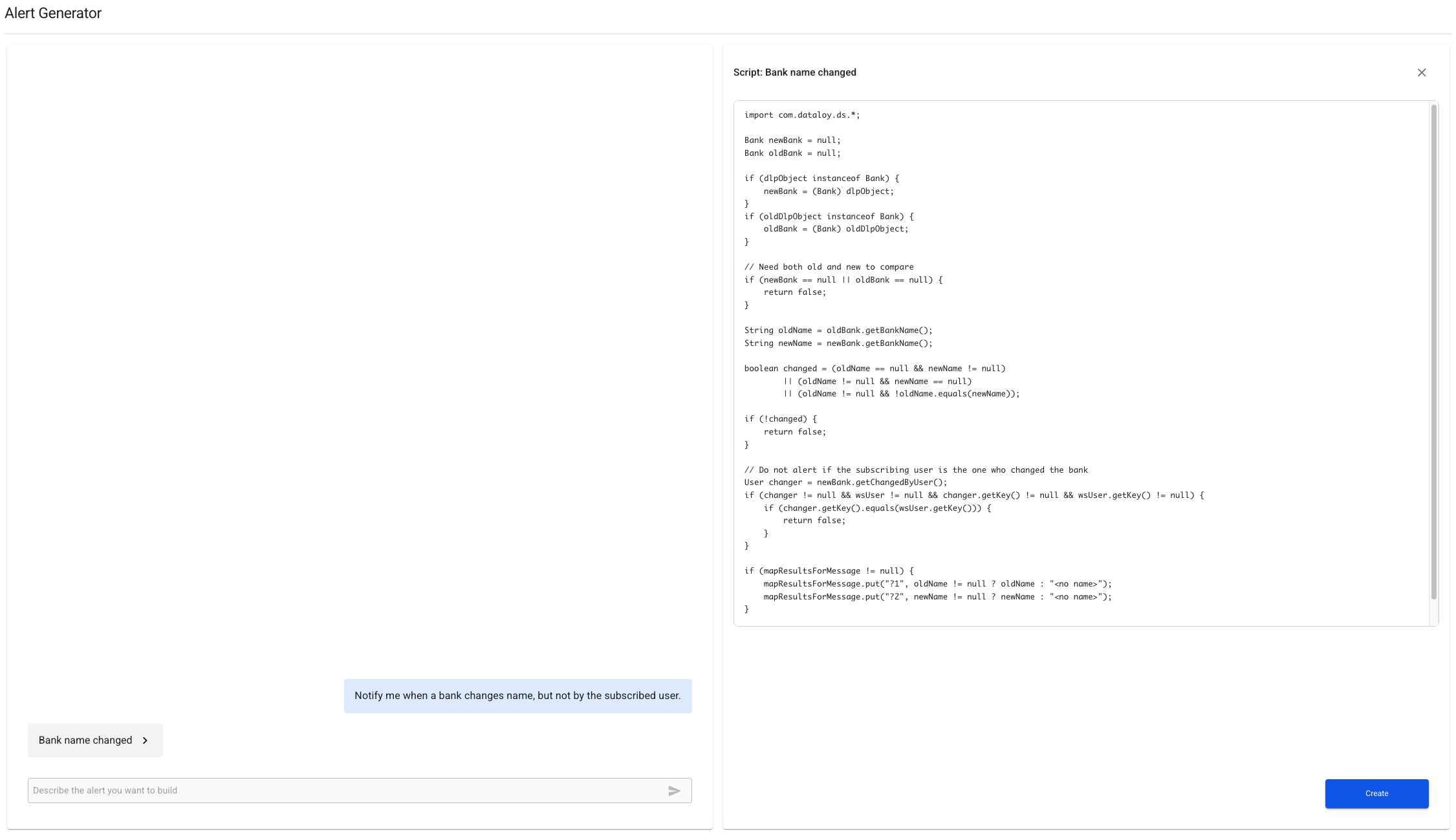
Alert Scripts define complex conditions for when a notification should be sent. Writing one normally takes technical expertise and knowledge of the VMS data model. Alert Generator lets you describe the alert in plain language. An AI assistant writes the script, you review it, and one click turns it into a real Alert Script, optionally with a connected Webhook Alert.
> **Access:** Alert Generator is in the Alerts section and is available to users with the Administrator role. Other users who open the page are shown "You are not authorized to view this page".
Describe the alert in the chat, review the generated script, then create it. Nothing is saved until you confirm in the Create Alert Script dialog, so generating a script is safe to repeat.
> **Important:** the AI writes a first draft. Read the script and test the alert before relying on it: make the change that should trigger it and check that the notification arrives.
{% tabs %}
{% tab title="Alert Generator" %}
### Step by step: generate an alert
1. Open **Alert Generator** in the **Alerts** section.
2. Describe the alert in the chat and press Enter. Say **what** the alert should contain, **when** it should trigger and **which object** to check (see "Writing good requests" below). Example: *When the name of a Bank is updated, but not by the subscribed user, alert me with the old and new name.*
3. Review the generated script in the preview panel. Click an earlier reply in the chat to show its script again.
4. Not right? Send a new, complete description. Each request is handled on its own, so the AI does not see your earlier messages or scripts.
5. Happy with the script? Click **Create** and continue on the next tab.
### Writing good requests
The AI can only build what you describe. If you leave out when to trigger or which object to use, it has to guess. Always include:
| Include | Question it answers | Example |
| ----------------------- | ---------------------------------------------------------------------------- | ------------------------------------------------------ |
| **What to provide** | What should the alert tell the user? | "Include the voyage name, the old TCE and the new TCE" |
| **When to trigger** | What change or condition sends the alert? | "When the TCE changes by more than 10%" |
| **Which object to use** | Which object should be checked, and on which event (create, update, delete)? | "On update of a Voyage" |
| **Exceptions** (if any) | When should it stay silent? | "Not when the change is made by the subscribed user" |
#### Examples
| Weak request | Why it falls short | Better request |
| --------------------------- | ----------------------------------- | -------------------------------------------------------------------------------------------------------------------------- |
| Alert me about TCE. | No condition, no object, no content | When a Voyage is updated and its TCE changes by more than 10%, alert me with the voyage name, the old TCE and the new TCE. |
| Tell me about bank changes. | "Changes" is vague, no content | When the name of a Bank is updated, but not by the subscribed user, alert me with the old and new name. |
| Tell me about new cargoes. | No object, no event, no content | When a Cargo is created, alert me with the cargo name. |
> **Tip:** create one alert per request and use VMS's own terms for objects and fields where you know them.
> {% endtab %}
{% tab title="Create Generated Alert" %}
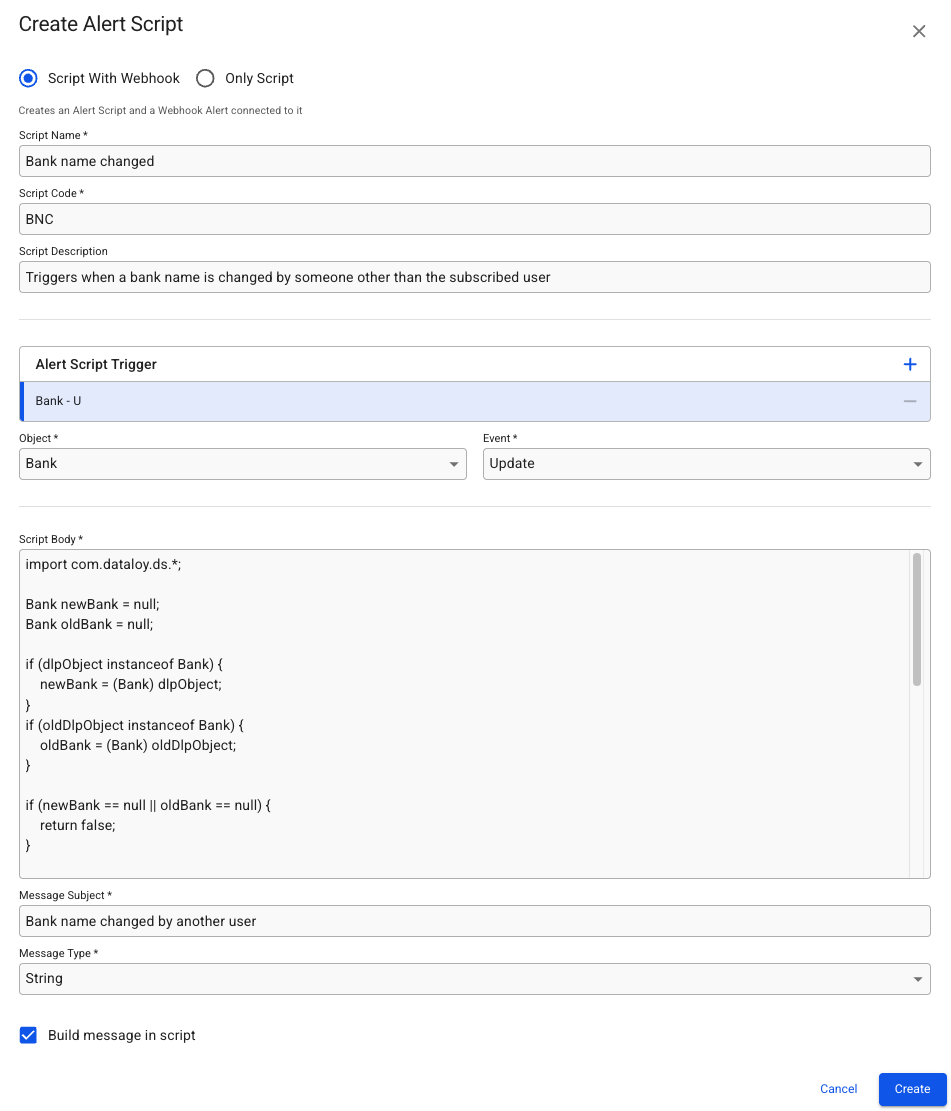
Clicking Create in the preview panel opens the Create Alert Script dialog, pre-filled from the generated script.
### Choose what to create
**Script With Webhook** (default, recommended) creates the Alert Script and a Webhook Alert connected to it in one step.
**Only Script** creates just the Alert Script. Choose it if you will set up the Webhook Alert yourself later, with its trigger set to **Alert Script**.
### Create the alert
1. In the preview panel, click **Create**.
2. Select **Script With Webhook** or **Only Script**.
3. Check the trigger (Object and Event) and the script body. Fix them if the AI guessed wrong.
4. Click **Create**.
### Fields
| Field | Required | Notes |
| --------------------------- | -------- | ---------------------------------------------------------------------------- |
| **Script Name** | Yes | Generated, edit freely |
| **Script Code** | Yes | Short code, generated if missing. Must not exceed the field's maximum length |
| **Script Description** | No | What the alert does |
| **Alert Script Trigger** | | Object and Event pairs that run the script. See below |
| **Script Body** | Yes | The generated Groovy code. You can edit it |
| **Message Subject** | Yes | Subject of the notification |
| **Message Type** | Yes | Defaults to String. Other formats are XML and JSON |
| **Build message in script** | | See below |
| **Alert Script Message** | | Only shown when Build message in script is off |
**Create** stays disabled until Script Name, Script Code, Script Body and Message Subject are filled in.
#### Alert Script Trigger
The trigger decides when the script runs: an **Object** (for example Bank) and an **Event** (C create, U update, D delete), shown as Bank - U. The AI picks it from your description, so fix it here if it guessed wrong. Use **+** to add a trigger and **-** to remove one.
**Build message in script** is set from the script code. You normally do not need to change it.
### What happens next
> **No confirmation is shown.** The dialog closes straight away. If no red error alert appears, the alert was created. Find it in the lists below.
| You chose | Where to find it |
| ----------------------- | ------------------------------------------------------------------------------------------------------------------------------------------------------- |
| **Script With Webhook** | **Alerts > Webhook Alerts**. The new alert is listed with its Code, Name, Object, Event and Alert Script. It also appears in **Alerts > Alert Scripts** |
| **Only Script** | **Alerts > Alert Scripts** |
**Script With Webhook:** each user who wants the alert opens their account page (click the profile picture), selects the **Alerts** tab and ticks **Push Notification** and/or **Email** for the alert.
**Only Script:** continue in the **Webhooks** module to build a webhook that uses the script.
Refresh the list if the alert is missing. Alert Scripts is only shown to users with access to that page.
{% endtab %}
{% endtabs %}
### Troubleshooting
| Problem | What to do |
| ----------------------------------------------- | ---------------------------------------------------------------------------------------- |
| "You are not authorized to view this page" | Your user lacks the Administrator role |
| Chat shows an error message instead of a script | The AI service did not answer or failed. Try again. If it keeps failing, contact support |
| Script does not match what you wanted | Send a new, more specific description. The AI does not remember the previous attempt |
| Wrong trigger object or event | Fix it in the Alert Script Trigger section of the Create dialog |
| **Create** is disabled | A required field is empty, or Script Code is too long |
| Chat history is gone | The chat history is kept in the current session only. Generate again |
| A red alert appears after clicking **Create** | The alert was not created. Read the message, fix the field it points to and try again |
| No alert appears in the list after **Create** | Refresh the list or the page. If it is still missing, generate and create again |
---
# Agent Instructions
This documentation is published with GitBook. GitBook is the documentation platform designed so that both humans and AI agents can read, navigate, and reason over technical content effectively. Learn more at gitbook.com.
## Querying This Documentation
If you need additional information that is not directly available in this page, you can query the documentation by asking a question.
Perform an HTTP GET request on the following URL with the `ask` and `goal` query parameters:
```
GET https://docs.dataloy.com/release-8.35/voyage-management-system/step-by-step-guides/alerts/alert-generator.md?ask=&goal=
```
`ask` is the immediate question: it should be specific, self-contained, and written in natural language.
`goal` is what the user is ultimately trying to achieve, the reason they need the answer. Sharing it helps GitBook give you a better, more relevant answer. A goal is most helpful when it describes the outcome the user wants rather than restating the question. For example, with `ask=how do I create an API token`, a goal like `automate deployments from our CI pipeline` lets GitBook tailor the answer to that use case.
The response will contain a direct answer to the question and relevant excerpts and sources from the documentation.
Use this mechanism when the answer is not explicitly present in the current page, you need clarification or additional context, or you want to retrieve related documentation sections.