# Create, Edit & Delete Various Cost/Revenue

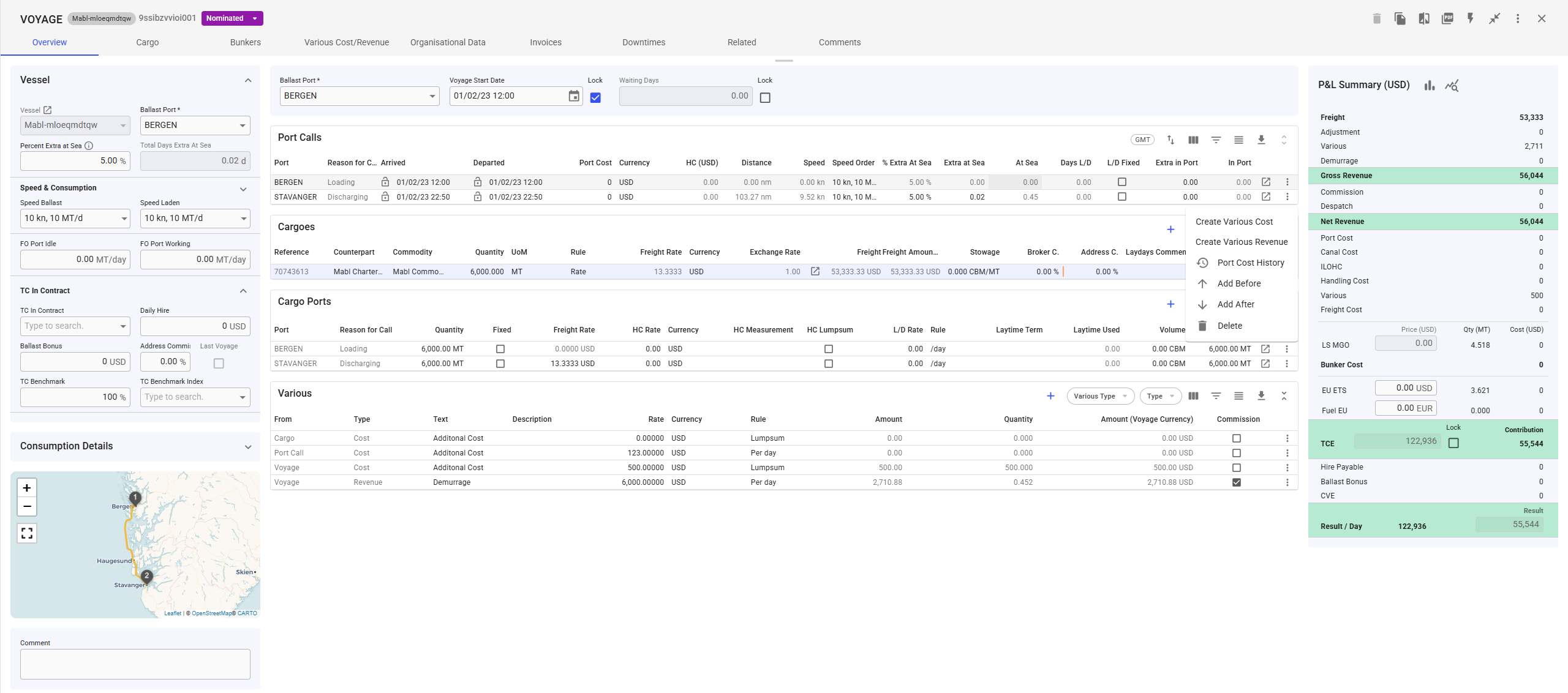
It is possible to create, edit, and delete ***Various Cost/Revenue*** entries for a voyage directly from the Various Cost/Revenue tab. Additionally, in the ***full-screen view*** of the voyage drawer, you can create Various Cost/Revenue entries for **Cargo** and **Port Call** using the **vertical ellipsis menu** (see Figure 1 for reference).

<figure><img src="/files/mQidFKZFnkGmh3gb52wH" alt=""><figcaption><p>Figure 1: Voyage Full-Screen Create Port Call Various Cost/Revenue </p></figcaption></figure>

All **Various Cost/Revenue** entries are also displayed in the **Various Grid** (accessible in full-screen view), allowing you to easily view, edit, or delete entries as needed.

## Create New Various Cost/Revenue

<figure><img src="/files/Yn2ph6hPpTk8JOcCRtzi" alt=""><figcaption><p>Figure 2: Various Cost Create Button</p></figcaption></figure>

1. **Click the Create Button** – Locate and click the **Create** button in the top-right corner of the header *(Figure 2)*.
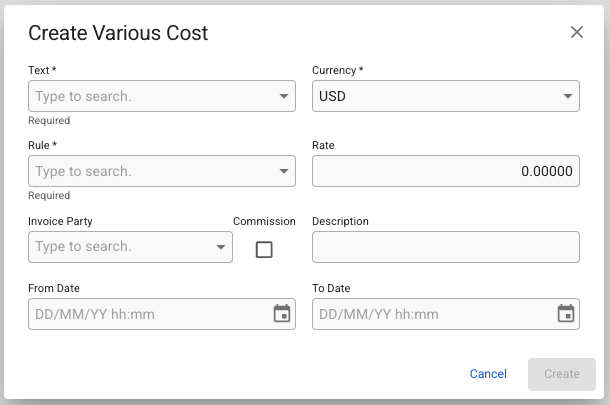
2. **Enter Required Information** – A **Create** modal will appear, prompting you to fill in the necessary fields.
3. **Create the Various**– Once all required details are entered, click **Create** to finalize and add the new Various.
   1. New various items will have status 'Estimated' by default.

<figure><img src="/files/WFRGnlrlhO2gegj42KfM" alt="" width="305"><figcaption><p>Figure 2. Create Various Cost/Revenue</p></figcaption></figure>

## Edit Various Cost/Revenue

1. **Select the Various**– Click anywhere on the row of the Various you wish to edit in the list.
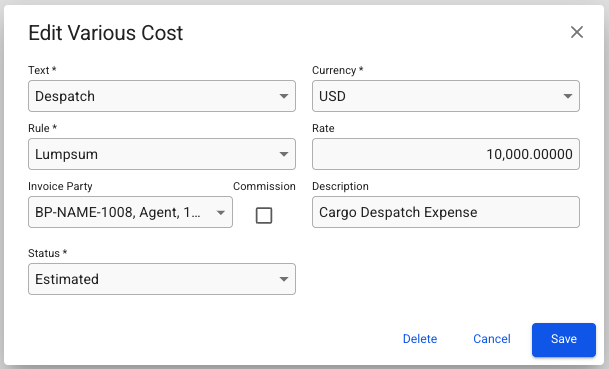
2. **Modify Details** – An **Edit** modal will appear (figure 4), allowing you to update the entry’s properties.
3. **Save Changes** – Click **Save** to apply the modifications.

<figure><img src="/files/0IDqFW0EE4O3xpeHc43h" alt="" width="305"><figcaption><p>Figure 3. Edit Various Cost/Revenue</p></figcaption></figure>

## Delete Various Cost/Revenue

<figure><img src="/files/IR4Mm6ZvBmgk4FBMrrlL" alt=""><figcaption><p>Figure 5: Delete Various Cost/Revenue </p></figcaption></figure>

1. **Select Entries for Deletion** – Use the checkboxes in the leftmost column to select the relevant entries.
2. **Click the Delete Option** – Once selected, a **Delete** button will appear in the top-right corner of the header.
3. **Confirm Deletion** – Click **Delete**, then confirm in the popup that appears to complete the removal.

⚠️ **Note:** Deleted entries cannot be restored. Be sure to review your selection before confirming deletion.


---

# Agent Instructions: Querying This Documentation

If you need additional information that is not directly available in this page, you can query the documentation dynamically by asking a question.

Perform an HTTP GET request on the current page URL with the `ask` query parameter:

```
GET https://docs.dataloy.com/release-8.25/voyage-management-system/step-by-step-guides/voyages/maintain-voyages/various-cost-revenue/create-edit-and-delete-various-cost-revenue.md?ask=<question>
```

The question should be specific, self-contained, and written in natural language.
The response will contain a direct answer to the question and relevant excerpts and sources from the documentation.

Use this mechanism when the answer is not explicitly present in the current page, you need clarification or additional context, or you want to retrieve related documentation sections.