# Find / Create a Vessel Series

## How to Find

Navigate to the **Master Data** module <img src="/files/-M49l8Y73BK_WcqImg2D" alt="" data-size="original"> **Vessel Series** list from the menu on the left.

## Create a Vessel Series

1. From the **Vessel Series** list, navigate to the top-right
2. In this corner, click the <img src="/files/-M23aB95JDSUt7kYOdWo" alt="" data-size="line">-icon
3. Select **Create Vessel Series**
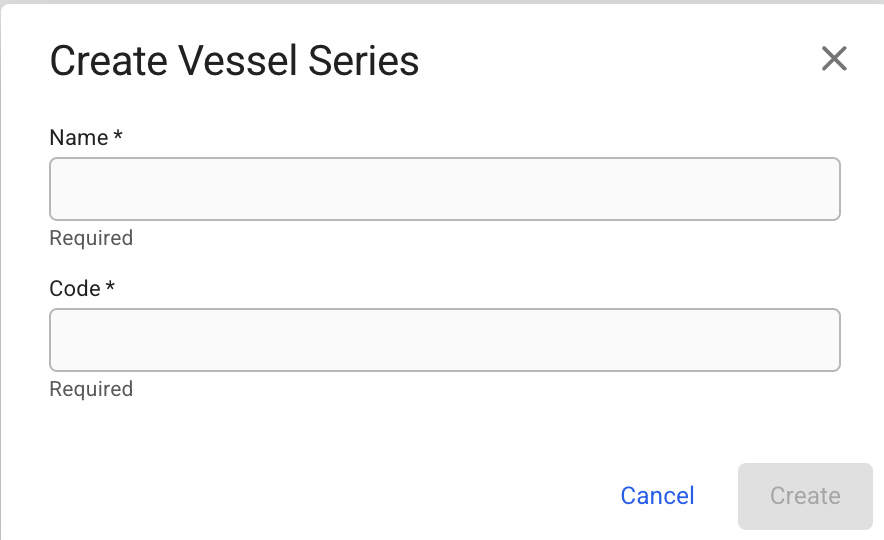
4. In the modal, you can fill in the required fields and add any additional information about the Market Index
5. After you have filled in, you can click **Create**

<figure><img src="/files/ZOAVHvLIH4NNHxJXNQQl" alt="" width="375"><figcaption><p>Create Vessel Series modal</p></figcaption></figure>

{% hint style="info" %}
Note that:

* the Vessel Series *Code* must be unique and uppercase letters only
* all fields are required when creating and editing
  {% endhint %}

After creating, the Vessel Series drawer will pop up.

Read more about a similar list, Vessel Classes, here: [Vessel Classes](/release-8.25/voyage-management-system/step-by-step-guides/master-data/vessel-classes.md).


---

# Agent Instructions: Querying This Documentation

If you need additional information that is not directly available in this page, you can query the documentation dynamically by asking a question.

Perform an HTTP GET request on the current page URL with the `ask` query parameter:

```
GET https://docs.dataloy.com/release-8.25/voyage-management-system/step-by-step-guides/master-data/vessel-series/find-create-a-vessel-series.md?ask=<question>
```

The question should be specific, self-contained, and written in natural language.
The response will contain a direct answer to the question and relevant excerpts and sources from the documentation.

Use this mechanism when the answer is not explicitly present in the current page, you need clarification or additional context, or you want to retrieve related documentation sections.
