# Cargoes Grid

The voyage's cargoes have been relocated from the cargo tab, and the collapsible section for editing cargo has been removed in the full-screen view (see *Figure 1*).

<figure><img src="/files/U2cNjgDYHOFgJhmOZFa7" alt=""><figcaption><p>Figure 1: Cargoes grid</p></figcaption></figure>

### Creating new Cargo

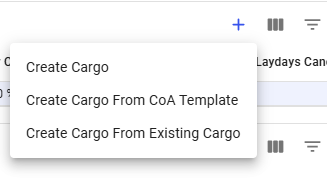
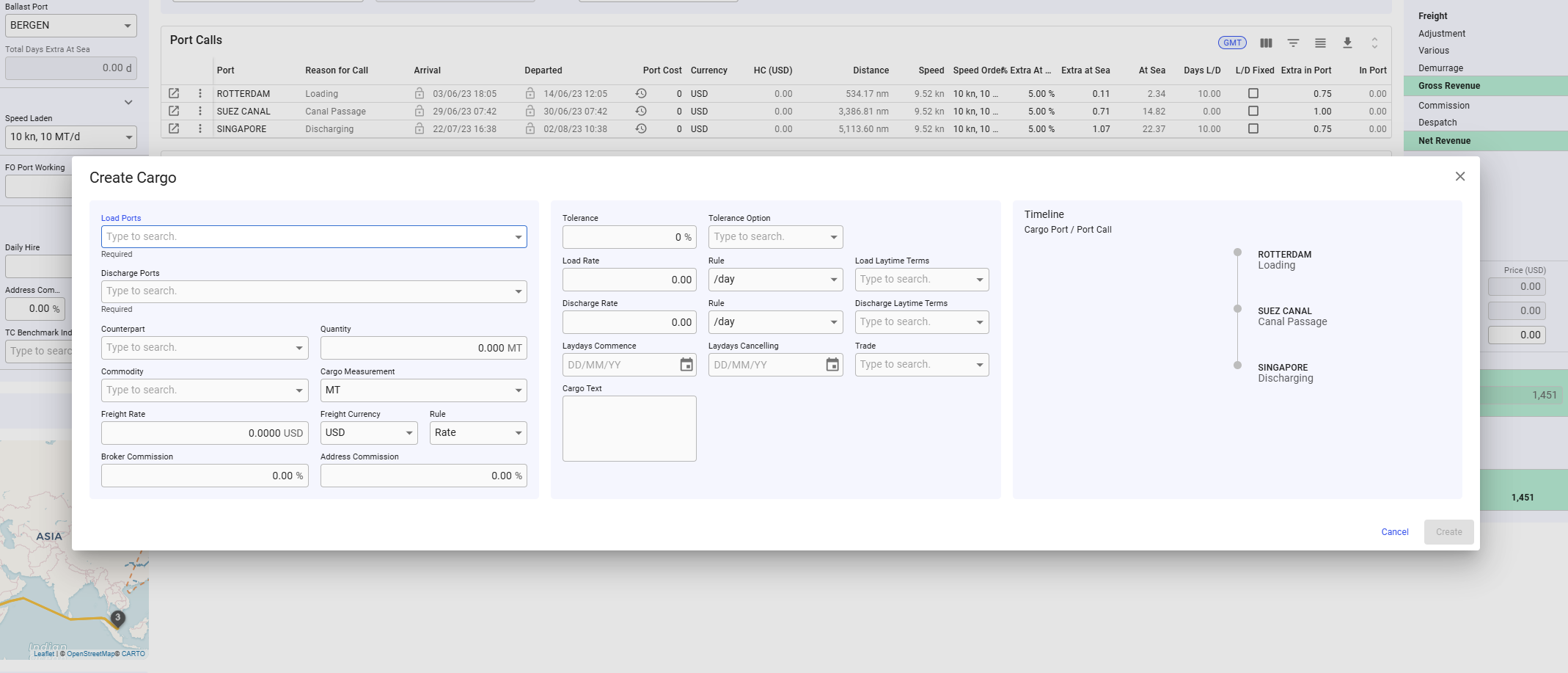
Click the blue cross icon on the right side of the grid header to display a list of options for creating a new cargo (see figures below). After selecting an option, the appropriate "Create Cargo" modal will appear.

<div align="left"><figure><img src="/files/370kpneuVPdwP2PvV0gY" alt=""><figcaption><p>Figure 2: Create Cargo options</p></figcaption></figure></div>

<figure><img src="/files/VXgbANRxHVtx3yYTKYcj" alt=""><figcaption><p>Figure 3: Selected Cargo create modal</p></figcaption></figure>

### Editing a Cargo

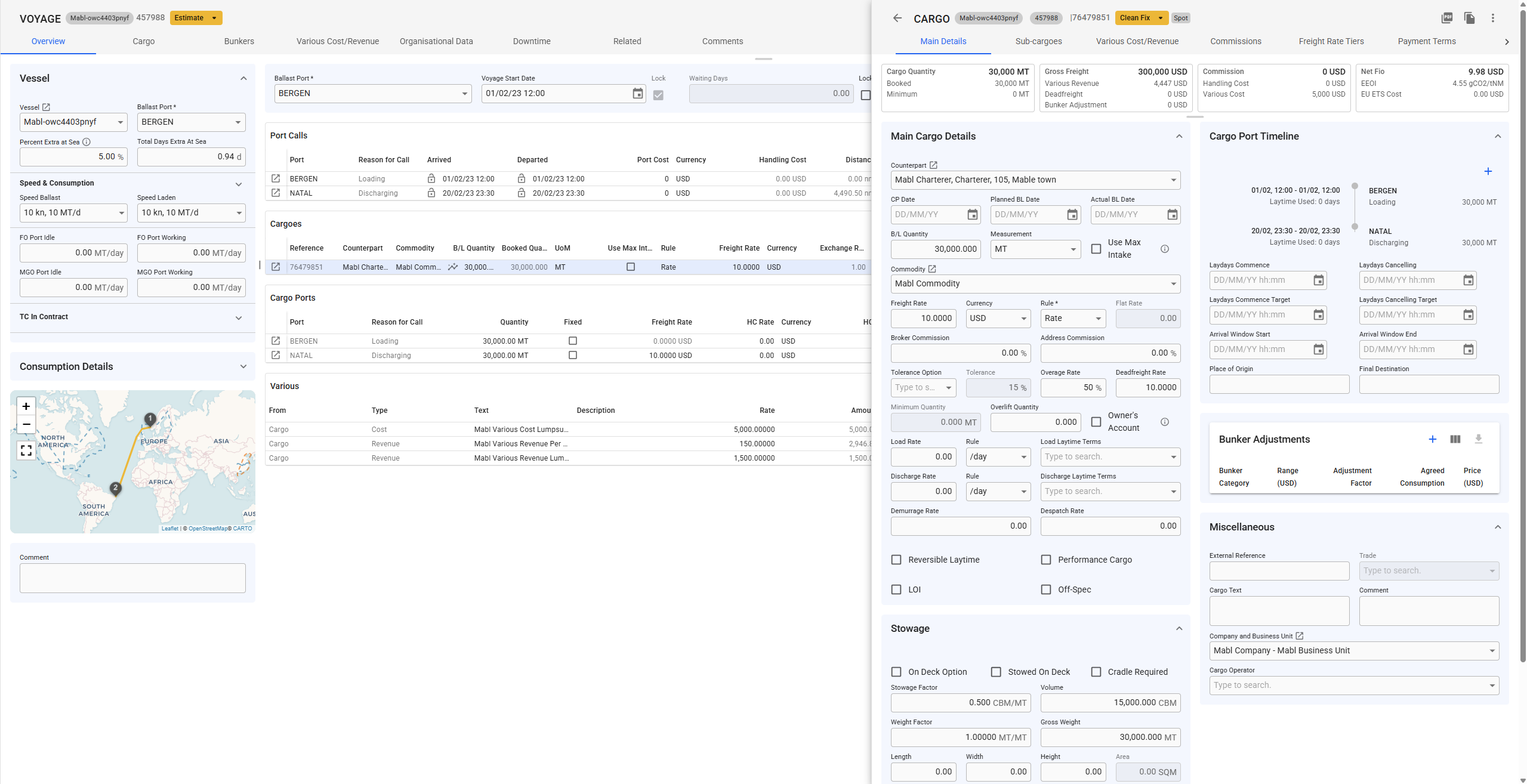
Like all grids, the Cargo fields can be edited directly within the grid. Alternatively, you can click the ***Open Cargo*** icon in the left-most column to access the Cargo drawer. This drawer will appear on top of the voyage drawer (see *Figure 4*).

<figure><img src="/files/H1dvf305jYYUDmwRoj62" alt=""><figcaption><p>Figure 4: Cargo Drawer opened</p></figcaption></figure>

### Copy or Delete a Cargo

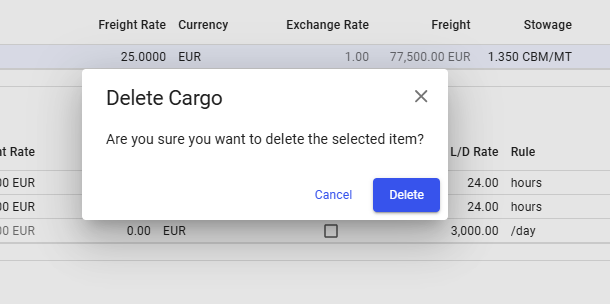
It is possible to copy or delete a Cargo by clicking the vertical ellipsis menu in the right-most column. This opens a menu where you get the option to copy or delete the Cargo (see figure 5). When either options are selected, a popup asking for confirmation will appear to prevent unintended actions.

<figure><img src="/files/kKXaPGNSJk0TwqI7FEjT" alt=""><figcaption><p>Figure 5: Cargo-row menu options</p></figcaption></figure>

<figure><img src="/files/LPVXN6ViSvuWJVCLYun1" alt=""><figcaption><p>Figure 6: Delete confirmation</p></figcaption></figure>

### Selecting a Cargo

It is possible to select a cargo in the Cargoes grid by ***double-clicking*** the cargo. When this is done, ***and*** the [***cargo type filter*** ](/release-8.25/voyage-management-system/step-by-step-guides/data-grids/various-grid.md#filtering)is applied in the various grid, the [*various grid*](/release-8.25/voyage-management-system/step-by-step-guides/data-grids/various-grid.md) will display the variouses *specific* to the *selected* Cargo.

### Creating a new Cargo Various&#x20;

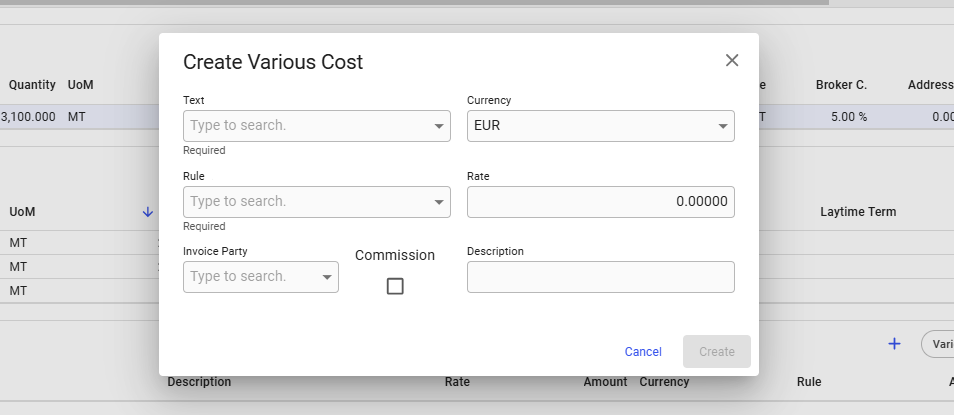
It is possible to create a new various for the Cargo. This is done by clicking the vertical ellipsis in the right-most column (see *Figure 5*). From this, you can select the option to create a new various cost or revenue. This will open a modal where you can define the new various, as seen in the figure below.

<figure><img src="/files/MlwWRjgh2q78NSif6iHo" alt=""><figcaption><p>Figure 7: Create Various Cost modal</p></figcaption></figure>

### Using suggested cargo quantity

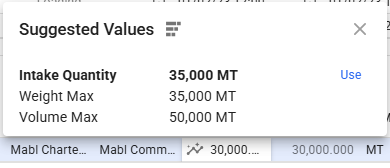
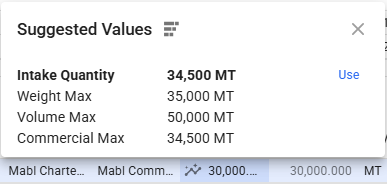
In the cargo quantity cell in the cargo grid there is now a special icon. If you click this icon a pop-over will appear where you can apply the current intake quantity to the cargo quantity. In the pop-over you can see what the current intake quantity is and what numbers is used in deciding what the intake is. If the tolerance option is MOLOO for the cargo a third option. For more information about the different quantities see [Automatically set cargo quantity to max intake](/release-8.25/voyage-management-system/step-by-step-guides/cargoes/maintain-cargoes/automatically-set-cargo-quantity-to-max-intake.md) for explanations. Note that the automatically part is not relevant here. It does however use the same numbers.

<div><figure><img src="/files/och2vqOZm2ruXZTT8bLN" alt=""><figcaption><p>Intake quantity pop-over</p></figcaption></figure> <figure><img src="/files/T0WOXoQismQrTkOXIwV6" alt=""><figcaption><p>Intake quantity pop-over where the cargo has tolerance option MOLOO</p></figcaption></figure></div>


---

# Agent Instructions: Querying This Documentation

If you need additional information that is not directly available in this page, you can query the documentation dynamically by asking a question.

Perform an HTTP GET request on the current page URL with the `ask` query parameter:

```
GET https://docs.dataloy.com/release-8.25/voyage-management-system/step-by-step-guides/data-grids/cargoes-grid.md?ask=<question>
```

The question should be specific, self-contained, and written in natural language.
The response will contain a direct answer to the question and relevant excerpts and sources from the documentation.

Use this mechanism when the answer is not explicitly present in the current page, you need clarification or additional context, or you want to retrieve related documentation sections.