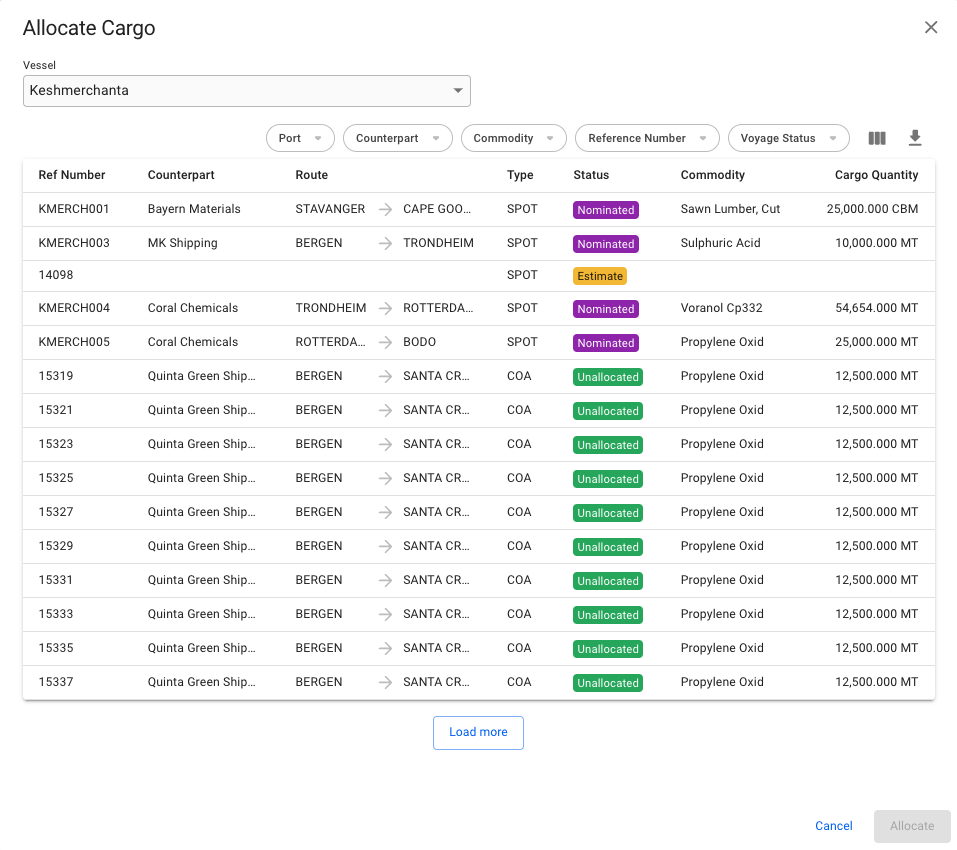
A vessel has been selected, and the voyages on that vessel is displayed
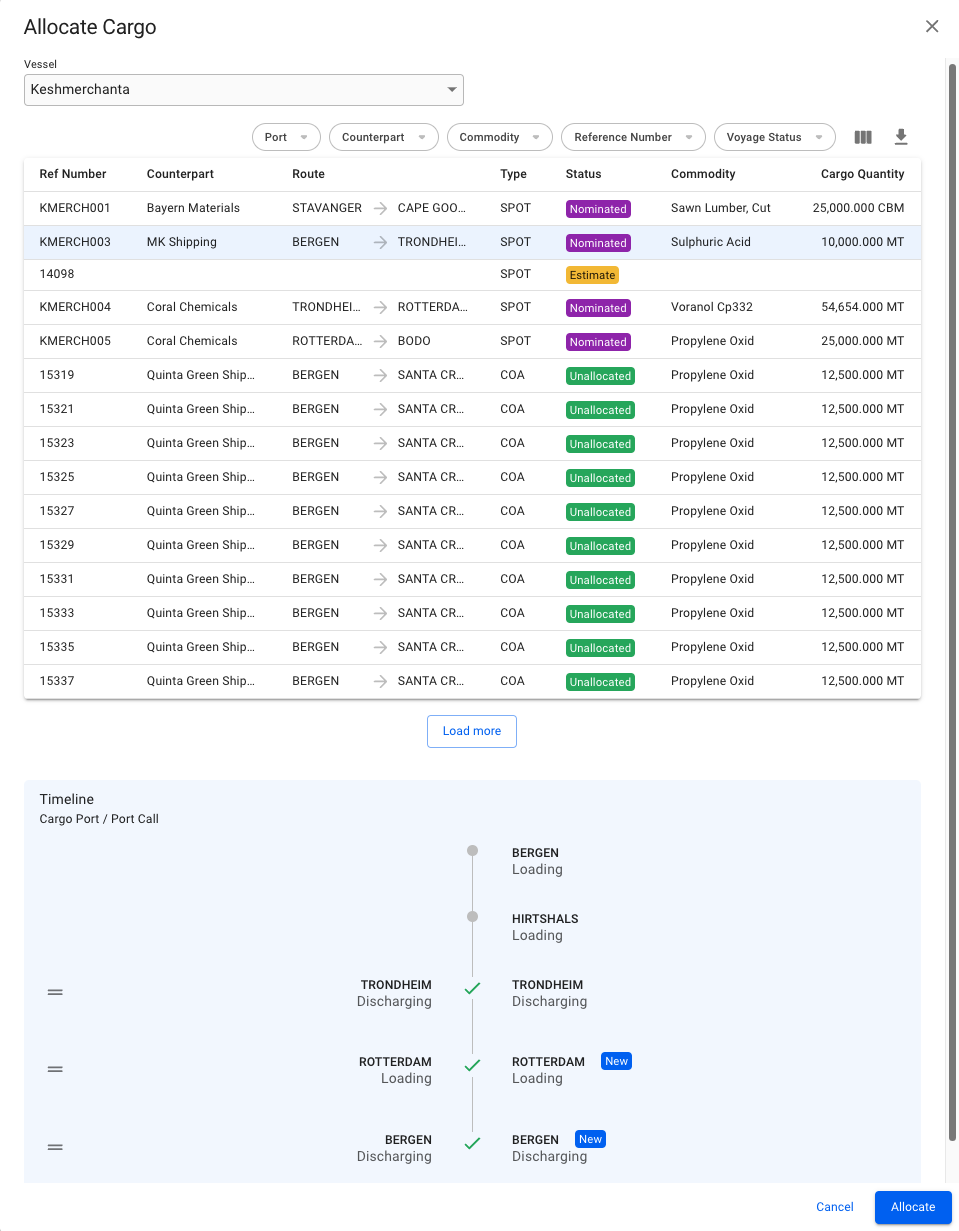
A voyage has been selected. The cargo port Trondheim will be linked to the existing Trondheim discharge port, while new port calls for Rotterdam and Bergen will be created.
 in the top right.
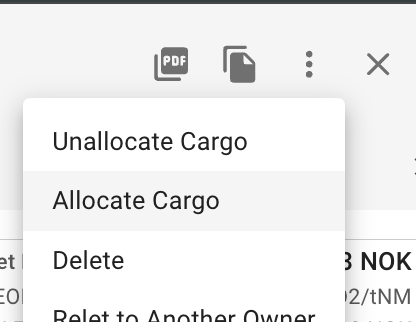
3. Click the **Allocate Cargo** button to open a dialogue for allocation.
in the top right.
3. Click the **Allocate Cargo** button to open a dialogue for allocation.
 The allocation dialogue is a three-step process. Once you have selected a vessel, a list of all the voyages on the vessel will appear. Sort and filter the list to find the exact voyage you want, select it, and a preview of the voyage schedule will appear, with cargo ports on the left, and port calls on the right. The scheduler will attempt to link the existing port calls on the voyage with the cargo's cargo ports. If no port call exists, a new one will be created at the end of the voyage. These are denoted by a blue "NEW" chip. You can re-arrange the port calls by dragging and dropping.
A vessel has been selected, and the voyages on that vessel is displayed
A voyage has been selected. The cargo port Trondheim will be linked to the existing Trondheim discharge port, while new port calls for Rotterdam and Bergen will be created.