> For the complete documentation index, see [llms.txt](https://docs.dataloy.com/llms.txt). Markdown versions of documentation pages are available by appending `.md` to page URLs; this page is available as [Markdown](https://docs.dataloy.com/release-8.25/voyage-management-system/step-by-step-guides/cargoes/find-cargoes.md).
# Find Cargoes
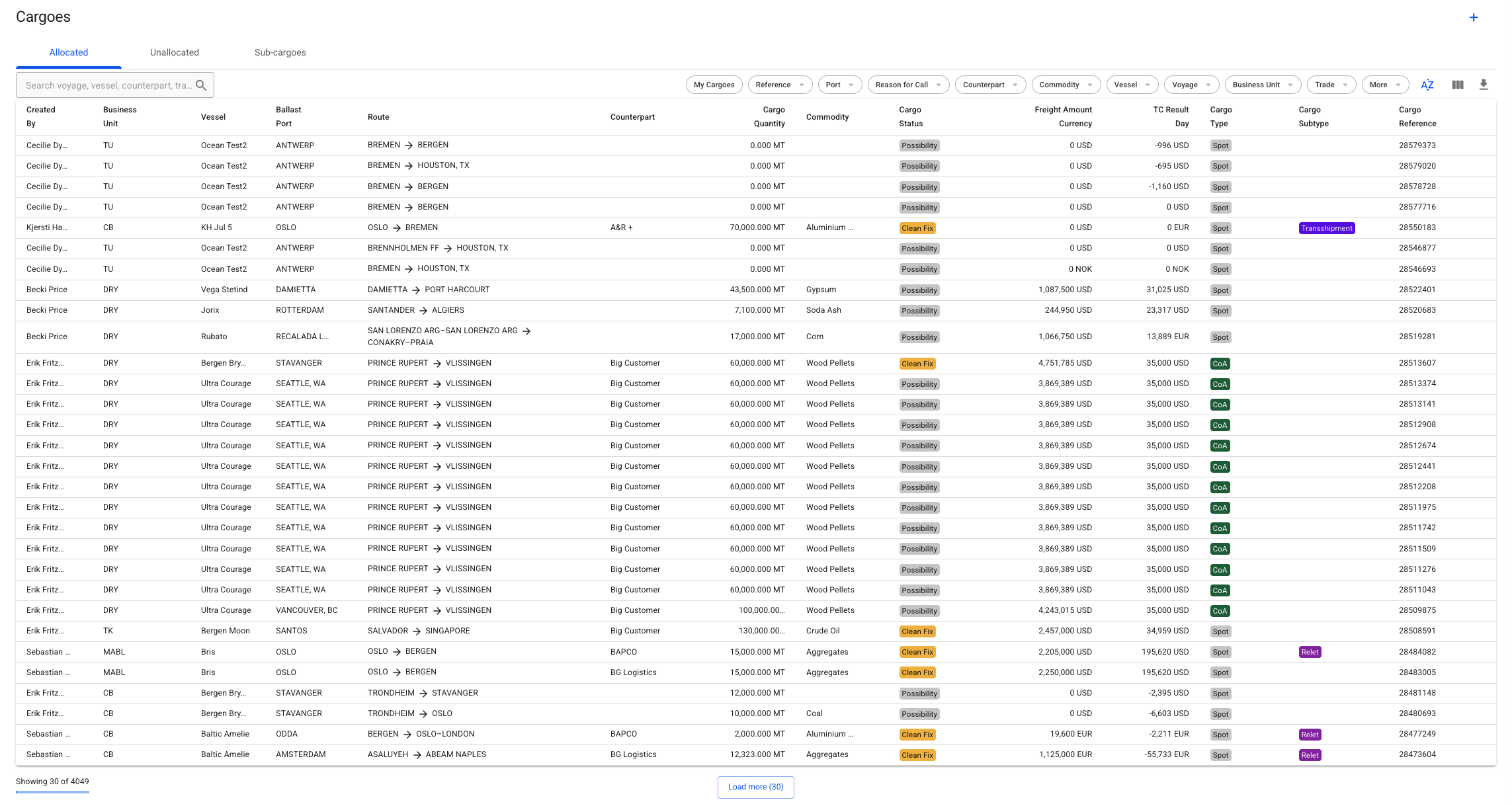
The VMS contains all cargoes created in your system. To access the Cargo lists, you can navigate in the left-side menu to the "Cargoes" module. This will display 3 different cargo lists: **Allocated**, **Unallocated** and **Sub-cargoes:**
Cargoes module with three tabs for viewing Allocated, Unallocated and Sub-cargoes
Both the lists Allocated and Unallocated shows cargoes of all statuses and types, while the Sub-cargoes list shows the sub-cargoes linked to different cargoes.
## Allocated
This list contains of all the *allocated* cargoes. Meaning, cargoes created on and/or allocated/moved to voyages. Multiple cargoes can be allocated on the one and same voyage. You can hereafter open one of the items on the list, to view the [Cargo drawer.](/release-8.25/voyage-management-system/step-by-step-guides/cargoes/maintain-cargoes/cargo-drawer.md)
## Unallocated
This list contains of all the *allocated* cargoes. When creating a cargo from scratch, this is where that cargo will be placed, by default. These cargoes don't belong to any voyages yet, but once you click on one of the items on the list, you can perform different [Cargo drawer actions](/release-8.25/voyage-management-system/step-by-step-guides/cargoes/maintain-cargoes/cargo-drawer-actions.md), e.g. allocating the cargo.
Click [here](/release-8.25/voyage-management-system/step-by-step-guides/cargoes/create-cargoes.md) to see an overview of the different ways to create a cargo.
## Sub-cargoes
This list contains of all the *sub-cargoes* linked to cargoes. These do not have a drawer, but when clicking on one item from the list, you can see a modal (or "dialog box") pop-up on the screen. Multiple sub-cargoes can be linked on the one and same cargo.
You can read more about Sub-cargoes [here](/release-8.25/voyage-management-system/step-by-step-guides/cargoes/sub-cargoes.md).
## Sorting & Filtering
There are several [sorting and filtering](/release-8.25/voyage-management-system/step-by-step-guides/sorting-and-filtering-lists.md) options available for you to narrow down what you include in the list view.
---
# Agent Instructions
This documentation is published with GitBook. GitBook is the documentation platform designed so that both humans and AI agents can read, navigate, and reason over technical content effectively. Learn more at gitbook.com.
## Querying This Documentation
If you need additional information that is not directly available in this page, you can query the documentation by asking a question.
Perform an HTTP GET request on the following URL with the `ask` and `goal` query parameters:
```
GET https://docs.dataloy.com/release-8.25/voyage-management-system/step-by-step-guides/cargoes/find-cargoes.md?ask=&goal=
```
`ask` is the immediate question: it should be specific, self-contained, and written in natural language.
`goal` is what the user is ultimately trying to achieve, the reason they need the answer. Sharing it helps GitBook give you a better, more relevant answer. A goal is most helpful when it describes the outcome the user wants rather than restating the question. For example, with `ask=how do I create an API token`, a goal like `automate deployments from our CI pipeline` lets GitBook tailor the answer to that use case.
The response will contain a direct answer to the question and relevant excerpts and sources from the documentation.
Use this mechanism when the answer is not explicitly present in the current page, you need clarification or additional context, or you want to retrieve related documentation sections.