# Create Cargo by Importing from Excel

## Import Button

From this version, you can now can create cargo(es) by uploading/import straight from an Excel worksheet. In the [*Unallocated*](/release-8.25/voyage-management-system/step-by-step-guides/cargoes/find-cargoes.md#unallocated) cargoes list, you can click on this *import* button:

<figure><img src="/files/SidtrVfZO1CT3ReMEEZR" alt=""><figcaption><p>Unallocated cargoes list with the Import button</p></figcaption></figure>

## Import Cargoes from Excel

Then, you can follow these steps:

1. Click on the Import button displayed above
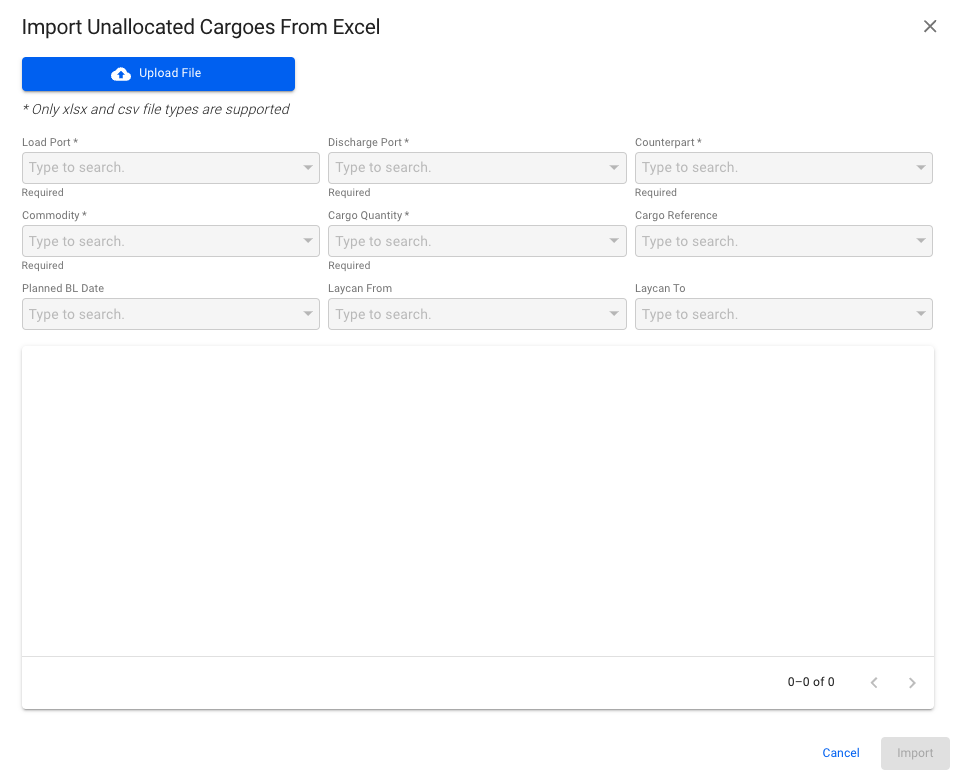
2. A modal (or "dialog box") will pop-up:

<div data-full-width="false"><figure><img src="/files/pNdlhRO5x8MTmUFRgvtV" alt=""><figcaption><p>Modal for importing unallocated cargoes form an Excel sheet</p></figcaption></figure></div>

All the fields are *disabled* until you upload/import a supported file (only *.xlsx* and *.csv* files). You can only import *one* *file* at a time, **but** one file can consist of *many cargo rows*!

3. You can proceed by clicking the blue *Upload File* button.
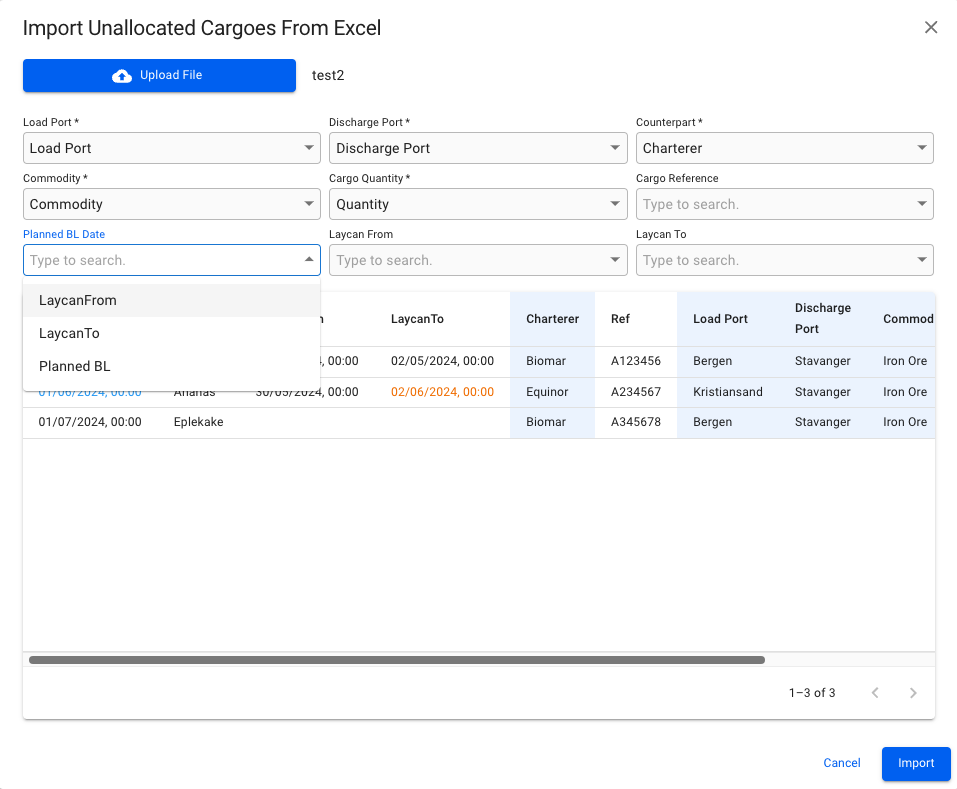
4. After choosing a supported file from you computer, you can view the filename to the right of the Upload File button, along with a "preview screen" below all the now-enabled fields:&#x20;

<figure><img src="/files/Sj8xpeg25poTJLpD2Shr" alt=""><figcaption><p>Modal after choosing a supported Excel file</p></figcaption></figure>

All the required fields (\*) **must** be filled in this step. As you go along with choosing the different fields from the dropdown menus, the "preview screen" will mark with a light-blue highlight on the fields have been selected. Meaning, you could upload your own customized Excel sheet with various header- and cell values, but you can then in the modal pick-and-choose which fields you actually want on the cargo, when creating it.&#x20;

{% hint style="info" %}
**Tip:** it might be a good idea to change/create Header values in your Excel sheet by matching them to what we display in the above modal. E.g. Counterpart, Commodity, Cargo Quantity, Load Port, etc.&#x20;
{% endhint %}

Remember that **only the** **first row** of your Excel sheet are the Header values! The rest are the cell values within their respective columns.&#x20;

5. After choosing the different values into the fields, and you are full-filling all the [requirements](#requirements-for-importing) below, then you can go ahead and create the cargo by clicking **Import**
6. You should now be able to see your newly created cargo at the top of the Unallocated cargoes list

## Validations before Creating

We have **two** different types of validations in this modal. Either one, or both, of them will show up at the bottom of the modal, if encountering any inconsistencies while uploading:

**(1)** One is yellow-colored, and shows **inconsistent data types** in the cells of your Excel sheet:

<figure><img src="/files/B8zIHGxmayvCTsyhjTsy" alt=""><figcaption><p>Inconsistent data types validation message</p></figcaption></figure>

This particular validation highlights the "Planned BL Date" column, and detects that two or more cells has inconsistent values within this column. E.g. one cell is read as a number value, while two cells are read as date values. In this case, the number-cell should be changed to a date value, so that the modal can read it properly as a date value. Make the change in your Excel sheet, and then re-upload the file.

This validation can highlight multiple columns with inconsistencies in data types, and not just *one* at a time.&#x20;

**(2)** The other one is red-colored, and shows **Reference or Master Data inconsistencies**, i.e. data errors in your Excel sheet:

<figure><img src="/files/TiVWErm2LzJPibxjl9Ah" alt=""><figcaption><p>Inconsistent reference or Master Data validation error message</p></figcaption></figure>

This particular validation highlights the "Commodity" column, and detects that "Row 2" within this column has a commodity named "Bananas" that does not exist in the system. In this case, you have two options:

&#x20;        a) replace "Bananas" with an existing Commodity in your Master Data, in your Excel sheet, and then re-upload the file

&#x20;        b) create a new Commodity "Bananas" in your [Master Data](/release-8.25/voyage-management-system/step-by-step-guides/master-data.md) first, and then re-upload the file.&#x20;

This validation can highlight multiple columns and rows with inconsistencies in Master Data or references, and not just *one* column and/or row at a time.&#x20;

## Requirements for Importing

Before actually *creating* a cargo by importing from an Excel worksheet, these *requirements* **must** be full-filled:

* A supported Excel file **must** be uploaded/imported (only *.xlsx* and *.csv* files)
* All required fields (\*) **must** be filled in with supported values
* **No** data types inconsistencies
* **No** Master Data inconsistencies
* **No** duplicate cargo references, or references to existing cargos

Once all of these requirements are full-filled, the **Import** button will be enabled, i.e. blue-colored, and you can then go ahead and create the cargo!


---

# Agent Instructions: Querying This Documentation

If you need additional information that is not directly available in this page, you can query the documentation dynamically by asking a question.

Perform an HTTP GET request on the current page URL with the `ask` query parameter:

```
GET https://docs.dataloy.com/release-8.25/voyage-management-system/step-by-step-guides/cargoes/create-cargoes/create-cargo-by-importing-from-excel.md?ask=<question>
```

The question should be specific, self-contained, and written in natural language.
The response will contain a direct answer to the question and relevant excerpts and sources from the documentation.

Use this mechanism when the answer is not explicitly present in the current page, you need clarification or additional context, or you want to retrieve related documentation sections.