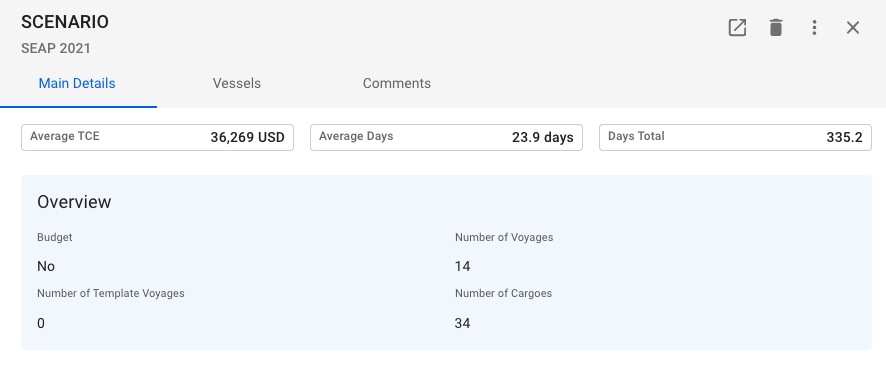
Main Details Section of Scenario Drawer
Main Details Section of Scenario Drawer
 in the top right corner of the vessels list.
4. Select/Deselect vessels in the Select Vessels dialog.
5. Click **Confirm**.
{% hint style="info" %}
Read about the new Comparing Scenarios functionality [here](/release-8.25/fleet-allocation-and-scheduling/getting-started/planning/fleet-plans.md#select-a-comparing-scenario)!
{% endhint %}
---
# Agent Instructions
This documentation is published with GitBook. GitBook is the documentation platform designed so that both humans and AI agents can read, navigate, and reason over technical content effectively. Learn more at gitbook.com.
## Querying This Documentation
If you need additional information that is not directly available in this page, you can query the documentation dynamically by asking a question.
Perform an HTTP GET request on the current page URL with the `ask` query parameter, and the optional `goal` query parameter:
```
GET https://docs.dataloy.com/release-8.25/fleet-allocation-and-scheduling/getting-started/planning/scenarios/maintain-scenario.md?ask=
in the top right corner of the vessels list.
4. Select/Deselect vessels in the Select Vessels dialog.
5. Click **Confirm**.
{% hint style="info" %}
Read about the new Comparing Scenarios functionality [here](/release-8.25/fleet-allocation-and-scheduling/getting-started/planning/fleet-plans.md#select-a-comparing-scenario)!
{% endhint %}
---
# Agent Instructions
This documentation is published with GitBook. GitBook is the documentation platform designed so that both humans and AI agents can read, navigate, and reason over technical content effectively. Learn more at gitbook.com.
## Querying This Documentation
If you need additional information that is not directly available in this page, you can query the documentation dynamically by asking a question.
Perform an HTTP GET request on the current page URL with the `ask` query parameter, and the optional `goal` query parameter:
```
GET https://docs.dataloy.com/release-8.25/fleet-allocation-and-scheduling/getting-started/planning/scenarios/maintain-scenario.md?ask=