> For the complete documentation index, see [llms.txt](https://docs.dataloy.com/llms.txt). Markdown versions of documentation pages are available by appending `.md` to page URLs; this page is available as [Markdown](https://docs.dataloy.com/release-8.25/fleet-allocation-and-scheduling/getting-started/planning/fleet-plans/gantt-board/scheduler-board-actions.md).
# Scheduler Board Actions
### Actions
#### The Action Bar
You can choose between the *quick filters* specified for 'Commitments' or the 'Schedule'. They will be filtered separately in each of their respective sections of the board:
Quick Filters in the Action Bar
**While on Comparing Scenario mode**
When selecting a *comparing* scenario, the Commitments filters along with the Voyage filter under Schedule will be disabled.
Read more about Comparing Scenarios [here](/release-8.25/fleet-allocation-and-scheduling/getting-started/planning/fleet-plans/gantt-board.md)!
The *period selector* allows you to choose the time period of your liking, to easily display the voyages of that timeframe:
Date Period Selector in the Action Bar
The quick filters decides the [*filtering*](/release-8.25/fleet-allocation-and-scheduling/getting-started/planning/fleet-plans/voyage-actions.md) of the voyages, while the period selectors allows [*selecting the period*](/release-8.25/fleet-allocation-and-scheduling/getting-started/planning/fleet-plans/voyage-actions.md) that the board will display.
#### Drag & Drop
It is possible to drag and drop the bars to unallocate or allocate a voyage. A *scheduled* voyage can be *unallocated* by dropping it into the *commitments* area. A *commitment* voyages can be *allocated* by dropping it onto an empty vessel row, or behind another allocated voyage.
{% hint style="info" %}
You can read more about the actions here: [Voyage Actions](/release-8.25/fleet-allocation-and-scheduling/getting-started/planning/fleet-plans/voyage-actions.md).
{% endhint %}
### Highlights For The Voyage Bars
#### Hover State
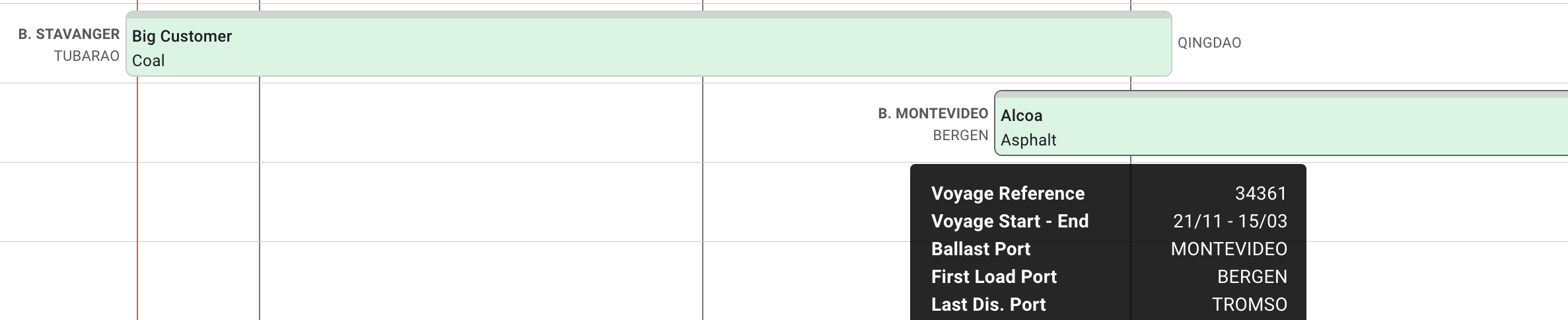
New Border to the left and Hover State Border to the right, for Commitment Bars
Each of the *voyage bars* now have a new light grey border, and when you **hover**, it will be marked with a darker one to clearly indicate which one you are hovering over. The picture above illustrates the Commitment Bars, but the same applies to the Schedule Bars as well.
#### Active State
When **selecting** one of these bars, a blue and thicker border will display along with opening the *Voyage drawer*:
Active State Border for the Commitment Bars
The blue border will stay active on the board until you do another action. The picture above illustrates the Commitment Bars, but the same applies to the Schedule Bars as well.
This border also displays and stays active when creating a *new* voyage and with the use of *drag & drop* of the bars.
{% hint style="info" %}
Other general actions, you can see: [Fleet Plans (FAS)](/release-8.25/fleet-allocation-and-scheduling/getting-started/planning/fleet-plans.md).
{% endhint %}
---
# Agent Instructions
This documentation is published with GitBook. GitBook is the documentation platform designed so that both humans and AI agents can read, navigate, and reason over technical content effectively. Learn more at gitbook.com.
## Querying This Documentation
If you need additional information that is not directly available in this page, you can query the documentation dynamically by asking a question.
Perform an HTTP GET request on the current page URL with the `ask` query parameter, and the optional `goal` query parameter:
```
GET https://docs.dataloy.com/release-8.25/fleet-allocation-and-scheduling/getting-started/planning/fleet-plans/gantt-board/scheduler-board-actions.md?ask=&goal=
```
`ask` is the immediate question: it should be specific, self-contained, and written in natural language.
`goal` is optional and describes the broader end goal you are ultimately trying to accomplish on behalf of the user. GitBook uses it to tailor the answer towards what is most useful for that goal.
The response will contain a direct answer to the question and relevant excerpts and sources from the documentation.
Use this mechanism when the answer is not explicitly present in the current page, you need clarification or additional context, or you want to retrieve related documentation sections.