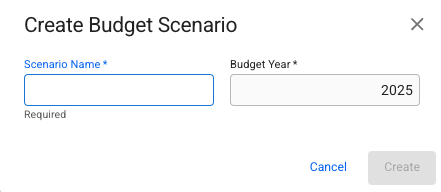
Create Budget Scenario Dialog
 in the top right corner.
3. Select *Create Budget Scenario* from the dropdown menu.
4. Fill in all required fields listed below in the Create Budget Scenario window.
5. Clicking **Create** will create a new, empty scenario.
#### **Required fields**
| **Field** | Description |
| ------------- | ------------------------ |
| Scenario Name | Unique Scenario Name |
| Budget Year | Defaults to current year |
{% hint style="info" %}
On clicking **Create**, a budget scenario will have the naming format "Budget Year Scenario Name", e.g. "2021 Incoming Bookings".
{% endhint %}
in the top right corner.
3. Select *Create Budget Scenario* from the dropdown menu.
4. Fill in all required fields listed below in the Create Budget Scenario window.
5. Clicking **Create** will create a new, empty scenario.
#### **Required fields**
| **Field** | Description |
| ------------- | ------------------------ |
| Scenario Name | Unique Scenario Name |
| Budget Year | Defaults to current year |
{% hint style="info" %}
On clicking **Create**, a budget scenario will have the naming format "Budget Year Scenario Name", e.g. "2021 Incoming Bookings".
{% endhint %}
Create Budget Scenario Dialog