> For the complete documentation index, see [llms.txt](https://docs.dataloy.com/llms.txt). Markdown versions of documentation pages are available by appending `.md` to page URLs; this page is available as [Markdown](https://docs.dataloy.com/release-8.19/fleet-allocation-and-scheduling/getting-started/planning/fleet-plans/gantt-board.md).
# Scheduler & Comparing Scheduler Board
{% hint style="info" %}
Remember to read [here](/release-8.19/fleet-allocation-and-scheduling/getting-started/planning/fleet-plans.md) regarding selecting a scenario and a *comparing* scenario!
{% endhint %}
After selecting a scenario (and a comparing scenario), the scheduler board gives users an overview of the voyages that needs to be scheduled. It shows unallocated, allocated and nominated voyages. The allocated and nominated voyages can be viewed on the bottom half of the board, **Schedule**, while the unallocated voyages can be viewed on the top half, **Commitments**.
The board is interpreted similar to a Gantt schema, with the column headers being dates and the row headers being COA and SPOT for the Commitments section and vessel names for the Schedule section. The red vertical line indicates today's date.
### Commitment Bars
Commitment Bar
Commitment bars can found in the Commitments area and contain information about an *unallocated* voyage including Charterer, Laycan dates and Commodity**.** The ballast port and first loading port of a voyage can be found to the left of the bar, and the last discharging port to the right. The *laycan* period can also be viewed on top of each bar (see picture in Scheduler Bars below).
#### **Tooltip**
When hovering over a *commitment bar,* a tooltip will pop up with additional information about the voyage. See tooltip picture under 'Scheduler Bars' section.
### Scheduler Bars
Scheduler bars can be found in the *Schedule* section and contain information about either allocated or nominated voyages, containing Reference No, Voyage Status, first Load Port and last **discharge port**. If the L*aycan* dates have been set, a Laycan *indicator* can also be viewed on a schedule bar. A timeline of the ballast and port calls can be viewed on top of each bar:
Schedule Bar
#### **Tooltip**
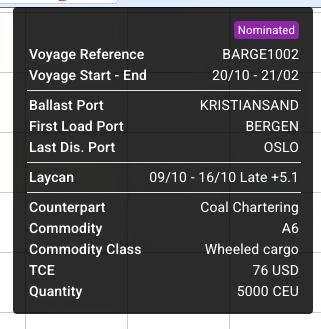
When hovering over a *scheduler bar,* a tooltip will pop up with additional information about the voyage:
Schedule Bar Tooltip
**New update(s) to the tooltip:**
* Voyage Status chip has been added to top-right tooltip
* Extra dividers around Laycan dates
* TCE has been added in-between Commodity Class and Quantity
{% hint style="info" %}
More additional information on the voyage and its cargos are displayed in the voyage drawer. This can accessed by clicking on a commitment- or schedule bar.
{% endhint %}
### Comparing Scheduler Bars
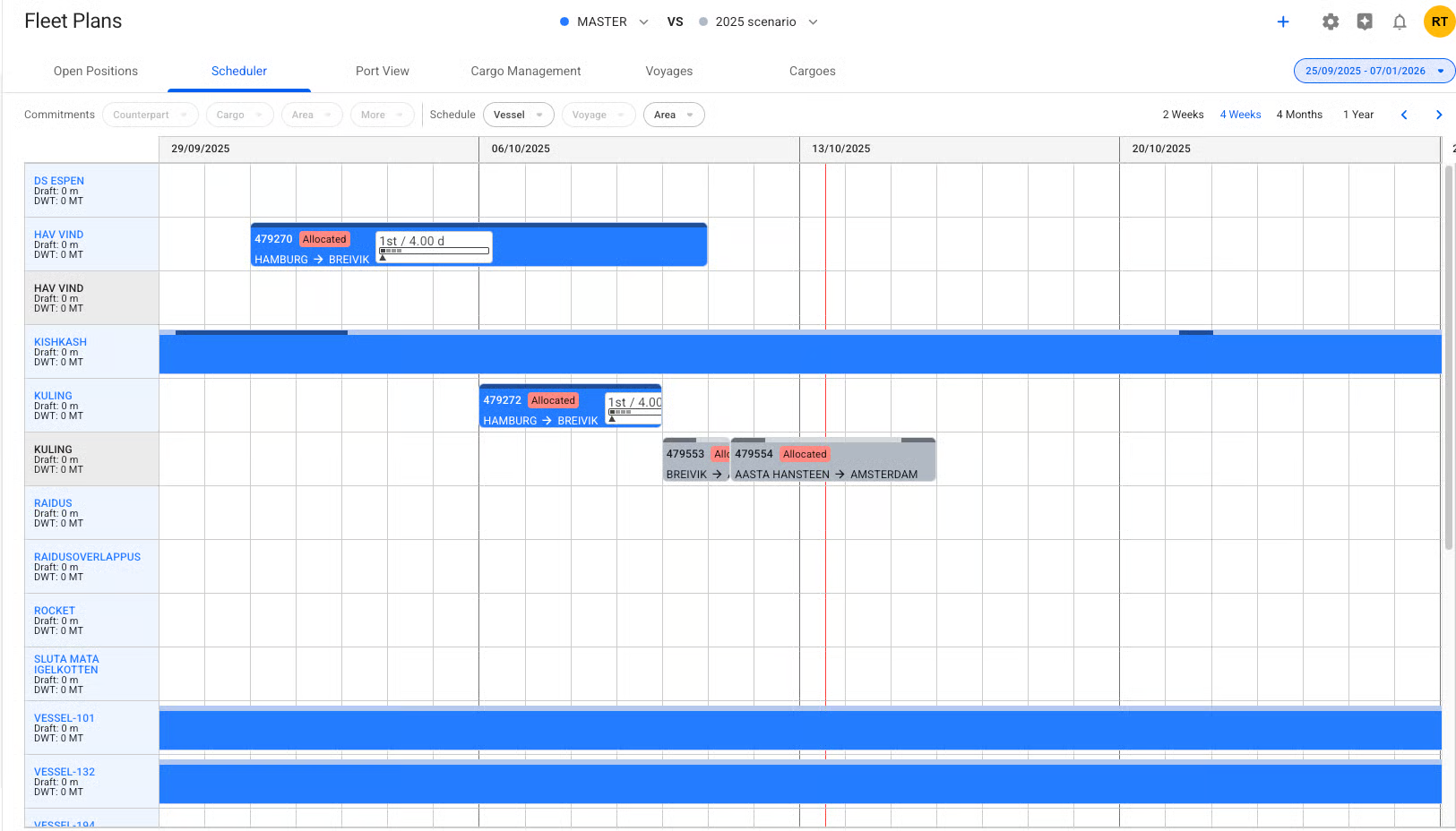
After selecting a [*comparing* scenario](https://app.gitbook.com/o/-LhoT2vqihl0pYiCeolt/s/Zao7rN3mdCfNKVRfQpS0/fleet-allocation-and-scheduling/getting-started/planning/fleet-plans#select-a-comparing-scenario), you will be displayed doubled vessel rows in which the two scenarios selected contains some scheduled voyages each; the **dark blue** scheduled voyages belongs to the **first** selected scenario, while the **dark** **grey** scheduled voyages to the **second** selected scenario (i.e. the comparing scenario):
Comparing of 'MASTER' scenario versus '2025 scenario' scenario
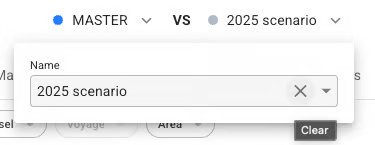
Otherwise, it will show one row per vessel. Moreover, you can select which vessels and/or areas to filter on. You can at any point go back to the original Scheduler view by removing the comparing scenario (clicking 'X' in the second selector), in which case, the Commitments section will reappear:
Remove the comparing scenario
By hovering over each of the scheduled voyages, you will get a similar tooltip as mentioned above under "Scheduler Bars'.
{% hint style="info" %}
Click to read more about [Scheduler Board Actions](https://app.gitbook.com/o/-LhoT2vqihl0pYiCeolt/s/Zao7rN3mdCfNKVRfQpS0/fleet-allocation-and-scheduling/getting-started/planning/fleet-plans/gantt-board/scheduler-board-actions).
{% endhint %}
{% hint style="info" %}
Click to learn more about the unique [*Cargo Actions*](https://app.gitbook.com/o/-LhoT2vqihl0pYiCeolt/s/Zao7rN3mdCfNKVRfQpS0/fleet-allocation-and-scheduling/getting-started/planning/fleet-plans/cargo-management-board/cargo-management-board-actions) or [*Voyage Actions*](https://app.gitbook.com/o/-LhoT2vqihl0pYiCeolt/s/Zao7rN3mdCfNKVRfQpS0/fleet-allocation-and-scheduling/getting-started/planning/fleet-plans/voyage-actions)*.*
{% endhint %}
---
# Agent Instructions
This documentation is published with GitBook. GitBook is the documentation platform designed so that both humans and AI agents can read, navigate, and reason over technical content effectively. Learn more at gitbook.com.
## Querying This Documentation
If you need additional information that is not directly available in this page, you can query the documentation by asking a question.
Perform an HTTP GET request on the following URL with the `ask` and `goal` query parameters:
```
GET https://docs.dataloy.com/release-8.19/fleet-allocation-and-scheduling/getting-started/planning/fleet-plans/gantt-board.md?ask=&goal=
```
`ask` is the immediate question: it should be specific, self-contained, and written in natural language.
`goal` is what the user is ultimately trying to achieve, the reason they need the answer. Sharing it helps GitBook give you a better, more relevant answer. A goal is most helpful when it describes the outcome the user wants rather than restating the question. For example, with `ask=how do I create an API token`, a goal like `automate deployments from our CI pipeline` lets GitBook tailor the answer to that use case.
The response will contain a direct answer to the question and relevant excerpts and sources from the documentation.
Use this mechanism when the answer is not explicitly present in the current page, you need clarification or additional context, or you want to retrieve related documentation sections.