> For the complete documentation index, see [llms.txt](https://docs.dataloy.com/llms.txt). Markdown versions of documentation pages are available by appending `.md` to page URLs; this page is available as [Markdown](https://docs.dataloy.com/release-8.17/voyage-management-system/step-by-step-guides/alerts/webhook-subscriptions-1/create-webhook-subscription.md).
# Creating a Webhook Subscription
Create Webhook Subscription Dialog
1. Open the **Webhooks** module in the **Alerts** section.
2. Click **Create Webhook Subscription**in the top right corner.
3. Fill in the required fields (marked with \*) for each step in the dialogue.
4. Click **Create**.
### Types of Webhook Subscriptions
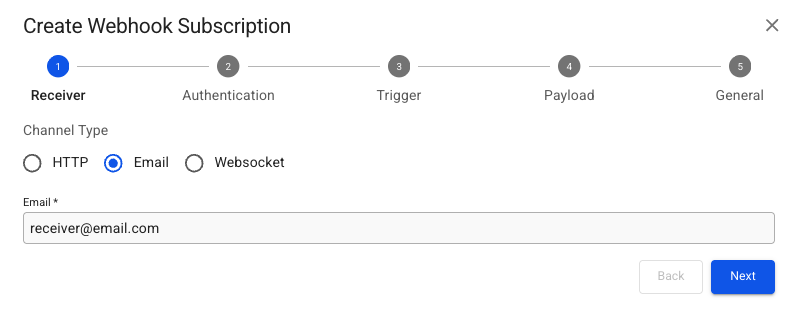
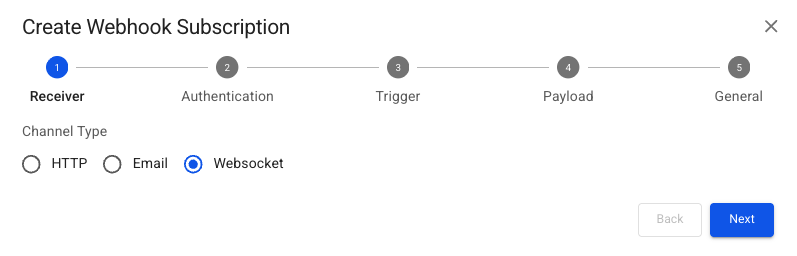
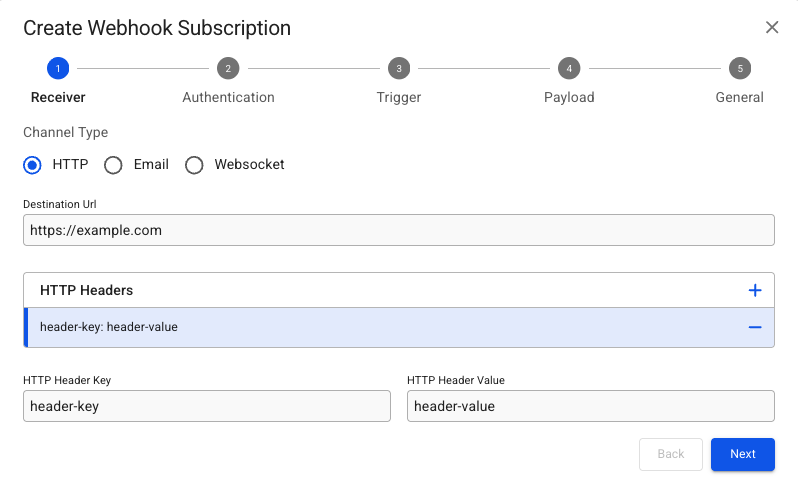
There can be created 3 types of webhooks in VMS; HTTP, Email and Websocket. HTTP and Email send notifications to the specified destination, while Websocket sends push notifications to users through VMS. Each with different options to fill out. Illustrations and further descriptions are shown below for which fields need to be filled to create a new Webhook Subscription.
## Receiver Step
{% tabs %}
{% tab title="HTTP" %}
{% hint style="info" %}
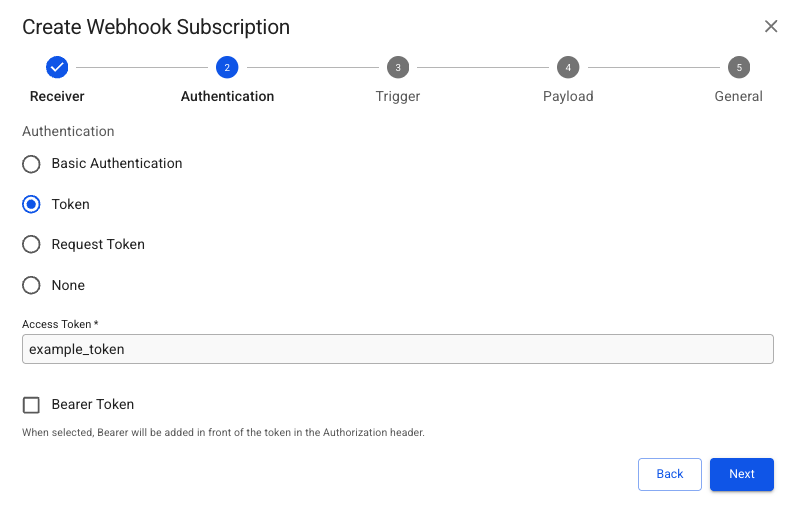
**Basic Authentication** requires filling out a `Username` and `Password` for the endpoint. **Request Token** requires filling out an `Access Token Request Url` and an `Access Token Request Body` , with the other fields being optional.
{% endhint %}
{% endtab %}
{% tab title="Email" %}
{% hint style="info" %}
No authentication configuration is required for email.
{% endhint %}
{% endtab %}
{% tab title="Websocket" %}
{% hint style="info" %}
No authentication configuration is required for websocket.
{% endhint %}
{% endtab %}
{% endtabs %}
## Trigger Step
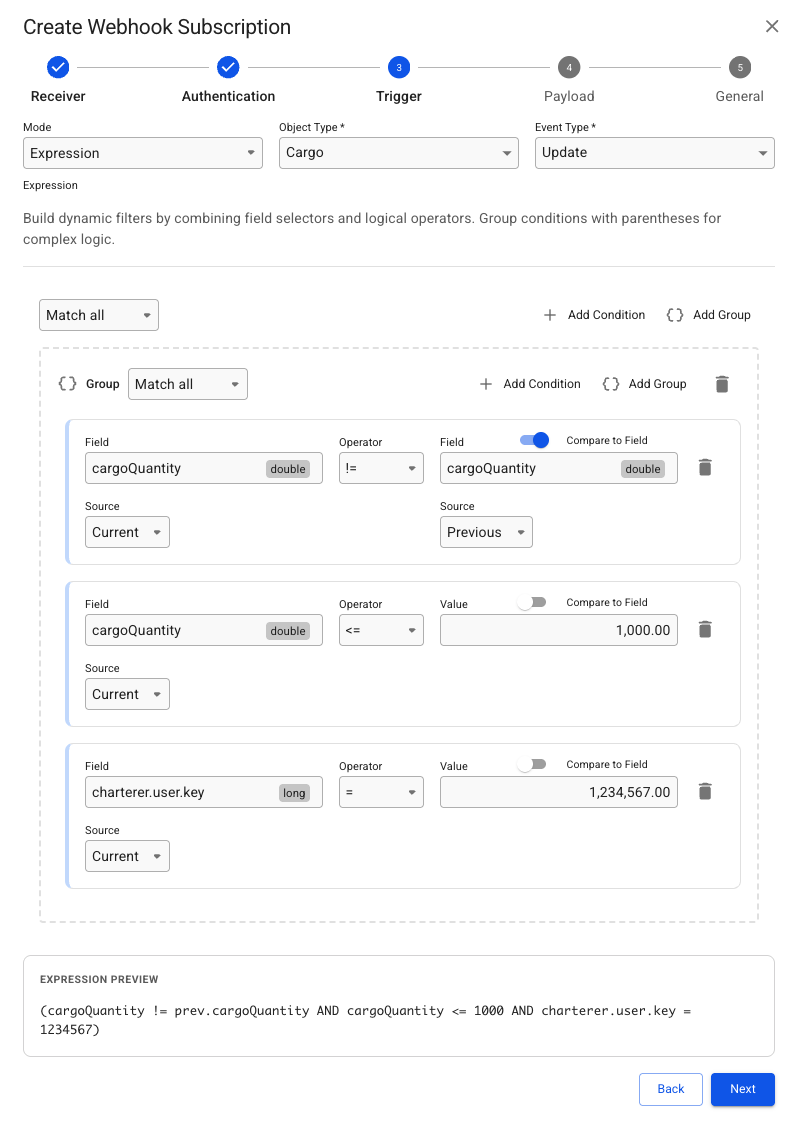
The Trigger is the condition that needs to be met for a notification to be sent to the Receiver. Either an existing Alert Script or an Expression can be selected.\
\
Below is an example Expression that needs the cargoQuantity of a Cargo to be changed, greater or equal to 1000, and that cargo's charterer to be equal to a specific user key. Limiting the number of notifications to be relevant and informative.
{% hint style="info" %}
The `Field` can be selected with the Customize Columns modal, like in lists. Conditions can be customized in detail using grouping `Add Group` , to allow multiple combinations of `AND` /`OR` conditions. A simplified preview of the conditions are displayed at the bottom of the modal.
{% endhint %}
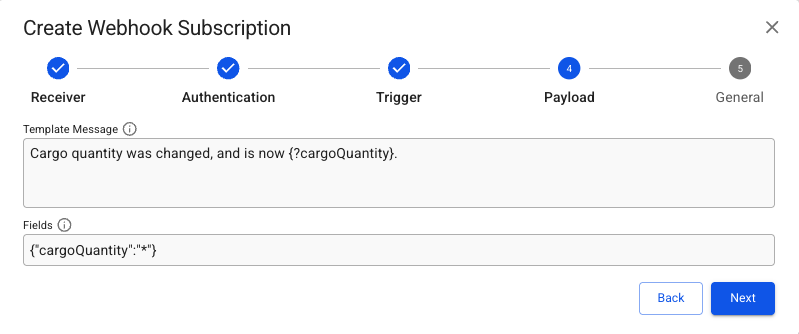
## Payload Step
**Template Message** and **Fields** are optional. **Template Message** allows for a custom message where field values from the object can be inserted in the sent notification.
{% hint style="info" %}
**Fields** limit what fields should be returned in the notification and can look like this {"fieldName1":"\*","fieldName2":"\*"}. Read more about how to specify **Fields** [here](https://api.dataloy.com/dataloy-rest-api/adjust-number-of-fields-to-be-returned-from-a-request).
{% endhint %}
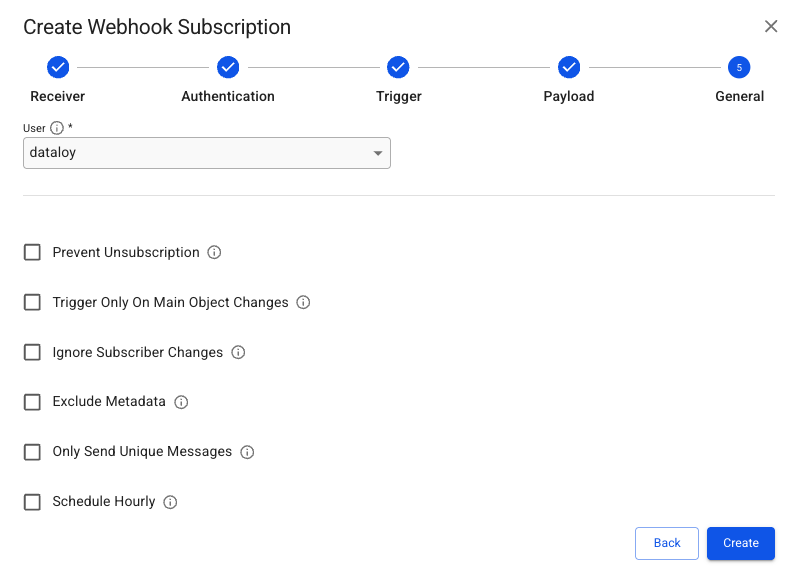
## General
All options are optional except **User**, which must be selected. This should in most cases be set to the user intended to receive the notification. As the permissions of that **User** decides the access to objects when the notification is sent. Failing notifications could be due to the **User** not having the right access.\
\
The description icon (**i)** can be hovered over to reveal additional information about their function.
---
# Agent Instructions
This documentation is published with GitBook. GitBook is the documentation platform designed so that both humans and AI agents can read, navigate, and reason over technical content effectively. Learn more at gitbook.com.
## Querying This Documentation
If you need additional information that is not directly available in this page, you can query the documentation by asking a question.
Perform an HTTP GET request on the following URL with the `ask` and `goal` query parameters:
```
GET https://docs.dataloy.com/release-8.17/voyage-management-system/step-by-step-guides/alerts/webhook-subscriptions-1/create-webhook-subscription.md?ask=&goal=
```
`ask` is the immediate question: it should be specific, self-contained, and written in natural language.
`goal` is what the user is ultimately trying to achieve, the reason they need the answer. Sharing it helps GitBook give you a better, more relevant answer. A goal is most helpful when it describes the outcome the user wants rather than restating the question. For example, with `ask=how do I create an API token`, a goal like `automate deployments from our CI pipeline` lets GitBook tailor the answer to that use case.
The response will contain a direct answer to the question and relevant excerpts and sources from the documentation.
Use this mechanism when the answer is not explicitly present in the current page, you need clarification or additional context, or you want to retrieve related documentation sections.
 in the top right corner.
3. Fill in the required fields (marked with \*) for each step in the dialogue.
4. Click **Create**.
### Types of Webhook Subscriptions
There can be created 3 types of webhooks in VMS; HTTP, Email and Websocket. HTTP and Email send notifications to the specified destination, while Websocket sends push notifications to users through VMS. Each with different options to fill out. Illustrations and further descriptions are shown below for which fields need to be filled to create a new Webhook Subscription.
## Receiver Step
{% tabs %}
{% tab title="HTTP" %}
in the top right corner.
3. Fill in the required fields (marked with \*) for each step in the dialogue.
4. Click **Create**.
### Types of Webhook Subscriptions
There can be created 3 types of webhooks in VMS; HTTP, Email and Websocket. HTTP and Email send notifications to the specified destination, while Websocket sends push notifications to users through VMS. Each with different options to fill out. Illustrations and further descriptions are shown below for which fields need to be filled to create a new Webhook Subscription.
## Receiver Step
{% tabs %}
{% tab title="HTTP" %}