# Voyage full-screen

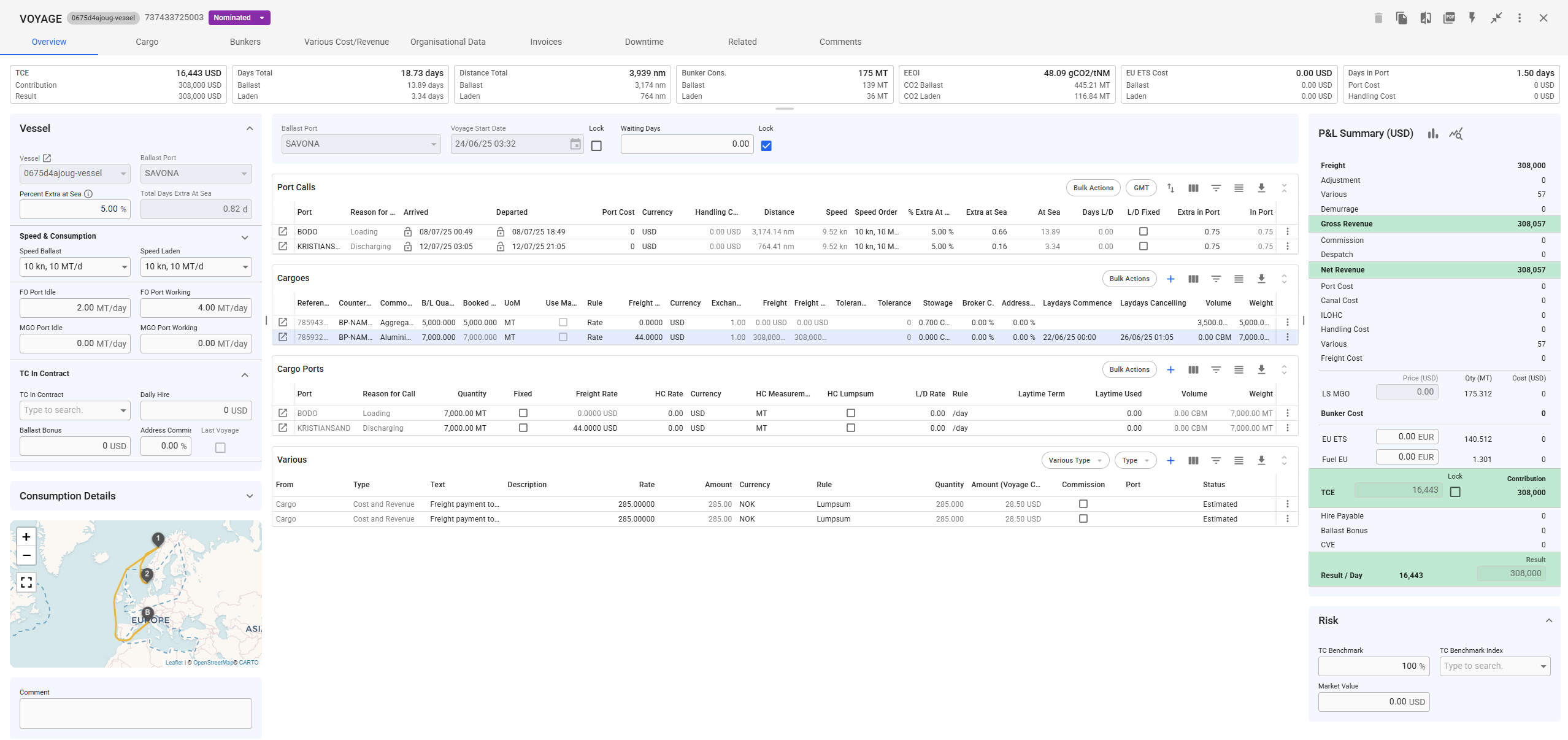
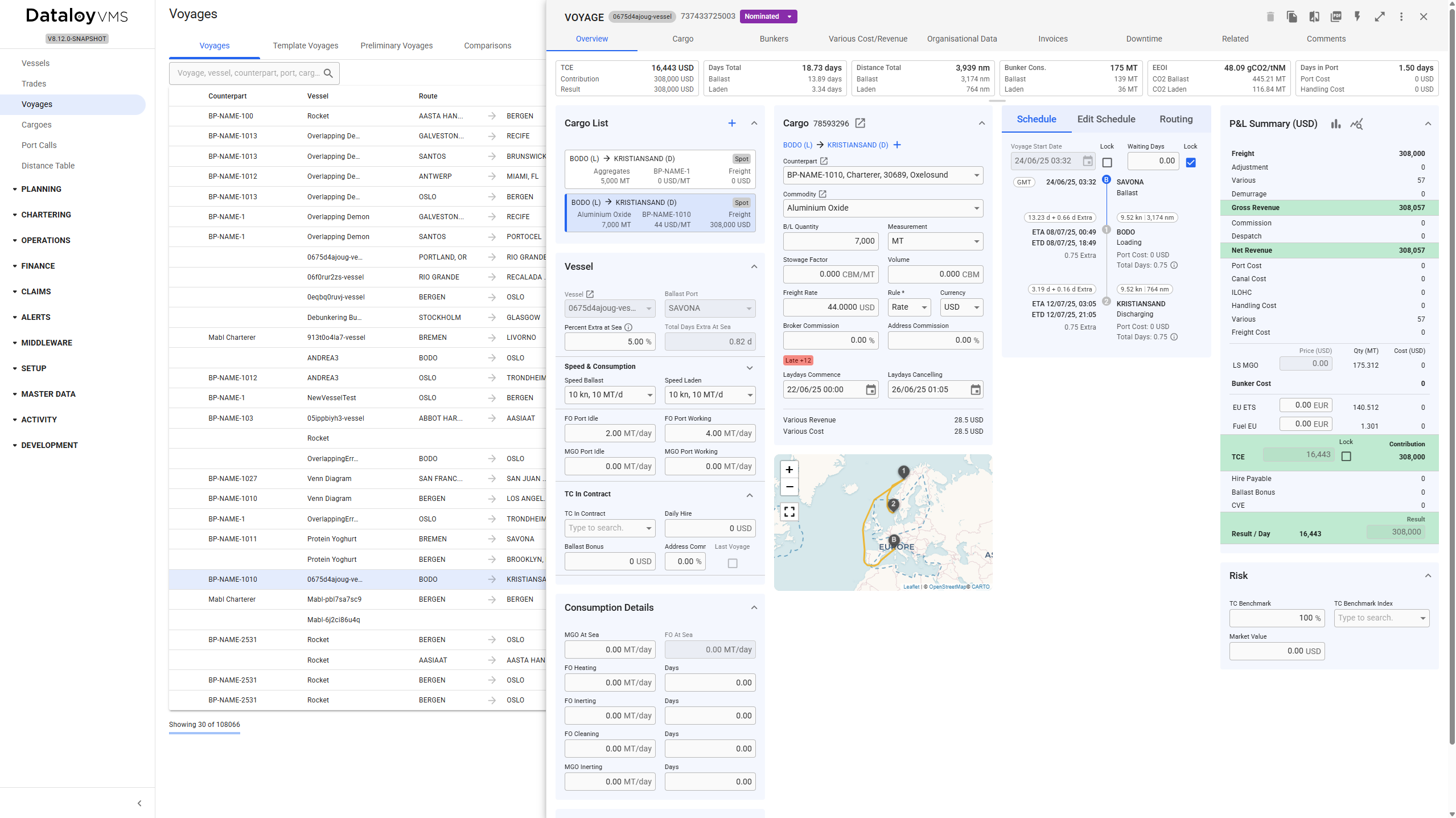
Starting with release 8.2, the voyage drawer's default view has been updated. The previous default view has been removed, and the expanded view is now the new default (see *Figure 1*).

The expanded view has been replaced with a full-screen drawer, serving as a centralized hub for voyage drawer functions and introducing additional features. This view presents data in an editable grid format (see *Figure 2*) with customisable columns that enhance and extend the functionality of the previous default view.

For more details on the grid's functions and usage, go to the [data grid page](https://docs.dataloy.com/release-8.16/voyage-management-system/step-by-step-guides/data-grids).

<figure><img src="https://content.gitbook.com/content/uZ9lzqgHX4JL1Df67xog/blobs/EHsrPi84NCX8WxrZTQpY/Screenshot%202025-06-25%20083208.png" alt=""><figcaption><p>Figure 1: New default view</p></figcaption></figure>

<figure><img src="https://content.gitbook.com/content/uZ9lzqgHX4JL1Df67xog/blobs/86tUAQ2ZTL9NGwW0O76J/Screenshot%202025-06-25%20083354.png" alt=""><figcaption><p>Figure 2: Full-screen drawer view</p></figcaption></figure>

## Creating, editing and deleting in the grid

Changes to the grid, such as editing fields, adding new rows, copying data, or deleting entries, are applied across the system in real time, ensuring data consistency. Updates made in the grid will automatically reflect in all related drawers and pages, and vice versa.

## Main differences

The full-screen drawer is designed to make it easier to make modifications to the voyage. This was done by replacing the different collapsible sections (*Figure 1*)  with corresponding grids (*Figure 2*).&#x20;

The [*Profit / Loss Section*](https://docs.dataloy.com/release-8.16/voyage-management-system/step-by-step-guides/voyages/maintain-voyages/overview/profit-loss-summary) as well as the V*essel Section* remains the same with the exception of an additional collapsible section for *TC Out Contract*.

### Map

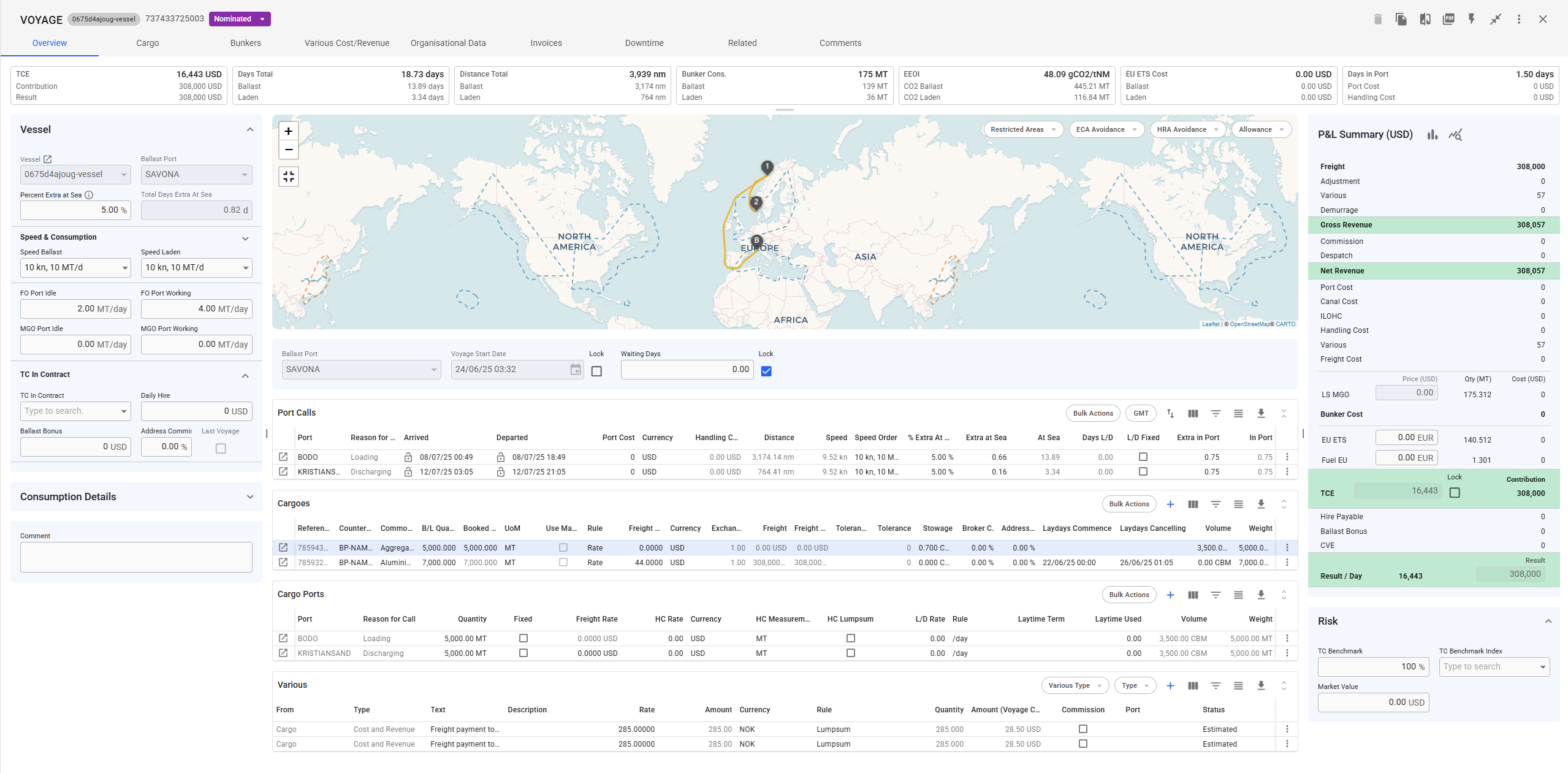
The map has also been moved to the left side of the drawer, and when expanded will appear in the center of the drawer (see *Figure 3).*

<figure><img src="https://content.gitbook.com/content/uZ9lzqgHX4JL1Df67xog/blobs/DljkRBODGKXjiJ1uZvX5/Screenshot%202025-06-25%20084207.png" alt=""><figcaption><p>Figure 3: Full-screen expanded map</p></figcaption></figure>

### Alternative routing and system preferences

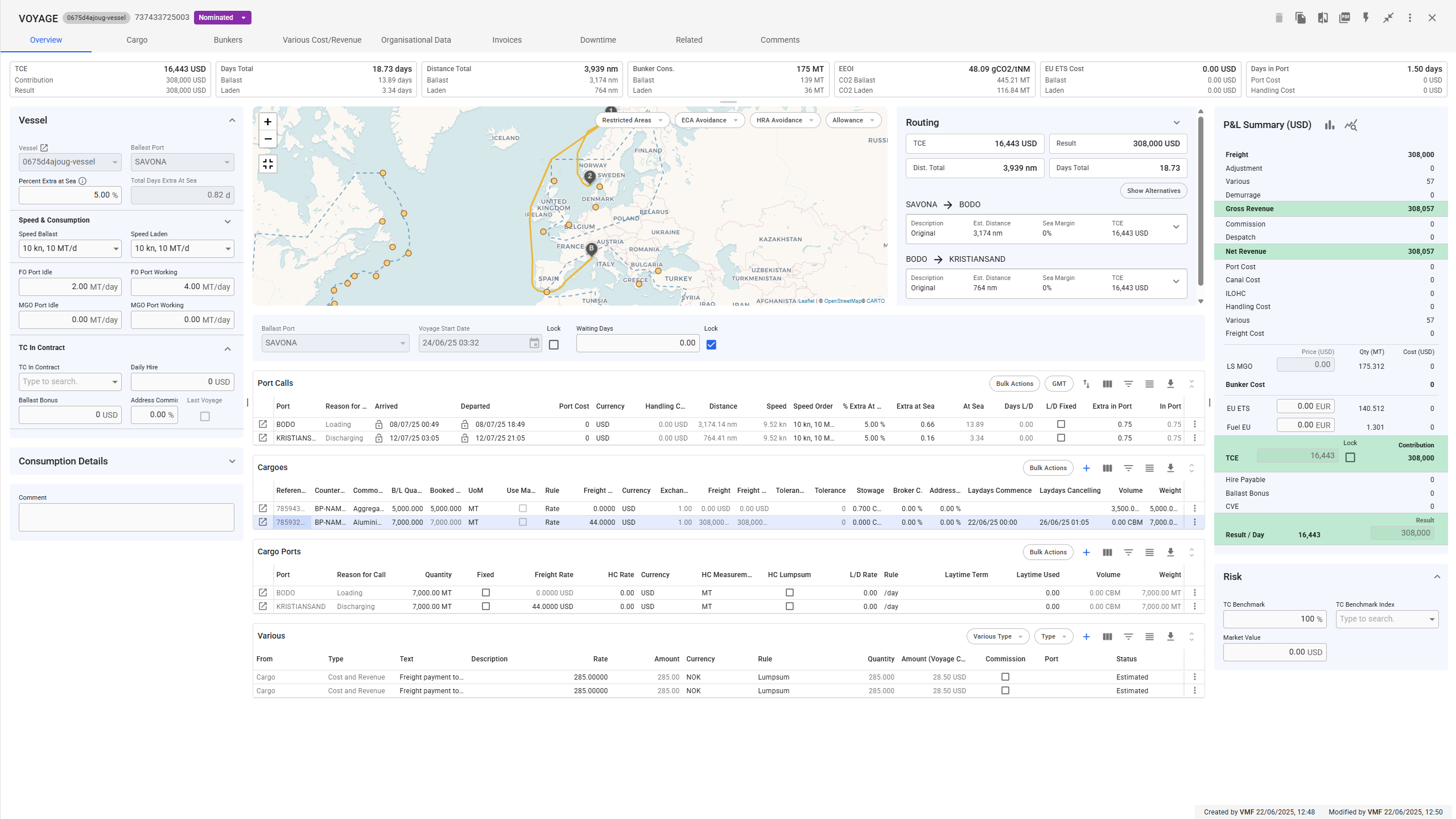
A key addition to the drawer is the ability to display an **Alternative Route** tab, controlled by a system preference. This setting can be enabled via the[ **System Settings**](https://docs.dataloy.com/release-8.16/voyage-management-system/step-by-step-guides/setup/system-settings). When activated, the routing tab appears next to the map, providing easy access to alternative route options (see *Figure 4*).

<figure><img src="https://content.gitbook.com/content/uZ9lzqgHX4JL1Df67xog/blobs/DJKY148RVnOrTXiuFK2c/Screenshot%202025-06-25%20083934.png" alt=""><figcaption><p>Figure 4: Alternative routing enabled</p></figcaption></figure>

### [Profit & Loss Summary](https://docs.dataloy.com/release-8.16/voyage-management-system/step-by-step-guides/voyages/maintain-voyages/overview/profit-loss-summary): Analysis and Results Chart

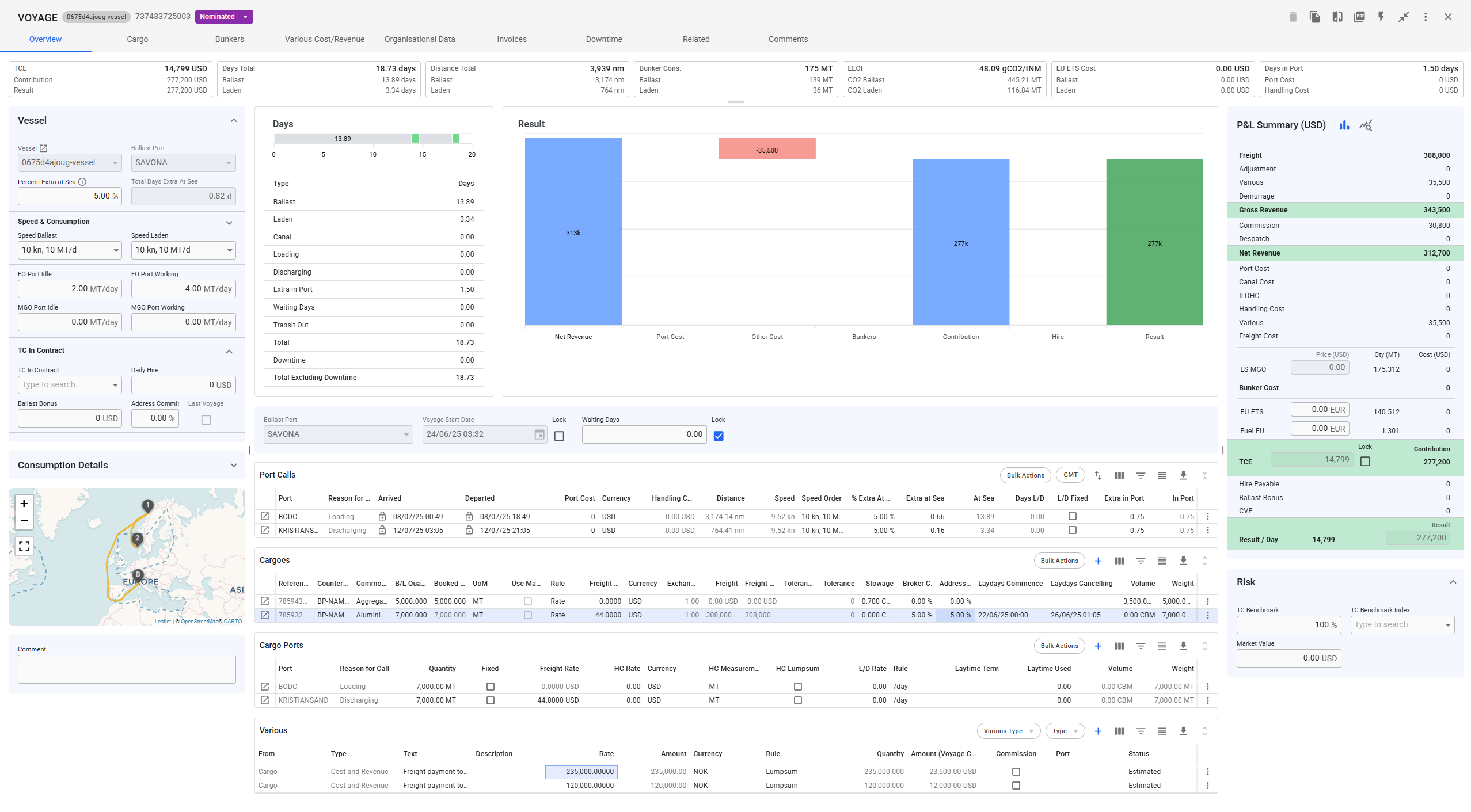
The **Analysis** and **Results Chart** retain their functionality from previous versions. However, they are now displayed in the center of the drawer when selected within the **Profit & Loss Summary** section.

<figure><img src="https://content.gitbook.com/content/uZ9lzqgHX4JL1Df67xog/blobs/wp1u1fkSRB2NAw2n8aXR/Screenshot%202025-06-25%20084433.png" alt=""><figcaption><p>Figure 5: Results Charts displayed</p></figcaption></figure>

### View Customisation

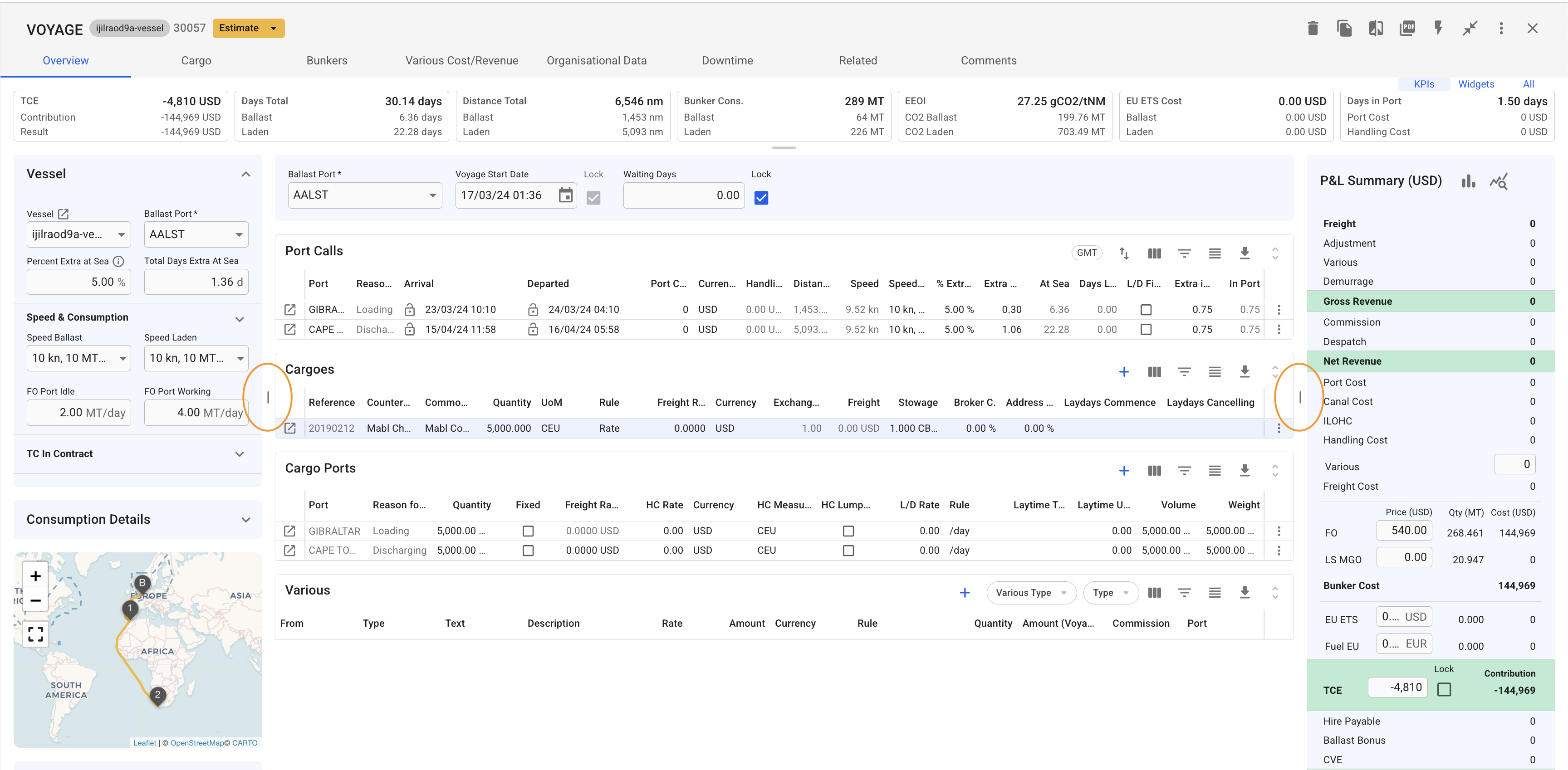
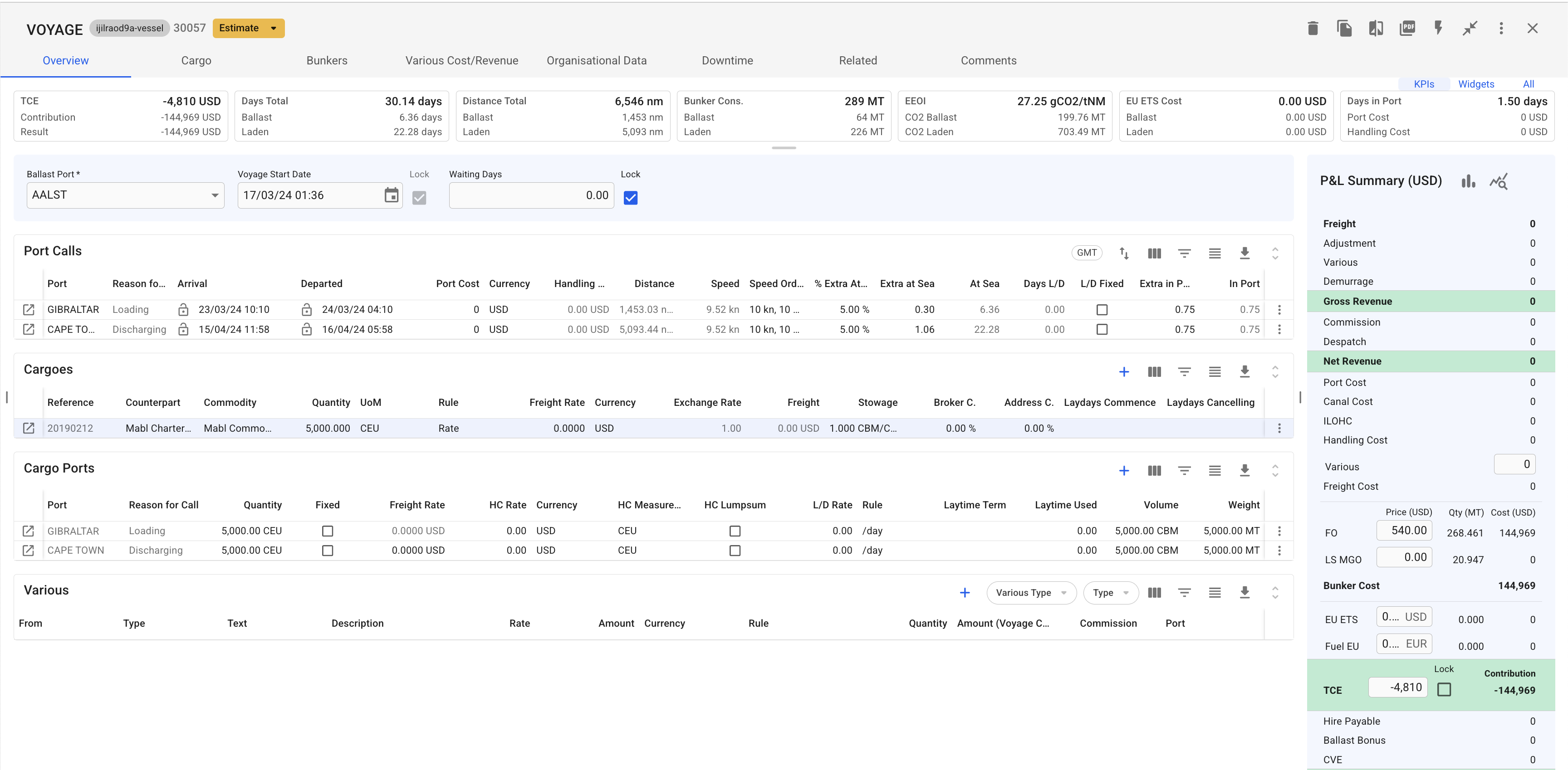
The left- and rightmost sections can be collapsed by clicking the buttons inside column dividers, shown in *Figure 6*. Alternatively, the sections can be toggled using the keyboard shortcuts **ALT/OPT + ←** and **ALT/OPT + →**.

<figure><img src="https://content.gitbook.com/content/uZ9lzqgHX4JL1Df67xog/blobs/JDgVLQmFu5Zu0aDluWDY/Screenshot%202025-03-04%20at%2011.45.03.png" alt=""><figcaption><p>Figure 6. Toggle Section Buttons</p></figcaption></figure>

<figure><img src="https://content.gitbook.com/content/uZ9lzqgHX4JL1Df67xog/blobs/Buz4jLBR73SKeEgezgeh/image.png" alt=""><figcaption><p>Figure 7. Drawer after collapsing left column</p></figcaption></figure>