# Create, Edit & Delete Various Cost/Revenue

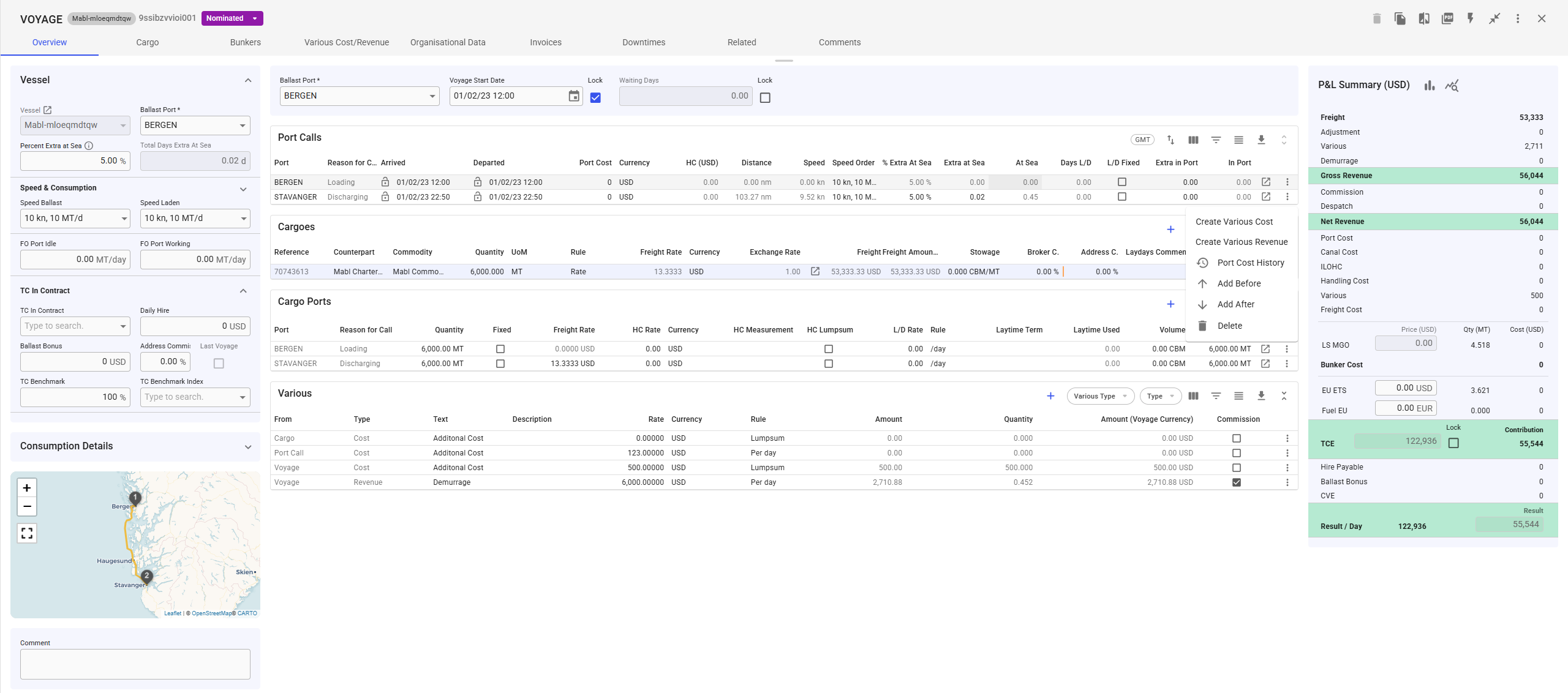
It is possible to create, edit, and delete ***Various Cost/Revenue*** entries for a voyage directly from the Various Cost/Revenue tab. Additionally, in the ***full-screen view*** of the voyage drawer, you can create Various Cost/Revenue entries for **Cargo** and **Port Call** using the **vertical ellipsis menu** (see Figure 1 for reference).

<figure><img src="https://content.gitbook.com/content/uZ9lzqgHX4JL1Df67xog/blobs/ua2eeiFTrsHYV0wEJWsD/image.png" alt=""><figcaption><p>Figure 1: Voyage Full-Screen Create Port Call Various Cost/Revenue </p></figcaption></figure>

All **Various Cost/Revenue** entries are also displayed in the **Various Grid** (accessible in full-screen view), allowing you to easily view, edit, or delete entries as needed.

## Create New Various Cost/Revenue

<figure><img src="https://content.gitbook.com/content/uZ9lzqgHX4JL1Df67xog/blobs/pR7whu13LzPyBQfdgDFy/image.png" alt=""><figcaption><p>Figure 2: Various Cost Create Button</p></figcaption></figure>

1. **Click the Create Button** – Locate and click the **Create** button in the top-right corner of the header *(Figure 2)*.
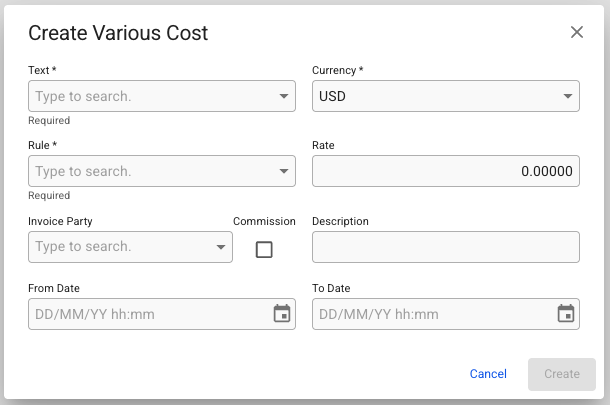
2. **Enter Required Information** – A **Create** modal will appear, prompting you to fill in the necessary fields.
3. **Create the Various**– Once all required details are entered, click **Create** to finalize and add the new Various.
   1. New various items will have status 'Estimated' by default.

<figure><img src="https://content.gitbook.com/content/uZ9lzqgHX4JL1Df67xog/blobs/NGBvLOoRz7tX8qMOLGgq/image.png" alt="" width="305"><figcaption><p>Figure 2. Create Various Cost/Revenue</p></figcaption></figure>

## Edit Various Cost/Revenue

1. **Select the Various**– Click anywhere on the row of the Various you wish to edit in the list.
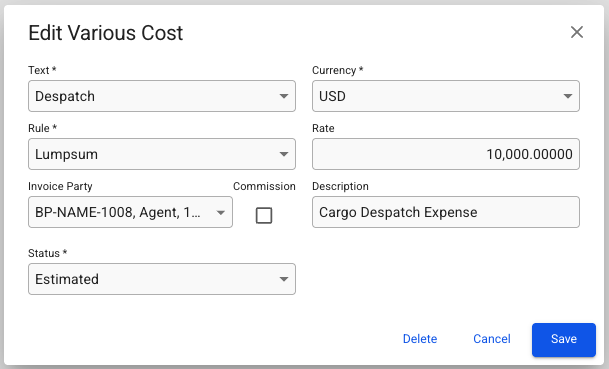
2. **Modify Details** – An **Edit** modal will appear (figure 4), allowing you to update the entry’s properties.
3. **Save Changes** – Click **Save** to apply the modifications.

<figure><img src="https://content.gitbook.com/content/uZ9lzqgHX4JL1Df67xog/blobs/OVbgs1E8xEIb7hmZcqiZ/image.png" alt="" width="305"><figcaption><p>Figure 3. Edit Various Cost/Revenue</p></figcaption></figure>

## Delete Various Cost/Revenue

<figure><img src="https://content.gitbook.com/content/uZ9lzqgHX4JL1Df67xog/blobs/tlrLYafm8GmRsx8AFsBH/image.png" alt=""><figcaption><p>Figure 5: Delete Various Cost/Revenue </p></figcaption></figure>

1. **Select Entries for Deletion** – Use the checkboxes in the leftmost column to select the relevant entries.
2. **Click the Delete Option** – Once selected, a **Delete** button will appear in the top-right corner of the header.
3. **Confirm Deletion** – Click **Delete**, then confirm in the popup that appears to complete the removal.

⚠️ **Note:** Deleted entries cannot be restored. Be sure to review your selection before confirming deletion.