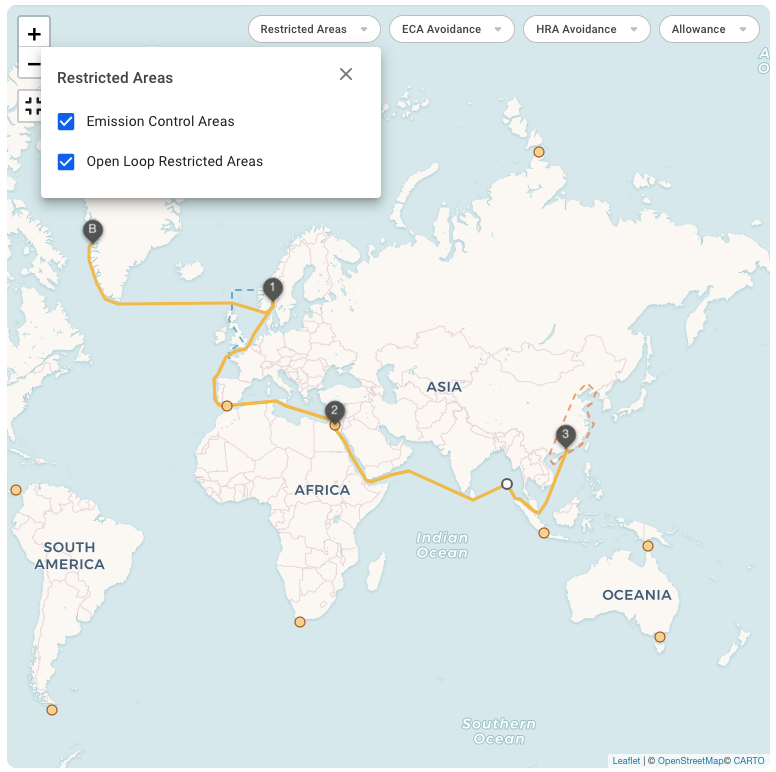
Figure 1 - Restricted Areas on Voyage Map.
 to show information about the point in a popup, including name, position, and GMT offset. When a routing point is clicked it will also be possible to add the routing point to the voyage route. When clicking 'Add to route', a pop-up will appear where you have to choose between which port calls the routing point shall be added.
### Remove existing routing points from the Voyage route
Routing points that are on the voyage can be removed. When clicked, a button will become available 'Remove from voyage route'. When this is clicked, a confirmation box will appear. When confirmed, the routing point will be removed from the voyage.
### Restricted areas
The interactive Voyage Map features several restricted areas:
1. Emission Control Areas
2. Open Loop Restricted Areas
Restricted Areas are visible on the map and depicted by Blue or Red dashed lines (See Figure 1).
to show information about the point in a popup, including name, position, and GMT offset. When a routing point is clicked it will also be possible to add the routing point to the voyage route. When clicking 'Add to route', a pop-up will appear where you have to choose between which port calls the routing point shall be added.
### Remove existing routing points from the Voyage route
Routing points that are on the voyage can be removed. When clicked, a button will become available 'Remove from voyage route'. When this is clicked, a confirmation box will appear. When confirmed, the routing point will be removed from the voyage.
### Restricted areas
The interactive Voyage Map features several restricted areas:
1. Emission Control Areas
2. Open Loop Restricted Areas
Restricted Areas are visible on the map and depicted by Blue or Red dashed lines (See Figure 1).
Figure 1 - Restricted Areas on Voyage Map.
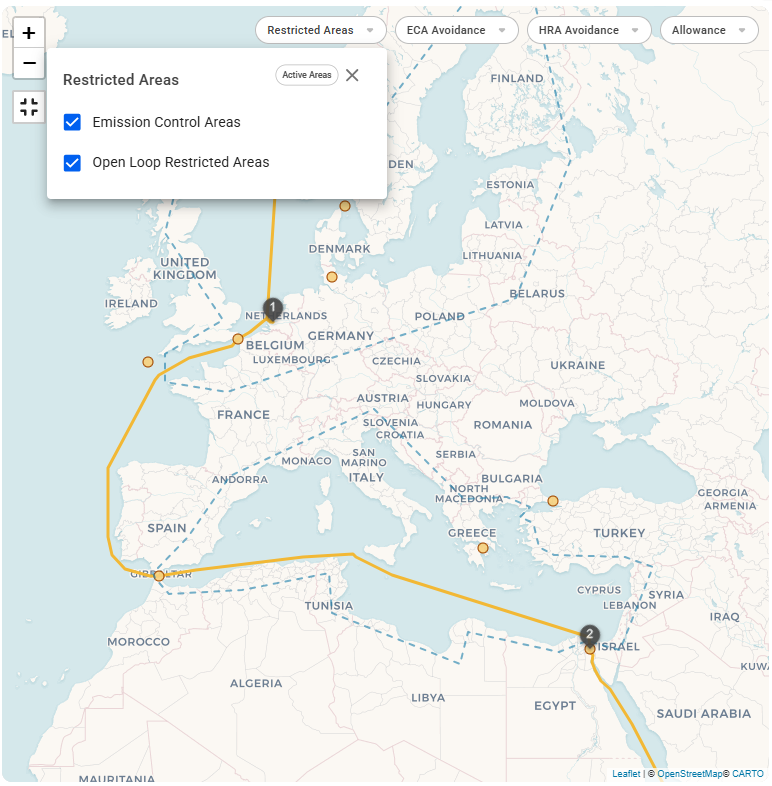
Figure 2 - 'Active Areas' filter not applied
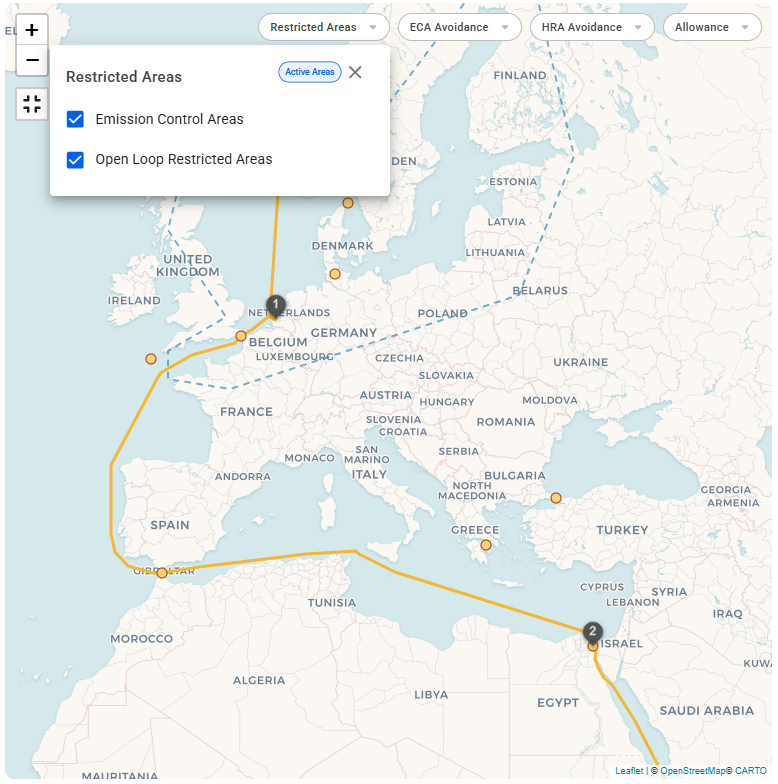
Figure 3 - 'Active Areas' filter applied