# Cargo
## Cargoes
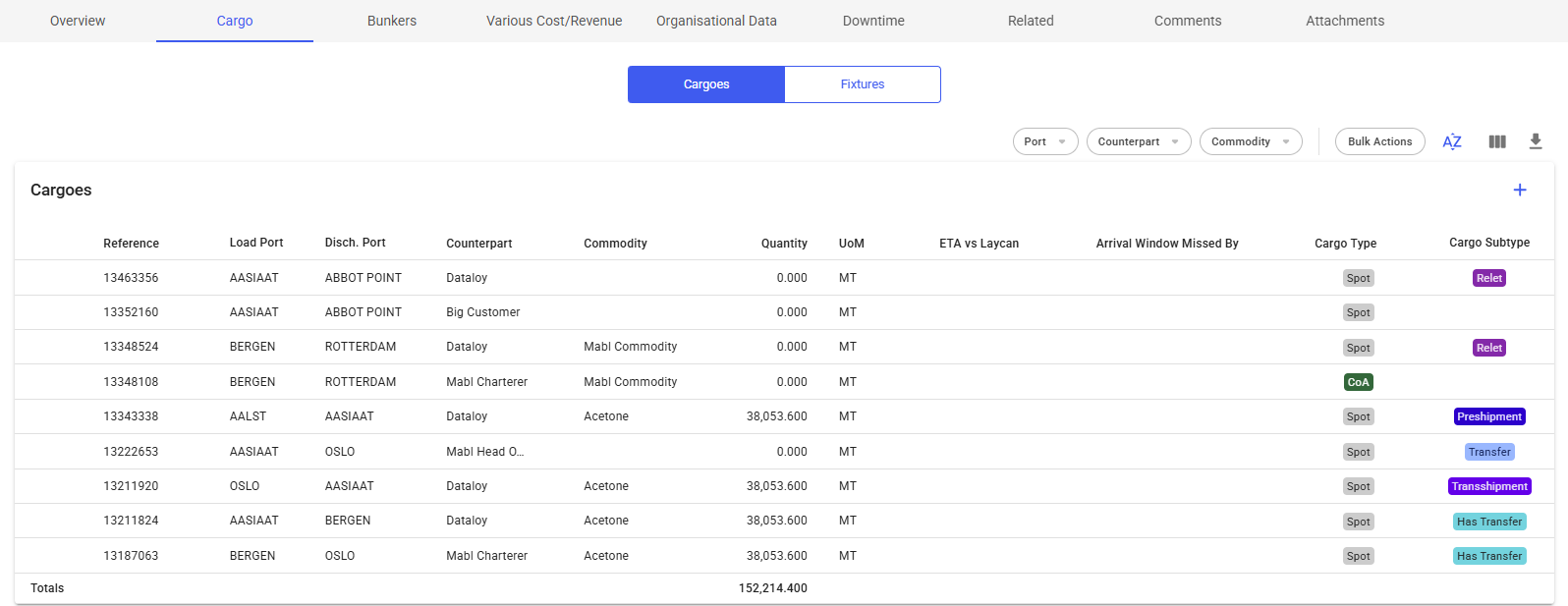
The Cargoes list shows a list of all cargoes on the voyage. The list can be filtered on Port (the list displays the first Load- and Discharge Cargo Port, but the filter works any Load- and Discharge ports on the Cargo), Charterer and Commodity by using the quick-filters in the top right.
On the row at the bottom of the list, you can see the Total Amount of cargo quantity on this Voyage:
Cargoes List
Clicking the -icon will bring up a dropdown menu for choosing between creating a brand new Cargo, or a new Cargo from a CoA template.
By clicking the  icon you can edit the columns shown in the list, rearrange the columns and even enable showing of some columns that are unchecked by default.
Clicking the  icon will export the table to a spreadsheet-format, which can be opened in e.g. Excel or Numbers.
## Fixtures
Adding *fixtures* can be done in the Cargo tab of the Voyage Drawer by selecting the Fixtures button and clicking the create icon above the list.
The tab allows you to create, edit and delete any fixtures on the voyage.
### Field Choices When Creating
* Counterpart (\*)
* Which cargoes to connect to the fixture (based on which Counterpart is chosen)
* Disabled after connected to a fixture
* Will override the connected cargoes' Counterpart
* Fixture Reference (\*)
* Is a running number (from v7.13)
* Only editable, cannot set it
* CP Date
* Disabled after connected to a fixture
* Will override the connected cargoes' CP Date
* CP Form
* Lumpsum
* Fixture Currency
* Defaulted at the Voyage Currency
* Disabled after connected to a fixture
* Will override the connected cargoes' CP Date
(\*) - required fields
### Modal & List Features
Click on each tab below to read more about the different features:
{% tabs %}
{% tab title="Fixtures List" %}
Fixtures List
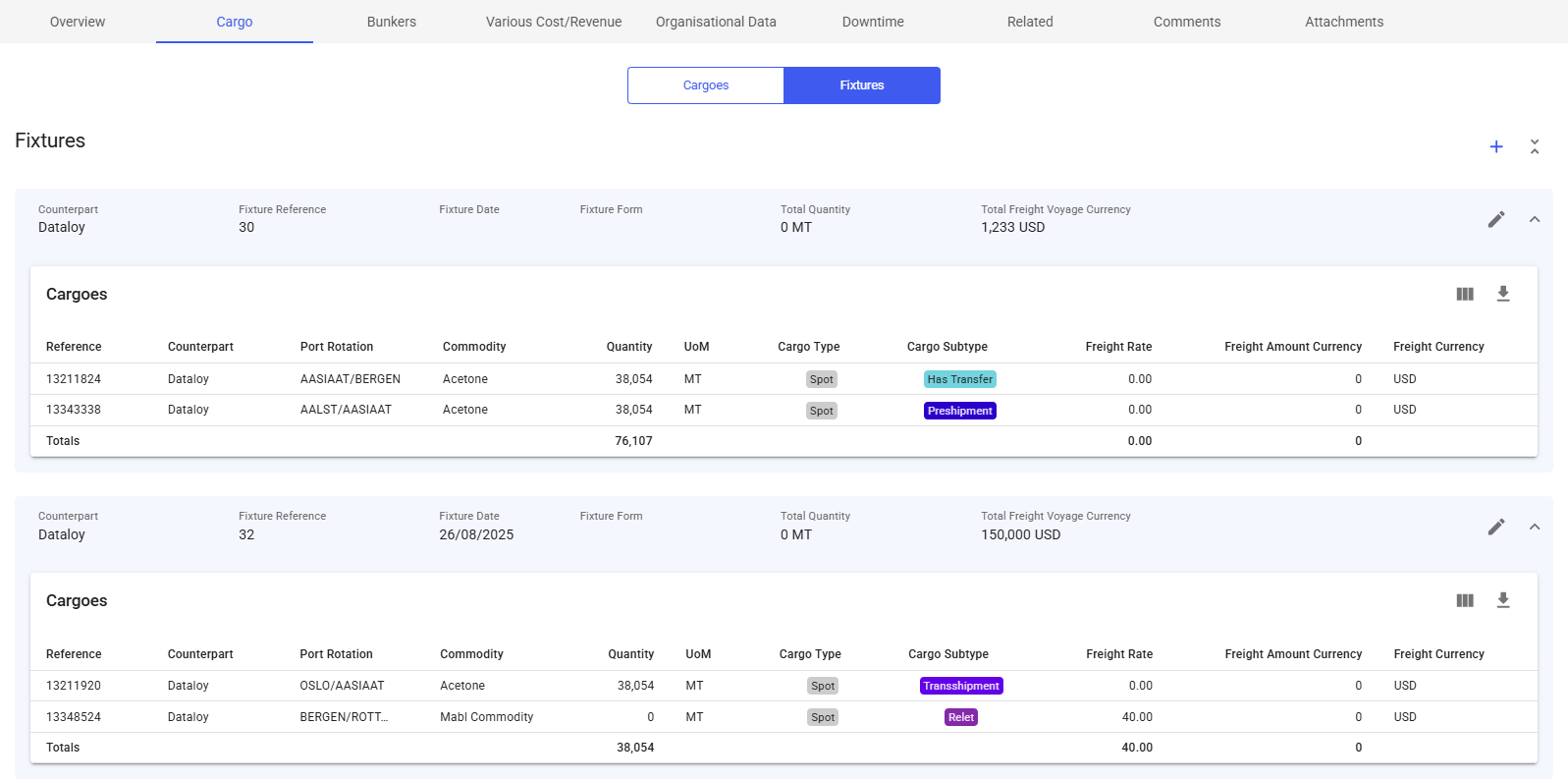
You can see the Total Amount of all number fields, such as Cargo Quantity, Freight Rate and Freight Amount Currency, at the bottom of each table.
See the expanded/collapsed features below.
{% endtab %}
{% tab title="Create Fixture Modal" %}
Create Fixture Modal
\
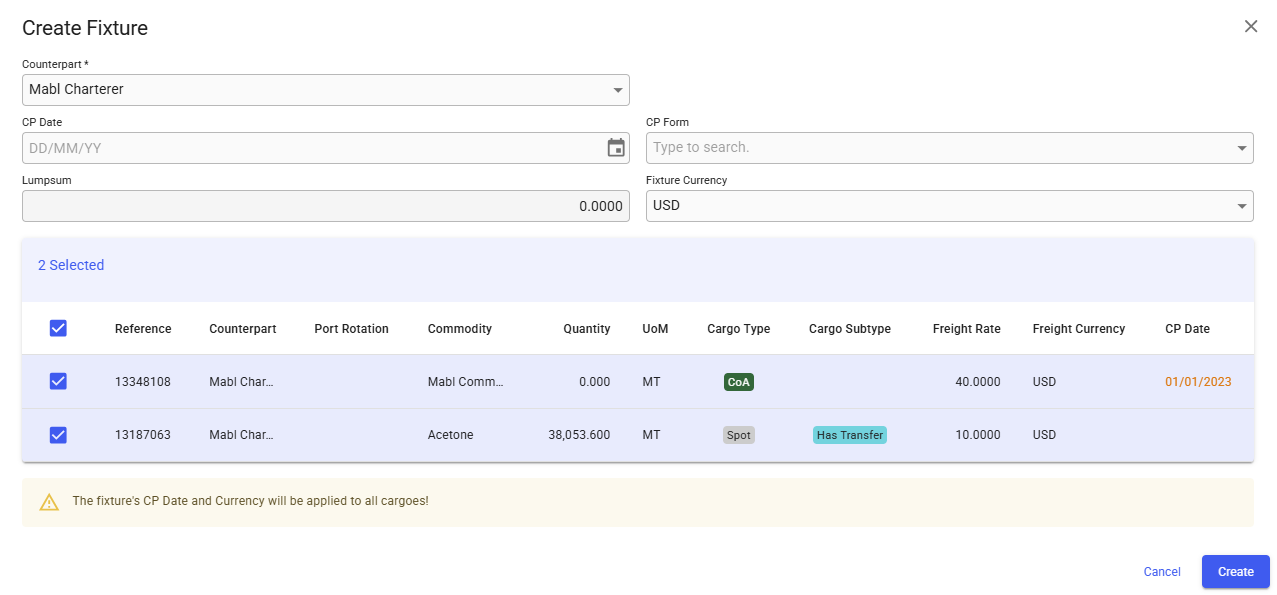
By clicking at the Create icon, you will be able to create a fixture containing cargoes of the same *Counterpart*.
The Cargoes list at the bottom is empty by default until you have chosen a Counterpart.
Selecting a Counterpart will show all cargoes connected to the Counterpart, allowing you to select the ones you want within the fixture.
The selector is also limited to the existing Counterparts on the voyage cargoes.
You are not able to create until you have selected a Counterpart and at least *one* cargo from the list at the bottom.
Note that these features act a bit different than on the Edit Fixture Modal!
{% endtab %}
{% tab title="Edit Fixture Modal" %}
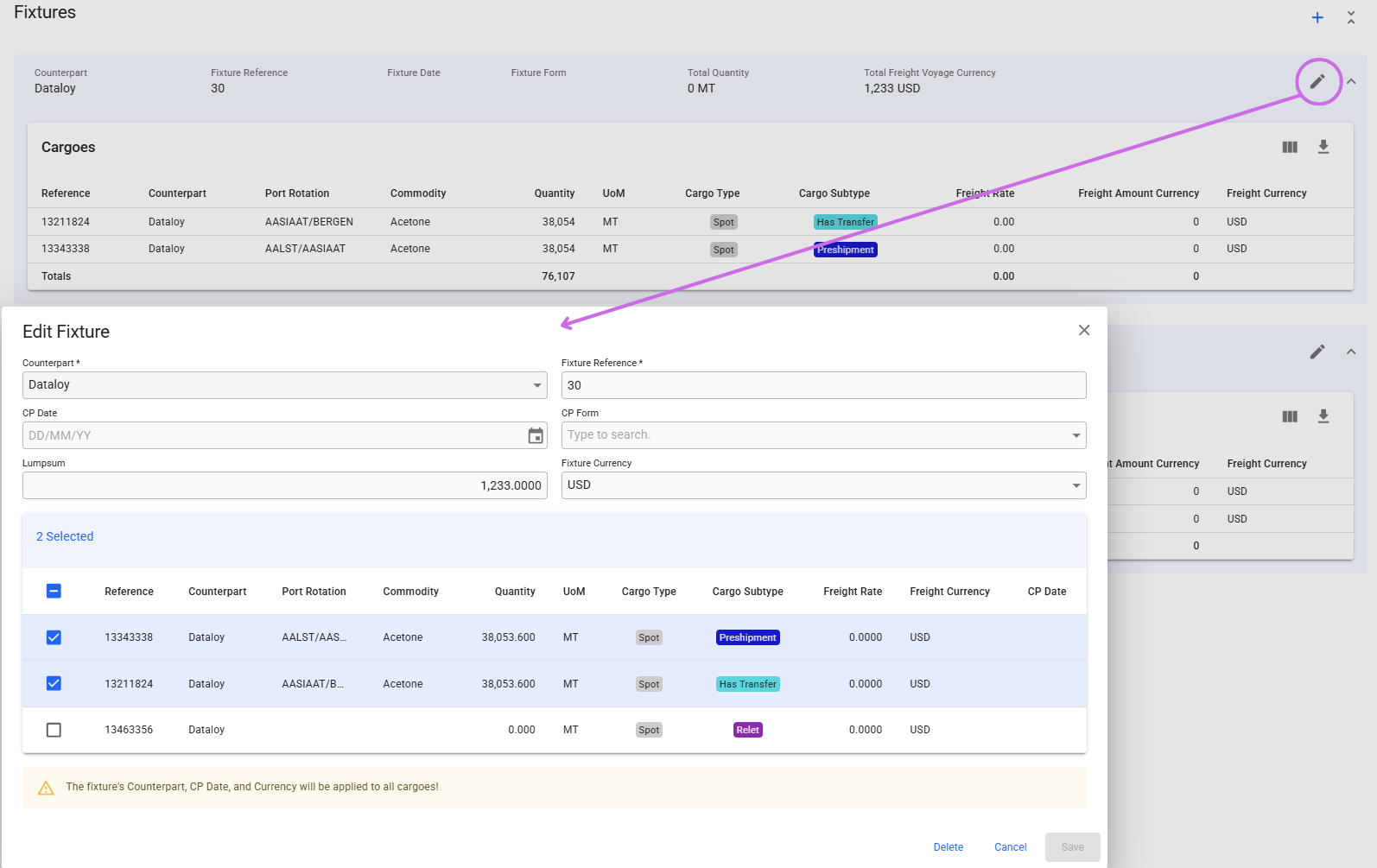
Edit Fixture Modal
\
Clicking the Edit icon will open up the Edit Fixture modal, where you can change fields and select more or de-select cargoes.
The cargoes list at the bottom has pre-selected cargoes of the Counterpart you want to edit, by default. All cargoes connected to the Counterpart selected will show up in the list, along with the pre-selected ones. This gives you the opportunity to either add more cargoes to, or remove from, the selected fixture.
Another feature is that you can override the Counterpart. Then this change will reflect on all the selected cargoes. The Counterpart selector is *not* limited this time around.
You will also be able to edit the Fixture Reference in this modal, which is a running number by default.
{% endtab %}
{% endtabs %}
### Fields on the Fixtures
*One* fixture is equivalent to the blue area that wraps around the cargoes within it, and containing fields in the section header. Here is a list of them:
* Counterpart
* Fixture Reference
* Fixture Date
* Fixture Form
* Total Quantity
* sum of the cargoes' weight on a fixture
* Total Freight Voyage Currency
* sum of the cargoes' freight, plus the fixture lumpsum, on a fixture
* the currency is for now always shown in Voyage Currency
### Extra Features
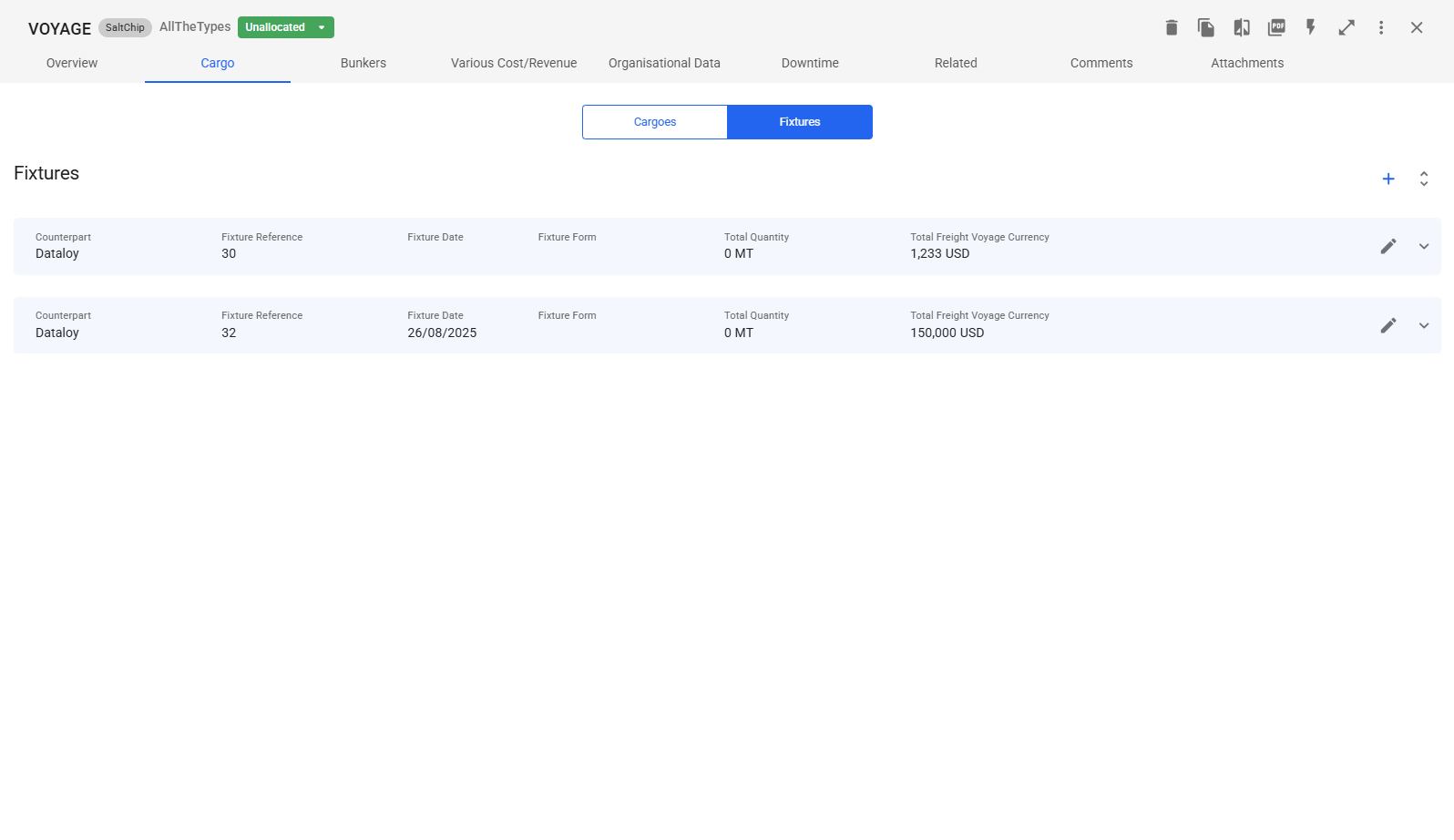
The fixtures list has a separate button to collapse/expand the cargo list of all the fixtures with one click as shown below:
{% tabs %}
{% tab title="Expanded" %}
Expanded View
{% endtab %}
{% tab title="Collapsed" %}
Collapsed View
{% endtab %}
{% endtabs %}
You can also collapse/expand each fixture by clicking on the blue header, or the arrow at the right-most.
.png)