# Voyages & Port Calls

Vessel Details

The "Vessel Details" section shows some key data points about the vessel such as DWT, Cubic Capacity, Draft and more. Click **Expand**<img src="https://content.gitbook.com/content/uZ9lzqgHX4JL1Df67xog/blobs/2pjDSabN7RISbbMPSk65/expand_more_black_24dp.svg" alt="" data-size="original">to show more details and contact information for the vessel.

<div data-full-width="false"><figure><img src="https://content.gitbook.com/content/uZ9lzqgHX4JL1Df67xog/blobs/fBFjvkIhNZeqxmUZ6Pv7/Skjermbilde%202024-01-05%20kl.%2017.11.50.png" alt=""><figcaption><p>Collasped Vessel Details section</p></figcaption></figure> <figure><img src="https://content.gitbook.com/content/uZ9lzqgHX4JL1Df67xog/blobs/dsxgtT9UCkG8dSSjfYgX/Skjermbilde%202024-01-05%20kl.%2017.12.42.png" alt=""><figcaption><p>Expanded Vessel Details section</p></figcaption></figure></div>

## Voyages

This is a list of voyages on the opened vessel sorted by newest first. Clicking the <img src="https://content.gitbook.com/content/uZ9lzqgHX4JL1Df67xog/blobs/6VFwuaei9x1AvITtQqIU/image.png" alt="" data-size="line"> icon will bring up a modal to customize which columns are visible. If there is an ongoing voyage in the list, it is indicated with a blue marker on the left side.
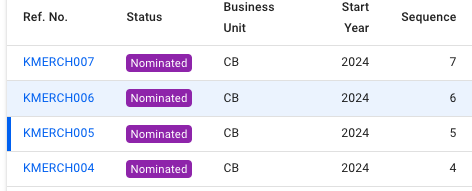
<figure><img src="https://content.gitbook.com/content/uZ9lzqgHX4JL1Df67xog/blobs/1in2NSXDtv71C0qQRD33/Skjermbilde%202024-08-06%20kl.%2012.59.57.png" alt=""><figcaption><p>The ongoing voyage (5) is marked by the solid deep blue bar on the left, while the selected voyage (6) is highlighted in blue.</p></figcaption></figure>

Below, you will find a list of either Port Calls or Bunkers, and a button to toggle between the two different views.

### Port Calls

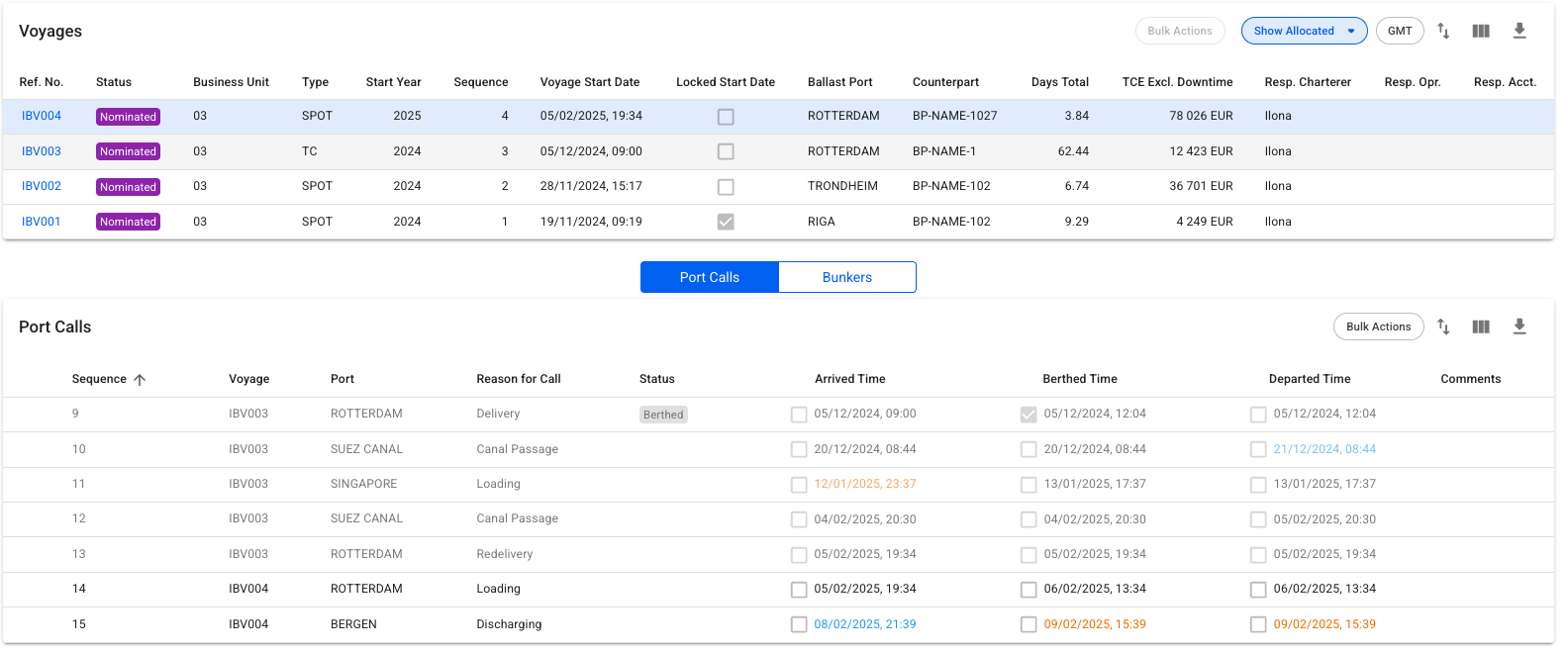
While in Port Call view, clicking on a voyage row will list all port calls of the selected voyage, as well as the port calls from the previous and next voyage, if they exist. The port calls from the previous and next voyage will be in a slightly lighter colour, such that it is possible to tell them apart. Clicking directly on the **reference number** of the voyage will open up the *Voyage drawer*.&#x20;

Clicking on port calls in the list opens the corresponding port call's drawer where you can make can changes:

The Port Calls list will display up to 30 items, and includes a separate scrolling functionality. By hovering over each of the "headers" (such as *Voyage*, *Port*, *Reason for Call*, etc.), you can also see an **sorting array** which will make you able to sort that specific column in either an ascending (ASC) or descending (DESC) order.&#x20;

<figure><img src="https://content.gitbook.com/content/uZ9lzqgHX4JL1Df67xog/blobs/19coHML7cYCHZlmaB817/Screenshot%202025-05-02%20at%2016.28.03.png" alt=""><figcaption><p>Port Calls of the previous, selected, and next voyage</p></figcaption></figure>

### Bunkers

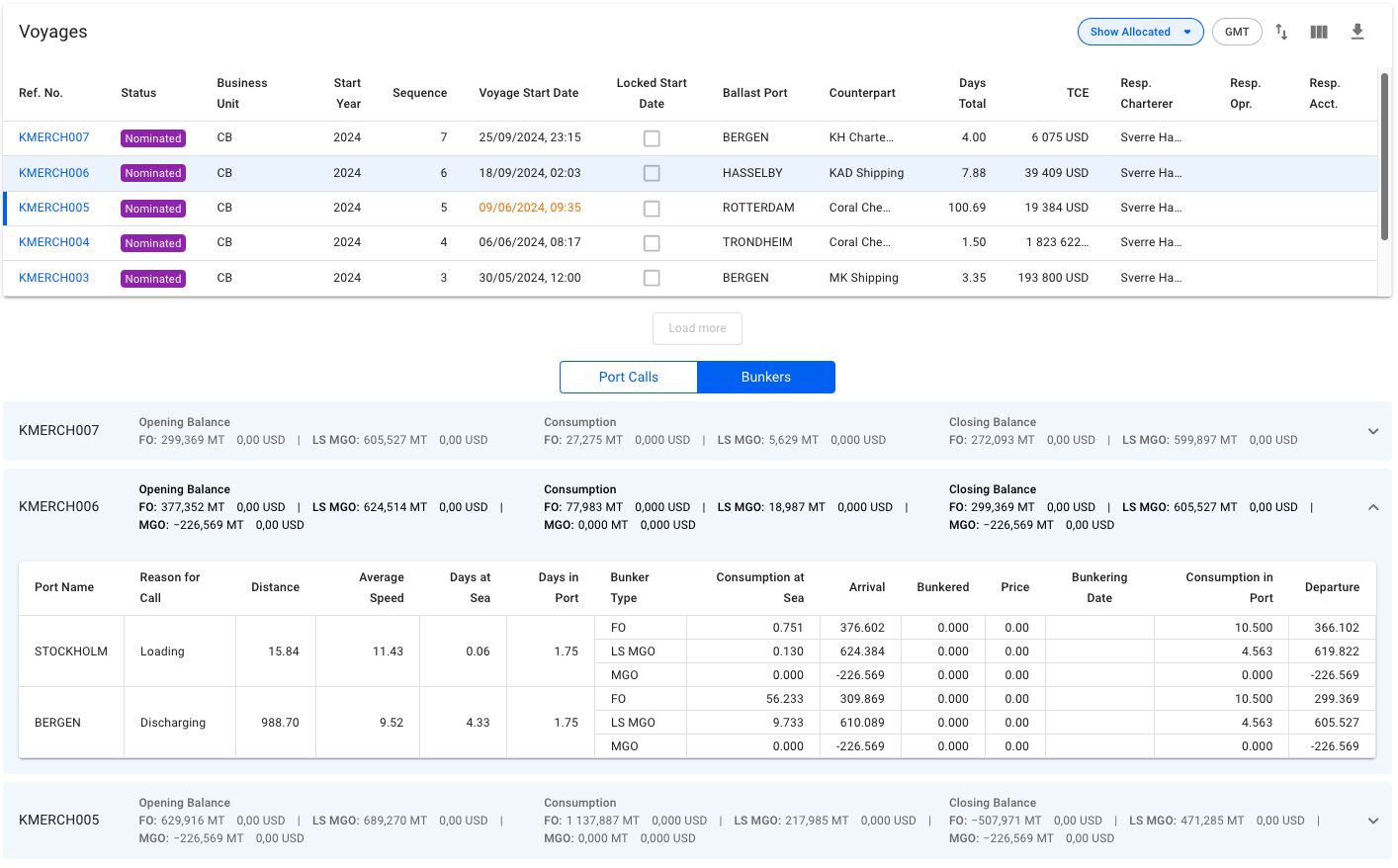
The Bunkers view removes the list in favour of up to three collapsible sections for the voyages. Similarly to the Port Calls view,  clicking on a voyage row in the voyages list will select/open up the corresponding collapsible section, and fetch the data for the previous and next voyage:

<figure><img src="https://content.gitbook.com/content/uZ9lzqgHX4JL1Df67xog/blobs/b8ljUiFoFBUMCoivS3xF/Skjermbilde%202024-08-06%20kl.%2013.03.35.png" alt=""><figcaption><p>Bunker consumption overview for the previous, selected, and next voyage.</p></figcaption></figure>

The top band of the section displays 4 columns; the reference number of the voyage, Opening Balance, Consumption and Closing Balance. Each of the latter three will show amount and price for up to 4 different bunker types, depending on which bunkers are actually being used by the vessel.

<figure><img src="https://content.gitbook.com/content/uZ9lzqgHX4JL1Df67xog/blobs/Hg2xLnEHWpvIO3ekuvj6/Skjermbilde%202024-01-05%20kl.%2017.24.46.png" alt=""><figcaption><p>On this voyage, only FO and LS MGO has been consumed, so the balances and consumption columns only displays information for FO and LS MGO.</p></figcaption></figure>

Expanding the collapsible section will give you a table overview of each port, with reason for call, distance, speed etc., as well as a detailed breakdown of the bunkers consumed. Only the bunkers actually used will be displayed here.

<figure><img src="https://content.gitbook.com/content/uZ9lzqgHX4JL1Df67xog/blobs/pb2jWEtcPuXWAAfNxtsE/Skjermbilde%202024-01-05%20kl.%2017.33.09.png" alt=""><figcaption><p>On this voyage, only FO and LS MGO has been consumed, so the breakdown also only displays information for FO and LS MGO.</p></figcaption></figure>

**Filtering**

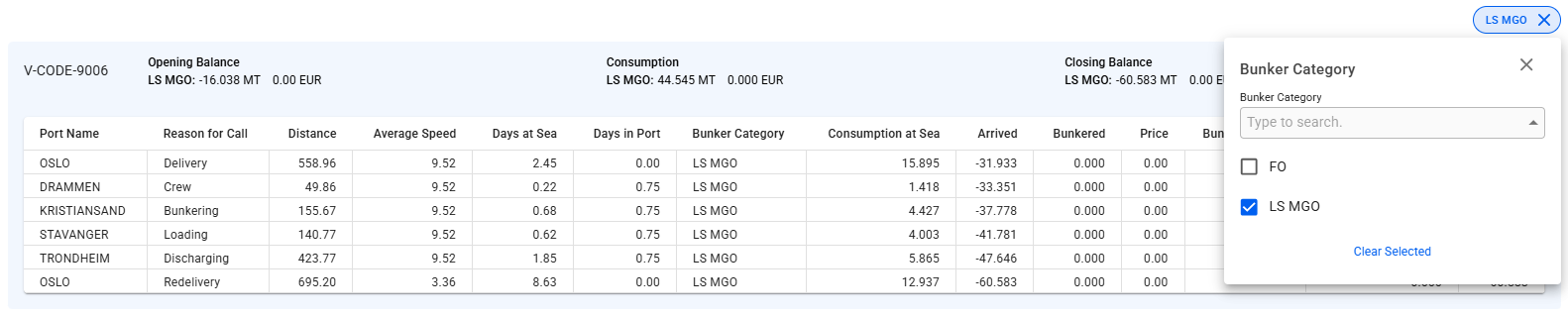
The bunker section can be filtered by bunker category to get a better overview for each category.

<figure><img src="https://content.gitbook.com/content/uZ9lzqgHX4JL1Df67xog/blobs/W6rBYESxjjHtZvVtMIuy/Skjermbilde%202025-04-29%20144406.png" alt=""><figcaption></figcaption></figure>

## **Resequence Voyages**

The *resequence* feature enables re-ordering the list of voyages assigned to a vessel. To utilize the feature, click the ![](https://content.gitbook.com/content/uZ9lzqgHX4JL1Df67xog/blobs/uEiqEmo0AvPTFxFHq3Na/import_export_24px.svg)icon in the top right of the voyages list. This will bring up the Resequence Voyages modal.

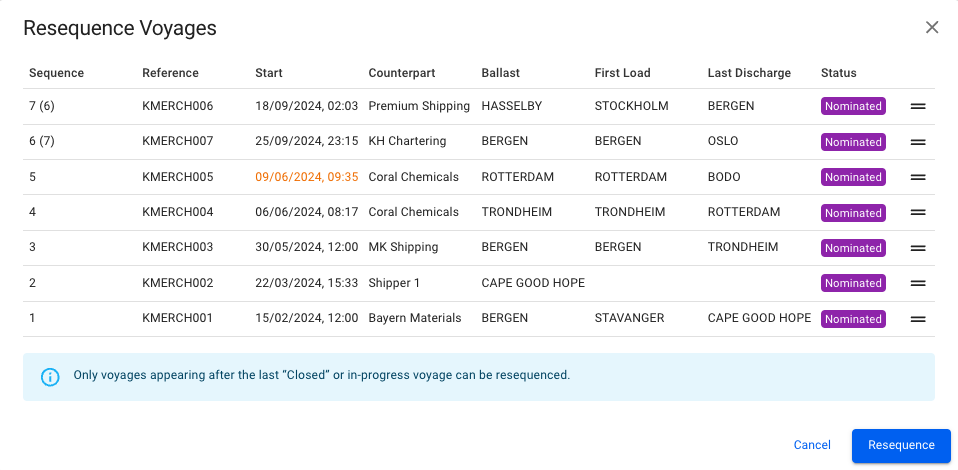
The user can now drag and drop the voyages to re-order them into the desired order. For example, the screenshot below illustrates *voyage 7,* which is being dragged down. It is expected that the item will have replaced *voyage 6* after release:

<figure><img src="https://content.gitbook.com/content/uZ9lzqgHX4JL1Df67xog/blobs/efhgDuQZoj3t6TjADq8I/Skjermbilde%202024-08-06%20kl.%2013.12.47.png" alt=""><figcaption><p>Swapping voyage 6 and 7.</p></figcaption></figure>

Any voyages that will have their sequence number changed, will have their previous old sequence number parenthesized.

Clicking the Resequence button will update the fleetplan.

## Resequence Port Calls

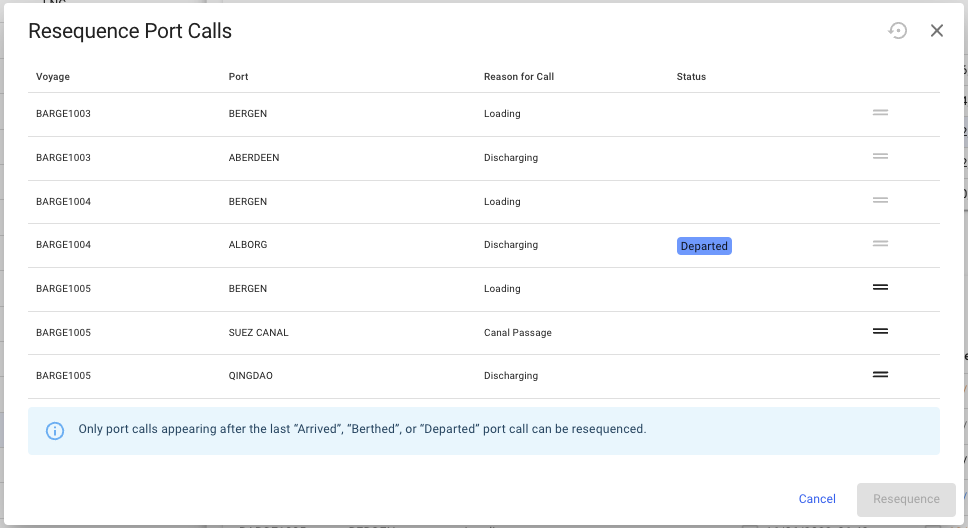
Port calls can also be resequenced to a different position within the previous, current, or next voyage. To resequence a port call, click the resequence symbol ![](https://content.gitbook.com/content/uZ9lzqgHX4JL1Df67xog/blobs/uEiqEmo0AvPTFxFHq3Na/import_export_24px.svg) in the top right corner of the port calls list. A popup modal will then show and the port call can be dragged and dropped in the desired position (see screenshot below). Note that only one port call can be moved at a time. Also, only port calls after the last *Arrived*, *Berthed* or *Departed* port call can be moved in the list:<br>

<figure><img src="https://content.gitbook.com/content/uZ9lzqgHX4JL1Df67xog/blobs/b2RtyVKl9zDItDghh9u0/image.png" alt=""><figcaption><p>Resequence the port calls</p></figcaption></figure>