# Invoicing Preferences
In this page, you will find settings related to the invoicing and invoice printout. Below the settings, you can find a section for setting up labels and paths for the different "Selectable Fields" sections; a feature of the new invoice template.
{% hint style="warning" %}
The preferences for the old invoice template which are company dependent and the option to display the company name under the logo, for both templates, can be found on the Company[#invoicing-preferences-tab](https://docs.dataloy.com/release-8.16/voyage-management-system/master-data/companies/manage-companies#invoicing-preferences-tab "mention") page.
{% endhint %}
## General invoice settings
| Setting | Description |
| --------------------------------------- | ------------------------------------------------------------------------------------------------------------------------------------------------------------- |
| Use new invoice template | System will generate invoice PDFs using the new invoice template. This setting is required to be turned **on** in order to use the Selectable Fields feature. |
| Restrict self-assembled invoice posting | Restrict the users from posting the invoices they themselves have assembled, to enforce the four-eye principle |
## Settings affecting the new template
| Setting | Description |
| ------------------------------------------ | ----------------------------------------------------------------------------------------- |
| Display Total Amount in writing on invoice | Adds a line underneath the invoice total spelling out the currency and amount with words. |
## Settings affecting both templates
| Setting | Description |
| ---------------------------------------- | ------------------------------------------------------------------------------------------------ |
| Show Contact Person on Invoice | Displays the person that assembled the invoice in the top right section |
| Aggregate Charter Hire lines on invoice | Aggregate and group charter hire lines by their hire periods when printing invoice |
| Aggregate CVE on Hire Invoice | Aggregate cable, victuals, and entertainment line items on hire invoices into a single line |
| Aggregate Commission on Hire Invoice | Aggregate commission line items on hire invoices into a single line |
| Format Offhire document lines on invoice | When enabled, the system will perform line-breaks at fixed locations for each offhire line item |
| Print cargo external reference | Will add the external reference of the Cargo as a new line below the freight line on the invoice |
| EU Tax Automation | Display an extra sentence on the invoice with Tax / Reverse charge information |
## Selectable Fields
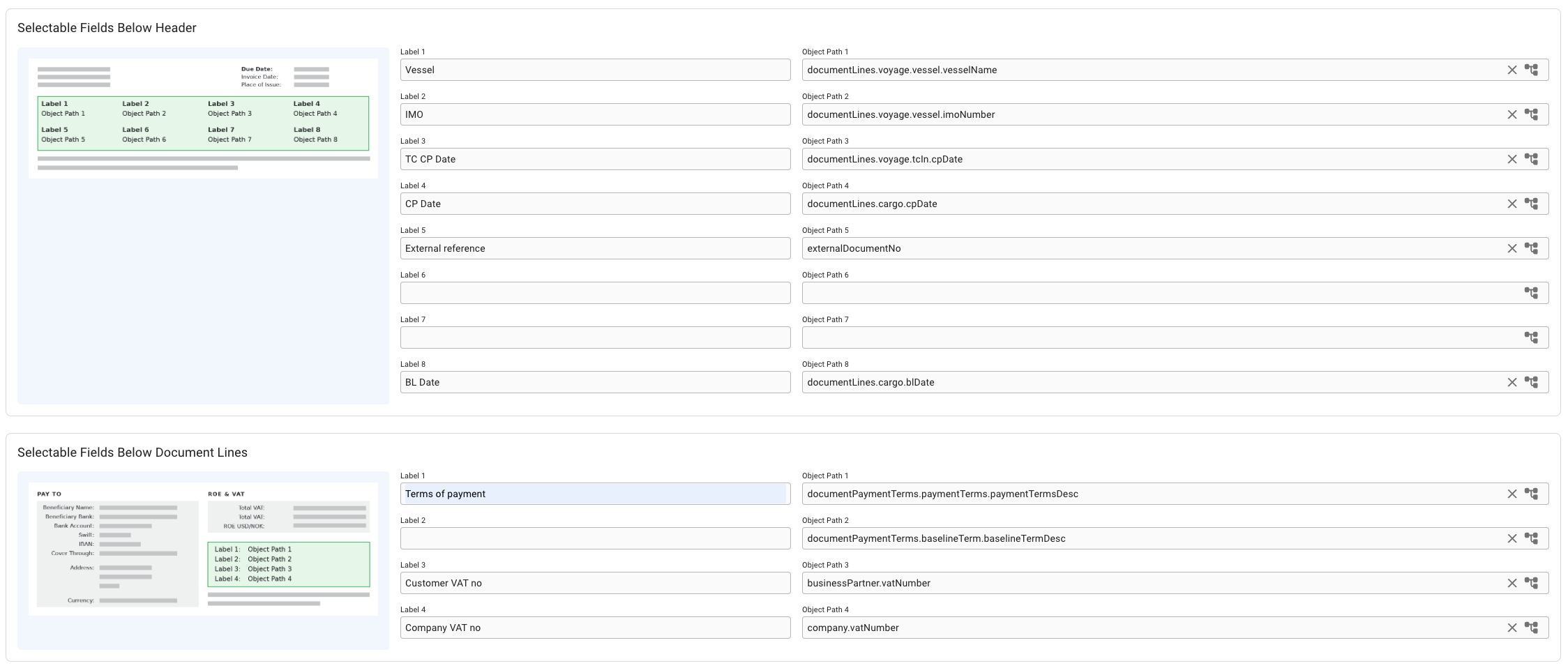
In Selectable Fields Below Header section, can choose up to **8 pairs** of labels and object paths, while up to **4 pairs** in Selectable Fields Below Document Lines section. The position of the labels and object paths are fixed, and can be referenced in the small preview picture in the blue area to the left. You can also read more about the invoice PDF itself [here](https://docs.dataloy.com/release-8.16/voyage-management-system/finance/invoices/printing-invoices#selectable-fields-below-the-header).
* If neither label nor object path is filled in, nothing will be printed in that position.
* If a value cannot be fetched from the object path, nothing will be printed in that position
* If no label is set, but a value can be fetched from the object path, only the fetched value will be printed in that position
Example setup of both Selectable Fields sections
### Labels
Labels are fixed values for a given position that you can choose yourself, used to describe the value fetched from the object path.
### Object paths
Object Paths are paths that describe the Dataloy API data-model, leading from object to object and terminating in a value. The object path starts from the Document object.
For instance, if you want to find and print the name of the vessel for a given document, you would do as follows. A **Document** have one or more **DocumentLines**. A **DocumentLine** is connected to a **Voyage**, which is connected to a **Vessel**. A **Vessel** has a **VesselName**. The final object path will thus be `documentLines.voyage.vessel.vesselName`.
To assist with setting up the object path, the Select Field modal is used.
#### The Select Field Modal
You can *open* this modal by clicking on the input field itself (which is non-editable), or click on this icon:
Select Field Icon
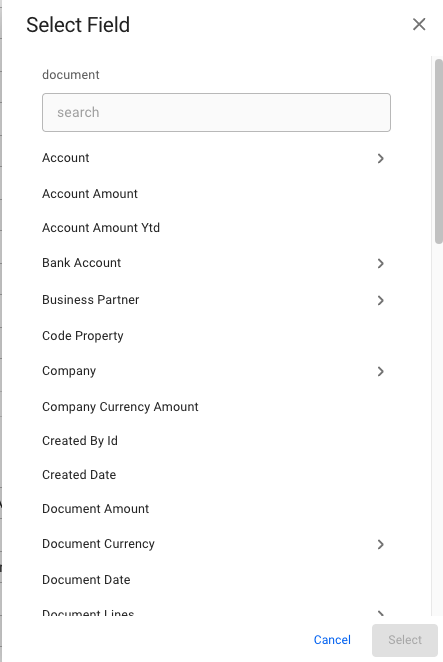
Both options will open up this modal:
Select Field Modal
Below the title, you can see the word `document`, which represents the root object of the modal. Meaning, you can search for anything inside the document object, or select one of the fields when scrolling up and down. You will quickly see that each sub-object will open up a new list of new objects again, e.g. `Account` will open up the possibility to choose `Account Code`, `Account Desc`, etc. You can also search on the objects within `document > account`, or scroll. Most of the valuable data is likely under `document > documentLines`.
You can also *clear* the the input field by clicking on this icon:
Clear Field Icon
The icon is not visible until you have chosen a path first.