# Vessel Reports
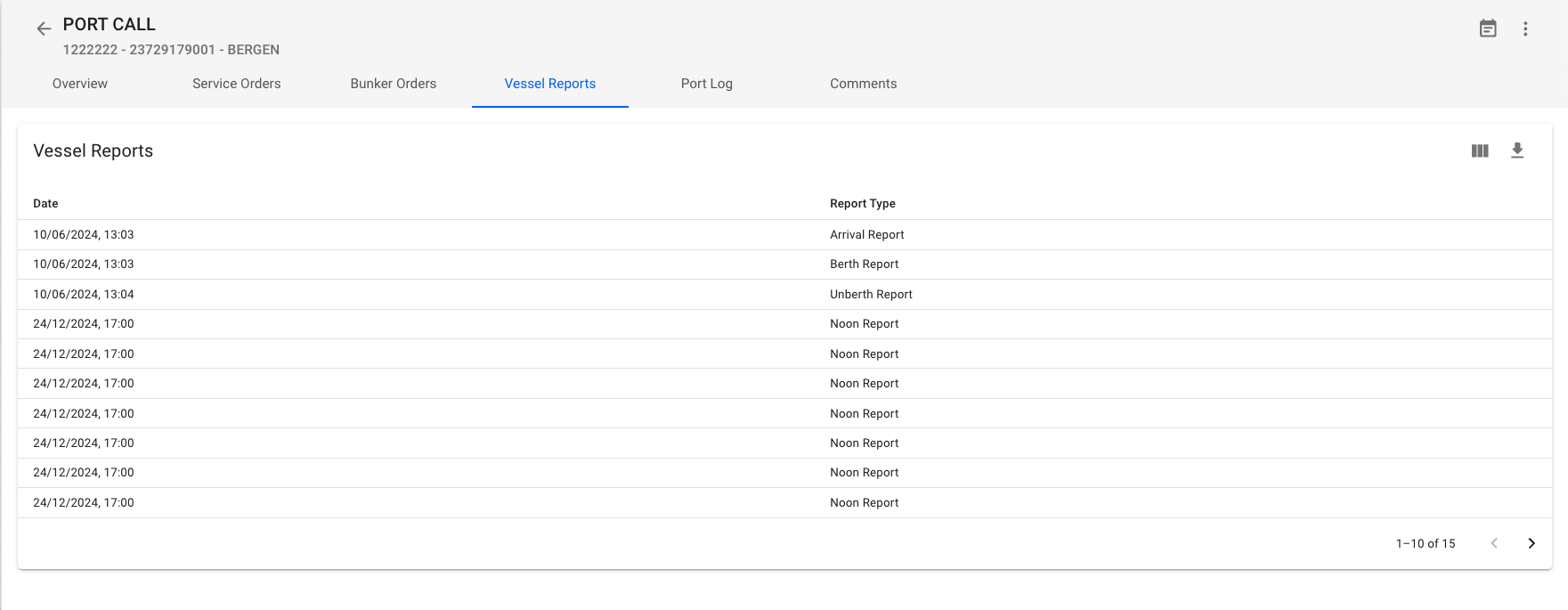
To view Vessel Reports, open the drawer for the given Port Call by clicking it in the list.\
Then click the tab "Vessel Reports" at the top of the drawer and a list with registered reports will be displayed.
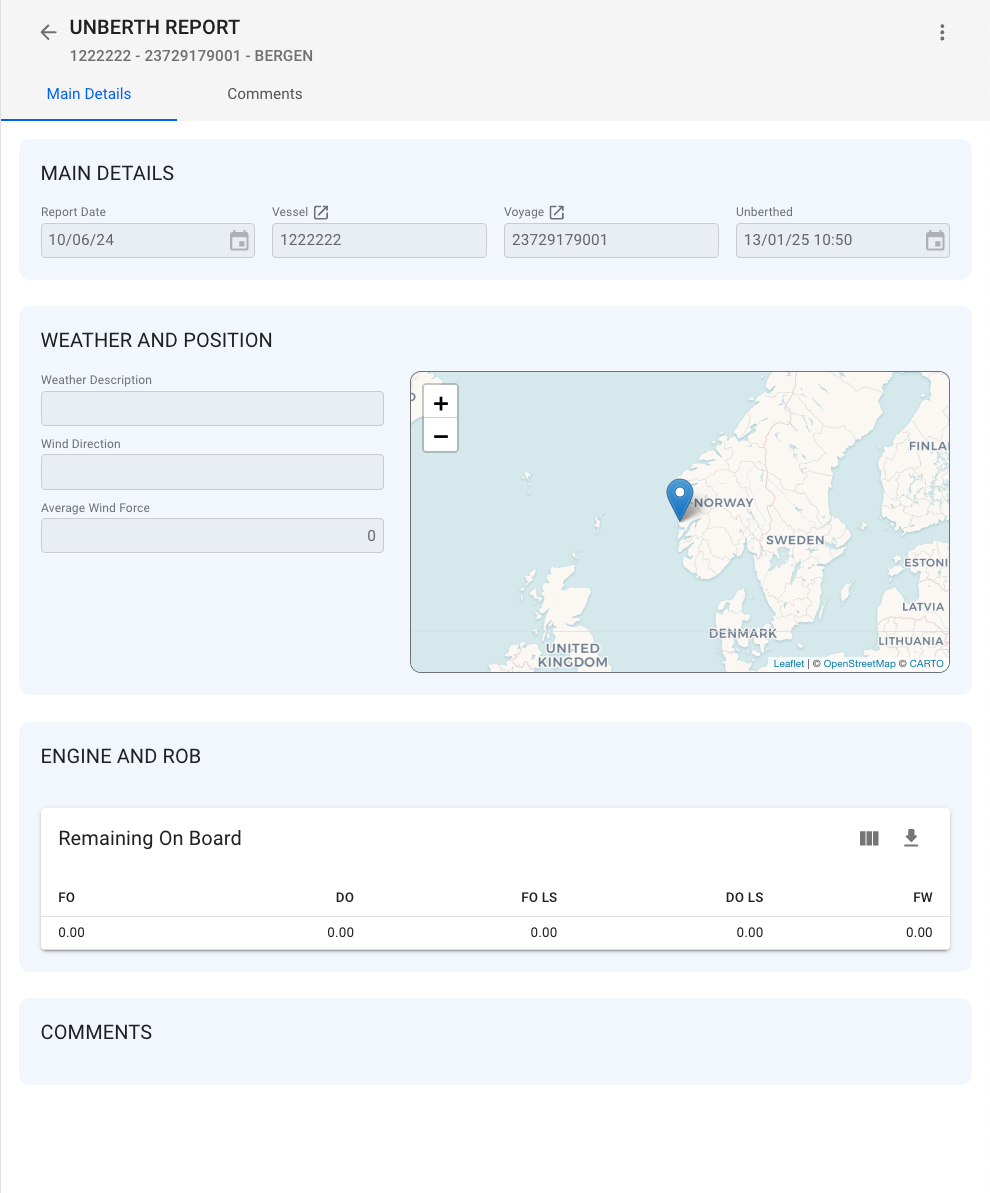
To view a given report, click the wanted report in the list and a new drawer will open with further details.
Note: if you want to keep track of incoming reports from multiple vessels or a fleet then check out[ this page](https://docs.dataloy.com/release-8.16/voyage-management-system/step-by-step-guides/operations/vessel-reports/find-a-vessel-report)
### Downtimes
Below the vessel reports, a list of downtimes for the port call is displayed.\
Click on an item in the list to go to the the corresponding drawer and view more information about the specific item.
Clicking the -icon on the table will bring up a modal to create a downtime. When creating a downtime from the port call drawer, the port call will be automatically filled in.
More details about *creating* a downtime: [create-offhire](https://docs.dataloy.com/release-8.16/voyage-management-system/step-by-step-guides/operations/offhire/create-offhire "mention")