Add Time Not to Count MO
 on top of the list.
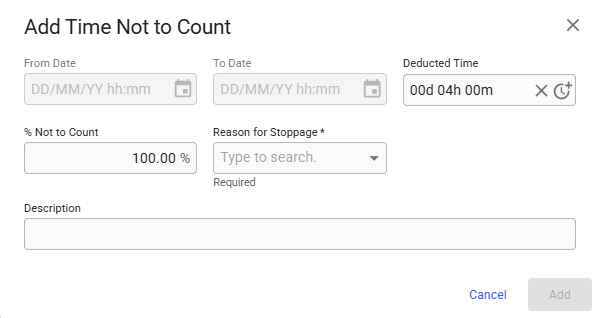
2. Fill in all required fields listed below in the Add Time Not to Count window.
3. Click **Create**.
| Fields | Description |
| ------------------- | ------------------------------------------------ |
| From Date | Start of not to count period |
| To Date | End of not to count period |
| Deducted Time | Amount of time to deduct |
| % Not to Count | Percentage specifying the % of time not to count |
| Reason for Stoppage | The reason for the stoppage |
| Description | Additional description for the not to count |
on top of the list.
2. Fill in all required fields listed below in the Add Time Not to Count window.
3. Click **Create**.
| Fields | Description |
| ------------------- | ------------------------------------------------ |
| From Date | Start of not to count period |
| To Date | End of not to count period |
| Deducted Time | Amount of time to deduct |
| % Not to Count | Percentage specifying the % of time not to count |
| Reason for Stoppage | The reason for the stoppage |
| Description | Additional description for the not to count |
Add Time Not to Count MO
 on the right side of the not to count row.
2. Change the fields in the Edit Time Not to Count window.
3. Click **Save**.
## **Change Views of Timesheet table**
### **Collapsed View**
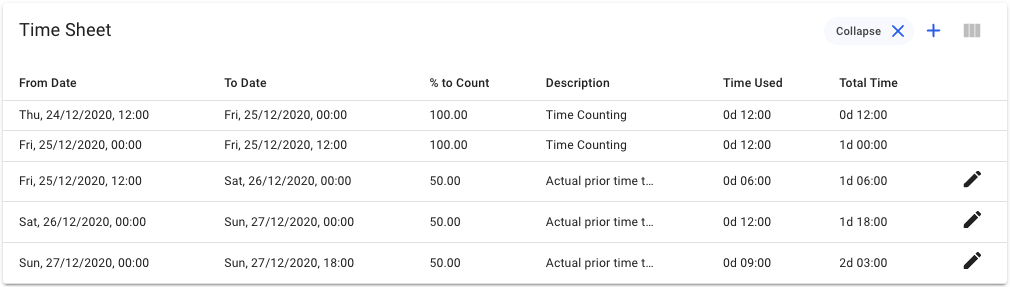
This is the **default** view of the Timesheet table. This view shows a *collapsed* view of the Timesheet items, in which each item has a span of *laytime commenced* to *laytime completed*. The *stoppages* added (the time not to counts) will be shown in their own separate rows:
on the right side of the not to count row.
2. Change the fields in the Edit Time Not to Count window.
3. Click **Save**.
## **Change Views of Timesheet table**
### **Collapsed View**
This is the **default** view of the Timesheet table. This view shows a *collapsed* view of the Timesheet items, in which each item has a span of *laytime commenced* to *laytime completed*. The *stoppages* added (the time not to counts) will be shown in their own separate rows:

Collapsed View of Timesheet
Detailed View of Timesheet