# Maintain Vessel Series
## Vessel Series List
Here, you are able to view a list of market indices based by their name and code. You can use the [filtering- and sorting options](https://docs.dataloy.com/release-8.16/voyage-management-system/step-by-step-guides/sorting-and-filtering-lists) (you can also sort on the list headers), including filtering on *disabled* vessel series:
Vessel Series list
Click on a list item to open up the Vessel Series drawer (see below).
You also have other actions, such as [customise columns](https://docs.dataloy.com/release-8.16/voyage-management-system/step-by-step-guides/customising-list-columns).
## Vessel Series Drawer
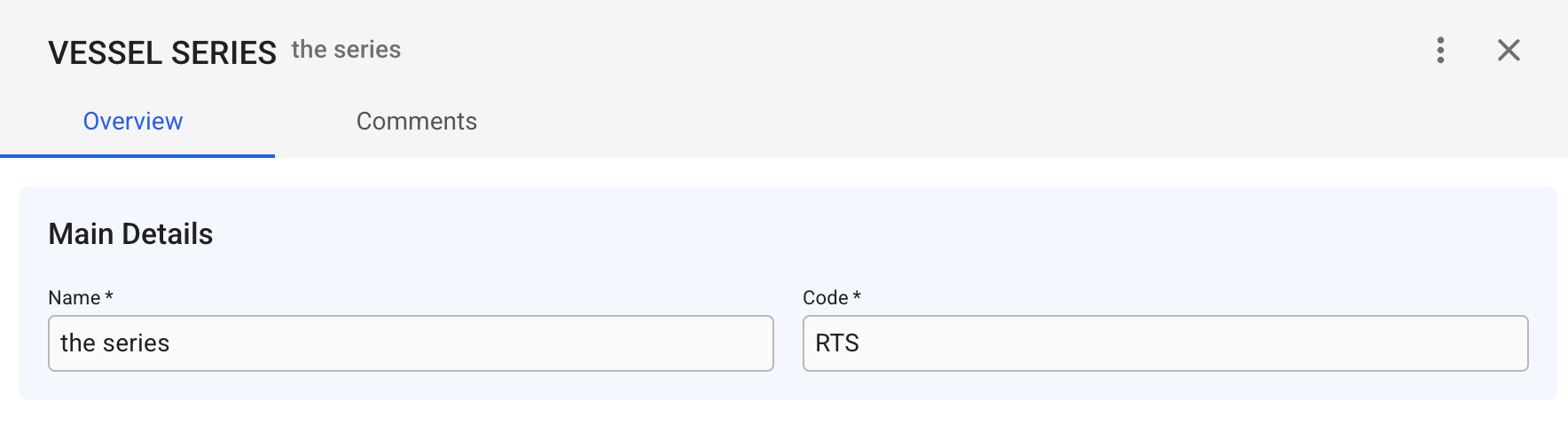
The first tab, Overview, you can edit:
* Name
* Code
Vessel Series drawer, Overview tab
{% hint style="info" %}
Note that:
* the Vessel Series *Code* must be unique and uppercase letters only
* all fields are required when creating and editing
{% endhint %}
## Deleting a Vessel Series
A Vessel Series must first be *disabled*. Click the  button in the top right corner to open the secondary actions. Choose the "Disable" option. Click the  button again, and then choose the "Delete" option. A confirmation modal will also show up, click Delete.