# Manage Pools
## Creating a new Pool
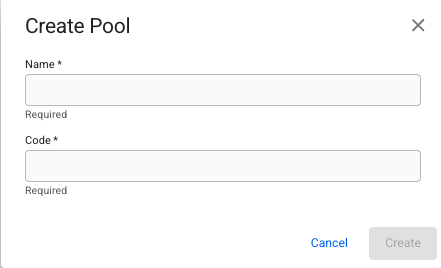
Click the  icon in the top right on the Pools list page to open the Create Pool modal. To be able to create a Pool you must supply a name and code. When a name and code has been filled in, the Create button will be enabled and clickable. Clicking on the button will then create a pool.
Create pool modal
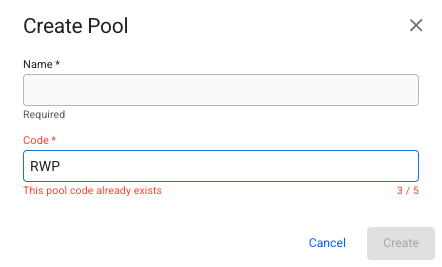
The code has to be unique, if you input a code that already exists you will get an error as seen below.
An existing code has been inputted
Note that code is also only in uppercase letters.
## Edit Pool details - Pool Drawer
Clicking on a Pool you want to change the details of in the Pools List will open the Pool Drawer.
### Overview tab
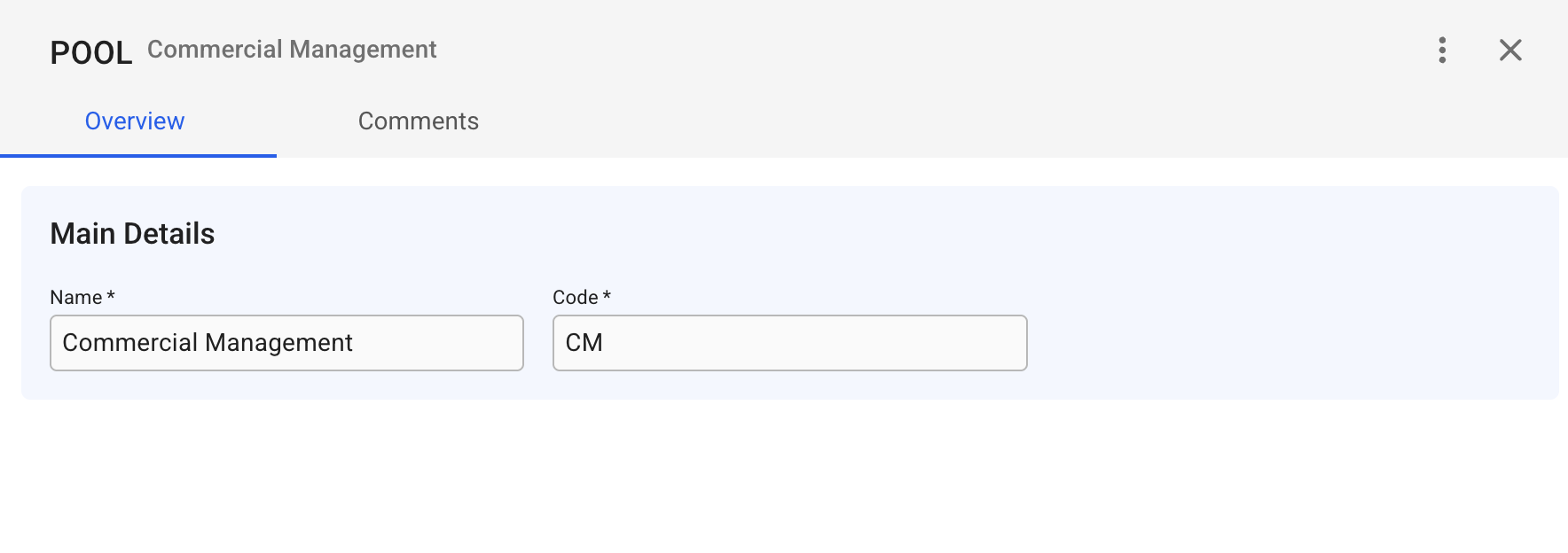
The overview tab contains the main details section where the code and name of the pool are editable.
Pool Drawer
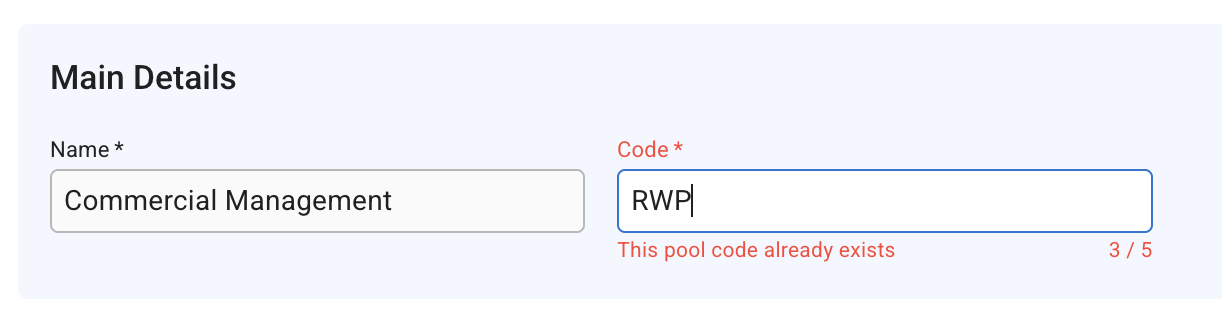
Since the Pool Code has to be unique, you will get an error message similar to that of the create modal if you try to input a code that is already in use on a different pool.
Inputted pool code is already in use on another pool.
Code is in uppercase only letters here as well.
## Deleting a Pool
A Pool must first be disabled. Click the  button in the top right corner. Choose the "Disable" option. Click the  button again in the top right corner. Choose the "Delete" option. A confirmation modal will also show up, click Delete.