# Claim Causes

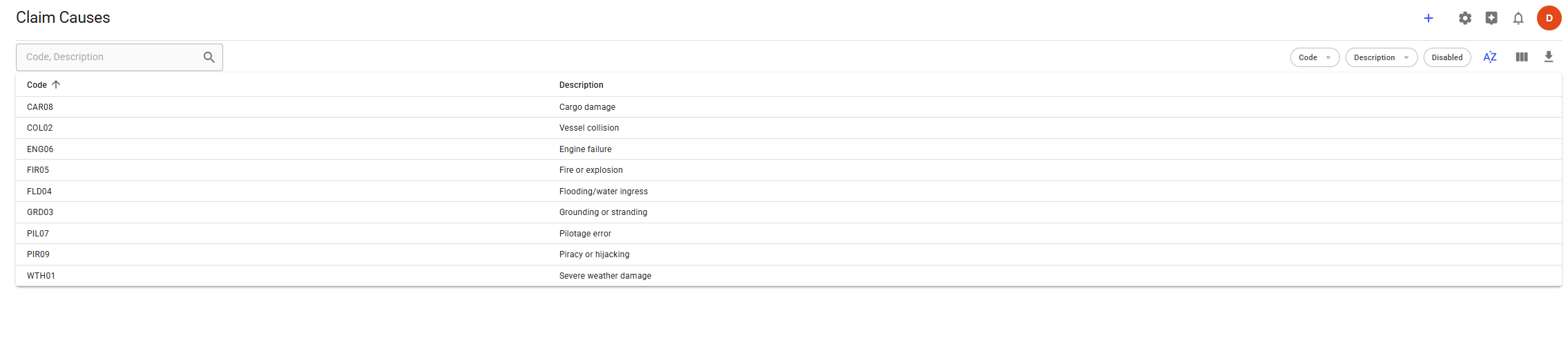
This module makes it possible for ***administrators*** to create and modify claim causes. The list displays all enabled claim causes by default, but it is also possible to display those that are disabled through the filter 'Disabled' in the top-right header (see figure 1).

<figure><img src="https://content.gitbook.com/content/uZ9lzqgHX4JL1Df67xog/blobs/ic5aMIlwrj5F6vOb9SHY/image.png" alt=""><figcaption><p>Figure 1: Claim Causes list</p></figcaption></figure>

## Filtering and Sorting

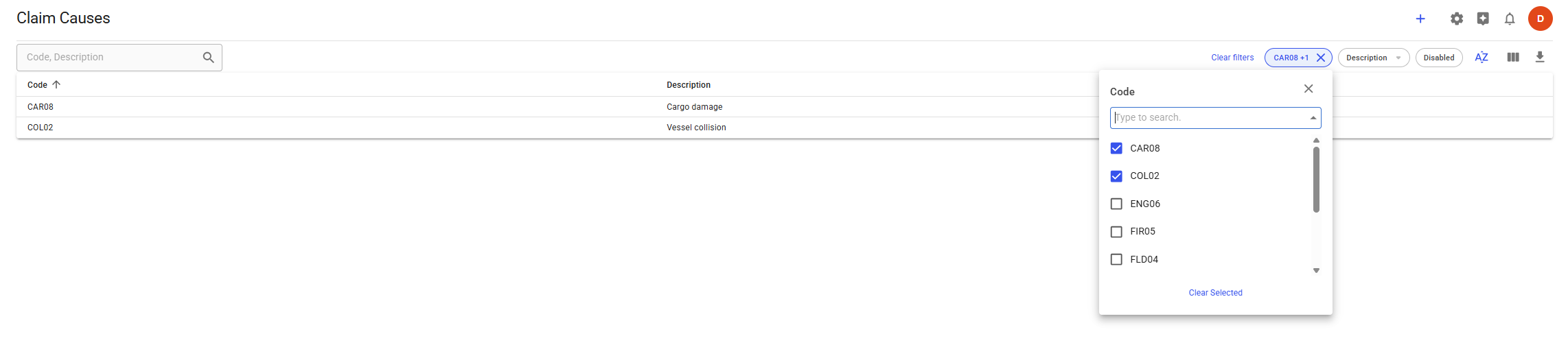
[Quick filters ](https://docs.dataloy.com/release-8.16/voyage-management-system/sorting-and-filtering-lists#quick-filters)in the top-right header let you filter by **code**, **description**, or **disabled claim causes**. You can combine multiple filters to narrow down the list further.

<figure><img src="https://content.gitbook.com/content/uZ9lzqgHX4JL1Df67xog/blobs/sDTOgvVTk1YPj7yLt1p6/image.png" alt=""><figcaption><p>Figure 2: Filter by code CAR08 and COL02</p></figcaption></figure>

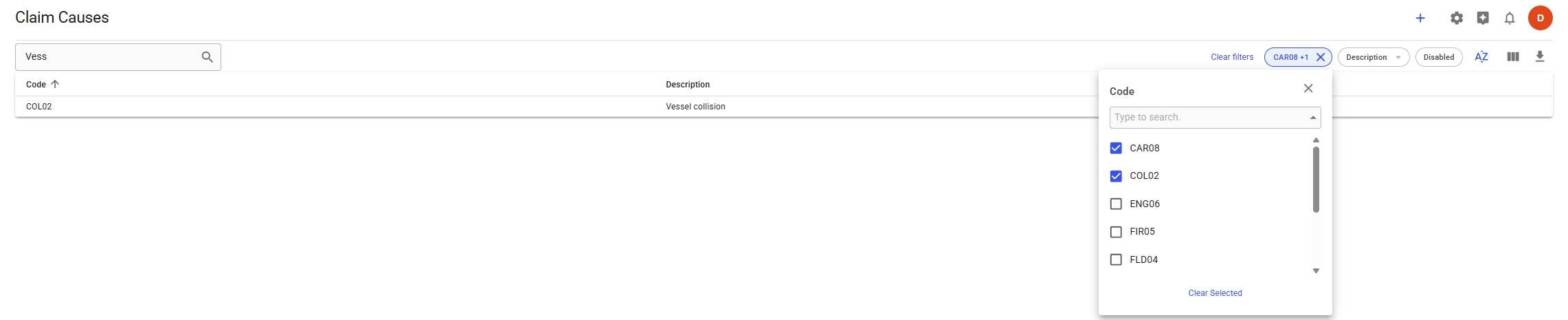
It is also possible to search for the claim cause using the search box in the top-left. The search can be combined with quick filters for more precise results, see the figure below.

<figure><img src="https://content.gitbook.com/content/uZ9lzqgHX4JL1Df67xog/blobs/zwRaravt6W1nVDLW8onn/image.png" alt=""><figcaption><p>Figure 3: Search term 'Vess' with filter code CAR08 and COL02 selected</p></figcaption></figure>

<figure><img src="https://content.gitbook.com/content/uZ9lzqgHX4JL1Df67xog/blobs/T9PGnw205SaPS35WNYZC/image.png" alt=""><figcaption><p>Figure 4: Disabled filter chosen</p></figcaption></figure>

To sort the list, click the sort option in the list headers (see Figure 5). For more details on filtering and sorting, refer to the [**Sorting and Filtering Lists**](https://docs.dataloy.com/release-8.16/voyage-management-system/step-by-step-guides/sorting-and-filtering-lists) page.

<figure><img src="https://content.gitbook.com/content/uZ9lzqgHX4JL1Df67xog/blobs/WCV5TTkGzqaRWHg6XLQl/Screenshot%202025-03-13%20101855.png" alt=""><figcaption><p>Figure 5: Sorted by description descending (see the downward pointing arrow for reference)</p></figcaption></figure>

## Creating a Claim Cause

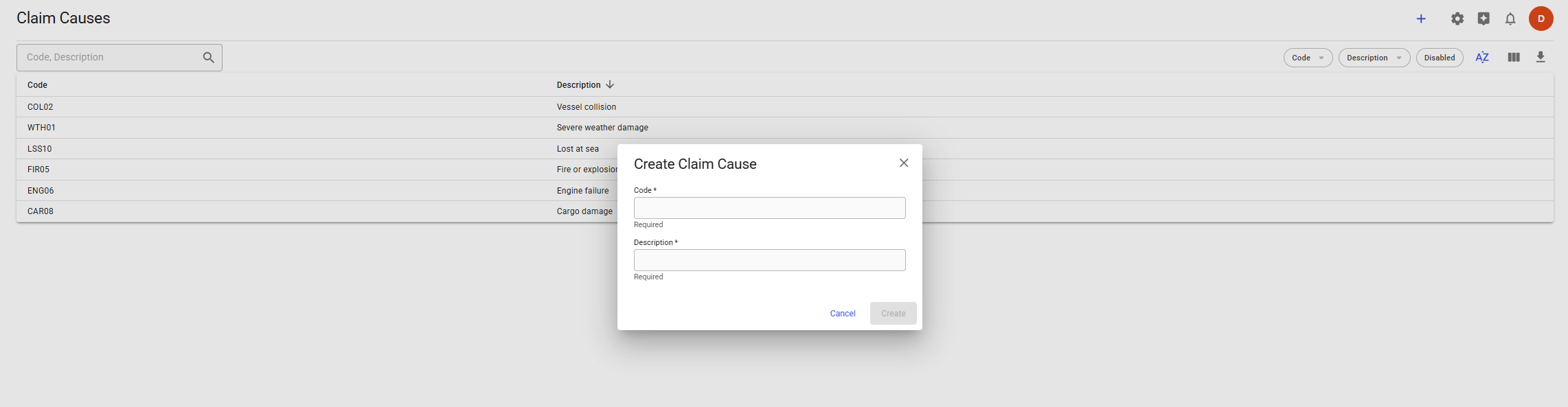
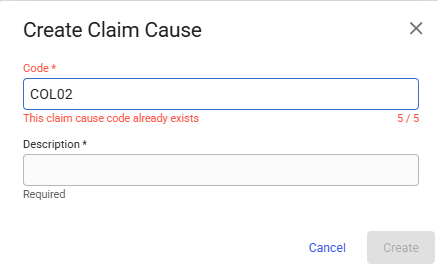
To create a new Claim Cause, click the **blue plus button** in the top-right. When clicked, a create modal will appear, where you can enter a code and description (figure 6). Both fields are required, and the code has to be unique, see figure 7. Once created, the claim cause drawer will open.

<figure><img src="https://content.gitbook.com/content/uZ9lzqgHX4JL1Df67xog/blobs/Gjk0zmqMJUCoUFAgZDgL/image.png" alt=""><figcaption><p>Figure 6: Create Claim Cause Modal</p></figcaption></figure>

<figure><img src="https://content.gitbook.com/content/uZ9lzqgHX4JL1Df67xog/blobs/hqX5RCv9onxsd3Eq1ISn/image.png" alt=""><figcaption><p>Figure 7: Warning if Code already exists.</p></figcaption></figure>

## Editing a Claim Cause

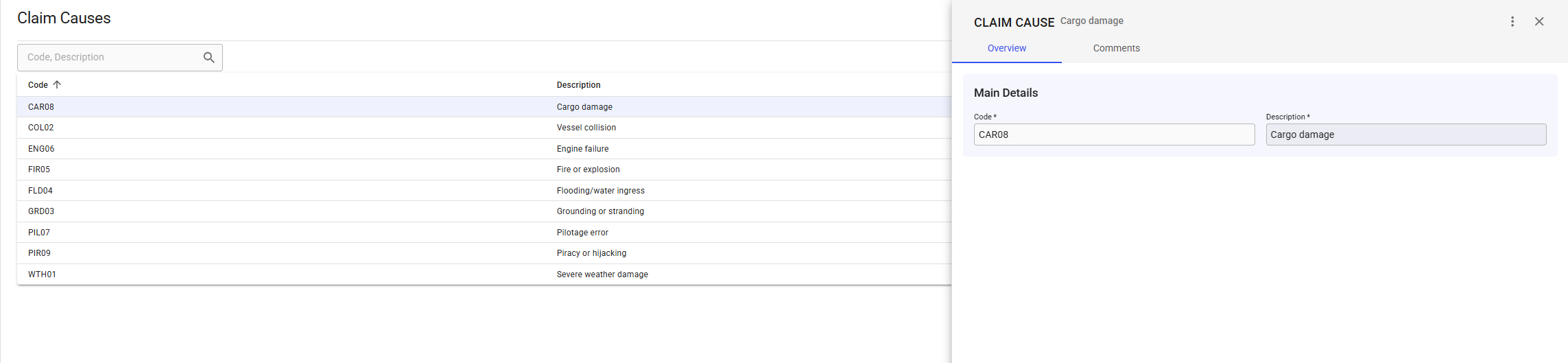
To edit a claim cause, click its row in the list. This opens a drawer where you can update the fields (see Figure 8).

<figure><img src="https://content.gitbook.com/content/uZ9lzqgHX4JL1Df67xog/blobs/4K3Q7WVCU3sPxQsm2D58/image.png" alt=""><figcaption><p>Figure 7: Claim Cause drawer</p></figcaption></figure>

In the drawer, you can enable or disable the claim cause using the secondary action menu (vertical ellipsis) in the top-right corner.

**Note:** If the selected claim cause is disabled, you must enable it before making any changes.