# Manage Business Partners
## Creating a new Business Partner
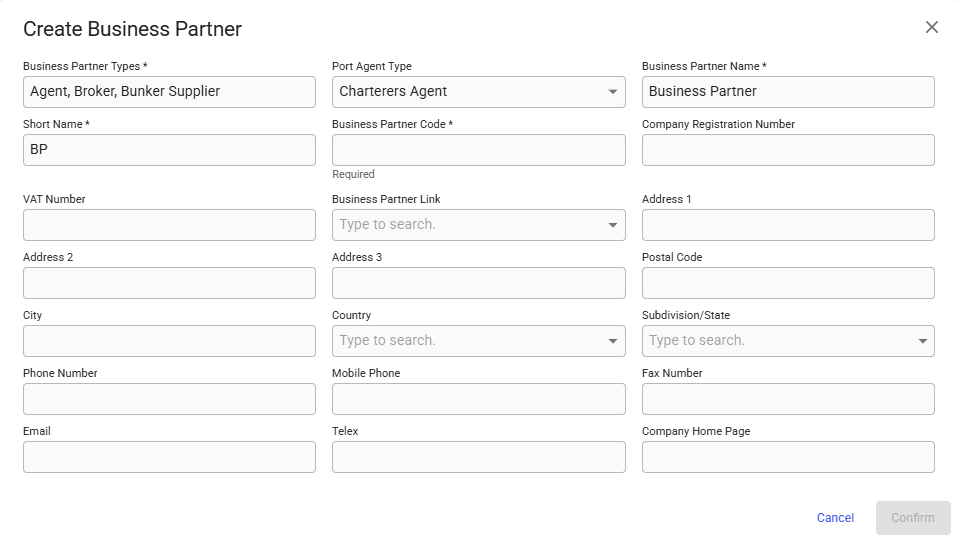
To create a new Business Partner, click the  icon in the top right on the Business Partners list. This will bring up the Create Business Partner modal. The Business Partner Types, Business Partner Name, Short Name and Business Partner Code must be filled in, and click confirm.
## Edit Business Partner details
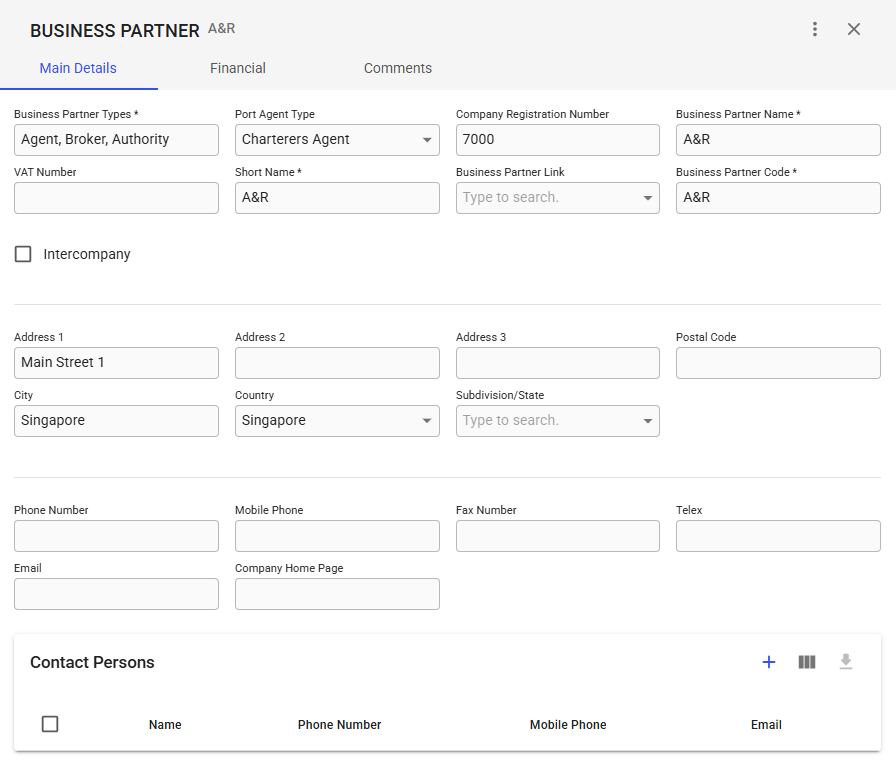
You can click on the Business Partner on the Business Partners list you want to change the details of. This will bring the Business Partner drawer.
### Main Details tab
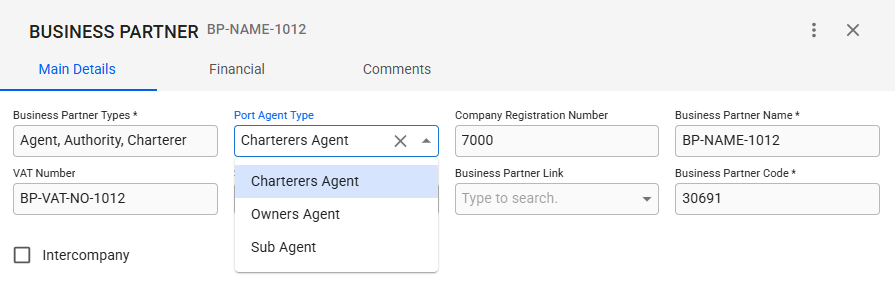
From the main details tab, you can see all the important details of a business partner. This includes Business Partner Type, Company Registration Number, Business Partner Name, VAT Number, Short Name, Business Partner Link, Business Partner Code, and indicate whether it is an Intercompany or not. You can also change the Business Partner's address, contact details and contact persons.
### Business Partner Types
**As of release 8.11,** you can now assign **multiple** business partner types to a single business partner.\
This addition eliminates the need to create duplicate business partner for each different type.
Multiple business partner types selected
The **"Business Partner Types"** field allows you to select one or more types that a business partner can have (e.g., Charterer, Agent, etc.). This selection influences which business partner selectors the partner will appear in the system. For example, if you assign the type "Charterer" to a business partner, that partner will appear in Charterer fields, but not in Agent fields, unless "Agent" is also assigned as a type.
To view and select from all business partners, regardless of type, you can use the **"Show all options"** feature in the selector. This provides flexibility to choose any business partner if needed.
> **Note:**\
> If a business partner has multiple types assigned, they will only appear once in relevant selectors, ensuring there are no duplicate entries.
### Financial tab
You can see all the important details of a business partner regarding invoices, such as Default Payment Terms, Default Baseline Term, Default Invoice Party, Default Receivable Account, Default Payable Account, Max Advance Payment, Rating, Rating Expiry Date
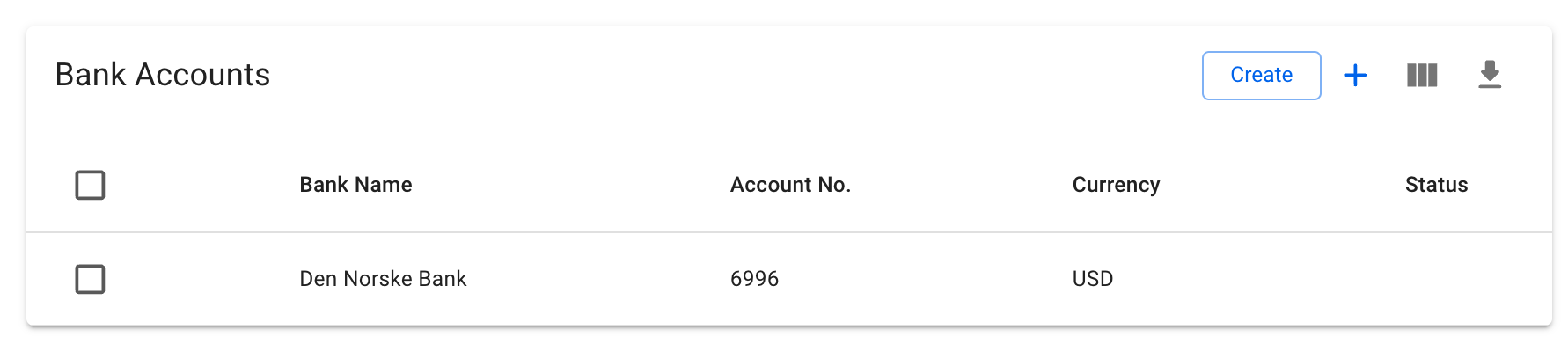
You will also see here the Bank Accounts belonging to a business partner.
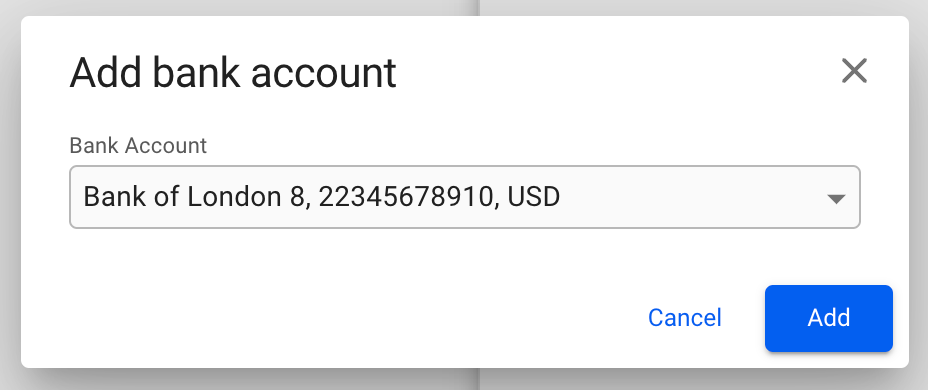
To *add an already existing* bank account, click on the  icon in the top right of the list. This will bring up a window to select the account from a list, showing the bank, account number and currency. Click Add to add the account to the Company.
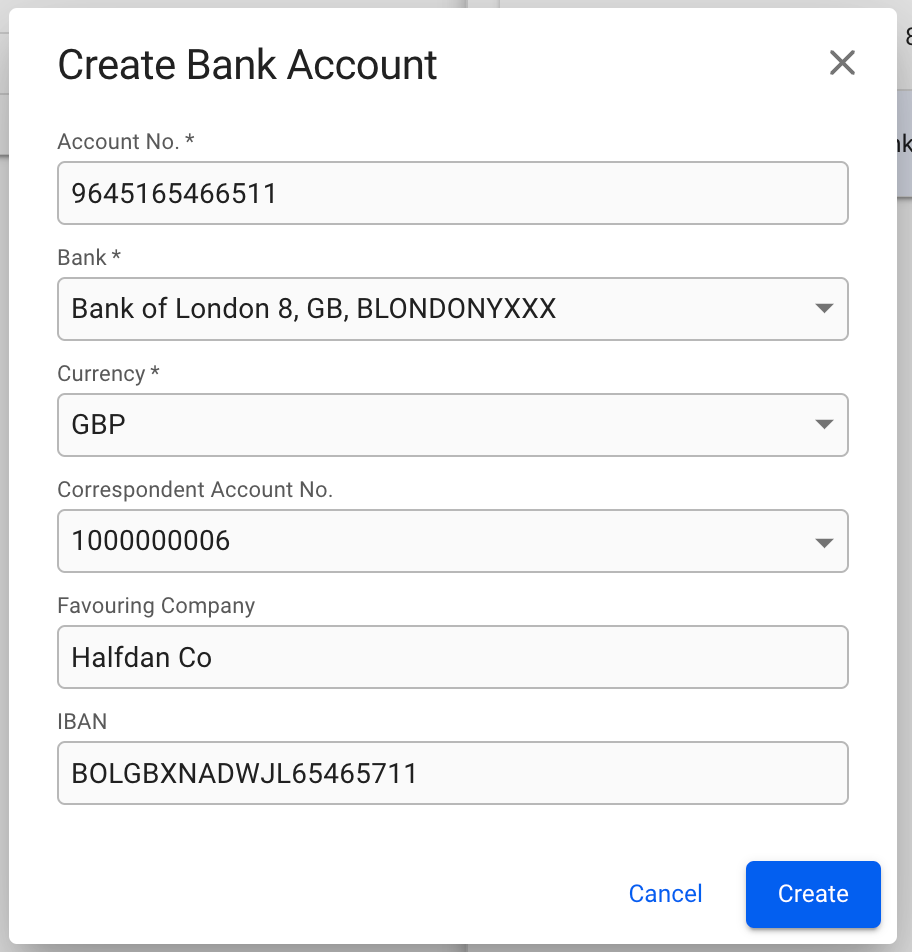
To *create a new* bank account, click on the button in the top right of the list. This will bring up a modal to create a brand new bank account. Fill in the required details, and click Create to add it to the Company.
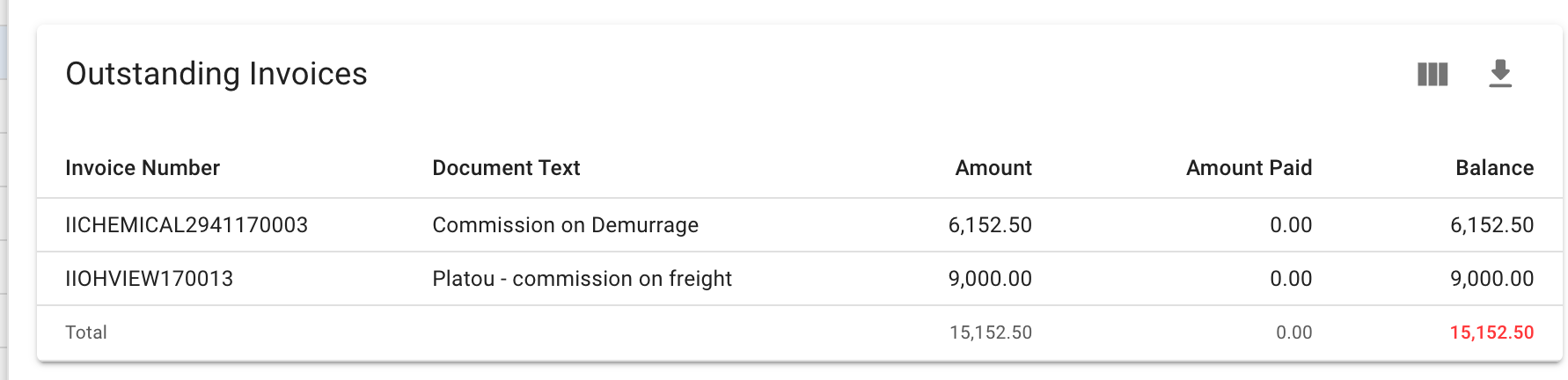
Lastly, you will also see a list of a business partner's outstanding invoices
## Deleting a Business Partner
A Business Partner must first be disabled. Click the  button in the top right corner. Choose "Disable" option. A confirmation modal will show up, click Disable. Click again the  button in the top right corner. Choose "Delete" option. A confirmation modal will also show up, click Delete.

 button in the top right of the list. This will bring up a modal to create a brand new bank account. Fill in the required details, and click Create to add it to the Company.