# Invoice Drawer

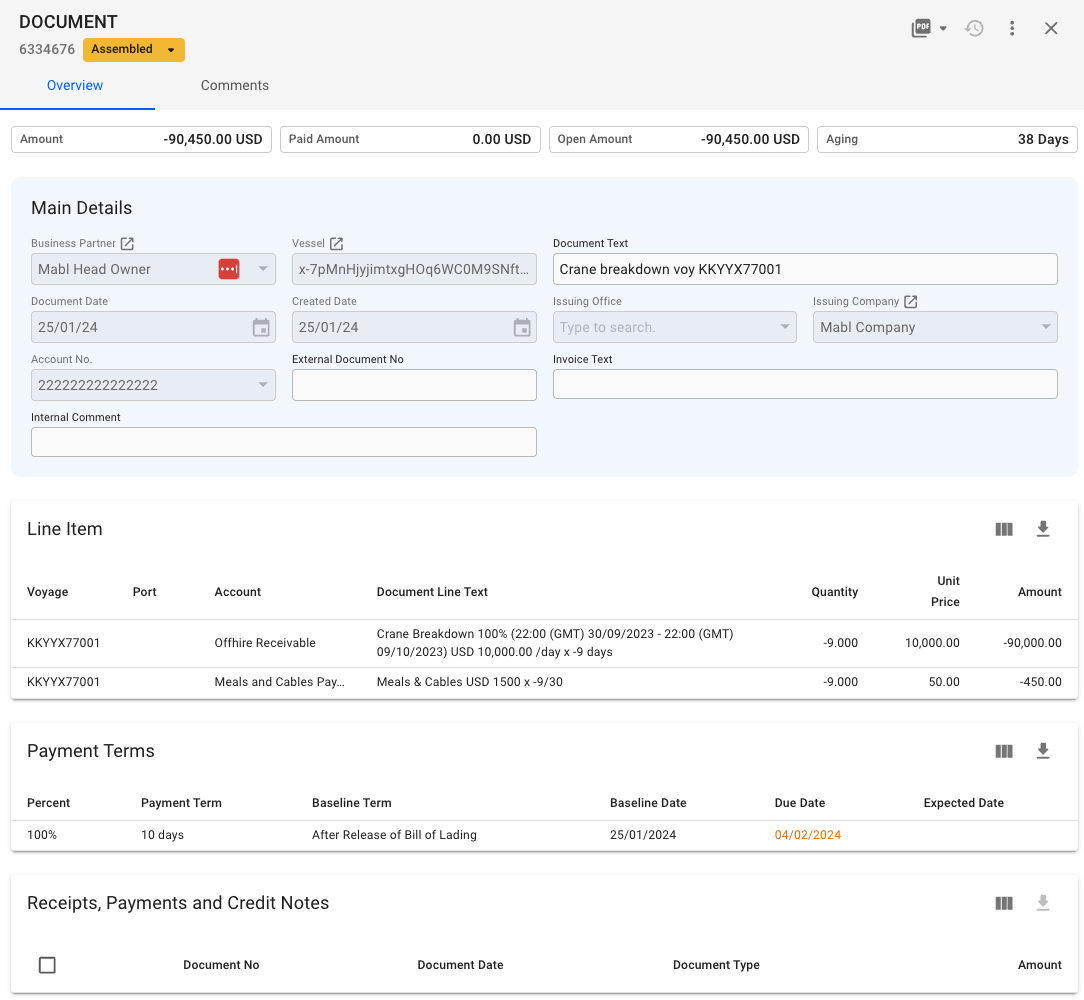
<figure><img src="https://content.gitbook.com/content/uZ9lzqgHX4JL1Df67xog/blobs/MMaAxiRYLIwxjozUopuj/Skjermbilde%202024-03-14%20kl.%2009.19.51.png" alt=""><figcaption><p>Invoice drawer for an assembled document</p></figcaption></figure>

## Invoice statuses

The label chip next to the Document ID is showing the current status of the invoice:

* If the status is **Assembled**, you can change the status to back to **Pending** (dissolve the invoice), **Ready for Posting** or **Posted**
* If the status is **Ready for Posting**, you can transition to **Posted** status only
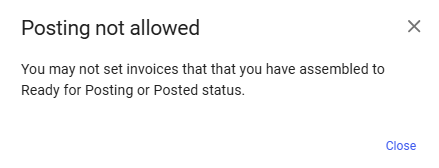
* When the **Restrict self-assembled invoice posting** system preference is enabled, users cannot set invoices **they assembled** to **Ready for Posting** or **Posted** status. Setting an invoice from **Ready for Posting** to **Posted** or vice versa is not affected. If a user that assembled an invoice attempts to set the invoicing status to **Ready for Posting** or **Posted** this modal will be displayed.

<figure><img src="https://content.gitbook.com/content/uZ9lzqgHX4JL1Df67xog/blobs/rROXBuPtiE7rFmuh0PQH/Screenshot%202025-01-03%20112538.png" alt=""><figcaption><p>Posting not allowed modal</p></figcaption></figure>

{% hint style="info" %}
You cannot change the status of invoices if the voyage has status **Closed**
{% endhint %}

## Invoice details

In the top of the drawer, you will see four boxes for Amount, Paid Amount, Open Amount and Aging, defined as the total amount of the line items on the invoice, the total amount of registered payment(s), the remaining balance, and the days until/past the due date of the invoice.

Other useful fields are added on the main details section for you to be able to view or edit them:

| Fields               | Description                                                                  |
| -------------------- | ---------------------------------------------------------------------------- |
| Business Partner     | BU viewer permission, non-editable                                           |
| Vessel               | Vessel viewer permission, non-editable                                       |
| Document Text        | Editable when invoice has Assembled status                                   |
| Document Date        | Always non-editable                                                          |
| Created Date         | Always non-editable                                                          |
| Issuing Office       | Always non-editable                                                          |
| Issuing Company      | Always non-editable                                                          |
| Account No.          | Always non-editable                                                          |
| External Document No | Always editable                                                              |
| Invoice Text         | Editable when invoice has Assembled status                                   |
| Internal Comment     | Always editable. Data entered here does not show up on the invoice printout. |

## Line Item

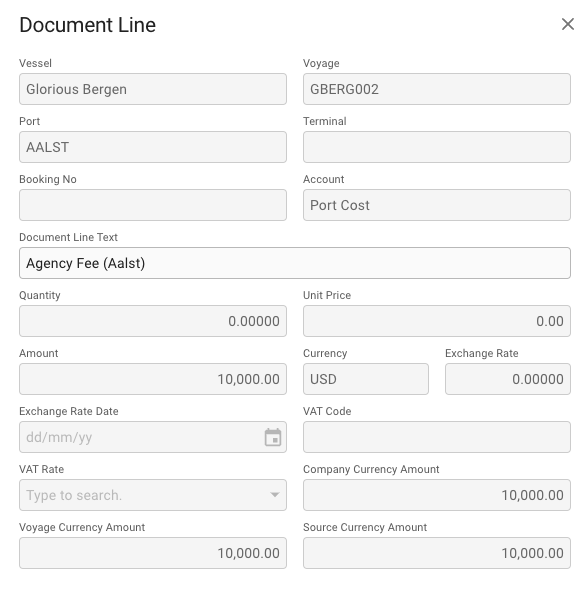
In this section, you will see a list of all the line items on the invoice. Clicking on a Document Line, will bring up the Document Line modal, which contains more details about the line, as well as allowing you to change the Document Line Text if, and only if, the invoice has status **Assembled**.

<figure><img src="https://content.gitbook.com/content/uZ9lzqgHX4JL1Df67xog/blobs/lUuMFzYwBDu4dweElHHi/image.png" alt=""><figcaption><p>Document Line modal</p></figcaption></figure>

## Record a Payment

Using the **Record Payment** action in the more options menu <img src="https://content.gitbook.com/content/uZ9lzqgHX4JL1Df67xog/blobs/eGvSseGsTano9r3S6cy3/more_vert-24px.svg" alt="" data-size="line">, you can manually record payments towards an invoice and specify the amount. This will generate a new linked payment document, that will appear in the list at the bottom of the document drawer.

You can only record a payment if the invoice has status **Ready for posting** or **Posted**, and the document is of type **Credit In/Out** and **Invoice In/Out**.

## Deleting a Payment

If you need to delete a payment that is connected to an invoice, you can select it in the "Receipts, Payments and Credit Notes" table in the document drawer, and clicking the delete button.

Alternatively, you can go directly to the payment, and click the delete button in the top right corner.