# Bunker Transactions
Bunker Transactions is part of the Dataloy VMS accounting integrations to automate the transactions between the VMS and an accounting system. The transactions are transferred whenever a bunker transaction is posted in the VMS.
**Filters**
The filters in the top right is shared between the two tabs, and will be persisted when changing between the tabs. The status filter is only available on the posted tab
Available filters in the module
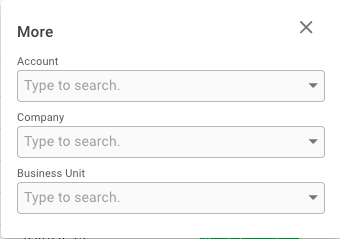
Filters available under the 'More' option
### Posted transactions
The "posted" list shows all transactions that have the status 'Posted' or 'Ready For Posting'.
### Pending transactions
The pending list shows all pending bunker transactions grouped by voyage. When expanding a card all Pending Bunker Transactions is shown for the current voyage. Bunker transactions can be posted by selecting one or multiple rows by clicking the left hand side checkbox and then clicking the Post button. A confirmation popup will appear, and when clicking Post, the selected Transactions will be posted.
### Reversing transactions
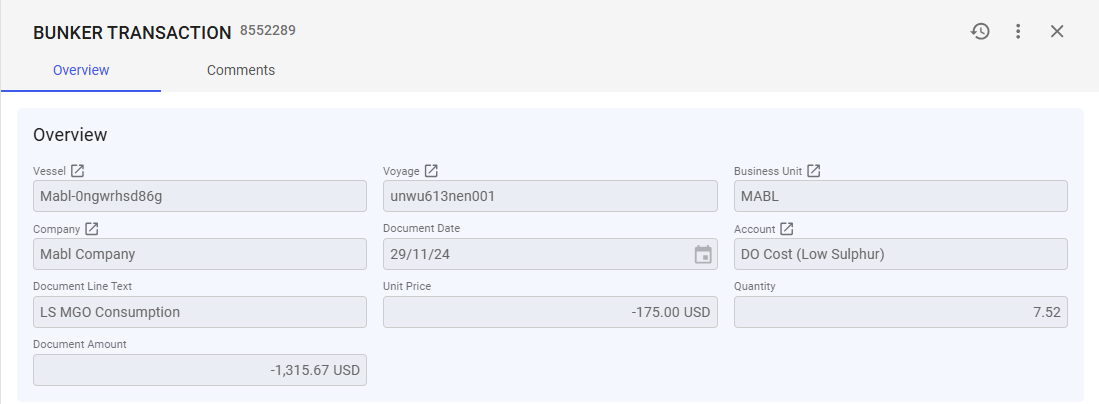
Selecting a 'Ready for Posting' or 'Posted' transaction from the list in the 'Posted' tab opens the bunker transactions drawer as shown in the picture below.
Bunker transaction drawer
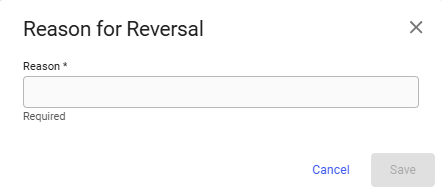
In the upper right corner there is a reverse button besides the three dotted button. Clicking this button opens up the 'Reason for reversal' modal, as shown in the picture below. In this modal you must specify a reason for why this bunker transaction is being reversed.
Reason for reversal modal
The save button is enabled when there is text in the 'Reason' field. Clicking 'Save' will reverse this bunker transaction, and open the bunker transaction drawer for the reversed transaction. Where you can inspect the transaction.