# Various Grid

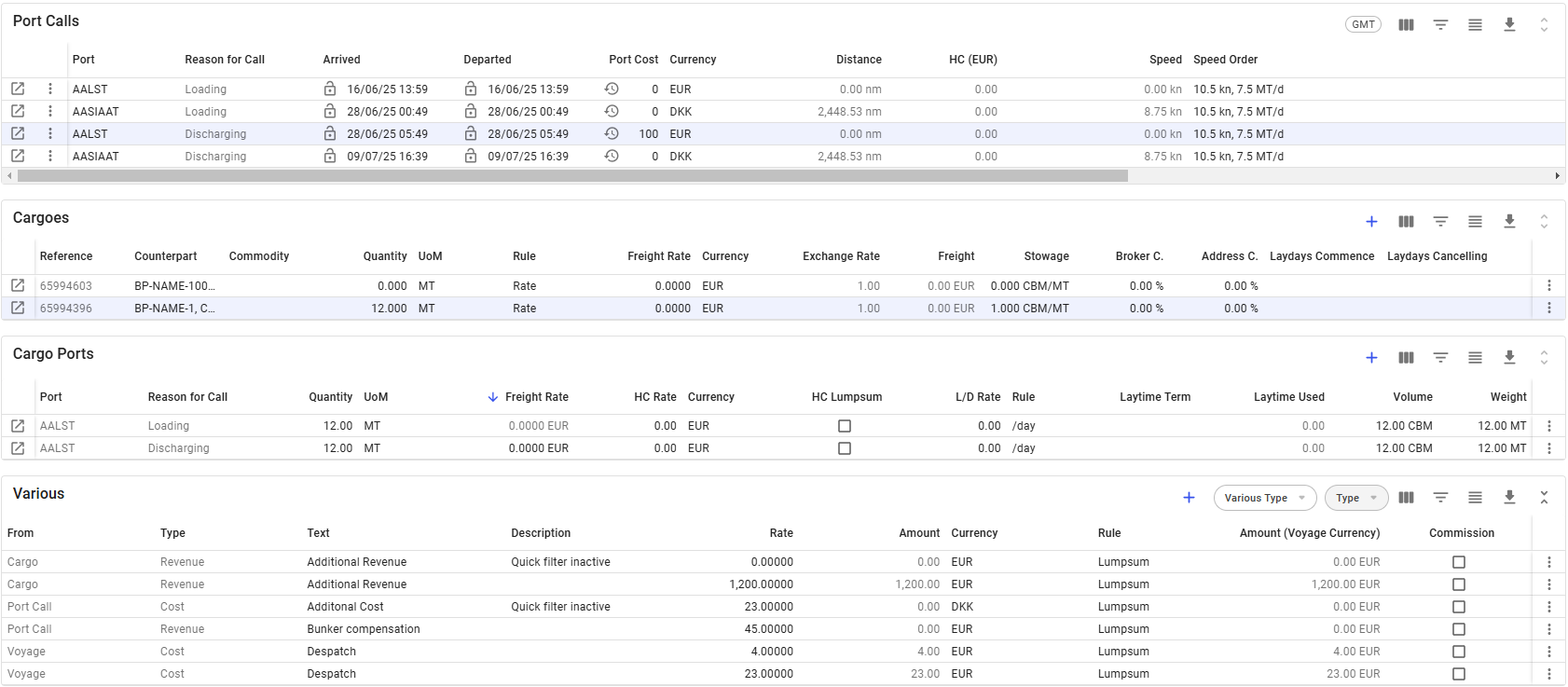
Various costs and revenues are now accessible directly from the voyage drawer in addition to the existing [Various Cost/Revenue tab](https://docs.dataloy.com/release-8.16/voyage-management-system/step-by-step-guides/voyages/maintain-voyages/various-cost-revenue). This change reduces the steps needed to view and modify the variouses connected to the voyage.

<figure><img src="https://content.gitbook.com/content/uZ9lzqgHX4JL1Df67xog/blobs/loKQ4oIDbtSJQ9myzHFq/image.png" alt=""><figcaption><p>Figure 1: Various grid</p></figcaption></figure>

## Filtering

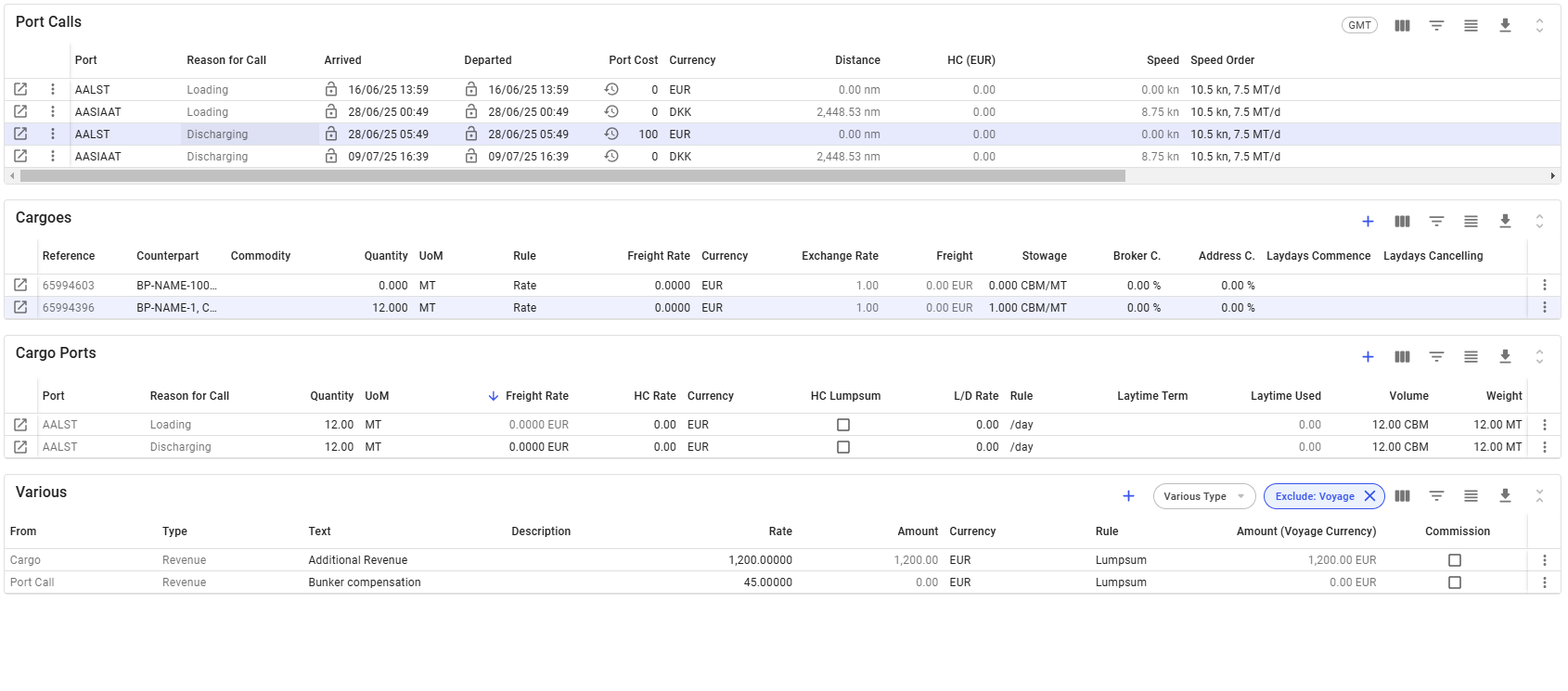
Along with the [*base filters*](https://docs.dataloy.com/release-8.16/voyage-management-system/step-by-step-guides/data-grids/..#filters) available in the grid, the Various grid includes quick filtering options. These [quick filters ](https://docs.dataloy.com/release-8.16/voyage-management-system/sorting-and-filtering-lists#quick-filters)allow you to filter variouses by type, such as cost or revenue, and by the source type, such as Voyage or Cargo. Details of these options are shown in ***Figure 2***.

<figure><img src="https://content.gitbook.com/content/uZ9lzqgHX4JL1Df67xog/blobs/b8c4YTPmXVvhZHF0sU2I/image.png" alt=""><figcaption><p>Figure 2: Various grid quick filter</p></figcaption></figure>

## Selected Cargo and Port Call

The Various grid and Cargoes grid are linked through the selected cargo. When a specific cargo is selected and ***"Cargo"*** is chosen in the ***type*** quick filter, the Various grid will show only the entries associated with the selected cargo, rather than all cargo-related variouses in the voyage.

To display all cargo variouses, de-select or clear the **"Cargo"** option in the quick filter.

This behavior also applies when selecting a port call in the Port Calls, when done, the Various grid will display entries for the selected port call only.

{% tabs %}
{% tab title="Quick Filter Inactive " %}

<figure><img src="https://content.gitbook.com/content/uZ9lzqgHX4JL1Df67xog/blobs/eFL7ph5FI2LIAfjbO0Sh/image.png" alt=""><figcaption><p>Figure 3: All variouses displayed when quick filter is inactive</p></figcaption></figure>
{% endtab %}

{% tab title=" Quick Filter Active" %}

<figure><img src="https://content.gitbook.com/content/uZ9lzqgHX4JL1Df67xog/blobs/2dQ0V2579xlENSVbPzDt/image.png" alt=""><figcaption><p>Figure 4: Only selected Cargo and Port Call variouses displayed when quick filter is active</p></figcaption></figure>
{% endtab %}
{% endtabs %}

**Note:** Voyage variouses are not affected by these selections and will continue to display unless excluded through the filter options.

## Creating a new  Various

To create a new ***Voyage*** ***Various***, click the blue plus sign in the column header. This opens a modal where you can specify the type of various to be created.

<figure><img src="https://content.gitbook.com/content/uZ9lzqgHX4JL1Df67xog/blobs/jO3uAPT1qUBzQZXRMdkc/image.png" alt=""><figcaption><p>Figure 5: Create Voyage Various options</p></figcaption></figure>

### Creating new Variouses in Port Call & Cargo Grid

You can also create new Port Call variouses directly in the Port Calls grid and new Cargo variouses in the Cargoes grid. These processes are explained in the sections[ **Creating a New Port Call Various**](https://docs.dataloy.com/release-8.16/voyage-management-system/step-by-step-guides/port-calls-grid#creating-a-new-port-call-various) and [**Creating a New Cargo Various**](https://docs.dataloy.com/release-8.16/voyage-management-system/step-by-step-guides/cargoes-grid#creating-a-new-cargo-various) respectively.

## Editing a Various

Like all grids, the Various fields can be edited directly within the grid. Alternatively, for Voyage and Cargo, you can can edit the various field in their respective drawers. That is, in the[ "Various Cost/Revenue"](https://docs.dataloy.com/release-8.16/voyage-management-system/step-by-step-guides/voyages/maintain-voyages/various-cost-revenue) tab located in the header of the drawers.

TIP: You can open easily open the cargo drawer by clicking the ***"Open Cargo"*** option in the left-most column in the[ Cargoes Grid.](https://docs.dataloy.com/release-8.16/voyage-management-system/step-by-step-guides/data-grids/cargoes-grid)

## Deleting a Various

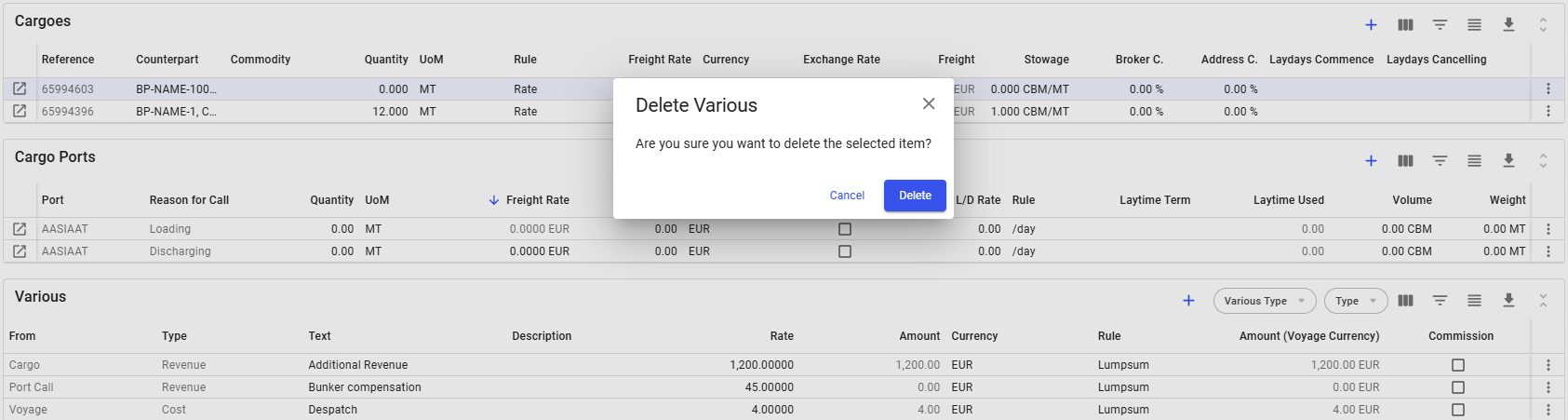
To delete a various, simply click the vertical menu in the right-most column and select the delete option. This will prompt a popup asking to confirm the deletion of the selected various (see *Figures below*). For ***Voyage*** and ***Cargo*** variouses, it is still possible to delete them through the various tab in the respective drawers.

<figure><img src="https://content.gitbook.com/content/uZ9lzqgHX4JL1Df67xog/blobs/PP4B3YKLcRMVl1LySf9r/image.png" alt=""><figcaption><p>Figure 6: Delete various option in right most column</p></figcaption></figure>

<figure><img src="https://content.gitbook.com/content/uZ9lzqgHX4JL1Df67xog/blobs/pTi4sWqbzD2qpFaCkSR2/image.png" alt=""><figcaption><p>Figure 7:  Delete Various confirmation</p></figcaption></figure>