# Port Calls Grid

To improve accessibility, the port calls list has been relocated from the port call drawer to the voyage drawer in full-screen view. Note that it is still possible to access the port calls through the [regular means as well.](https://docs.dataloy.com/release-8.16/voyage-management-system/step-by-step-guides/port-calls)

<figure><img src="https://content.gitbook.com/content/uZ9lzqgHX4JL1Df67xog/blobs/BDYkeuldCtOVEeFMiScc/image.png" alt=""><figcaption><p>Figure 1: Port Calls grid</p></figcaption></figure>

### Adding new Port Call

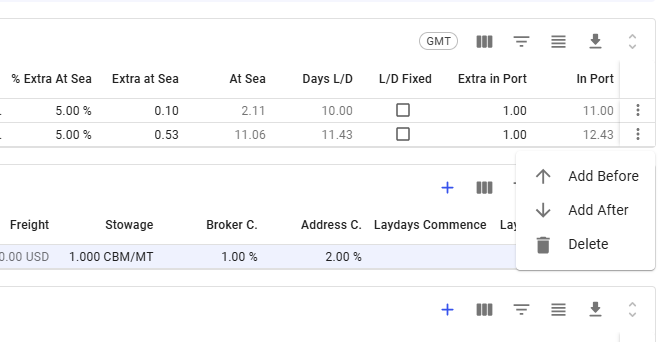
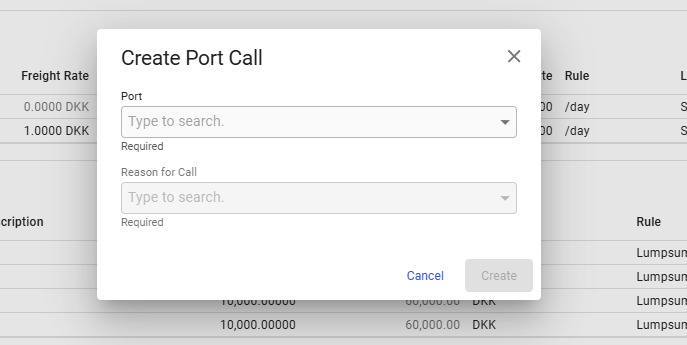
To add a new port call, open the vertical ellipsis menu in the last column. From this you can insert the new port call either before or after the selected one. When selected, this opens the "Create Port Call" modal, as illustrated in the figures below.

<div><figure><img src="https://content.gitbook.com/content/uZ9lzqgHX4JL1Df67xog/blobs/knIrEQ9MBBK4WhuLVWsW/image.png" alt=""><figcaption><p>Figure 2: Add new Port call</p></figcaption></figure> <figure><img src="https://content.gitbook.com/content/uZ9lzqgHX4JL1Df67xog/blobs/EFLCApk3Xb0BuIpM7aYI/image.png" alt=""><figcaption><p>Figure 3: Create Port call modal</p></figcaption></figure></div>

### Editing a Port Call

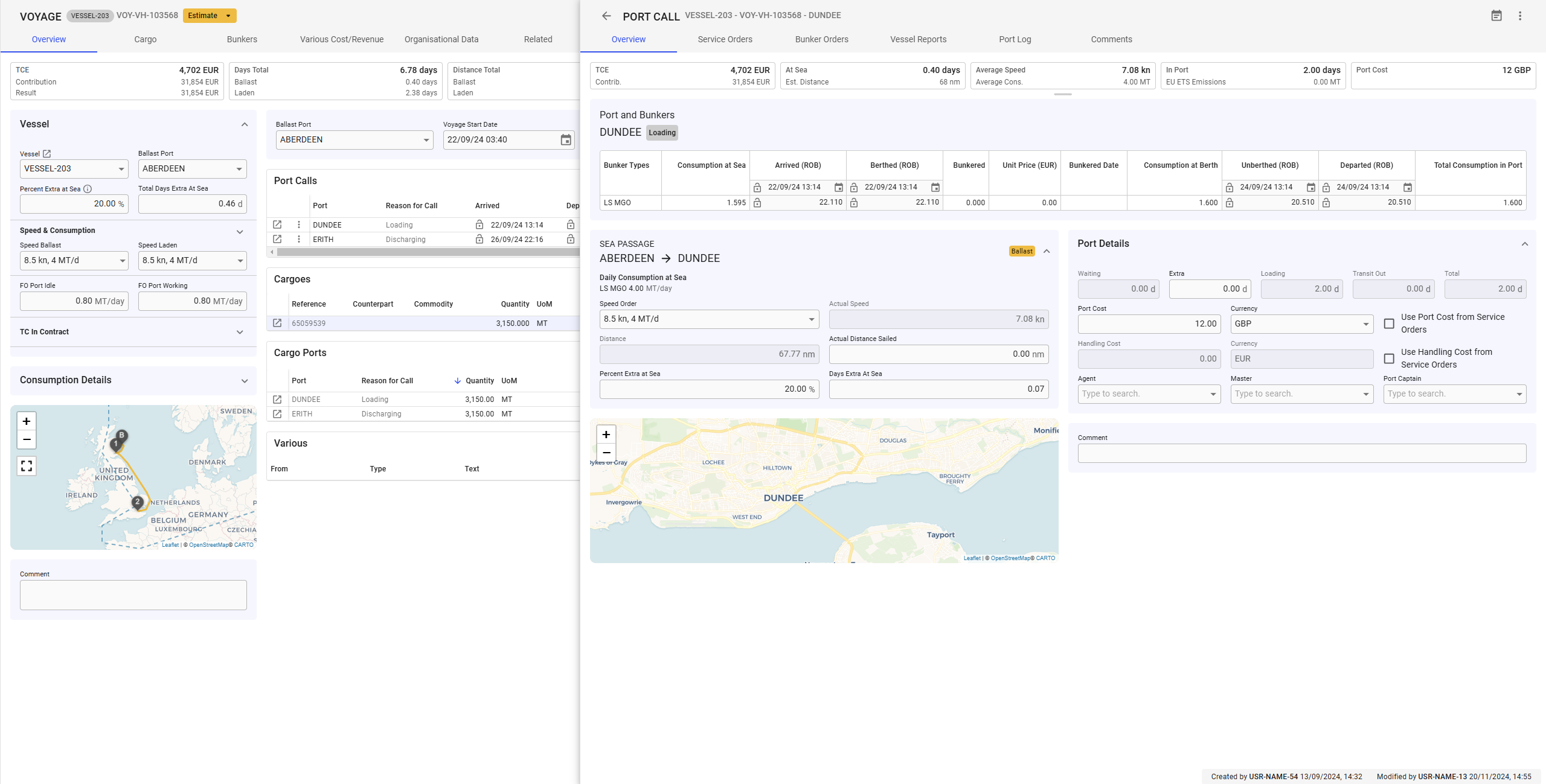
Like all grids, the Port Call fields can be edited directly within the grid. Alternatively, you can click the ***Open Port Call*** icon in the left-most column to access the Port Call drawer. This drawer will appear on top of the voyage drawer (see *Figure 4*).

<figure><img src="https://content.gitbook.com/content/uZ9lzqgHX4JL1Df67xog/blobs/dCzo7p9JdNnZuClv7wYE/image.png" alt=""><figcaption><p>Figure 4: Port Call drawer opened</p></figcaption></figure>

### Deleting a Port Call

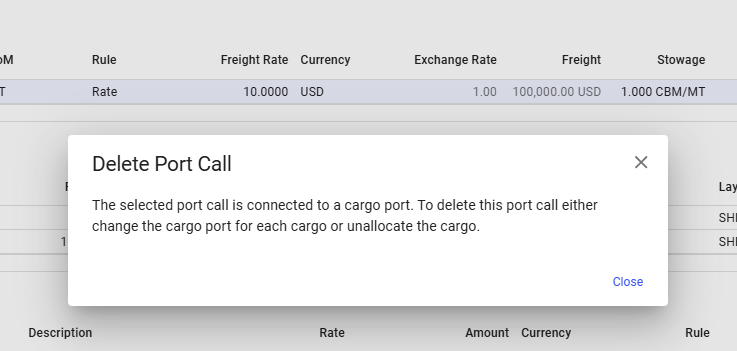
To delete a Port Call, you can click the vertical ellipsis menu in the rightmost column and select the delete option.  When clicked, a popup asking for confirmation or instructions on how to delete when the  port call is connected to cargo port, will appear to prevent unintended actions. See figures below.

<div><figure><img src="https://content.gitbook.com/content/uZ9lzqgHX4JL1Df67xog/blobs/knIrEQ9MBBK4WhuLVWsW/image.png" alt=""><figcaption><p>Figure 5: Delete Port Call option</p></figcaption></figure> <figure><img src="https://content.gitbook.com/content/uZ9lzqgHX4JL1Df67xog/blobs/lxlHfLuv2OIhPqhKUGGq/image.png" alt=""><figcaption><p>Figure 6: Delete Port Call confimation / warning</p></figcaption></figure></div>

### Changing dates to GMT

The port calls grid has a button in the header to convert the time and date to GMT. It is important to note that when this is done, it is ***not possible*** to edit the dates. This also includes the voyage start date (see *Figure 6).*

<figure><img src="https://content.gitbook.com/content/uZ9lzqgHX4JL1Df67xog/blobs/dLH7BEH9mocc5WQqiJrX/image.png" alt=""><figcaption><p>Figure 6: Dates are locked when GMT is used</p></figcaption></figure>

### Selecting a Port Call

You can select a port call in the grid by double-clicking it. When a port call is selected and the port call type filter is applied, the [*various grid*](https://docs.dataloy.com/release-8.16/voyage-management-system/step-by-step-guides/data-grids/various-grid) will display the variouses ***specific*** to the ***selected*** port cal&#x6C;*.*

### Creating a new Port Call Various

It is possible to create a new various for the port call. This is done by clicking the vertical ellipsis in the right-most column. From this, you can select the option to create a new various cost or revenue. This will open a modal where you can define the new various.&#x20;