# Cargoes Grid

The voyage's cargoes have been relocated from the cargo tab, and the collapsible section for editing cargo has been removed in the full-screen view (see *Figure 1*).

<figure><img src="https://content.gitbook.com/content/uZ9lzqgHX4JL1Df67xog/blobs/w1tESE8NWcSoFOeKCYs7/Screenshot%202025-05-14%20095126.png" alt=""><figcaption><p>Figure 1: Cargoes grid</p></figcaption></figure>

### Creating new Cargo

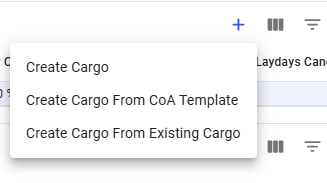
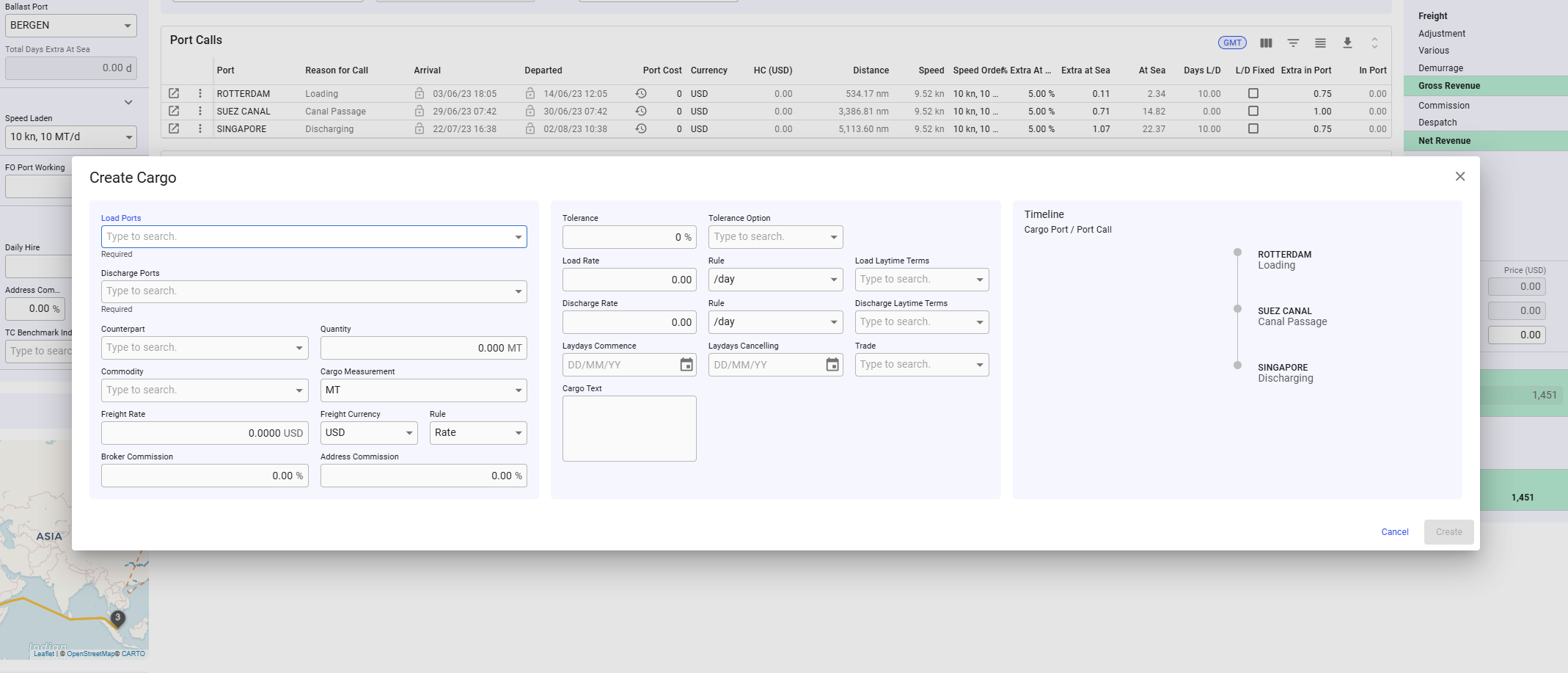
Click the blue cross icon on the right side of the grid header to display a list of options for creating a new cargo (see figures below). After selecting an option, the appropriate "Create Cargo" modal will appear.

<div align="left"><figure><img src="https://content.gitbook.com/content/uZ9lzqgHX4JL1Df67xog/blobs/B8A4fZBpdqmPxgOU04UA/image.png" alt=""><figcaption><p>Figure 2: Create Cargo options</p></figcaption></figure></div>

<figure><img src="https://content.gitbook.com/content/uZ9lzqgHX4JL1Df67xog/blobs/19kZtxss0YKMixYSKJpE/image.png" alt=""><figcaption><p>Figure 3: Selected Cargo create modal</p></figcaption></figure>

### Editing a Cargo

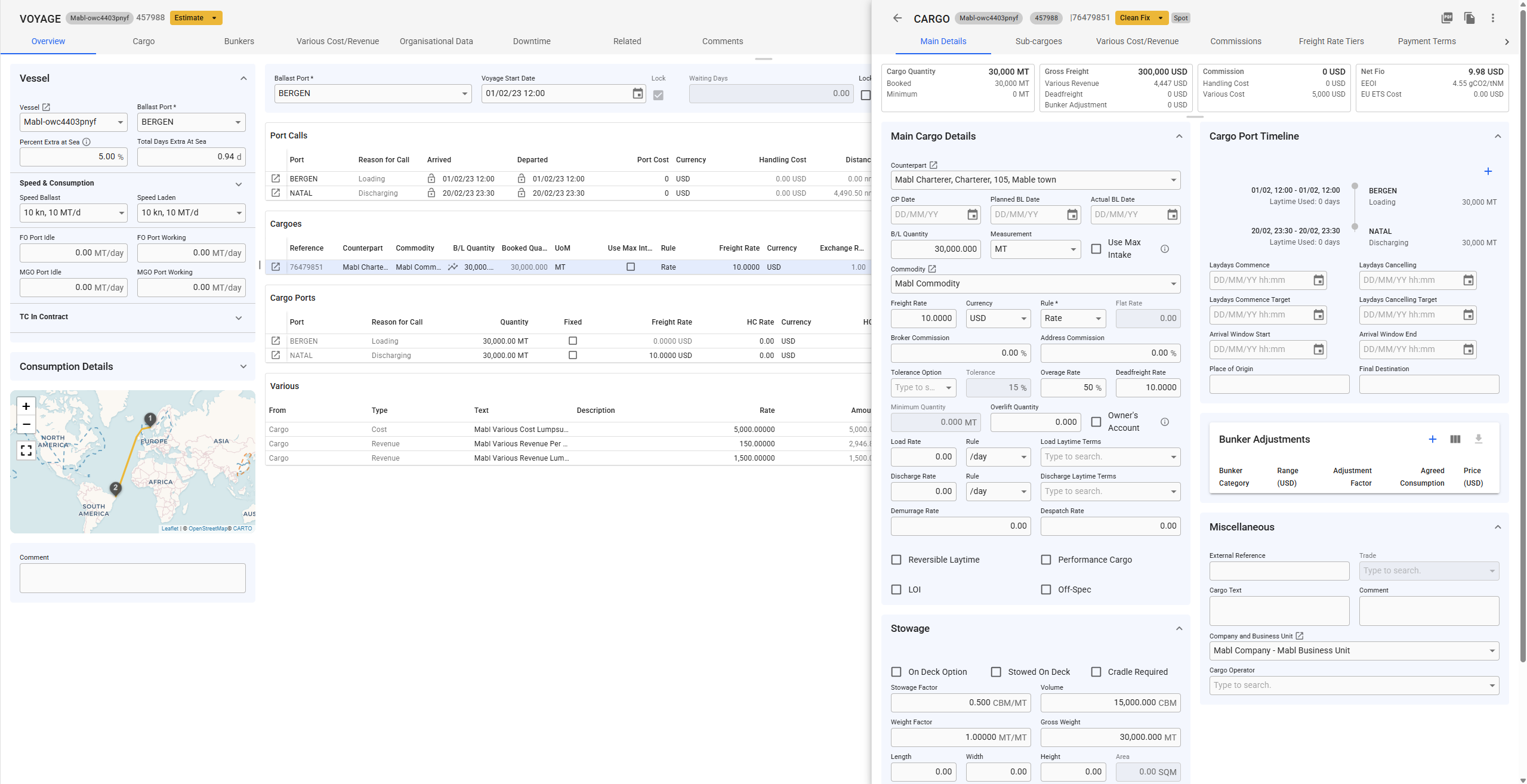
Like all grids, the Cargo fields can be edited directly within the grid. Alternatively, you can click the ***Open Cargo*** icon in the left-most column to access the Cargo drawer. This drawer will appear on top of the voyage drawer (see *Figure 4*).

<figure><img src="https://content.gitbook.com/content/uZ9lzqgHX4JL1Df67xog/blobs/cNgN4WawPGCdzAWUJdJE/Screenshot%202025-05-14%20095404.png" alt=""><figcaption><p>Figure 4: Cargo Drawer opened</p></figcaption></figure>

### Copy or Delete a Cargo

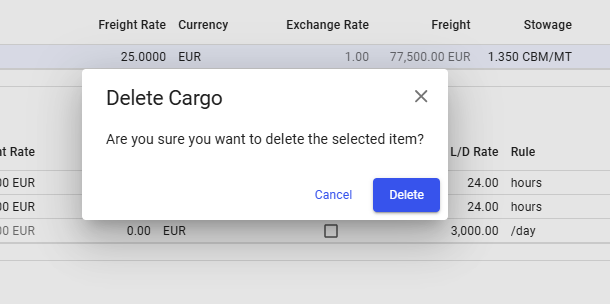
It is possible to copy or delete a Cargo by clicking the vertical ellipsis menu in the right-most column. This opens a menu where you get the option to copy or delete the Cargo (see figure 5). When either options are selected, a popup asking for confirmation will appear to prevent unintended actions.

<figure><img src="https://content.gitbook.com/content/uZ9lzqgHX4JL1Df67xog/blobs/8ifQJ0XwOofvuwMSgrwm/image.png" alt=""><figcaption><p>Figure 5: Cargo-row menu options</p></figcaption></figure>

<figure><img src="https://content.gitbook.com/content/uZ9lzqgHX4JL1Df67xog/blobs/HDwOTFS12709CUANPoSB/image.png" alt=""><figcaption><p>Figure 6: Delete confirmation</p></figcaption></figure>

### Selecting a Cargo

It is possible to select a cargo in the Cargoes grid by ***double-clicking*** the cargo. When this is done, ***and*** the [***cargo type filter*** ](https://docs.dataloy.com/release-8.16/voyage-management-system/step-by-step-guides/various-grid#filtering)is applied in the various grid, the [*various grid*](https://docs.dataloy.com/release-8.16/voyage-management-system/step-by-step-guides/data-grids/various-grid) will display the variouses *specific* to the *selected* Cargo.

### Creating a new Cargo Various&#x20;

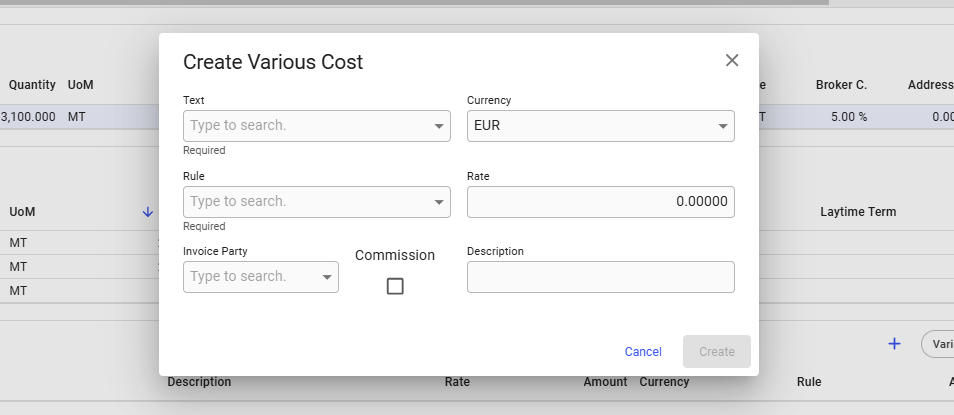
It is possible to create a new various for the Cargo. This is done by clicking the vertical ellipsis in the right-most column (see *Figure 5*). From this, you can select the option to create a new various cost or revenue. This will open a modal where you can define the new various, as seen in the figure below.

<figure><img src="https://content.gitbook.com/content/uZ9lzqgHX4JL1Df67xog/blobs/fQBEMoHoj3Vb4h5xTUB2/image.png" alt=""><figcaption><p>Figure 7: Create Various Cost modal</p></figcaption></figure>

### Using suggested cargo quantity

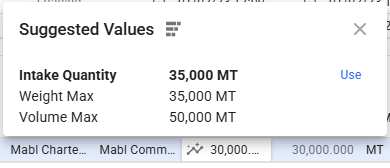
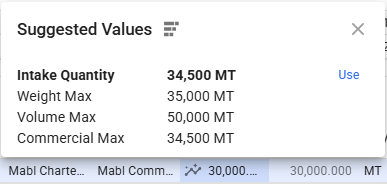
In the cargo quantity cell in the cargo grid there is now a special icon. If you click this icon a pop-over will appear where you can apply the current intake quantity to the cargo quantity. In the pop-over you can see what the current intake quantity is and what numbers is used in deciding what the intake is. If the tolerance option is MOLOO for the cargo a third option. For more information about the different quantities see [automatically-set-cargo-quantity-to-max-intake](https://docs.dataloy.com/release-8.16/voyage-management-system/step-by-step-guides/cargoes/maintain-cargoes/automatically-set-cargo-quantity-to-max-intake "mention") for explanations. Note that the automatically part is not relevant here. It does however use the same numbers.

<div><figure><img src="https://content.gitbook.com/content/uZ9lzqgHX4JL1Df67xog/blobs/NfOnSnkJScTW0iWTXIc5/image.png" alt=""><figcaption><p>Intake quantity pop-over</p></figcaption></figure> <figure><img src="https://content.gitbook.com/content/uZ9lzqgHX4JL1Df67xog/blobs/1xj9s5jdwGB2g8nido7n/Screenshot%202025-05-14%20133015.png" alt=""><figcaption><p>Intake quantity pop-over where the cargo has tolerance option MOLOO</p></figcaption></figure></div>