# Cargo Ports Grid
Cargo Ports have been moved from the collapsible *"Cargo List"* to a dedicated grid, improving accessibility and increasing maintainability and flexibility when editing cargo ports.
Figure 1: Cargo Ports grid
### Creating new Cargo Ports
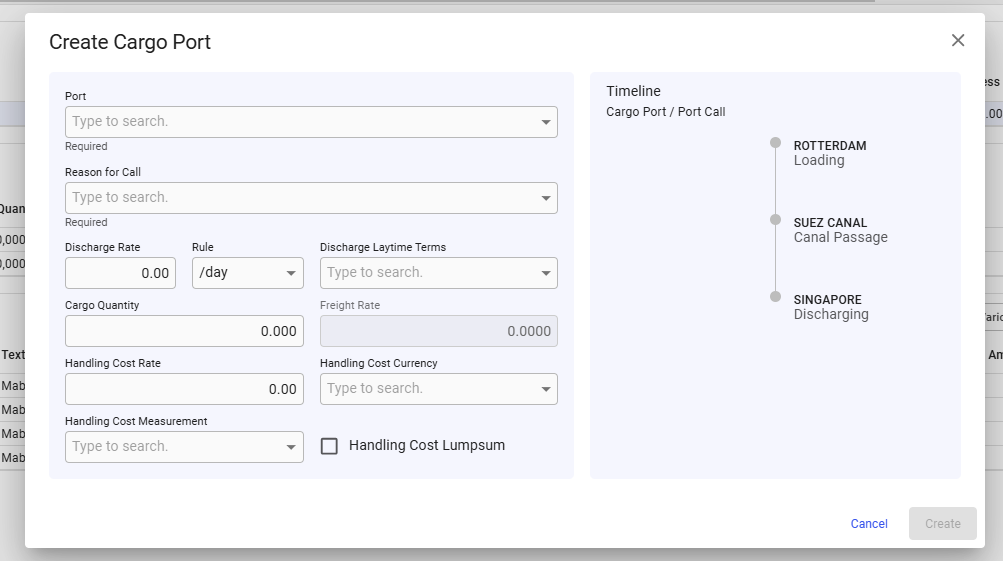
To add a new cargo port to the voyage, click the blue plus sign on the right-hand side of the grid header (see *Figure 1*). This will open a modal, as shown in *Figure 2*, where you can create the new cargo port.
Figure 2: Create Cargo Port modal
### Editing a Cargo Port
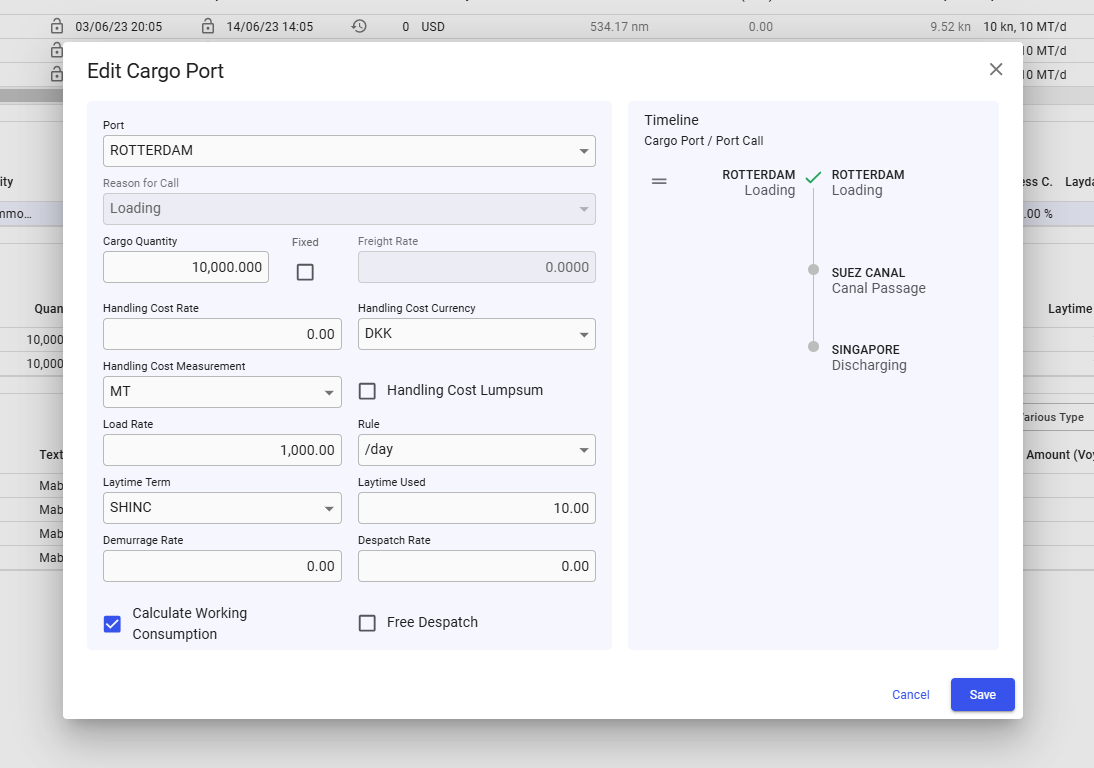
Like all grids, the Cargo Ports fields can be edited directly within the grid. Alternatively, you can click the ***Edit Cargo Port*** icon in the left-most column (see *Figure 1*) to open the ***"Edit Cargo Port"*** modal. The modal will appear on top of the voyage drawer as seen in the figure below.
Figure 3: Edit Cargo Port modal
### Deleting a Cargo Port
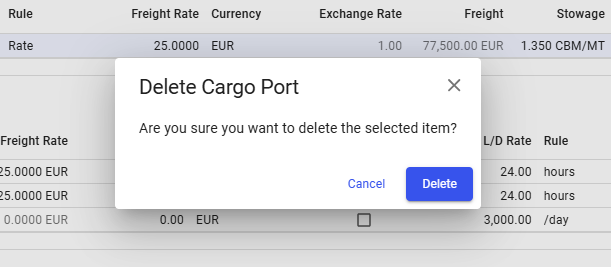
It is possible to delete a Cargo Port by clicking the vertical ellipsis menu in the right-most column (see *Figure 4*). When clicked, a popup asking for confirmation will appear to prevent unintended actions, as illustrated in *Figure 5*.