# Data Grids

## Base functionality

The table below lists the base functions available in the grid header. With a a few exceptions, these functions are consistent across the different grids. The order matches the column headers in *Figure 1*.

<div align="left"><figure><img src="https://content.gitbook.com/content/uZ9lzqgHX4JL1Df67xog/blobs/Br1D6Ebp3LJFNV1XWbHq/image.png" alt=""><figcaption><p>Figure 1: Column header base options</p></figcaption></figure></div>

<table><thead><tr><th width="204">Option</th><th>Explanation</th><th data-hidden></th></tr></thead><tbody><tr><td>Customise Columns</td><td>Makes it possible to select which columns should be displayed in the grid. Aslo includes search functionality.</td><td></td></tr><tr><td>Show filters</td><td>Displays the filter options. It is possible to define your own filters.</td><td></td></tr><tr><td>Density</td><td>Changes the density, that is, the spacing of the grid.</td><td></td></tr><tr><td>Export</td><td>Displays the export options for the data in the grid.</td><td></td></tr><tr><td>Expand</td><td>Expands the given grid to display more rows. Is enabled or disabled based on number of available rows in the data.</td><td></td></tr></tbody></table>

## Additional functionality

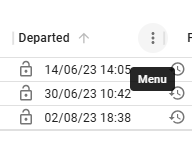
Each column includes a built-in menu, accessible by clicking the vertical ellipsis icon (see *Figure 2*).

<div align="left"><figure><img src="https://content.gitbook.com/content/uZ9lzqgHX4JL1Df67xog/blobs/7tl6eaaZlfYbNxT5I6vX/image.png" alt=""><figcaption><p>Figure 2: Column header menu</p></figcaption></figure></div>

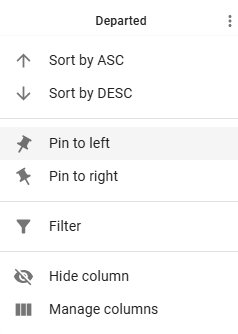
Expanding the menu displays a list of options for the column (see *Figure 3*), including sorting, pinning the column's position, and column management options. Basic sorting can also be performed by clicking the arrow that appears when hovering over a column or by clicking the column header itself (see *Figure 2*).

<div align="left" data-full-width="false"><figure><img src="https://content.gitbook.com/content/uZ9lzqgHX4JL1Df67xog/blobs/nI6HiH6RWE0PBzIHI1oz/image.png" alt=""><figcaption><p>Figure 3: Column header menu options</p></figcaption></figure></div>

### Modifying header position and width

You can adjust the header's width by placing your cursor at the ***intersection*** between two columns and dragging to resize. Also, double clicking the column divider autosizes the column such that the entire header text is visible. To change a column's position, ***click and drag*** the column to the desired position.&#x20;

### Row-modifications

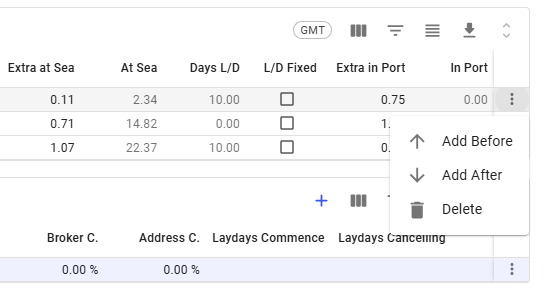
Each row in the grid includes a vertical ellipsis menu for row-specific options, ***typically*** located in the right-most column (see *Figure 4*). The menu's contents and available options depend on the grid type.

[Changes made within the grid ](https://docs.dataloy.com/release-8.16/voyage-management-system/voyages/maintain-voyages/voyage-full-screen#creating-editing-and-deleting-in-the-grid)or through the menu will directly impact the system data. For instance, selecting the delete option will remove both the row and its associated data.

If the grid supports insertions, you can insert a new row before or after the currently selected row, as seen in *Figure 4*. However, this option ***may not*** be available in all grids. Some grids also support copying a row, along with its associated object.

<div align="left"><figure><img src="https://content.gitbook.com/content/uZ9lzqgHX4JL1Df67xog/blobs/REEB7llEKx3bsIEcaGkr/image.png" alt=""><figcaption><p>Figure 4: Row options</p></figcaption></figure></div>

### Opening existing drawers and modals

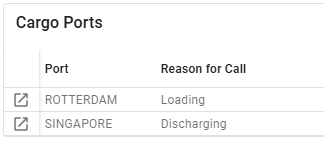
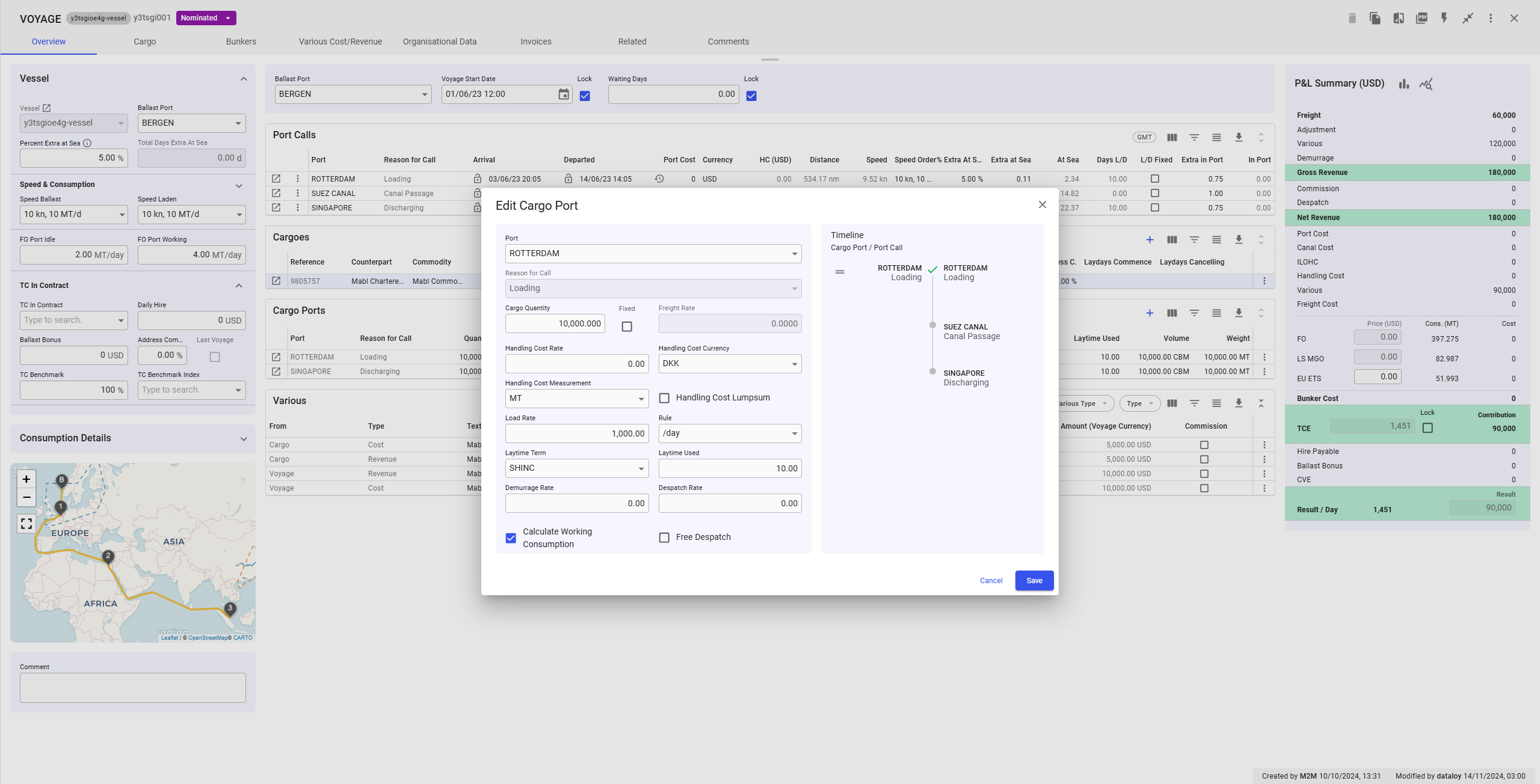
The grid includes a column for opening the associated drawer or modal, located in the left-most column by default (see *Figure 5*). When clicking the icon, the results will be displayed on top of the full-screen drawer. As seen in *Figure 6.*

<div align="left"><figure><img src="https://content.gitbook.com/content/uZ9lzqgHX4JL1Df67xog/blobs/Jh0XrMDzyUADkjZohhj6/image.png" alt=""><figcaption><p>Figure 5: Open cargo ports edit modal</p></figcaption></figure></div>

<figure><img src="https://content.gitbook.com/content/uZ9lzqgHX4JL1Df67xog/blobs/sNpGM7YVJN6M1H55FSD8/image.png" alt=""><figcaption><p>Figure 6: Edit cargo ports modal opened</p></figcaption></figure>

### Filters

You can use the grid's filter option to create custom filters. Some grids also offer[ quick filters](https://docs.dataloy.com/release-8.16/voyage-management-system/sorting-and-filtering-lists#quick-filters), which are not customizable, unlike the base filters in the column header.

<figure><img src="https://content.gitbook.com/content/uZ9lzqgHX4JL1Df67xog/blobs/ESlP7FflojUxO3NtjzlI/image.png" alt=""><figcaption><p>Figure 7: Custom filters applied on the distance column</p></figcaption></figure>

### Column aggregation

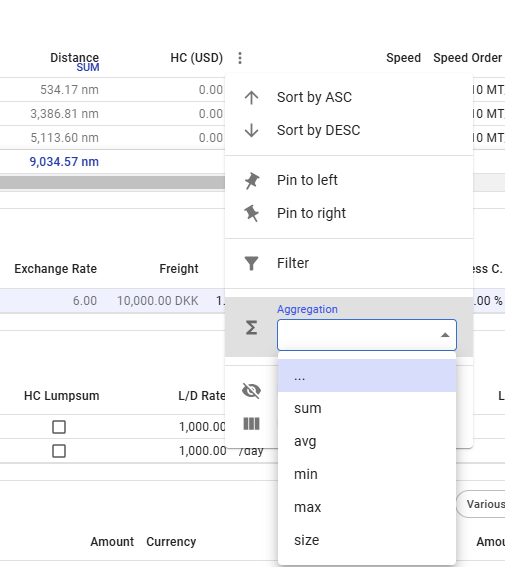
The new grid allows you to apply aggregations to ***numerical*** columns. This option is accessible via the vertical ellipsis menu that appears when hovering over a column. *Figure 8* shows the menu and the result of applying the "sum" option to the distance column.

<div align="left"><figure><img src="https://content.gitbook.com/content/uZ9lzqgHX4JL1Df67xog/blobs/bLeBOybPqQtGXlORsT56/image.png" alt="" width="379"><figcaption><p>Figure 8: Aggregation options, and sum applied to distance column</p></figcaption></figure></div>

## Suggestions on how to use grid efficiently

This section offers tips to help you become familiar with the new grid and use it effectively to enhance your workflow.

### Keyboard shortcuts

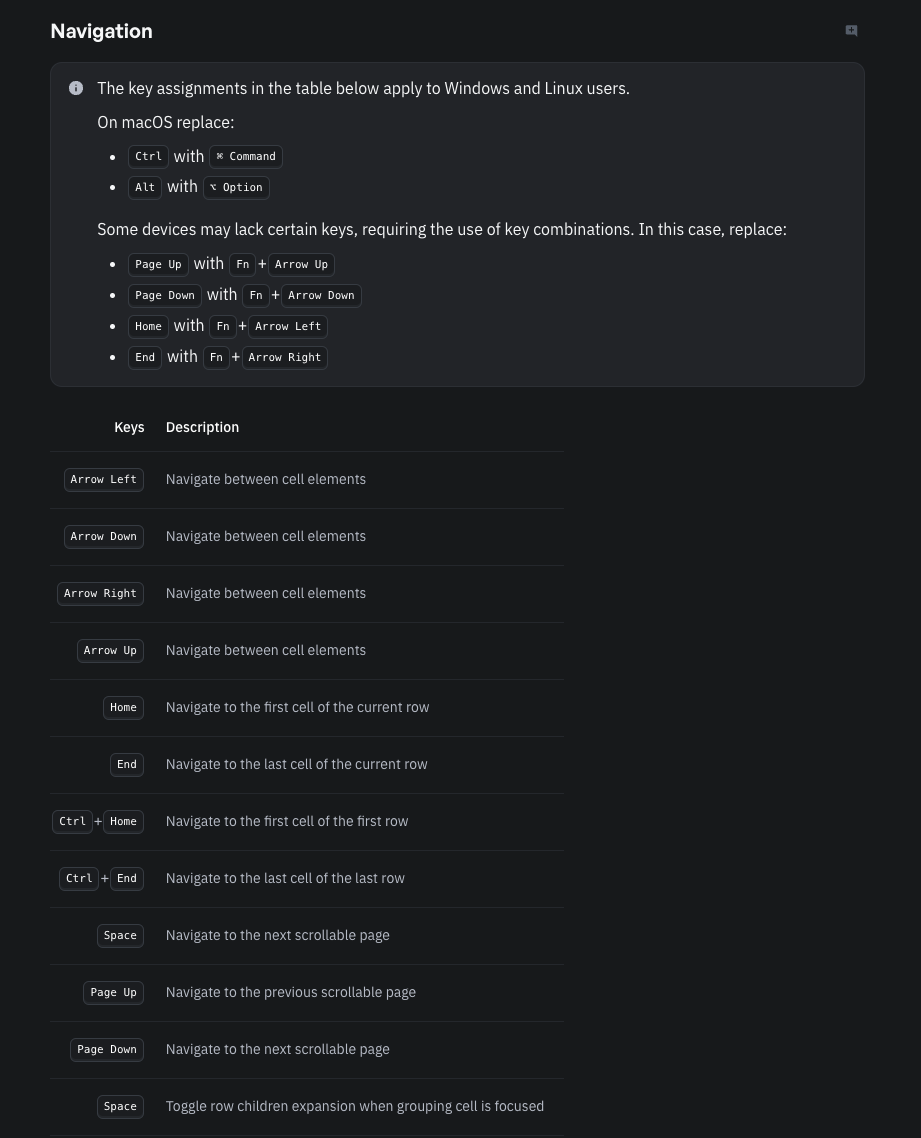
Using keyboard shortcuts is a powerful way to boost efficiency when working with the grid. Below are general instructions for using the grid, while *Figures 9–11* list available shortcuts along with brief descriptions.

* To change the value in a cell you can start typing when it is highlighted, or double click/press ENTER to go into edit-mode of that cell
* When in edit mode of a cell with select menu, SPACE opens the menu showing all options, and you can select options with ENTER or TAB.
* ESC exits edit-mode of a cell and discards the changes made.
* When a column header is focused:
  * CTRL/CMD + ENTER opens column menu
  * ENTER toggles column sorting and SHIFT + ENTER toggles multi column sorting

<figure><img src="https://content.gitbook.com/content/uZ9lzqgHX4JL1Df67xog/blobs/Z7NJtaDX6QbUPWkTwE2J/image.png" alt=""><figcaption><p>Figure 9: Shortcuts for Navigating the grid</p></figcaption></figure>

<figure><img src="https://content.gitbook.com/content/uZ9lzqgHX4JL1Df67xog/blobs/IcQlo3qDd4H4GV2L49Vb/image%20(1).png" alt=""><figcaption><p>Figure 10: Shortcuts for Selection in the grid</p></figcaption></figure>

<figure><img src="https://content.gitbook.com/content/uZ9lzqgHX4JL1Df67xog/blobs/yXgPIcqBM5uoFD1qEDXY/image%20(2).png" alt=""><figcaption><p>Figure 11: Shortcuts for Sorting in the grid</p></figcaption></figure>