# Claim Drawer

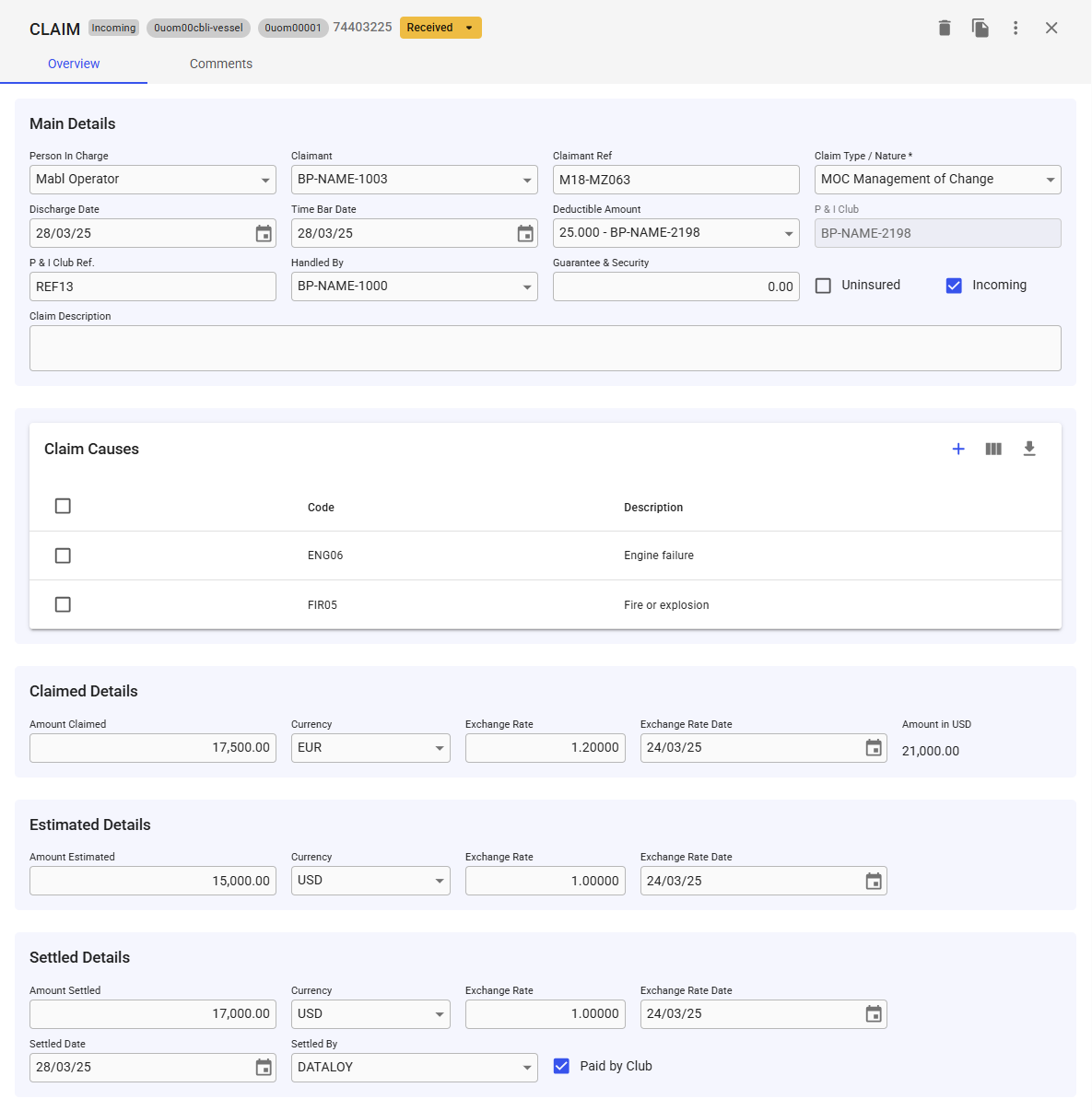
The **Claim Drawer** provides an overview of all relevant information related to a claim. It includes sections for main details, claim causes, and connected bills of lading. You can also edit or delete claims from in the drawer.

<figure><img src="https://content.gitbook.com/content/uZ9lzqgHX4JL1Df67xog/blobs/eJ7YXYfzbWwXG9GYFaYj/image.png" alt="" width="563"><figcaption><p>Figure 1: Claim Drawer</p></figcaption></figure>

## Header Details

<figure><img src="https://content.gitbook.com/content/uZ9lzqgHX4JL1Df67xog/blobs/EgmYKBDapRsMSp3zts0b/image.png" alt=""><figcaption><p>Figure 2.1: Claim Drawer Header</p></figcaption></figure>

The header provides essential information that identifies the claim and its associated entities. The following list elaborates on each element in the order they appear in Figure 2, from left to right:

{% tabs %}
{% tab title="Voyage Reference" %}
Unique identifier for the linked [voyage](https://docs.dataloy.com/release-8.16/voyage-management-system/step-by-step-guides/voyages).
{% endtab %}

{% tab title="Vessel Code" %}
Unique identifier for the linked [vessel](https://docs.dataloy.com/release-8.16/voyage-management-system/step-by-step-guides/voyages/maintain-voyages/overview/vessel).
{% endtab %}

{% tab title="Claim Reference No" %}
Unique identifier for the claim.
{% endtab %}

{% tab title="Claim Status" %}
Displays the current claim state. Click to open an interactive popup that provides options for transitioning the status.
{% endtab %}

{% tab title="Claim Link" %}
Displayed only for counterclaims. Clicking the link opens the original claim in a new tab.
{% endtab %}

{% tab title="Delete Claim" %}
Removes the item.
{% endtab %}

{% tab title="Copy Claim" %}
Duplicates the item.
{% endtab %}
{% endtabs %}

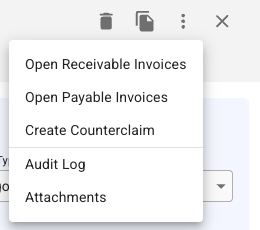
### Secondary Actions (three dots)

<figure><img src="https://content.gitbook.com/content/uZ9lzqgHX4JL1Df67xog/blobs/i4I2kiBPTmEoTjlIlegk/image.png" alt=""><figcaption><p>Figure 2.2: Claim Drawer Header, Secondary Actions</p></figcaption></figure>

{% tabs %}
{% tab title="Open Receivable Invoices" %}
Opens the receivable [invoices](https://docs.dataloy.com/release-8.16/voyage-management-system/step-by-step-guides/voyages/maintain-voyages/invoices) for the claim and its linked voyage in a new tab.
{% endtab %}

{% tab title="Open Payable Invoices" %}
Opens the payable [invoices](https://docs.dataloy.com/release-8.16/voyage-management-system/step-by-step-guides/voyages/maintain-voyages/invoices) for the claim and its linked voyage in a new tab.
{% endtab %}

{% tab title="Create Counterclaim" %}
Duplicates the claim with an inverted type (e.g., an outgoing claim becomes an incoming counterclaim, and vice versa).
{% endtab %}

{% tab title="Audit Log" %}
Opens a modal displaying a [log of all changes](#audit-log).
{% endtab %}

{% tab title="Attachments" %}
Opens a modal for managing [attachments](#attachments), allowing you to add or delete files.
{% endtab %}
{% endtabs %}

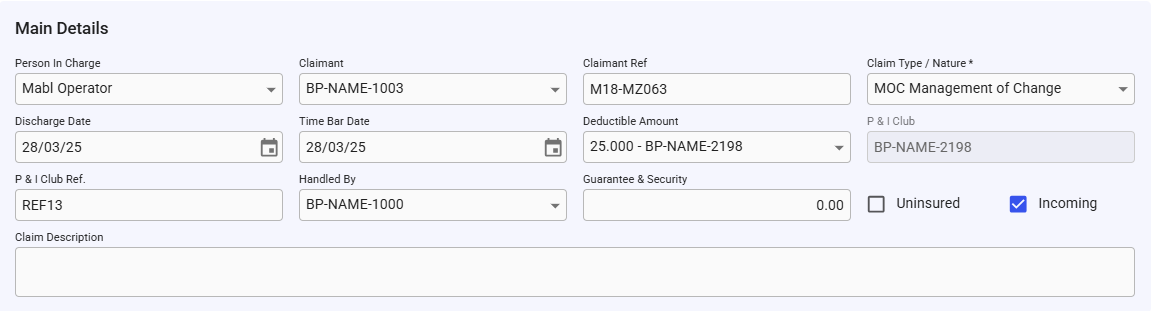
## Main Details

## Main Details

This section displays key information about the claim, including the person in charge, the claimant, the nature of the claim, and relevant dates (see the figure 3 for more details). You can modify these details, such as updating the claimant or deductible amount. The only required field is the type/nature of the claim.

<figure><img src="https://content.gitbook.com/content/uZ9lzqgHX4JL1Df67xog/blobs/63WKU8zXW4g2qX5vLz61/image.png" alt=""><figcaption><p>Figure 3: Claim Main Details Section</p></figcaption></figure>

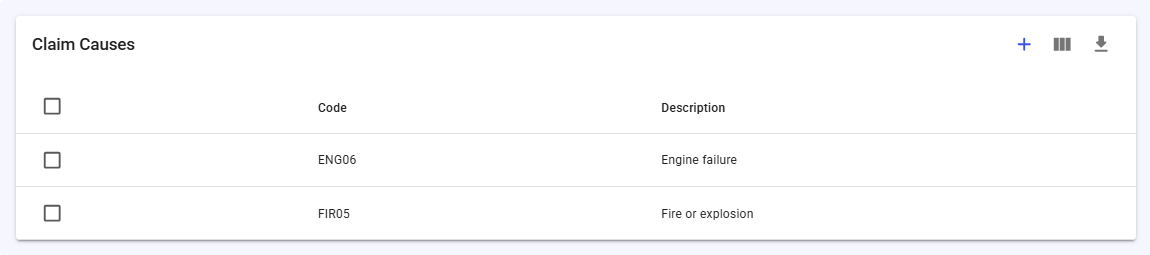
## Claim Causes

This section list all the[ claim causes ](#claim-causes)connected to the claim. You can add and remove claim causes connected to the claim, which is described in more details in the [maintaining claims page.](https://docs.dataloy.com/release-8.16/voyage-management-system/step-by-step-guides/maintaining-claims#adding-and-removing-claim-causes)

<figure><img src="https://content.gitbook.com/content/uZ9lzqgHX4JL1Df67xog/blobs/oMnit0rfBmC5cE7iWxhn/image.png" alt=""><figcaption><p>Figure 4: Claim Causes List</p></figcaption></figure>

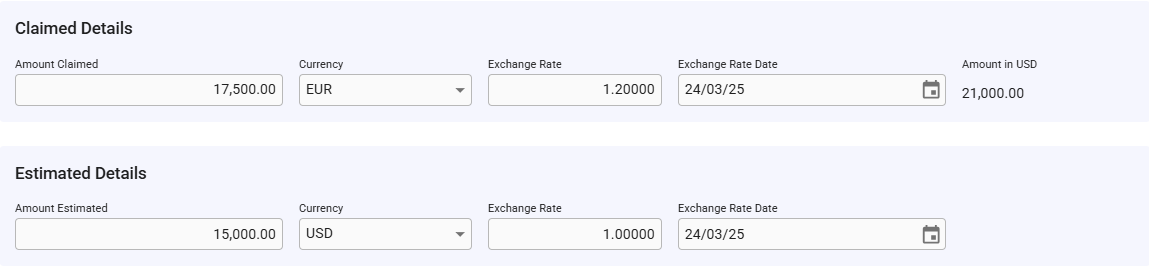
## Estimated & Claimed Details

These sections make it possible to adjust the claimed and estimated details of the claim. The exchange rate date defaults to the claim's creation date. If the selected currency differs from the voyage currency, an additional field will display the amount in the voyage currency. See figure 5 for reference.

<figure><img src="https://content.gitbook.com/content/uZ9lzqgHX4JL1Df67xog/blobs/XC0Mo4hX2Xzh50C8EQEq/image.png" alt=""><figcaption><p>Figure 5: Claimed and Estimated Details Sections</p></figcaption></figure>

## Settled Details

This section provides the settled claim’s details, including the amount, settlement date, and the person responsible for the settlement. You can also indicate whether it was paid by the P\&I Club.

<figure><img src="https://content.gitbook.com/content/uZ9lzqgHX4JL1Df67xog/blobs/l92RBxv5SWd9TJufmErV/image.png" alt=""><figcaption><p>Figure 6: Settled Details Section</p></figcaption></figure>

## Bill of Lading

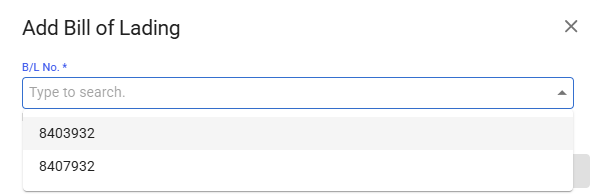
This section lists all bills of lading connected to the claim. To add a bill of lading, click the blue plus button, which will open a modal for selecting the appropriate bill.

<figure><img src="https://content.gitbook.com/content/uZ9lzqgHX4JL1Df67xog/blobs/062jIvgNR2LgQhneuwC0/image.png" alt=""><figcaption><p>Figure 7: Bill of Lading List</p></figcaption></figure>

<div align="center"><figure><img src="https://content.gitbook.com/content/uZ9lzqgHX4JL1Df67xog/blobs/OelKnVsOGZFlvdI8xATU/image.png" alt="" width="448"><figcaption><p>Figure 8: Add Bill of Lading Modal</p></figcaption></figure></div>

To remove a bill of lading, tick the checkboxes for the entries you want to remove, then click the remove icon in the top-right corner. A confirmation pop-up will appear, which you must confirm, as seen in the figure below.

<figure><img src="https://content.gitbook.com/content/uZ9lzqgHX4JL1Df67xog/blobs/wbG1bh3WbnqOcue73kYu/image.png" alt=""><figcaption><p>Figure 9: Remove Confirmation</p></figcaption></figure>

**Note:** The Bill of Lading list only displays bills of lading connected to the voyage.

## Downtimes

The final section of the Claim Drawer lists all downtimes for the voyage. This list is not editable, and downtimes cannot be added or removed. For more information about downtimes, refer to the[ Downtime page.](https://docs.dataloy.com/release-8.16/voyage-management-system/step-by-step-guides/operations/offhire)

<figure><img src="https://content.gitbook.com/content/uZ9lzqgHX4JL1Df67xog/blobs/cjodQGrRMKDnUgvKhwKe/image.png" alt=""><figcaption><p>Figure 10: Downtime list</p></figcaption></figure>