# Maintain Market Indices and Market Index Values
## Market Indices List
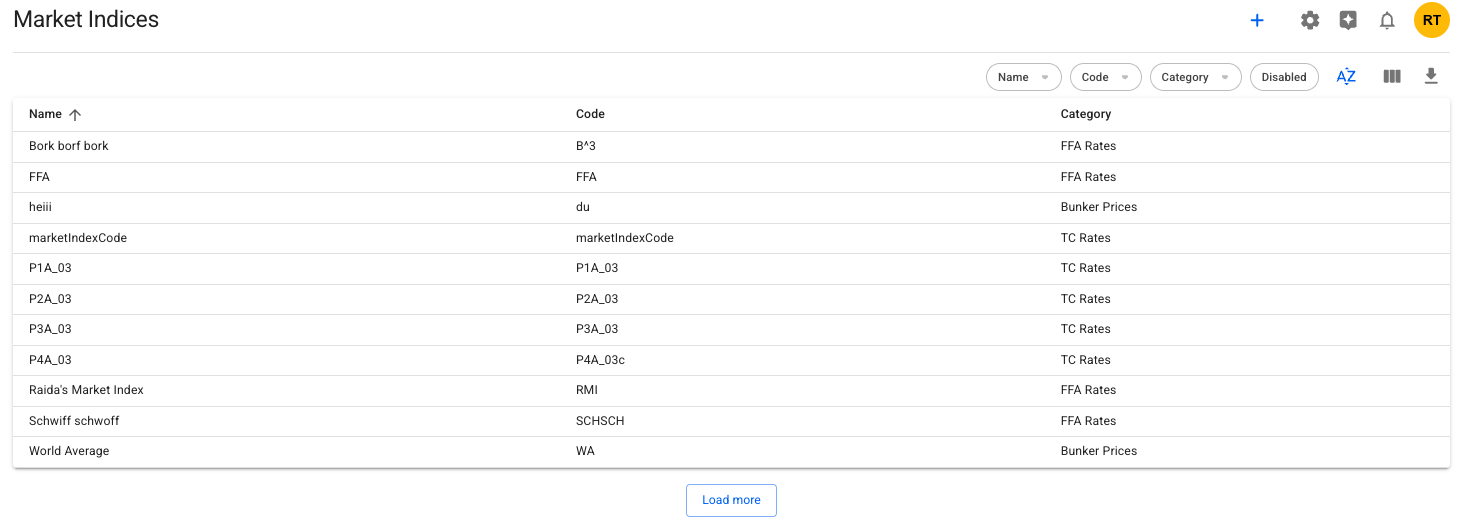
Here, you are able to view a list of market indices based by their name, code and category. You can use the [filtering- and sorting options](https://docs.dataloy.com/release-8.16/voyage-management-system/step-by-step-guides/sorting-and-filtering-lists) (you can also sort on the list headers), including filtering on *disabled* market indices:
Market Indices list
Click on a list item to open up the Market Index drawer (see below).
You also have other actions, such as [customise columns](https://docs.dataloy.com/release-8.16/voyage-management-system/step-by-step-guides/customising-list-columns).
## Market Index Drawer
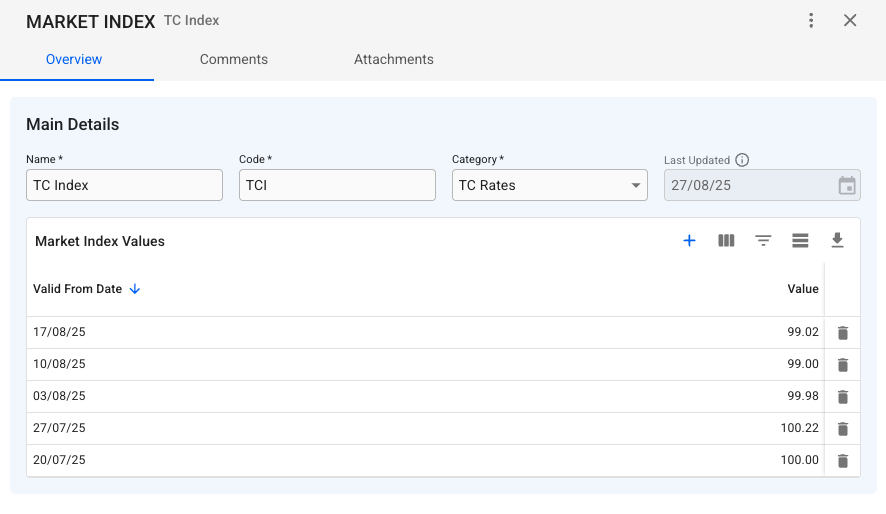
The first tab, Overview, is separated into:
* a Main Details section, and
* a Market Index Values section
See below picture for reference.
### Maintain the Market Index Values
For each market index, you can view a list of the connected market index *values*. On the below grid, you can view, edit, create, delete, sort, filter, customise/search for and export market index values for each row:
Market Index Drawer, Overview tab
The Last Updated field shows the date of when the most recently updated market index value was updated.
You can read more about the grid's functionalities [here](https://docs.dataloy.com/release-8.16/voyage-management-system/step-by-step-guides/data-grids).
{% hint style="info" %}
Note that:
* the Marked Index *Code* must be unique and uppercase letters only
* all fields are required when creating and editing
{% endhint %}
## Deleting a Market Index
A Market Index must first be *disabled*. Click the  button in the top right corner to open the secondary actions. Choose the "Disable" option. Click the  button again, and then choose the "Delete" option. A confirmation modal will also show up, click Delete.