# Maintain Template Cargoes
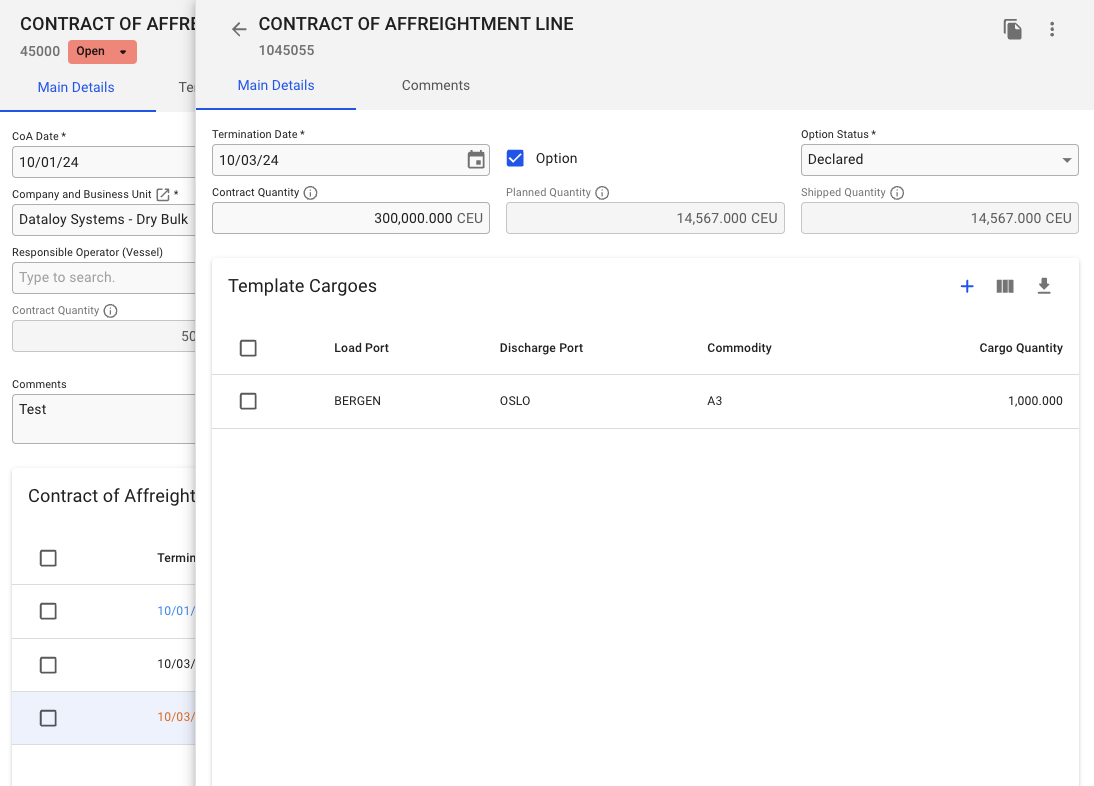
When you have located a Template Cargo, click it and the details will show in a drawer on the right hand side. Details can be maintained directly in the fields.
By clicking the secondary actions icon , additional actions is be possible:
* Delete
Alternatively, you can select a Template Cargo, or several, in the Template Cargoes table and then click the Delete-button.
Also, by clicking the -icon, it is possible to copy the selected Template Cargo. Which will then be connected to the same CoA Line.
## Template Cargoes Table
Template Cargoes Table
From this view, you can view information like the Load- and Discharge Ports, Commodity and Cargo Quantity. You can also use the -icon to customize this view. Read more about the customization [here](https://docs.dataloy.com/release-8.16/voyage-management-system/step-by-step-guides/customising-list-columns).
## "Template" Cargo Drawer
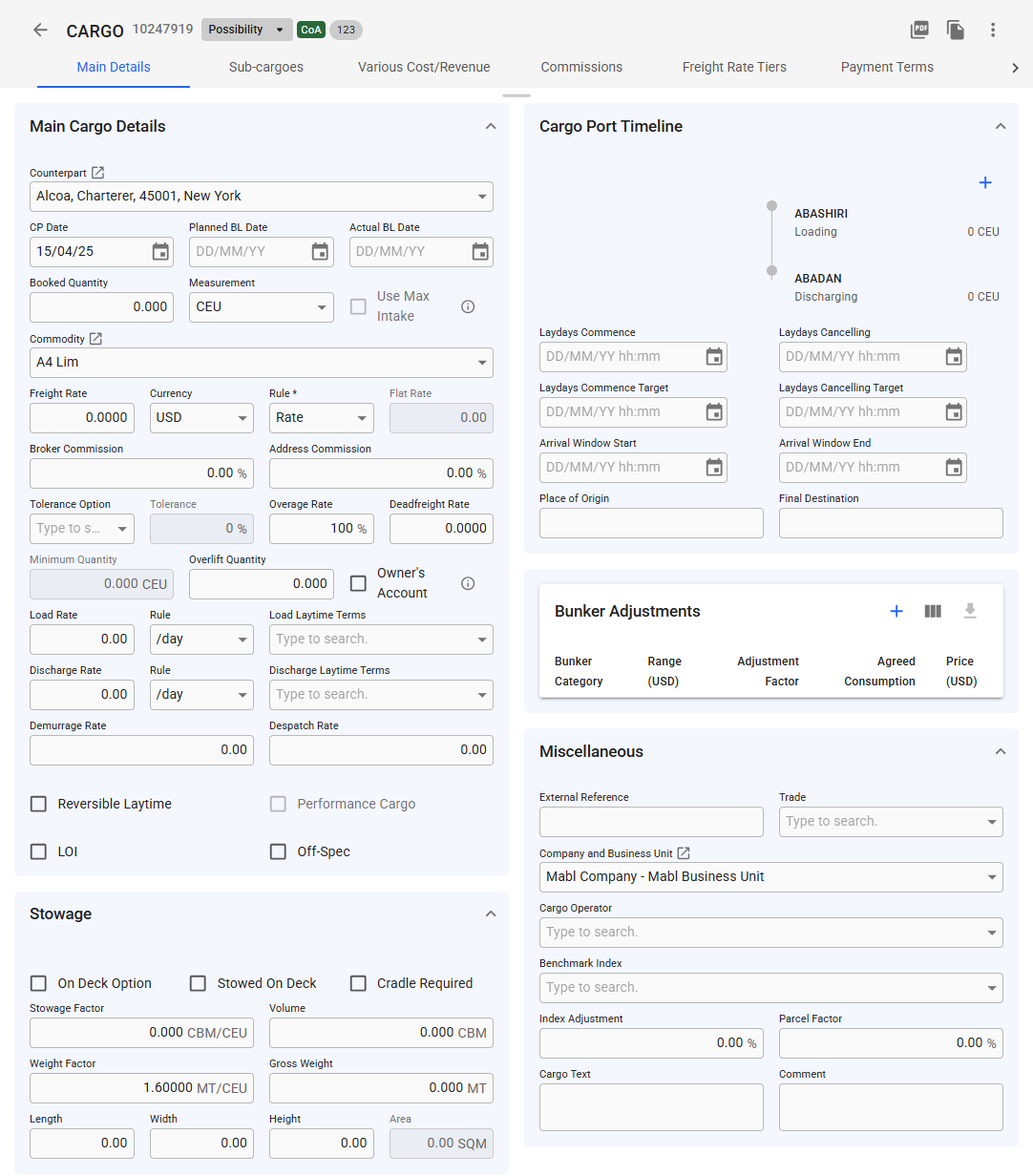
The separate Cargo drawer, which is identical to a "normal" Cargo drawer, view additional information of the selected template cargo:
"Template" Cargo Drawer
You can edit the additional information here as you like.