# Connect Cargo to CoA
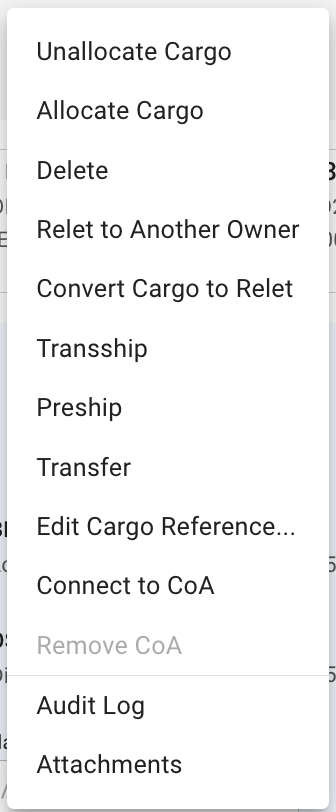
If you click the Connect to CoA button in the secondary actions menu on in a Cargo Drawer,
Secondary Action Menu in Cargo Drawer
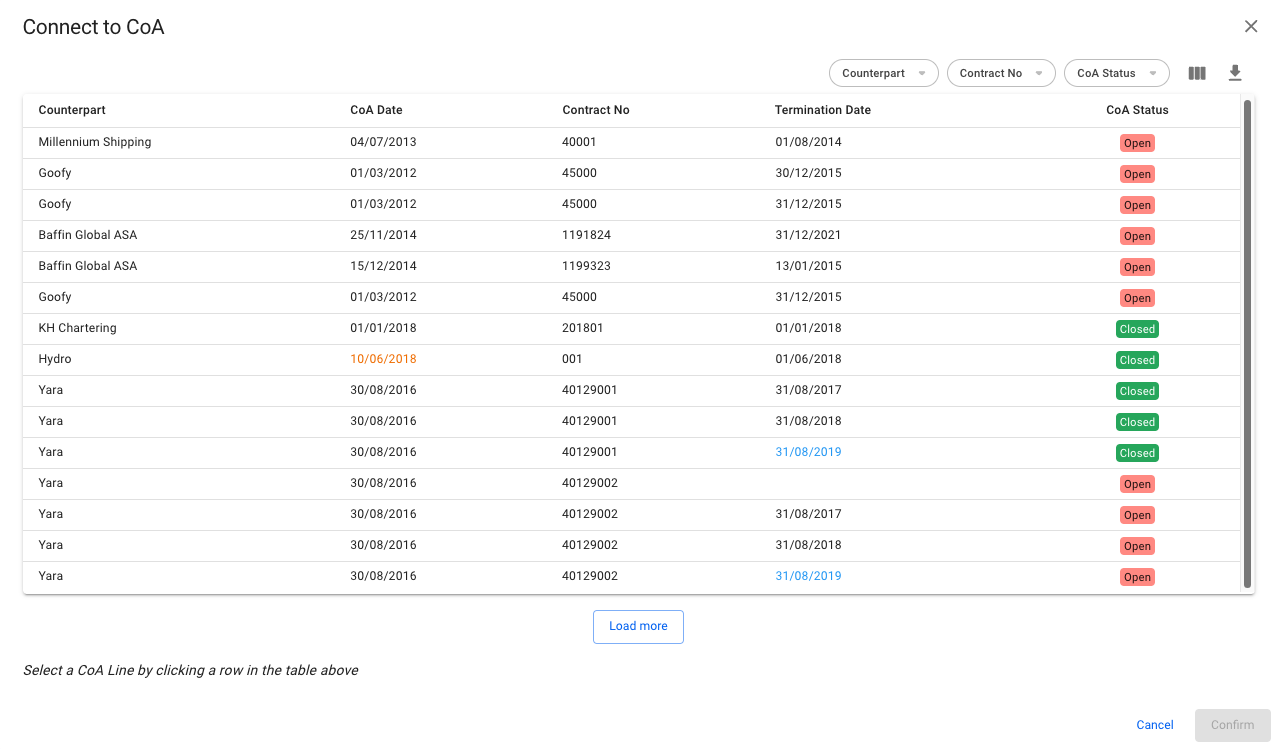
you will open the Connect to CoA modal:
Connect to CoA modal
In this modal you choose which CoA Line you want to connect the Cargo to and click Confirm to connect it. Doing so will update the Company and Business Unit of the Cargo to be the same as the Company and Business Unit of the CoA.
When you have connected the cargo to a CoA Line, you will see a chip at the top of the Cargo Drawer that says **Contract of Affreightment** as well as which CoA Line you've connected it to (**40129002** in this example).
Cargo Drawer when connected to CoA Line
The CoA number chip (802899-MABL-COA-NO) is a clickable chip that will open up the drawer of the CoA.