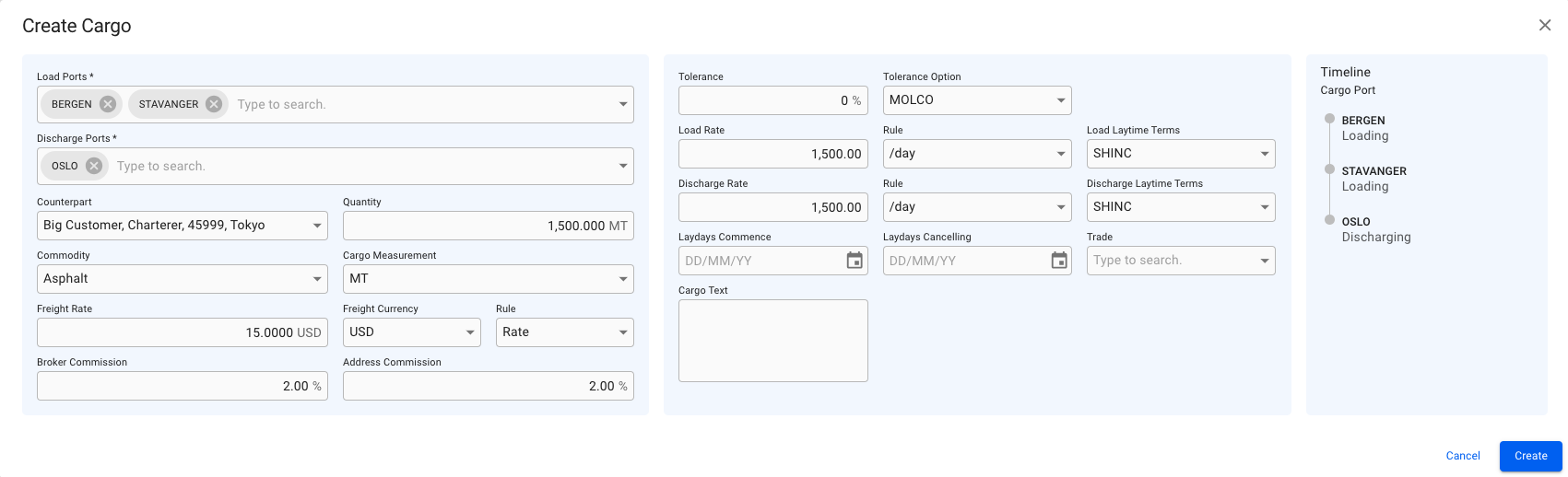
New Create Cargo Modal fro Unallocated Cargoes
 .
3. Select **Create New Cargo**.
4. In the modal, you can **fill in** the required fields and **add** any additional information about the new cargo.
5. Click **Create**.
#### **Required fields:**
* Load Port
* Discharge Port
* Counterpart
* Commodity
### **New design:**
The new ***Create Cargo modal*** has a new design to increase the productivity while creating a cargo, is more user-friendly and has more useful features altogether**.** Click on the picture below to get a better view of the details:
.
3. Select **Create New Cargo**.
4. In the modal, you can **fill in** the required fields and **add** any additional information about the new cargo.
5. Click **Create**.
#### **Required fields:**
* Load Port
* Discharge Port
* Counterpart
* Commodity
### **New design:**
The new ***Create Cargo modal*** has a new design to increase the productivity while creating a cargo, is more user-friendly and has more useful features altogether**.** Click on the picture below to get a better view of the details:
New Create Cargo Modal fro Unallocated Cargoes
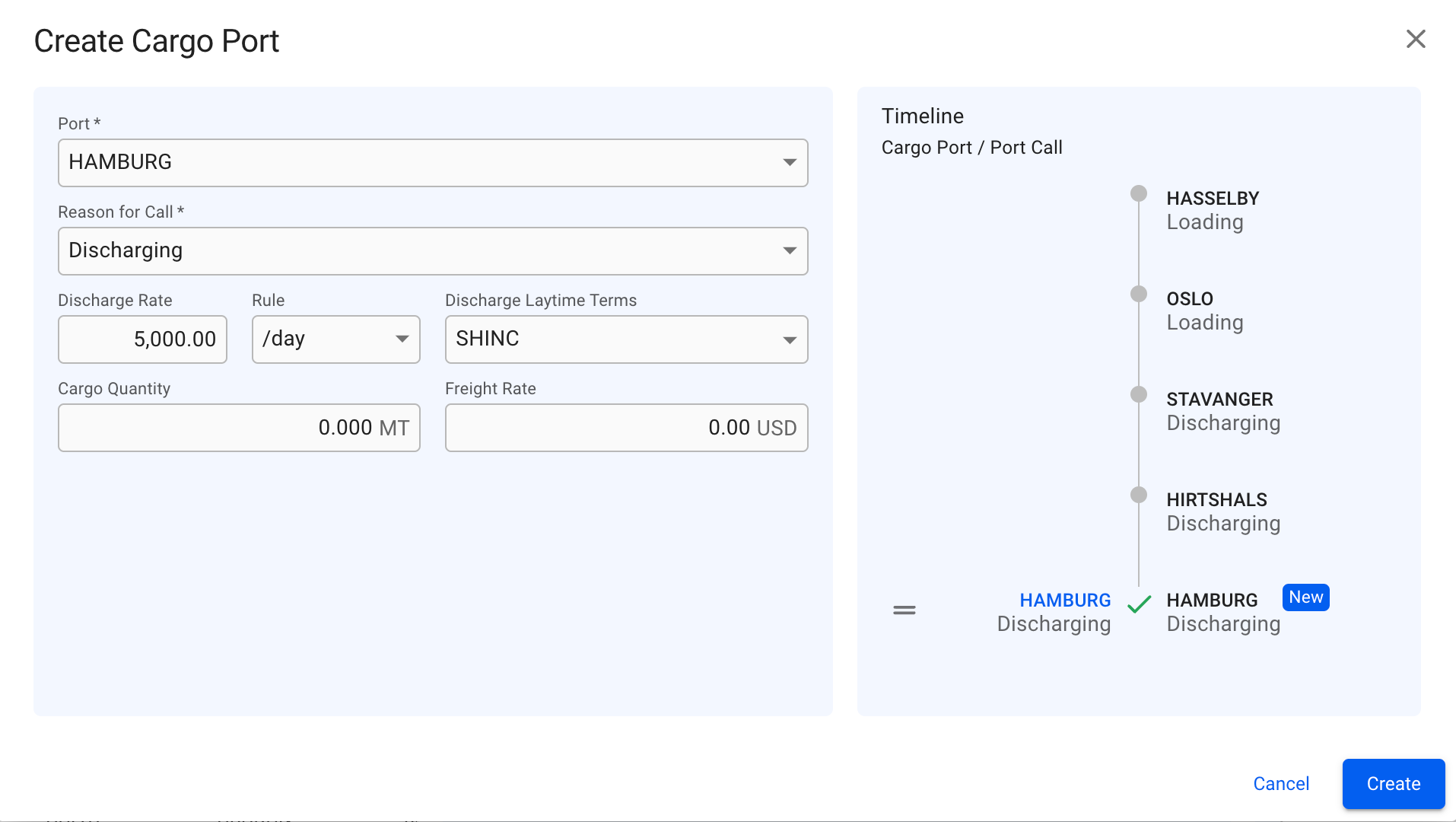
New Create Cargo Port Modal For Unallocated Cargoes
icon at the top of the *Cargo Port Timeline* section of the [cargo drawer](https://docs.dataloy.com/release-8.16/voyage-management-system/step-by-step-guides/cargoes/maintain-cargoes/cargo-drawer). However unlike the *Create Cargo modal,* Reason for Call is set to 'Loading' by default and is limited to only 'Loading' and 'Discharging' for *cargo ports.*To change the order of ports, you can use the *drag and drop features* inside the modal. To *edit* or *delete* an existing cargo port you can, in the Cargo Port Timeline section, look for the grey icons on each of the *cargo port rows*, to specifically focus on a cargo port of choice to make the changes. Read more about the features below.
### Features:
* With the new *multiple value* component in the Create Cargo modal, you are now able to add **multiple** Load- and Discharge- *cargo ports* to the new cargo.
* The fields are divided into 2 sections, while the 3rd section displays the Timeline component of the cargo ports that are added. In the Create Cargo Port modal, there are 2 sections, in which the 2nd one contains the Timeline.
* It is possible to *drag and drop* the ports in the Timeline component to change the order of the cargo port rows, in both of the modals.
{% hint style="info" %}
To see the new *Create Cargo* and *Create Cargo Port* modals for *allocated* cargoes, click here: [cargo-actions](https://docs.dataloy.com/release-8.16/fleet-allocation-and-scheduling/getting-started/planning/fleet-plans/cargo-management-board/cargo-actions "mention")!
{% endhint %}