# Bulk Update
Bulk Update lets you modify specific fields across multiple rows (voyages, items, etc.) at once, saving time and reducing repetitive actions. Each list will show different fields for bulk updating. If no bulk-editable fields are configured for a particular list, an empty Bulk Update window will appear.
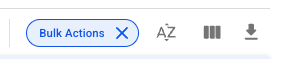
1\) Click on the **Bulk Actions** button or hover a row an click the checkbox to select an instance. A highlighted **Bulk Actions** button with the "x" icon indicates that you are in edit mode.
2\) Select which rows you want to update by clicking on the checkbox. You can select all the instances in the page by selecting the topmost checkbox.
3\) Click the **Update** button on the right corner to view the available fields for bulk updating.
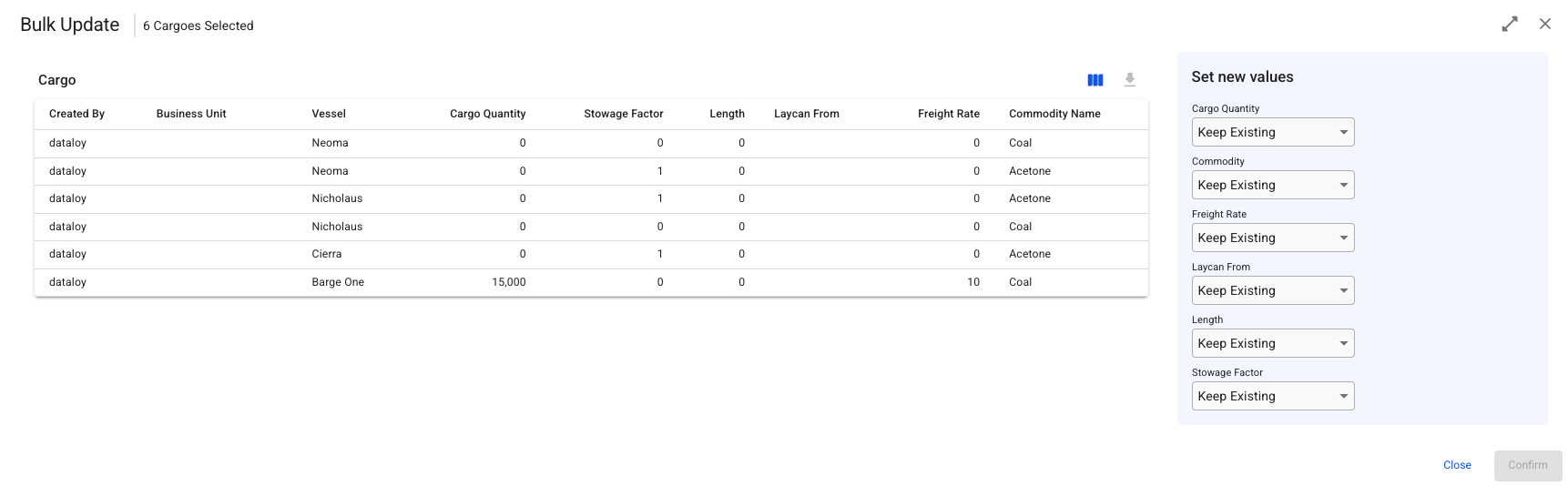
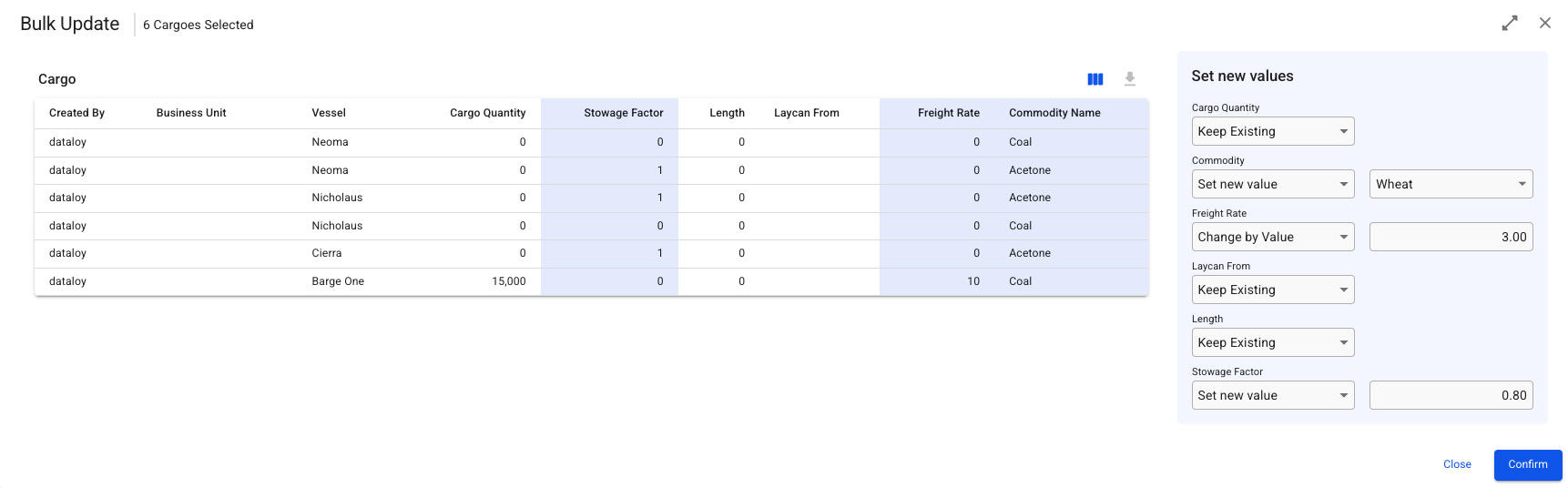
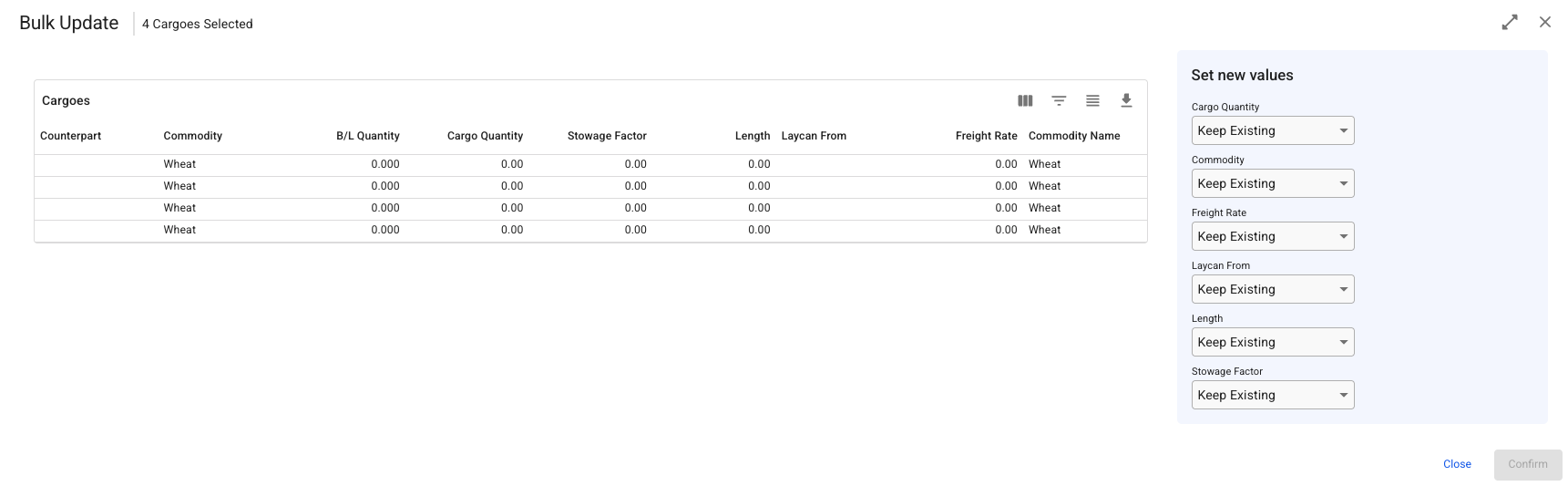
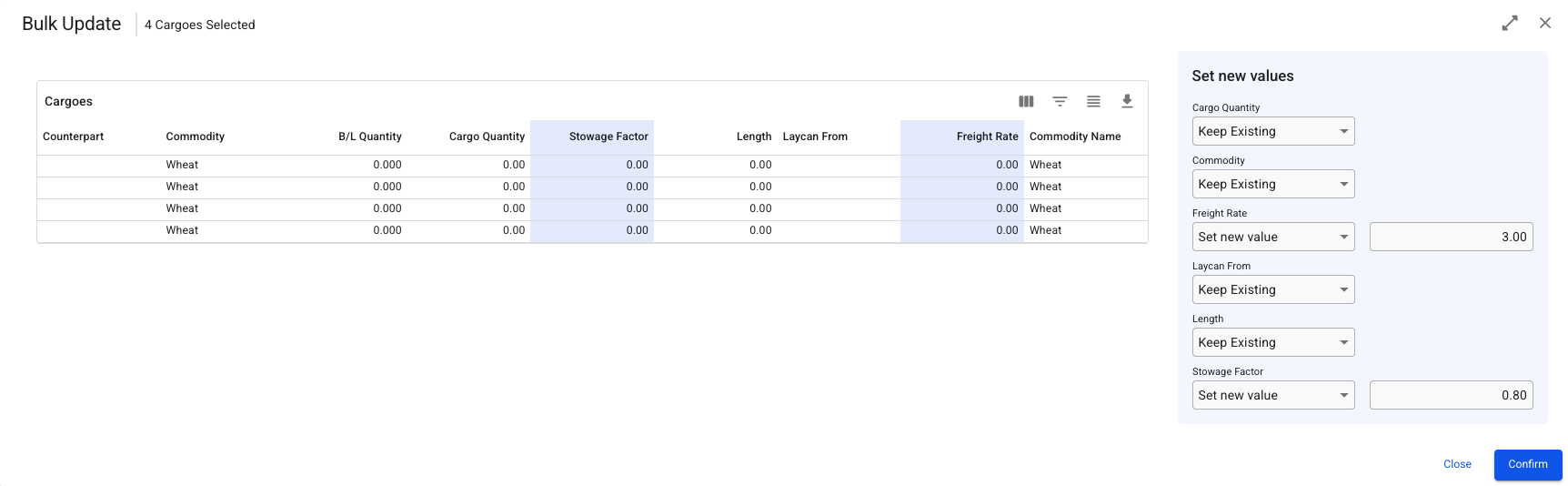
4\) Verify the column selection in the List/Grid to the left.
{% tabs %}
{% tab title="List" %}
Default
Selected columns with highlight
{% endtab %}
{% tab title="Grid" %}
Default
Selected columns with highlight
{% endtab %}
{% endtabs %}
5\) For each field, choose one of the following update options:
* **Keep Existing**: The field value will remain unchanged for all selected rows.
* **Set New Value**: Enter a new value that will be applied to the field across all selected rows.
* **Change by Percentage**: Enter a percentage to adjust the field’s value accordingly.
* *Example*: If you enter **10**, a value of 5**0** will increase to **55**.
* **Change by Value**: Enter a number to add/subtract from the existing field value.
* *Example*: If you enter **10**, a value of **50** will increase to **60**.
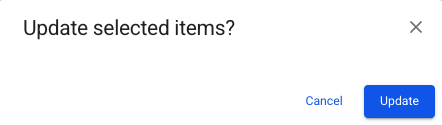
Once you've made your selections, click **Confirm**. Which opens a confirmation modal, with the List/Grid visible in the background.
6\) Click the **Bulk Actions** button once more to clear the selection and exit edit mode.
## Bulk Delete
For lists and grids, support for **Bulk Delete** of multiple selected items is supported. Its delete icon is available for lists and grids where this has been enabled (initially only the voyages list).
This can be achieved by:
1. Click the **Bulk Actions** button to view the delete icon, and selecting the rows you want to delete.
2. Click the list's delete action icon in the top right corner.
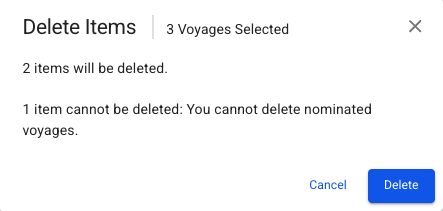
3. Confirm the action in the modal to delete the selected row items. In cases of selecting rows that cannot be deleted due to rules, the confirmation modal will inform how many objects will be deleted if you decide to proceed. Non-deleted rows will remain selected after confirming the action.
4. Click the **Bulk Actions** button once more to clear selection and exit the mode.
#### Bulk Delete Rules
* For the Voyages list, **Bulk Delete** is only allowed for voyages with status **Estimate**, **Allocated**, and **Unallocated**.