# Maintain Scenarios
To change an existing scenario, navigate to the 'Scenarios' menu group to the left, and open the *Scenario drawer* by clicking on the list row of choosing. Learn more about [finding](https://docs.dataloy.com/release-8.16/fleet-allocation-and-scheduling/getting-started/planning/scenarios/find-scenario) a scenario!
### Actions
You have the following actions in the drawer:
* View in Open Positions Board
* Delete
* Copy
* Edit Scenario Name
* View Audit Log
* To access and upload attachments
{% hint style="info" %}
You cannot use Delete or Edit Scenario Name for the MASTER scenario, since this is the on-going plan connected to all other VMS functionalities.
{% endhint %}
{% hint style="info" %}
Deleting a scenario removes it from the database. There is no recycle bin or a way to retrieve a deleted scenario.
{% endhint %}
### Main Details tab
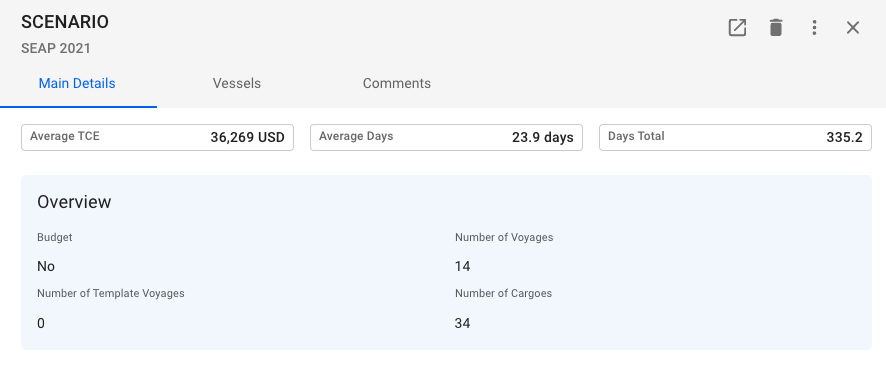
Here you have an overview of Average TCE, Average Days and Days Total of the whole scenario. The overview sections also contains information about whether the scenario is a budget, the number of voyages, template voyages and cargoes of the selected scenario:
Main Details Section of Scenario Drawer
### Vessels tab
Vessels in the selected scenario can be managed from the list in the *Vessels tab*. Clicking on a vessel will lead to the vessels' drawer.
#### Add / Remove Vessel
1. Open the **Scenario** module in the *Planning* section.
2. Select a scenario and navigate to the **Vessels** tab.
3. Click **Add** in the top right corner of the vessels list.
4. Select/Deselect vessels in the Select Vessels dialog.
5. Click **Confirm**.
 in the top right corner of the vessels list.
4. Select/Deselect vessels in the Select Vessels dialog.
5. Click **Confirm**.
in the top right corner of the vessels list.
4. Select/Deselect vessels in the Select Vessels dialog.
5. Click **Confirm**.