# Copy Scenarios
{% hint style="info" %}
For copying budget scenario, click [here](https://docs.dataloy.com/release-8.16/fleet-allocation-and-scheduling/getting-started/planning/budgets/copy-budget-scenarios).
{% endhint %}
Inside a scenario drawer, you have a primary action for *copying* a scenario:
Copy Scenario Action Icon
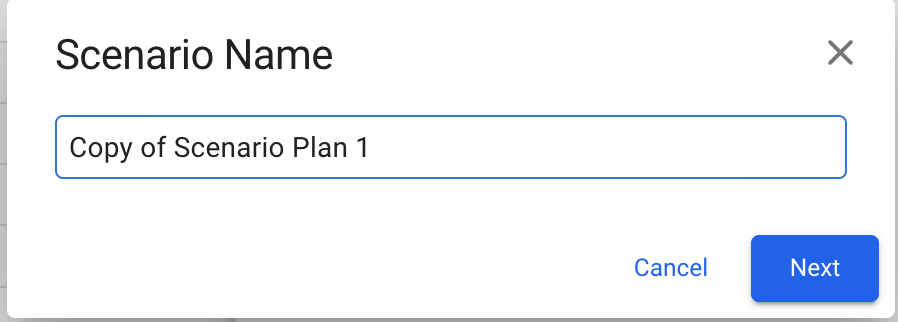
Then, a 3-stepper modal will show up and give you access to define what vessels, voyages and cargoes of that specific scenario you want to copy over to the "new" scenario. Firstly, you will be given the option to choose a name for the copied scenario:
Scenario Name Modal
By default, the "Copy of *original scenario name*" will be added at the input, until you decide for another name. Each of the scenario names should be *unique* to avoid duplicates in the system (there is a validation check for this when typing). Moreover, you can step through the modal to specify further:
### Step 1 - Select Vessels
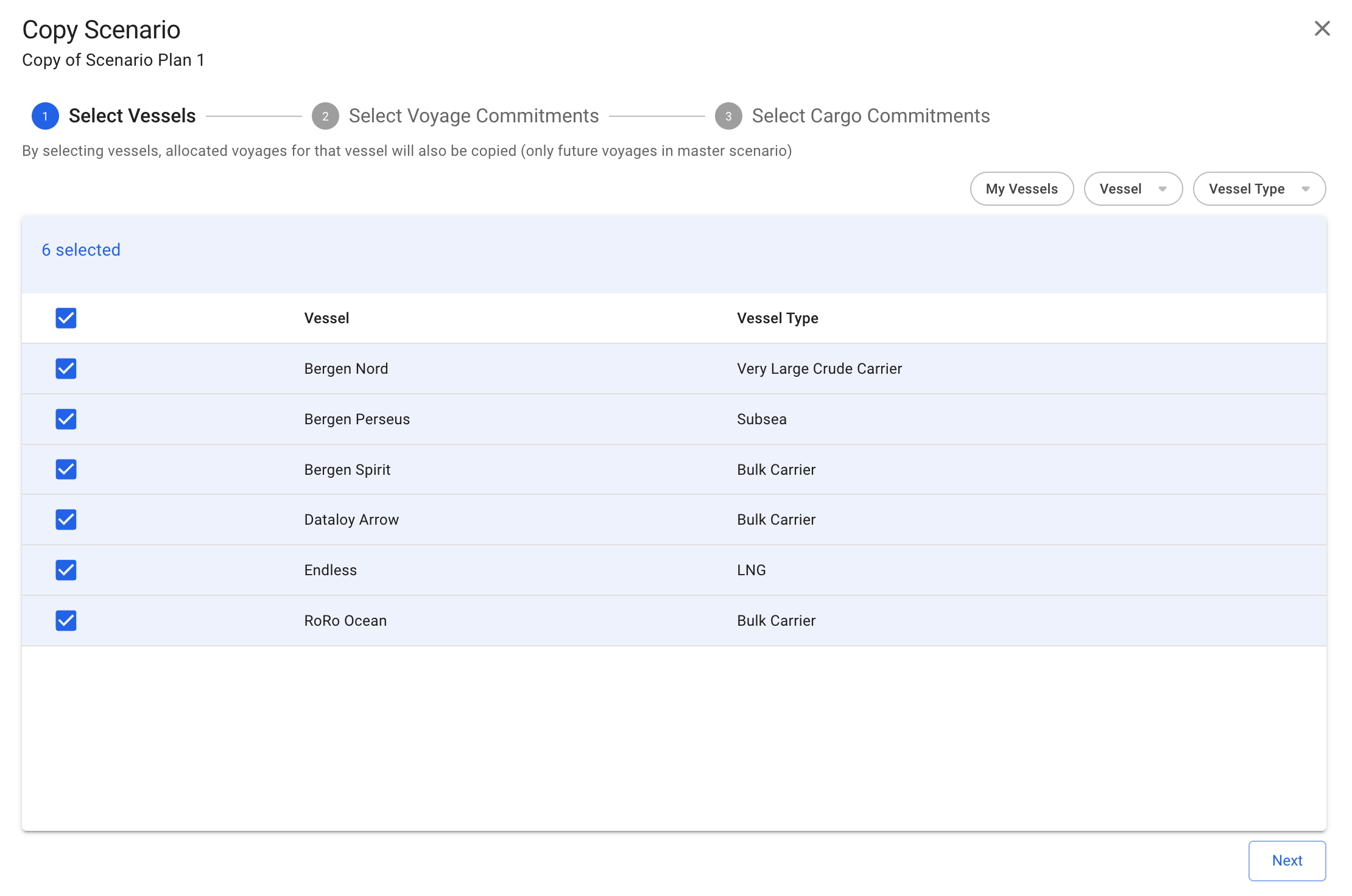
Step 1 of the Copy Scenario Modal
A list of pre-selected **vessels** of the original scenario that you want to copy from will show. You will have the option to un-check unwanted vessels for the "new" scenario as well. The list contains of vessels, which includes their *allocated voyages* and *cargoes,* from the selected scenario, and is sectioned by the vessel itself and its vessel type.
#### **Features:**
* You can **filter** by:
* My Vessels
* Vessel
* Vessel Type
* When copying the MASTER scenario, only the **future** allocated voyages with their cargoes for the specified vessels are copied
* The checked vessels are persisted throughout the modal
* You are able to click the "Next" button even if you have selected **zero** vessels
### Step 2 - Select Voyage Commitments
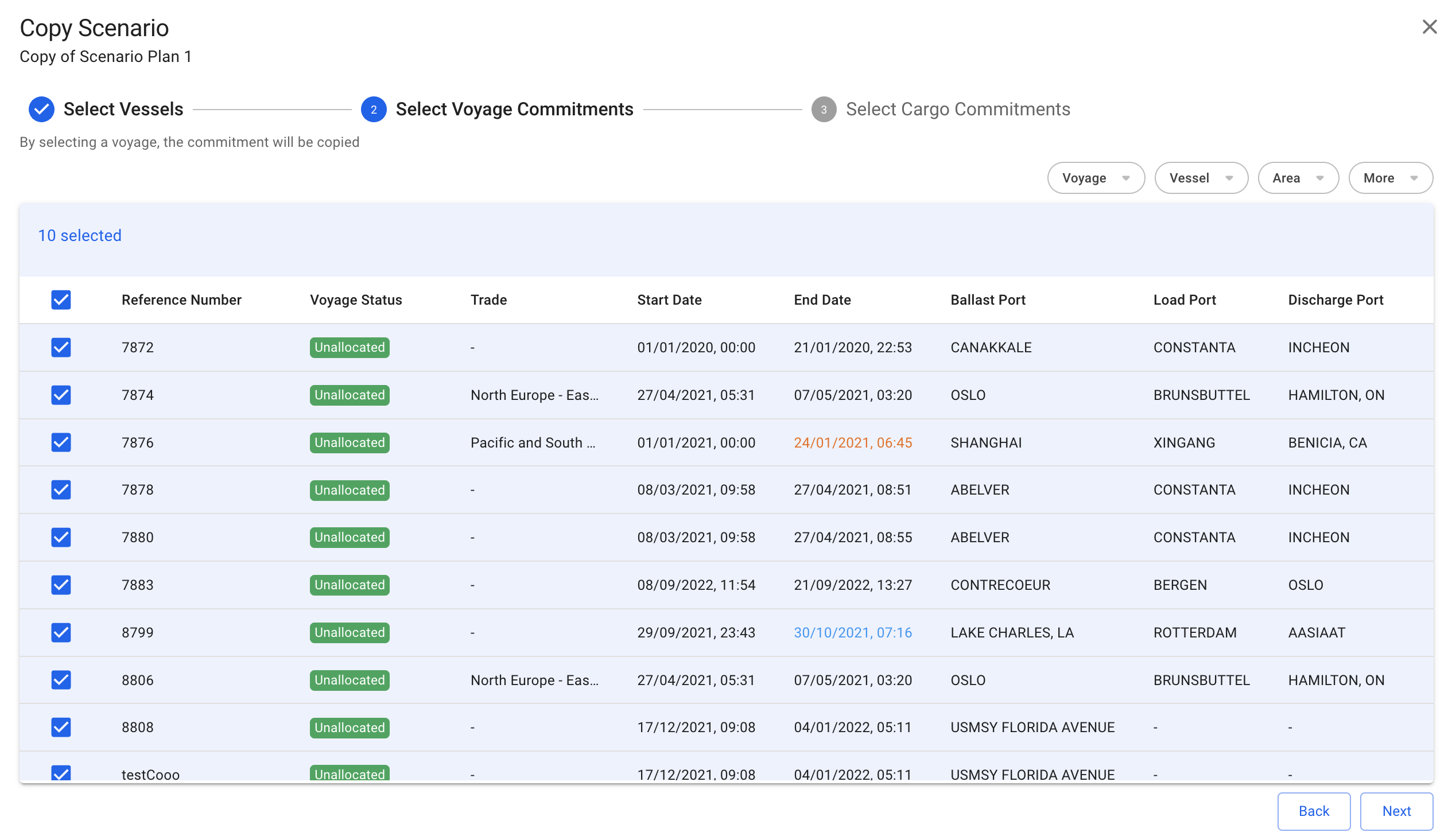
Step 2 of the Copy Scenario Modal
A list of pre-selected **voyage commitments** of the original scenario that you want to copy from will show. You will have the option to un-check unwanted voyages for the "new" scenario here too. The list contains of all the *unallocated voyages,* which includes their *cargoes* (both non-template), from the selected scenario. It's sectioned by reference number, voyage status, trade, start- and end dates, ballast-, load- and discharge ports.
#### **Features:**
* You can **filter** by:
* Voyage
* Reference Number
* Voyage Status
* Vessel
* Name
* Type
* Area
* Loading
* Discharging
* More
* Commodity
* Charterer
* Trade
* Commodity Class
* Cargo Type
* The checked voyages are persisted throughout the modal
* You are able to click both the "Back" and "Next" buttons even if you have selected **zero** voyages
### Step 3 - Select Cargo Commitments
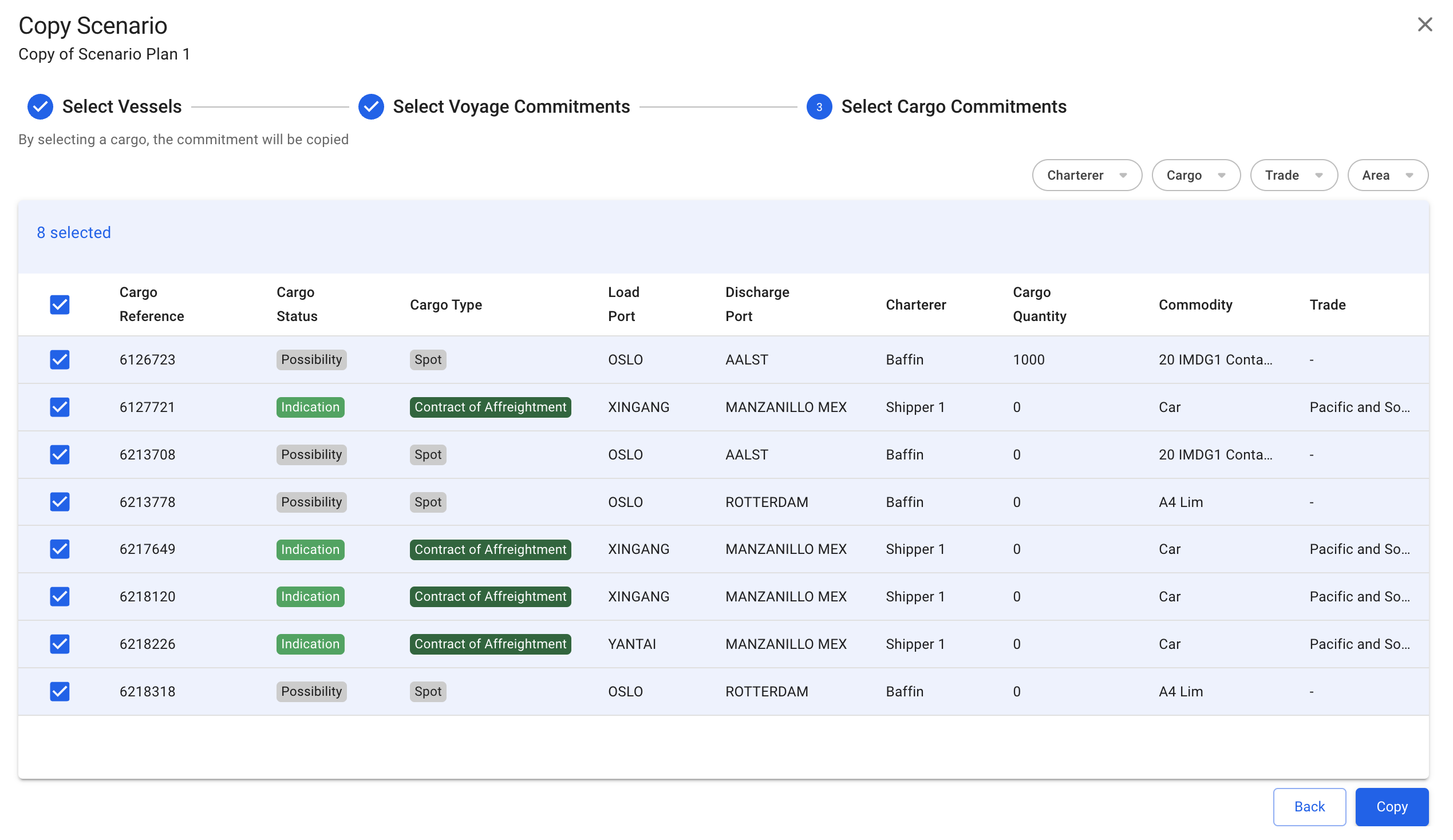
Step 3 of the Copy Scenario Modal
A list of pre-selected **cargo commitments** of the original scenario that you want to copy from will show. You will have the option to un-check unwanted cargoes for the "new" scenario here as well. The list contains of all the *unallocated cargoes* (non-template) from the selected scenario, and is sectioned by cargo reference, cargo status, cargo type, load- and discharge ports, charterer, cargo quantity, commodity and trade.
#### **Features:**
* You can **filter** by:
* Charterer
* Cargo
* Commodity
* Commodity Class
* Cargo Type
* Trade
* Area
* Loading
* Discharging
* The checked cargoes are persisted throughout the modal
* You are able to click both the "Back" at any time
* You are able to click the "Copy" button if you have selected **at least** one item, whether it's a vessel, voyage or a cargo
### Common Features
#### Customise Columns:
Customise Columns Action Icon
All of the table lists in the Copy Scenario modal also have the *customise columns* feature, that have now been added to most of the lists in VMS.
Read about Copy Budget Scenario [here](https://docs.dataloy.com/release-8.16/fleet-allocation-and-scheduling/getting-started/planning/budgets/create-budget-scenario).