# Scheduler Board
The scheduler board gives users an overview of the voyages that need to be *scheduled*. It shows unallocated, allocated and nominated voyages. The allocated and nominated voyages can be viewed on the bottom half of the board (**Schedule**), while the unallocated voyages can be viewed on the top half (**Commitments**).
The board is based on a Gantt schema, with the column headers being dates and the row headers being *COA* and *SPOT* for the Commitments section and *vessel names* for the Schedule section. The red vertical line indicates today's date.
## Commitment Bars

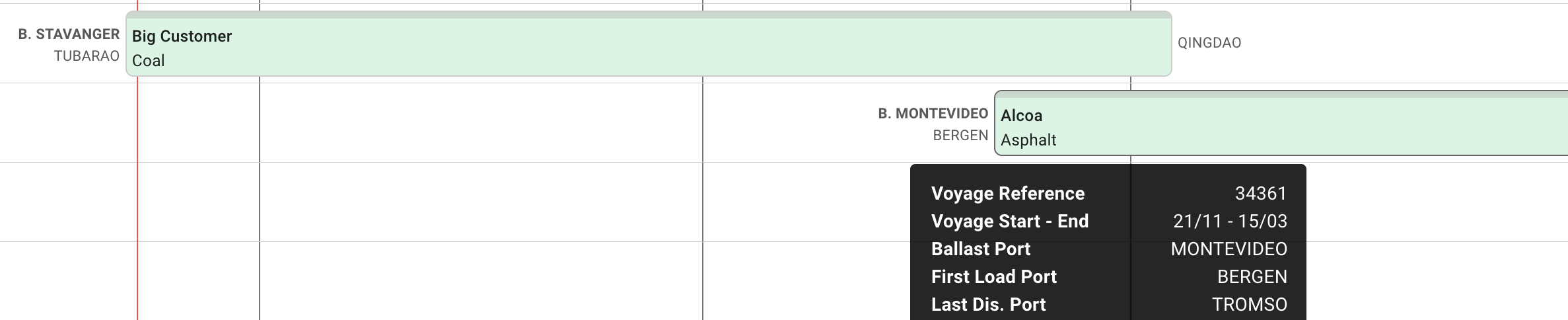
Commitment bars can found in the Commitments area and contain information about an *unallocated* voyage including Charterer, Laycan dates and Commodity**.** The ballast port and first loading port of a voyage can be found to the left of the bar, and the last discharging port to the right. The *laycan* period can also be viewed on top of each bar.
### Tooltip
When hovering over a *commitment bar,* a tooltip will pop up with additional information about the voyage:

## Schedule Bars
Scheduler bars can be found in the *Schedule* section and contain information about either allocated or nominated voyages, containing Reference No, Voyage Status, first Load Port and last **discharge port**. If the L*aycan* dates have been set, a Laycan *indicator* can also be viewed on a schedule bar. A timeline of the ballast and port calls can be viewed on top of each bar.

### Tooltip
When hovering over a *scheduler bar,* a tooltip will pop up with additional information about the voyage:

{% hint style="info" %}
More additional information on the voyage and its cargos are displayed in the voyage drawer. This can accessed by clicking on a commitment- or schedule bar.
{% endhint %}
## Actions
#### The Action Bar
You can choose between the *quick filters* specified for 'Commitments' or the 'Schedule'. They will be filtered separately in each of their respective sections of the board:
Quick Filters in the Action Bar
The *period selector* allows you to choose the time period of your liking, to easily display the voyages of that timeframe:
Date Period Selector in the Action Bar
The quick filters decides the [*filtering*](https://docs.dataloy.com/release-8.16/fleet-allocation-and-scheduling/getting-started/planning/fleet-plans/voyage-actions) of the voyages, while the period selectors allows [*selecting the period*](https://docs.dataloy.com/release-8.16/fleet-allocation-and-scheduling/getting-started/planning/fleet-plans/voyage-actions) that the board will display.
#### Drag & Drop
It is possible to drag and drop the bars to unallocate or allocate a voyage. A *scheduled* voyage can be *unallocated* by dropping it into the *commitments* area. A *commitment* voyages can be *allocated* by dropping it onto an empty vessel row, or behind another allocated voyage.
{% hint style="info" %}
You can read more about the actions here: [voyage-actions](https://docs.dataloy.com/release-8.16/fleet-allocation-and-scheduling/getting-started/planning/fleet-plans/voyage-actions "mention").
{% endhint %}
### Highlights For The Voyage Bars
#### Hover State
New Border to the left and Hover State Border to the right, for Commitment Bars
Each of the *voyage bars* now have a new light grey border, and when you **hover**, it will be marked with a darker one to clearly indicate which one you are hovering over. The picture above illustrates the Commitment Bars, but the same applies to the Schedule Bars as well.
#### Active State
When **selecting** one of these bars, a blue and thicker border will display along with opening the *Voyage drawer*:
Active State Border for the Commitment Bars
The blue border will stay active on the board until you do another action. The picture above illustrates the Commitment Bars, but the same applies to the Schedule Bars as well.
This border also displays and stays active when creating a *new* voyage and with the use of *drag & drop* of the bars.
{% hint style="info" %}
Other general actions, you can see: [](https://docs.dataloy.com/release-8.16/fleet-allocation-and-scheduling/getting-started/planning/fleet-plans "mention").
{% endhint %}