# Create Cargo by Importing from Excel

## Import Button

From this version, you can now can create cargo(es) by uploading/import straight from an Excel worksheet. In the [*Unallocated*](https://docs.dataloy.com/release-8.15/voyage-management-system/step-by-step-guides/find-cargoes#unallocated) cargoes list, you can click on this *import* button:

<figure><img src="https://content.gitbook.com/content/2T7Gc4ttHTe4ZqzL2FOj/blobs/ALKijDw7jtJifD6FHgCc/Skjermbilde%202024-08-06%20kl.%2015.14.58.png" alt=""><figcaption><p>Unallocated cargoes list with the Import button</p></figcaption></figure>

## Import Cargoes from Excel

Then, you can follow these steps:

1. Click on the Import button displayed above
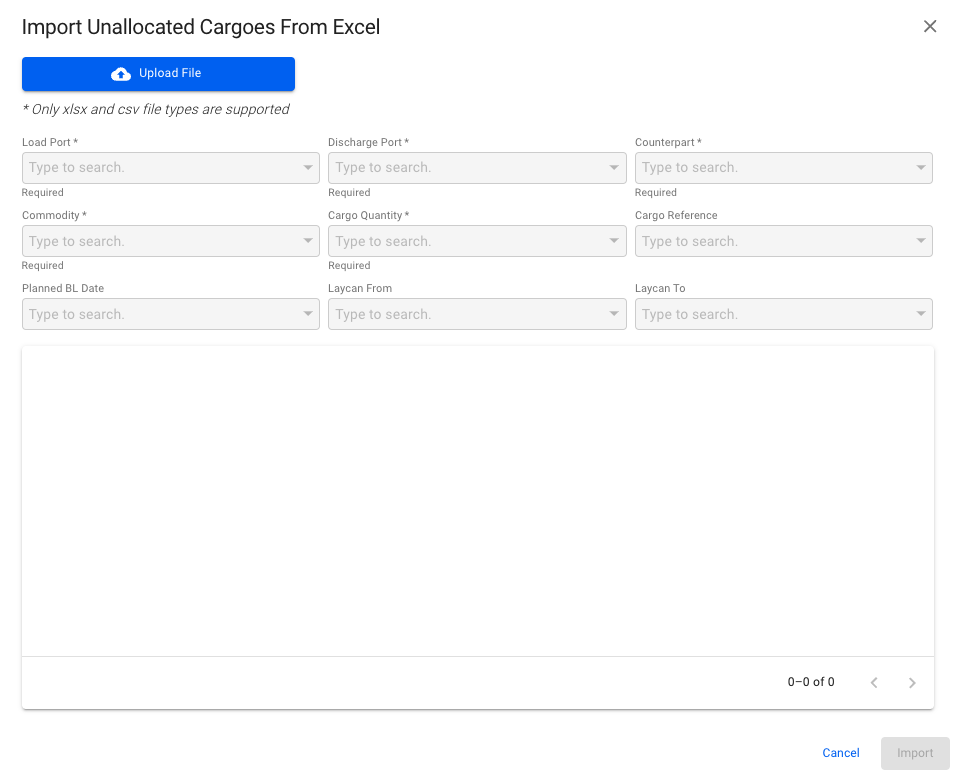
2. A modal (or "dialog box") will pop-up:

<div data-full-width="false"><figure><img src="https://content.gitbook.com/content/2T7Gc4ttHTe4ZqzL2FOj/blobs/LreSibaB2ANQn7VGOgGt/Skjermbilde%202024-08-06%20kl.%2015.16.07.png" alt=""><figcaption><p>Modal for importing unallocated cargoes form an Excel sheet</p></figcaption></figure></div>

All the fields are *disabled* until you upload/import a supported file (only *.xlsx* and *.csv* files). You can only import *one* *file* at a time, **but** one file can consist of *many cargo rows*!

3. You can proceed by clicking the blue *Upload File* button.
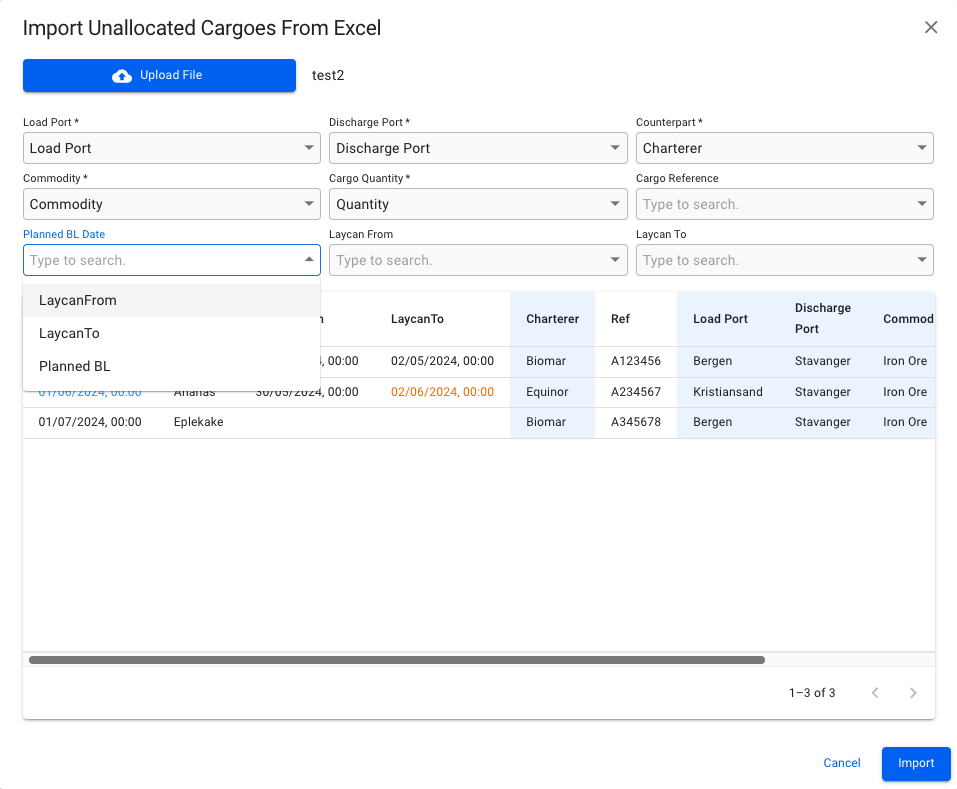
4. After choosing a supported file from you computer, you can view the filename to the right of the Upload File button, along with a "preview screen" below all the now-enabled fields:&#x20;

<figure><img src="https://content.gitbook.com/content/2T7Gc4ttHTe4ZqzL2FOj/blobs/qZFRyqzix1htGOaSoyRs/Skjermbilde%202024-08-06%20kl.%2015.17.44.png" alt=""><figcaption><p>Modal after choosing a supported Excel file</p></figcaption></figure>

All the required fields (\*) **must** be filled in this step. As you go along with choosing the different fields from the dropdown menus, the "preview screen" will mark with a light-blue highlight on the fields have been selected. Meaning, you could upload your own customized Excel sheet with various header- and cell values, but you can then in the modal pick-and-choose which fields you actually want on the cargo, when creating it.&#x20;

{% hint style="info" %}
**Tip:** it might be a good idea to change/create Header values in your Excel sheet by matching them to what we display in the above modal. E.g. Counterpart, Commodity, Cargo Quantity, Load Port, etc.&#x20;
{% endhint %}

Remember that **only the** **first row** of your Excel sheet are the Header values! The rest are the cell values within their respective columns.&#x20;

5. After choosing the different values into the fields, and you are full-filling all the [requirements](#requirements-for-importing) below, then you can go ahead and create the cargo by clicking **Import**
6. You should now be able to see your newly created cargo at the top of the Unallocated cargoes list

## Validations before Creating

We have **two** different types of validations in this modal. Either one, or both, of them will show up at the bottom of the modal, if encountering any inconsistencies while uploading:

**(1)** One is yellow-colored, and shows **inconsistent data types** in the cells of your Excel sheet:

<figure><img src="https://content.gitbook.com/content/2T7Gc4ttHTe4ZqzL2FOj/blobs/ztdCAT3aus1uvKTMlack/Screenshot%202024-03-25%20at%2014.17.05.png" alt=""><figcaption><p>Inconsistent data types validation message</p></figcaption></figure>

This particular validation highlights the "Planned BL Date" column, and detects that two or more cells has inconsistent values within this column. E.g. one cell is read as a number value, while two cells are read as date values. In this case, the number-cell should be changed to a date value, so that the modal can read it properly as a date value. Make the change in your Excel sheet, and then re-upload the file.

This validation can highlight multiple columns with inconsistencies in data types, and not just *one* at a time.&#x20;

**(2)** The other one is red-colored, and shows **Reference or Master Data inconsistencies**, i.e. data errors in your Excel sheet:

<figure><img src="https://content.gitbook.com/content/2T7Gc4ttHTe4ZqzL2FOj/blobs/YPTRj6vmqzh5sJAkXVc4/Skjermbilde%202024-04-30%20kl.%2013.14.25.png" alt=""><figcaption><p>Inconsistent reference or Master Data validation error message</p></figcaption></figure>

This particular validation highlights the "Commodity" column, and detects that "Row 2" within this column has a commodity named "Bananas" that does not exist in the system. In this case, you have two options:

&#x20;        a) replace "Bananas" with an existing Commodity in your Master Data, in your Excel sheet, and then re-upload the file

&#x20;        b) create a new Commodity "Bananas" in your [Master Data](https://docs.dataloy.com/release-8.15/voyage-management-system/step-by-step-guides/master-data) first, and then re-upload the file.&#x20;

This validation can highlight multiple columns and rows with inconsistencies in Master Data or references, and not just *one* column and/or row at a time.&#x20;

## Requirements for Importing

Before actually *creating* a cargo by importing from an Excel worksheet, these *requirements* **must** be full-filled:

* A supported Excel file **must** be uploaded/imported (only *.xlsx* and *.csv* files)
* All required fields (\*) **must** be filled in with supported values
* **No** data types inconsistencies
* **No** Master Data inconsistencies
* **No** duplicate cargo references, or references to existing cargos

Once all of these requirements are full-filled, the **Import** button will be enabled, i.e. blue-colored, and you can then go ahead and create the cargo!